Play Palworld with friends on Olares
Palworld on Olares runs a dedicated Palworld server. You manage it through the console terminal, while players connect using the official Palworld client. Invite friends to play over your local network through the overlay gateway, or let them connect remotely via LarePass VPN.
Learning objectives
In this guide, you will learn how to:
- Install the Palworld app from Market.
- Enable overlay gateway for local network play.
- Connect to the server over the local network or VPN.
Prerequisites
- Olares OS: Olares version 1.12.6 or later.
- Hardware and network: A native Linux host with a wired Ethernet connection for the Olares device. Overlay gateway does not work on Wi-Fi or WSL.
- Permissions: A super admin must toggle on the system-level overlay gateway service. After the service is on, an admin or member can enable overlay gateway for Palworld.
- Client requirements: A legitimate Palworld client that supports manual server entry on each player's computer. For example, Steam on Windows, Mac, or Linux (via Steam Proton) works.
Unsupported clients
Xbox, PS5, and PC Game Pass editions can only join servers from the in-game community server list and cannot enter an address manually. This server is not in that list, so those editions cannot connect.
Install Palworld
Open Market and search for "Palworld".
Click Get, then Install, and wait for installation to complete.
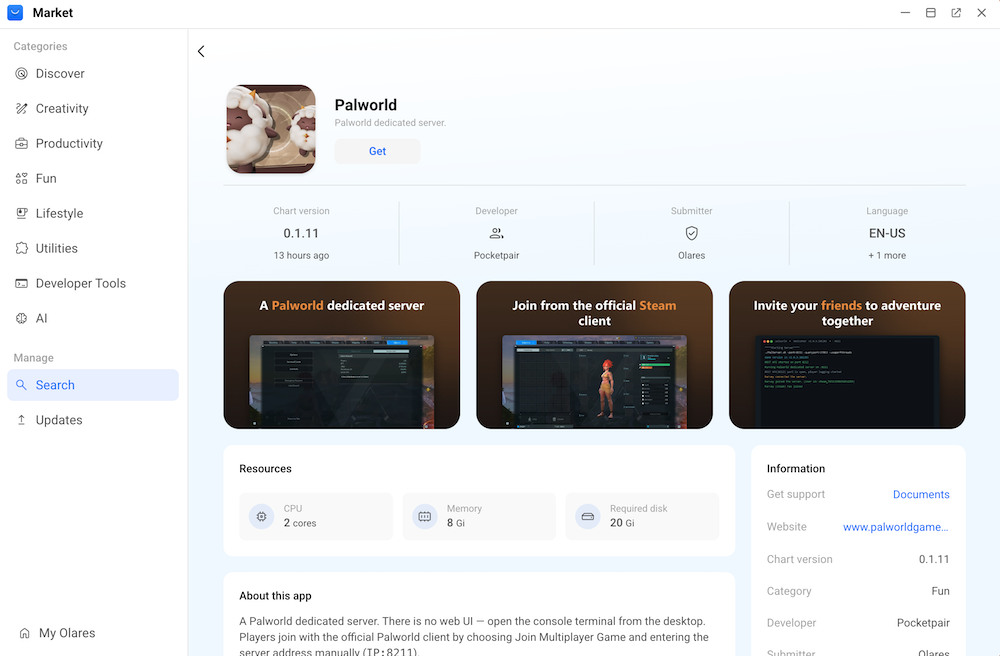
Open the app and wait for the server status to become running. The first start downloads several gigabytes of server resources, which might take a while.
Enable overlay gateway for Palworld
Overlay gateway gives Palworld a dedicated local IP address so players on the same network can connect directly.
- Open Olares Settings and go to Network > Overlay gateway.
- Ensure Enable overlay gateway is toggled on. This is the system-level service switch. If it is off, a super admin must turn it on.
- In the Applications list, find Palworld, confirm its status is Running, then enable overlay gateway for the app.
- To the right of Palworld, copy the address shown. For example,
192.168.50.153:8211.
Local IP address is dynamic
The local IP address is assigned by the overlay gateway and may change when the app restarts or the network changes. Always use the address currently shown on this page.
Connect from the same local network
Players on the same local network as the Olares device can connect through the overlay address.
Copy the overlay address from Settings > Network > Overlay gateway > Palworld. For example
192.168.50.153:8211.Launch Palworld and select Join Multiplayer Game from the main menu.
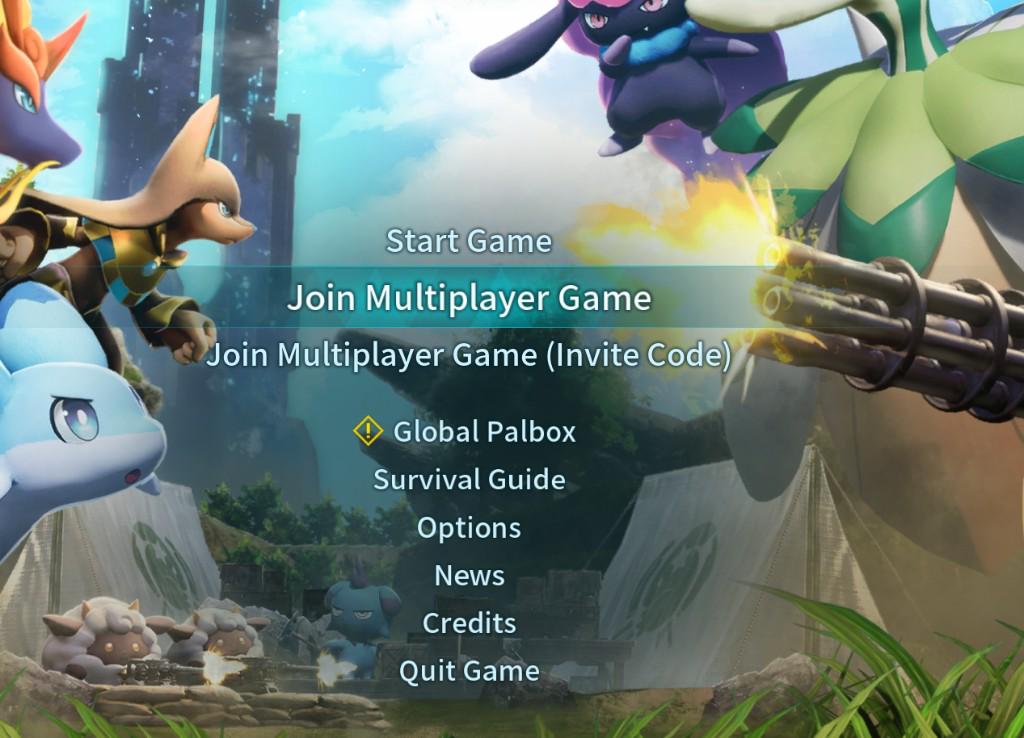
Enter the overlay address copied earlier, and click Connect.
Connect over VPN
This method works when the player is not on the same local network as the Olares device.
Disable overlay gateway for VPN
Palworld cannot use overlay gateway and VPN at the same time. Before connecting over VPN, the admin must disable overlay gateway for Palworld in Settings > Network > Overlay gateway. Keep the Palworld app running.
Ensure LarePass VPN is enabled.
Launch Palworld and select Join Multiplayer Game.
Enter the server address in the following format. Replace
<local-name>with the local name in your Olares ID (the text before@).For example, if your Olares ID is
olarestest001@olares.com, the server address isolarestest001.olares.com:8211.text<local-name>.olares.com:8211Click Connect.
UDP port
Palworld uses UDP port 8211. Windows TCP tools such as Test-NetConnection cannot test whether this UDP port is reachable.
Manage the server
The Palworld app does not have a web management interface. To view logs or run server commands, open it from Launchpad and use the built-in console terminal. You can also manage some in-game actions through chat commands or the container's REST API.
FAQs
Why does my local IP address differ from the screenshots?
The Overlay gateway assigns the local IP address dynamically. Always use the address shown in Settings > Network > Overlay gateway > Palworld at the time you connect.
Why can I connect over the local network but not over VPN?
Check the following:
- Ensure the overlay gateway for Palworld has been disabled by the admin.
- The server address format is
<local-name>.olares.com:8211, where<local-name>is the part of your Olares ID before@. - Your LarePass VPN connection is enabled.
What happens when I upgrade the app?
Upgrading the app restarts the server. Any players currently online will be disconnected. The restart might also trigger a SteamCMD update, which can take longer than a normal start.
How do I run server commands?
Open the Palworld app from Launchpad and use the built-in console terminal. Some commands can also be typed in the in-game chat, or sent through the container's REST API.
Learn more
- Manage overlay gateway for applications: Configure LAN access for supported apps.