Translate scientific PDFs while preserving layout
PDFMathTranslate is an application designed to translate scientific PDF documents while retaining the original layout and mathematical formulas.
This tutorial uses a local OpenAI-compatible model to translate PDFs on Olares.
Learning objectives
By the end of this tutorial, you are able to:
- Configure the local AI model for PDF translation.
- Translate a scientific PDF and manage the output files.
Prerequisites
Before you begin, you need:
An Olares device running Olares 1.12.7 or later, with sufficient disk space and memory.
Access to Router for local model connections.
The following model:
Used for Model How to get it Translation Qwen3.8-27B (llama.cpp) Install from Market
Optional: Use a different model
Install another chat model from Market, or create a model instance with Engine Base apps. Then select it as the default chat model on Router's Default models page. Clients configured with default-chat use the new default without changing their model settings.
To keep a client on one specific model, use the full model name from Router's How to call this model window instead.
Install PDFMathTranslate
Open the Olares Market and search for "PDFMathTranslate".
Click Get, and then click Install.
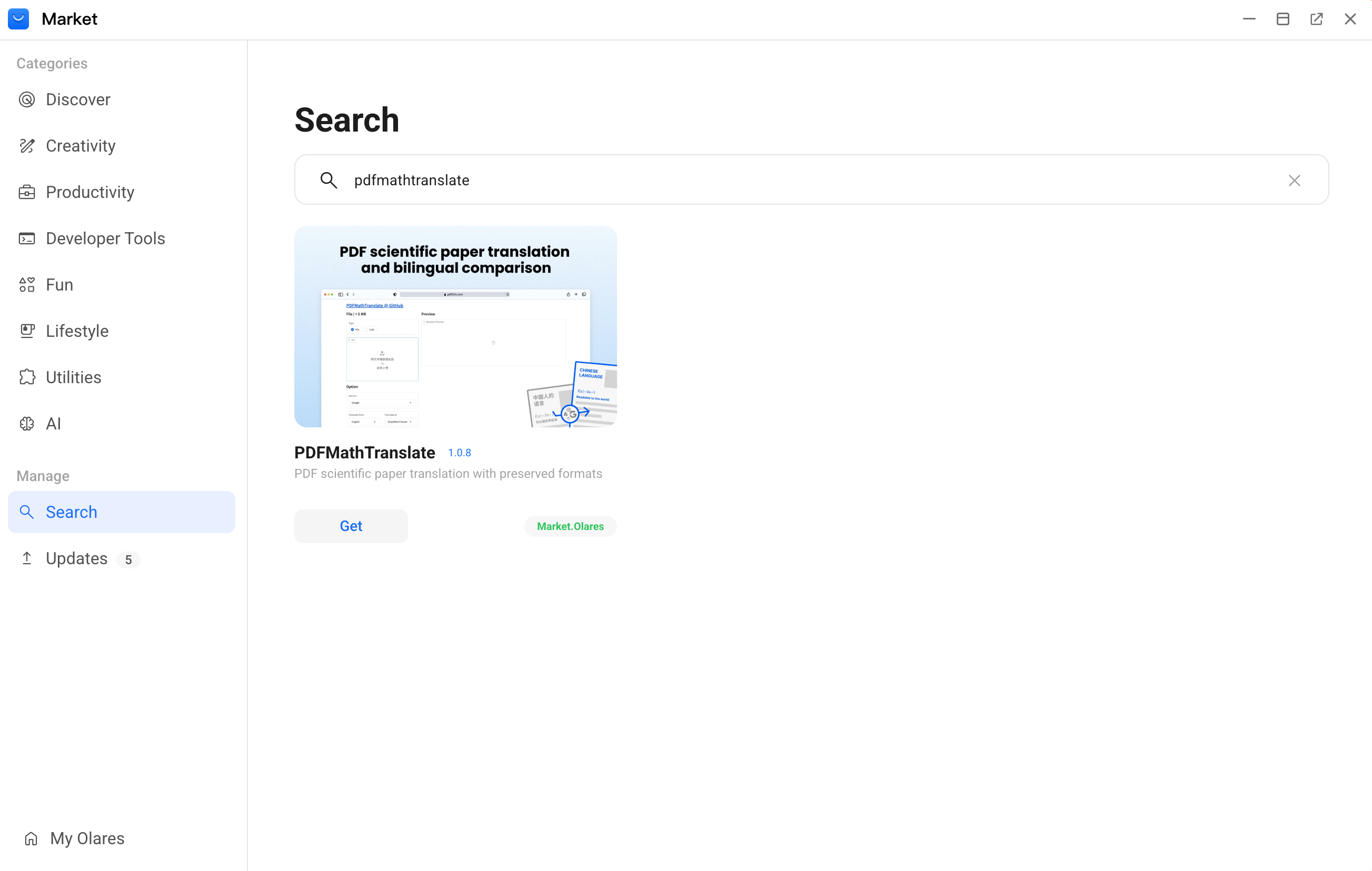
When the installation finishes, click Open. The PDFMathTranslate workspace is displayed.
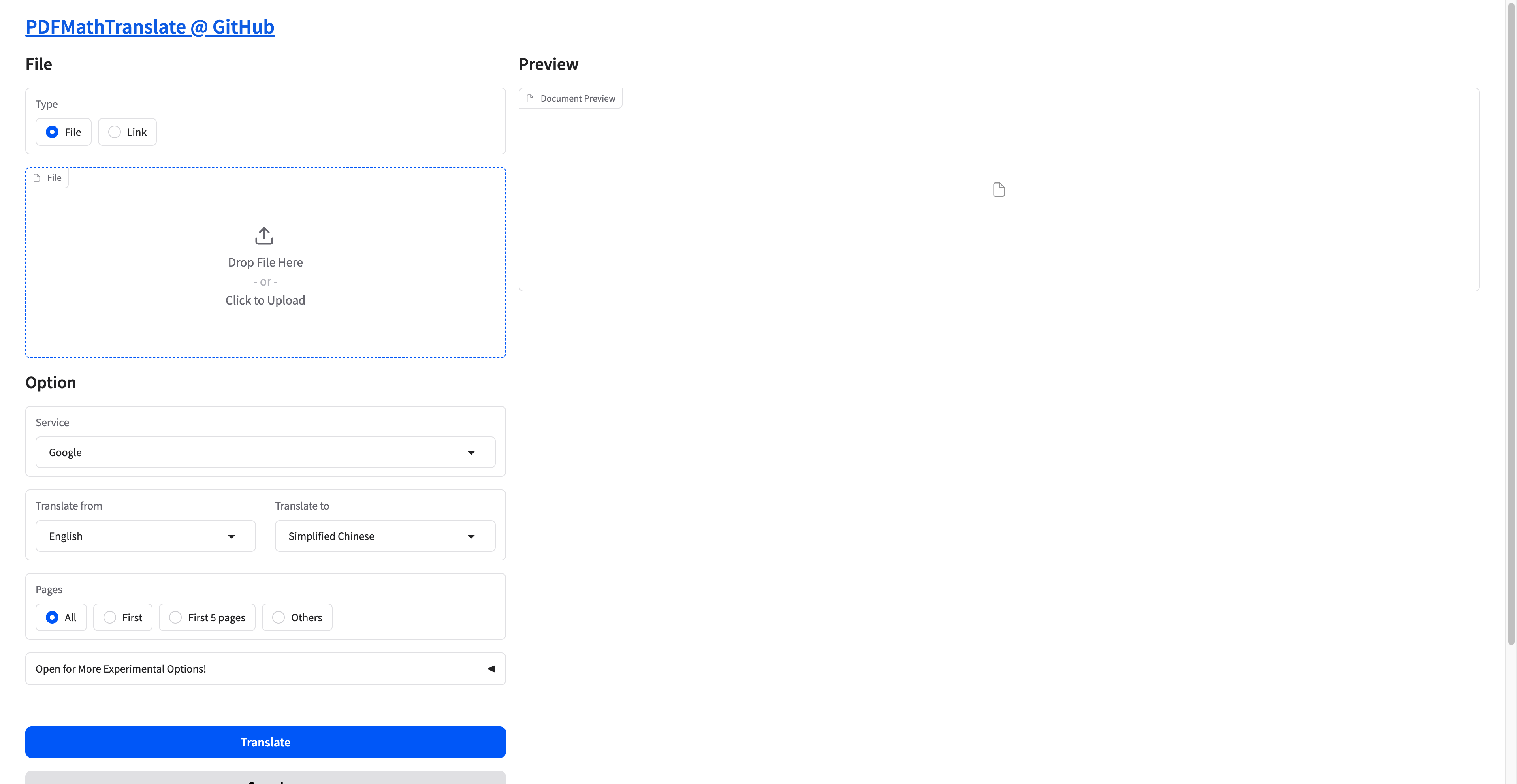
Translate
Upload your PDF document
PDF format requirements
Ensure that the PDF file is a standard PDF document that is not password-protected or corrupted. The application cannot process invalid PDF files.
In the File area, select your input Type:
If you select File, drag and drop your PDF document into the upload area, or click the area to browse your local storage.
When the document is uploaded, a preview of it appears in the Preview pane on the right.
If you select Link, enter the link address of the PDF document.
The Preview pane remains blank during this step. The document content only appears in this area after the translation is completed.
Get model connection details
PDFMathTranslate connects to Qwen3.8-27B through its OpenAI-compatible API.
How model connections work
On Olares 1.12.7 and later, AI clients connect through Olares Router. Router provides the Base URL and routes default-chat to the model selected on its Default models page.
This guide uses Qwen3.8-27B (llama.cpp) as the default chat model. For connection formats and API key requirements, see Connect AI apps.
For Qwen3.8-27B (llama.cpp):
Open Router from Launchpad. On Default models, set Qwen3.8-27B (llama.cpp) as the default chat model.
Go to LLM, find Qwen3.8-27B (llama.cpp), and click View connection example on its row.
In How to call this model, select Apps in Olares and copy the Base URL, including
/v1.For the model name, use
default-chat.Selecting a model in your app
default-chatis a routing name and does not appear in model lists loaded from Router. If the app you are connecting to Router loads a model list, adddefault-chatmanually. If the app only supports selecting a listed model, select the full model name shown in Router's How to call this model window.For the API key, leave the field empty. If the app you are connecting to Router requires a value, enter
olares.
Configure the translation service
- In PDFMathTranslate, select OpenAI from the Service list.
- In the OPENAI_BASE_URL field, enter the Base URL copied from Router.
- In the OPENAI_API_KEY field, enter
olares. - In the OPENAI_MODEL field, enter
default-chat.
Select languages and scope
Select the source and target languages:
a. Translate from indicates the original document's language.
b. Translate to indicates the language you want to read.
INFO
PDFMathTranslate does not auto-detect the languages. You must select them manually. Supported languages include English, Simplified Chinese, Traditional Chinese, French, German, Japanese, Korean, Russian, Spanish, and Italian.
Specify which pages to translate:
- All: Translates the entire document.
- First: Translates only the first page.
- First 5 pages: Translates the first five pages.
- Others: Translates a custom range of pages.
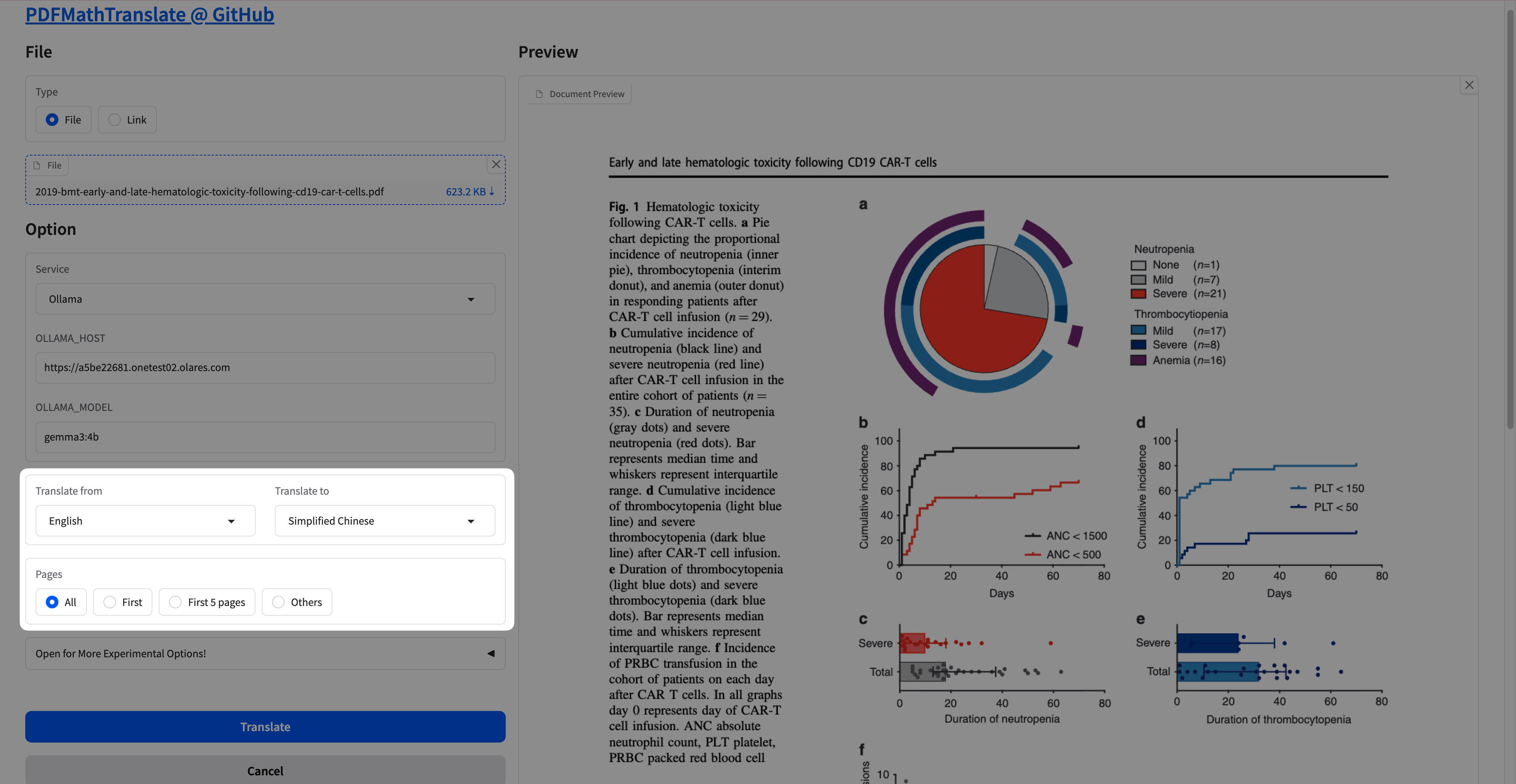
Click Translate. The translation starts immediately.
WARNING
Do not click the Cancel button during translation. This might cause the process to report an error.
Download your files
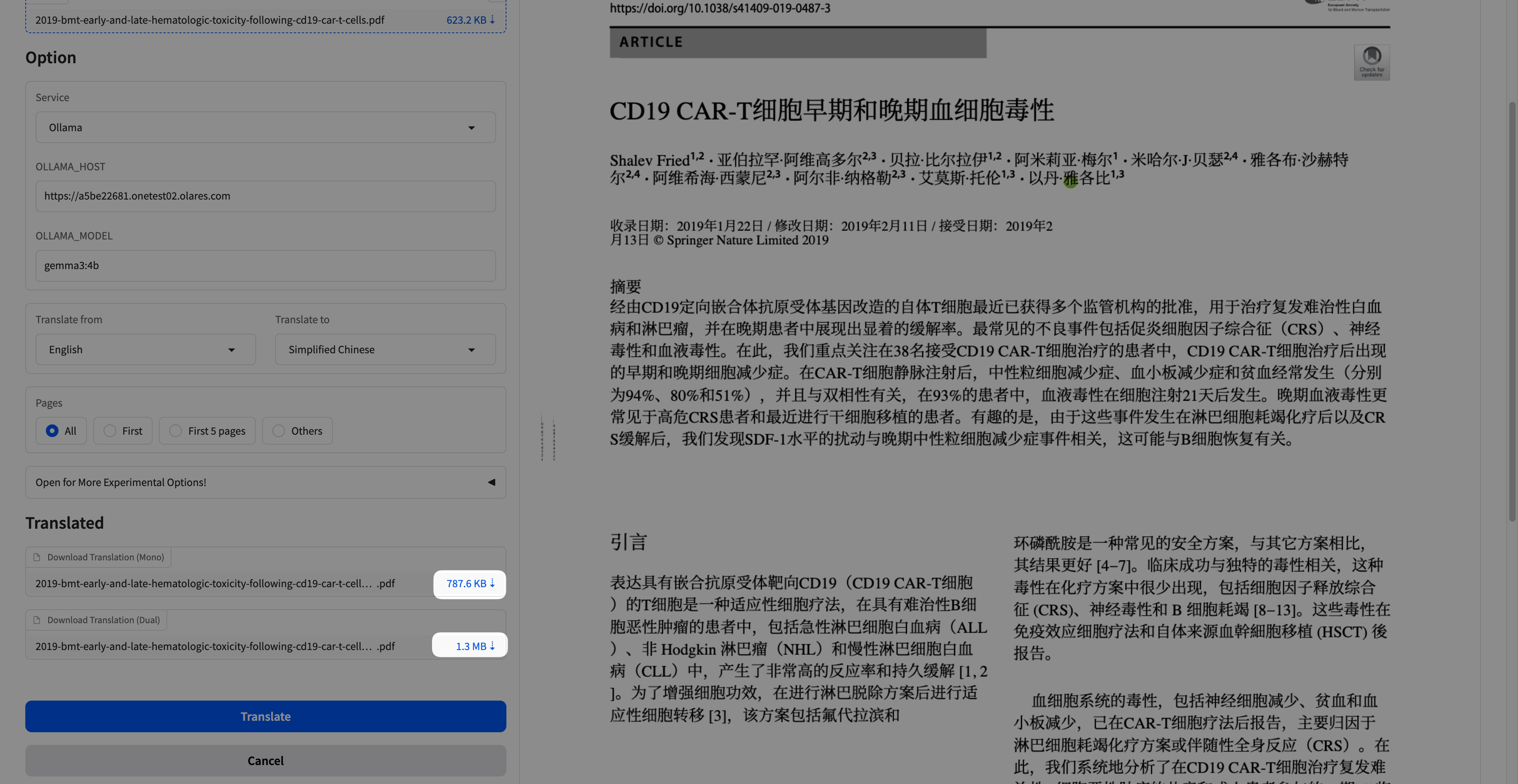
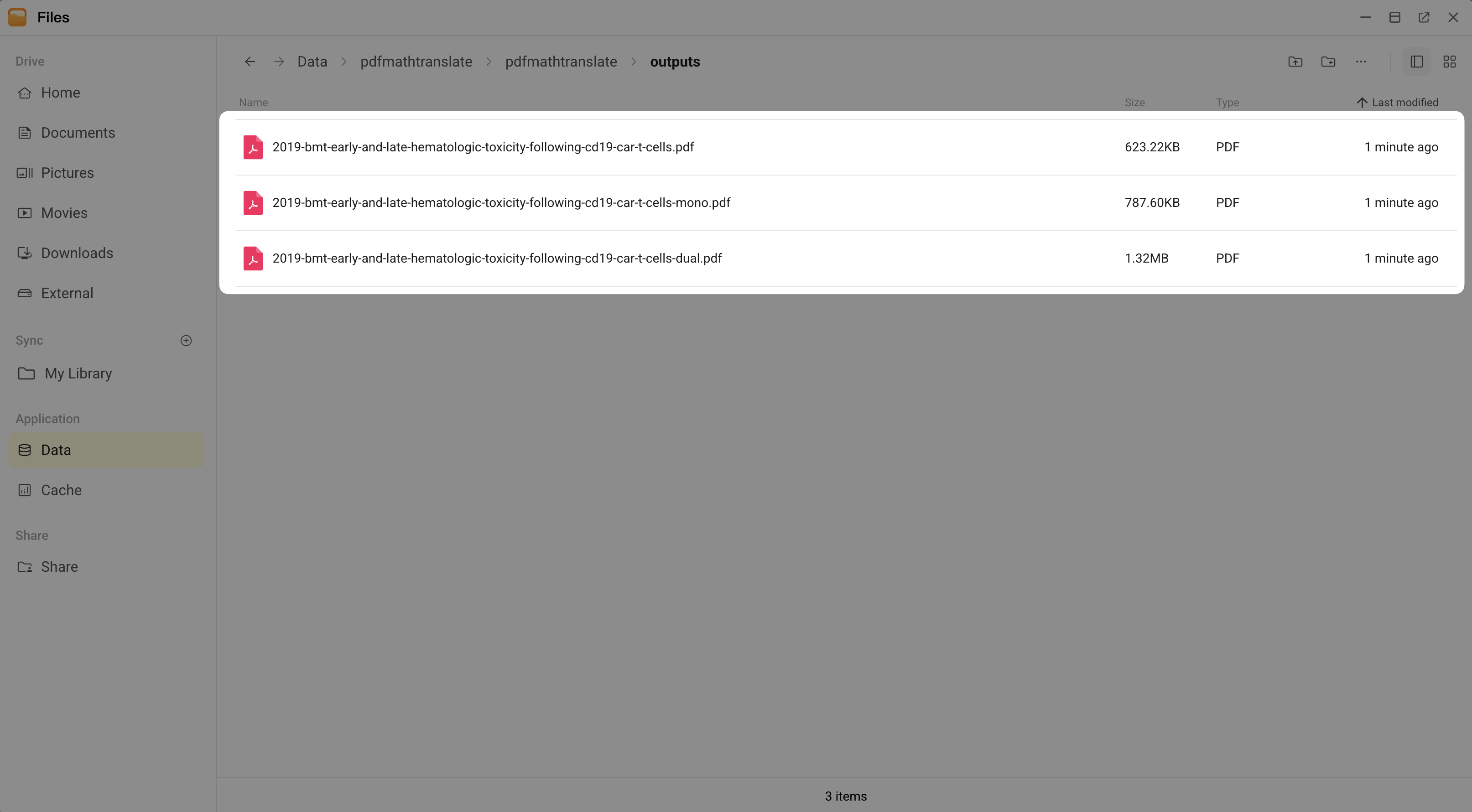
When the translation is completed, the translated file is displayed in the Preview pane, and the application generates three files:
- Original source file
- Translated file
- Bilingual version
You can find these files in the Files app. To download them to your local computer, download them directly from the PDFMathTranslate workspace, or use the Files app.
In PDFMathTranslate workspace
On the left side of the pdfmathtranslate workspace, in the Translated section, click the download button next to the file.
From Olares Files app
Open the Files app, and then go to Data > pdfmathtranslate > pdfmathtranslate.
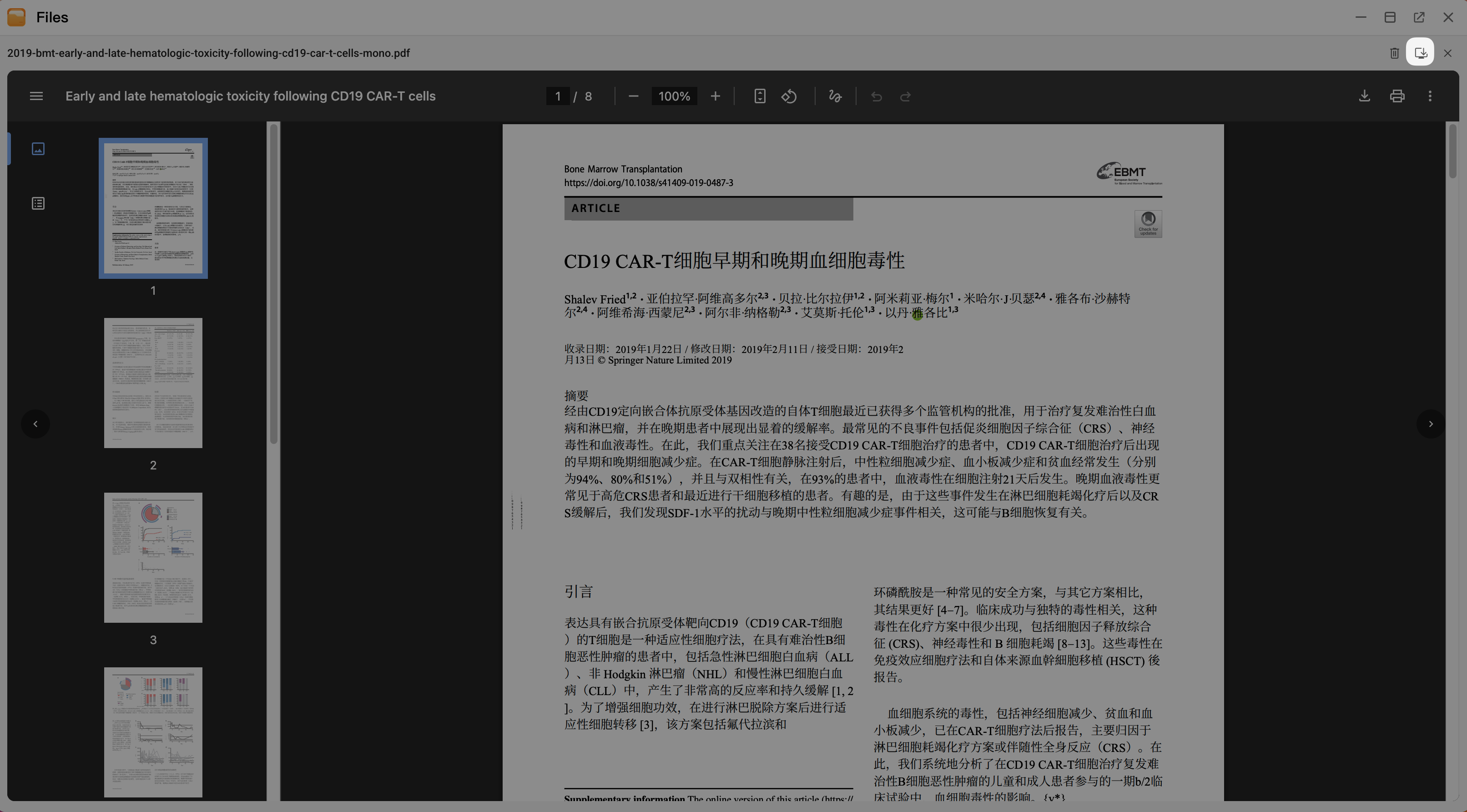
Double-click a file, and then click the download icon in the upper-right corner.
FAQ
Why did the translation progress bar disappear?
If you refresh the page while a translation is running, the progress bar might disappear from the screen. This is a display issue only, and the translation is still processing in the background.
Wait for it to finish or check the output folder.
Will the app keep multiple versions of the same file?
If you translate the same file name multiple times, the system replaces the previous version with the new one. It does not create numbered copies such as file_1.pdf. To keep multiple versions, rename your source file before translating it again.
What should I do if the app becomes unresponsive or takes unusually long?
If the translation takes significantly longer than usual or the application stops responding, the background process might have stalled. To resolve this issue, uninstall and then re-install pdfmathtranslate.
How do I perform a clean uninstallation of PDFMathTranslate?
To completely remove the application and its data:
- Uninstall the app from Market or Desktop. For more information, see Uninstall applications.
- Open the Files app, go to Application > Data, and then delete the
pdfmathtranslatefolder.