Update notes for download clients
This page describes how to update the default download paths in your download clients after upgrading Olares to V1.12.6. The new unified directory mount structure means the same paths are visible to both *Arr apps and download clients, so you might need to update your existing download locations.
If you also use *Arr apps such as Sonarr or Radarr, see Update notes for *Arr apps for the app connection and root folder changes.
qBittorrent
Open qBittorrent.
On the toolbar, select Tools > Options.
In the Options window, go to the Downloads tab.
Update Default Save Path from
/downloads/home/Downloads/qBittorrentto/olares/userdata/home/Downloads/qBittorrent.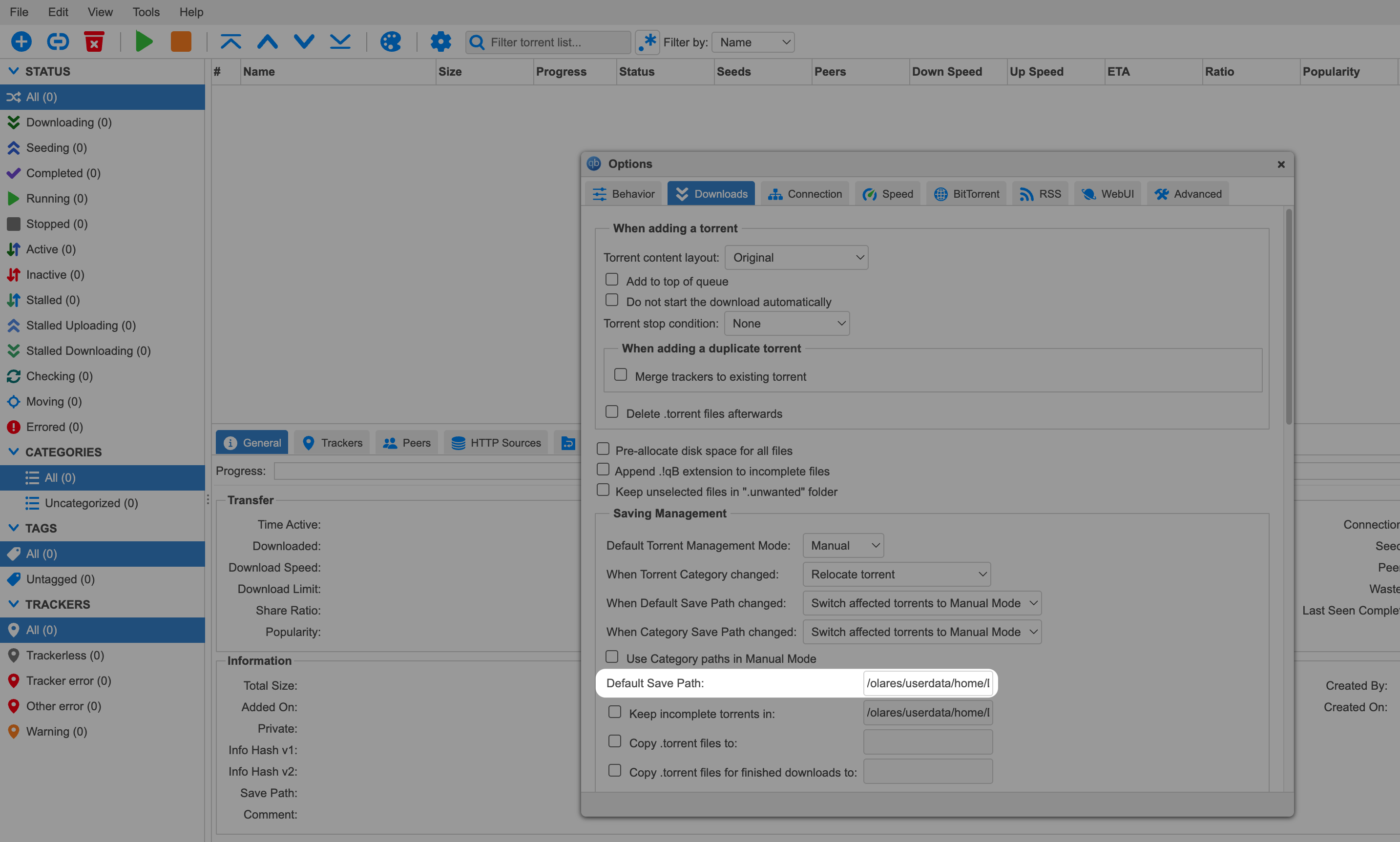
Scroll down and click Save.
qBittorrent asks me to log in after the update
If qBittorrent previously allowed you to access the WebUI without logging in, but now prompts for credentials, the migration script might not have preserved the authentication settings.
Open Control Hub and view the qBittorrent container logs to find the temporary username (usually
admin) and password.Log in to qBittorrent and verify it works.
Set a new username and password as needed.
To restore passwordless access:
a. Open Olares Files, and then edit
/Data/qbittorrent/qBittorrent.conf.b. In the
[Preferences]section, add or update the following values:iniWebUI\Address=* WebUI\ServerDomains=* WebUI\Port=8080 WebUI\CSRFProtection=false WebUI\HostHeaderValidation=false WebUI\LocalHostAuth=false WebUI\AuthSubnetWhitelistEnabled=true WebUI\AuthSubnetWhitelist=0.0.0.0/0, ::/0c. Save the file and restart qBittorrent.
If the issue persists, back up the existing configuration, delete qBittorrent.conf, and restart qBittorrent. The initialization process will recreate a default configuration with passwordless access enabled. You can then re-apply your previous settings line by line to identify any conflicting option.
NZBGet
- Open NZBGet and go to Settings > PATHS.
- Update the following paths:
- DestDir: Change
/downloads/completedto/olares/userdata/home/Downloads/nzbget/completed - InterDir: Change
/downloads/intermediateto/olares/userdata/home/Downloads/nzbget/intermediate
- DestDir: Change
- Save the settings and restart NZBGet.
Transmission
- Open Transmission, click menu in the top right, and then select Edit preferences.
- Update the following paths:
- Download to: Change
/downloads/completeto/olares/userdata/home/Downloads/transmission/complete - Use temporary folder: Change
/downloads/incompleteto/olares/userdata/home/Downloads/transmission/incomplete
- Download to: Change
Deluge
- Open Deluge and go to Preferences > Downloads.
- Update the download path from
/downloadsto/olares/userdata/home/Downloads/deluge. - Click Apply and then click OK.