Turn documents into searchable knowledge with TrustGraph
TrustGraph is an open-source platform for building and querying knowledge graphs from documents. You can ask questions about your files, inspect the retrieval steps behind an answer, and explore relationships between people, places, and topics.
On Olares, TrustGraph connects to local models through Router. This guide uses three fictional project documents to look up a migration update and explore the events, people, and relationships extracted from the text.
Prerequisites
Before you begin, you need:
An amd64 or arm64 device running Olares 1.12.7 or later, with 10 GiB of memory and 20 GiB of disk space available for TrustGraph. Allow additional resources for the models.
Access to Router for local model connections.
Admin privileges to install apps from Market.
MinIO installed from Market.
The following models installed from Market:
Model type Model How to get it Chat Qwen3.8-27B (llama.cpp) Install from Market Embedding EmbeddingGemma Install from Market Reranking BGE-Reranker-v2-m3 Install from Market
Optional: Use a different model
Install another chat model from Market, or create a model instance with Engine Base apps. Then select it as the default chat model on Router's Default models page. Clients configured with default-chat use the new default without changing their model settings.
To keep a client on one specific model, use the full model name from Router's How to call this model window instead.
Check model availability
TrustGraph needs a chat model to extract knowledge and answer questions, an embedding model to find relevant content, and a reranking model to rank search results. All three models must be available through Router before installation.
- Open Router from Launchpad and go to Default models.
- Set Qwen3.8-27B (llama.cpp) as the default chat model, EmbeddingGemma as the default embedding model, and BGE-Reranker-v2-m3 as the default reranking model, or confirm they are already selected. Check that all of them show Callable.
Install TrustGraph
Open Market and search for "TrustGraph".
Click Get, then Install. When prompted, set
ADMIN_PASSWORDto a password of 12–128 characters without line breaks, and wait for installation to complete.
You can change the password later in TrustGraph.
Sign in
- Open TrustGraph from Launchpad.
- Sign in with username
adminand the password you chose during installation.
Use TrustGraph
Prepare the project documents
Imagine you are reviewing a product release. A shared sign-in service has been delayed, and you want to understand what changed and why. The background is spread across a release plan, a service directory, and a migration update.
You can follow along with the three sample files below or use your own project briefs, service documentation, and meeting notes. Choose related documents that mention shared projects, services, teams, or people so you can explore the connections between them.
To use the example, save these files to your computer. All projects, people, and dates are fictional.
| Document | What it contains |
|---|---|
| release-plan.txt | Three projects, their launch dates, project leads, and required services |
| service-directory.txt | Service dependencies, owning teams, and technical leads |
| migration-update.txt | The revised Identity API migration date and coordination between teams |
Upload and process the documents
A flow defines how TrustGraph extracts knowledge. A collection groups that knowledge so you can search across documents. The steps below use the sample files. If you use your own documents, give them descriptive titles and add related files to the same collection.
- On Welcome, open Document Ingestion. Click + Add Document, select File, and choose
release-plan.txt. - Set TITLE to
November release plan, then click Upload. - Select the uploaded document and click Submit for Processing →.
- Select the
defaultflow. Choose + Create New Collection, enterrelease-planningin ID andRelease planningin NAME, then click Next →. - Review the document, flow, and collection in the confirmation panel, then click Submit for Processing.
- Upload
service-directory.txtandmigration-update.txtin the same way, usingService directoryandIdentity API migration updateas their titles. Submit each document to thedefaultflow and select the existingrelease-planningcollection.
TrustGraph processes the documents in the background. Allow time for processing after each submission before searching or asking questions. You can use Graph Navigator as described below to find entities and relationships from the document content.
Processing PDF and DOCX files
TrustGraph supports TXT, PDF, and DOCX files. The first PDF or DOCX file can take several minutes to process while TrustGraph downloads its parsing models.
Find information in a document
Start with a question about the migration update.
Open Workflows and select Document RAG Query.
In the top-right corner, set COL to
release-planningand FLOW todefault.Select Timeline, enter the following question, and click Query:
textWhat is the new completion date for the Identity API migration, and why was it delayed?Read the answer for the revised completion date and the reason for the delay. In the timeline, Exploration shows the number and IDs of the retrieved text chunks. To compare the answer with the original text, open
migration-update.txton your computer.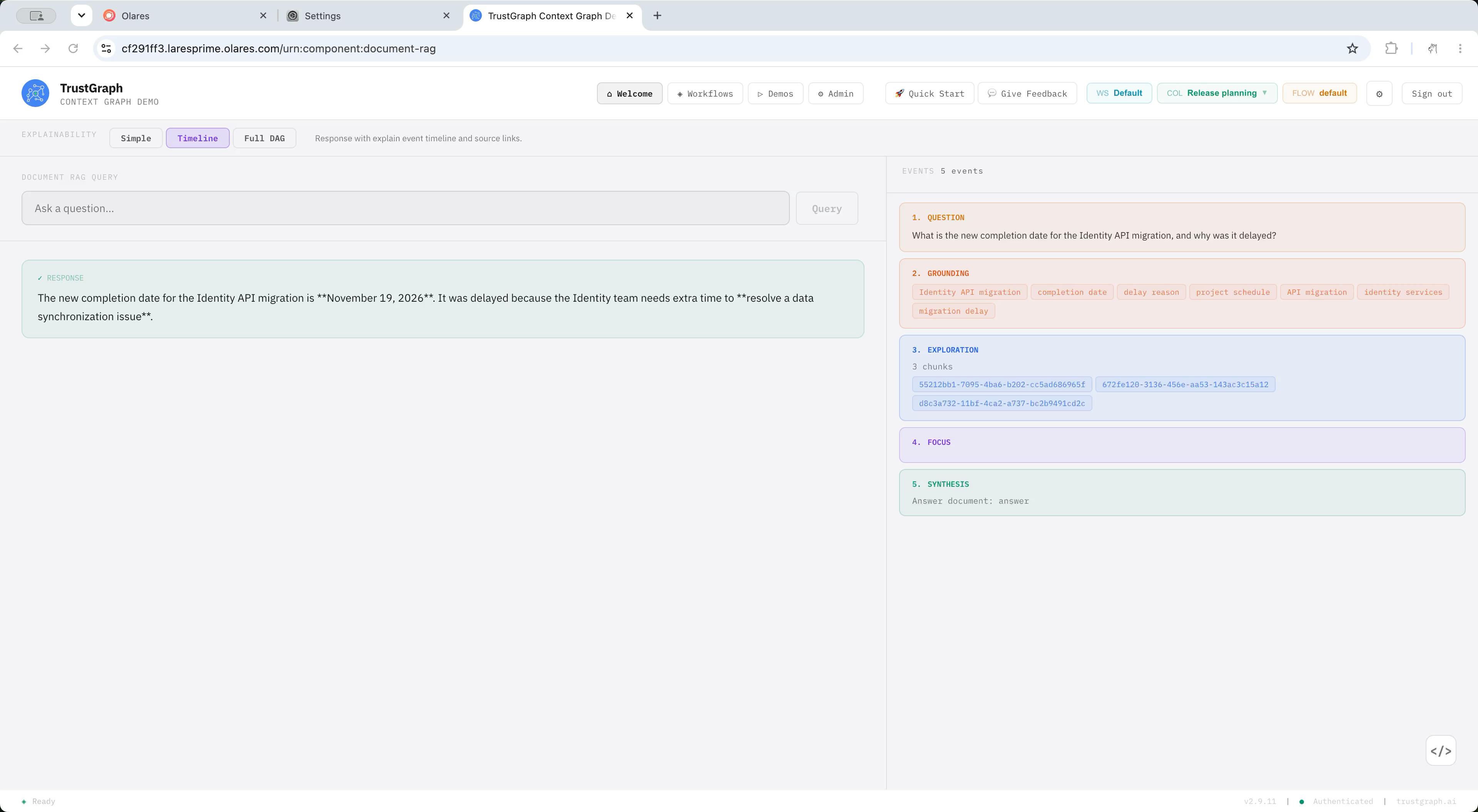
To try another view, select Simple for the answer alone or Full DAG for a graph of the retrieval and answer steps, then run the query again.
Explore entities and relationships
Use Graph Navigator to explore how the migration event connects to its cause and the person who announced the update.
Open Workflows and select Graph Navigator. Keep
release-planningselected in COL.Select Full Explorer, then click Search in the upper-left toolbar. In the search panel, search for
Identity API.Select the migration event, such as
Identity API database migration. The result titledIdentity API migration updaterepresents the source document.Click the connected nodes and read their relationship labels. For example,
is-delayed-byconnects the migration to a data synchronization issue, whileannounced-revised-finish-date-forconnects Maya Patel to the migration. Click a node to open its detail panel and explore its links.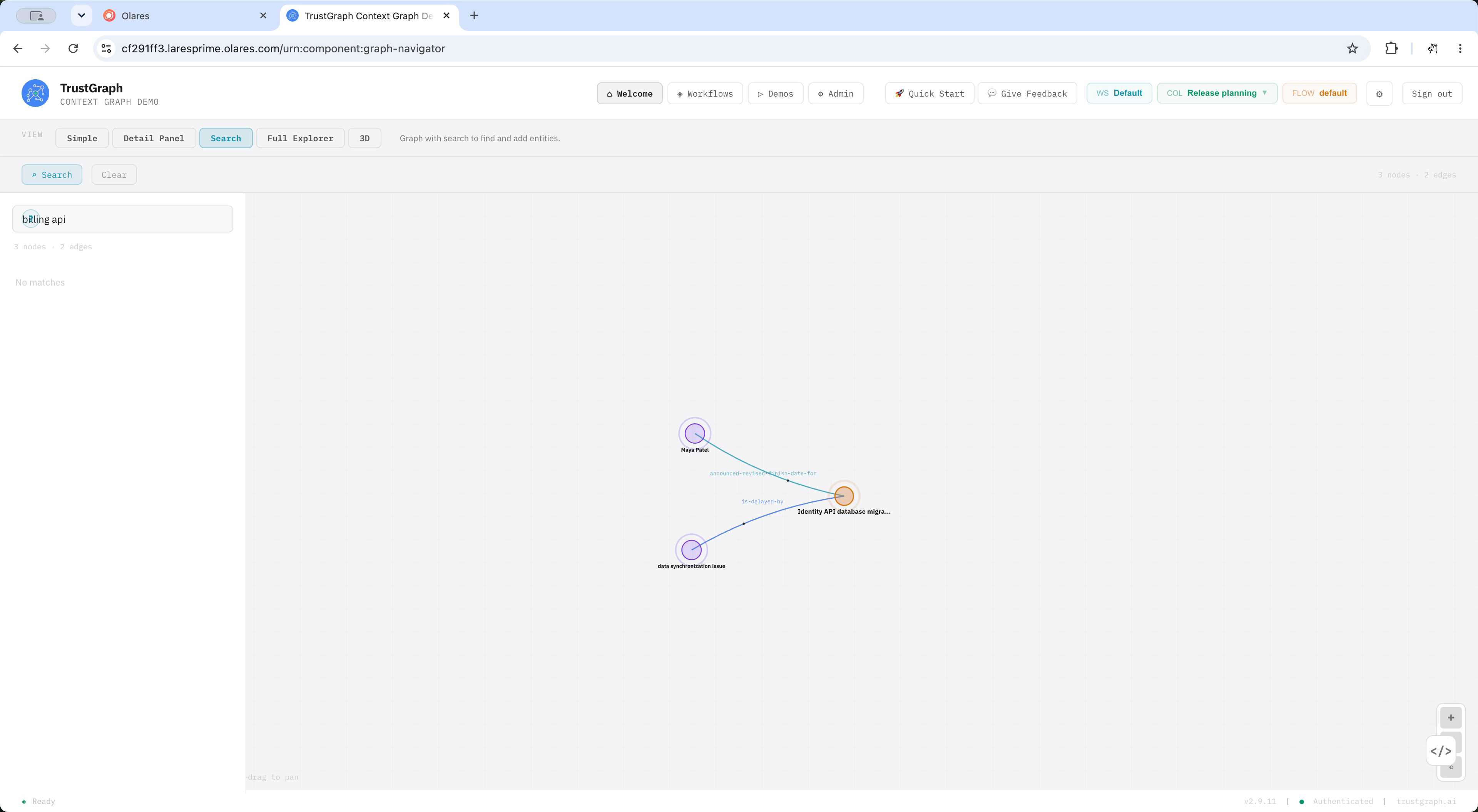
Entity names and relationship labels can vary with the model. Follow the relationships available in your graph and compare them with the migration update.
Ask about a relationship with Graph RAG
Document RAG retrieves text chunks. Graph RAG retrieves extracted entities and relationships. Compare the retrieval events in each mode to see how they find information for an answer.
Start with a question about a relationship you have found in Graph Navigator.
Return to Workflows and select Graph RAG Query.
Keep COL set to
release-planningand FLOW todefault. Select the Split + Graph view.Enter the following question and click Query:
textWhat caused the Identity API database migration to be delayed?Read the answer and explore the relationships used to explain the delay. Review the Exploration and Focus events, then compare the answer with
migration-update.txton your computer.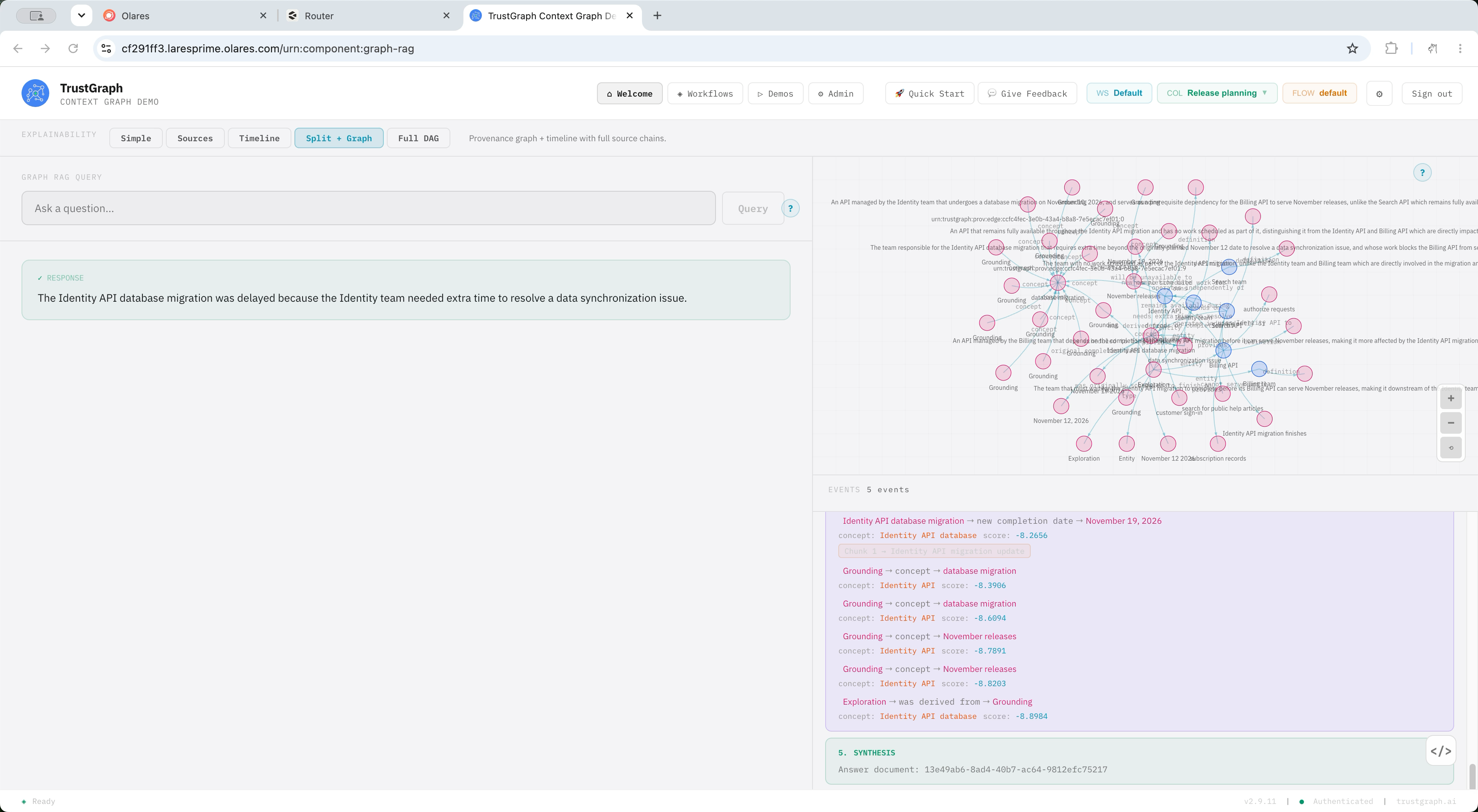
To view the same question in another layout, select that view and run the query again.
If you have just submitted the documents, allow time for processing and run the query again. If the answer still has no supporting relationships, see Why does Graph RAG say there is no relevant information?.
Change the model connection
To switch the chat or reranking model, open Router's Default models page and update default-chat or default-rerank. This also changes the model for other apps using that default. Keep the embedding model unchanged for an existing collection.
To connect to a different model API, open Settings > Applications > TrustGraph > Manage environment variables:
- Update
LLM_BASE_URLwith the new API URL. - Update
LLM_API_KEYif the API requires a key. - Click Confirm, then Apply.
FAQs
Why can't I get an answer after uploading a document?
In Document Ingestion, select the document and use Submit for Processing if you have only uploaded it. Allow time for background processing, then query the same collection and flow you used for processing. If the document still has no searchable content, check that the chat and embedding models are running and available in Router.
Why does the graph only show document titles?
Nodes with a document title and type links to Document or Entity describe the file. They do not show the projects, services, and dependencies extracted from its content.
In Document Ingestion, check that all three files were submitted to the default flow and the release-planning collection. Check Router for failed model calls during processing. If processing failed while a model was unavailable, restore the model connection and submit the affected documents for processing again. Use Graph Navigator's Search button to look for entities from the text before retrying Graph RAG.
Why does Graph RAG say there is no relevant information?
Graph RAG needs the entities and relationships extracted from your documents. If Exploration shows 0 edges, the query has not found any relationships to use in its answer.
- After submitting documents, give background processing time to finish and try the query again. Relationships can appear in Graph Navigator before Graph RAG can retrieve them.
- Check that the query uses the collection and flow selected when you submitted the documents.
- If processing failed, check that the chat and embedding models are available in Router and resolve any model or app configuration issues. Then select the existing documents in Document Ingestion and use Submit for Processing with the same flow and collection. Wait for processing before asking again. You do not need to upload the files again.
If processing still fails, check for an app update or review the document processing logs in Control Hub.
With reasoning models such as Qwen, a high default reasoning effort can leave less output capacity for extracted facts. Choose a model configuration suitable for structured extraction. This package explicitly requests low reasoning effort and allows up to 8192 output tokens for both extraction and query generation. This is a ceiling, not a guarantee that every document will fit; model services can also impose their own limits.
If Graph Navigator shows the correct relationships but Graph RAG still cannot answer, retrieval might have missed the target entity. Similar names that differ only by a number are particularly difficult for semantic retrieval. Try Document RAG for the original passage, or inspect the entity directly in Graph Navigator. Check that an answer cites information about the requested entity; a plausible answer inferred from other entities' naming patterns is not a verified result.
Do I need to adjust thinking or temperature?
For this workflow, start with the settings supplied by the app. When switching models, follow the model provider's guidance on reasoning and temperature. A setting that works for one model might not work for another.
If document processing keeps failing, check the model's supported settings and output limit. After resolving the issue, resubmit the affected documents.
Why does my custom model API report an authentication error?
Check the credentials required by the API configured in LLM_BASE_URL. If you use a Router-issued API key, check its permissions and expiry in Router. Update LLM_API_KEY in Settings > Applications > TrustGraph > Manage environment variables, then click Confirm and Apply.
What should I do if an upload fails?
Refresh the page and sign in again. Before uploading the file again, look for it in Document Ingestion to avoid creating a duplicate.
Why can the agent not find documents in another collection?
The default knowledge-query tool targets the default collection. This version does not automatically make the tool follow the collection selected on the agent page or in its request, so changing COL might not change the tool's query scope. Use Document RAG or Graph RAG to query another collection and check the selected collection. An agent response saying that information is unavailable does not prove that ingestion failed.
Learn more
- Olares Router: Manage models, defaults, and API credentials.
- TrustGraph documentation: Learn about knowledge graphs and advanced workflows.