Set up speech services with Speaches
Speaches is an OpenAI-compatible speech server for speech-to-text (STT) and text-to-speech (TTS). With pre-loaded models, you can use it right out of the box, or easily integrate it as a drop-in backend for any app supporting the OpenAI SDK.
This guide walks you through installing and using Speaches on Olares, including speech-to-text, text-to-speech, Audio Chat, API access, and basic model management.
Learning objectives
In this guide, you will learn how to:
- Install Speaches on Olares.
- Transcribe or translate audio files using speech-to-text.
- Generate speech from text using text-to-speech.
- Have voice conversations with an AI model using Audio Chat.
- Access the Speaches API from other apps.
- Manage speech models.
Prerequisites
Before you begin, you need:
An Olares device running Olares 1.12.7 or later, with sufficient disk space and memory.
Access to Router for local model connections.
Olares is running on a device with an NVIDIA GPU.
To use Audio Chat, install the following chat model:
Model type Model How to get it Chat Qwen3.8-27B (llama.cpp) Install from Market
Optional: Use a different model
Install another chat model from Market, or create a model instance with Engine Base apps. Then select it as the default chat model on Router's Default models page. Clients configured with default-chat use the new default without changing their model settings.
To keep a client on one specific model, use the full model name from Router's How to call this model window instead.
Install Speaches
Open Market and search for "Speaches".
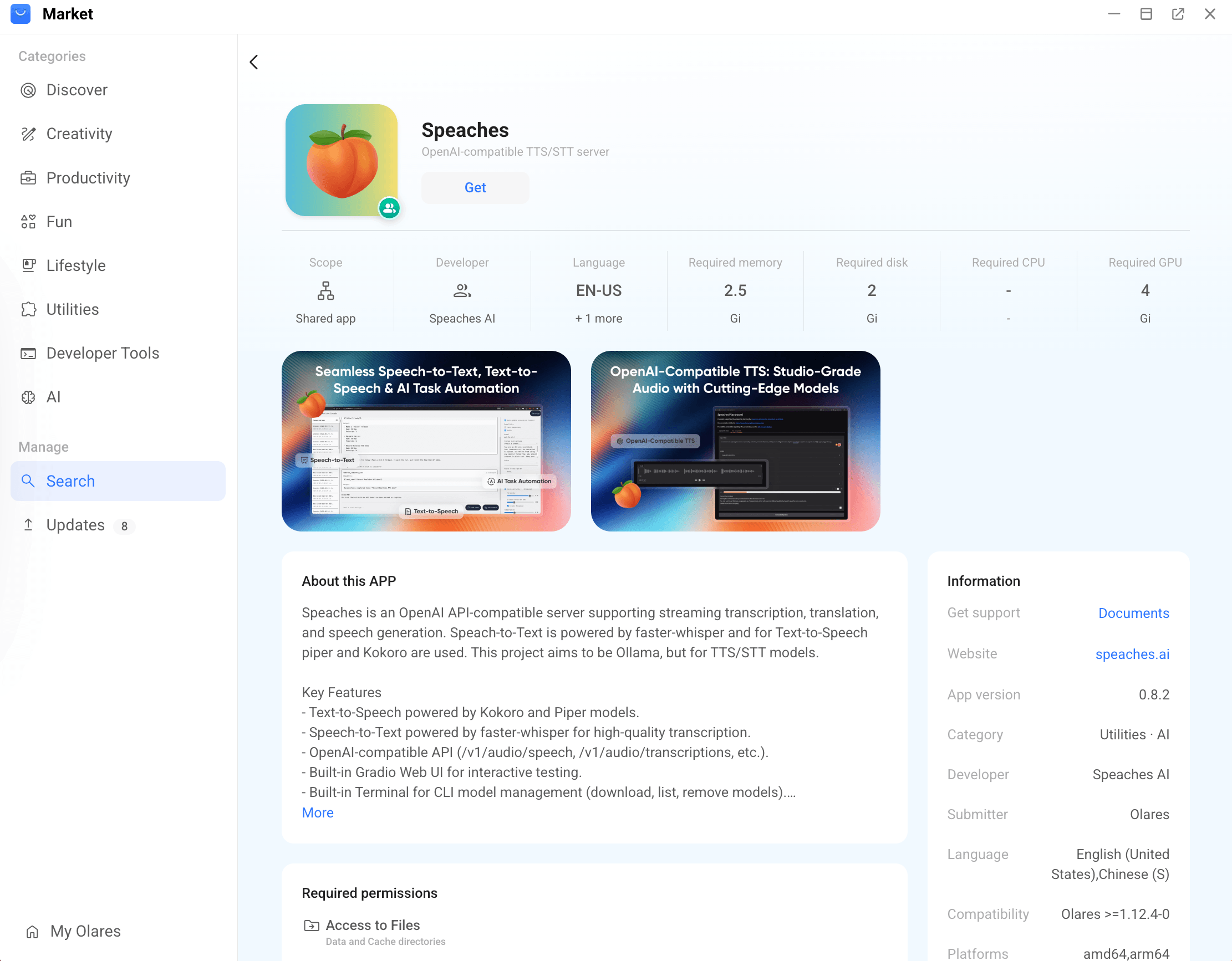
Click Get, then Install, and wait for installation to complete.
After installation, you will see two icons on Launchpad:
- Speaches: The main interface for speech-to-text, text-to-speech, and audio chat.
- Speaches Terminal: A command-line terminal for managing models.
Model setup on first launch
When you open Speaches for the first time, it downloads and initializes its built-in models. Depending on your network connection, this process may take some time.
If initialization does not finish within 30 minutes, it may time out and be canceled automatically. If this happens, wait until your network connection is stable, then open Speaches again to retry initialization.
Use Speaches
Speaches ships with two models ready to use out of the box:
| Model | Type | Purpose |
|---|---|---|
Systran/faster-whisper-small | STT | Speech recognition and translation |
speaches-ai/Kokoro-82M-v1.0-ONNX | TTS | Speech synthesis |
Transcribe audio
Open Speaches and click the Speech-to-Text tab.
Under Model, select a STT model, such as
Systran/faster-whisper-small.Under Task, select transcribe.
Upload an audio file or click mic to record audio from your microphone.
(Optional) Enable Stream if you want to receive partial results while transcription is still in progress.
Click Generate.
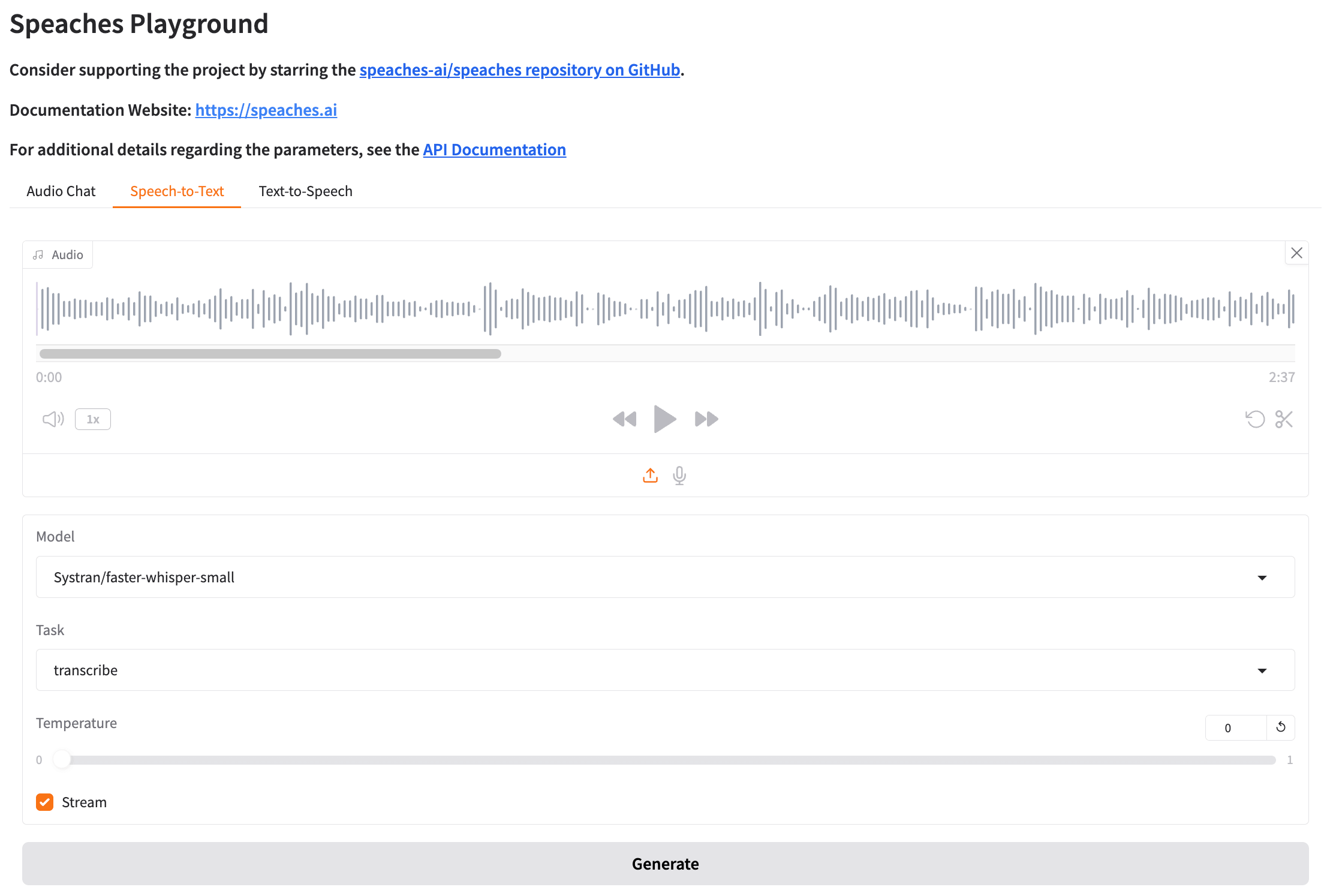
The transcription appears in Textbox after processing completes.
Translate audio to English
Speaches can automatically detect the language of the audio and translate it into English.
- Open Speaches and click the Speech-to-Text tab.
- Under Model, select a STT model, such as
Systran/faster-whisper-small. - Under Task, select translate.
- Upload an audio file or click mic to record audio from your microphone.
- (Optional) Enable Stream if you want to receive partial results while translation is still in progress.
- Click Generate.
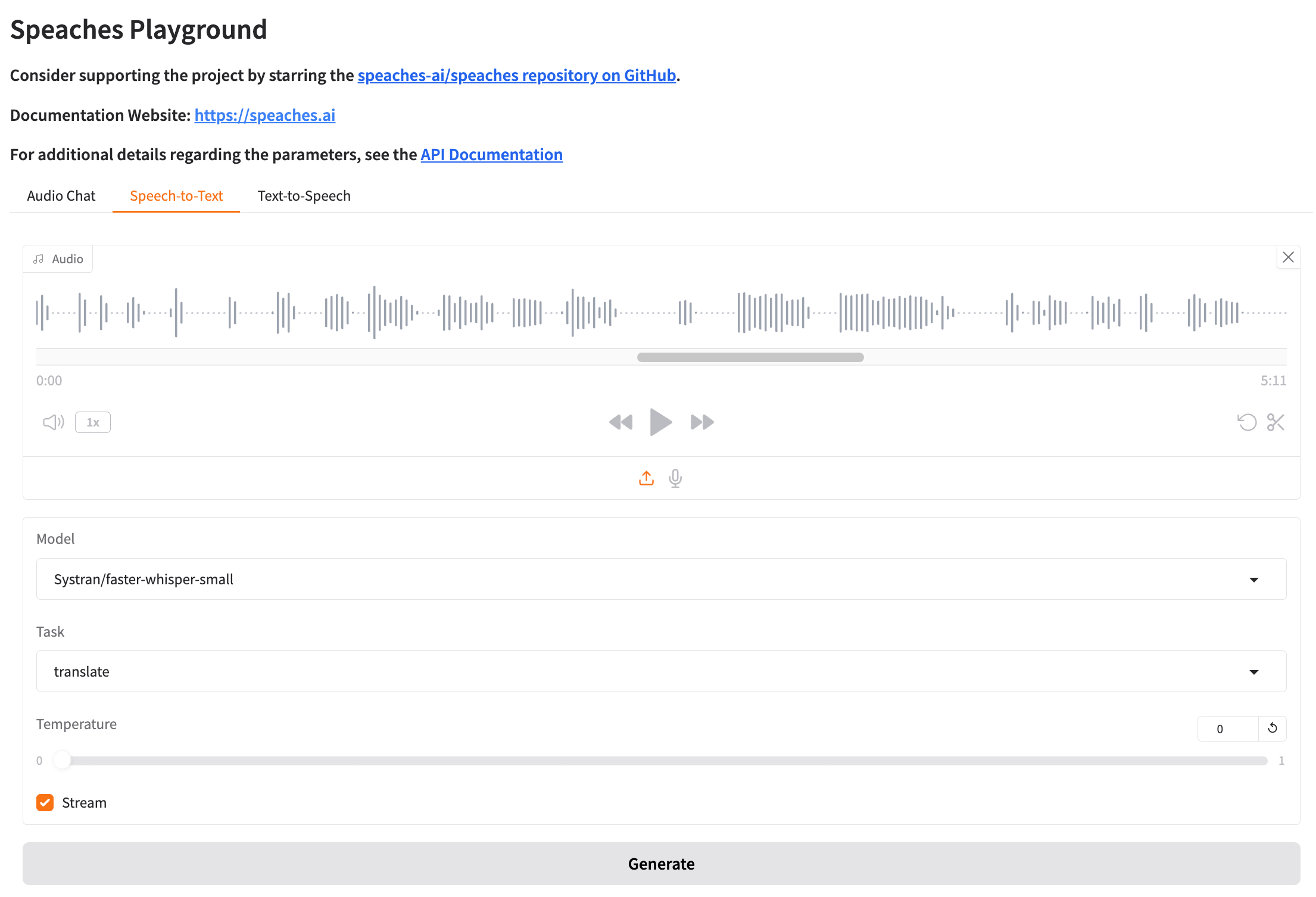
The English translation appears in Textbox after processing completes.
Generate speech from text
Open Speaches and click the Text-to-Speech tab.
Enter the text you want to convert in Input Text.
Under Model, select a TTS model.
Select a voice from Voice.
Under Response Format, select an output format.
Click Generate Speech.
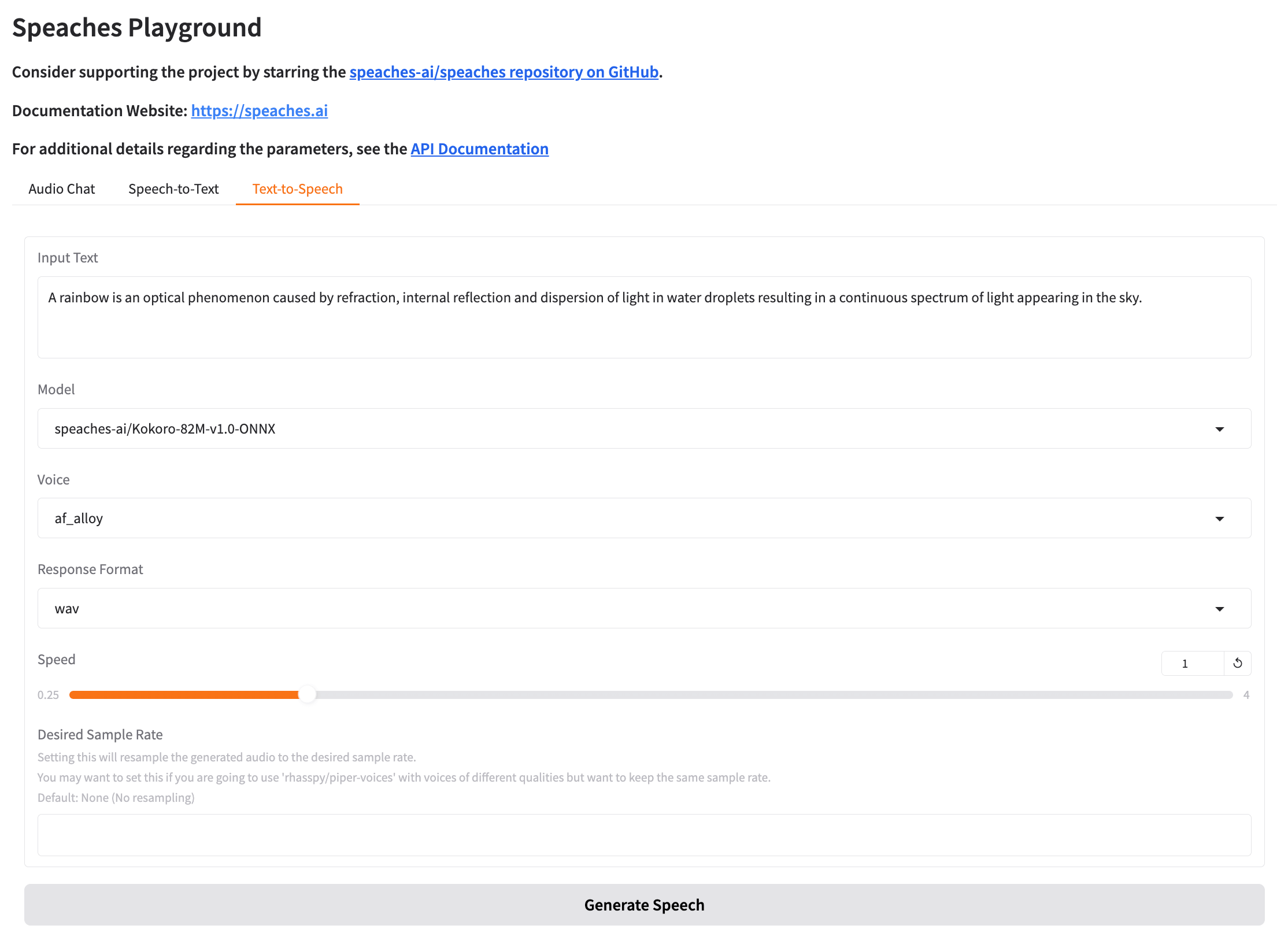
Play the generated audio and download it if needed.
Chat with AI using voice
Use Audio Chat to talk to an AI model with voice, text, or an audio file. Speaches first converts your voice to text, sends the text to the chat model, and can convert the reply back to speech.
INFO
- Audio playback is currently available for English replies only. For other languages, the reply is shown as text only.
Get model connection details
How model connections work
On Olares 1.12.7 and later, AI clients connect through Olares Router. Router provides the Base URL and routes default-chat to the model selected on its Default models page.
This guide uses Qwen3.8-27B (llama.cpp) as the default chat model. For connection formats and API key requirements, see Connect AI apps.
In this guide, Audio Chat uses Qwen3.8-27B (llama.cpp) with the OpenAI-Compatible API format.
Open Router from Launchpad. On Default models, set Qwen3.8-27B (llama.cpp) as the default chat model.
Go to LLM, find Qwen3.8-27B (llama.cpp), and click View connection example on its row.
In How to call this model, select Apps in Olares and copy the Base URL, including
/v1.For the model name, use
default-chat.Selecting a model in your app
default-chatis a routing name and does not appear in model lists loaded from Router. If the app you are connecting to Router loads a model list, adddefault-chatmanually. If the app only supports selecting a listed model, select the full model name shown in Router's How to call this model window.For the API key, leave the field empty. If the app you are connecting to Router requires a value, enter
olares.
Configure Speaches
- Go to Olares Settings > Applications > Speaches > Manage environment variables.
- Click edit_square next to
CHAT_COMPLETION_BASE_URL. - Paste the OpenAI-compatible Base URL from Router exactly as shown, including the trailing
/v1, then click Confirm. - Click Apply to save the changes.
Speaches restarts automatically and loads the models available from the configured endpoint.
Start a voice conversation
Open Speaches and click the Audio Chat tab.
Under Chat Model, select the Qwen3.8-27B entry returned by Router, such as
Olares/unsloth/Qwen3.8-27B-GGUF:UD-Q4_K_XL. This selector lists individual models rather thandefault-chat.Send a message using one of these methods:
- Audio file: Upload an audio file.
- Text: Type your message in the input field next to the microphone icon and send it.
- Voice: Click mic to record your message, then click send to send it.
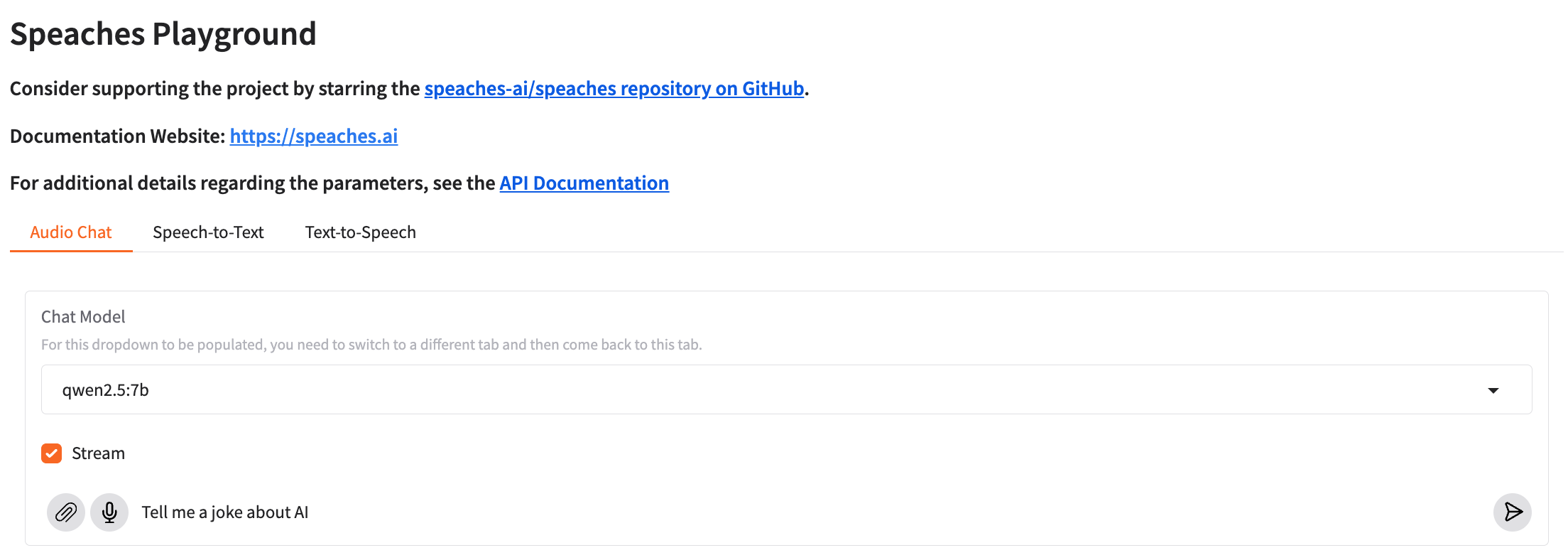
Wait for Speaches to generate the reply.
WARNING
The full voice pipeline (STT, LLM, TTS) takes time to complete. Do not refresh the page while a reply is being generated, as you might see UI flickering during processing.
Optional: Improve transcription accuracy for Audio Chat
Audio Chat uses the pre-installed Systran/faster-whisper-small speech-to-text model by default. For better transcription accuracy, you can switch to a larger model such as Systran/faster-whisper-large-v3.
More GPU resources may be required
Larger models require more GPU resources. If generation tasks start failing after switching to a larger model, see Why do tasks fail after switching to a larger model.
Open Speaches Terminal and download the model:
bashhf download Systran/faster-whisper-large-v3If you see a warning about
HF_TOKEN, you can ignore it. The model download can still continue without this setting.Go to Settings > Applications > Speaches > Manage environment variables.
Click edit_square next to
SPEACHES_WHISPER_MODEL.Set the value as the model you downloaded, for example,
Systran/faster-whisper-large-v3, then click Confirm.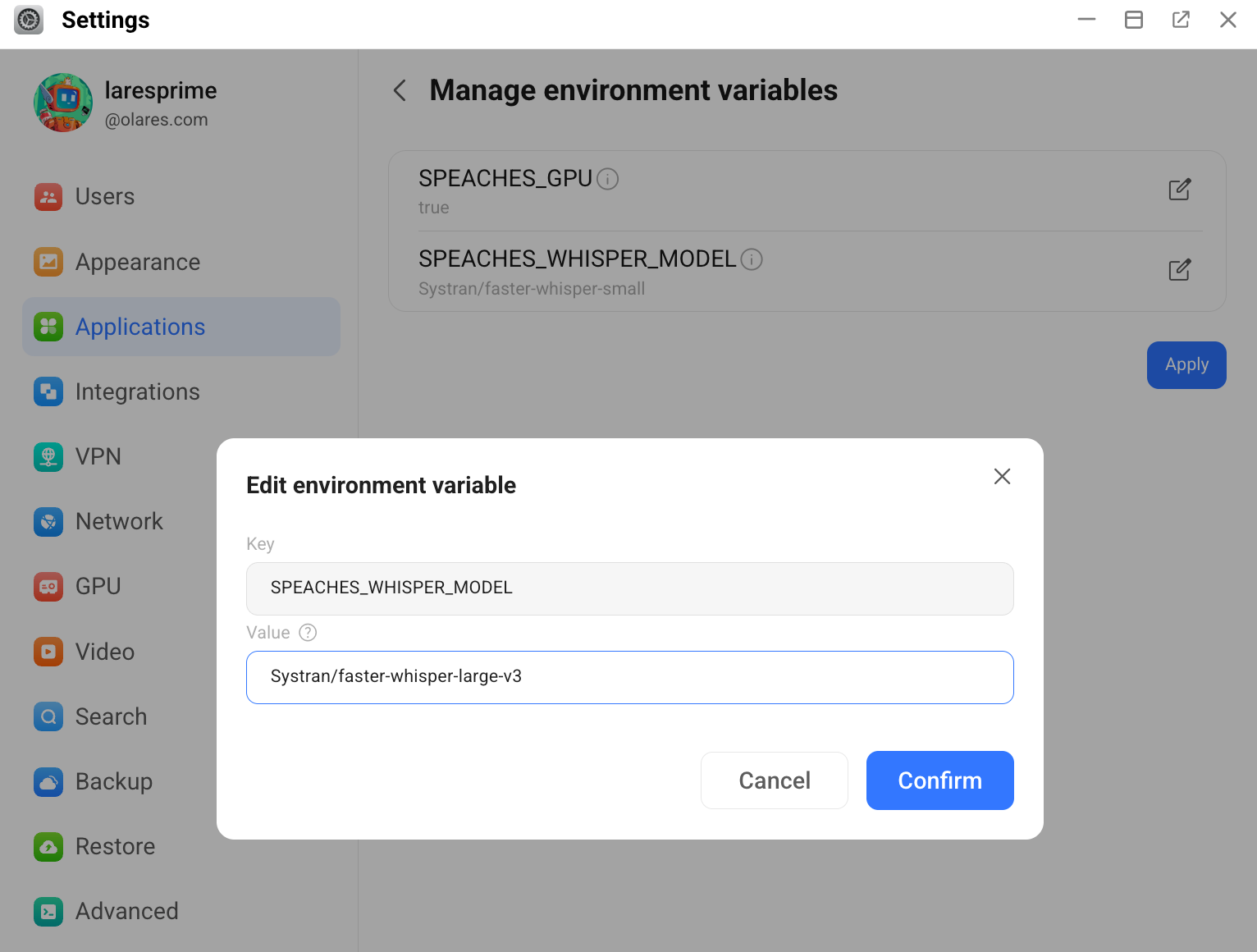
Click Apply to save the changes.
Speaches restarts automatically to apply the change.
Wait for service initialization
After the app shows as running again, wait a little longer before using it, as the service may still be initializing.
Manage models
Manage models when you want to use a different model, improve quality, or free up storage space.
Check downloaded models
To see all downloaded models, open Speaches Terminal and run:
hf cache listDownload a new model
Open Speaches Terminal and run:
bashhf download <model-name>For example:
bash# Download a larger Whisper model for higher accuracy hf download Systran/faster-whisper-medium # Highest accuracy Whisper model, requires more memory hf download Systran/faster-whisper-large-v3Shared model storage
Models are downloaded to Olares Files, at
/Home/Huggingface/speaches/. If other apps on your Olares also use Hugging Face models, they share this directory.Refresh the Speaches page to load the new model into the list.
Remove a model
To free up storage space, you can remove models you no longer need:
- Open Speaches Terminal and run:
hf cache rm model/<model_name>For example:
hf cache rm model/Systran/faster-whisper-medium- Refresh the Speaches page to update the model list.
Switch to CPU mode
Speaches uses GPU mode by default. If needed, you can switch it to CPU mode instead. CPU mode is slower and is mainly suitable for small tasks.
To switch to CPU mode:
Go to Settings > Applications > Speaches > Manage environment variables.
Click edit_square next to
SPEACHES_GPU, change its value tofalse, then click Confirm.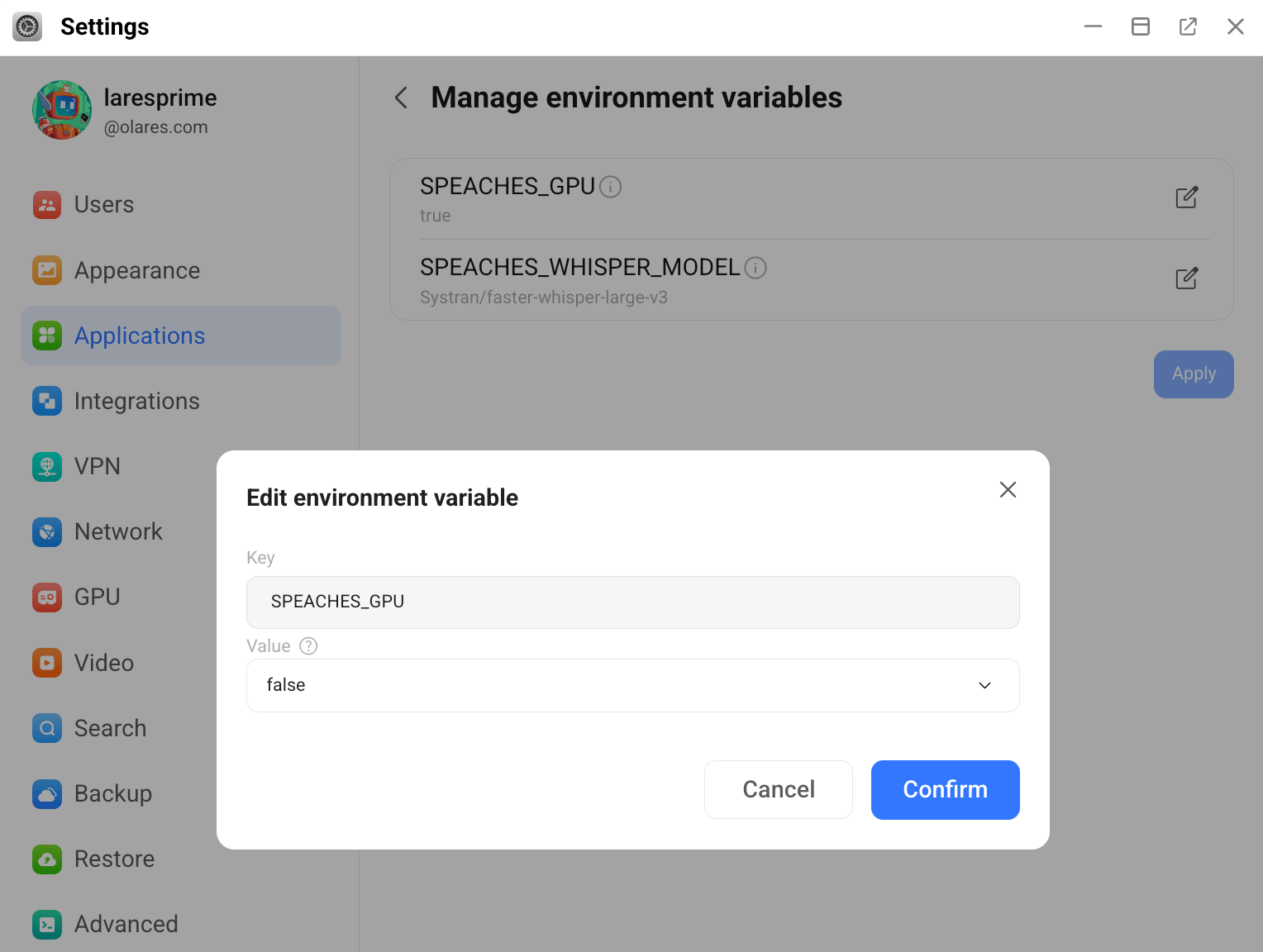
Click Apply to save the changes.
Speaches automatically redeploys in CPU mode. Processing will be slower compared to GPU mode.
FAQs
Why does Audio Chat show an error?
Audio Chat cannot load models if CHAT_COMPLETION_BASE_URL is empty, incorrect, or unavailable. Make sure the chat model is running, then configure Speaches again using the OpenAI-compatible Base URL from Router.
Why do tasks fail after switching to a larger model?
This issue usually happens when the GPU is in Memory slicing mode.
Larger models require more VRAM. If Speaches is assigned only a small amount of VRAM, generation tasks may fail after you switch to a larger model.
To fix this issue:
- Increase the VRAM assigned to Speaches in Memory slicing mode.
- Or switch the GPU to another mode.
For detailed instructions, see Manage accelerator resources.
Can I use a different chat model provider for Audio Chat?
Yes. Set CHAT_COMPLETION_BASE_URL to the provider's OpenAI-compatible Base URL. The URL must end with /v1.
Learn more
- Speaches official documentation: Full API reference and model compatibility.
- Open WebUI: Chat interface that can use Speaches as a speech backend.
- IndexTTS2: Generate speech from text with zero-shot voice cloning.