Create videos with Concat and Lares
Concat is a video editor for arranging clips, adding titles and transitions, and exporting MP4 videos. On Olares, you can use its editor in a browser or let an AI assistant edit through Model Context Protocol (MCP).
This example uses Lares to turn a few images into a short introduction to Olares. Your source media, saved projects, and exported videos stay in the Concat folder in Files.
Prerequisites
- Olares 1.12.7 or later on an amd64 device. This Concat package uses CPU rendering and does not require a GPU.
- Lares configured with a model that can call tools, installed on the same Olares as Concat.
- Three or four images for your video.
Install Concat
Open Market and search for "Concat".
Click Get, then Install, and wait for installation to complete.
Prepare your media
- Open Files and go to Home > Documents > Concat.
- Create an
assets/my-demofolder and upload your images. Add an audio file to the same folder to include background music. - Create an
outputs/my-demofolder for the finished video.
These subfolders are suggestions, not folders created automatically during installation.
| Location in Files | Path used by Concat MCP |
|---|---|
Home/Documents/Concat/assets/my-demo | assets/my-demo |
Home/Documents/Concat/outputs/my-demo | outputs/my-demo |
The browser editor sees Home/Documents/Concat as /config/Projects. Upload your source media to this folder before asking Lares to edit it.
Configure Concat in Lares
Get the MCP endpoint
- Open Settings and go to Applications > Concat > Entrances.
- Select Concat API and copy its Endpoint URL. Use this entrance for MCP connections. The Concat entrance opens the browser editor.
- Check that the URL ends in
/mcp. If it does not, append/mcpwithout duplicating the slash.
The MCP entrance is internal by default and is accessible to Lares on the same Olares device.
Get the application token
The token is generated when Concat is installed. It is not your Olares password. Use either method below with an account that can access the app's data or ask your administrator for the token.
Keep the token private. Paste it into the MCP configuration, not into a chat prompt or a shared screenshot.
Add the MCP server
Open Lares and go to Settings > MCP.
Click Add server and enter these values:
Setting Value Server name concatTransport Streamable HTTPMCP URL The URL ending in /mcpprepared aboveHeaders The JSON object below In Headers, enter the following JSON. Replace
<your-token>with the token you copied and keep one space afterBearer:json{ "Authorization": "Bearer <your-token>" }Click Save. Lares connects to the server and loads its tools automatically.
In a new conversation, ask:
textUse Concat MCP to check its status and read its help. List the files in assets/my-demo. Do not create or change any projects yet.
Lares should call concat_status, concat_help, and concat_list_files and report your uploaded images. Concat exposes seven MCP tools. Seeing their names alone does not confirm that calls work.
Other assistants
The same endpoint and Authorization header work with compatible remote HTTP MCP clients, including OpenCode. For network access from a client outside Olares, see Access Olares services locally. This endpoint handles MCP POST requests, not a legacy SSE connection or an editor page.
Make a short video
Save any changes in the browser editor before asking Lares to edit. MCP editing temporarily closes the editor, which returns when the session finishes.
Send this prompt:
textUse Concat MCP to make a polished, 12-second introduction to Olares from the images in assets/my-demo. Make it a horizontal 1080p video. Keep the style clean and bright. Show these three titles in order: "Your digital space", "Create your way", and "Start with Olares". Use slow, gentle movement, soft transitions, and enough space around the text. Add quiet background music only if an audio file is available. Read the tool help first. Create a new project with a unique name and leave existing projects unchanged. Check a few preview frames for cropped or overlapping text before exporting. Start with concat_begin_edit. Export an MP4 to outputs/my-demo with a unique filename, wait for the render to finish, then call concat_finish_edit. Tell me the full location of the video in Files.Wait for Lares to report that the export succeeded. A render job ID confirms submission. Wait for the completed export before opening the MP4.
In Files, open Home > Documents > Concat > outputs > my-demo and play the returned MP4. Check the titles, transitions, and sound.
For another revision, describe what to change and ask for a new output filename. Concat rejects overwriting an existing output. The result depends on your images and model. Review the previews before exporting a longer video.
Edit in the browser
You can also work directly in the editor:
- Open Concat from Launchpad and create or open a project under
/config/Projects. - Click Import, select your media, and arrange the clips on the timeline.
- Add titles, transitions, and audio, then check the preview. Select Full preview quality to inspect small text.
- Click Export, choose the destination and video settings, and wait for Exported.
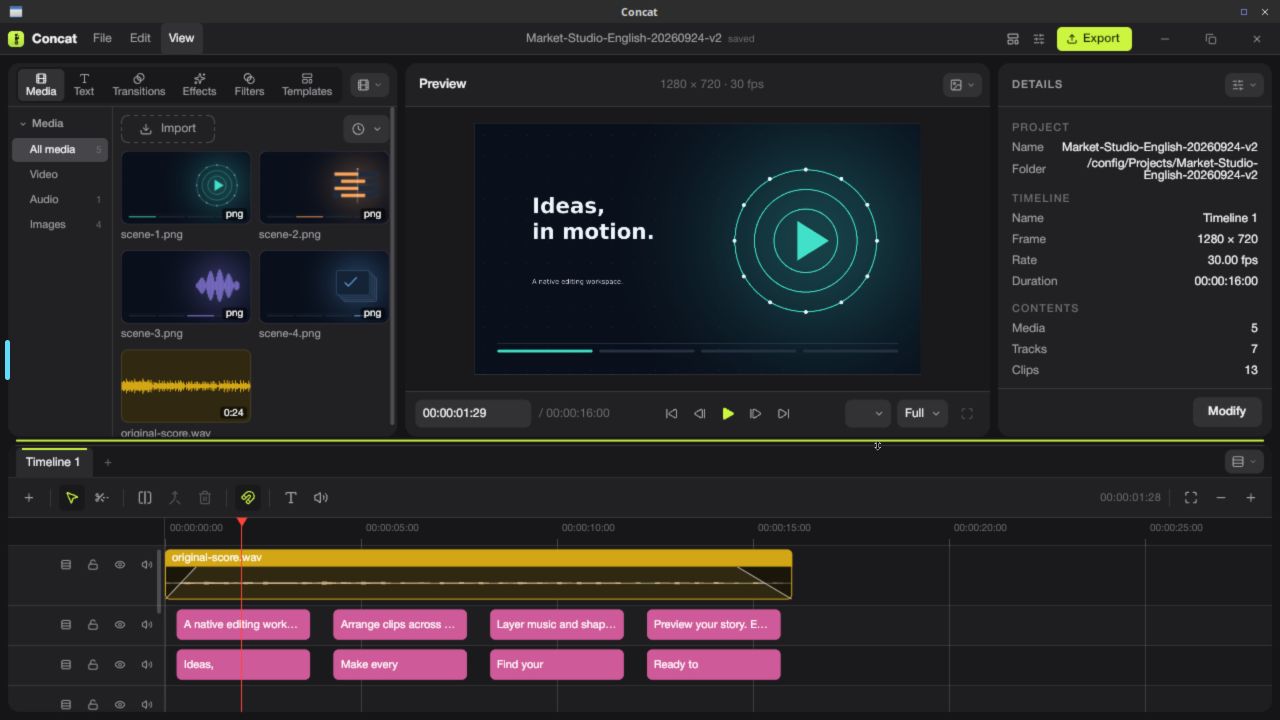
Saving a project does not export an MP4. Manual exports appear at the destination you choose, so select a folder under /config/Projects to find them in Files.
FAQs
Why does the MCP connection fail?
A login page or HTML response points to the Olares entrance or network policy. Check that you copied the Concat API endpoint and that your client can reach it. A Concat 401 response means the application token is missing or invalid. Check the plain token and the space after Bearer.
Opening /mcp directly in a browser sends a GET request and is not a connection test. Use the read-only prompt above.
Why did the editor close while Lares was working?
Concat switches between browser editing and MCP editing. Wait until all rendering jobs finish, then ask Lares to call concat_finish_edit. Do not edit manually during an MCP session.
Why are Chinese titles missing characters?
Ask the assistant to use Noto Sans CJK SC, then generate another preview. This font is included in the Olares package.