Create and edit a song with YuE2 Studio
YuE2 Studio is a local AI music app that turns a musical style and lyrics into songs with vocals and accompaniment. It also produces an editable score, so you can change the composition before generating another performance.
This guide uses a short English acoustic pop song called "Morning Light". You will create the original, raise its vocal melody, and increase its tempo. You can follow the same workflow with your own lyrics and musical style.
Learning objectives
In this guide, you will learn how to:
- Install YuE2 Studio and prepare model downloads.
- Choose a model set and GPU allocation for your music workflow.
- Compose and preview a score before generating audio.
- Edit notes, chords, sections, key and tempo.
- Reuse a composition with new lyrics, another style or instrumental parts.
- Continue a short melody and create a cover from a recording.
- Choose generation settings and exchange scores with a music editor.
Prerequisites
- Olares 1.12.7 or later on an amd64 device with an NVIDIA GPU and at least 5 GiB of available GPU memory.
- A Hugging Face account.
Install YuE2 Studio
YuE2 Studio downloads its model sets from Hugging Face. Add a read token to Olares before installing the app.
- Sign in to Hugging Face, or create an account.
- Open Access Tokens and click New token.
- Give the token a name, select the Read role, create the token, and copy it.
- In Olares, go to Settings > Advanced > System environment variables.
- Find
OLARES_SYSTEM_HUGGINGFACE_TOKEN, click its edit icon, and paste the token into Value. - Click Confirm, then click Apply at the bottom of the page. Olares already provides the Hugging Face service address in
OLARES_SYSTEM_HUGGINGFACE_SERVICE. - Open Market and search for
YuE2 Studio. - Click Get, then Install, and wait for installation to complete.
The token is stored as a system environment variable and is shared with apps that use the Olares Hugging Face settings. See Set system environment variables to update it later.
Download a model set
The four ready-made sets use the same YuE2 backbone. Their main difference is the precision used to store its weights. Lower precision reduces the size of the model and can introduce more quantization error.
| Model set | Backbone precision | Approximate set size shown in Settings | When to choose it |
|---|---|---|---|
| Light | Q5_K_M | 4.0 GB | You need the smallest set and accept stronger weight compression. |
| Balanced | Q6_K | 4.3 GB | You want a middle option between Light and Quality. |
| Quality | Q8_0 | 5.1 GB | Start here for everyday generation and editing. This is the recommended baseline for this Olares package. |
| Full native | BF16 | 9.9 GB | You prefer the original backbone weights and can allocate more memory. |
Start with Quality Q8 for everyday generation and editing. Full native keeps the original backbone precision and uses more storage and GPU memory.
- Open YuE2 Studio from Launchpad.
- The first time you open the app, YuE2 Studio prompts you to download a model set. If you have already opened the app, click your account name in the lower-left corner, then go to Settings > Models.
- Choose one music-engine model set. Quality - Q8_0 backbone, near lossless is a starting option. Full native - BF16 backbone, original weights downloads the original backbone weights and uses more storage.
- Download the selected set and wait for it to show installed.
- Click Done, return to Create, and wait for Engine ready before starting a song.
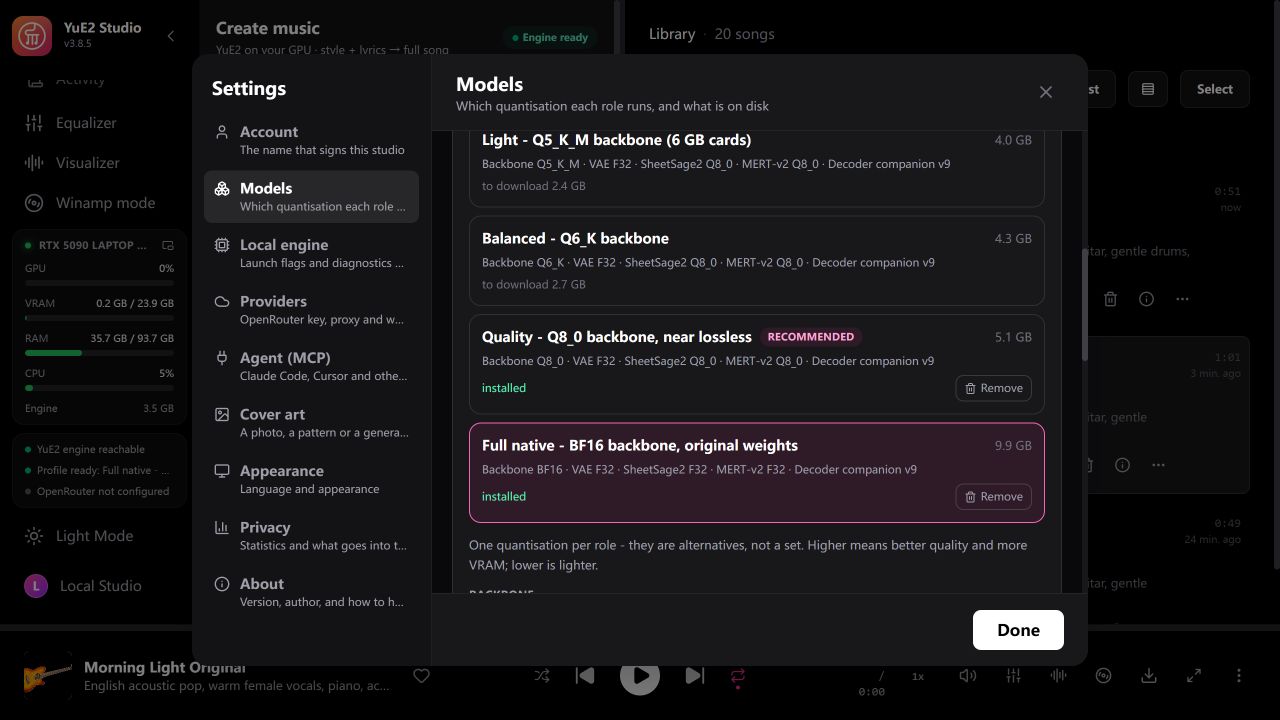
Downloaded model sets remain available after app restarts. The app starts with a 5 GiB GPU allocation. Increase it for Full native, longer songs, transcription, or multiple outputs. In Memory slicing mode, follow Resume an app and assign resources to change the allocation. Switching model sets restarts the music engine, so finish the current song first.
Create the original song
Enter a style and lyrics
In Create, select Studio.
Set the title to
Morning Light Original.Enter the following in Style:
textEnglish acoustic pop, warm female vocals, piano, acoustic guitar, gentle drums, hopeful, clean production, 100 BPMEnter these original example lyrics in Lyrics. Keep each section tag on its own line and leave a blank line between sections.
text[Verse] Morning light across the floor Open skies beyond the door Every road can lead us home We will never walk alone [Chorus] Carry on into the light Keep our little dreams in sight Let the music lift us high Like a sunrise in the sky
Compose and generate
Under Score (ABC), keep Melody + chords selected and click Compose the score.
Wait for the score to appear. Click Listen to hear a simple preview of the notes. This preview helps you review the melody before generating the sung version.
Use these settings for the example:
Setting Example value Purpose Max duration 2:00Allows the song to run for up to two minutes. Flow-matching steps 32Sets the number of audio synthesis steps. Solver Midpoint (reference) Uses the reference rendering method. Songs per request 1Creates one composition. Variations 1Creates one performance. For easier comparisons, turn Randomize seed off. Set Composition seed to
20261106and Sound seed to42.Click Create. Wait for the track to appear in Library, then play it.
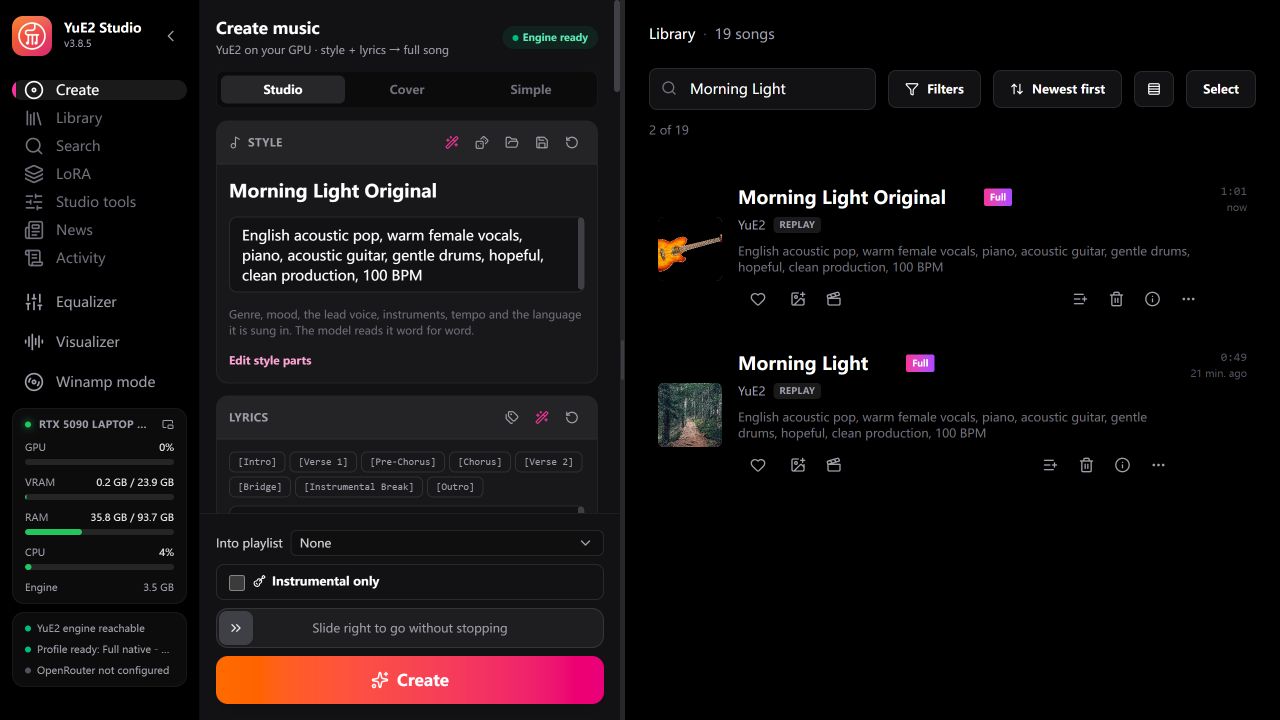
The generated track retains its score and generation settings. You can return to it to make another version.
There are three planning modes:
| Planning mode | What it supplies | Useful for |
|---|---|---|
| Melody + chords | A melody with chord symbols | Writing a song whose melody and harmony you want to edit. |
| Melody | A melody-only plan | Covers where the new style should supply the harmony. |
| No score | Audio generation without a symbolic plan | Exploring audio before choosing a score-based workflow. |
Edit and perform the score
Change the melody and tempo
- Find
Morning Light Originalin Library and open Song Details using the information icon. - In the score area, click Edit to open the piano roll.
- Select the Vocal track. Choose Edit > Select All, then Edit > Transpose. Enter
2to raise that track by two semitones and confirm the change. - Change BPM to
120in the bottom bar for a faster version. - Click Apply in the upper-right corner. The edited score returns to the creation form.
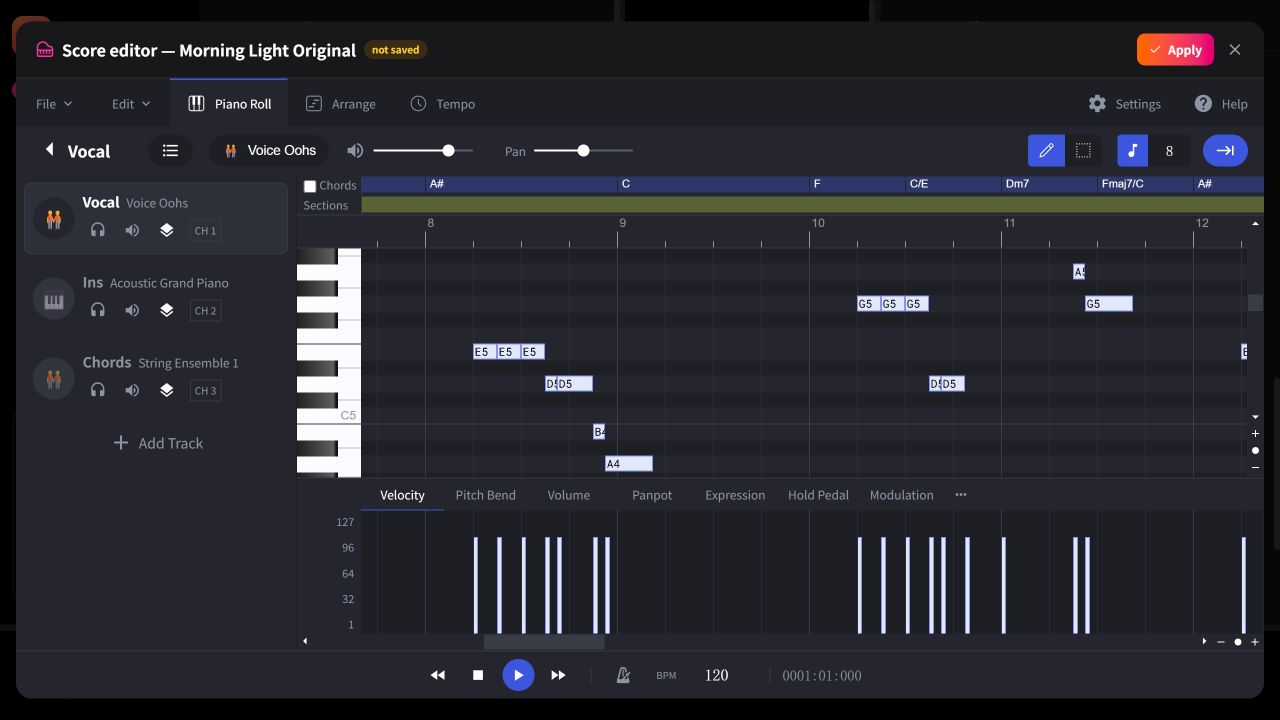
To make a smaller change, drag an individual note up or down to change its pitch, move it horizontally to change its start time, or drag its right edge to change its length. Click a chord or section label in the lanes above the notes to edit it.
Save the score before refreshing
Before refreshing the page, click Save the score as .abc. You can also generate a track to save its score in Library.
Generate the edited version
- Change the title to
Morning Light Variationso you can distinguish it from the original. - In Style, change
100 BPMto120 BPMto match the edited score. - Enable Keep the edited score for new words under the score. This keeps the composition when the lyrics or style change. Leave the example lyrics unchanged for this first comparison.
- Keep the other generation settings the same, then click Create.
- Play the original and the variation in Library to compare the vocal melody and pace.
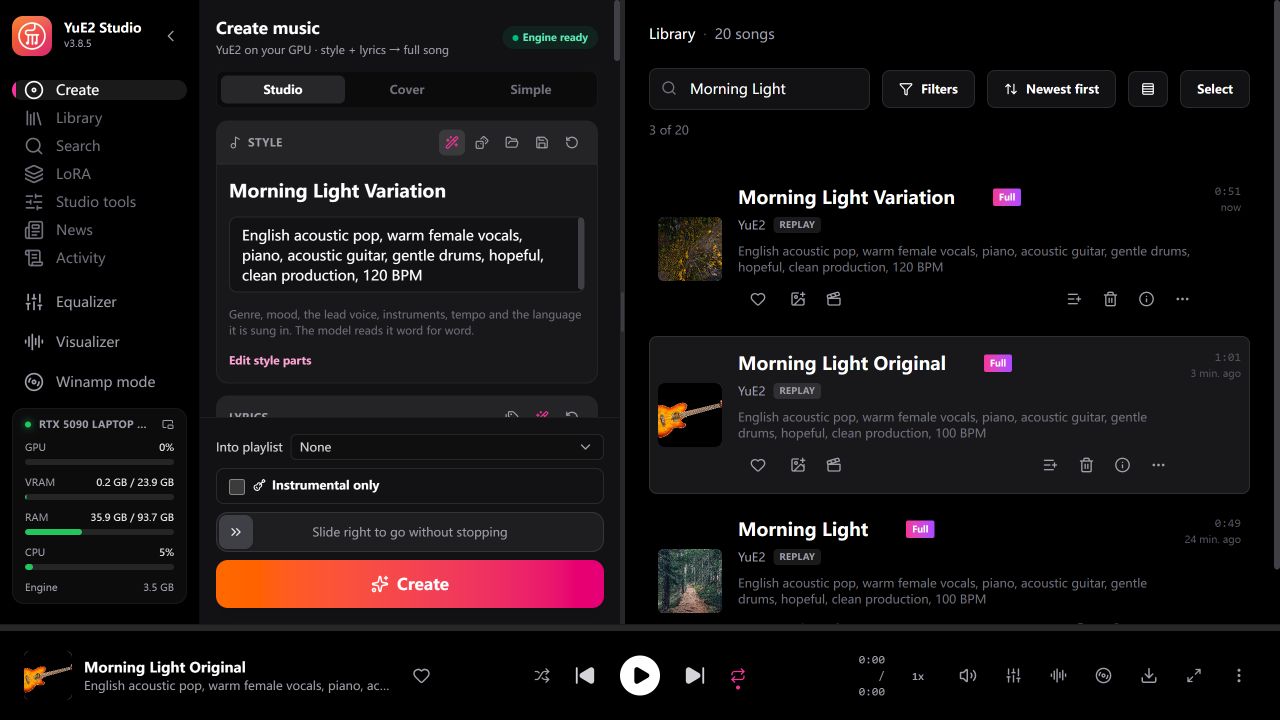
Apply updates the score in the form. Create renders a new audio track. The original track remains in Library.
The piano-roll transpose operation affects the selected track. To move the melody and harmony together into another key, use the whole-score transpose workflow below.
Refine the composition
Draw, move and resize notes
- Open the saved song's Song Details, then click Edit beside the score.
- Select Vocal to edit the sung melody or Ins to edit the instrument line.
- With the pencil tool selected, click an empty point in the grid to add a note. Start with a short note inside an existing phrase.
- Drag the note vertically to change its pitch or horizontally to change when it starts.
- Drag its right edge to change its length. Use the grid's snap setting when you want the edit to land on a regular beat division.
- Preview the phrase in the editor, then click Apply. Use a new title and Create to hear the change in a generated performance.
Horizontal position represents time, vertical position represents pitch, and note width represents duration. Scroll horizontally to reach later bars and vertically to bring a high or low melody into view.
Edit chords and sections
- In the score editor, find the Chords lane above the notes.
- Click a chord label and enter the replacement. For example, try changing a chord to
Gm7in the F-major example. - Use the Sections lane to edit section names or add a section marker such as
Interlude. - Preview the score, then click Apply and generate a new version.
Keep section names and lyrics tags consistent. If you add an instrumental break, use a corresponding tag such as [Instrumental Break] in the lyrics. Generate the new version and play the transition, then adjust the score or style if needed.
Change the key or the vocal register
For a whole-song key change:
- Load the saved score with Use this score.
- Expand Advanced and find Transpose score.
- Enter a semitone offset such as
2to raise the whole score, or-2to lower it. - Use a new title and click Create. The new performance uses the transposed score.
- Reset Transpose score to
0before another edit unless you want to transpose that version again.
For an octave adjustment to the voice alone, use Voice −8va or Voice +8va beside the score. These move the vocal line by one octave and keep the accompaniment and chord symbols in place. Preview the result and check any vocal-range warning before generating. Adjusting the octave changes the written register, while the description of the voice belongs in Style.
Reuse or extend a song
Sing the same composition with new lyrics
Open the original song's three-dot menu and select Sing again with new words. This brings its score and prompt into the creation form.
Give the new version a title such as
Morning Light New Words.Replace the chorus with another four-line chorus. For example:
text[Chorus] Follow me into the day Let our worries drift away Hear a new song in the air There is hope for us to shareKeep the original verse for this first attempt. Match the original line lengths and stressed syllables as closely as you can.
Enable Keep the edited score for new words under the score, then click Create.
Listen for words that arrive too early, stretch too far or lose clarity. Shorten or rephrase those lines and make another version.
If you load the score through Use this score, enter the lyrics and style, then enable Keep the edited score for new words to retain the loaded composition.
Change the voice or musical style
Load the original score and keep the lyrics unchanged for the first comparison.
Change Style to a complete description of the new performance. For example:
textEnglish jazz ballad, warm baritone vocals, upright bass, brushed drums, jazz piano, intimate and mellow, 100 BPMEnable Keep the edited score for new words when it is shown.
Use a title such as
Morning Light Jazz Version, then click Create.
Keeping the score preserves the written composition while the model generates another performance. Listen to the result and refine the style description until the voice and arrangement fit the song.
Turn the melody into instrumental music
Load the original score and click Instrumental beside the notation. This moves the vocal melody into the instrument line.
Replace the style with an instrumental description, for example:
textInstrumental acoustic pop, piano, acoustic guitar, gentle drums, calm and hopeful, 100 BPMRemove the sung words and keep the section tags, such as
[Verse]and[Chorus].Enable the keep option when shown, use a new title, and click Create.
This workflow uses the score's Instrumental button. The separate Instrumental only switch near Create can also add an Instrumental LoRA and download its weights when missing. That additional adapter is separate from the four base model sets.
Continue a short melody
Use this when you have an opening phrase and want YuE2 to write the rest of the song.
- Enter the full intended lyrics and style.
- In Score (ABC), paste a short opening score, or load an ABC file with Open an .abc score. Keep the ABC header, key, meter and tempo, plus at least one phrase with vocal notes.
- Enable Continue the song from this score.
- Click Continue the score to compose the remainder before generating audio.
- Preview the completed score and adjust it in Score editor. Give the result a new title and click Create.
To use a saved song as the starting point, export its ABC first. In a copy of that file, keep its header, both voice declarations, the opening verse, and the complete bars for that verse. Remove the later sections before importing it. Include at least one vocal phrase to guide the continuation.
Cover a recording in a new style
The Cover workflow first transcribes a recording into a melody with SheetSage2, then generates a new performance from that score. You can inspect and correct the transcription before generating.
- In Create, select Cover and keep Melody only enabled. This retains the tune and lets the new style supply the harmony.
- Choose a source:
- For a file on your computer, click Choose a recording….
- For the demo already in Library, open
Morning Light Original's three-dot menu and choose Transcribe to score: Melody for a cover.
- Wait for Score ready. Preview the melody with Listen and correct notes or tempo in Score editor when needed.
- Paste the source song's lyrics with section tags that match the recording. Keep the original words for the first cover.
- Describe the new arrangement in Style, such as the jazz prompt above. Use a title such as
Morning Light Jazz Cover. - Check Max duration gives the recording room to finish, then click Create.
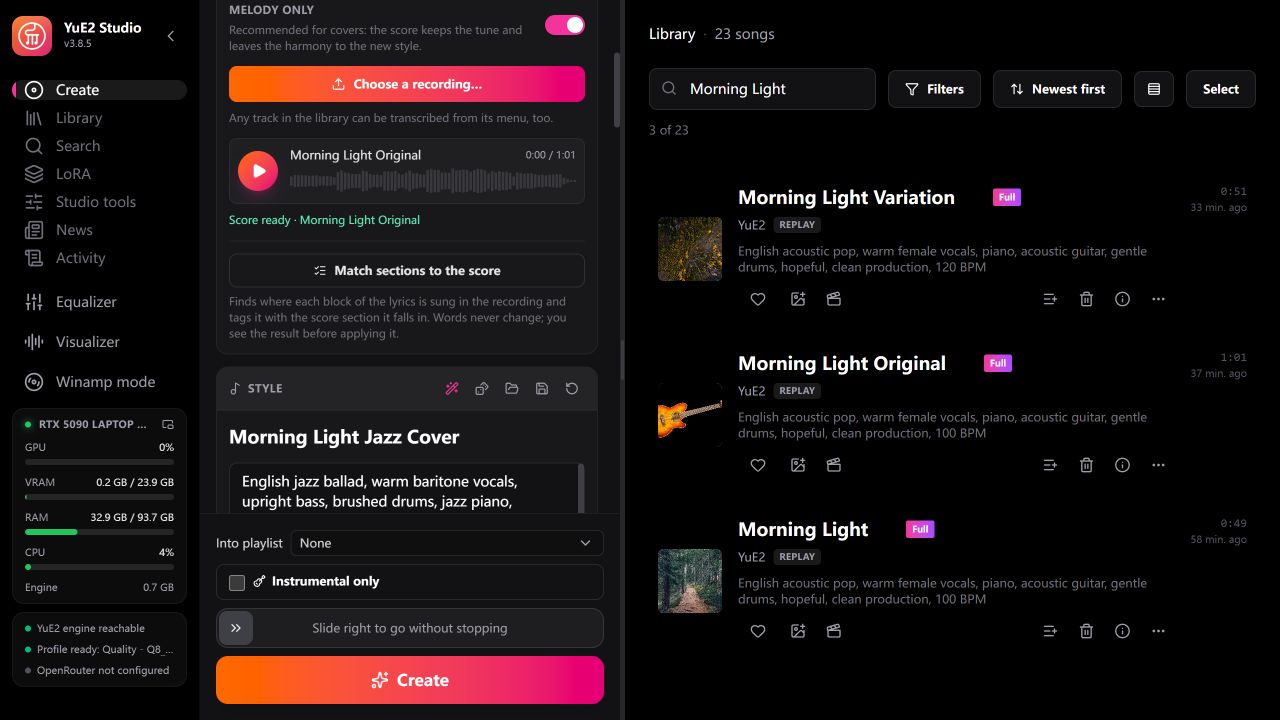
If the app reports that no SheetSage2 transcriber is available, add it through Settings > Models. The model sets in this guide include it. For a dense arrangement or unclear melody, review and correct the transcription before generating the cover.
Choose generation settings
Start with a chord progression
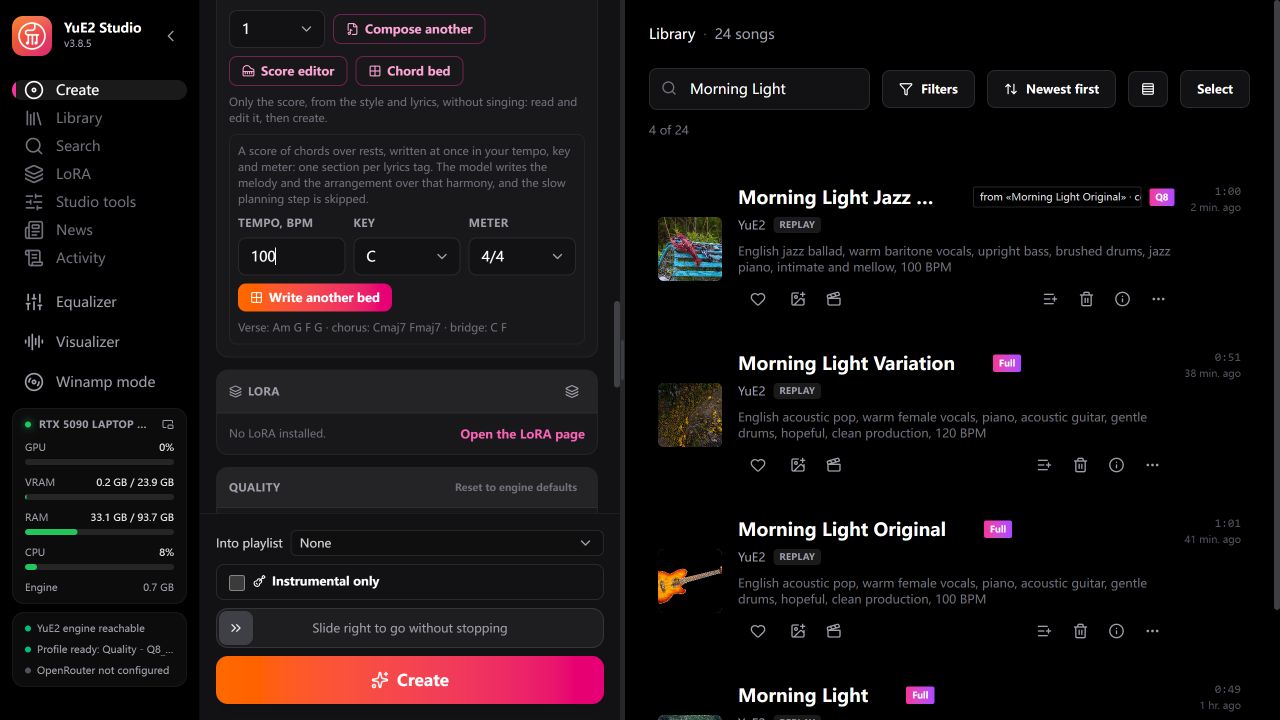
Use Chord bed when you want to define harmony before the model writes the melody.
- Prepare the style and lyrics in Studio, and select Melody + chords as the planning mode.
- Open Chord bed below the score.
- Set Tempo, BPM, Key and Meter, for example
100,Cand4/4. - Click Write the bed. If a score already exists, the button is Write another bed.
- Review the chord symbols. The bed contains chords over rests, with sections based on the lyrics tags.
- Use Create to generate a melody and arrangement over that harmony.
Writing a chord bed replaces the current score in the form. Export a score you want to keep before using it.
Balance synthesis steps and solver choice
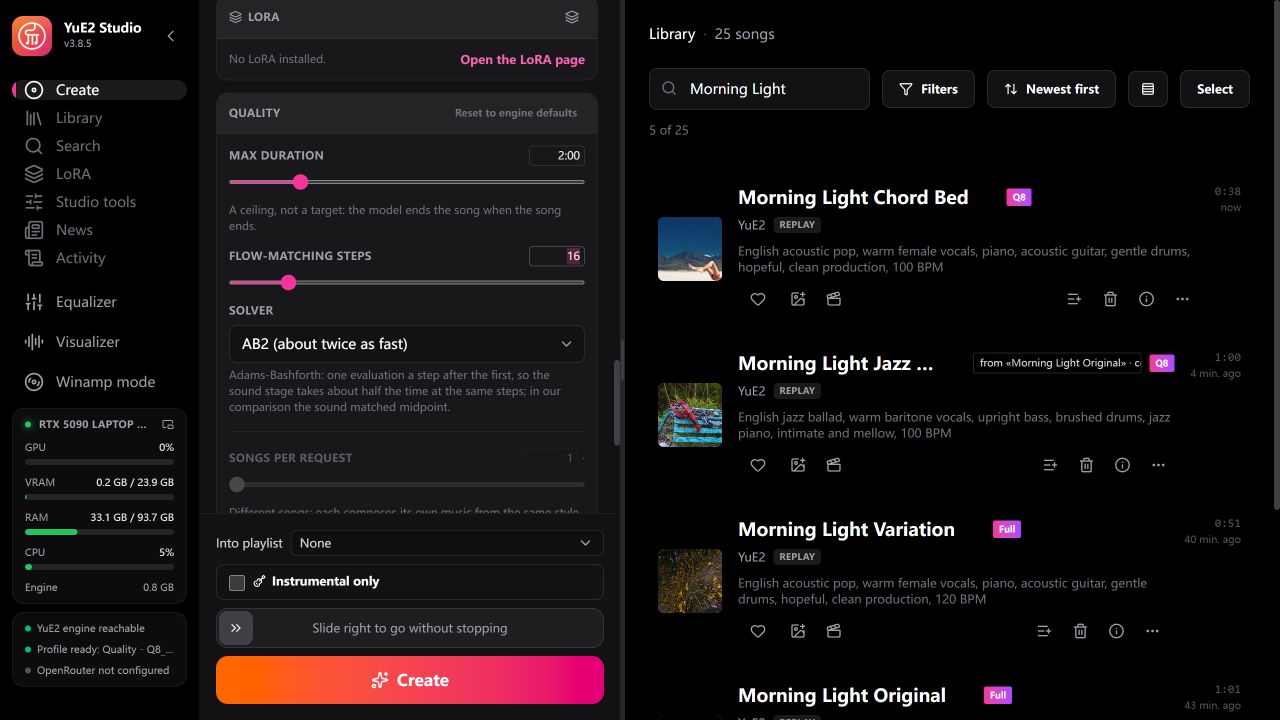
For the first version, keep 32 flow-matching steps and Midpoint (reference). To audition an idea more quickly, try 16 steps and compare the result. Fewer synthesis steps can change the sound, and their effect depends on the song.
The other solver, AB2 (about twice as fast), speeds up the sound stage. Score composition and model loading take the same time with either solver. Try AB2 on the same composition and listen for changes in vocals, attacks and transitions.
Use seeds and variations deliberately
| Control | What it changes | How to use it |
|---|---|---|
| Composition seed | The plan written from the prompt | Keep it fixed while comparing prompt or score changes. |
| Sound seed | The synthesis noise for the performance | Change it to try another rendering of a composition. |
| Songs per request | Separate compositions | Each song writes its own music and uses more working memory. |
| Variations | Performances of the same composed song | Start with 1 when using the minimum Q8 allocation. |
The local engine starts with a one-song limit. Finish the current song before changing engine limits in Settings > Local engine. Increase the GPU allocation before generating multiple songs or variations at once.
Re-render an existing performance
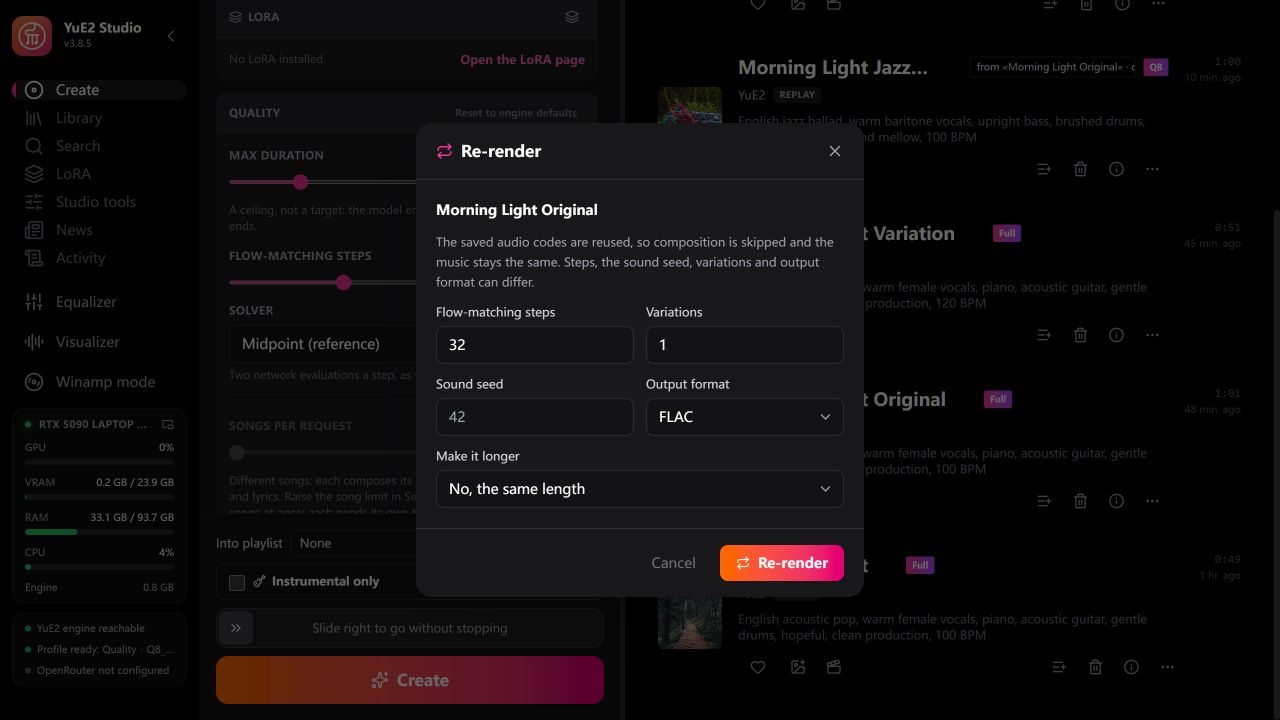
- Open a song's three-dot menu and choose Re-render.
- Adjust the step count, sound seed, number of variations or output format in the dialog.
- Submit the new render and compare it with the saved track.
Re-render reuses the saved performance plan. Adjust the sound seed, synthesis steps, variations, or output format to create another performance. Use the score-editing workflows when you want different notes, lyrics, or style.
Save and exchange your work
Save audio and ABC scores
- Open Song Details for the version you want to keep.
- Click Download Audio to save the generated recording to your computer.
- Click .abc in the score area to save the editable score. Use Use this score when you want to bring a saved track's score back into the creation form.
To restore the file later, open Create and click Open an .abc score in the score toolbar. Preview it, then supply the style and lyrics for the performance you want.
Exchange notes with a MIDI editor
Click MIDI beside a score to export its notes and tempo for another music editor. Keep the ABC file as well when you want to preserve the original chord symbols and score text.
To bring a MIDI file into the song workflow:
- Select Cover, click Choose a recording…, and select the MIDI file.
- In Load MIDI, choose Melody only or With chords for the score you want.
- Select the Voice and Instrument tracks. For the example export, choose 1. Vocal Melody for Voice and 2. Ins Melody for Instrument.
- Choose whether to keep the file's section markers. Review the timing grid, octave adjustments and conversion notices before accepting them.
- Wait for conversion to finish and Use as the score to become available. Click it and preview the imported notation. A MIDI track can contain chords or tempo changes that need to be simplified into the song score.
- Supply the lyrics and style, then use a new title and Create to generate a performance.
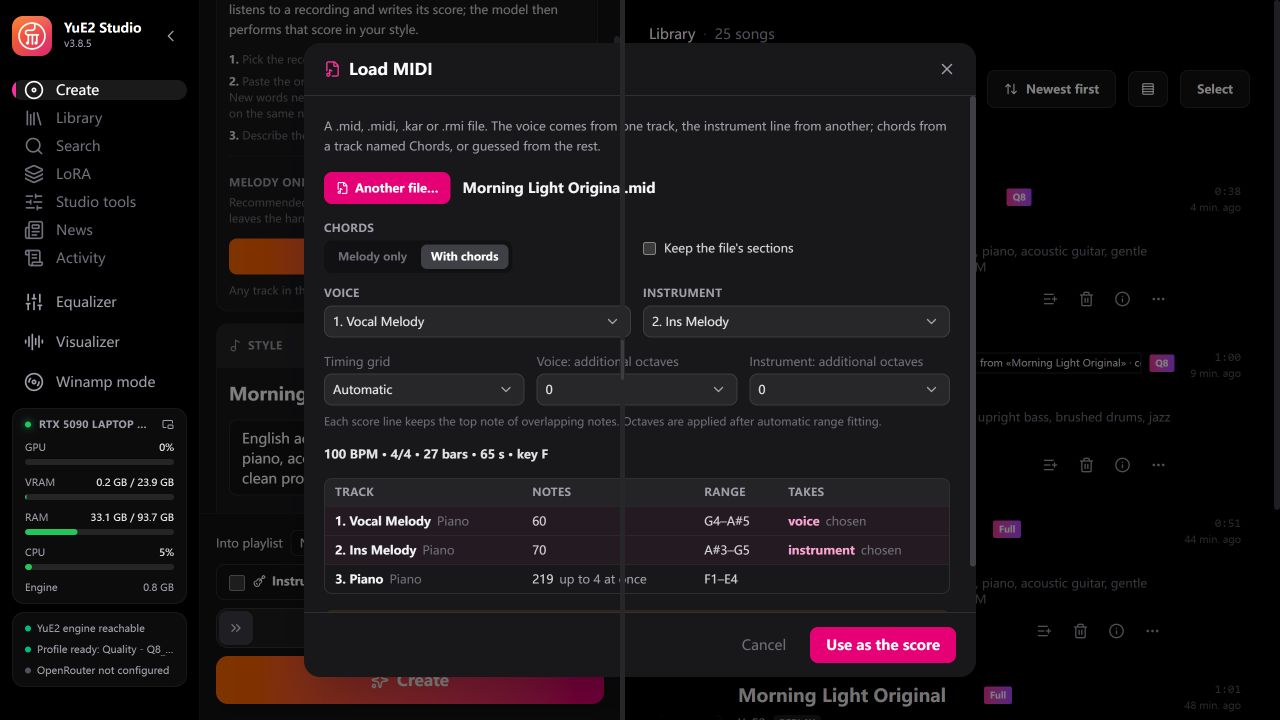
After converting MIDI to ABC, review the inferred chord names and adjust them in the score editor when needed.
Export printable notation
Click PDF beside the score to export printable notation. Export ABC or MIDI when you want to continue editing notes and chord symbols.
Find and compare saved versions
Use Library search to filter by a shared title such as Morning Light. Give each version a descriptive suffix, then open Song Details to review its lyrics and saved generation settings before comparing audio.
Model terms
YuE2 model weights use CC BY-NC 4.0. Check the YuE2 model card before using the model for your project.
Learn more
- Create a song with YuE2 Studio through Lares: Connect the MCP server and generate music from a conversation.
- Protect YuE2 Studio MCP with token authentication: Require a Bearer token for Lares and other MCP clients.
- Get started with Lares: Prepare the assistant and a tool-capable chat model.
- Manage accelerator resources: Assign or release GPU resources for Olares apps.
- Set system environment variables: Manage the shared Hugging Face download settings.