Manage your media library with the *Arrs ecosystem
The *Arrs family is a suite of open-source, self-hosted media managers. Sonarr manages TV shows, Radarr manages movies, Lidarr handles music, and Readarr organizes books. Prowlarr manages indexers for these applications, while Bazarr handles subtitle services.
By configuring connections between these tools, they communicate with each other to automatically search, download, and organize your media.
Learning objectives
In this guide, you will learn how to:
- Install the *Arr applications.
- Get the internal entrance URL of the *Arr apps in Olares.
- Connect qBittorrent to Sonarr as a download client.
- Connect Prowlarr to Sonarr as an indexer manager.
- Connect Bazarr to Sonarr as a subtitle manager.
Prerequisites
This guide focuses specifically on configuring the connections between the *Arr apps. It does not cover the complete setup or general usage of each individual app.
Ensure you have properly configured the core settings of your media managers and download clients before connecting them.
Upgrade notes
Starting with Olares V1.12.6, *Arr apps use internal entrance URLs instead of provider URLs. If you updated from an earlier version, check the Update notes for *Arr apps and update the affected settings.
Install the *Arr applications
Install the *Arr apps you need for your media stack. This tutorial uses Sonarr, Prowlarr, Bazarr, and qBittorrent.
Open Market and search for "Sonarr".
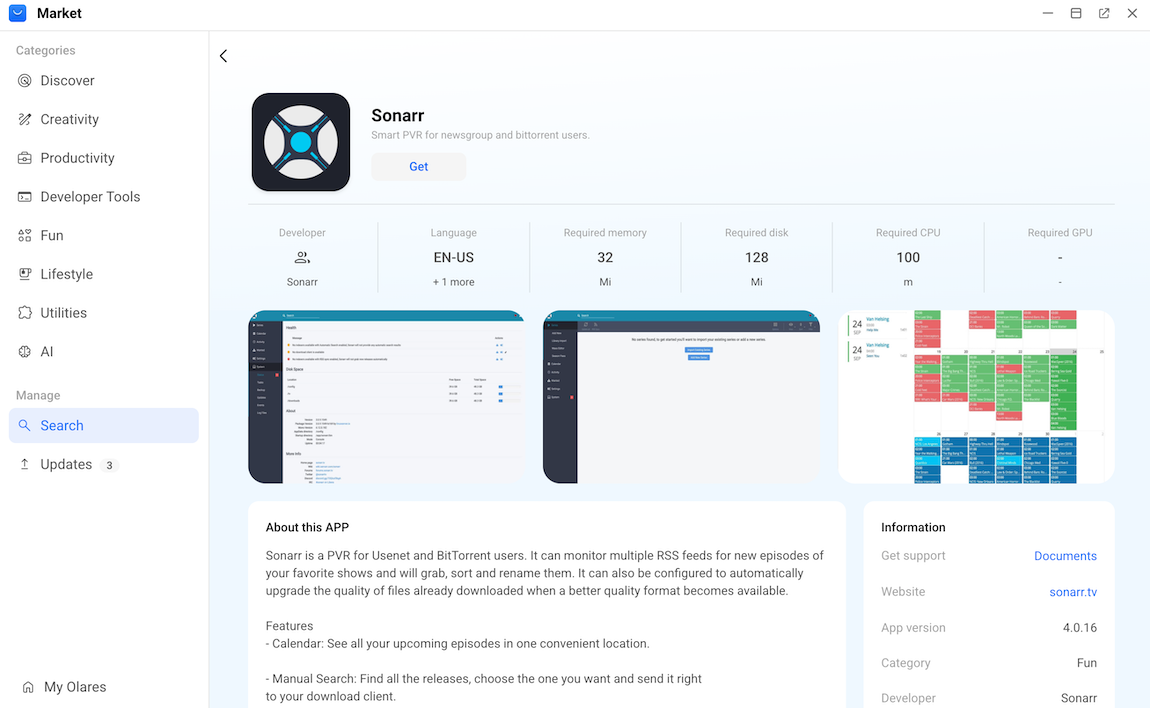
Click Get, and then click Install. Wait for the installation to finish.
Search for "Prowlarr" and install it.
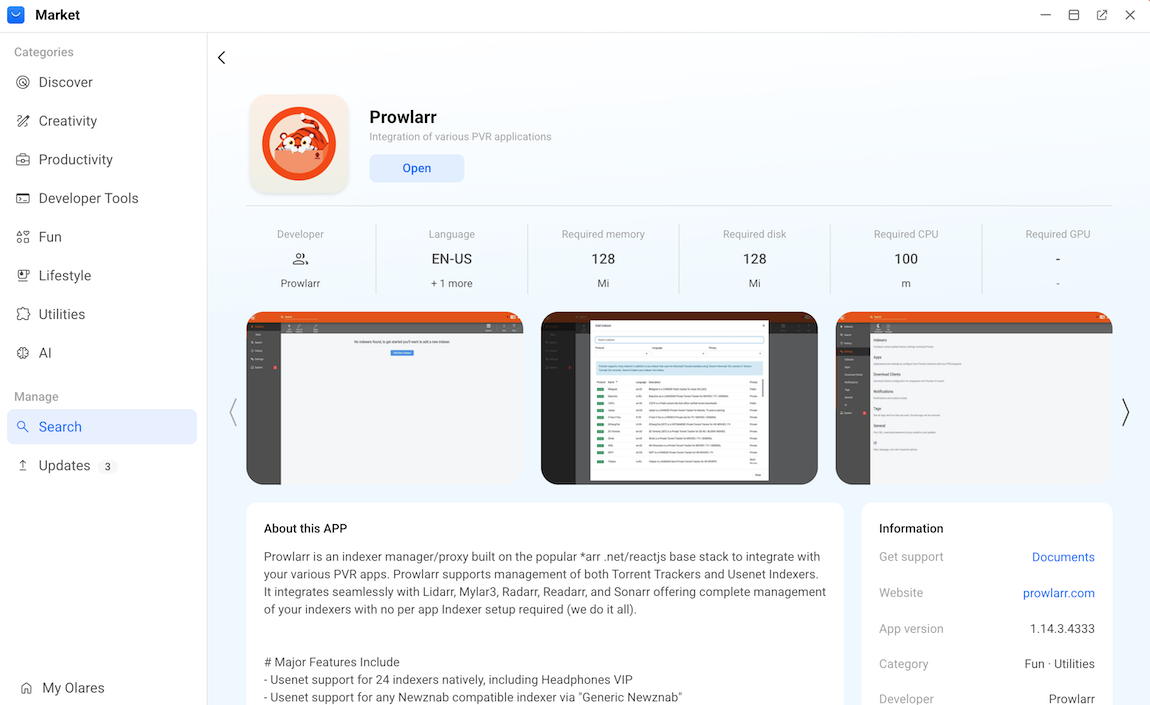
Search for "Bazarr" and install it.
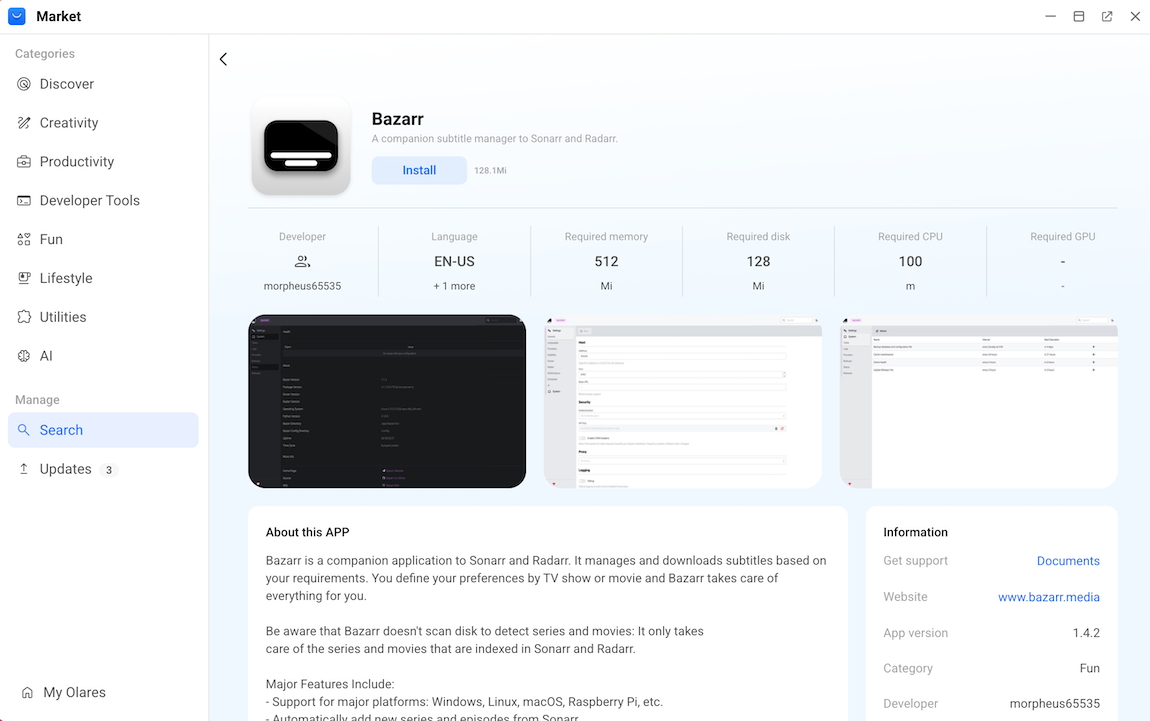
Search for "qBittorrent" and install it.
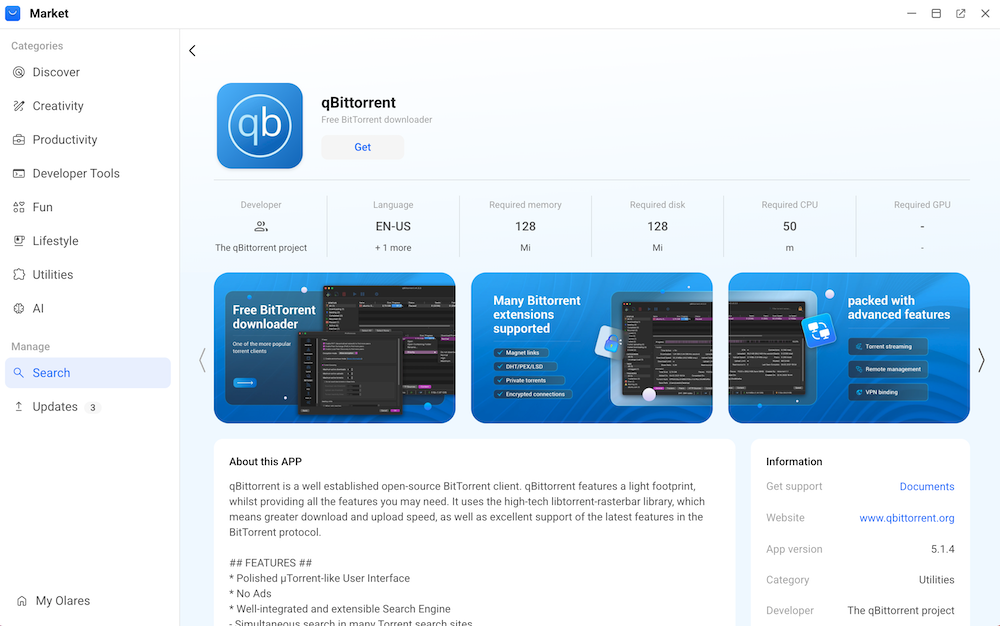
Complete the initial app settings
To secure your media server and prevent unauthorized access, you must configure administrator credentials for your applications upon their first launch if prompted.
The following steps demonstrate the initial setup for Sonarr.
Open Sonarr from the Launchpad. The Authentication Required page appears.
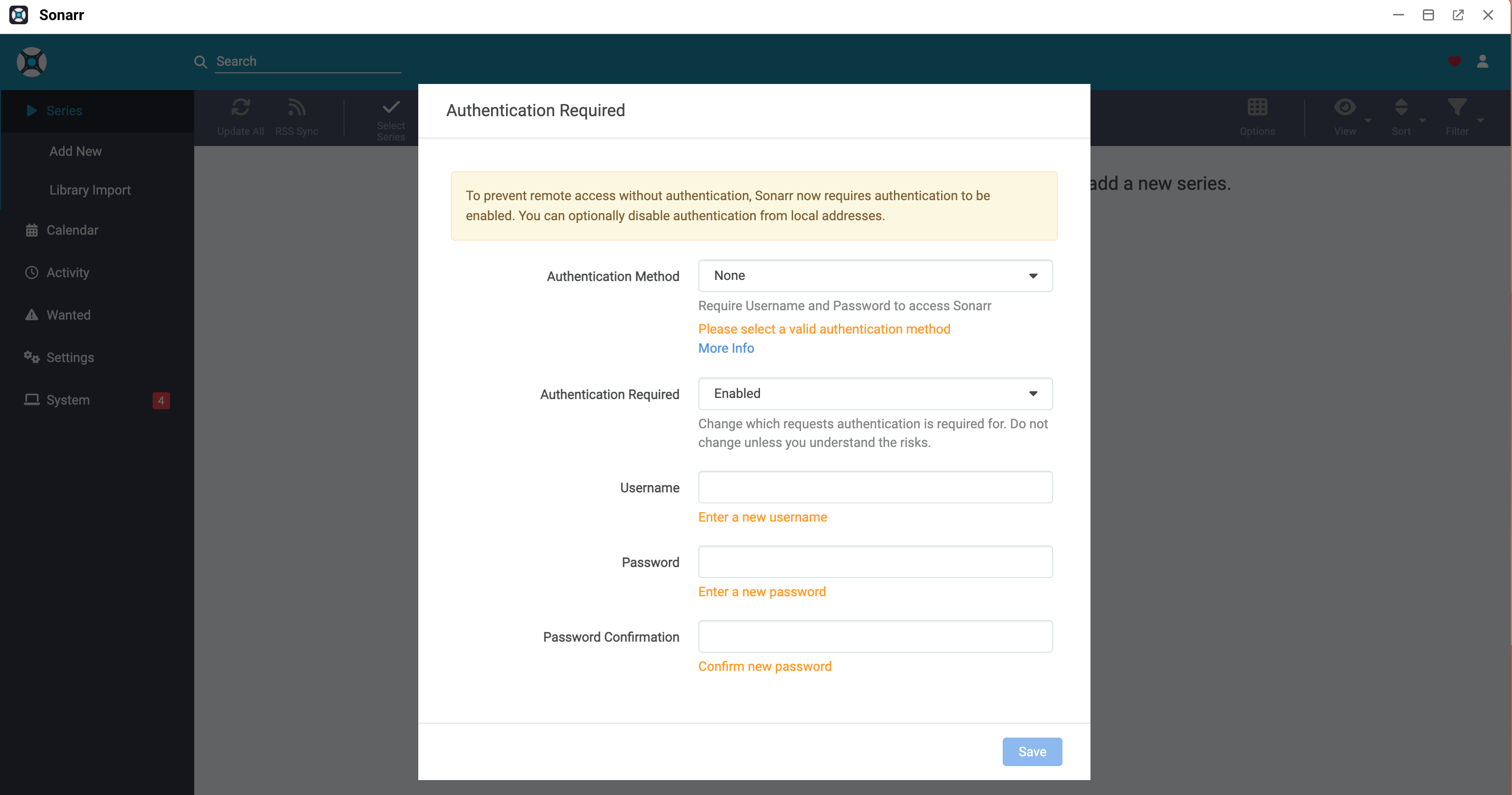
Select an authentication method:
- Basic (Browser Popup): To use your web browser's native login prompt, select this option. This method is often more compatible with automated password managers.
- Forms (Login Page): To use Sonarr's built-in, custom login interface for a more visually integrated experience, select this option.
In the Authentication Required list, keep the default selection Enabled to ensure maximum security. This option requires your username and password regardless of where you access the app from.
In the Username field, enter an admin username.
In the Password field, enter a secure password.
In the Password Confirmation field, type the same password again.
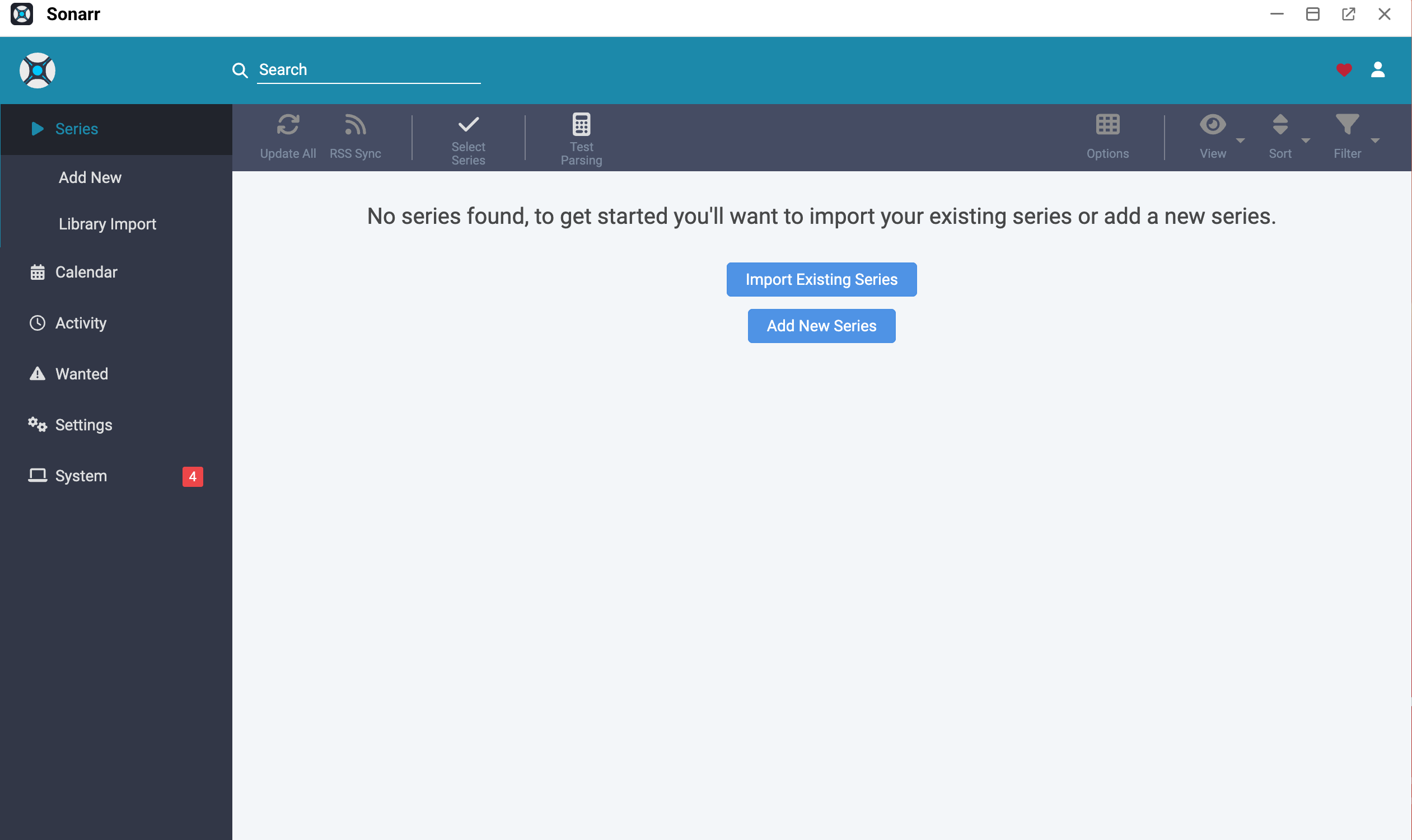
Click Save. You log in to Sonarr.
Obtain the internal entrance URL
To connect the *Arr apps, you need the internal entrance URL of each app. The following steps show how to get it for Sonarr. Use the same method for Prowlarr, Bazarr, and your download client.
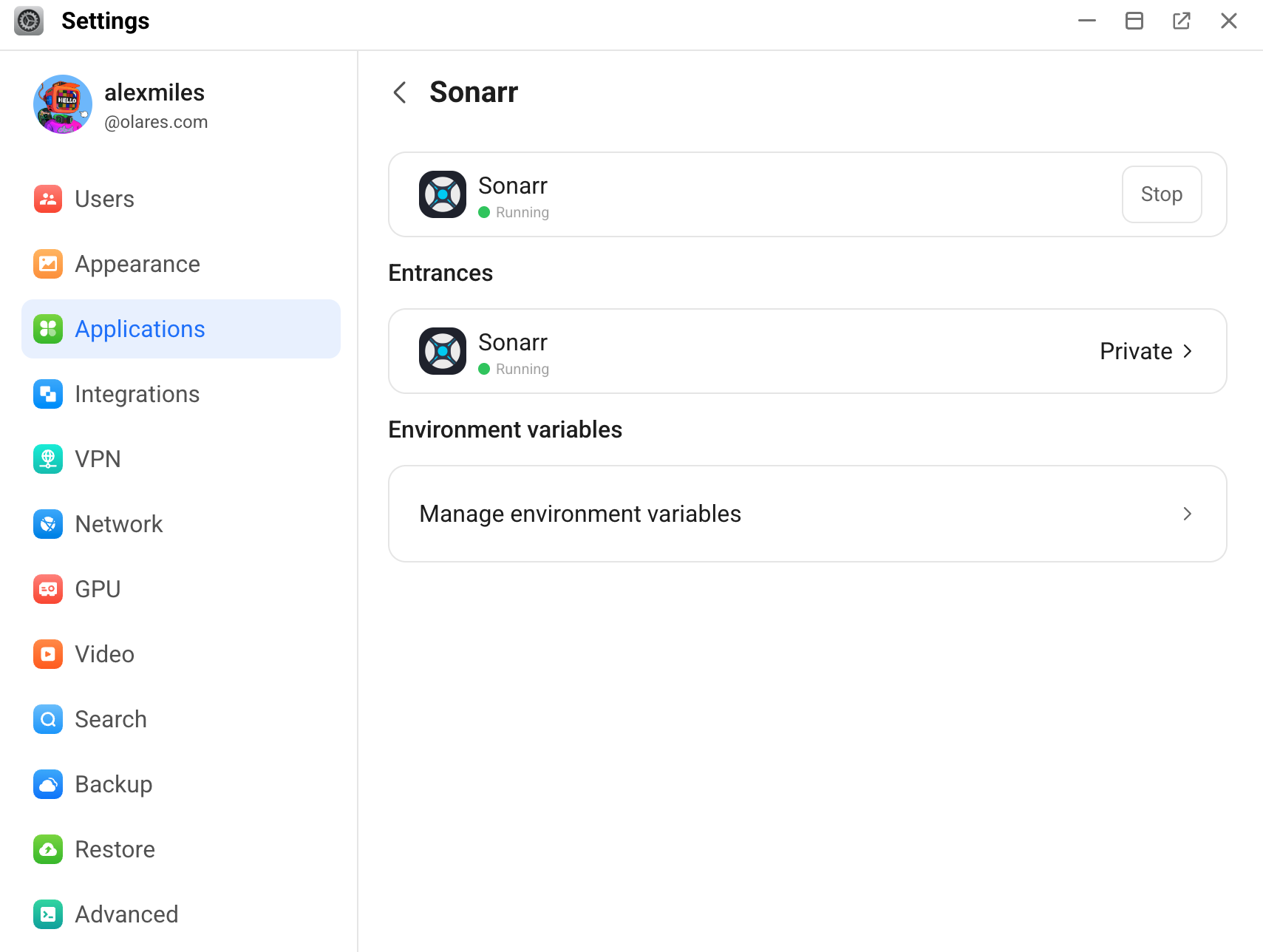
Open Olares Settings, and then go to Applications > Sonarr > Entrances > Sonarr.
Make sure the Authentication level is set to Internal.
Copy the Endpoint URL. For example
https://9691c178.alexmiles.olares.com.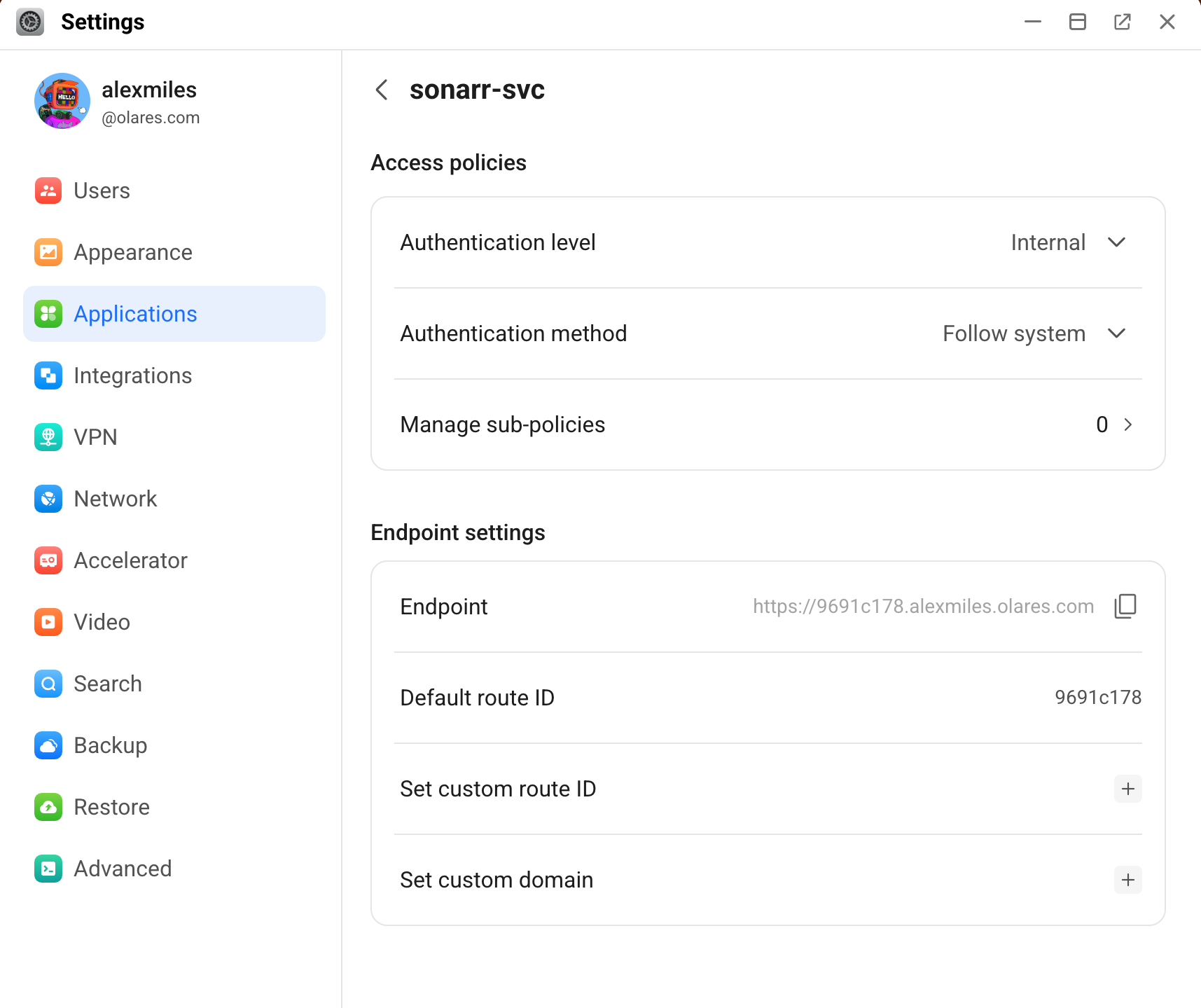
Connect a download client to a media manager
To download media, you must connect a download client like qBittorrent or Transmission to your media managers (Sonarr, Radarr, Lidarr, and Readarr).
The following steps demonstrate how to connect qBittorrent to Sonarr. You can apply the same process for other media managers.
Open Sonarr, click Settings from the left sidebar, and then select Download Clients.
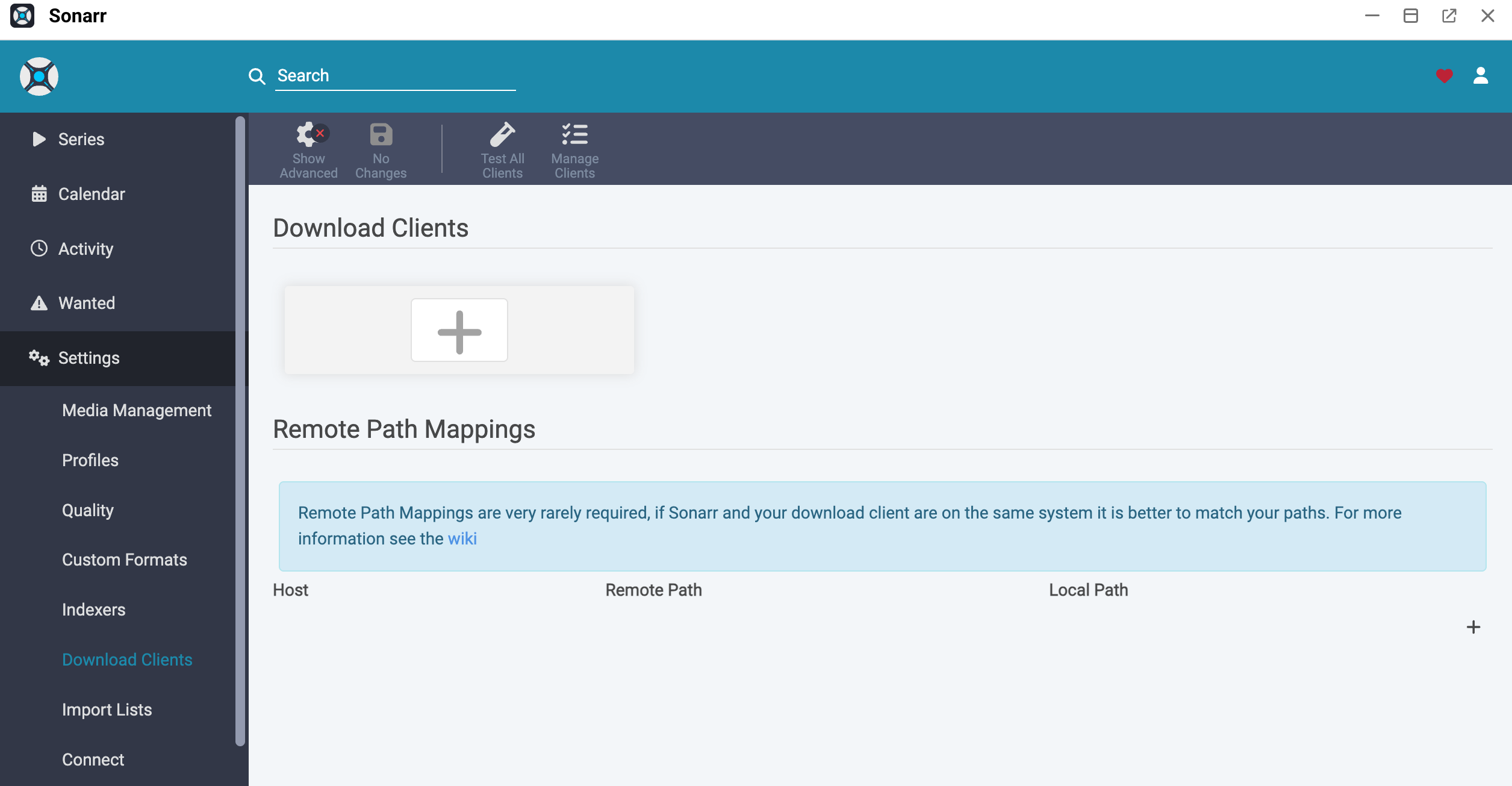
Click add_2, and then scroll down to select qBittorrent to add a new client connection.
Specify the connection details as follows:
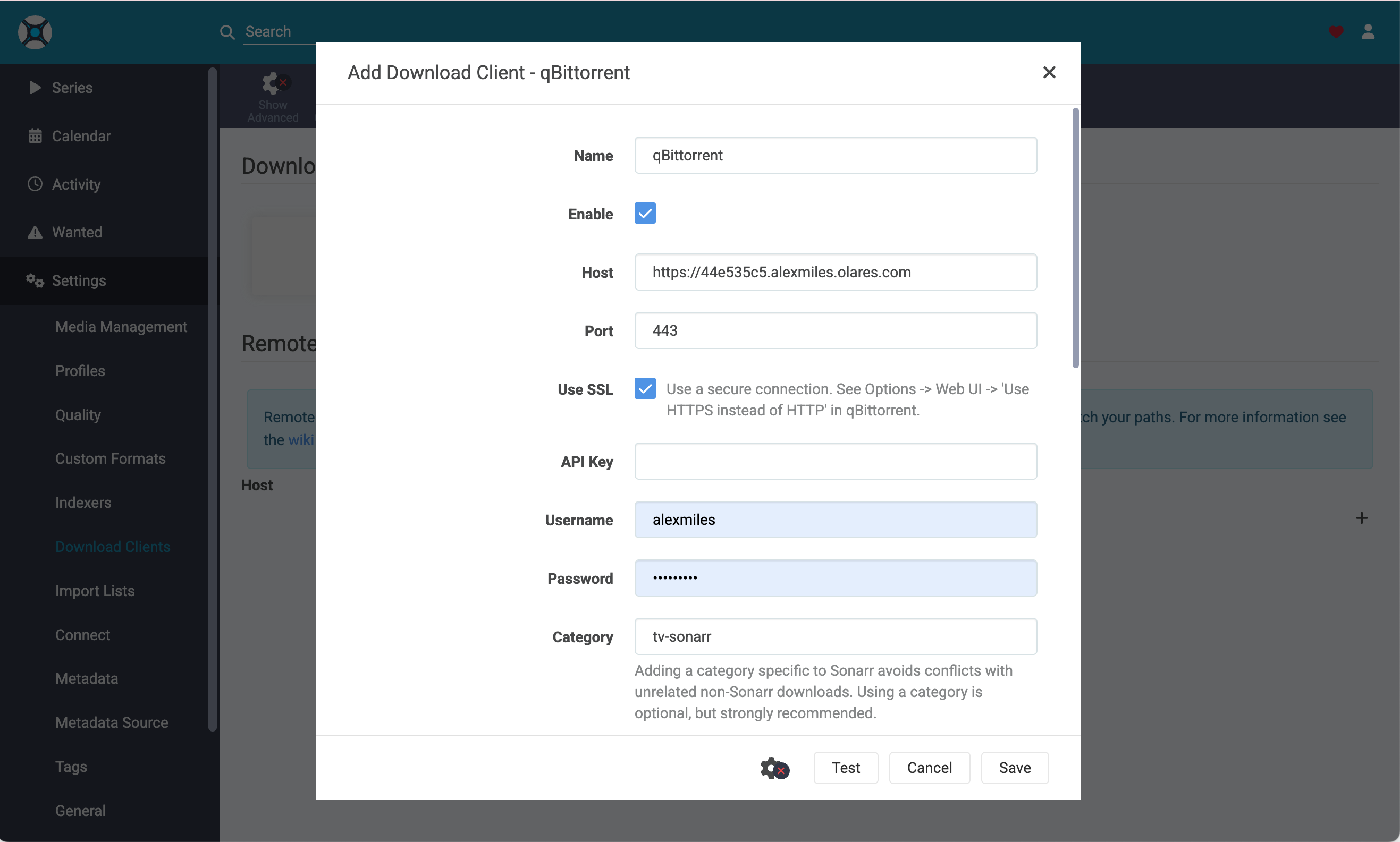
- Host: Enter the internal entrance URL of qBittorrent. For example,
https://44e535c5.alexmiles.olares.com. - Port: Enter
443. - Use SSL: Enable this option.
- Username and Password:
- If your qBittorrent client requires authentication, enter your username and password.
- If you use the default qBittorrent settings without a password, leave the two fields blank.
- Host: Enter the internal entrance URL of qBittorrent. For example,
Click Test. A green checkmark appears, indicating the connection is successful.
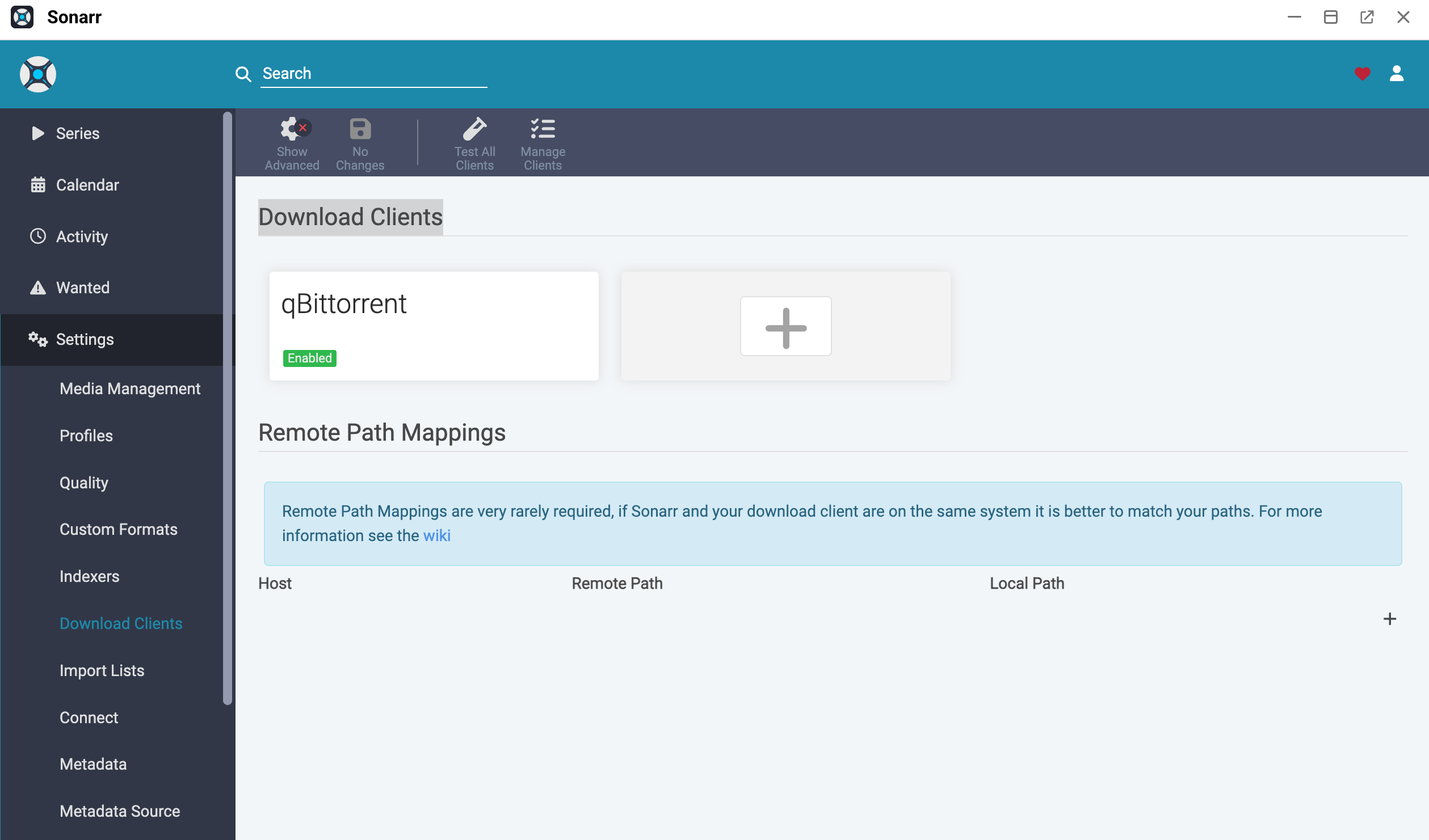
Select Save. qBittorrent appears in the Download Clients section as enabled.
Connect an indexer manager to a media manager
To automatically search for media files across multiple indexers (search sites), you must connect an indexer manager like Prowlarr to your media managers.
The following steps demonstrate how to connect Prowlarr to Sonarr. You can apply the same process for other media managers.
Step 1: Obtain the Sonarr API Key
Open Sonarr, click Settings from the left sidebar, and then select General.
In the Security section, note down the API Key. In this case, it is
e4ee9f376d754fd3b7146629d737644f.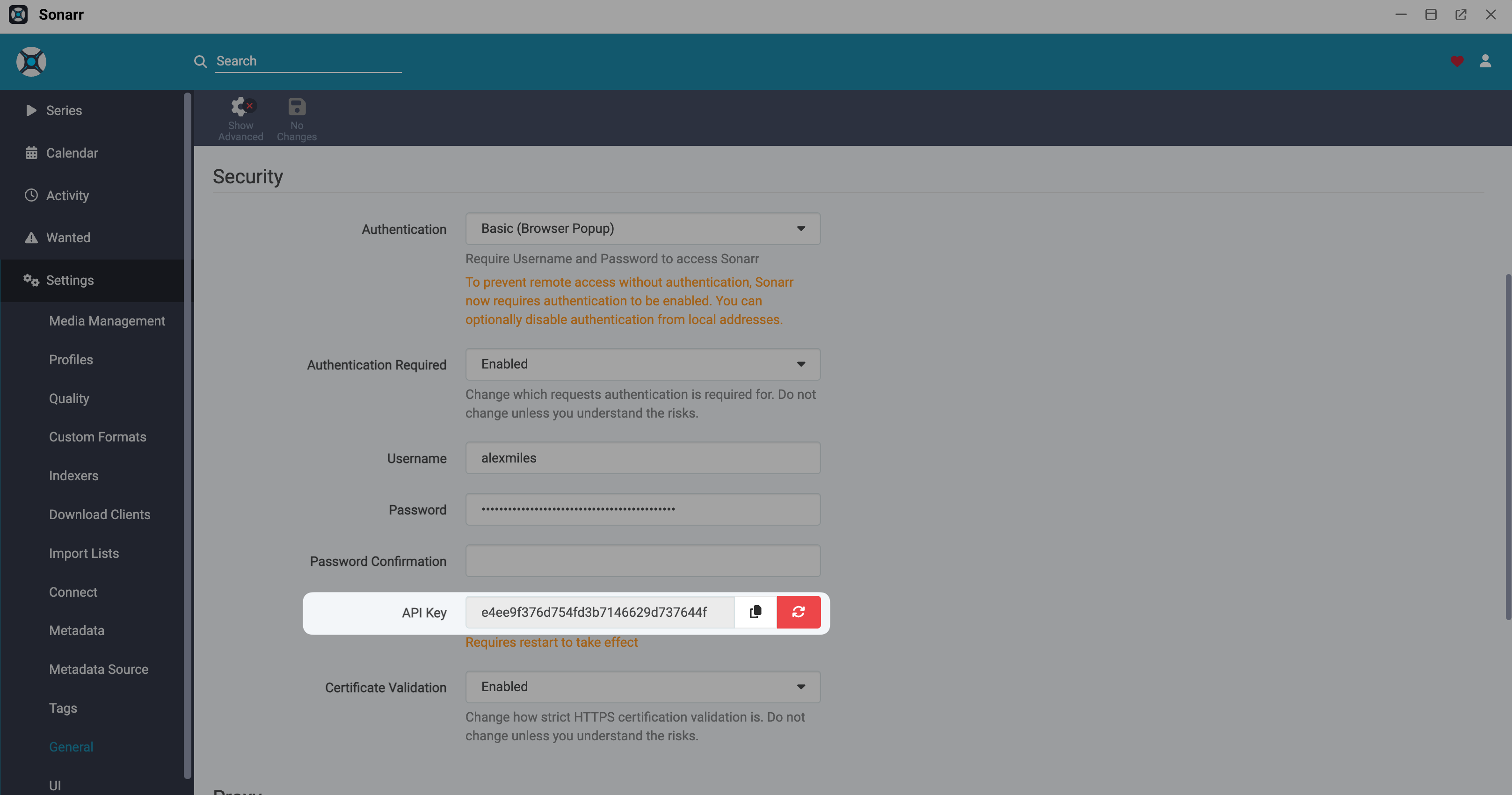
Step 2: Add indexers in Prowlarr
Open Prowlarr and sign in.
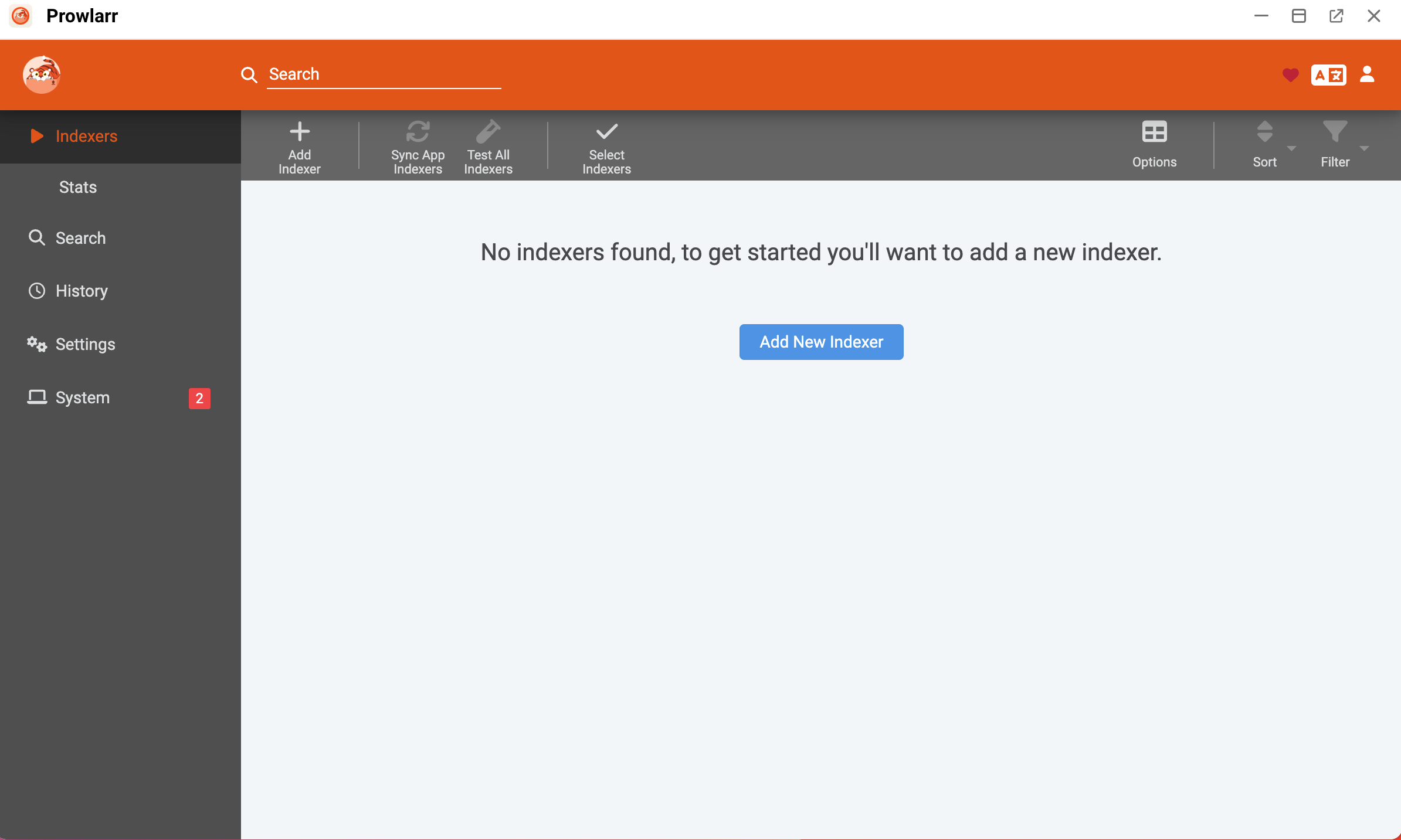
Click Add New Indexer.
Add your preferred indexers and ensure they connect successfully. For example, to add Uindex:
a. Search for Uindex, and then click it from the results list.
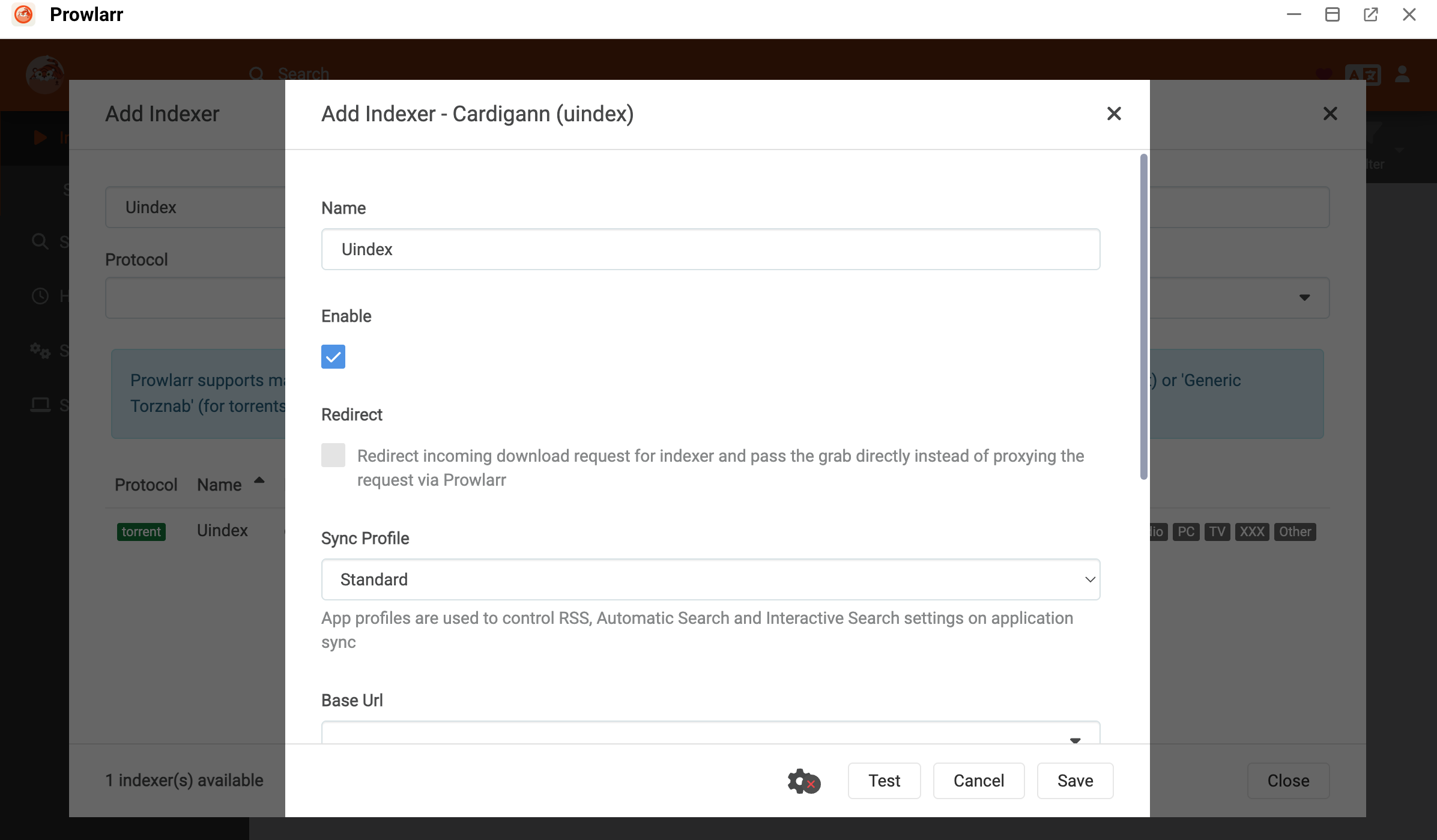
b. Click Test. A green checkmark appears, indicating the connection is successful.
TIP
If the connection test fails, the indexer might require a Cloudflare bypass. For instructions on resolving this issue, see Access Cloudflare-protected sites in Prowlarr with FlareSolverr.
c. Click Save.
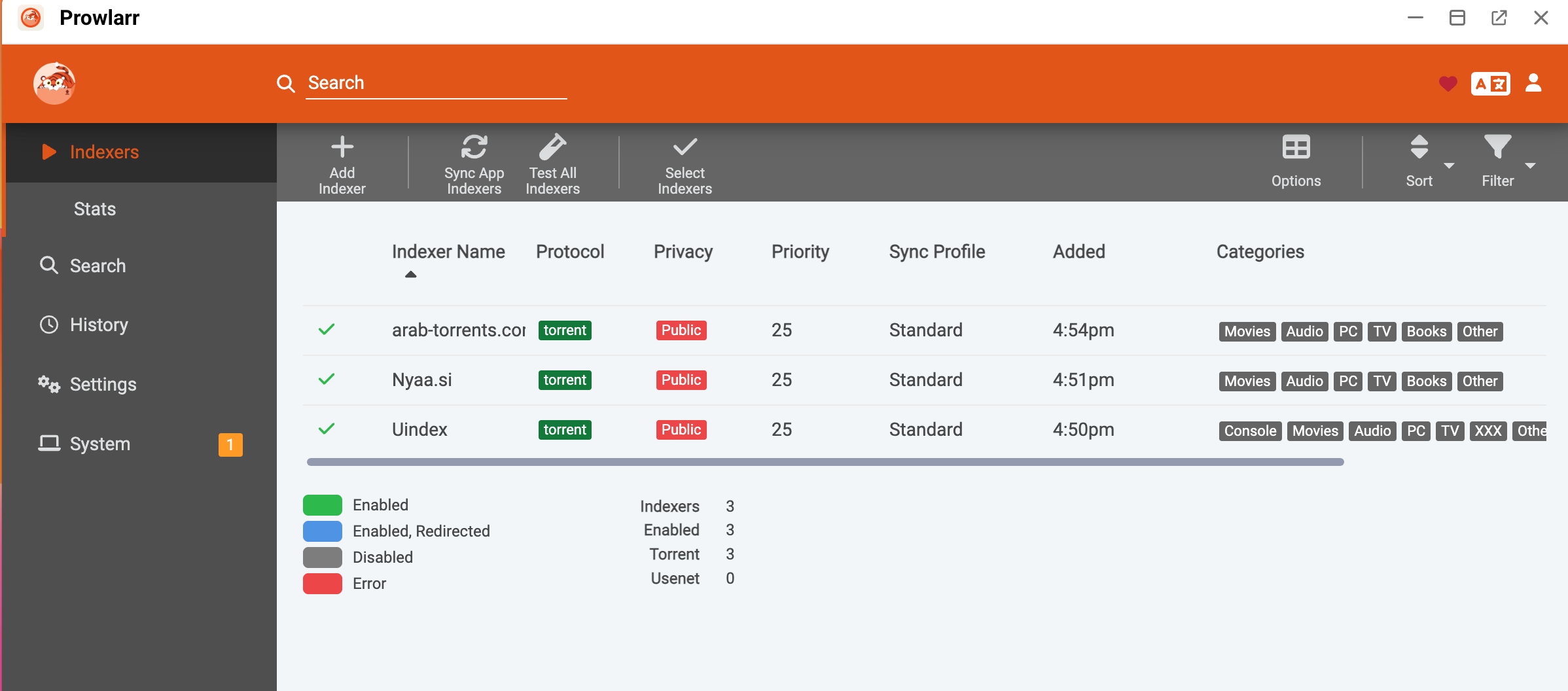
Close the Add Indexer window. Prowlarr displays the enabled indexers.
Step 3: Sync Prowlarr with Sonarr
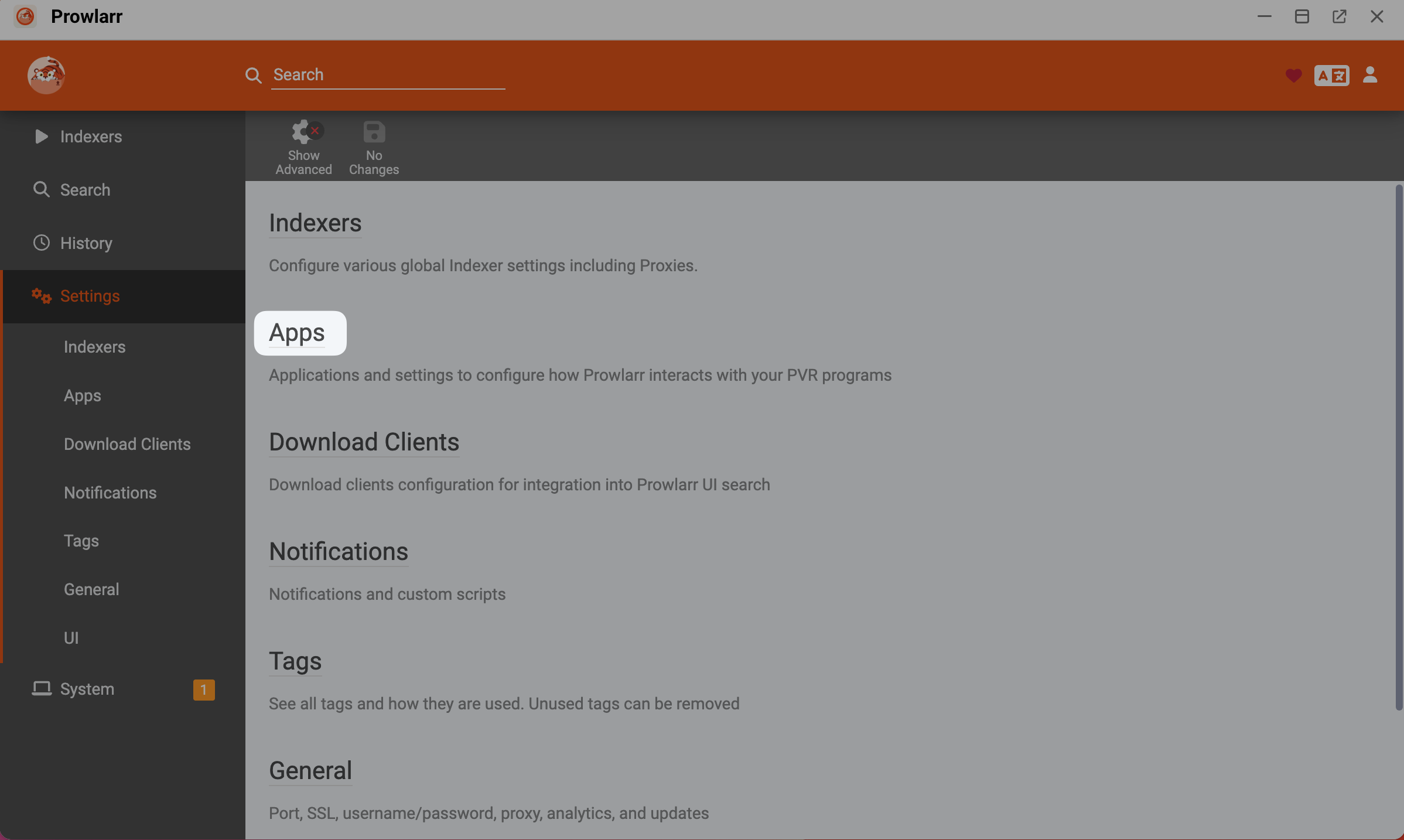
In Prowlarr, click Settings from the left sidebar, and then select Apps.
Click Apps.
Click add_2, and then select the application you want to connect, that is Sonarr.
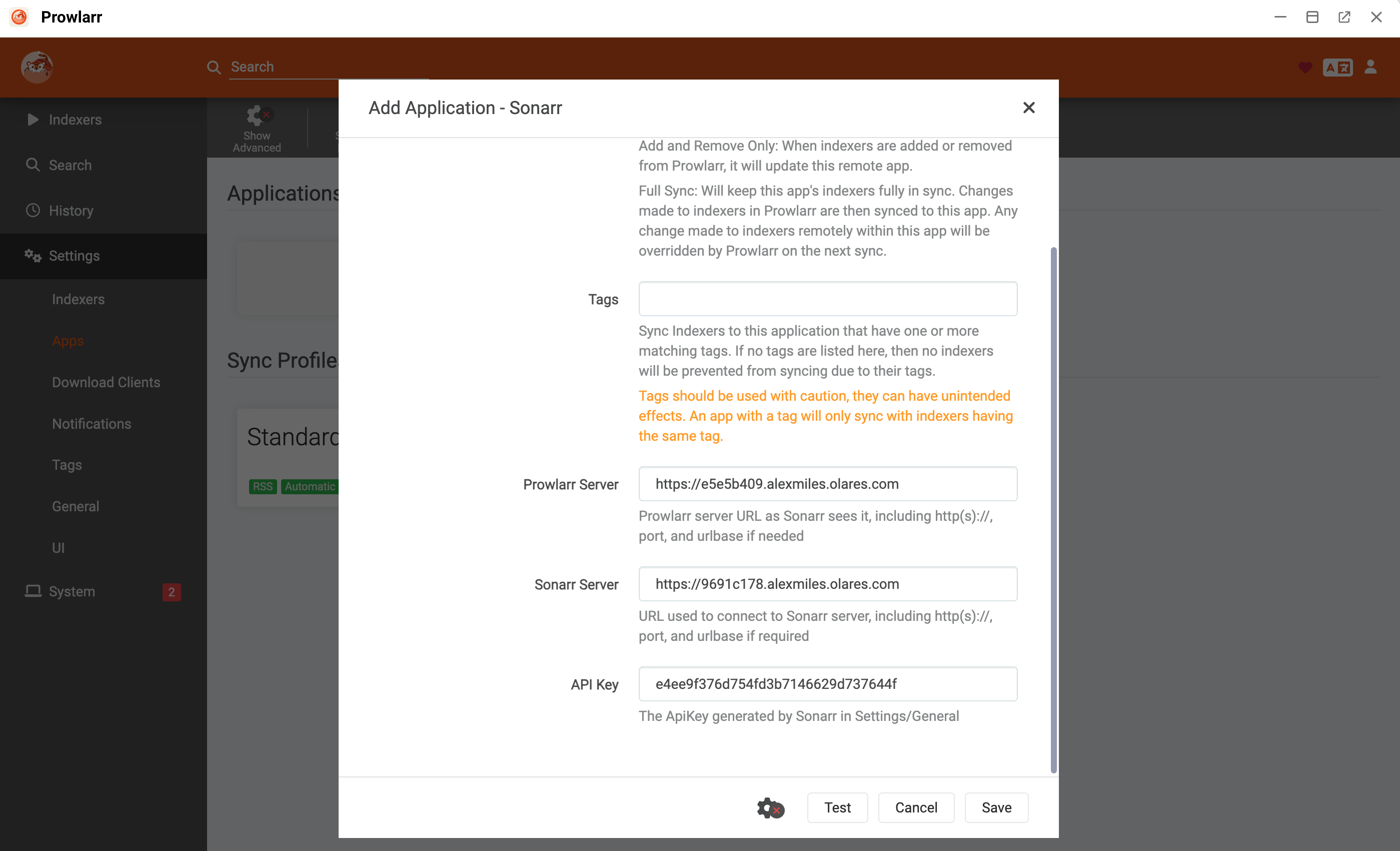
In the Add Application - Sonarr window, specify the following settings:
- Prowlarr Server: Enter the internal entrance URL of Prowlarr, such as
https://e5e5b409.alexmiles.olares.com. - Sonarr Server: Enter the Entrance URL of Sonarr, such as
https://9691c178.alexmiles.olares.com. - API Key: Enter the API key you noted down previously.
- Prowlarr Server: Enter the internal entrance URL of Prowlarr, such as
Click Test. A green checkmark appears, indicating the connection is successful.
Click Save. Sonarr appears in the Applications section, and Prowlarr automatically pushes the indexers to Sonarr.
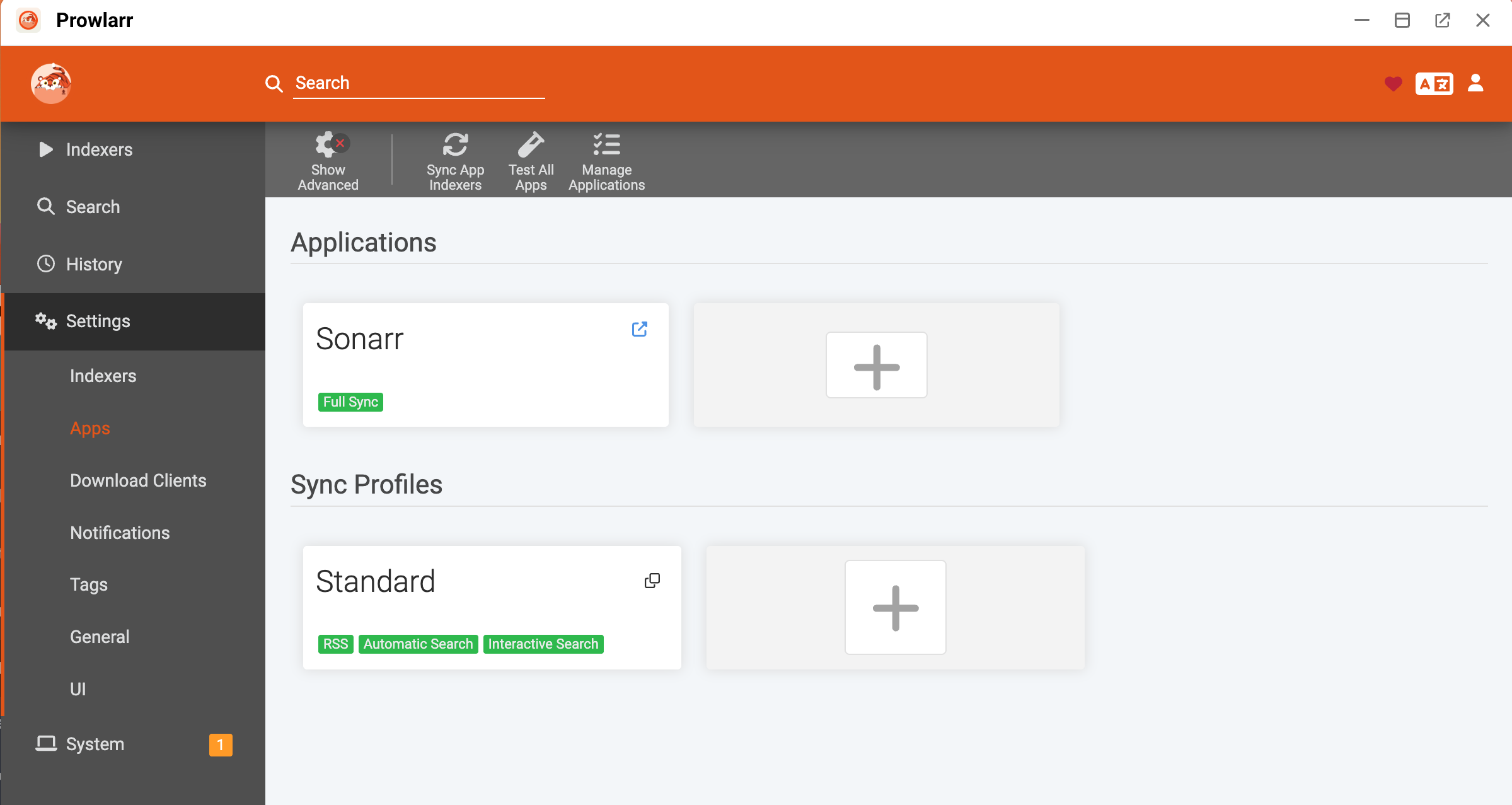
To verify the sync, open Sonarr, and then go to Settings > Indexers. You can see the data sources imported from Prowlarr.
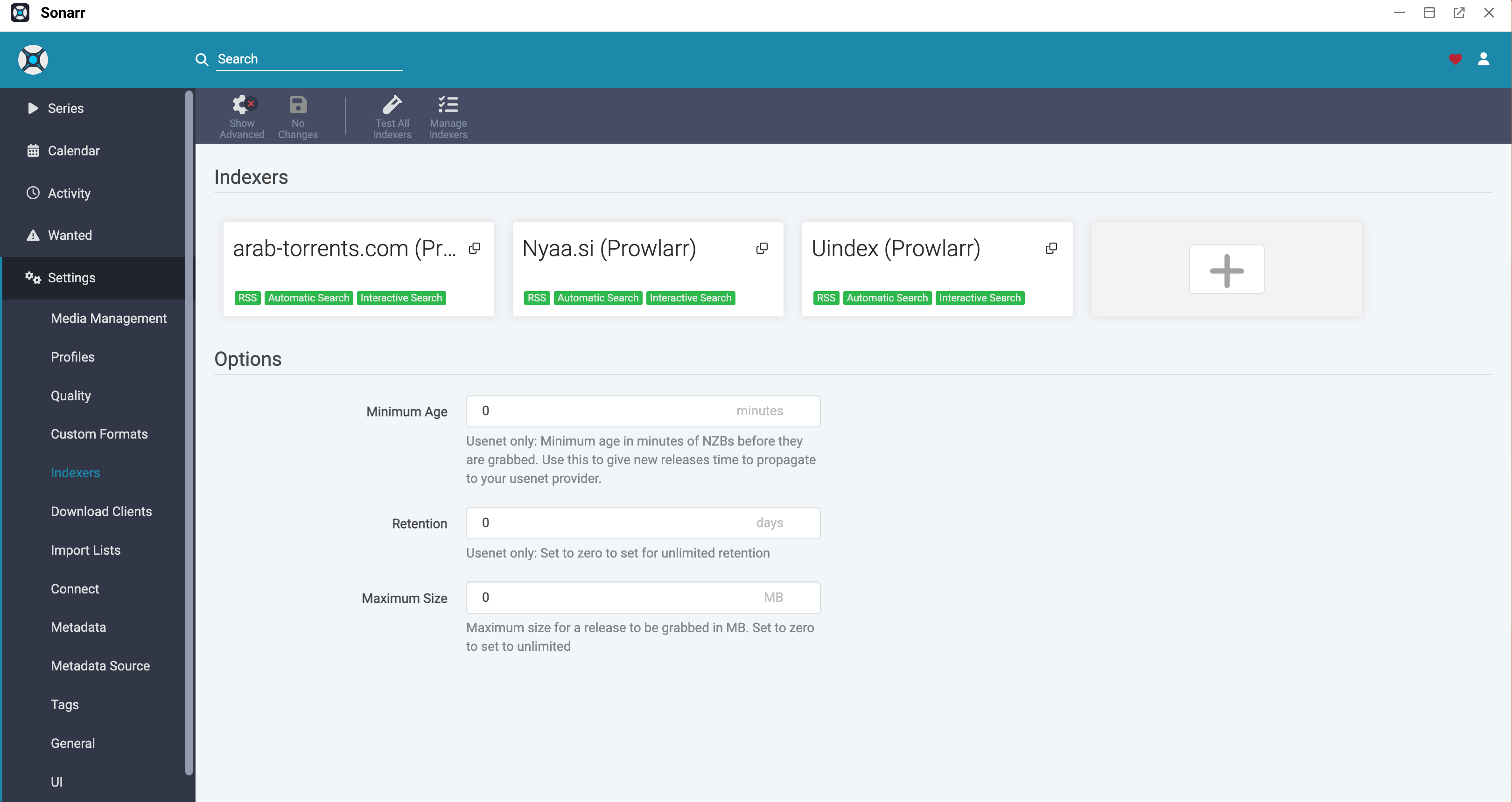
Now when you add a new TV show in Sonarr, it searches these indexers for available files and triggers qBittorrent to download them.
Connect a subtitle manager to a media manager
To automatically download missing subtitles for your media library, you must connect a subtitle manager like Bazarr to your media managers (Sonarr and Radarr).
The following steps demonstrate how to connect Bazarr to Sonarr.
Open Bazarr from the Launchpad, and then click Sonarr from the left sidebar.
Toggle on Enabled, and then specify the following settings:
- Address: Enter the internal entrance URL of Sonarr, excluding the
https://prefix. For example,9691c178.alexmiles.olares.com. - Port: Enter
443. - API Key: Enter the Sonarr API Key you noted down earlier.
- SSL: Enable this option.
- Address: Enter the internal entrance URL of Sonarr, excluding the
Click Test. Bazarr displays the connected Sonarr version number if the connection is successful.
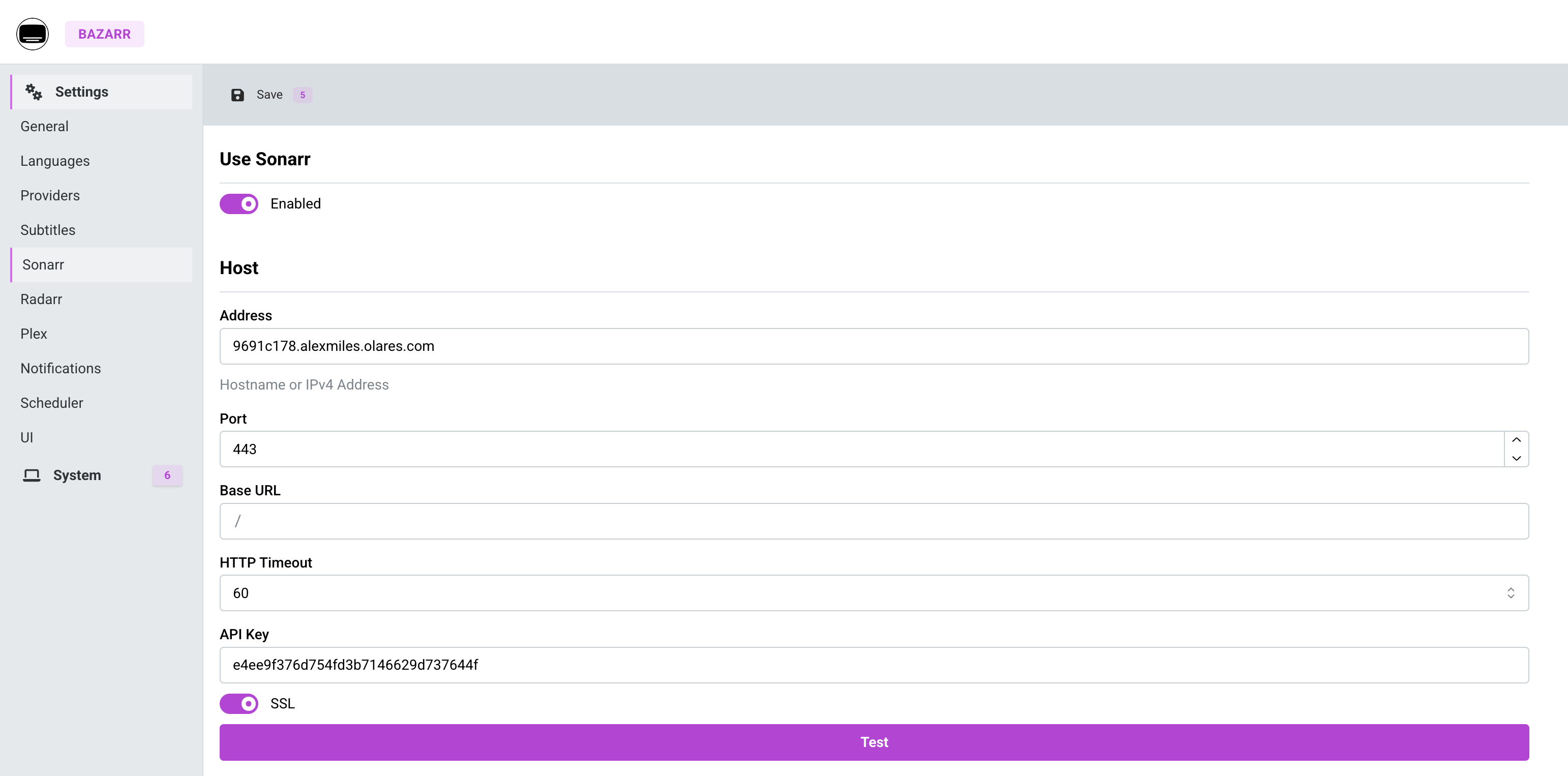
Select Save in the upper-left corner.
Bazarr now monitors Sonarr. Whenever Sonarr downloads a TV show, Bazarr automatically detects it and downloads the corresponding subtitles according to your language settings.
FAQ
Why can I not connect certain apps, like JDownloader, to my media managers?
Some apps are not supported by the *Arr media managers because they do not implement the API expected by Sonarr, Radarr, and their counterparts. For example, JDownloader cannot be connected to Sonarr or Radarr because the *Arr apps do not include a JDownloader-compatible download client integration.
For the full list of supported download clients and integrations, refer to the official Servarr Wiki.
Why does my connection test fail?
- Check the URL format: Review the requirements for the specific application you configure.
- Prowlarr connecting to Sonarr: Use the
https://prefix. - Sonarr connecting to qBittorrent or Bazarr connecting to Sonarr: Enter the internal entrance URL without the
https://prefix.
- Prowlarr connecting to Sonarr: Use the
- Verify the port: Ensure you set the port to
443. - Enable SSL: For connections on port
443, make sure the SSL or Use SSL option is enabled.
Learn more
- Access Cloudflare-protected sites in Prowlarr with FlareSolverr: Bypass Cloudflare challenges for indexer sites.
- Servarr Wiki