Fine-tune and run open models with Unsloth
Unsloth helps you run and fine-tune AI models locally. On Olares, the app includes Unsloth Studio, a web interface for working with models, and JupyterLab, a workspace for running Python notebooks.
This guide fine-tunes Qwen/Qwen3.5-2B with LoRA for one epoch on about 1,000 conversations from mlabonne/FineTome-100k. The dataset includes programming explanations and general knowledge questions. This small training run introduces the full workflow, from selecting data to exporting a model. To adapt the model to your own task or response style, use conversations that demonstrate the answers you want.
Learning objectives
In this guide, you will learn how to:
- Assign GPU memory to Unsloth.
- Load a model and chat with it in Unsloth Studio.
- Fine-tune a model with LoRA and compare the result with the base model.
- Export the fine-tuned model to GGUF and find the file in Olares Files.
- Optionally, run the saved LoRA adapter from a Python notebook.
Understand Unsloth Studio and JupyterLab
The Olares app includes two entrances for different ways of working:
| Entrance | What it provides | When to use it |
|---|---|---|
| Unsloth Studio | A web interface for chatting, training, comparing, and exporting models | Follow the main workflow in this guide through the web interface. |
| JupyterLab | A coding workspace with notebooks, a terminal, and the Unsloth Python package | Load a saved model from Python, process your own data, or customize training code. |
Both run on your Olares device and share its GPU, model cache, and application files. Each entrance has its own login password.
Prerequisites
- An x86-64 (amd64) Olares device with an NVIDIA GPU.
- Internet access to Hugging Face for downloading models and datasets.
Install Unsloth
Open Market and search for "Unsloth".
Click Get, then Install. When prompted, set the following environment variables:
- UNSLOTH_STUDIO_PASSWORD: Enter the Unsloth Studio password. It must contain at least 8 characters.
- JUPYTER_PASSWORD: Enter the JupyterLab password. It must contain at least 8 characters.
Confirm the settings and wait for installation to complete.
Keep the Unsloth Studio password
Unsloth Studio uses UNSLOTH_STUDIO_PASSWORD to set its password on the first launch. Store that password in Vault or another password manager. For later changes, follow the password reset procedure.
Assign GPU memory
Unsloth runs on one NVIDIA GPU. The VRAM available to the app depends on the GPU mode:
| GPU mode | VRAM for Unsloth |
|---|---|
| Time slicing or Exclusive | The app can use the GPU's full VRAM. |
| Memory slicing | The app uses the quota you assign when you launch it. The launch dialog shows the minimum requirement and available quota. |
The minimum quota shown by Olares is the app's startup requirement. Training can need more memory. For reference, Unsloth reports about 5 GB of VRAM for Qwen3.5-2B with bf16 LoRA in its Qwen3.5 guide. Actual use depends on context length and batch size, so leave room above that estimate.
In Memory slicing mode, increase the quota by removing the app from its assigned GPU, then resuming it with a new quota:
Go to Settings > Accelerator, then click Manage on the resource card.
Under Assigned apps, find Unsloth, click Remove, and confirm. This stops the app.
Go to Settings > Applications, find Unsloth, and click Resume.
Under Select GPUs, choose the GPU. In Quota for current app, enter an amount within the available quota, then click Launch.
Training runs, exports, and downloaded models remain in storage while the app is stopped. For details, see Manage GPU resources.
Log in to Unsloth Studio
Open Unsloth from Launchpad.
Log in with the username
unslothand the password you set for UNSLOTH_STUDIO_PASSWORD.
Use Unsloth Studio
Chat with a model
On the chat page, open the Select model dropdown in the top-left corner. If you are on another page, click New chat in the left sidebar first.
Search for a model. For example, enter
unsloth/Qwen3.5-2B-GGUF.For a GGUF repository, choose a quantization that fits your assigned VRAM. A 4-bit variant, such as
Q4_K_MorUD-Q4_K_XL, is a common starting point.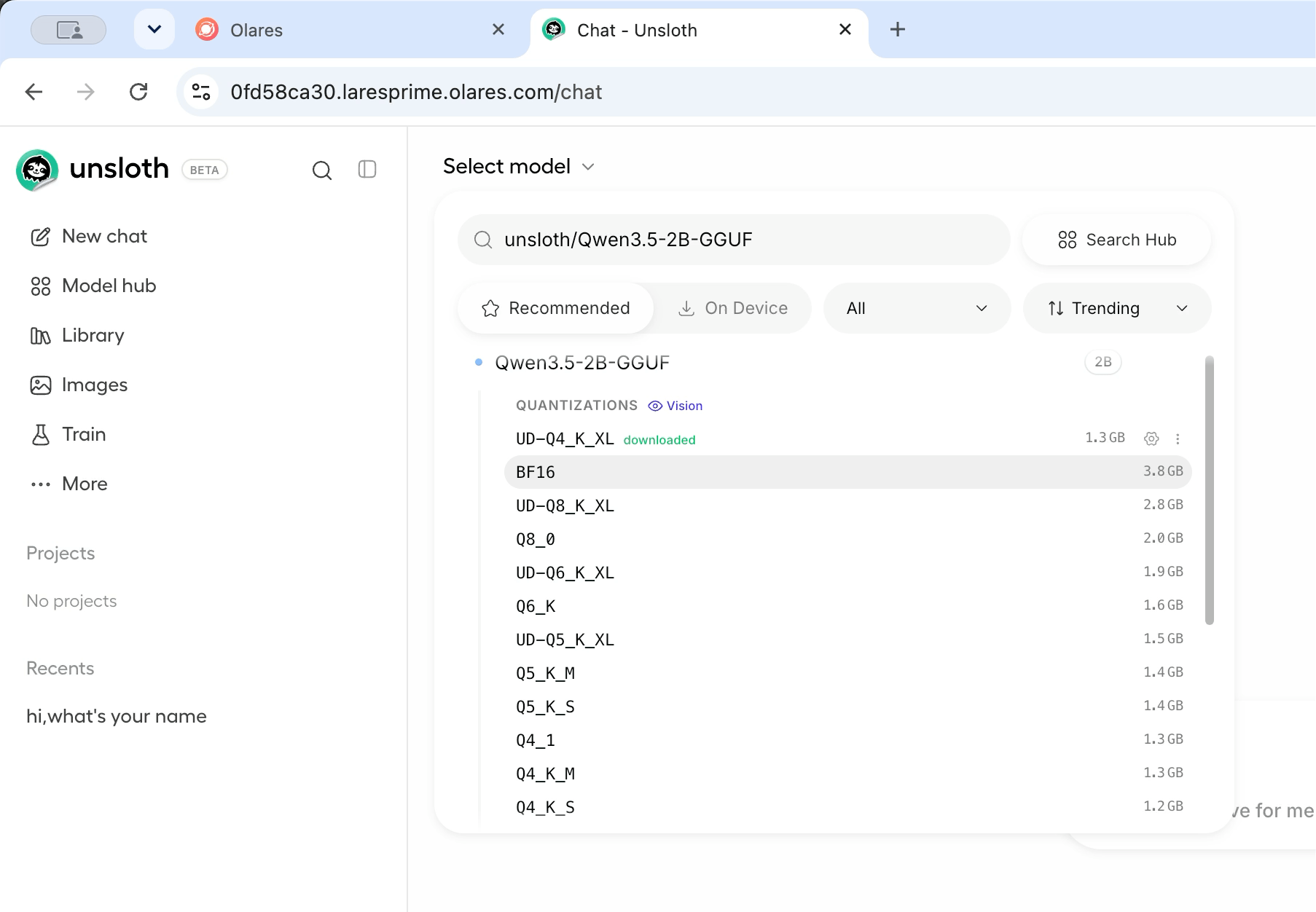
Wait for the model to download and load, then enter a prompt.
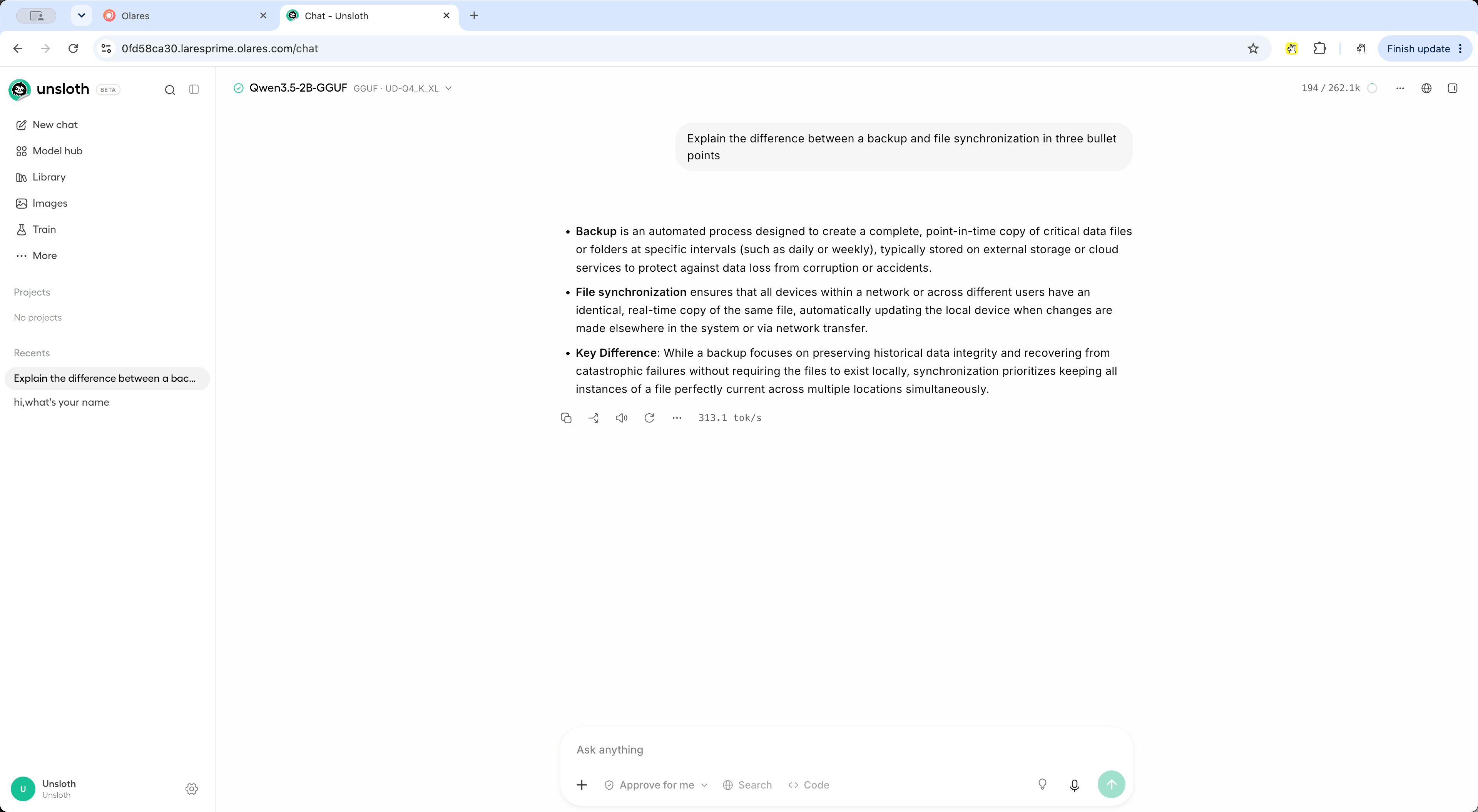
Studio automatically sets inference parameters such as temperature, top-p, and top-k for supported models. You can change them and edit the system prompt in the chat settings.
Reuse downloaded models
Unsloth stores Hugging Face downloads in the shared Hugging Face directory on Olares. Studio reuses models in this cache. Allow time for the weights to load into memory, especially for large models.
Fine-tune a model
Open Train > Configure to configure training. LoRA trains a small set of additional weights, called an adapter, while keeping the base model weights unchanged.
Use bf16 LoRA for this Qwen3.5 example, following the Unsloth Qwen3.5 training recommendations.
In the Model section, configure the following fields:
- MODEL: Search for and select
Qwen/Qwen3.5-2B, which provides the model weights for training. Use the GGUF version for chatting. - METHOD: Select LoRA.
- TRAIN AS: Select Language model.
Gated models
For a gated model, such as some Llama or Gemma models, open HF TOKEN in the Model section and enter a Hugging Face access token. The token must have access to that model.
- MODEL: Search for and select
In the Dataset section, use the DATASET selector to search for and select
mlabonne/FineTome-100k. Keep Subset set to default and Train Split set to train. Click View dataset to inspect the conversations. The dataset viewer includes programming, knowledge explanations, and teaching examples. Check both the user requests and the answers before choosing data for your own task.Prepare your own dataset
For your own assistant, prepare conversations with the instructions and answers you want it to learn. In the Dataset section, click Drop file or click to upload to upload a structured dataset. Keep a few examples out of training so you can use them to compare models later.
To create a dataset from source documents, follow the Data Recipes guide, then select the resulting dataset for training.
Expand Advanced within the Dataset section and set the following fields to train on a small subset:
- Target Format: Keep Auto.
- Train Split Start: Enter
0. - Train Split End: Enter
1000.
In the Parameters section, switch to Advanced. Set Context Length to
2048. Click Use Epochs beside Max Steps, then set the epoch count to1to train on the selected subset once.Try a shorter run
To try training with fewer steps, switch to Max Steps and enter
30.Within Parameters, expand Training Hyperparameters and select Optimization. Set Batch Size to
1to reduce memory use. Keep the other parameters at their defaults.Click Start Training. The button is available after both a model and a dataset are configured.
Wait for dependencies to be prepared and the model and dataset to download and load. This happens before the first training step. On the first run, download time depends on your connection and the model size. Follow the download progress in the preparation window.
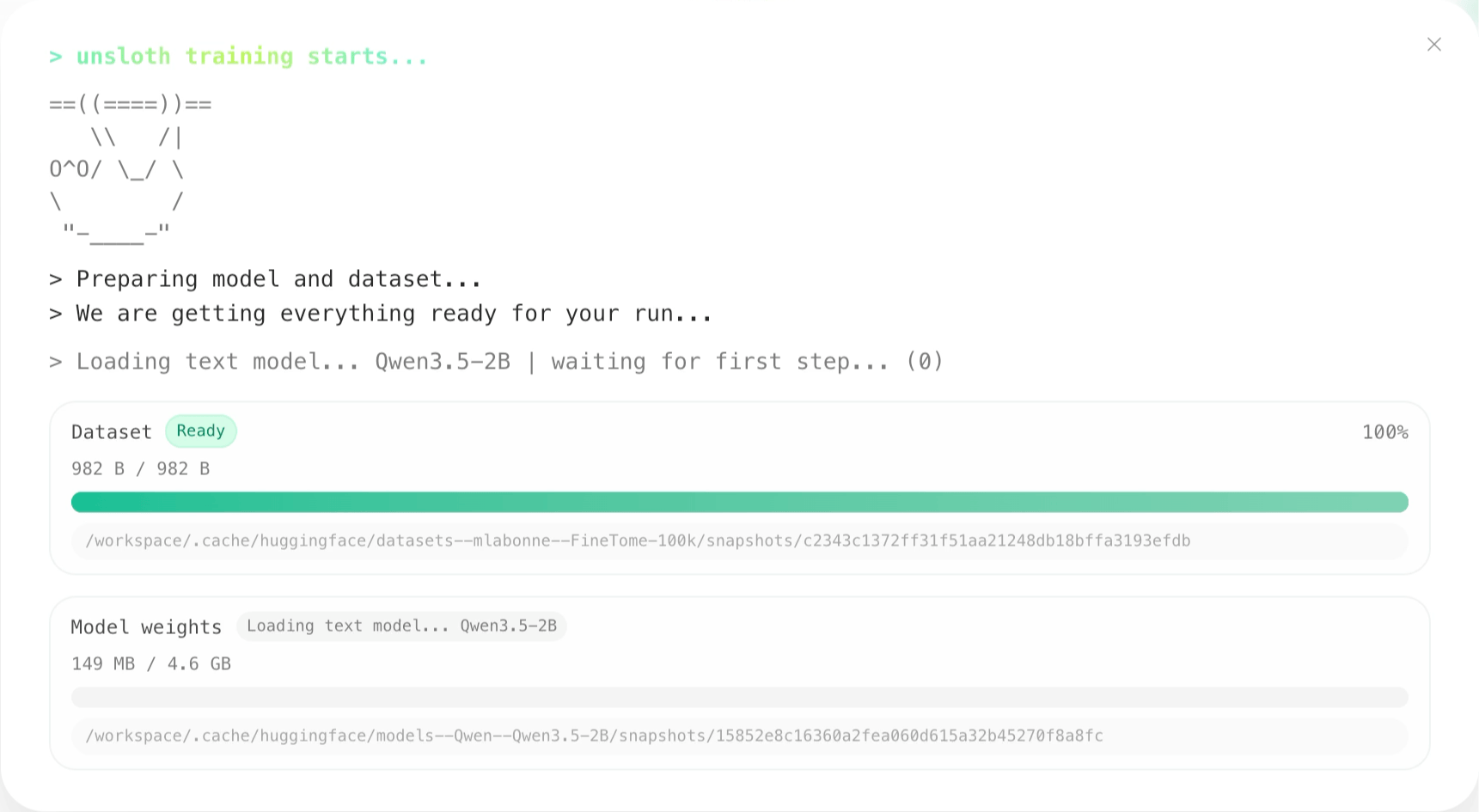
Once training starts, Current Run shows progress, loss, learning rate, and GPU usage. When it finishes, the page shows Completed, 100% complete, and the path where the model was saved. You can then compare or export the model.
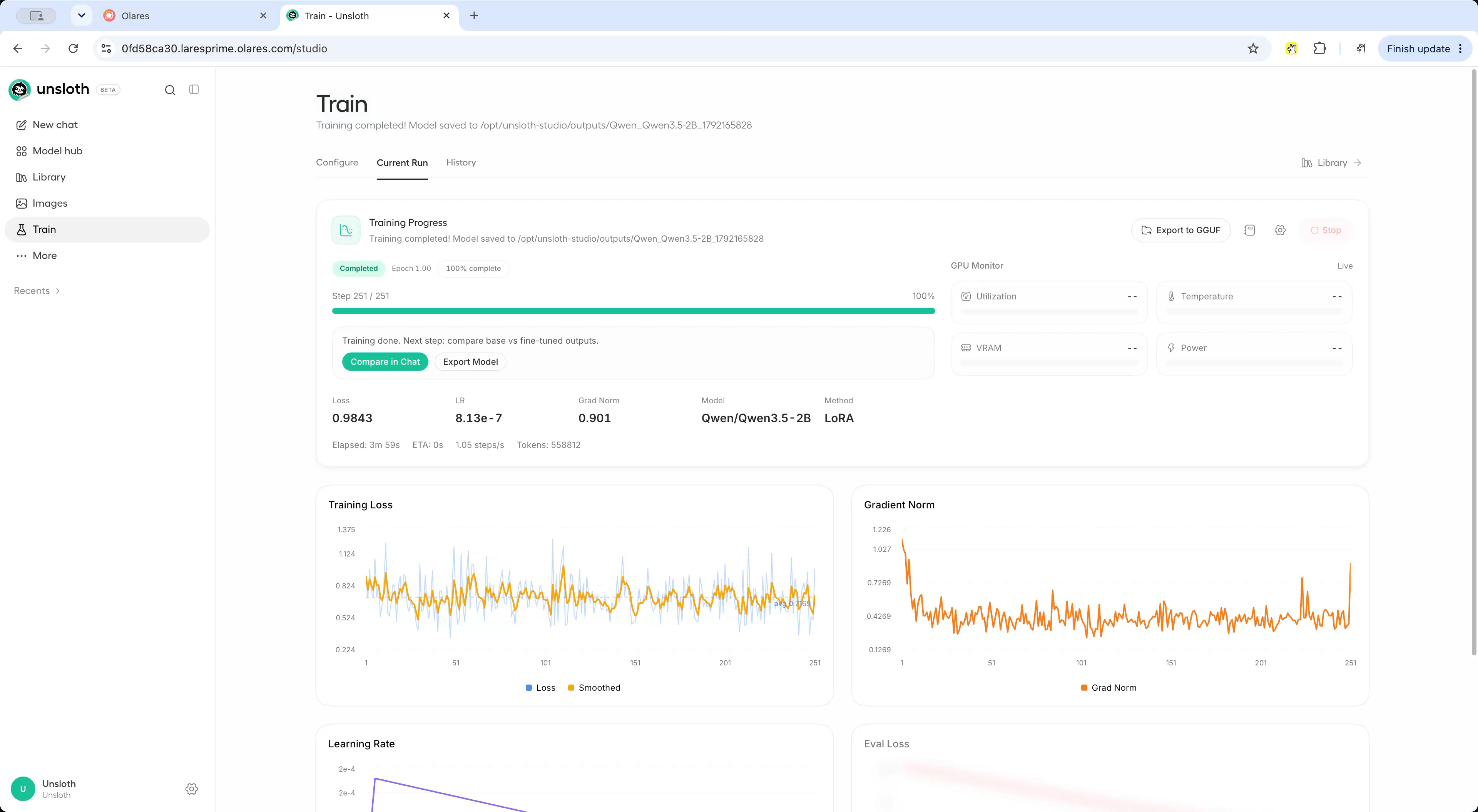
Compare the fine-tuned model
After training completes, click Compare in Chat in the training view. Studio loads the trained model and opens a comparison with its base model.
Check that the two panes are labeled BASE MODEL and FINE-TUNED. Enter the following prompt in Send to both models...:
textI am learning Python recursion. This function should add all the numbers in a list, but it gives the wrong result. Find the bug, explain why it happens, and fix it. Keep the recursive approach and do not use sum(). def total(numbers): if not numbers: return 1 return numbers[0] + total(numbers[1:]) Show the results for [], [5], and [3, 1, 4].Send the prompt and compare both answers. Look at whether each model fixes the base case, explains the bug clearly, and follows the requested recursive approach.
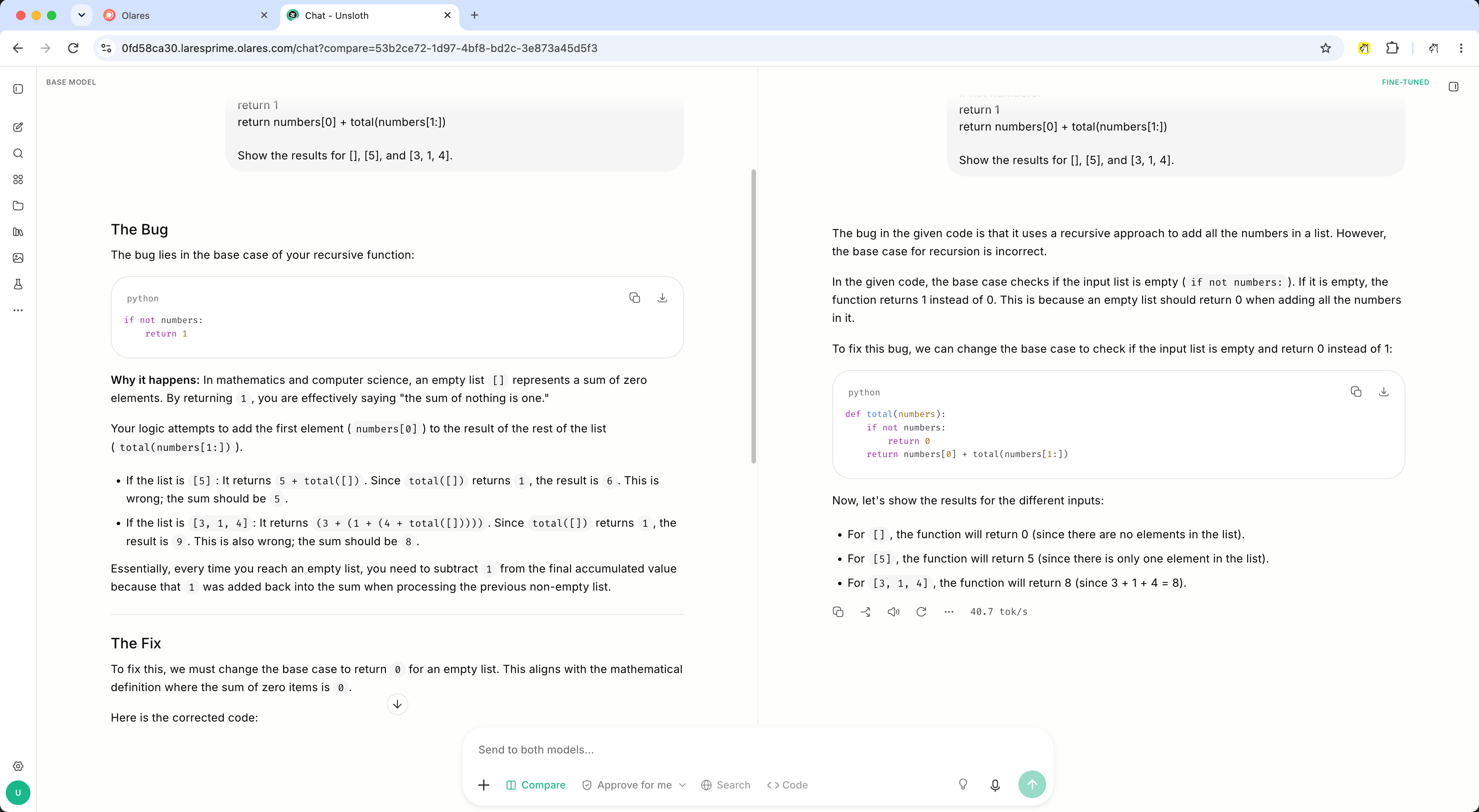
Try a few more programming questions and compare code correctness, instruction following, and the clarity of the explanations. Keep the system prompt and generation settings the same for both models. Use questions you kept out of training to decide which examples to improve in your next dataset.
Export the model to GGUF
In the completed training view, click Export to GGUF to open Export Model with the run selected.
Under Source, select Fine-tuned. Check Training Run and Checkpoint to make sure you are exporting the intended run and saved weights.
Under Export Method, select GGUF / Llama.cpp. For Export target, select Full model to merge the adapter into the base model and export a complete GGUF model.
Under Quantization Levels, select the recommended Q4_K_M. Leave Importance matrix (imatrix) and Also convert to Q4NX (AMD NPU) off for this example.
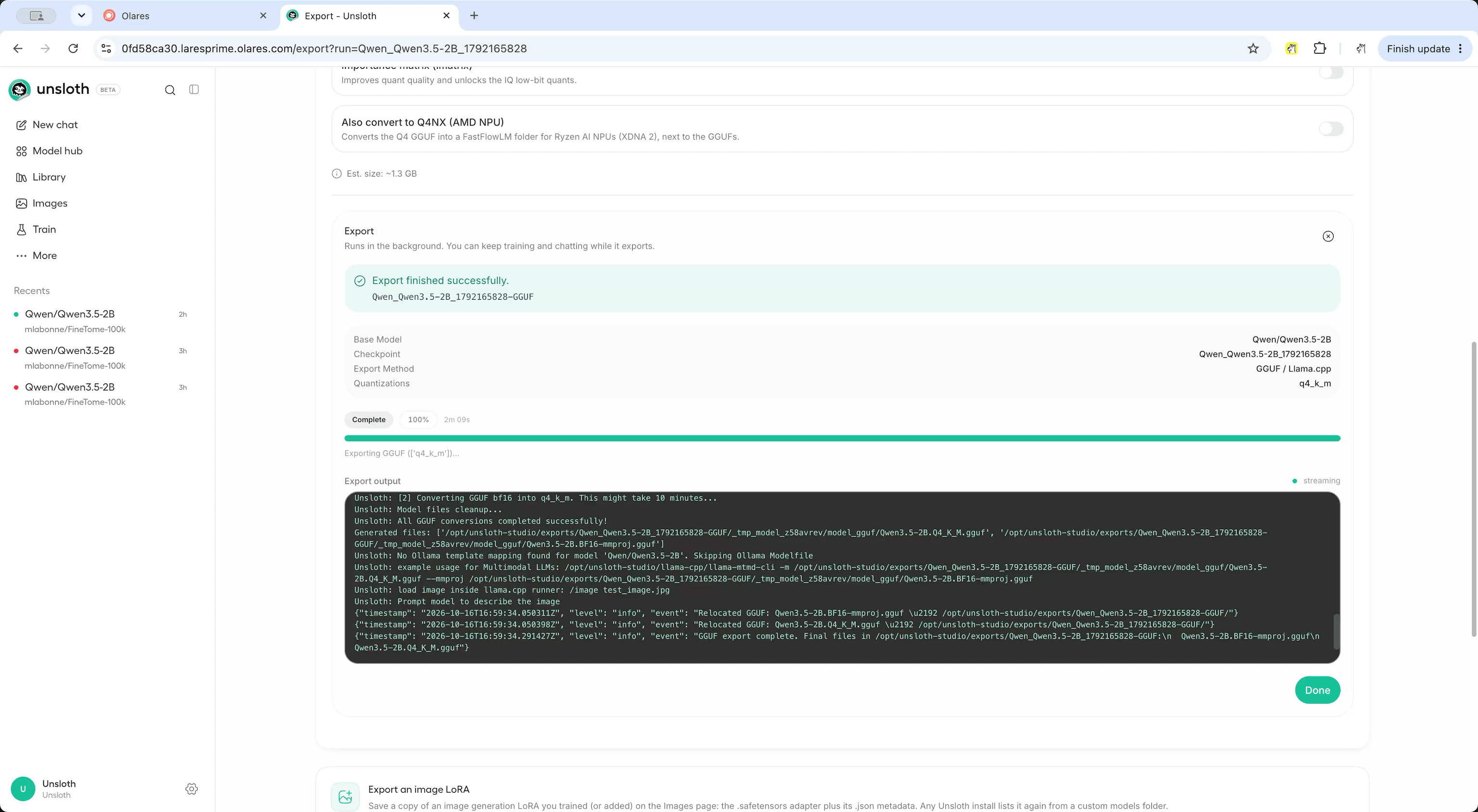
Click Export Model at the bottom of Export Configuration. In the panel that opens, select Save Locally and keep the default Save folder. This saves the export on your Olares device.
Click Start Export. Wait for Export finished successfully. and note the output path shown in the panel. Conversion and quantization can take time. Click Done when the export completes.
Find the GGUF file in Olares Files
Open Files and select Data under Application.
Open unsloth > studio > exports, then open the folder for your export.
Find a custom export folder
With the default settings, its name ends in
-GGUF. If you changed Save folder, follow the output path shown after export. The app path/opt/unsloth-studio/corresponds to Data > unsloth > studio in Files.Find the language model file ending in
.Q4_K_M.gguf, such asQwen3.5-2B.Q4_K_M.gguf. You can download this file from Files to use it in a compatible GGUF model runner.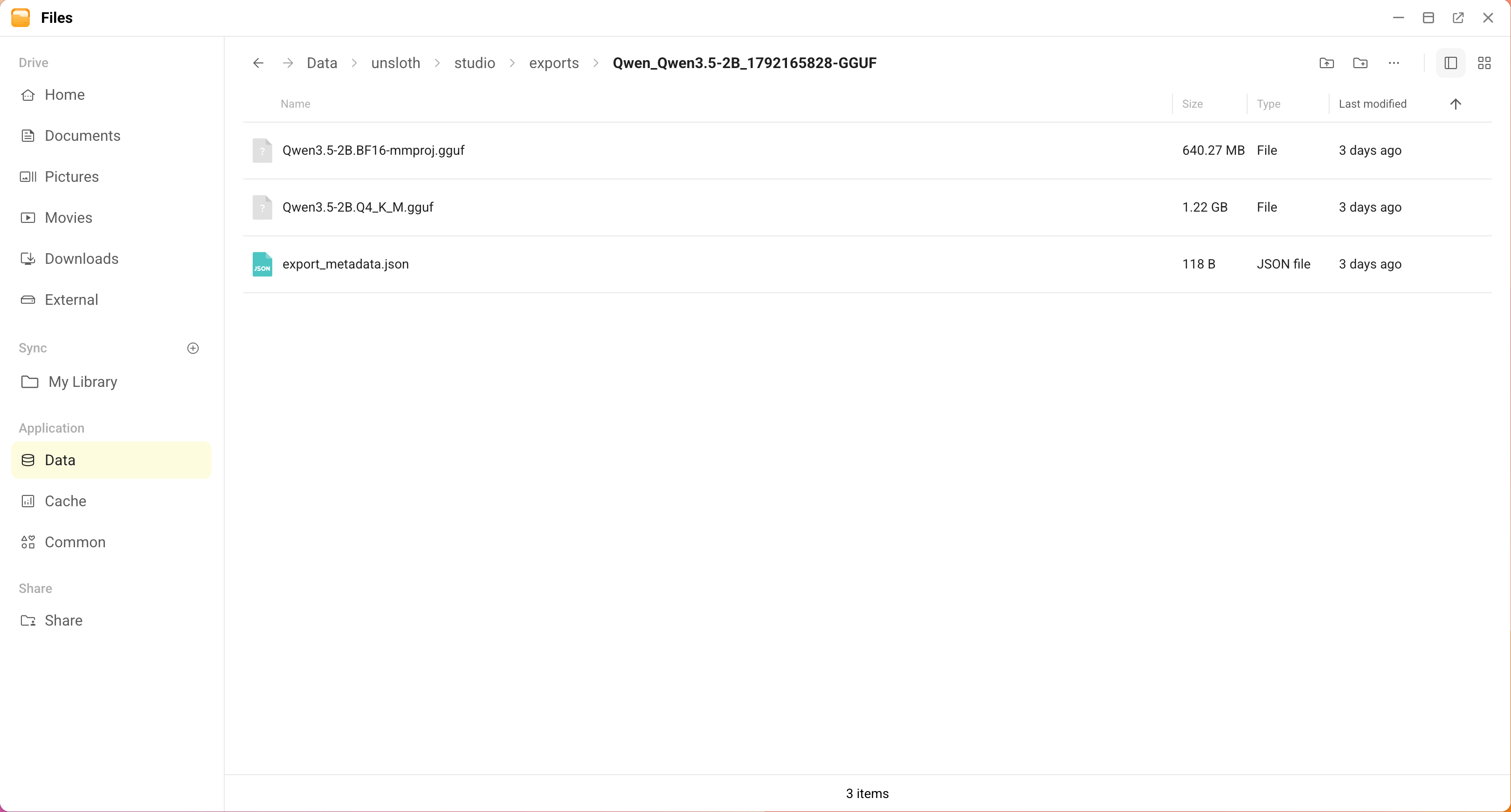
Training files and vision projectors
The neighboring outputs folder contains training runs, including LoRA adapters and checkpoints. Use exports to find the GGUF created in the previous section. A file with mmproj in its name contains the model's vision projector, which a compatible runner can use for image input. For the text example here, use the main .Q4_K_M.gguf file.
Run the fine-tuned model in JupyterLab (optional)
Use this workflow when you want to call your model from Python, for example to try several prompts in a notebook. It follows the official Unsloth inference guide and loads the LoRA adapter saved during training together with its base model.
Before loading the model, finish any Studio training or export job. Studio and JupyterLab share the GPU, and the notebook needs memory for its own copy of the model.
Open the JupyterLab entrance and log in with the password you set for JUPYTER_PASSWORD during installation.
Click + in the file browser, then select Python 3 (ipykernel) under Notebook in the Launcher. Save the notebook as
try-finetuned-model.ipynbin the default/workspacefolder.In Files, open Data > unsloth > studio > outputs and find your training run folder. Replace
RUN_FOLDERbelow with that folder name, then paste the code into the first notebook cell. For example, the run shown in this guide usesQwen_Qwen3.5-2B_1792165828.pythonfrom unsloth import FastLanguageModel import torch model, tokenizer = FastLanguageModel.from_pretrained( model_name="/opt/unsloth-studio/outputs/RUN_FOLDER", max_seq_length=2048, dtype=torch.bfloat16, load_in_4bit=False, ) FastLanguageModel.for_inference(model)Press Shift + Enter to load the model. Wait for Loading weights to reach 100% and confirm that the cell finishes without errors before continuing. The execution indicator changes from
[*]to a number when the cell finishes.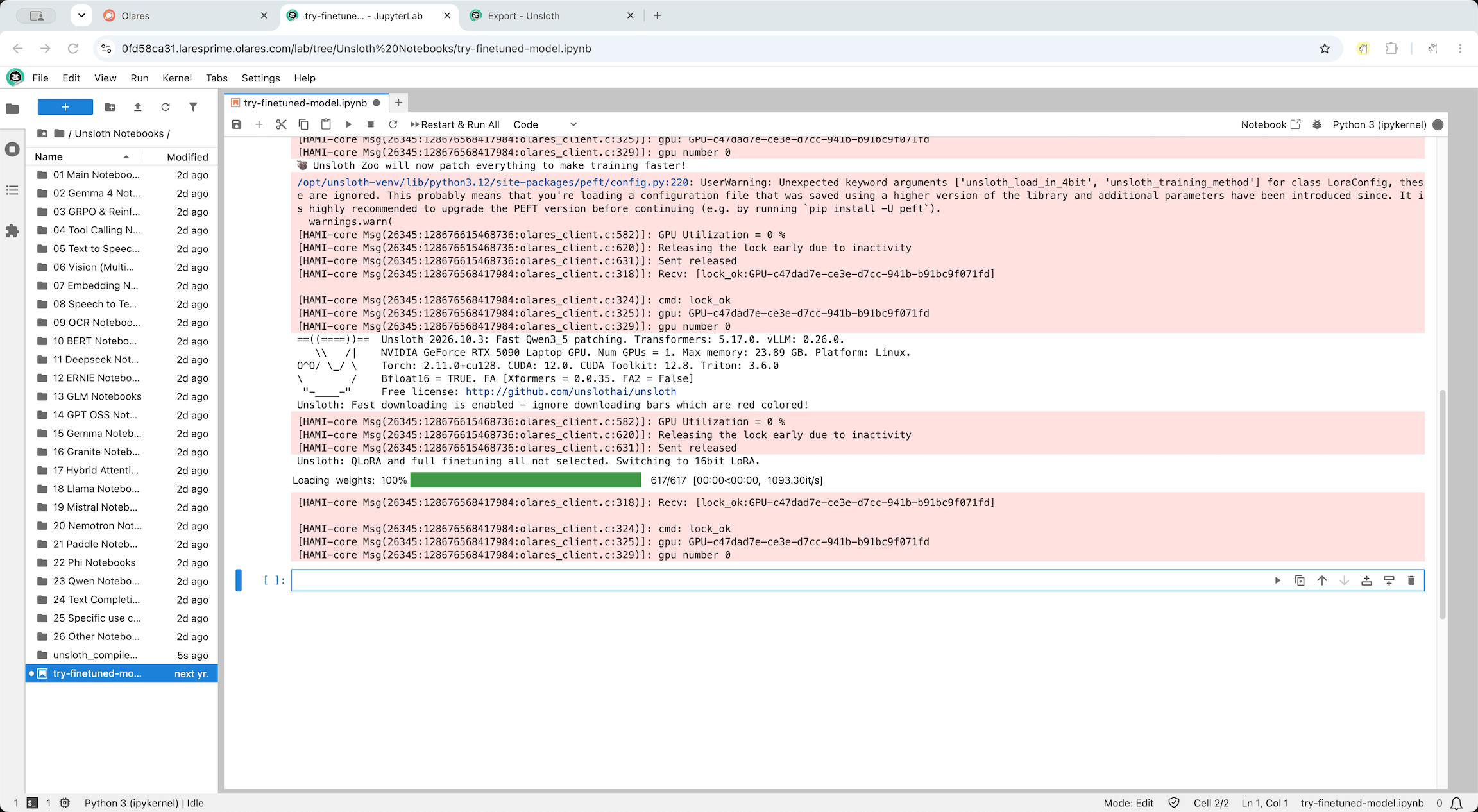
Paste the following code into the next cell in the same notebook and press Shift + Enter. The answer appears below the cell. Edit the user message and run this cell again to try another prompt.
pythonmessages = [ {"role": "user", "content": "Explain Python recursion in one sentence."} ] prompt = tokenizer.apply_chat_template( messages, tokenize=False, add_generation_prompt=True, enable_thinking=False, ) inputs = tokenizer( text=prompt, return_tensors="pt", add_special_tokens=False ).to(model.device) with torch.inference_mode(): outputs = model.generate(**inputs, max_new_tokens=256, do_sample=False) answer = outputs[0, inputs["input_ids"].shape[1]:] print(tokenizer.decode(answer, skip_special_tokens=True))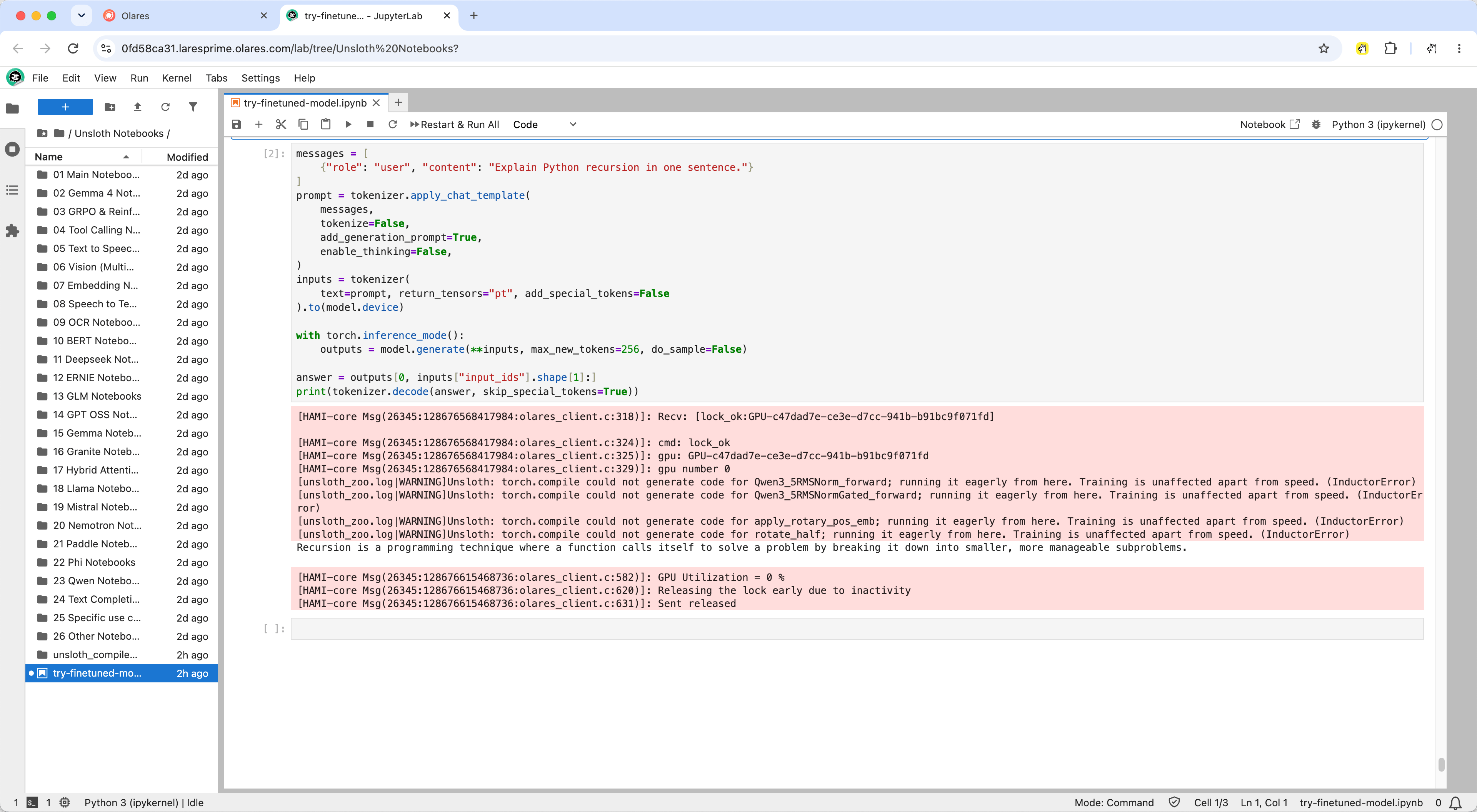
Save the notebook when finished. Select Kernel > Shut Down Kernel to release the GPU memory used by the notebook.
Find your notebook in Files
Notebooks saved under
/workspaceare available in Files at Data > unsloth > workspace.
FAQs
Where does Unsloth store its data?
| Data | In Olares Files | Inside the app |
|---|---|---|
| Training runs and LoRA adapters | Data > unsloth > studio > outputs | /opt/unsloth-studio/outputs |
| Default GGUF exports | Data > unsloth > studio > exports | /opt/unsloth-studio/exports |
| Notebooks | Data > unsloth > workspace | /workspace |
| Your Home folder | Home | /workspace/host |
Downloaded Hugging Face models and datasets use the shared Hugging Face cache on Olares.
To free disk space, use the bin icon in Studio's model search to delete unused models.
Why does a model fail to load or training run out of memory?
If Studio reports an out-of-memory error, the workload needs more memory than is currently available. In Memory slicing mode, increase the app's quota within the available capacity. Stop other training jobs using the same GPU.
For training, reduce Batch Size or Context Length, or choose a smaller model. For chat, choose a smaller model or a lower-bit GGUF variant. Follow the selected model's training recommendations when choosing between LoRA and QLoRA.
Can I generate images or videos?
Studio includes image and video generation. Resource needs depend on the model, its precision, output resolution, and video length.
For images, open Images and choose a model that fits your resources. In Memory slicing mode, the app's initial VRAM quota is 4 GiB. If the model needs more VRAM, increase the quota before loading it. Leave enough disk space for the model and its required components. See the official image generation guide for model selection and settings.
For videos, check disk space for the download and GPU and system memory for running the model. The current Olares app has a 48 GiB system-memory limit. Choose a model and settings that fit both this limit and your available VRAM.
How do I change the JupyterLab password?
Go to Settings > Applications > Unsloth. Under Environment variables, click Manage environment variables and edit JUPYTER_PASSWORD. Enter a password with at least 8 characters, click Confirm, then Apply. The app restarts to apply the change. Once it restarts, use the new password to log in to JupyterLab.
I forgot the Unsloth Studio password. How do I reset it?
Use the Unsloth Studio password reset command to generate a new login password. Open a JupyterLab terminal and run:
/opt/unsloth-studio/unsloth_studio/bin/unsloth studio reset-password --username unslothThe new password appears in the terminal and takes effect immediately. Log in with it and store it in Vault.
Learn more
- Manage GPU resources: Change GPU modes and assign VRAM quotas.
- Qwen3.5 fine-tuning guide: Model-specific training recommendations.
- Unsloth Studio documentation: Upstream reference for training, Data Recipes, and export options.