Manage shared AI models with the Common directory
The Common directory provides a system-level shared space to store AI models. Multiple applications and users access the exact same model files simultaneously to save storage space and prevent duplicate downloads.
Understand the Common directory
How the Common directory works
Understand Olares's file storage mechanisms to see the benefits of the Common directory.
The following table shows the storage strategies for different locations in the Files app:
| Node | File management strategy | Cross-user sharing | Cross-app sharing |
|---|---|---|---|
| Storage | Isolated by user | ❌ | ✅ |
| Data | Isolated by application | ✅ | ❌ |
| Common | Shared across users and applications | ✅ | ✅ |
Storage and Data isolate files, which creates challenges in AI scenarios:
- Difficulty sharing models between applications: Multiple AI applications might require the same underlying models. For example, ComfyUI and Stable Diffusion share the same image model files, and vLLM and llama.cpp can read from the same Hugging Face cache directory. Isolated storage prevents direct reuse of these files across applications.
- Wasted space from repeated downloads: Storing massive model files in isolated user or application directories forces different applications or users to download the same model repeatedly. This wastes disk space and network bandwidth.
The Common directory resolves these issues. It provides a centralized space where different apps and users read the same model files, preventing storage redundancy.
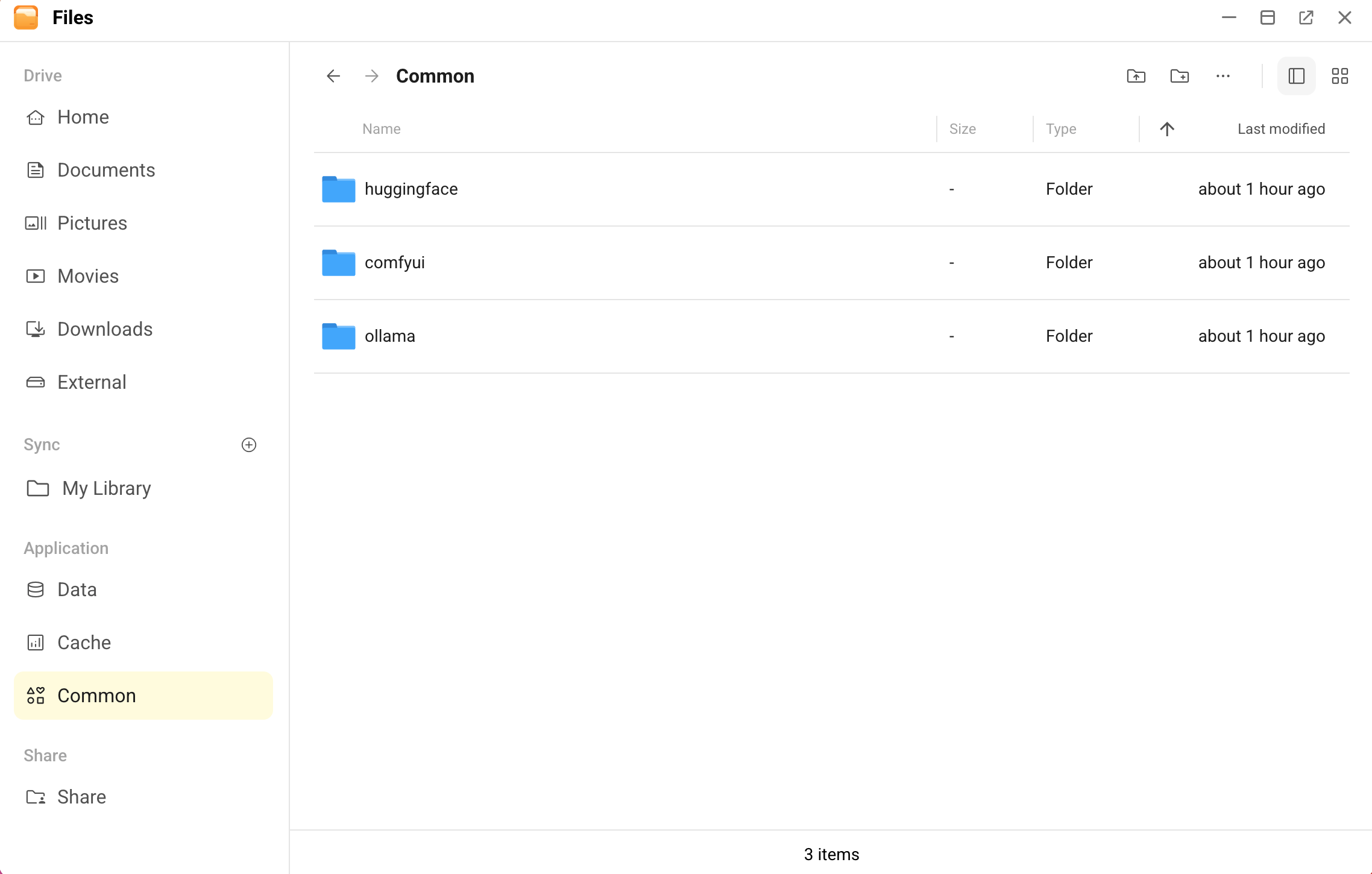
Default directory structure
The Common directory includes three default subdirectories. Each follows the official storage structure of its corresponding platform:
| Subdirectory | Function | Directory structure |
|---|---|---|
| huggingface | Stores cached models downloaded via the Hugging Face CLI. Applications such as vLLM, transformers, and llama.cpp read from this unified cache. | Mirrors the official cache structure exactly. For details on file organization, see the Hugging Face cache management guide. |
| comfyui | Stores models shared between ComfyUI and related applications, such as Checkpoint, LoRA, and VAE. | Follows the standard ComfyUI models folder structure.For details on file organization, see the ComfyUI models documentation. |
| ollama | Stores models pulled and managed by Ollama. | Uses Ollama's unique manifests and blobs storage mechanism. For more information, see the Ollama FAQ. |
Migrate models to the Common directory
Olares v1.12.6 includes the Common directory by default. If you are using an older version of Olares, follow the steps below to migrate your existing models.
Upgrade Olares to v1.12.6.
Uninstall your existing AI model-serving applications:
- Pre-packaged model applications
- Ollama (installed as a base engine with models pulled manually). Do not select Also remove all local data.
- ComfyUI. Do not select Also remove all local data.
Install the new versions and restore your models:
Find and manage shared models
Access the Common directory in the Files app and manage shared model files centrally.
Access the Common directory
- Open the Files app from the Launchpad.
- Select Application > Common in the left sidebar.
- Open the
huggingface,ollama, orcomfyuisubdirectory. - Find your target model files.
Manage model files
You can add or delete model files in the Common directory, but you must maintain the official recommended structure for each subdirectory. Applications might fail to load models if you change the required hierarchy.
- Add models: Drag and drop model files directly into the corresponding subdirectory.
- Delete models: Right-click the model folder and select Delete to free up space. After deletion, related applications immediately lose access to the model and require a re-download to use it again.