Access the Olares terminal
Some development and operational tasks require running commands on the Olares host, such as inspecting disks, verifying host state, or updating host-level configuration. Since Olares hosts are commonly deployed without a monitor or keyboard, terminal access is provided remotely.
Connect to the Olares host from your computer using SSH. Use an account with sudo permission for commands that require administrator privileges.
For Olares One users
If you are using Olares One, refer to SSH into Olares One.
Access via SSH
SSH establishes an encrypted session over the network, allowing you to run command-line operations on the Olares host from your computer.
Connect over a local network
Before connecting, make sure you have:
- The local IP address of the Olares host.
- The username and password for the Olares host.
Open a terminal on your computer.
Run the SSH command using the following format:
bashssh <username>@<host_ip_address>For example:
bashssh olares@192.168.31.155Enter the host password when prompted.
Connect from a different network
If your computer is not on the same local network as the Olares host, enable LarePass VPN to establish a secure tunnel to your host.
Before connecting, make sure you have:
- LarePass installed and signed in on the computer you will use for the VPN connection.
- The username and password for the Olares host.
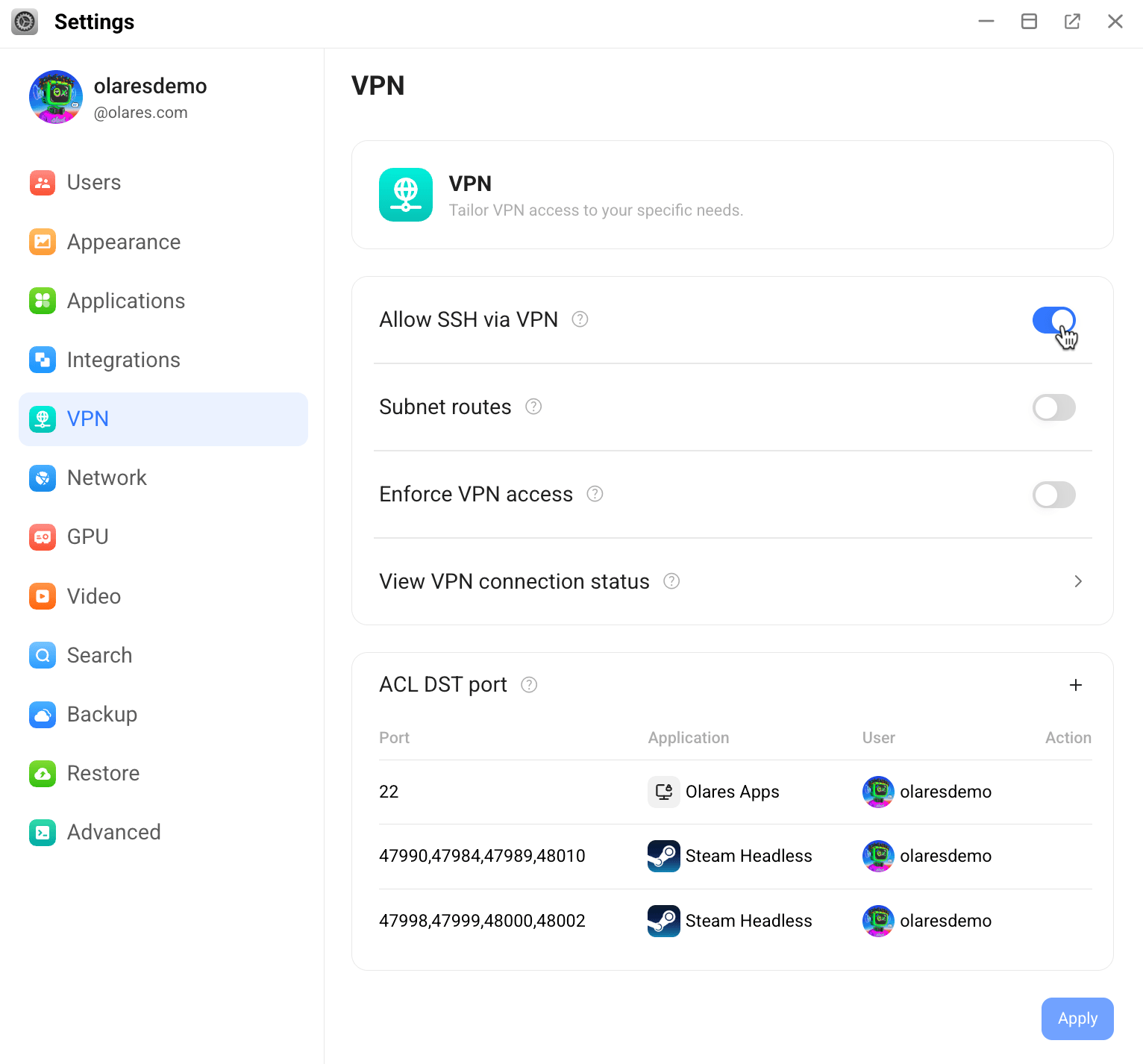
On Olares, go to Settings > VPN, and enable Allow SSH via VPN.
Open the LarePass desktop client, click your avatar in the top-left corner, and turn on VPN connection.
On Olares, go to Settings > VPN > View VPN connection status, locate the host entry, and note the IP address that starts with
100.64.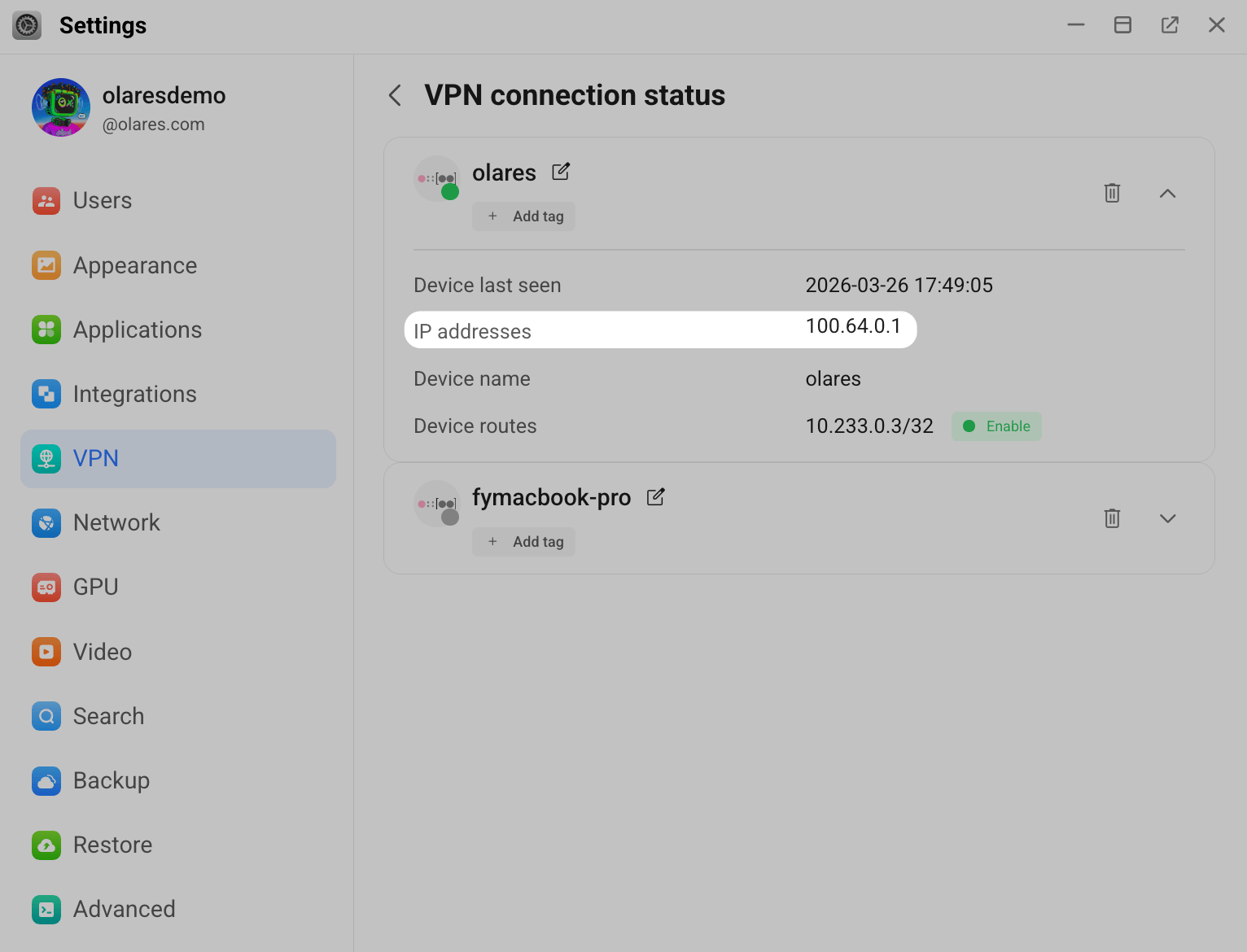
Open a terminal on your computer.
Run the SSH command using the following format:
bashssh <username>@<tailscale_ip_address>For example:
bashssh olares@100.64.0.1Enter the host password when prompted.