Generate two-factor authentication codes
Two-factor authentication (2FA) adds an extra layer of account security. After you enter your password, the service asks for a verification code.
Vault can work as an authenticator app. It generates Time-Based One-Time Password (TOTP) codes that refresh automatically, just like Google Authenticator or Microsoft Authenticator.
This guide shows you how to set up Vault as your authentication method and generate 2FA codes for websites such as GitHub or OpenAI.
Prerequisites
- You have installed LarePass on your device. Visit the official page to download it.
- You have access to the security settings of the online service where you want to enable 2FA.
Prepare your target service
Sign in to the website where you want to enable 2FA, such as GitHub or OpenAI.
Go to the security settings page and enable two-factor authentication with an authenticator app.
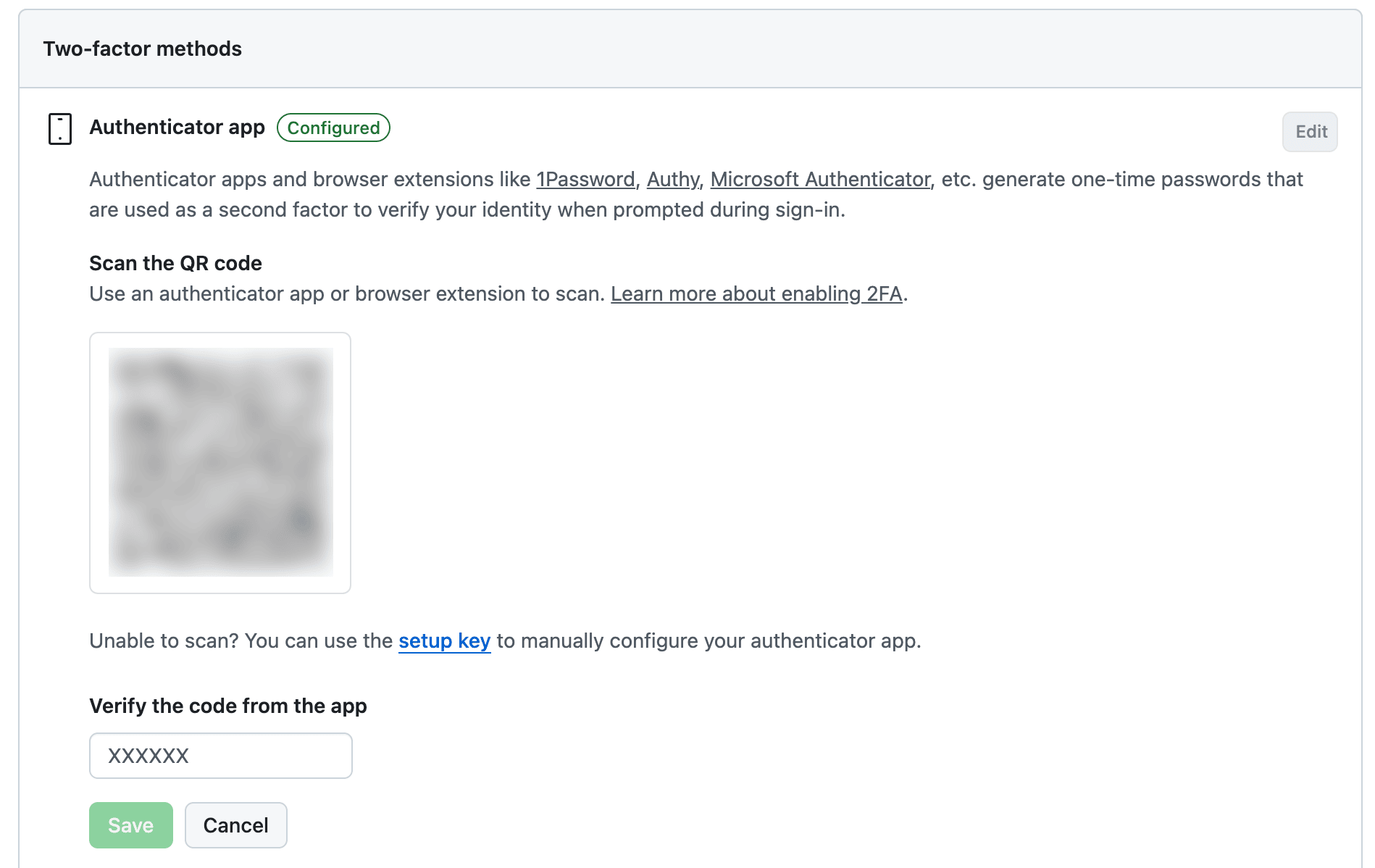
Save the secret key or QR code that the service provides. You will need it in the next section.
TIP
If the service gives you recovery codes, store them in a safe place. You need them to recover your account if you lose access to Vault.
Create an authenticator in Vault
Once saved, Vault starts generating verification codes for the account.
Use your 2FA codes
- Sign in to the website with your username and password.
- When the site asks for a verification code, open Vault and find the current 6-digit code.
- Enter the code to complete sign-in.