Check and update Olares
You can check the installed Olares OS version in either Settings or LarePass. System upgrades are currently performed in the LarePass mobile app.
Olares admin required
Only Olares admin can perform system updates. Updates will apply to all members within the same Olares cluster.
TIP
For details on Olares versioning practices and the current limitations regarding cross-minor version upgrades (e.g. 1.10.5 to 1.11.0), see Olares versioning.
Check the installed version
Install an update in LarePass
TIP
Review the Olares release notes before updating to learn about important changes and version-specific instructions.
- Open LarePass on your phone and go to Settings.
- In the My Olares card, tap System to enter the Olares management page.
- Tap System update.
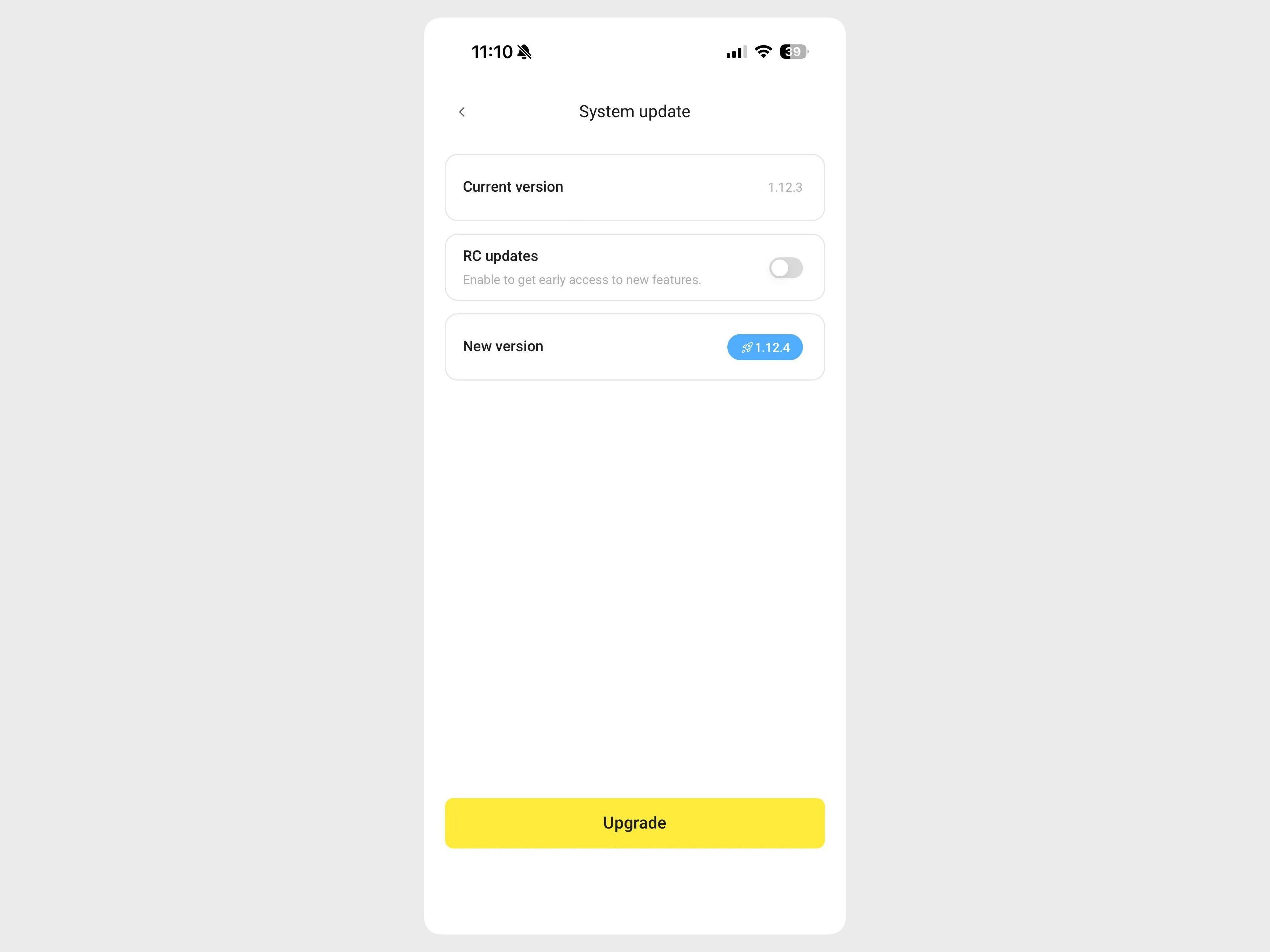
- Confirm the available version in the New version field, then tap Upgrade.
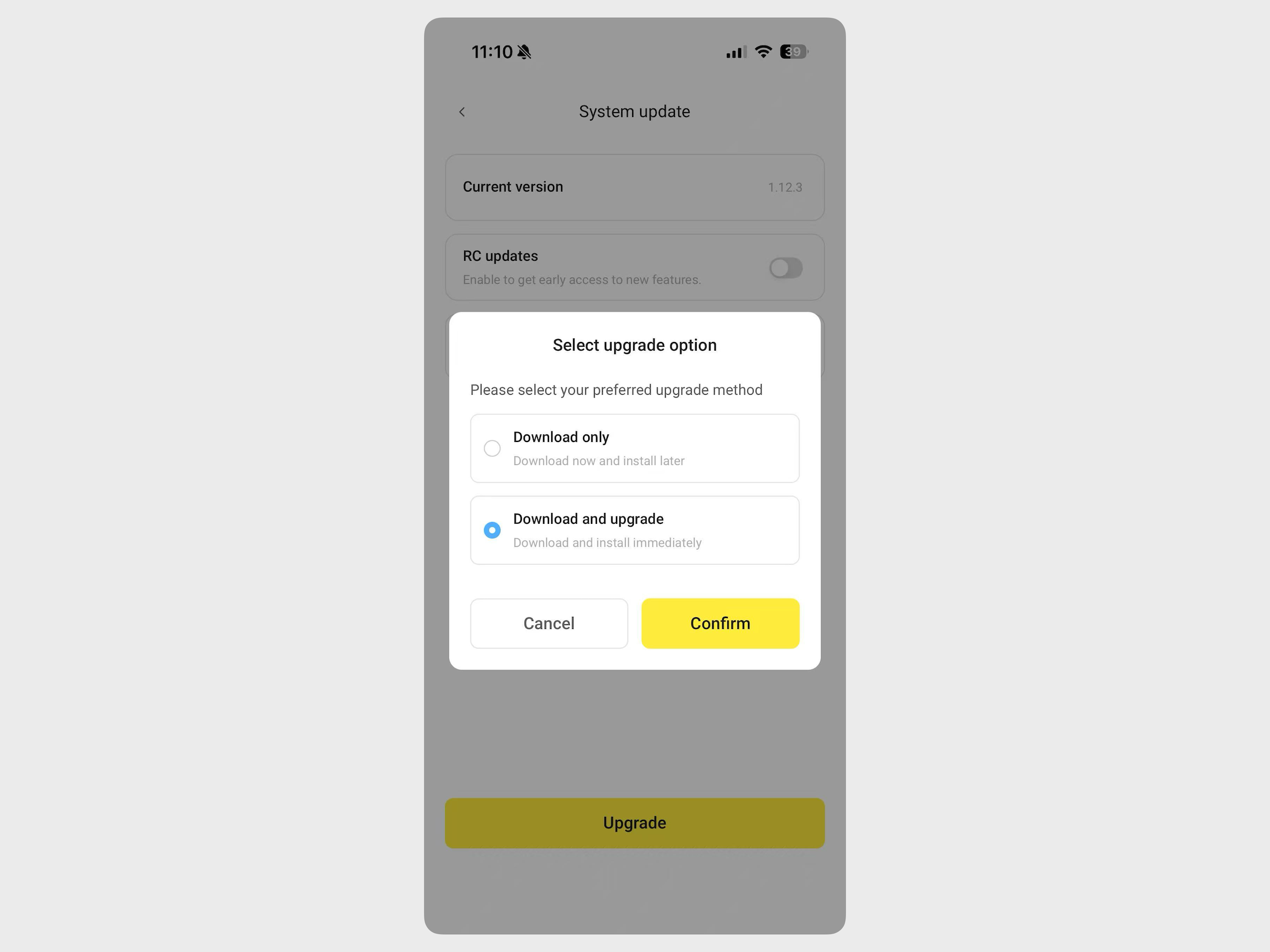
- In the pop-up dialog, select how you want to upgrade:
- Download only: Olares downloads the update package in the background while you continue using the system.
- Download and upgrade: Olares downloads the update package and will install it after you confirm a restart.
- If you selected Download only, tap Upgrade now on the System update page to initiate the process. If you selected Download and upgrade, confirm the restart when prompted to begin installation.
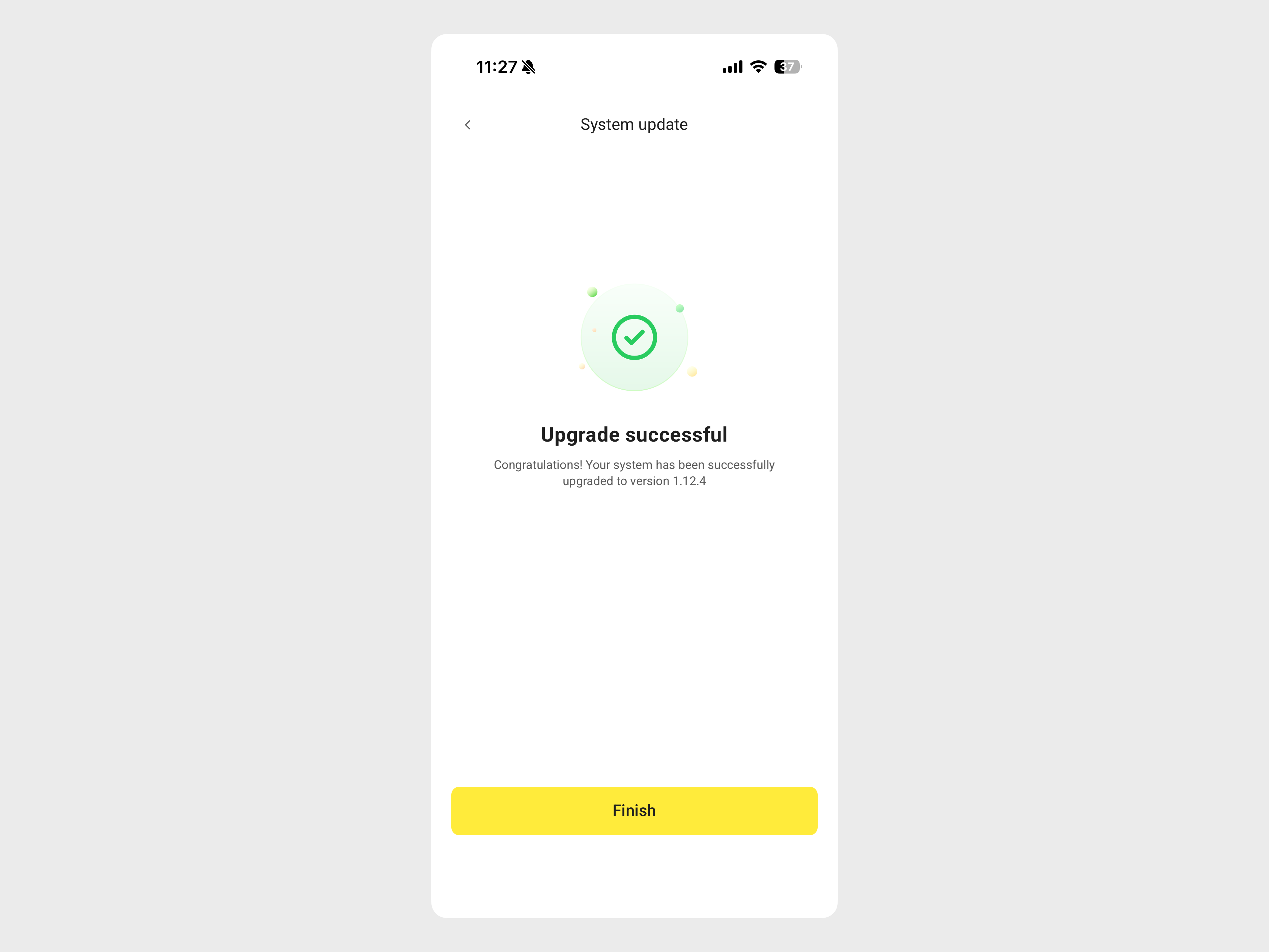
- Wait for the upgrade and restart to finish. A success message indicates the upgrade is completed.
- Refresh your Olares desktop to sync the latest system changes.
After the restart, check the installed version again and confirm it matches the version you selected.