Install and activate Olares from the command line
Use this guide to install and activate a new or uninitialized Olares device, such as Olares One, from the device terminal.
Use the standard setup unless you need command-line activation
This workflow requires host administrator access and your 12-word mnemonic phrase. Do not share the command, terminal output, screenshots, or shell history because they can expose the phrase and account credentials.
Prerequisites
Before you begin, ensure the following requirements are met:
You can access the Olares device directly with a keyboard and monitor, or via SSH.
The device has internet access to download packages, query FRP servers, and complete activation.
You can run commands as the root user, or prepend commands with
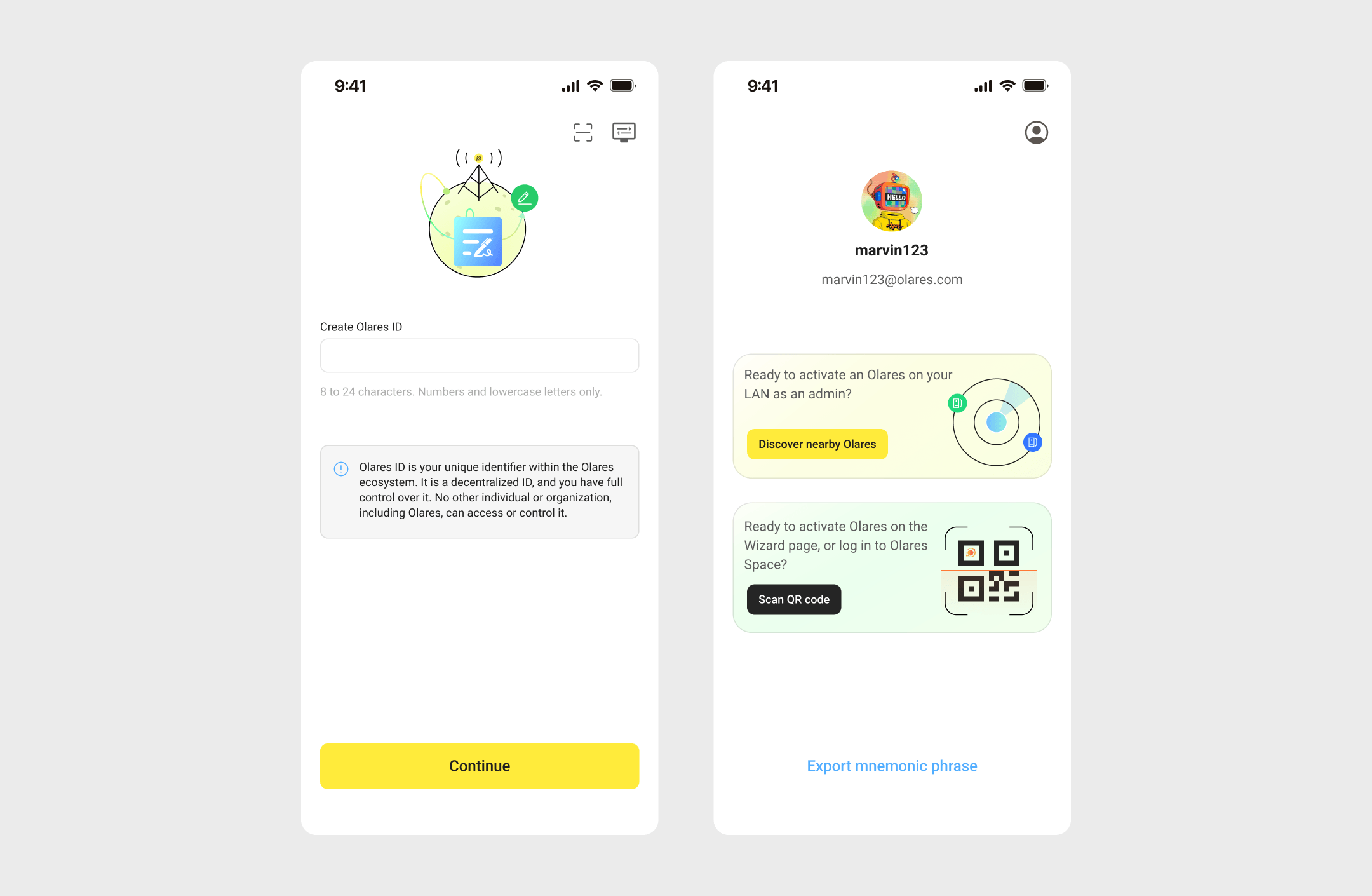
sudo.You have created an Olares ID using the LarePass app, and have backed up your 12-word mnemonic phrase.
Step 1: Install Olares
For Olares One hardware
A fresh Olares One device is shipped in an uninstalled state. You must run the installation command to set up Olares first before you attempt activation.
Run the install command as root.
bashsudo olares-cli installWhen prompted to enter the domain name, enter
olares.com.When prompted for the Olares ID, enter the one you registered in the LarePass app. For example,
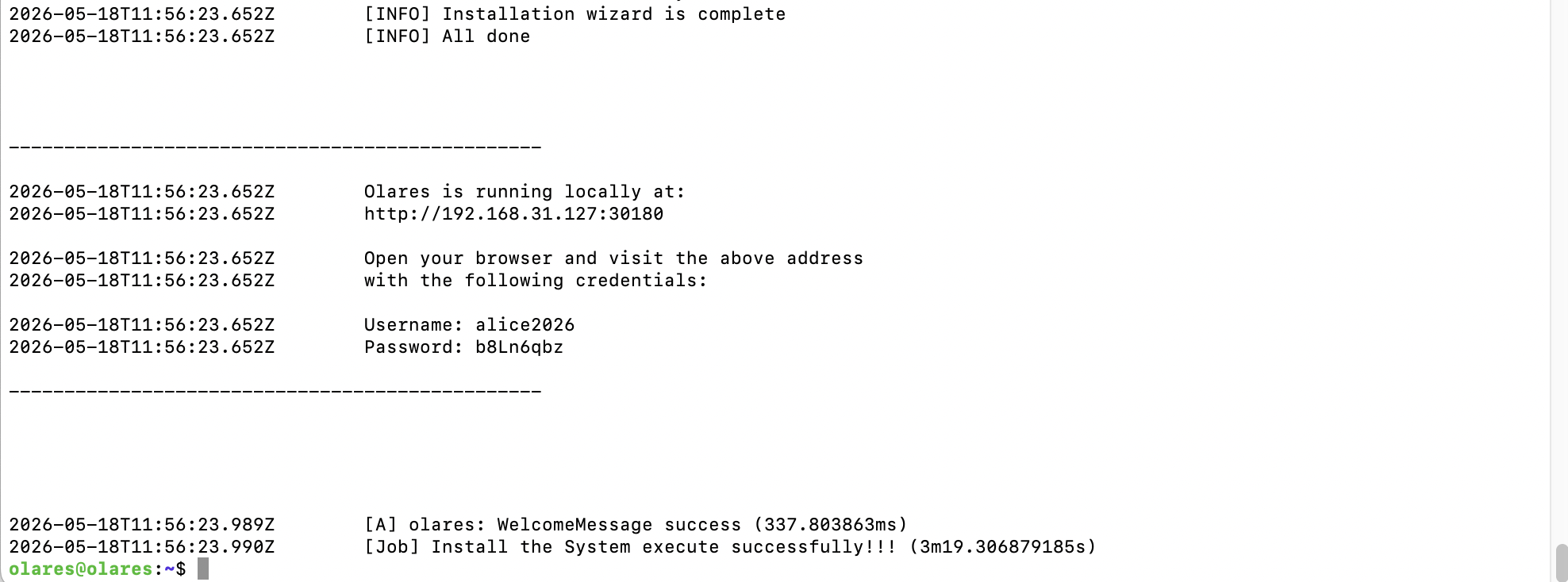
alice2026.Wait for the installation process to finish. The terminal outputs a wizard URL and a default password. Note down these details for the activation step.
Example:
- Wizard URL: The local gateway address, such as
http://192.168.31.127:30180. - Password: The default Olares login password.
- Wizard URL: The local gateway address, such as
Step 2: Prepare the CLI tool
Determine your CLI preparation steps based on your Olares version.
Run the following command to check the current Olares version.
bashsudo olares-cli --versionCheck the version in the output, and select the method based on your version.
Step 3: Retrieve the FRP list
Find an available FRP host to enable remote access to your device.
Run the following command based on your Olares version. Replace
{olares-id}with your registered Olares ID.Select a host address from the output list and note it down for the activation step. For example,
bb.hongkong.frp.olares.com.
Step 4: Activate Olares
Run the activation command to configure and secure your device. This process connects your Olares ID to the device and configures network tunneling and credentials.
Prepare your activation command based on the following required parameters:
Parameter Description olares-idThe Olares ID you created in LarePass, for example alice2026@olares.com.mnemonicThe 12-word mnemonic phrase of your Olares ID. passwordThe default Olares login password from Step 1. reset-passwordA new login password to replace the default one. authurlThe Wizard URL from Step 1. vaultThe Wizard URL from Step 1, followed by /server.bflThe Wizard URL from Step 1. hostThe FRP host address from Step 3. enable-tunnelSet to trueto enable tunnel mode.Based on your Olares version, replace the placeholders in the following command with your specific values, and then run it.
Wait until the terminal displays a message indicating that the activation finished successfully.
Next step
You can now log into Olares using your Olares ID and the login password you specified in reset-password.