Manage Olares with LarePass
The LarePass app allows you to easily manage your Olares device. You can monitor system status, manage network connections, perform remote controls, and check device information from your phone.
Prerequisites
Before you begin, ensure the following:
- You have a valid Olares ID and an activated Olares device.
- Your Olares device is powered on and connected to a network.
- Your current account has administrator permissions.
Access Olares management
Open LarePass and go to Settings. In the My Olares card, tap System to enter the Olares management page. From this page, you can view device information, update Olares, restart or shut down Olares, modify network settings, and restore Olares to factory settings.
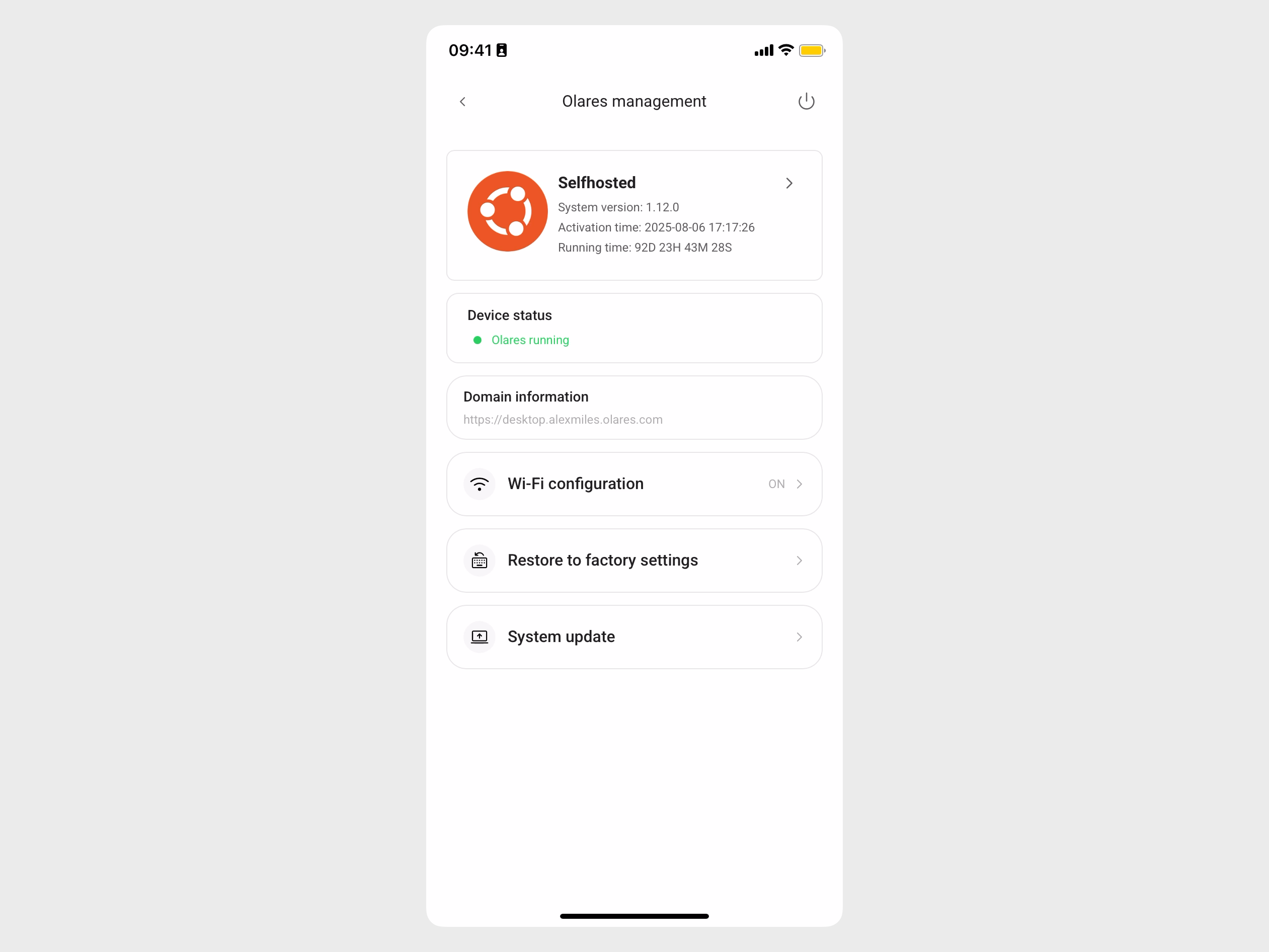
View device information
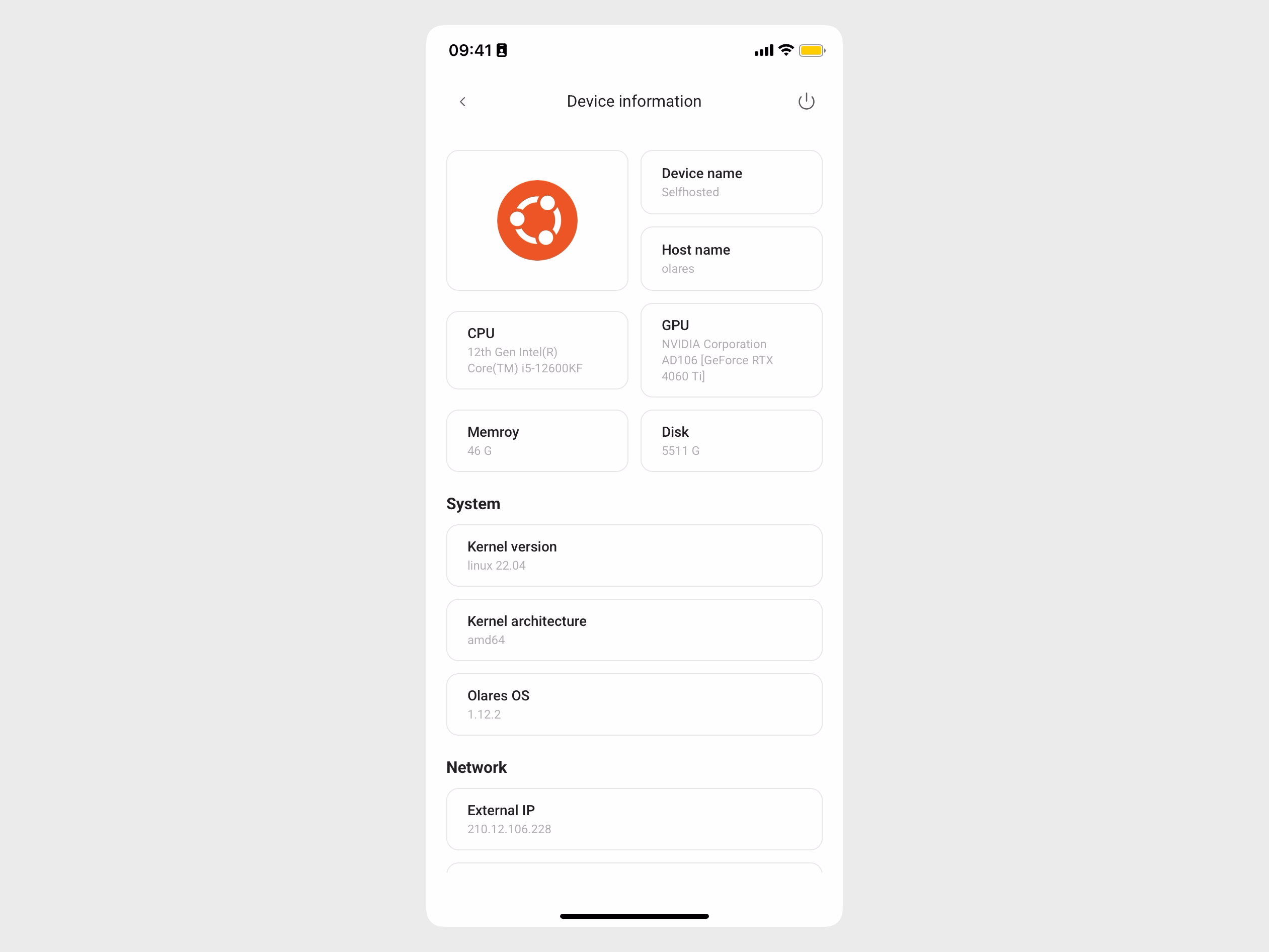
Tap the Device information area at the top to view detailed information, including:
- Hardware details
- System version
- Current network connection status, including internal and external IP addresses
To check for and install a system update, see Check and update Olares.
Restart or shut down Olares
You can restart or shut down Olares from the LarePass app or from Olares Settings. Either way, you'll confirm the action in LarePass.
- From LarePass: On the Olares management page, tap the power_settings_new icon in the upper-right corner.
- From Olares Settings: On the My Olares > My hardware page, click Shutdown or Restart.
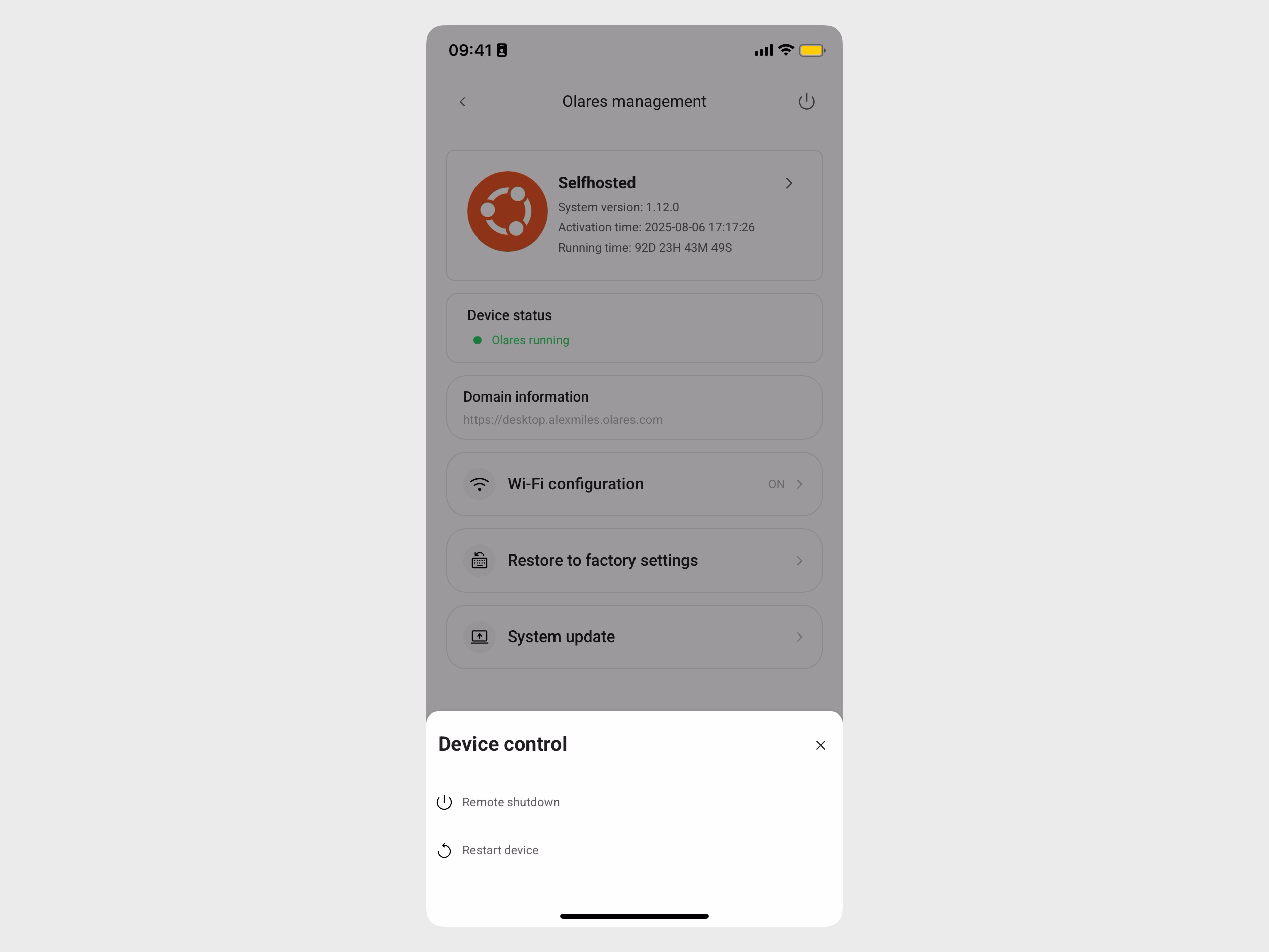
After the operation starts, the device status in LarePass changes as follows:
- Shutdown: Your Olares powers off. If your phone is on the same network as Olares, its status shows
Powered off. Remote operations are unavailable after shutdown, and you must turn the device back on manually. - Restart: Your Olares restarts. If your phone is on the same network as Olares, its status shows
Restartingand returns toOlares runningin approximately 5–8 minutes.Note
If you restart from a network outside Olares, the My Olares card will be inaccessible during the restart and will return to normal after startup is complete.
Modify network settings
Same network required
Make sure your phone and Olares are connected to the same network.
Wired network recommended
To ensure an optimal and stable connection, we recommend using a wired network whenever possible.
You can switch your Olares device's connection between its wired and Wi-Fi network options.
On the Olares management page, tap Wi-Fi configuration.
A list of available networks will appear. Tap the network you want to switch to:
- To switch to Wi-Fi, tap the desired Wi-Fi network.
- To switch to wired, tap the Wired network option.
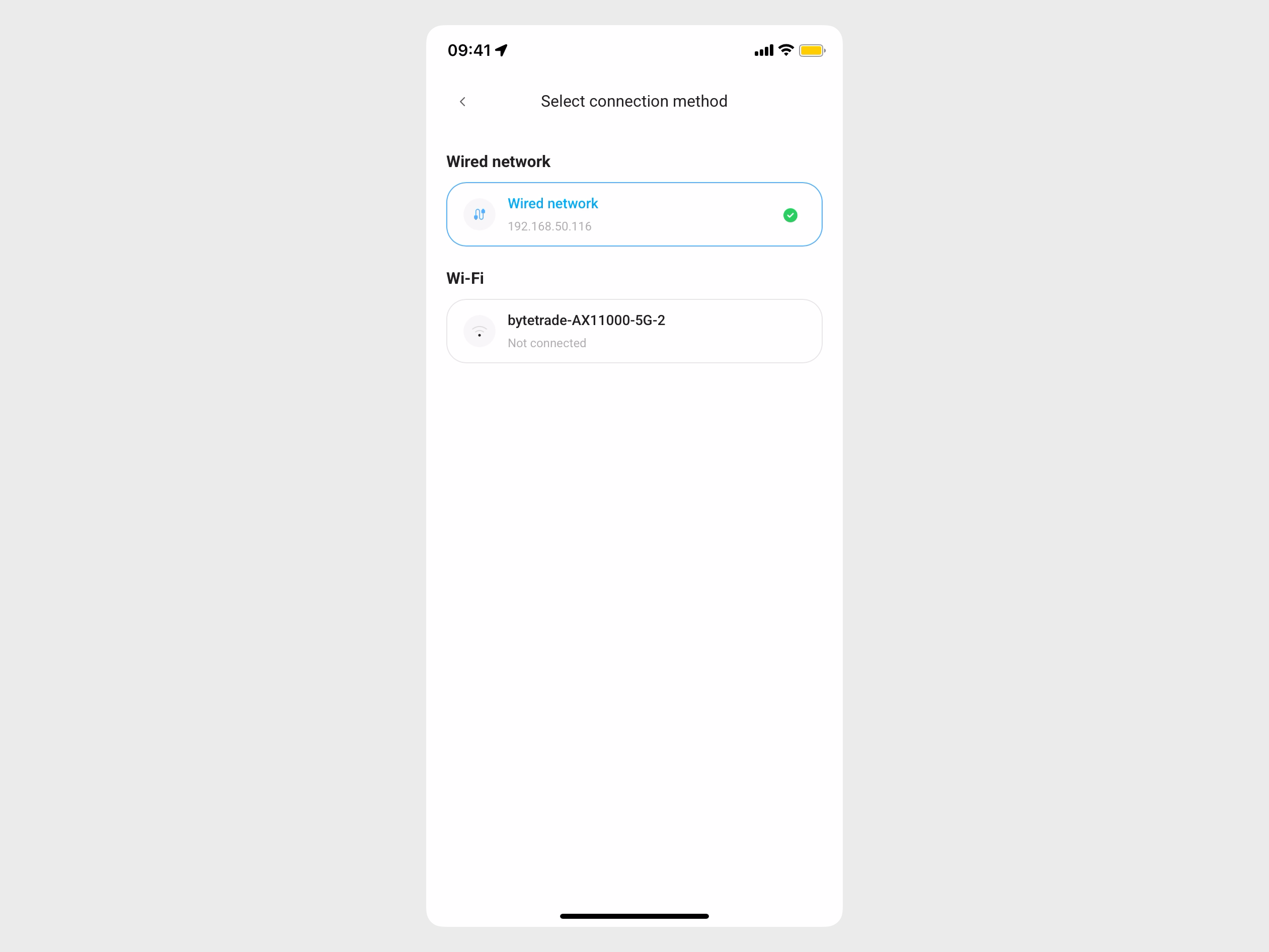
If you selected a password-protected Wi-Fi network, enter the password and tap Confirm.
Olares will begin switching to the new network. The transition takes approximately 5 minutes. The Olares status will change to
IP changingbefore it reverts toOlares Running.
Restore Olares to factory settings
Proceed with caution
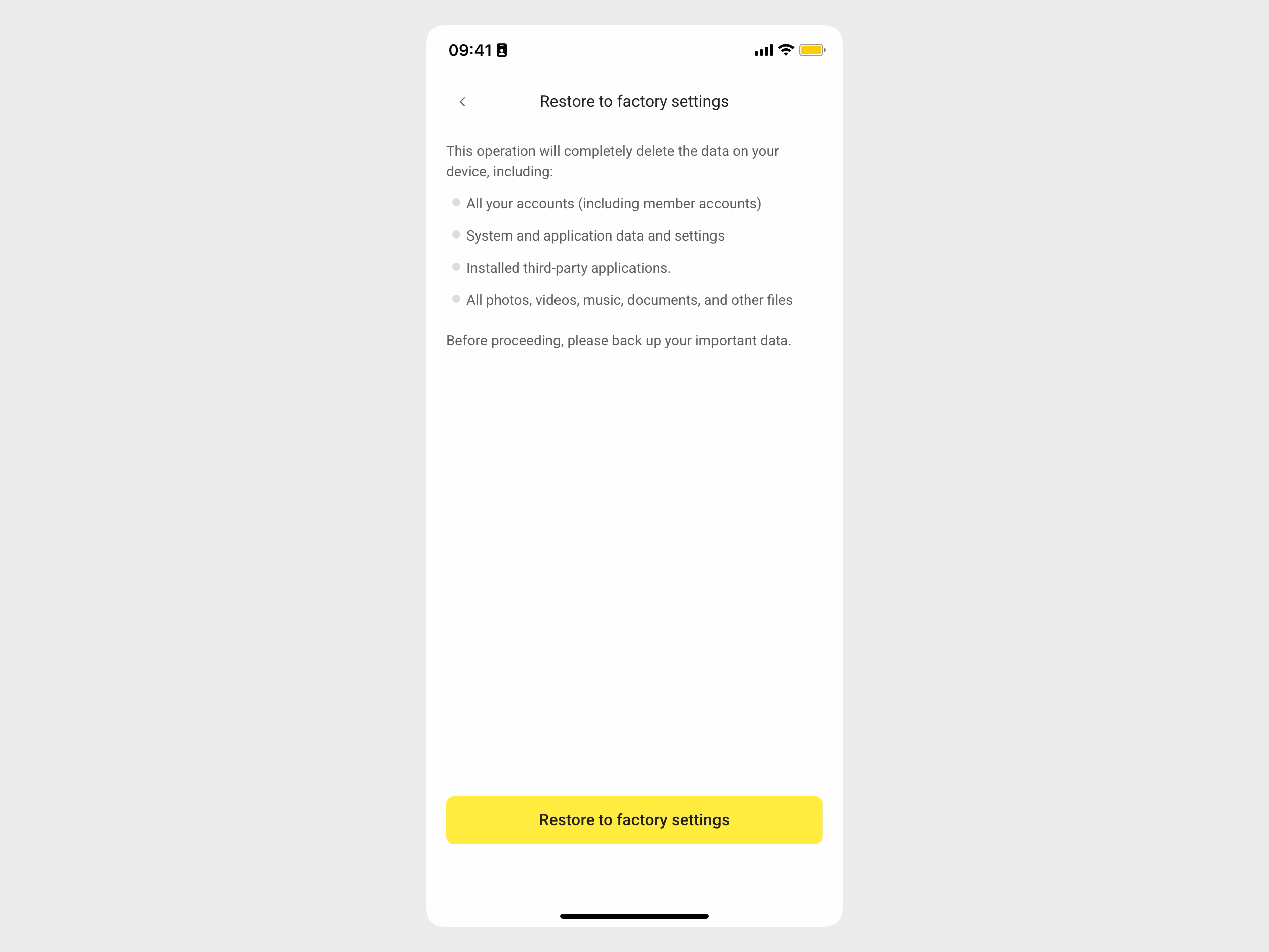
This will permanently delete all your accounts info and data. Proceed with caution.
Same network required
Make sure your phone and Olares are connected to the same network.
This action will reset your device to the prepare phase, where you can scan the LAN to re-install and activate Olares.
On the Olares management page, tap Restore to factory settings.
Review the risk prompt, and tap Restore to factory settings.
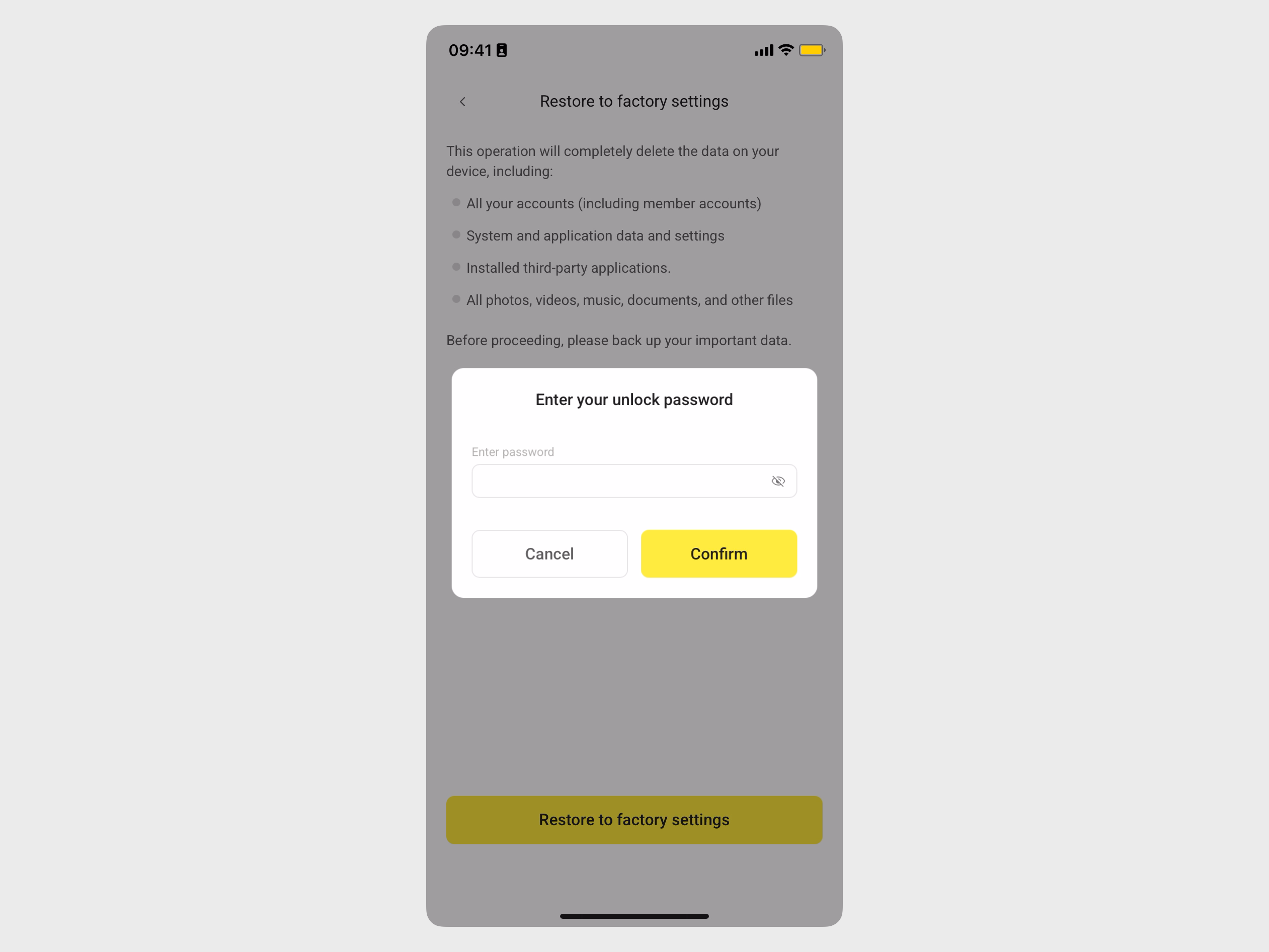
Enter your local LarePass lock screen password, and tap Confirm. If you haven't set a local password, you will be prompted to set one first.
Wait for the reset to complete. Once finished, you will return to the Olares activation page.
FAQ
How do I reconnect Olares after moving it to a new network?
If your Olares device has been moved to a different network, it will become temporarily unavailable. To reconnect it:
- Connect the Olares device to your new wired network and power it on.
- Ensure your phone is connected to the same network's Wi-Fi.
- Open LarePass on your phone and go to Settings > My Olares > System > Olares management page.
- LarePass will automatically scan for the Olares device within the network. When found, Olares will appear as
IP changingin LarePass. - Once the IP update finishes, the status will revert to
Olares running. This process may take 5–10 minutes.
I moved the Olares device to a new network that has no wired connection. How do I connect it to Wi-Fi?
If your activated Olares device is moved to a new location without a wired connection, it will show as offline.
To reconnect it, look for the Bluetooth network setup option. This feature allows you to use your phone's Bluetooth to find the Olares and connect it to the new Wi-Fi network.
This process may take longer than the initial activation as the network switch needs to update all existing services on the device.