GPU app remains stopped after installation or resume
Use this guide when a GPU-dependent app remains in the Stopped state after installation or resume in Memory slicing mode.
Condition
The GPU mode is set to Memory slicing, and you encounter either of the following:
- After installing a GPU-dependent app, it remains in the Stopped state.
- After clicking Resume on a GPU-dependent app, it remains in the Stopped state.
Cause
In Olares 1.12.5 and 1.12.6, an app in Memory slicing mode requires an available VRAM quota when it is installed or resumed. If most VRAM has already been allocated to other apps, the system cannot provide enough VRAM for the target app to run, so the app cannot initialize and remains in a Stopped state.
Solution: Free up VRAM
Follow the instructions for your Olares version.
Olares 1.12.5
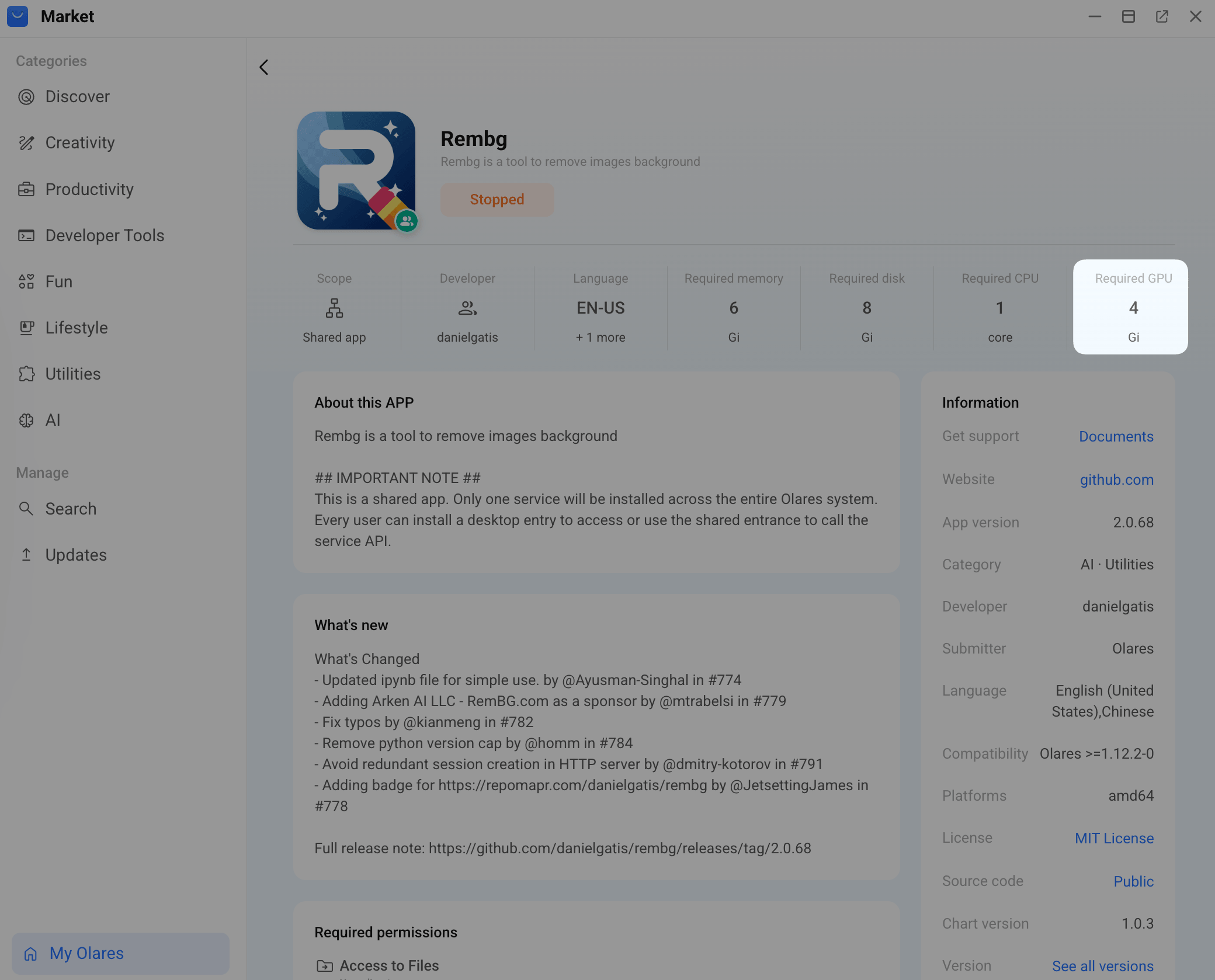
Go to Market > My Olares and click the target app's card. On the app details page, note the app's VRAM requirement.
Go to Settings > GPU. In Allocate VRAM, add up the VRAM allocated to all apps, then subtract that amount from the GPU's total VRAM to get the available VRAM.
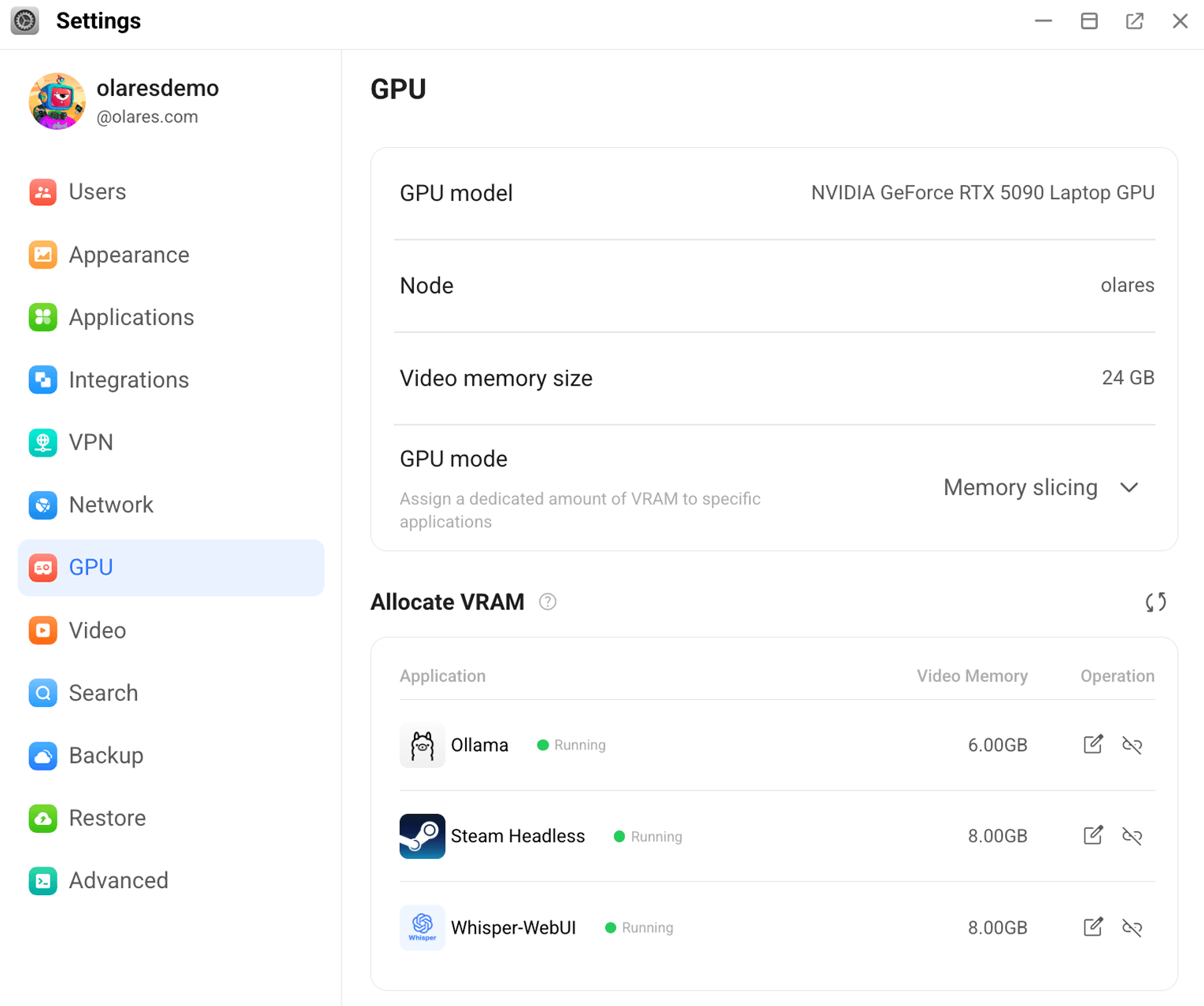
In the example above, 22 GB of VRAM is allocated, leaving only 2 GB available. The target app requires 4 GB, so it cannot start.
Use one or both of the following methods to free enough VRAM:
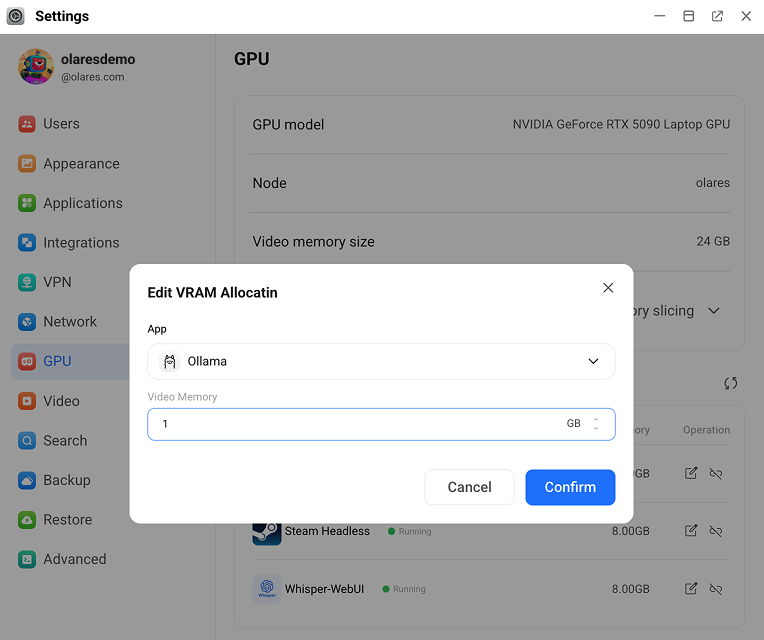
In Allocate VRAM, click edit_square next to an app's VRAM value. Reduce the allocation without going below that app's required VRAM, then click Confirm.
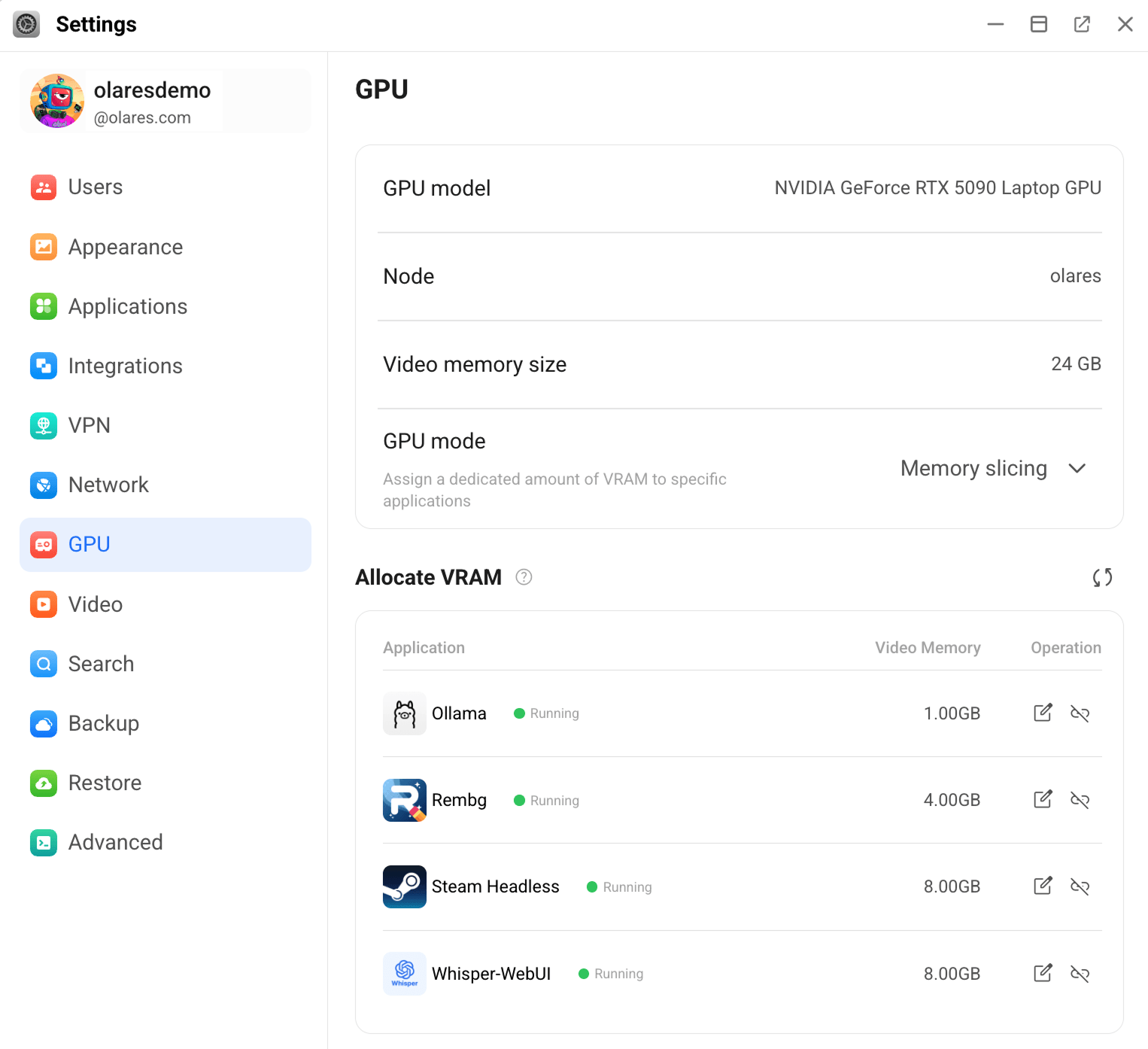
Stop an app that you do not currently need from Market > My Olares or Settings > Applications. Return to Settings > GPU, click link_off next to the stopped app, then click Confirm.
Resume the target app from Market > My Olares or Settings > Applications.
Wait for the app status to change to Running.
Olares 1.12.6
Go to Settings > Applications or Market > My Olares. Find the target app and click Resume.
In the launch dialog, check VRAM allocation in the upper-right corner. The value after the slash is the app's required VRAM. In this example,
0 Gi / 4 Gimeans the app requires 4 Gi of VRAM.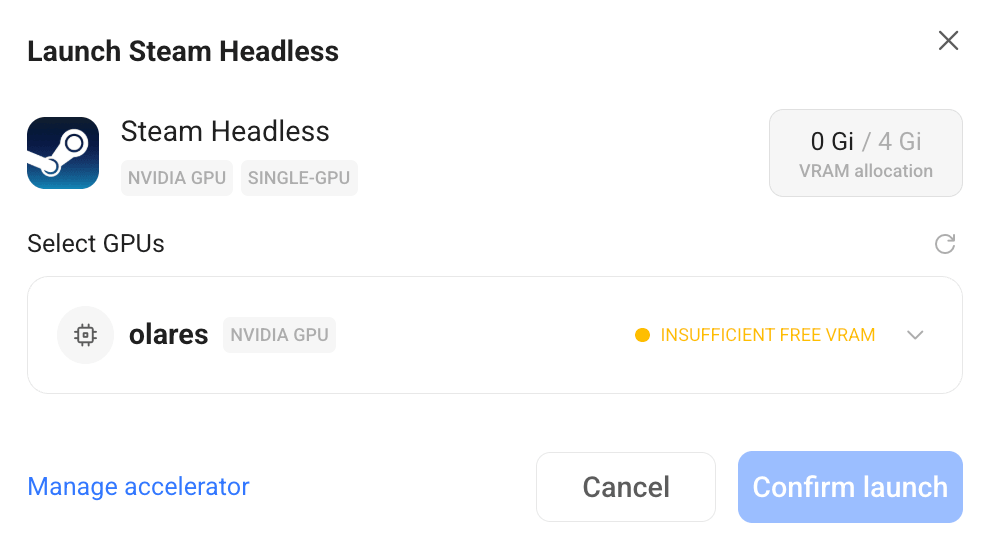
Under Select GPUs, expand a compatible GPU and check:
- Dedicated VRAM: The GPU's total VRAM.
- Assigned apps: The apps using the GPU and the VRAM allocated to each app.
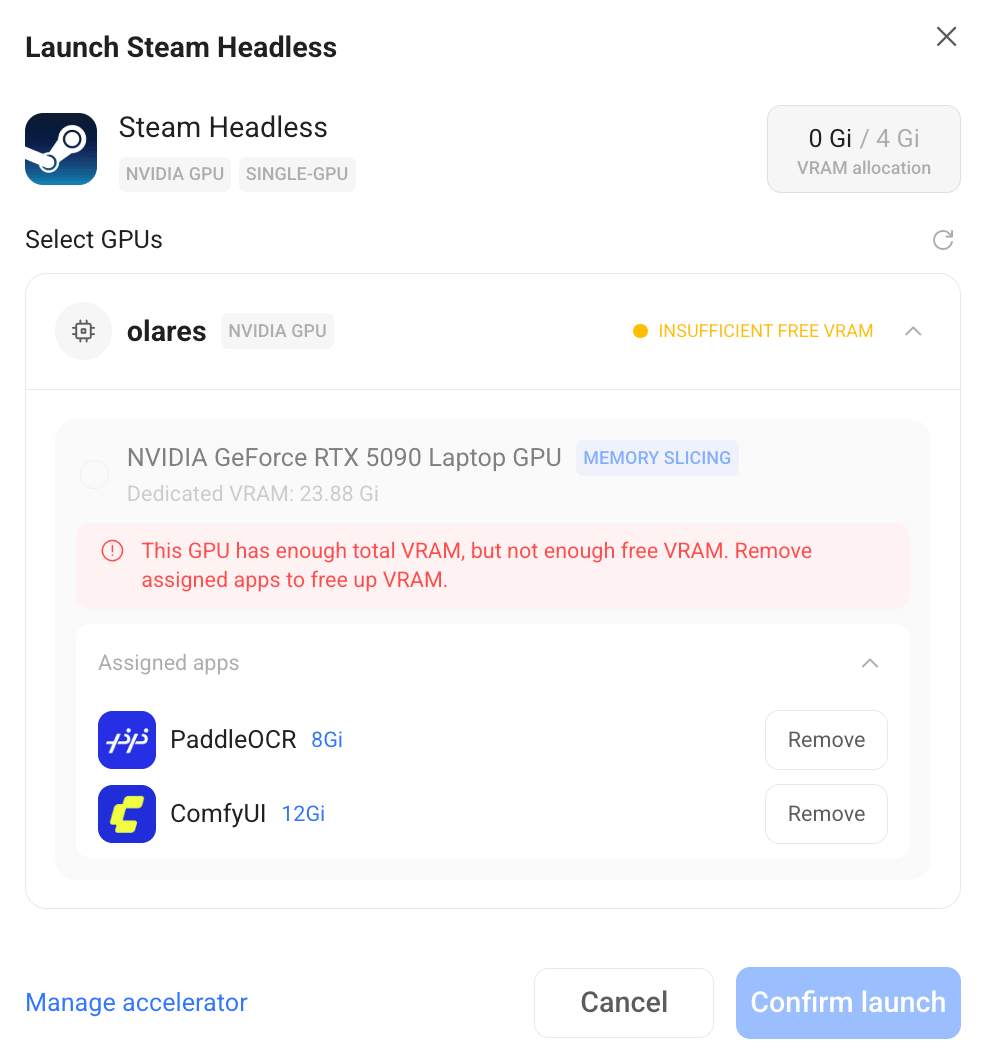
Under Assigned apps, find an app that you do not currently need, then click Remove. Repeat until enough VRAM is available.
INFO
Removing an assigned app releases its GPU resources and stops it.
Select the GPU, check the allocation for the target app, then click Launch.
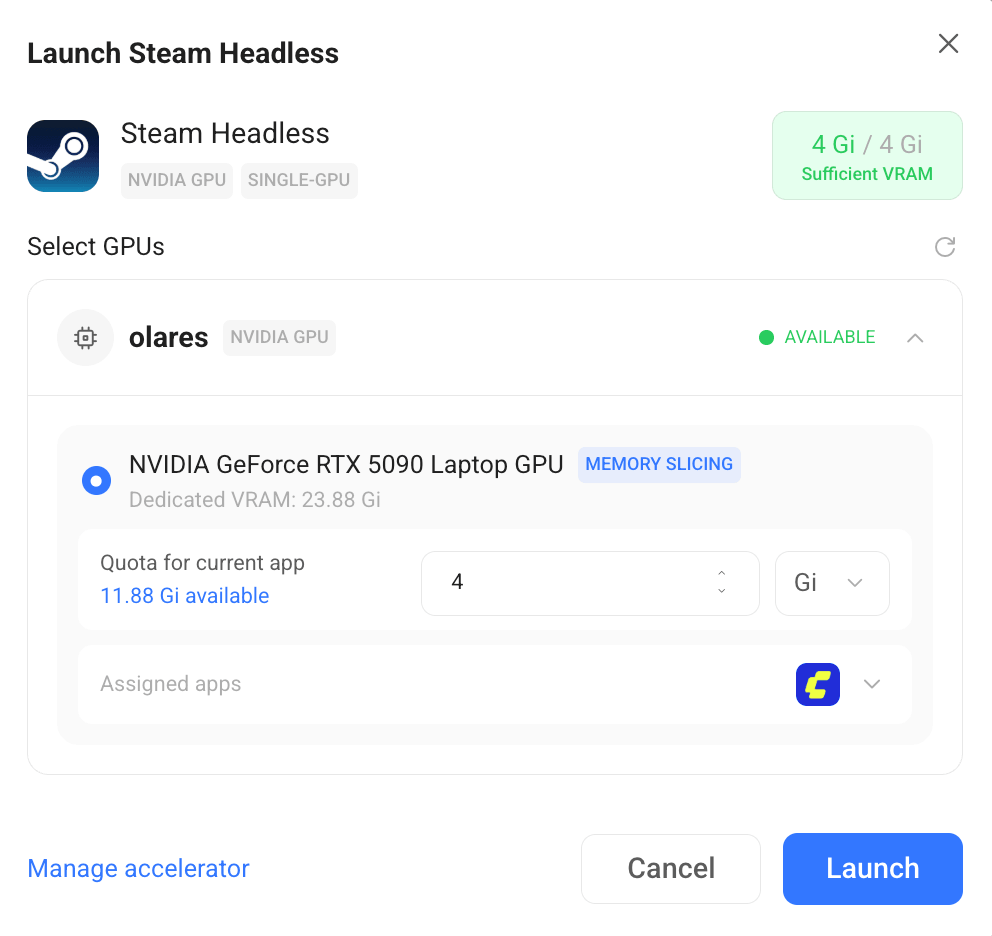
Reallocate VRAM in Olares 1.12.6
You cannot change an app's VRAM quota after assignment. To change it later, remove the app from the GPU, resume it, and assign the resource again.
For details about the Olares 1.12.6 interface and resource assignment, see Manage accelerator resources.