Mount and use cloud storage
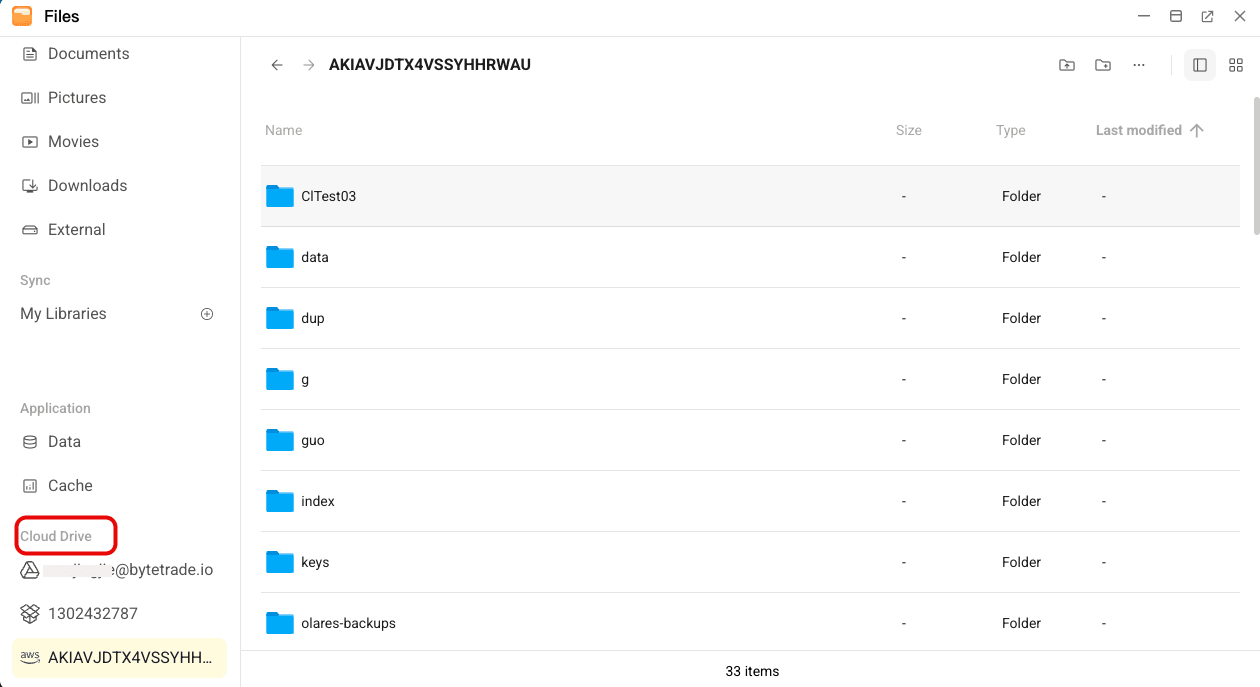
You can mount cloud storage services such as Google Drive, Dropbox, AWS S3, and Tencent Cloud COS, and access your cloud files directly in the Files app.
Connect a cloud storage service
Cloud storage is connected through Integrations, either in the LarePass mobile app or in Olares Settings. The steps depend on the service type.
Connect via OAuth (Google Drive, Dropbox)
OAuth-based services are authorized in the LarePass mobile app:
- Open LarePass on your mobile device.
- Tap Settings > LarePass settings > Integration, then tap add in the top-right corner.
- Select Google Drive or Dropbox.
- Follow the login prompts to authorize your account.
Connect via API keys (AWS S3, Tencent Cloud COS)
Services like AWS S3 and Tencent Cloud COS are configured with API keys (Access Key & Secret Key) in Olares Settings:
- Open Settings from the Dock or Launcher, and go to Integrations > Link your accounts and data.
- Click + Add Account in the top-right corner.
- Select AWS S3 or Tencent COS, then click Confirm.
- In the mount dialog, fill in the Access Key, Secret Key, Region, and Bucket name.
- Click Next. You will see a success message if the credentials are valid.
You can also add these services in LarePass: tap Settings > LarePass settings > Integration > add, select the service, and enter your credentials.
Integrations that require LarePass
OAuth-based integrations and Olares Space connections must be completed in the LarePass app.
Once connected, the cloud storage appears under Cloud Drive in Files.
Access a cloud storage
Once mounted, you can access and manage files just as you would with local storage:
- Upload / Download files
- Preview supported file types
- Rename, move, or delete files and folders
Changes made in the Files app will sync with your remote storage provider.
Unmount a cloud storage
You unmount a cloud storage by removing its integration:
- In LarePass: Go to Settings > LarePass settings > Integration, tap the integration, tap more_horiz, and tap Delete.
- In Olares Settings: Go to Integrations > Link your accounts and data, click the integration card, and click Delete on the Account settings page.