Installation and activation FAQs
Use this page for common questions about installing and activating Olares. If activation or sign-in fails with a specific message, look it up in Login and activation error messages.
Installation
What platforms does Olares support?
Install Olares on Linux (Ubuntu or Debian) for best performance.
You can also install Olares on the following platforms. However, use them only for testing, because they do not support all features:
- Proxmox VE
- Raspberry Pi
- macOS
- Windows
What are the minimum hardware requirements for installing Olares?
Requirements vary by platform. Generally, you need:
- CPU: Minimum 4 cores with x86-64 architecture, such as Intel or AMD.
- Memory: At least 8 GB of available RAM.
- Storage: Minimum 150 GB SSD.
For detailed requirements, refer to the installation docs.
Is it possible to use a mechanical hard drive to install Olares?
No. You must use an SSD. Installations on mechanical hard drives likely fail due to slower read and write speeds, which cause timeouts during system initialization.
Does the system support NVIDIA GPUs?
Yes, but only NVIDIA Turing architecture or newer, such as GTX 16xx, RTX 20xx, 30xx, 40xx, 50xx series, and later. GPUs with older architectures are not recognized by Olares, and AI applications that require GPU access will not run.
This requirement stems from the NVIDIA open-source driver requiring the hardware GSP module of Turing, and CUDA 13.x dropping support for older GPU architectures.
For supported GPUs, Olares automatically handles driver installation. It supports multiple GPUs on a single motherboard, allowing you to leverage all available compute power for AI workloads.
How do I manually install NVIDIA drivers if automatic setup fails?
The Olares installer detects and installs drivers automatically. However, if your system previously had NVIDIA drivers installed, the process might skip or fail due to conflicts.
To resolve this:
- Reboot the machine after the Olares installation to clear any old driver components.
- Manually trigger the driver installation using the command
olares-cli gpu install. - After installation, confirm the system recognizes your GPU by running
nvidia-smi.
Why does installation fail with failed to build Kubernetes objects or Ensure CRDs are installed first?
While these error messages suggest a problem with Custom Resource Definitions (CRDs), they often indicate poor disk performance.
Olares relies on etcd, the backing database for Kubernetes. etcd is highly sensitive to storage speed. If you install Olares on a slow disk, such as a traditional HDD, etcd cannot respond fast enough. This causes the API server to time out while attempting to apply CRDs.
To fix the issue, install Olares on SSD storage.
How do I find the password if the Olares installation times out without showing it?
This typically occurs when the installation times out due to insufficient system resources, especially in a virtual machine (VM). You can retrieve the password from the installation log file with the following command:
# Replace v1.12.2 with your specific Olares version number.
grep password $HOME/.olares/versions/v1.12.2/logs/install.log
An installation timeout often indicates some services failed to start correctly. After you find your password, run kubectl get pod -A to check the status of all services.
Activation
Activate Olares using Bluetooth
Use this method if LarePass cannot find your Olares device. This can happen if Olares is not on a wired network or if your phone is on a different network.
By using Bluetooth, you can connect Olares directly to your phone's current Wi-Fi network and continue the activation process. 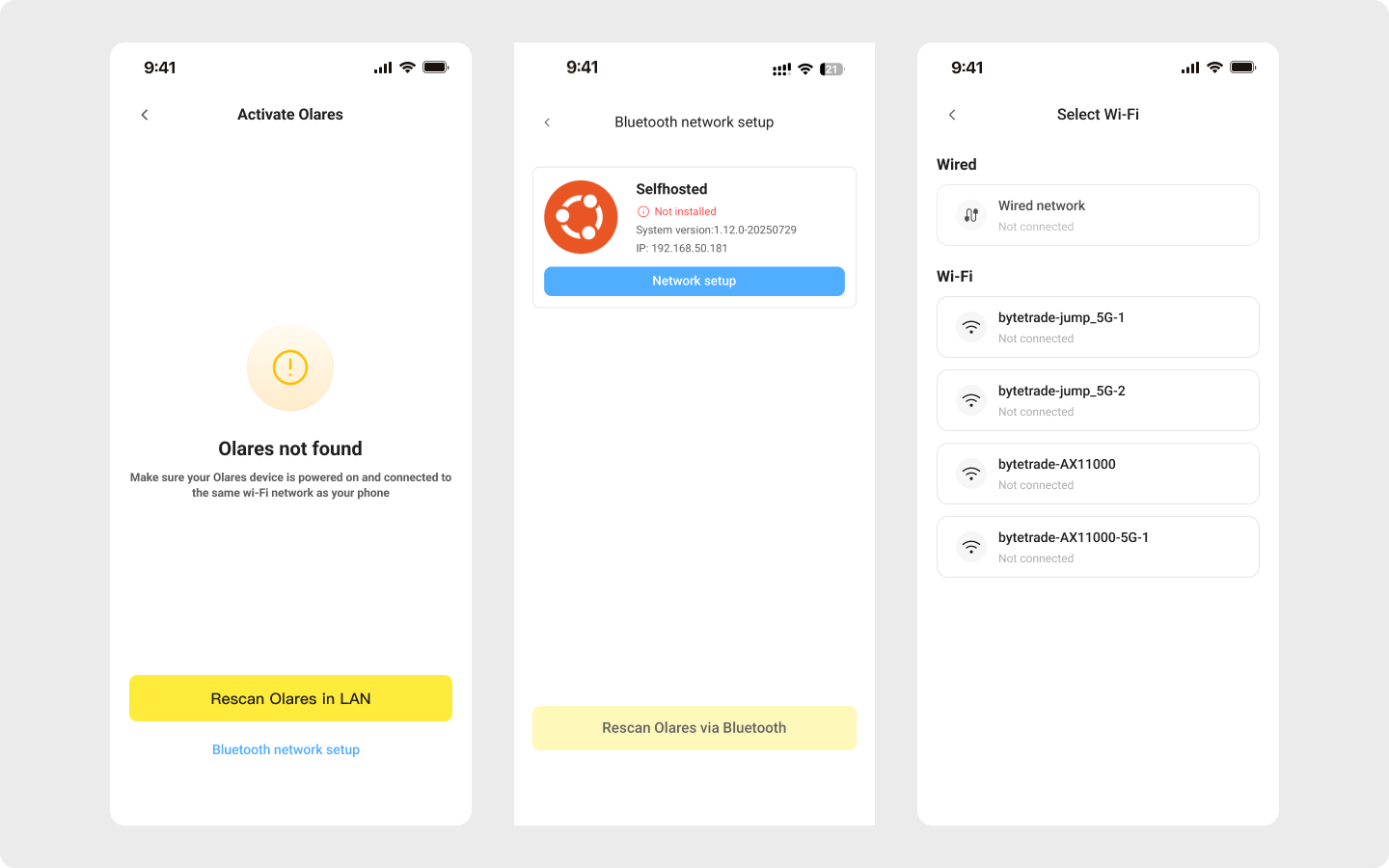
- On the Olares not found page, tap Bluetooth network setup. LarePass will use your phone's Bluetooth to scan for the nearby Olares device.
- When your device appears in the list, tap Network setup.
- Select the Wi-Fi network your phone is currently connected to. If the network is password-protected, enter the password and tap Confirm.
- Olares will begin connecting to the Wi-Fi network. Once the process is complete, a success message will appear. If you return to the Bluetooth network setup page, you'll see that Olares' IP address has changed to your phone's Wi-Fi subnet.
- Go back to the device scan page and tap Discover nearby Olares to find your device and proceed with activation.
Is it possible to activate Olares with a non-local network?
Yes. Standard activation requires the Olares device and your client device, such as your phone, to connect to the same local network. This requirement applies whether you access the activation wizard via a local IP address in a web browser, or use the Discover nearby Olares feature in the LarePass app after an ISO installation.
However, if Olares uses a public IP address, such as on a public cloud, this local network limitation no longer applies.
After activation, access devices via domain names on both internal and external networks, regardless of the initial setup method.
My Olares is powered on and connected to LAN, but I can't find it in LarePass. What should I do?
Ensure your phone and Olares device are on the same network. If they are not, LarePass cannot discover Olares automatically.
If you cannot connect via Wi-Fi, use the Bluetooth network setup in the LarePass app to connect Olares to the same network as your phone.
For detailed instructions, see Activate Olares using Bluetooth.