Manage application entrances
Entrances define how users access your applications on Olares. For more details, see the Entrance concept.
Each entrance consists of two parts:
- The endpoint: the URL used to access the app. To set a custom route ID, see Customize application URLs.
- The access policy: controls who can access the app and which authentication method is required. This page covers access policies.
Understand authentication levels and modes
Access policies control who can access your application and their required authentication method.
Use the following table to choose the right authentication level for each entrance:
| Authentication level | Available authentication modes | Access behavior |
|---|---|---|
| Public | None | Anyone can open the app without logging in. |
| Private | System, One Factor, Two Factor | Everyone must authenticate before access. |
| Internal | System, One Factor, Two Factor | Users on LarePass VPN skip authentication; all other access requires it. |
Authentication level: The overall authentication requirement for the entrance.
- Public: Accessible to anyone, with no login required.
- Private: Requires users to log in to access.
- Internal: No login is required if accessing the application via VPN.
Authentication mode: The method used for verifying user identity.
- System: Inherits the system-wide authentication rules defined on the My Olares page.
- One Factor: Requires only the Olares login password.
- Two Factor: Requires the Olares login password plus a second verification code.
- None: No authentication is required for access.
Set the authentication level and mode
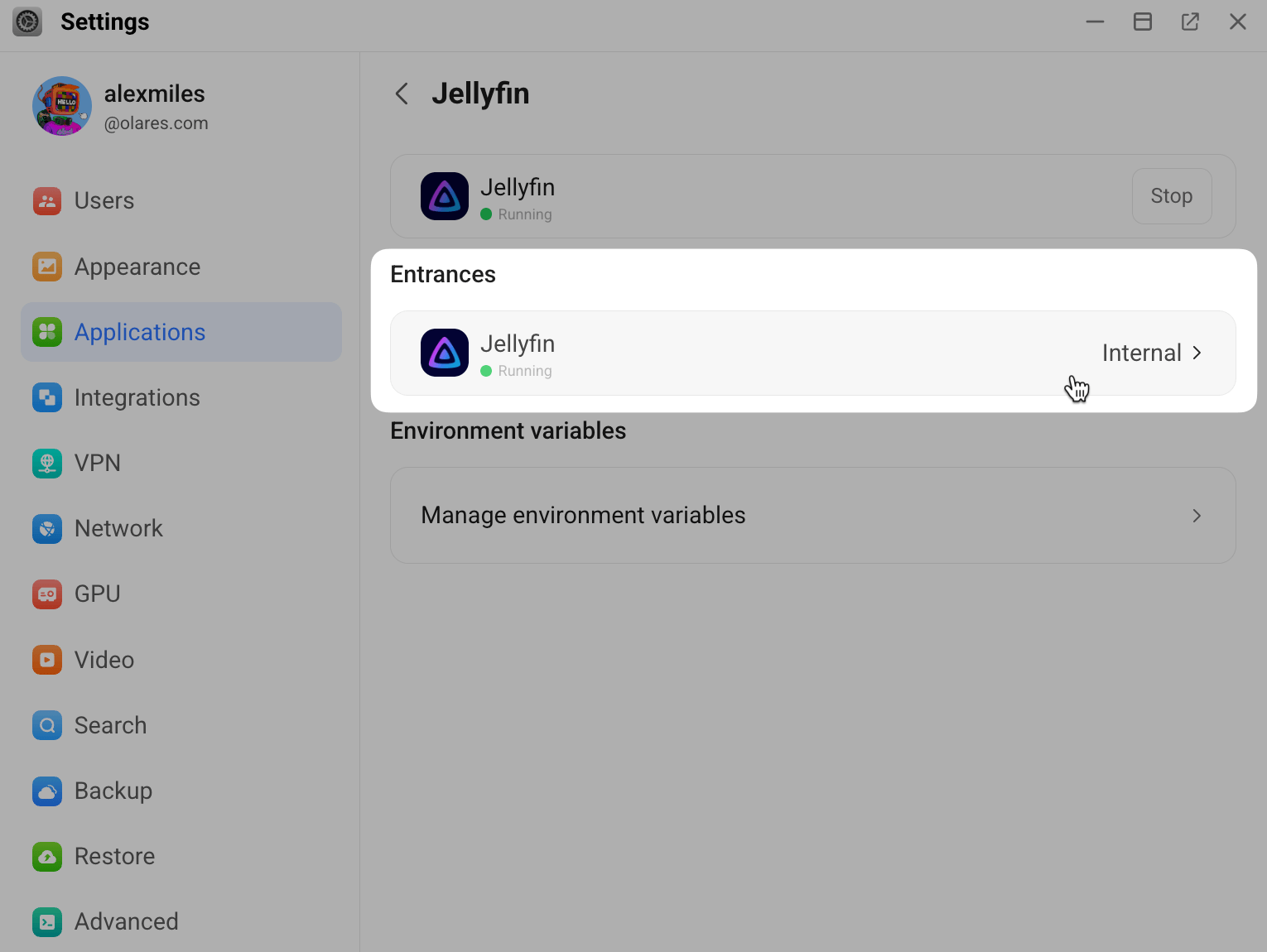
Go to Settings > Application.
Click the target application.
Under Entrances, click the target entrance.
Under Access policies, set the Authentication level and Authentication mode.
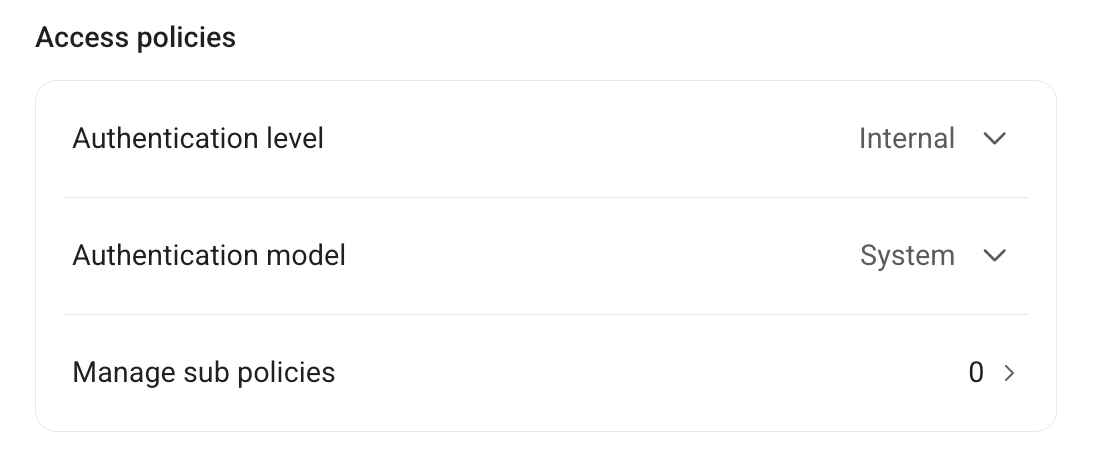
Click Submit.
Manage sub-policies
Use sub-policies to apply fine-grained access rules to specific paths within the application using regular expressions.
- On the Access policies panel, click chevron_forward to open the Manage sub policies page.
- Click Add sub policy, then enter the target paths in Affected URLs and select an Authentication mode.
- Click Submit.
Resources
- Customize application URLs: Set a memorable route ID for an app.
- Entrance concept: Learn the technical background.