Expand Olares system storage
If your Olares system uses LVM-based storage, you can expand its system storage capacity using the olares-cli disk command. After extension, the added drive is merged into the system volume and is no longer shown as an independent mount point.
For other storage options, see Connect an SMB share, mount a local disk, or use a USB drive.
Data loss
disk extend will destroy all data on the selected disk.
Make sure the disk does not contain important data, or back up the data before continuing.
Before you begin
- Connect the external drive to the Olares host machine.
- SSH into the Olares terminal.
Identify the unmounted disk
List block devices on the host:
lsblk | grep -v loopIdentify the newly added disk by checking its size and confirming it has no mount points. Do not select the disk that contains / or /boot.
Example output:
NAME        MAJ:MIN RM   SIZE RO TYPE MOUNTPOINTS
sda           8:0    0 931.5G  0 disk
├─sda1        8:1    0   512M  0 part /boot
└─sda2        8:2    0   931G  0 part /
nvme1n1     259:3    0 931.5G  0 disk
In this example, sda is the system drive which is mounted at / and /boot, while nvme1n1 is the newly connected disk.
Extend system storage
Verify that Olares recognizes the unmounted disk:
basholares-cli disk list-unmountedAdd the disk to the system volume:
bashsudo olares-cli disk extendType
YESto proceed when the command prompts for confirmation.textWARNING: This will DESTROY all data on /dev/<device> Type 'YES' to continue, CTRL+C to abort:Example output:
textSelected volume group to extend: olares-vg Selected logical volume to extend: data Selected unmounted device to use: /dev/nvme0n1 Extending logical volume data in volume group olares-vg using device /dev/nvme0n1 WARNING: This will DESTROY all data on /dev/nvme0n1 Type 'YES' to continue, CTRL+C to abort: YES Selected device /dev/nvme0n1 has existing partitions. Cleaning up... Deleting existing partitions on device /dev/nvme0n1... Creating partition on device /dev/nvme0n1... Creating physical volume on device /dev/nvme0n1... Extending volume group olares-vg with logic volume data on device /dev/nvme0n1... Disk extension completed successfully. id LV VG LSize Mountpoints 1 data olares-vg <3.63t /var,/olares 2 root olares-vg 100.00g / 3 swap olares-vg 1.00g ...
Verify the extension
You can verify the storage increase in both terminal and UI.
In terminal
Check the size of the
/olaresdirectory where data is stored to confirm expansion:bashdf -h /olaresExample output:
textFilesystem Size Used Avail Use% Mounted on /dev/mapper/olares--vg-root 1.8T 285G 1.4T 17% /olaresConfirm if the new disk is now part of the
olares--vg-datavolume:bashlsblk | grep -v loopExample output:
textNAME MAJ:MIN RM SIZE RO TYPE MOUNTPOINTS nvme0n1 259:0 0 1.9T 0 disk └─nvme0n1p1 259:2 0 1.9T 0 part └─olares--vg-data 252:2 0 3.6T 0 lvm /olares /var nvme1n1 259:3 0 1.9T 0 disk ├─nvme1n1p1 259:4 0 512M 0 part /boot/efi └─nvme1n1p2 259:5 0 1.9T 0 part ├─olares--vg-root 252:1 0 100G 0 lvm / └─olares--vg-swap 252:0 0 1G 0 lvm [SWAP]
In UI
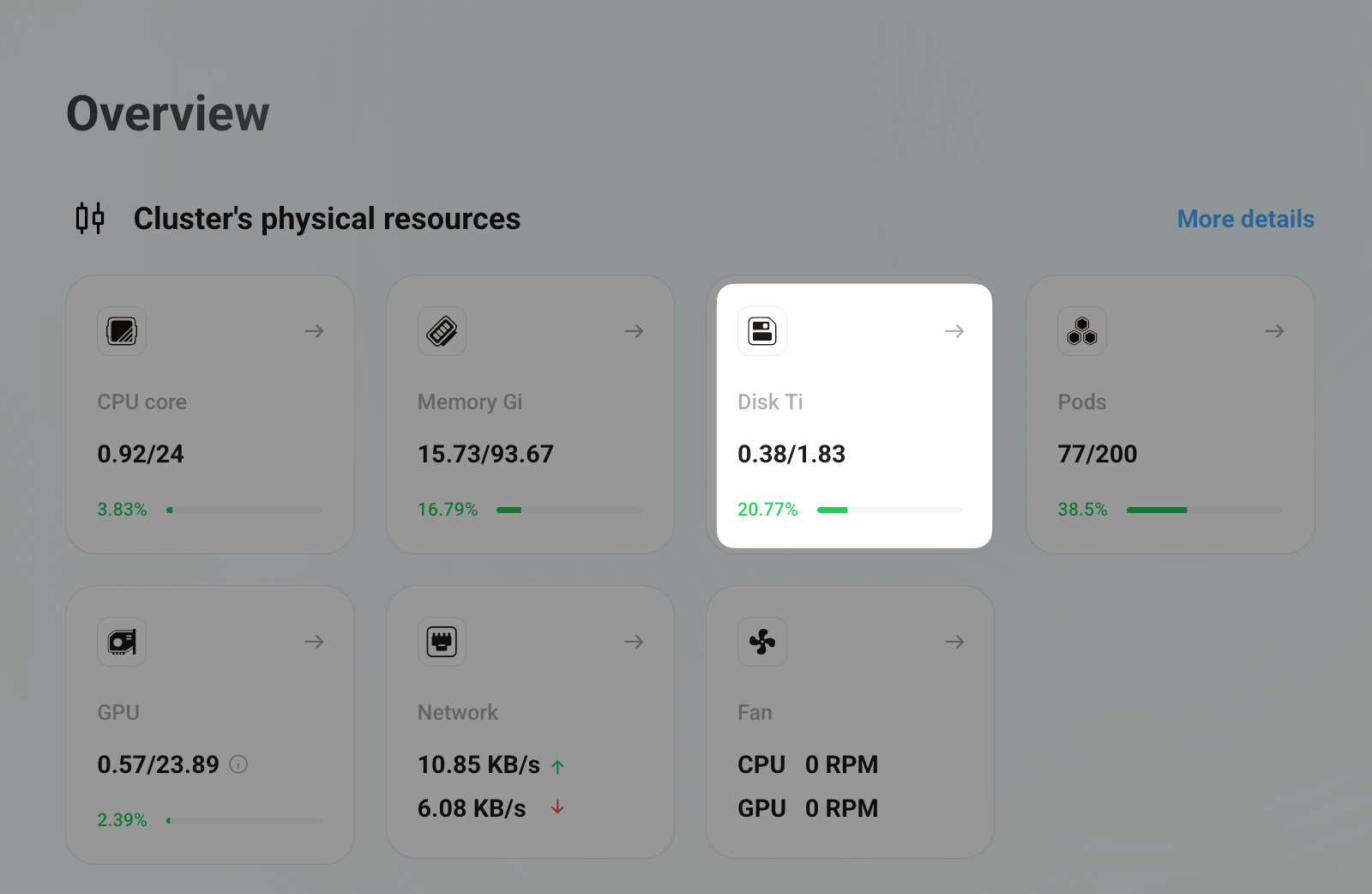
Open Dashboard from Launchpad and confirm that total system storage capacity has increased.
For full command usage and options, see the disk command documentation.