Create and manage support tickets in Olares Space
Use the Tickets page in Olares Space to report issues, ask for help, and track the status of your support requests. Create a ticket automatically by uploading logs with the Olares CLI, or manually through the web form.
The Tickets page only shows tickets created with the Olares ID you are currently logged in with. To view a specific ticket, log in to Olares Space using the same Olares ID that was used to create it.
Prerequisites
Olares OS v1.12.7 or later is required.
Create a ticket automatically via Olares CLI
Run the command shown in Olares Space on your device terminal to upload system logs and create a ticket automatically.
Open Olares Space in your browser, and scan the QR code using LarePass to log in.
On the left sidebar, select Tickets, and then click terminal .

In the Upload logs with Olares CLI window, copy the Command.
Verification code
The verification code is valid for a limited time and refreshes automatically when the countdown ends. Copy the command before the code expires.
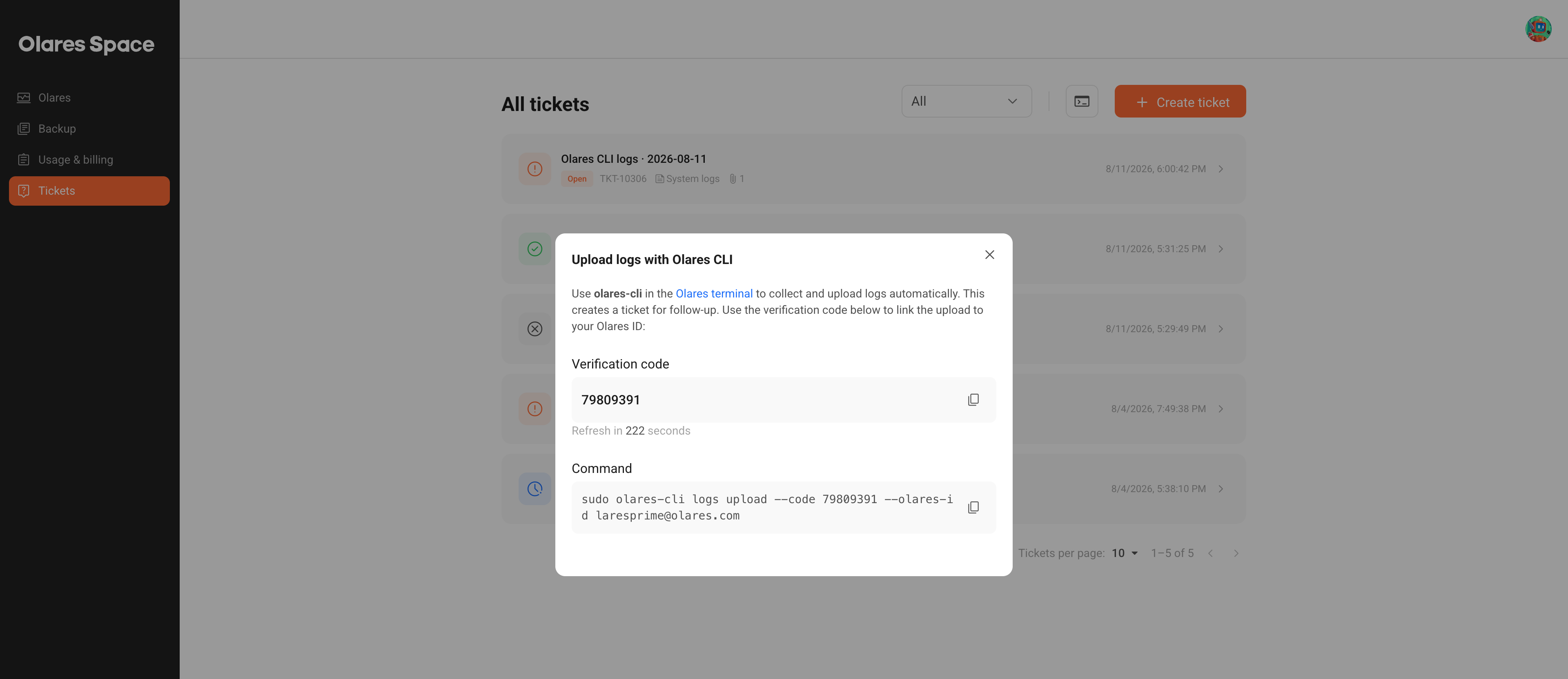
Access the terminal on your Olares device. For example, access via SSH.
Run the copied command in the terminal. It uses Olares CLI to collect and upload system logs automatically.
When the command finishes, it creates a ticket with your logs attached. Note the ticket number for follow-up, such as
TKT-10324.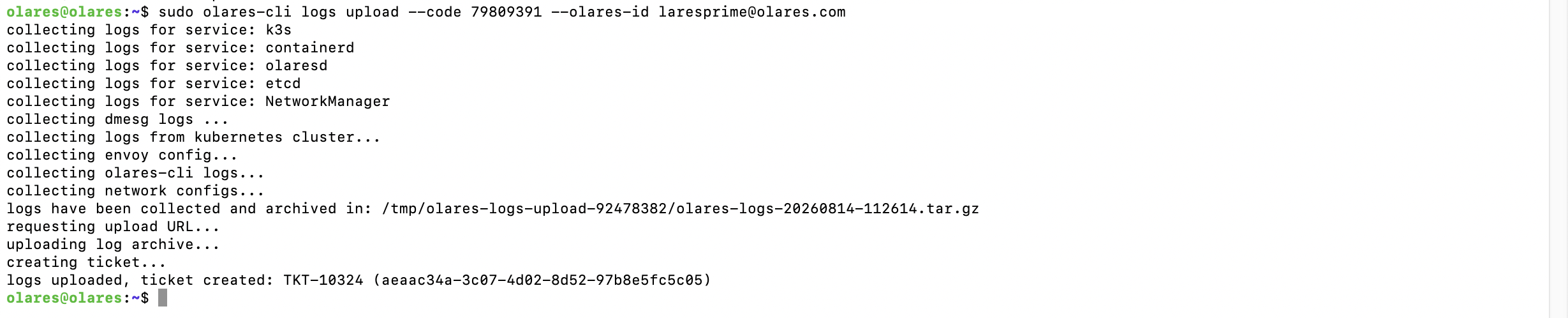
Return to the Tickets page, and find the ticket with the number you noted in Step 6. It is named Olares CLI logs {creation-date} and appears in the Open status.
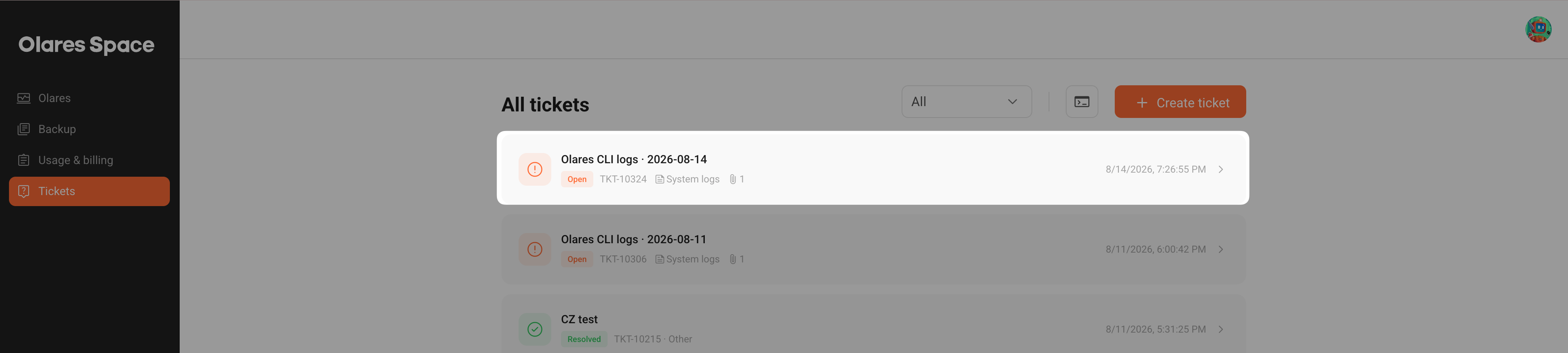
Once submitted, you can track the ticket's progress, view replies, and communicate with the Olares Support team until your issue is resolved.
Create a ticket manually
Submit a new support request through the web form.
Open Olares Space in your browser, and scan the QR code using LarePass to log in.
On the left sidebar, select Tickets, and then click + Create ticket.
Fill in the required issue details, and then click Create ticket.
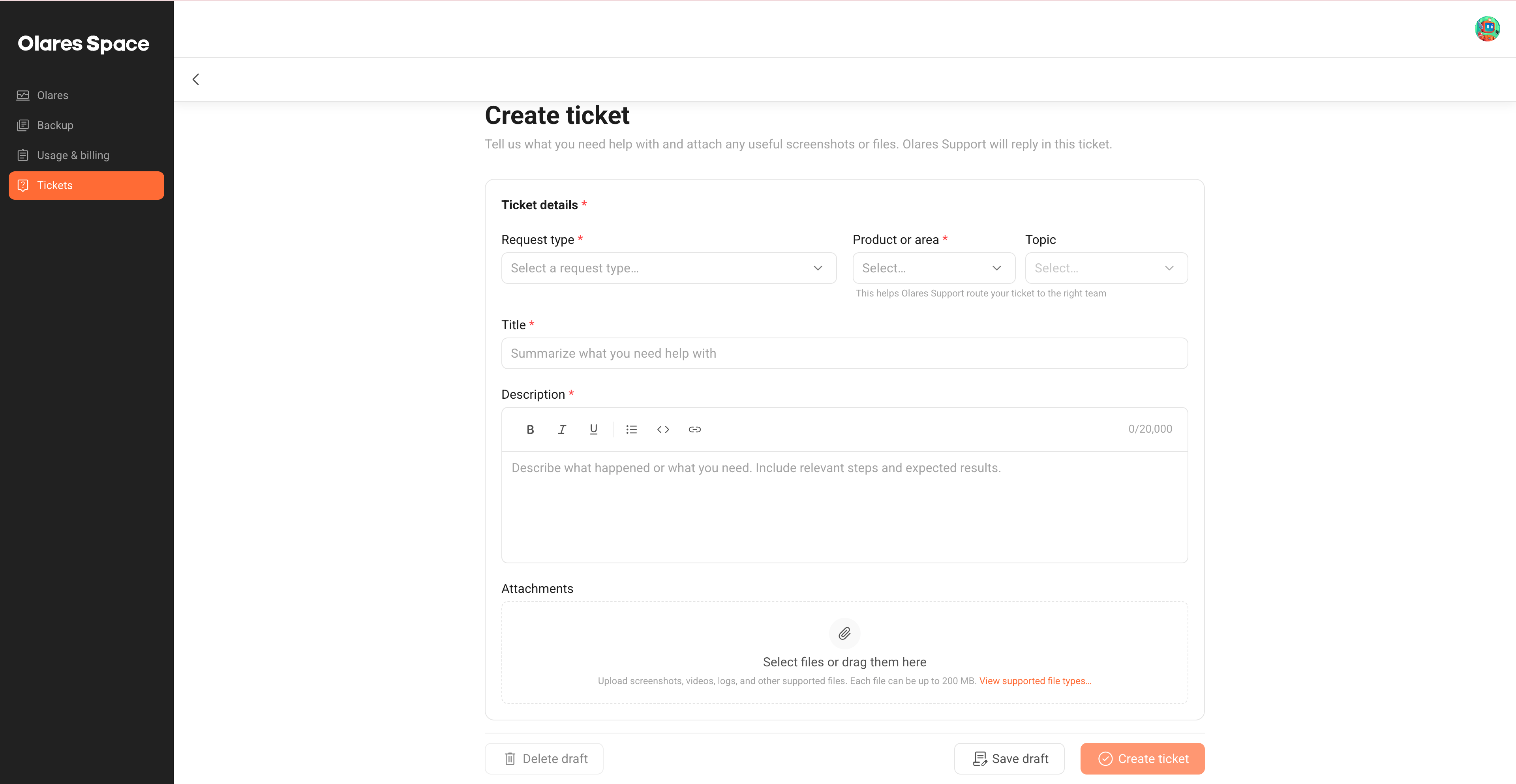
Export system logs
If you want to attach system logs, export them from Olares Settings > Advanced > Export system logs.
Learn more
- Get support: Learn about other support options, such as the Ticket app and GitHub.