Recover access to LarePass, Olares Desktop, or your Olares device
Use this guide if your mnemonic phrase is unavailable and you need to regain access to LarePass, Olares Desktop, or the device running Olares. Start with the section that matches what you cannot access.
Keep every existing LarePass installation
Do not uninstall LarePass or remove your Olares ID from any device where it is still available. Without a mnemonic backup, doing either may permanently prevent you from using that Olares ID in LarePass again.
If you forgot your mnemonic phrase or never backed it up
Check every phone and computer where you previously used LarePass.
If your Olares ID is available in any LarePass client, keep that client installed and follow the steps for its platform.
On mobile
- Go to Settings > LarePass Settings > Security > Mnemonic phrase.
- If prompted, enter your LarePass local password. If you do not know it, follow If you forgot or have not set your LarePass local password.
- Reveal the 12 words, write them down in order, and store them offline.
- Complete the in-app verification to confirm that the backup is correct.
On desktop
- Go to Settings > Account > Manage Account.
- Locate your Olares ID and follow the prompts to view its mnemonic phrase.
- Write down the 12 words in order and store them offline.
If the original LarePass client is unavailable
If the LarePass client on which you created the Olares ID has been uninstalled or is no longer accessible, check whether the Olares ID is available in another LarePass client. If it is not and you have no mnemonic backup, the phrase cannot be recovered.
To use the device again, uninstall Olares, reinstall it, and activate it with a new Olares ID.
Uninstalling Olares deletes data
The uninstall command removes Olares components and data from the device. Back up any files you can still access before continuing.
Open the Olares device terminal:
- If you can sign in to Olares Desktop, open Control Hub, then select Terminal > Olares.
- Otherwise, connect through SSH or log in locally with a monitor and keyboard.
Uninstall Olares:
In the Control Hub terminal, run:
basholares-cli uninstallIn an SSH or local terminal, run:
bashsudo olares-cli uninstall
Wait for the uninstall process to finish.
Install or open LarePass, create a new Olares ID, and follow Install Olares to reinstall and activate the device.
Back up the new mnemonic phrase immediately after activation.
If you forgot or have not set your LarePass local password
The local password unlocks protected LarePass features on the current device. Each LarePass installation has its own local password.
On mobile
- If LarePass asks you to create a local password, create one and follow the prompts.
- If no prompt appears, go to Settings > LarePass Settings and set a local password.
- If you forgot the local password and biometric unlock is enabled, go to Settings > LarePass Settings > Security, tap Reveal local password, and complete biometric verification.
- If biometric unlock is not enabled, the local password cannot be revealed on that device. Use another LarePass client where your Olares ID is still accessible.
On desktop
- If LarePass asks you to create a local password, create one and follow the prompts.
- If no prompt appears, go to Settings > Security and set a local password.
- If you forgot the local password, it cannot be revealed in the desktop client.
If you forgot your Olares login password
Follow Forgotten desktop login password to access the Olares device terminal and reset the password.
If you cannot find the 2FA code
If the sign-in notification does not appear in LarePass, enter a 2FA code instead:
On the Olares login page, switch to code verification.
Find the current six-digit code in a LarePass client that contains your Olares ID:
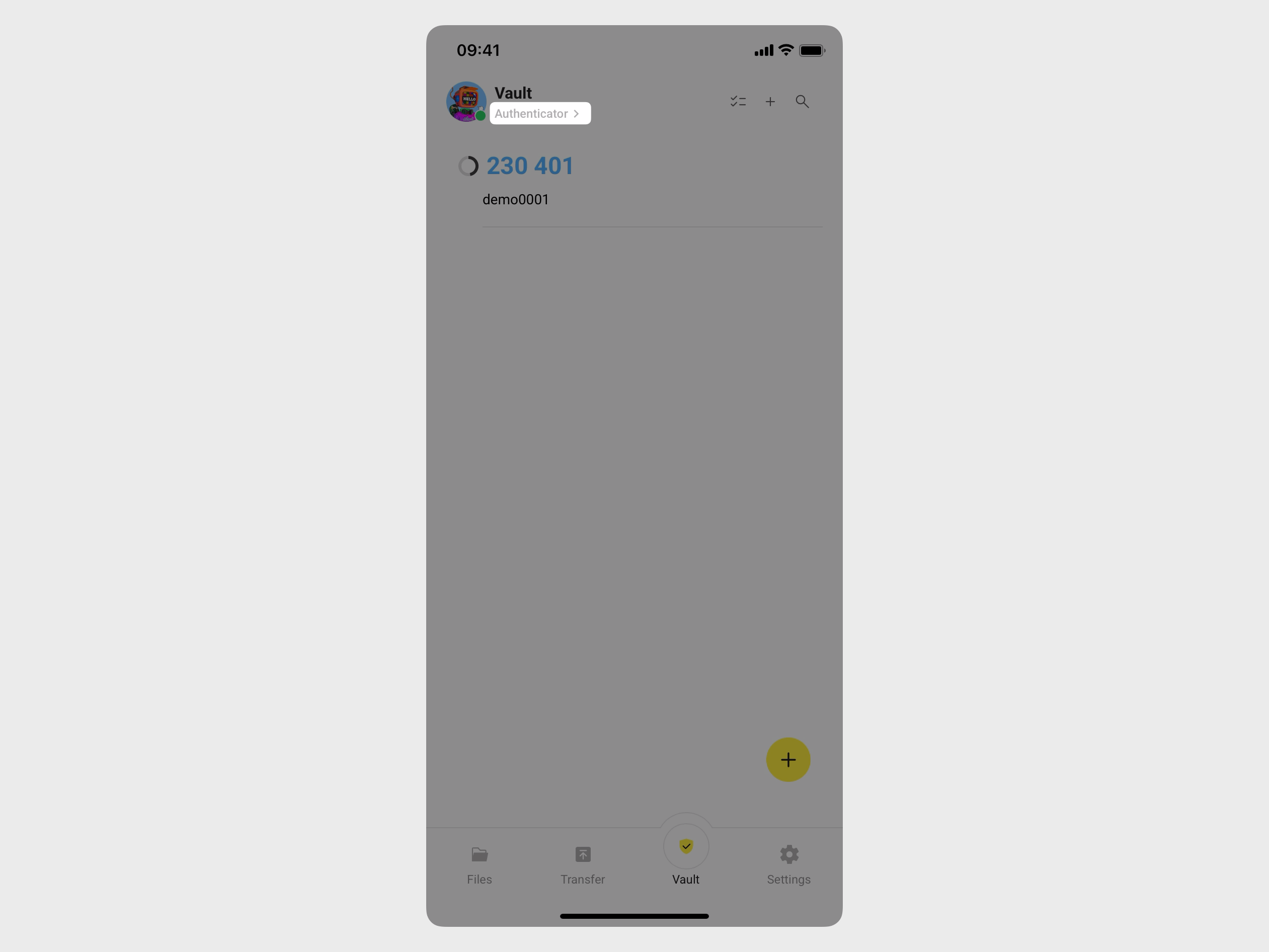
- On mobile, open Vault, which displays 2FA codes by default. Alternatively, go to Settings, find the My Olares card, and tap the authenticator.
- On desktop, open Vault. The authenticator is the first item in the list.
Enter the code on the Olares login page before it expires.
If you need the username, password, or IP address for the Olares device terminal
Olares One
The system username for an activated Olares One is olares. The system password is used for SSH and local terminal sign-in.
Reset the system password from Olares Desktop
If you can sign in to Olares Desktop but do not know the system password, reset it using either method.
Control Hub:
Open Control Hub, then select Terminal > Olares.
Run:
bashpasswd olaresEnter the new password twice as prompted.
Settings:
- Open Settings. On the My Olares page, select My hardware.
- Select Reset SSH login password.
- Enter a new password that meets the strength requirements, then click OK.
- Open LarePass and scan the QR code shown on the screen.
- Tap Confirm in LarePass. The new password is saved to Vault.
Find the current system password in LarePass
The system password is generated during activation and saved in LarePass Vault.
If you already know the system password, skip to step 3.
Open Vault in the LarePass mobile app. If a local-password prompt blocks access, follow If you forgot or have not set your LarePass local password.
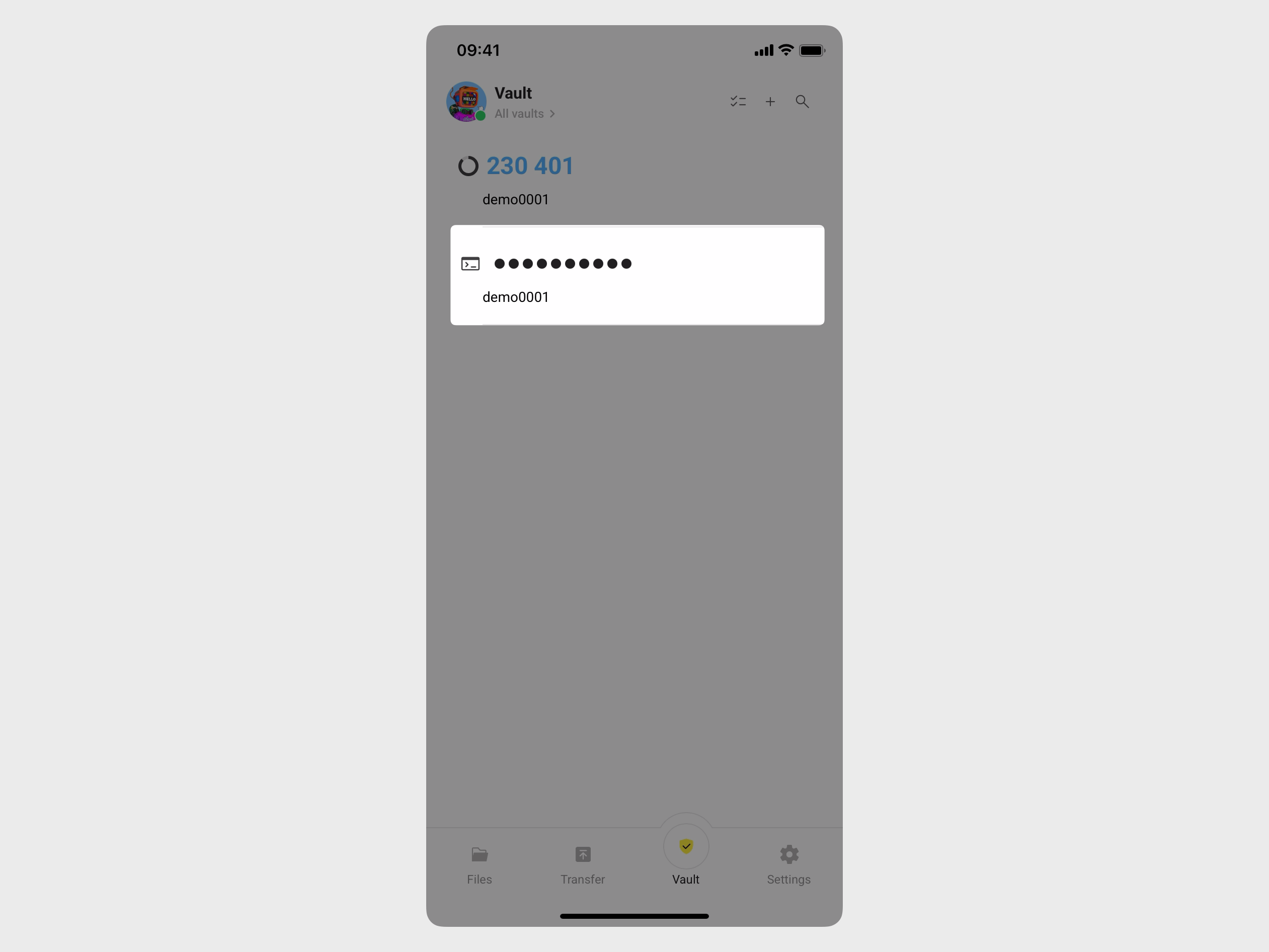
Tap the filter in the top-left corner and select All vaults. Open the item with the terminal icon to view the system password.
In LarePass, go to Settings > System, open the Olares One device card, and note the Intranet IP under Network.
On a computer connected to the same local network, run:
bashssh olares@<intranet-ip>Enter the system password.
If SSH is unavailable, connect a monitor and keyboard to Olares One and log in with the same username and password. For details, see Access Olares One terminal via SSH or Access Olares One terminal physically.
If you cannot open Vault and do not know the system password, keep LarePass installed and contact support. Do not send support your passwords or mnemonic phrase.
Olares installed on your own device
Use the credentials that match how Olares was installed:
- Olares ISO installed on dedicated hardware: Use
olaresas both the system username and password. - Olares installed on an existing operating system: Use the operating-system username and password you configured on that device.
Connect over SSH or log in locally with a monitor and keyboard. For details, see Access the Olares terminal.