Mount a local disk
You can manually mount an HDD or SSD to Olares from your Linux hosting system.
This approach is recommended for large data storage (e.g., AI models) or long-term storage expansion.
Prerequisites
Please ensure the following:
- You have administrator (sudo) privileges on your Linux system.
- Olares is properly installed and running.
- The target drive is already formatted (recommended file systems:
ext4orXFS).
Mount path restriction
Currently, only mounts under the /olares/share directory are supported.
Mounting flexibility will be improved in future versions.
Identify the drive
Insert the hard drive into the host machine.
Run the following command to view detected drives:
bashfdisk -lIdentify the target drive type and device name from the output:
- NVMe SSD: typically appear as
/dev/nvme0n1,/dev/nvme1n1, etc. - SATA or HDD: typically appear as
/dev/sda,/dev/sdb, etc.
Each drive lists its partitions under the Device column, such as
/dev/nvme1n1p1,/dev/nvme1n1p2, or/dev/sdb1.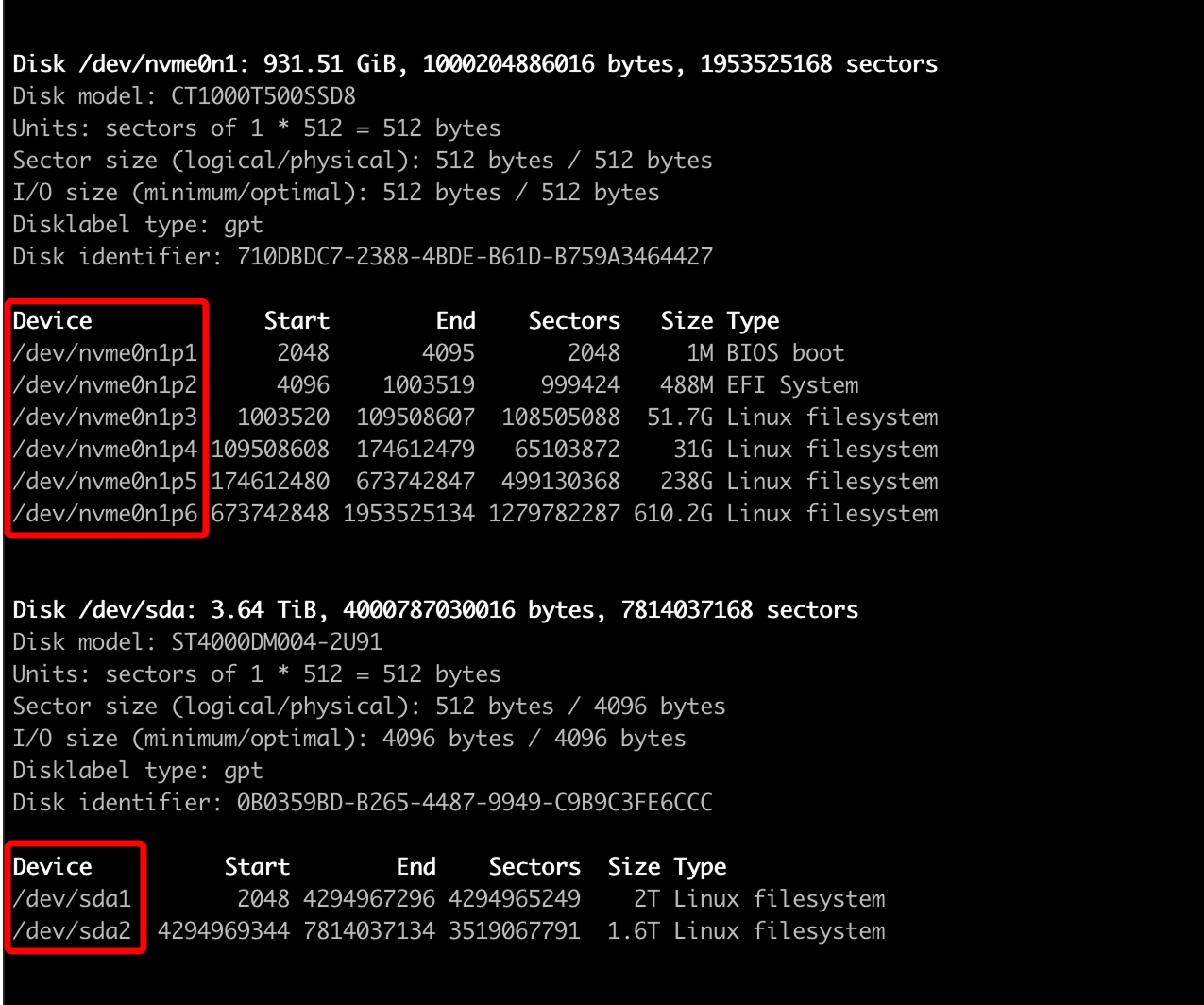
- NVMe SSD: typically appear as
Confirm the target partition to mount (e.g.,
/dev/nvme1n1p1).
Temporarily mount a partition
Temporary mounting is suitable for one-time or short-term use (e.g., file transfer).
The mount configuration will be lost after a Linux or Olares reboot.
Create a mount directory:
bashsudo mkdir -p /olares/share/<directory_name>Replace
<directory_name>with a custom name.Mount the partition:
bashsudo mount /dev/<partition> /olares/share/<directory_name>Example:
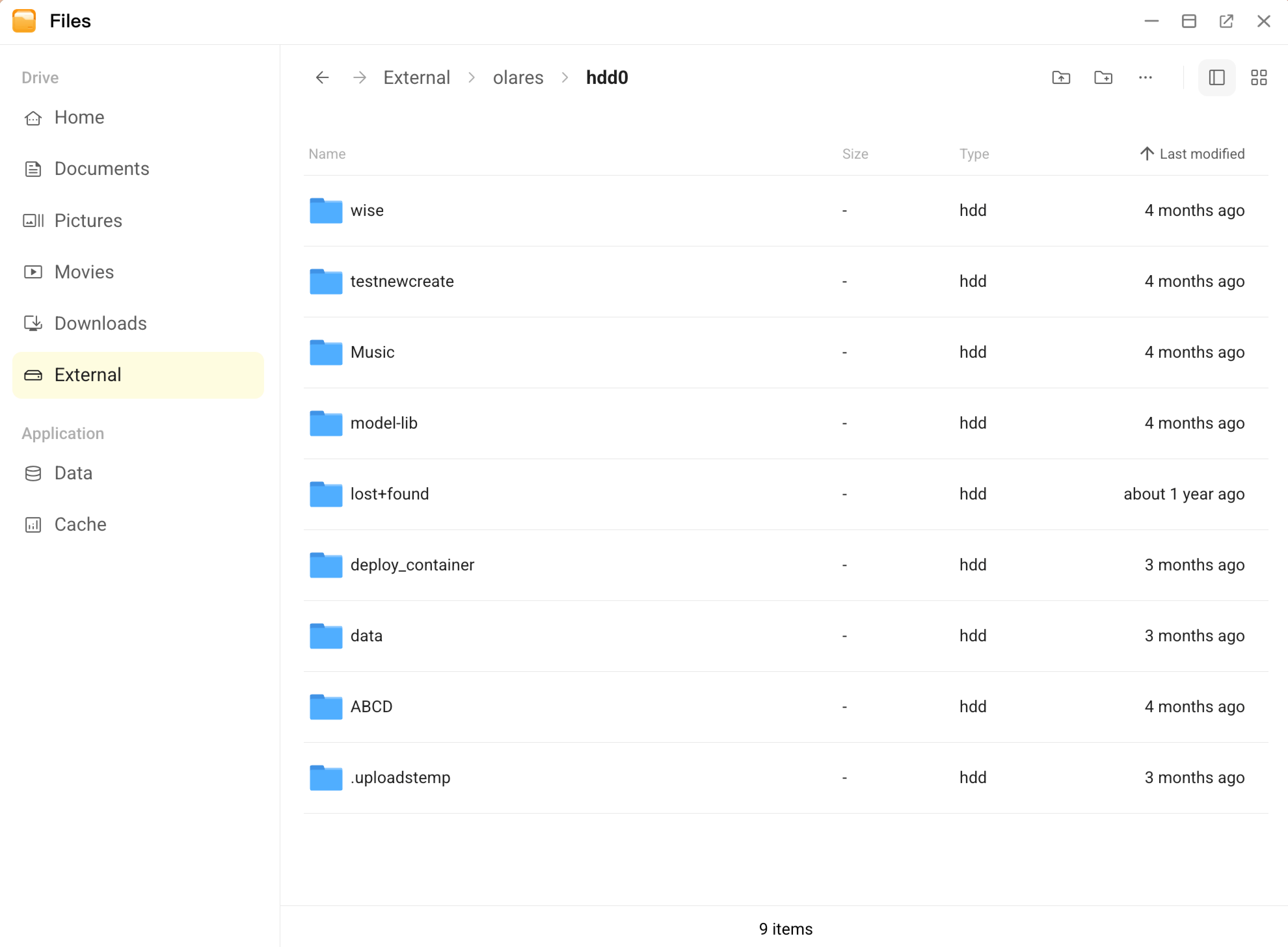
sudo mount /dev/nvme1n1p1 /olares/share/hdd0Verify the mount result:
After successful mounting, you can access the partition from Files > External.
Permanently mount a partition
If you want the mount configuration to remain after reboot, configure automatic mounting in /etc/fstab.
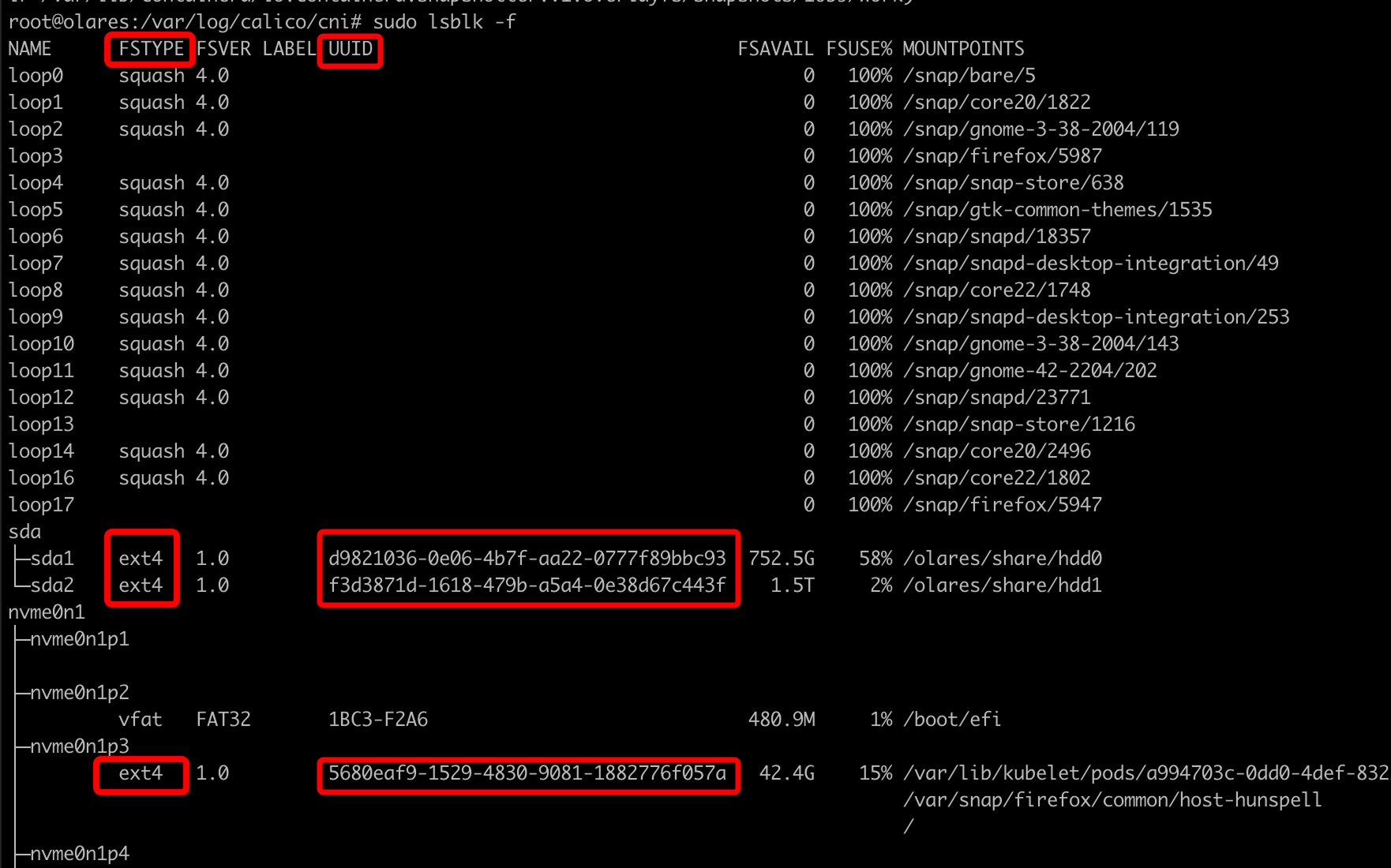
Run the following command to list all drives and find the target partition:
bashlsblk -fRecord the following information:
- FSTYPE: File system type (e.g.,
ext4,xfs). - UUID: Unique identifier of the partition.
- FSTYPE: File system type (e.g.,
Create a mount directory:
bashsudo mkdir -p /olares/share/<directory_name>Replace
<directory_name>with a custom name.Edit the mount configuration file:
bashsudo vi /etc/fstabAdd a mount entry using UUID (recommended to prevent issues if device names change):
UUID=<UUID> /olares/share/<directory_name> <FSTYPE> defaults,nofail 0 0Example:
UUID=1234-ABCD /olares/share/my_disk ext4 defaults,nofail 0 0Save and exit the editor.
Verify the configuration (recommended):
bashmount -aIf no errors appear, the setup is successful.
After reboot, confirm the drive is automatically mounted via Files > External.
WARNING
An incorrect /etc/fstab configuration may prevent your system from booting. It is strongly recommended to run
mount -afirst to validate the configuration before rebooting.
Unmount a partition
You can unmount partitions mounted using either temporary or permanent methods.
Unmount the partition:
bashsudo umount /olares/share/<directory_name>NOTE
Make sure no programs or terminals are accessing the directory before unmounting.
Remove the empty directory (optional):
bashrm -rf /olares/share/<directory_name>WARNING
Ensure the directory is empty and fully unmounted before deleting.
You can also view and remove this directory from Files in Olares.