Manage overlay gateway for applications
Overlay gateway assigns a dedicated local IP to supported apps through a virtual network interface. Use it for apps that need LAN discovery or direct local access, such as screen mirroring, DLNA, device discovery, or local media streaming.
Apps can be accessed through their local IP while keeping the default Olares cluster network for system services, DNS, and platform communication.
Before you begin
Check the following before you configure overlay gateway:
- Your Olares device must run on a native Linux host. WSL is not supported.
- Your Olares device must use a wired Ethernet connection. If you switch to Wi-Fi after enabling overlay gateway, Olares continues to work, but overlay gateway does not take effect.
Availability
If overlay gateway is unavailable, the Enable overlay gateway option is disabled and the Applications list is hidden.
If overlay gateway becomes unavailable after you turn it on, such as after switching from Ethernet to Wi-Fi, app-level settings are reset. When it becomes available again, enable overlay gateway again for the apps you need.
Access permissions
All users can open Settings > Network, but available options depend on their role.
| Role | Available actions |
|---|---|
| Super admin | Turn the system-level overlay gateway service on or off, and enable or disable overlay gateway for supported apps. |
| Admin / Member | View the overlay gateway status, and enable or disable overlay gateway for their own supported apps after the service is turned on. |
Manage overlay gateway
Overlay gateway has two levels:
- The system-level service, managed by the Super admin.
- The app-level switch, managed by each user for their own supported apps.
Turn on the system-level service
The Enable overlay gateway option controls the system-level service.
If you are the Super admin:
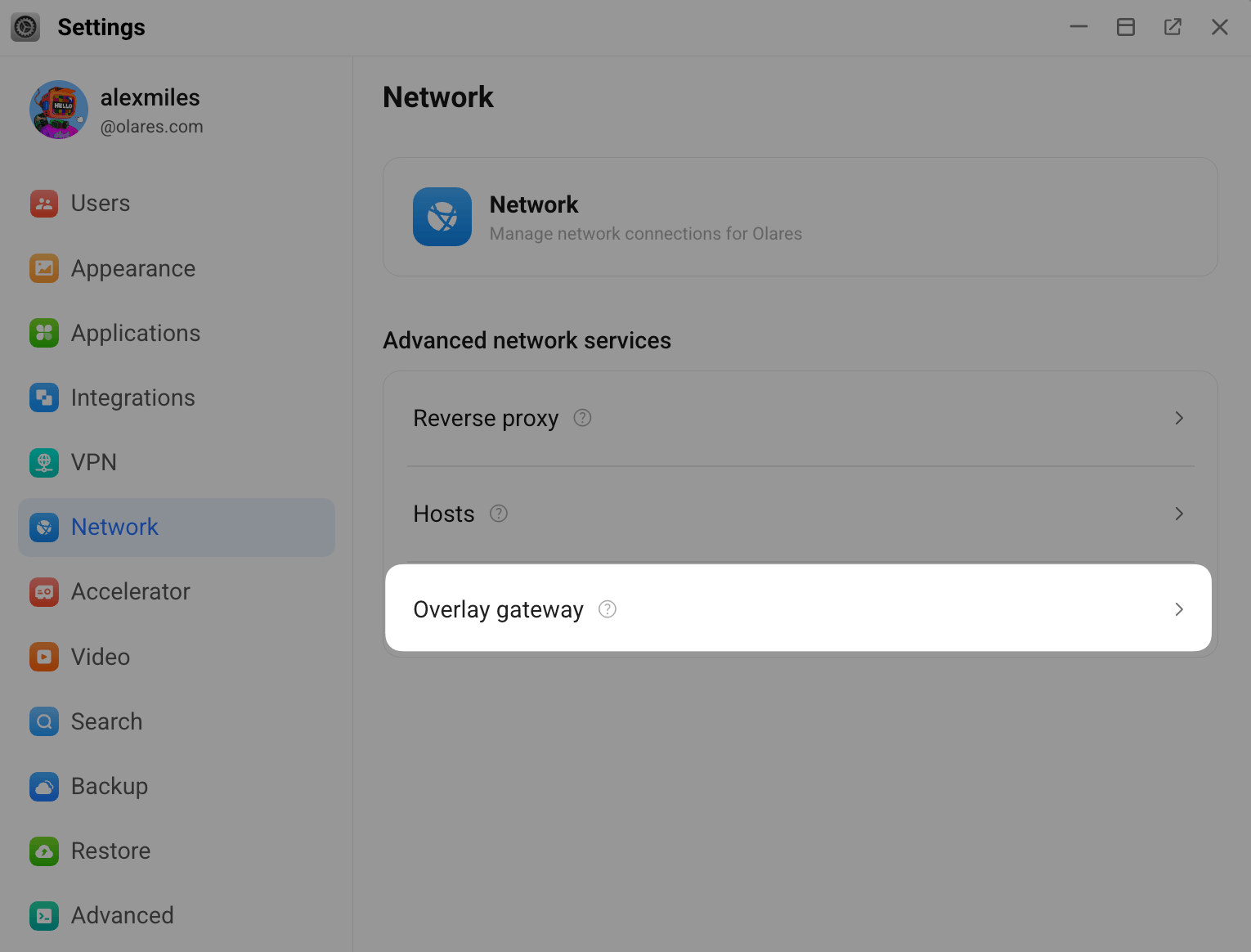
Open Settings and go to Network > Overlay gateway.
Check the feature status at the top of the page.
If the option is available, turn on Enable overlay gateway.
After the system-level service is turned on, Olares shows the list of supported apps available to the current user. If no supported app is installed, the page shows an empty state.
Enable overlay gateway for an app
After the system-level service is turned on:
Open Settings and go to Network > Overlay gateway.
Under Applications, find the app you want to configure and enable overlay gateway.
In the confirmation dialog, click Confirm.
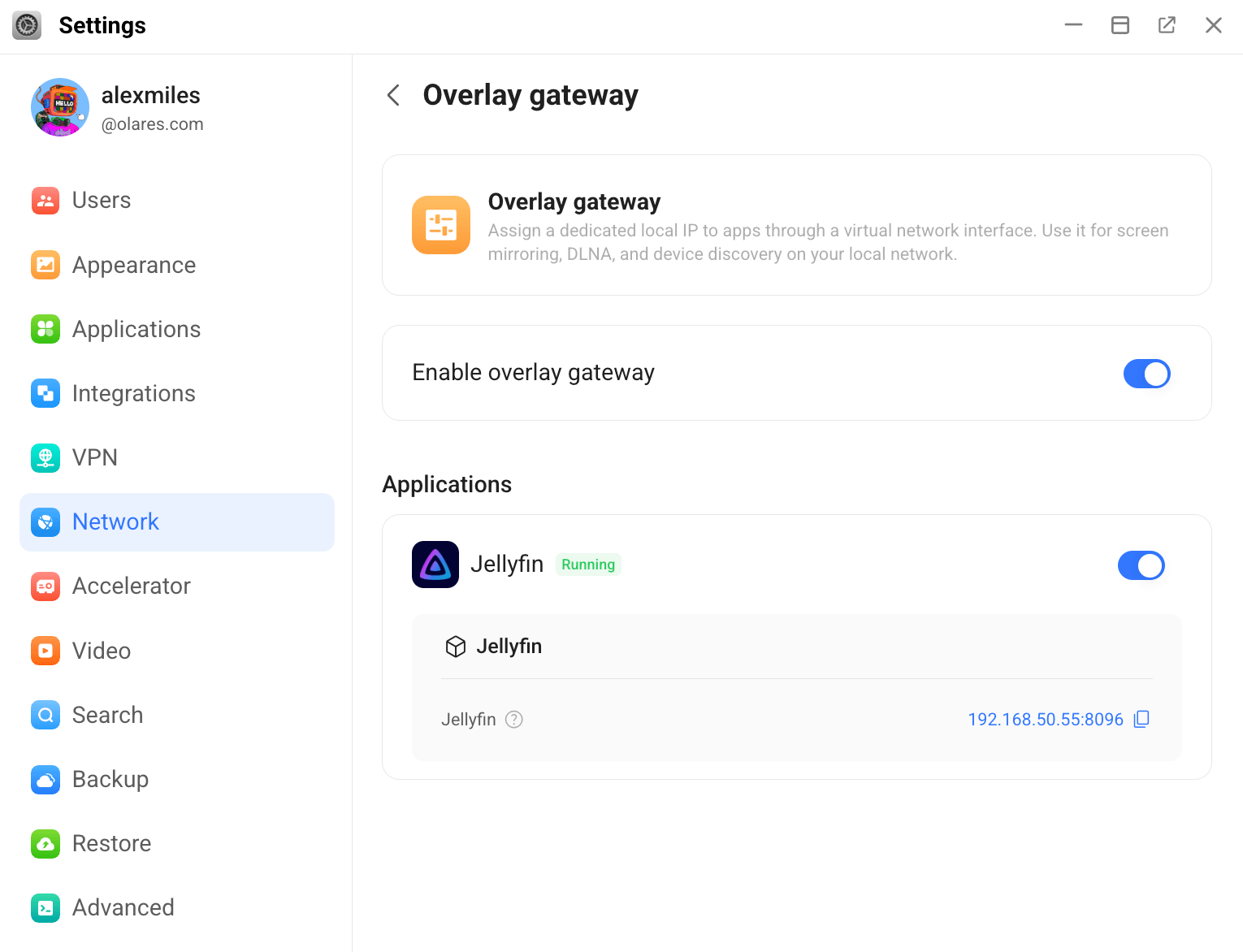
Only apps that support overlay gateway appear in the Applications list.
If the app is running, Olares restarts it so the network change can take effect. After the app restarts, you can access it at its local IP. The app shows a loading state until it returns to Running.
If the app is stopped, Olares saves the overlay gateway setting without starting the app. The app remains Stopped.
INFO
If a running app fails to restart, its status may change to Stopped, but the overlay gateway setting is still saved.
Disable overlay gateway
Disable overlay gateway at the level that matches your goal:
- Turn off the system-level service for all apps and users.
- Disable overlay gateway for one app to stop it from using its local IP.
Turn off the system-level service
If you are the Super admin:
- Open Settings and go to Network > Overlay gateway.
- Turn off Enable overlay gateway.
This turns off overlay gateway for all apps and users.
Disable overlay gateway for an app
- Open Settings and go to Network > Overlay gateway.
- Find the app you want to configure.
- Disable overlay gateway for the app.
- In the confirmation dialog, click Confirm.
If the app is running, Olares restarts it so the network change can take effect. If the app is stopped, Olares saves the setting without starting the app.