Network not ready or olares connection error
Use this guide to troubleshoot an Olares One device that appears powered on and connected to the network but has unexpectedly stopped responding.
Condition
- The LarePass app displays Network not ready and accessing your Olares desktop shows an olares connection error, but your router shows the device is connected and the device responds to a network
ping. - Restarting the device and your router does not fix the issue.
Cause
These symptoms do not identify a single cause. A successful ping only confirms that the device responds to basic network traffic. Olares might still be unavailable because system services have not started, one or more pods are unhealthy, the device is short on resources, or the access path is failing.
Solution
Use the shortest available path to access the host, then check whether the problem is inside Olares or limited to the network access path.
Step 1: Attempt SSH connection
Try this method first because it is the most convenient way to access your device and collect diagnostic information.
Get the local IP address of Olares One.
a. Open the LarePass app, and go to Settings > System to navigate to the Olares management page.
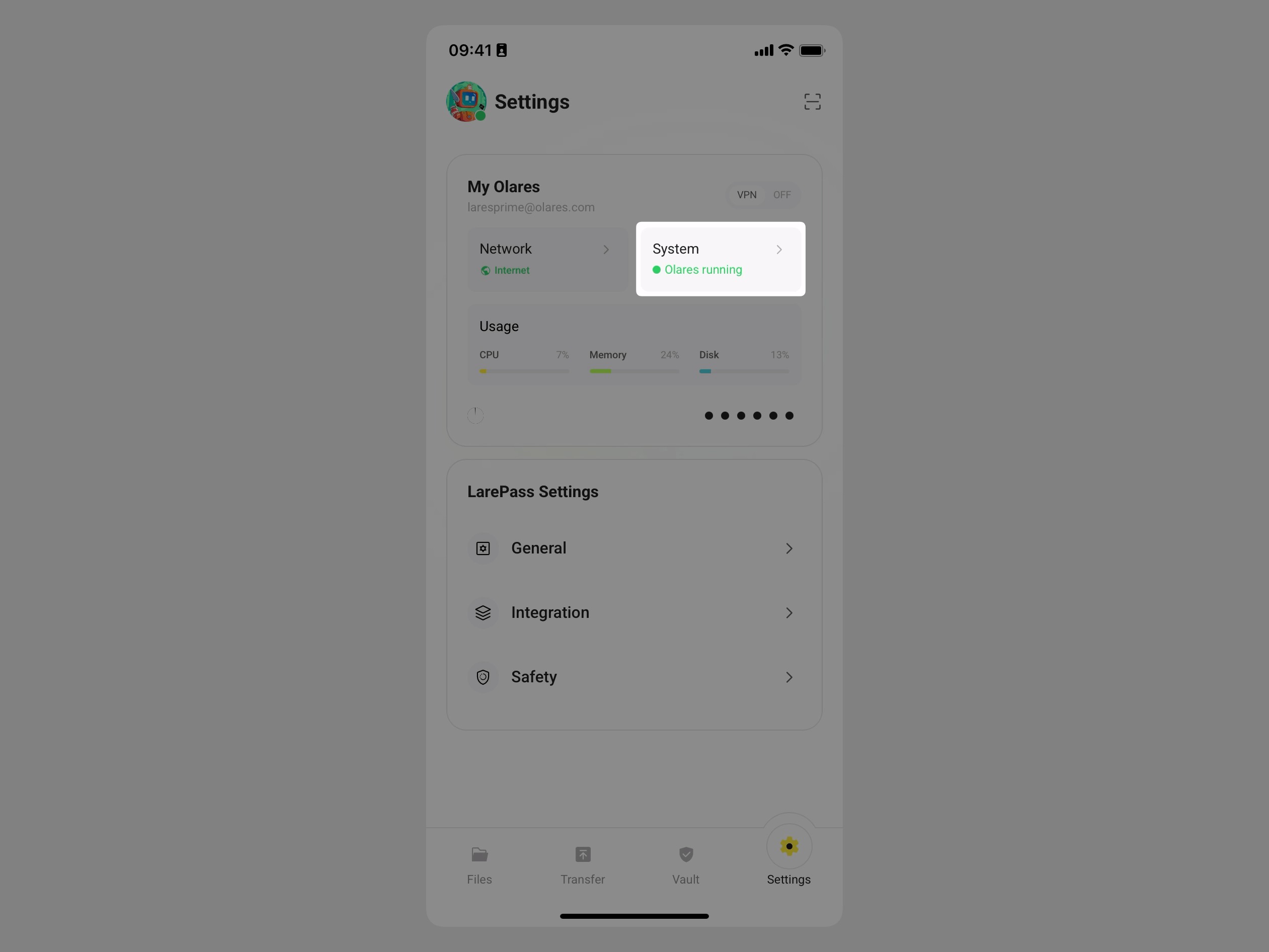
b. Tap the Olares One device card.
c. Scroll down to the Network section and note the Intranet IP.
Check SSH password in Vault.
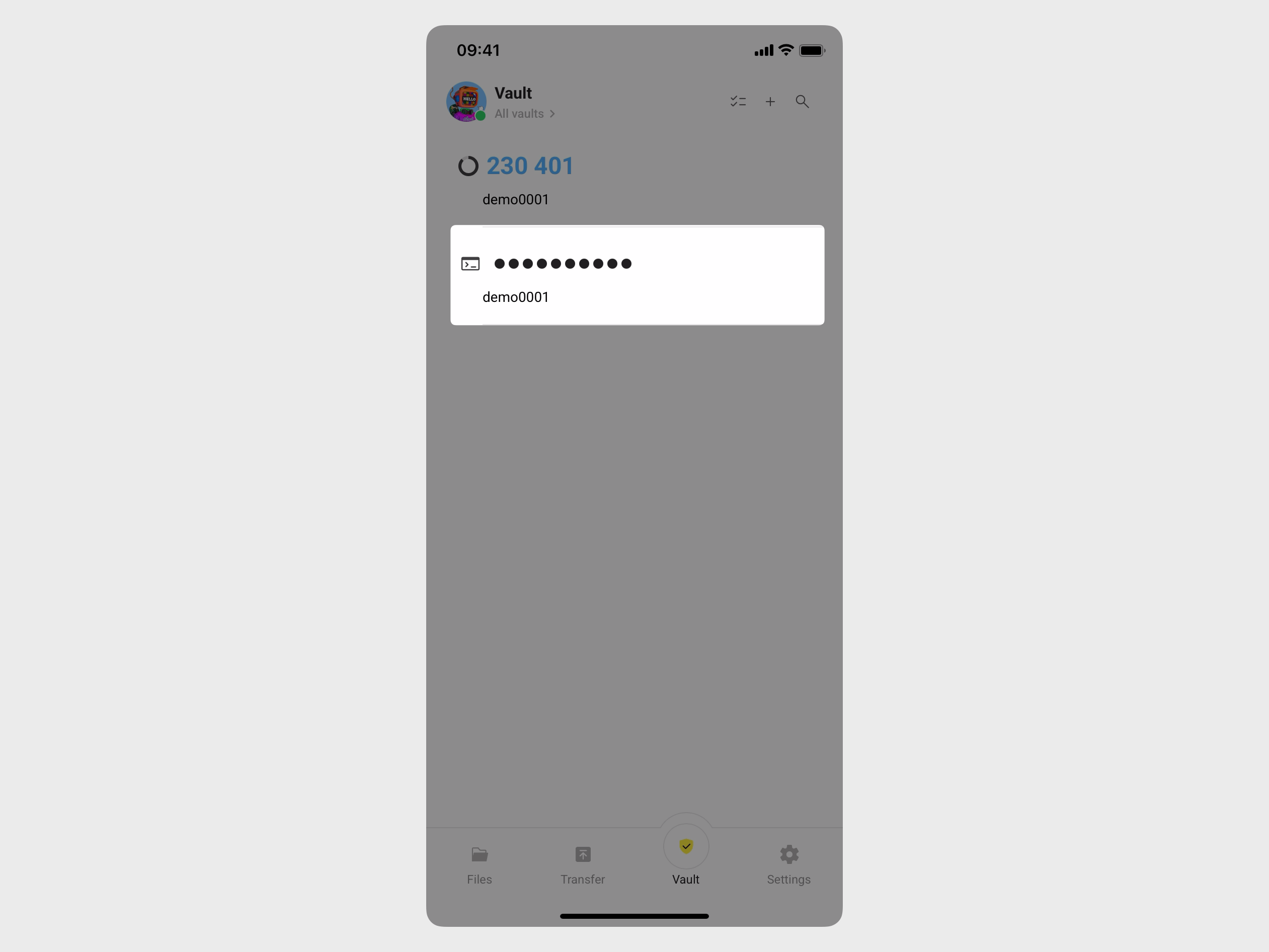
a. Tap Vault in the LarePass app. When prompted, enter your local password to unlock.
b. In the top-left corner, tap Vault to open the side navigation, and then tap All vaults to display all saved items.
c. Find the item with the terminal icon and tap it to reveal the password.
Connect via SSH.
a. Open a terminal on your computer.
b. Type the following command, replace
<local_ip_address>with the Intranet IP, and then press Enter:bashssh olares@<local_ip_address>c. When prompted, type the SSH password, and then press Enter.
d. If the connection is successful, skip to Step 3.
Step 2: Log in locally
When the SSH access is unavailable, log in to the device locally using a monitor and keyboard.
Connect a monitor and keyboard to your Olares One. A text-based login prompt is displayed on your screen automatically.
textolares login:Type the username
olaresand press Enter.Type the same SSH password obtained in Step 1 and press Enter.
Step 3: Check system pod status
Once you log in successfully, run the following command to get the status of all pods across all namespaces:
bashkubectl get pods -ACheck the STATUS column and continue based on the result:
- If a pod shows an error state such as
CrashLoopBackOff,Error,ImagePullBackOff, or remainsPending, record only its NAMESPACE, NAME, STATUS, and RESTARTS values. A job inCompletedstate is not an error by itself. - If no pod shows an error and restart counts are not increasing, the symptom is more likely related to the access or network path. Record whether local access, the Olares domain, and LarePass VPN each work.
- If a pod shows an error state such as
Record the time of the check, your time zone, and the installed Olares version.
Follow Collect diagnostic information to create a log archive and share it through a private channel.
Do not post complete logs publicly
Pod output and system logs can contain Olares IDs, hostnames, IP addresses, domains, and application metadata. A public GitHub Issue can include the symptom and the limited fields listed above, but not the complete command output or log archive.