Save web pages and files in Wise Olares 1.12.8+
Save web pages to read in Wise, upload files from your device, or download available media and attachments to Olares. Choose the method that fits where you found the content: use LarePass while browsing, paste a link into Wise, or upload a local file.
Prerequisites
For the full range of ways to save and download content, we recommend installing:
- Save from your browser: Install the LarePass browser extension and connect it to your Olares.
- Download audio or video: Search for "YT-DLP" in Market and install it. Not all sites are supported.
- Save Twitter/X content: Search for "Twitter" in Market and install the Twitter/X plugin to save posts or download attachments.
Use the LarePass extension
When you are viewing a page in your desktop browser:
Save or download
The actions shown depend on the page and the helper services installed on Olares. Saving a page does not automatically download its video or other attached files.
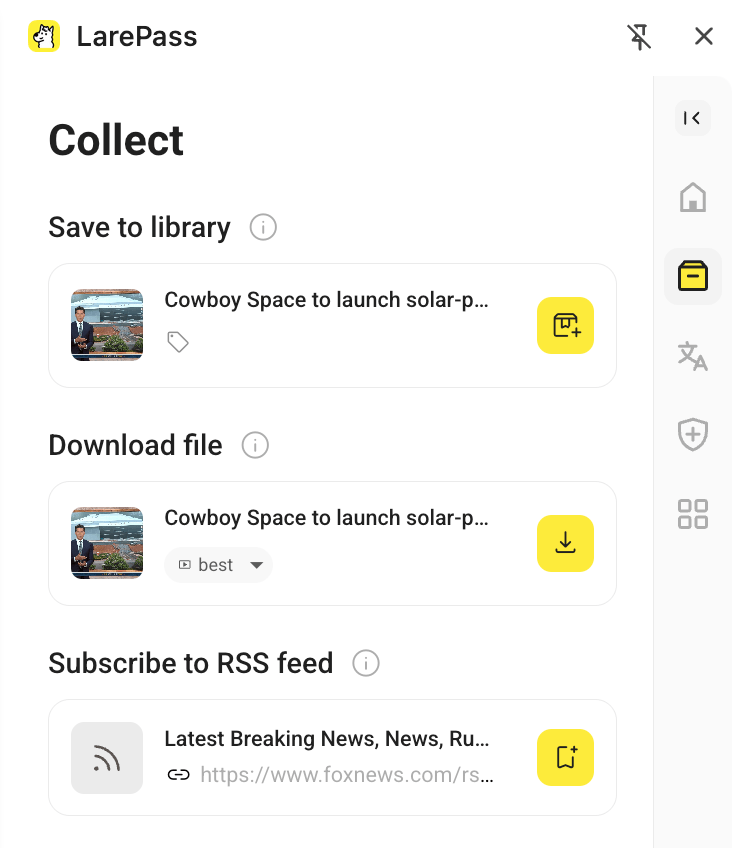
Open the LarePass extension.
In Collect, choose the action you need:
- Save to library: Click the button to add the page to Wise for reading.
- Download file: For supported links:
- Choose a video quality or audio from the card's menu, if available.
- Click the download button and select a folder in Add task to save the resource to Olares.
Open Wise to find the saved item in Inbox or under its content type. For downloads, open the settings menu and select Downloads to view the task.
Add a link in Wise
When you have a URL to a page or resource:
- In Wise, click add_circle and select Add Link.
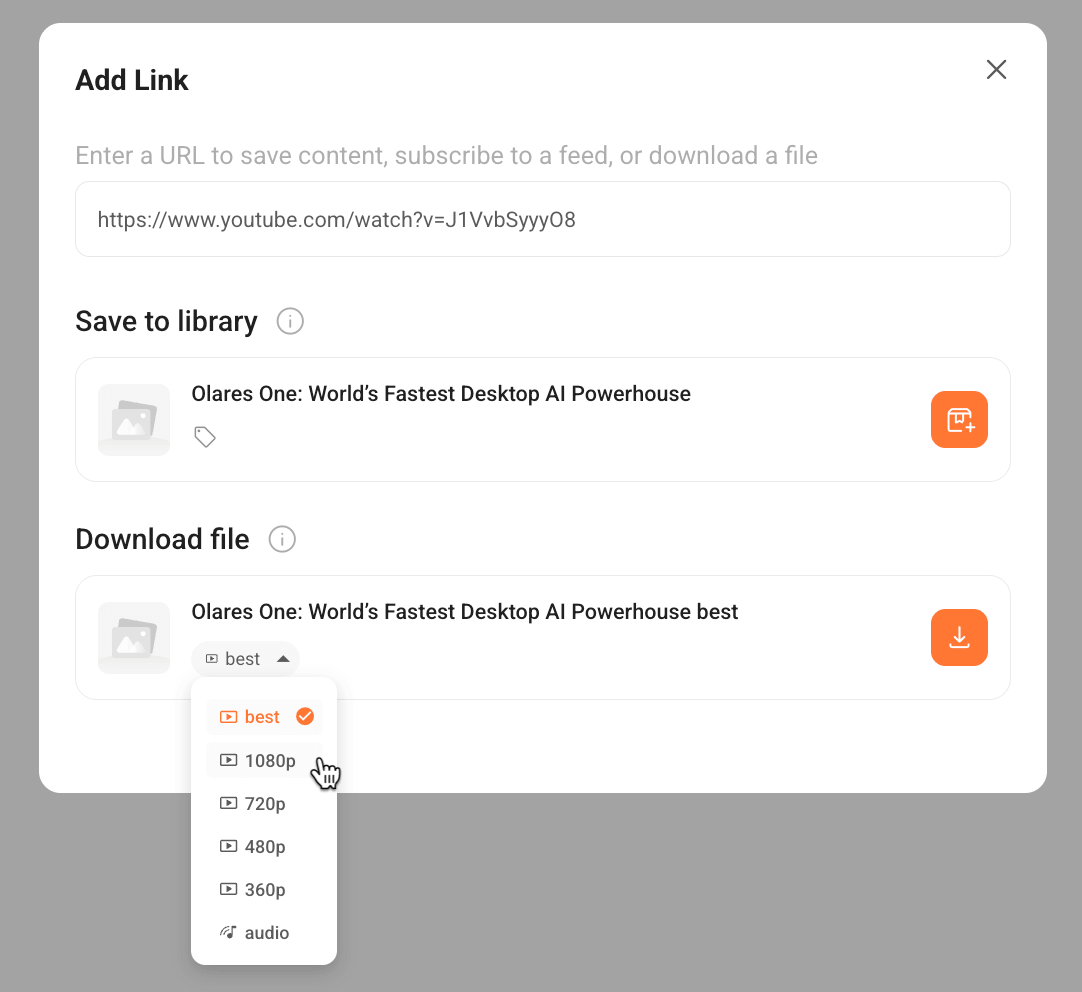
- Paste the URL. Wise shows the actions available for that link.
- Choose the action you need:
- Save to library: Click the button to add the page to Wise for reading. Find it in Inbox or under the relevant content type.
- Download file: For supported links:
- Choose a video quality or audio from the card's menu, if available.
- Click the download button and select a target folder to save the resource to Olares.
- To track the task, open the settings menu and select Downloads.
Sites that require sign-in
If Wise cannot access a page behind a login, it may need the site's cookies. See Manage cookies for Wise.
Use Wise on your phone
To add a page or resource from your mobile browser:
- Copy the page URL from your browser.
- Open LarePass on your phone and launch Wise.
- Use Add Link to paste the URL, then choose Save to library or, when available, Download file.
Upload files in Wise
- Click add_circle and select Upload.
- Select the files to add. Wise supports formats including PDF, EPUB, audio, and video.
- In the upload window, choose the destination and click Confirm.
- Open the settings menu and select Uploads to check progress, then find the uploaded item under its content type.
On desktop, you can also drag files into the Wise window to start an upload.