Manage Olares apps from your phone
Use the Apps tab in LarePass to open, install, and manage Olares apps from your mobile device. The apps are installed and run on your Olares.
Before you begin
Check the following requirements before accessing apps from your mobile device.
- You have upgraded LarePass to the latest version. The Apps tab is available only in the mobile app.
- Your Olares runs version 1.12.8 or later.
- Your phone and Olares are on the same local network, or you have enabled LarePass VPN for remote access.
Mobile support
All the Olares system apps support mobile use. Other apps installed on your Olares always appear in the Apps tab on your mobile device, though some of their entrances may not support mobile use. This only affects whether an entrance opens on mobile. The app itself is installed and runs on Olares as expected, even if you installed it from your phone.
An unsupported entrance appears grayed out with a monitor badge. Tapping it displays a prompt saying this option is not available on mobile, and to open it on a computer. Tap App options to open the Manage [app name] panel, where you can stop, resume, or uninstall the app.
Access installed apps
The Apps tab shows apps installed on your Olares. By default, it shows running apps. Use the filter menu to view stopped apps or all apps.
Open LarePass and tap Apps in the bottom navigation bar.
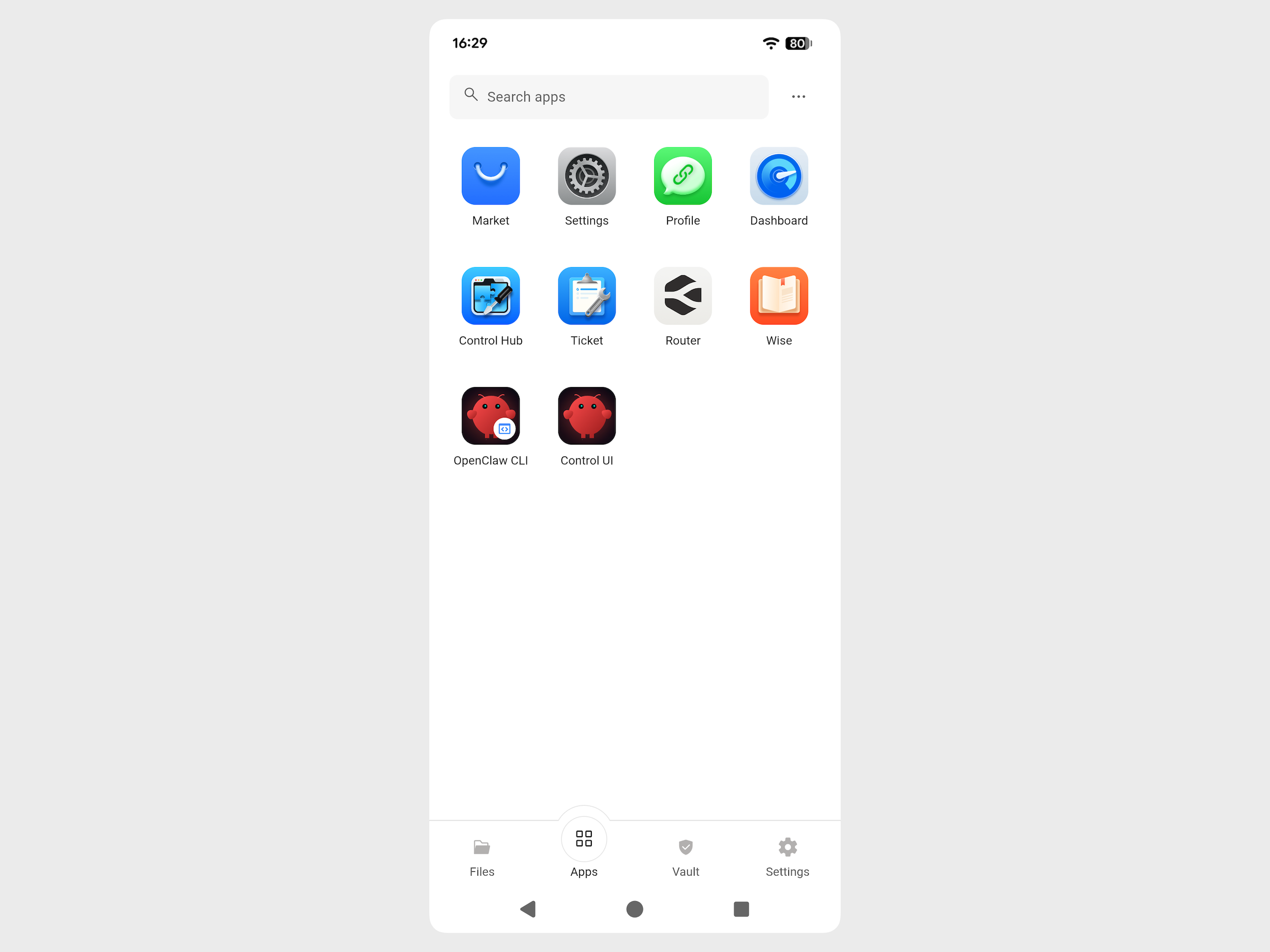
Find an app in the grid, or enter its name in Search apps.
Tap the app icon to open it.
To view stopped apps or all apps, tap more_horiz beside the search box, and then select Stopped or All.
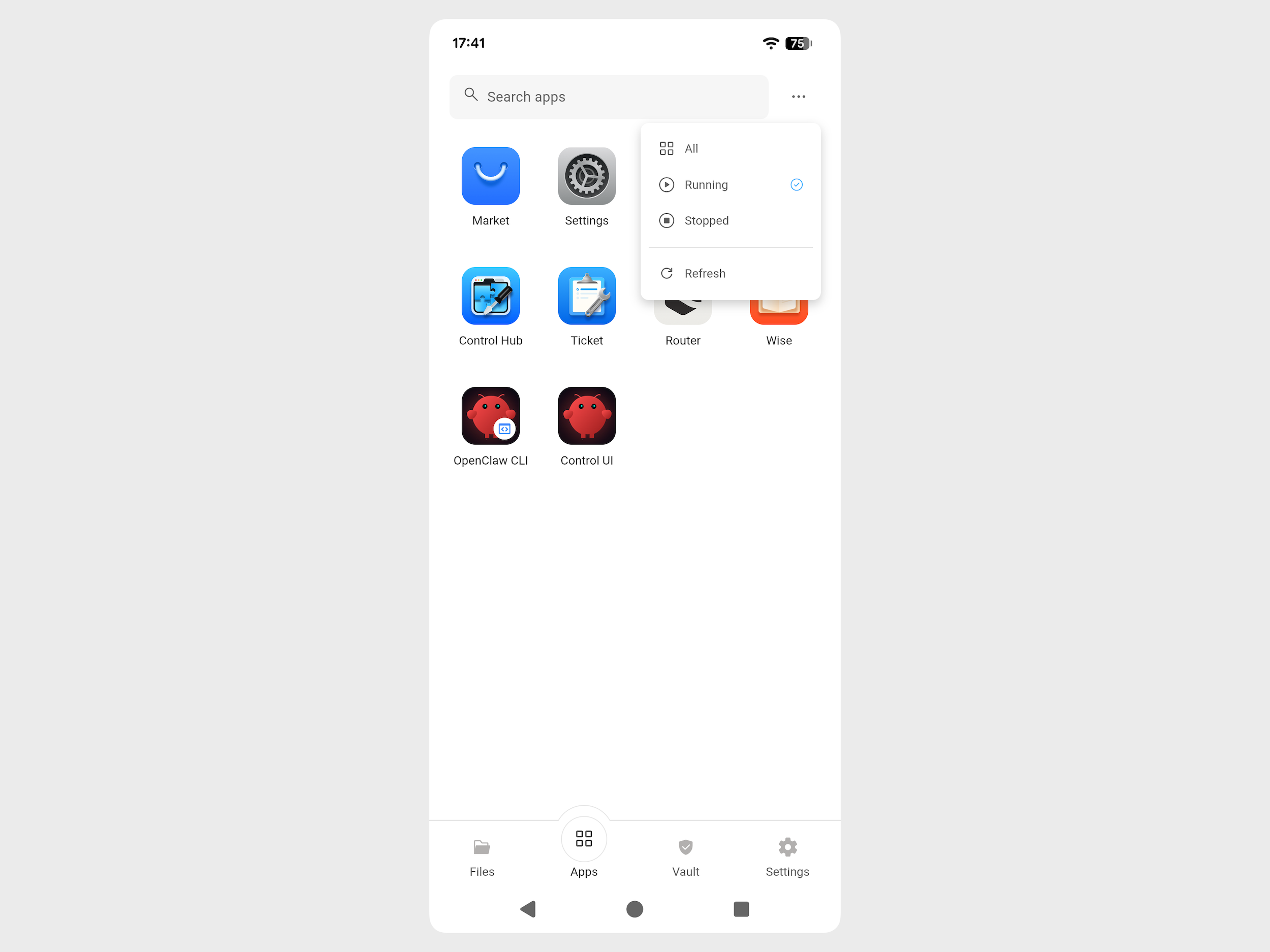
To reload the app list, open the same menu and select Refresh.
Go back
Use the app toolbar to return to the previous level after opening an app.
- Inside an open app, tap its name at the top, such as Market, to show the toolbar.
- Tap Back in the upper-left corner to return to the previous level.
Install apps
Use Market in LarePass to find and install new apps on your Olares.
- In Apps, tap Market.
- Find the app you want to install, open its details page, and check its hardware and resource requirements.
- Tap Get, then Install. If prompted, complete the required configuration.
- Once installation is complete, return to Apps to find the app. If needed, tap more_horiz beside the search box and select Refresh.
Update apps
Market lists available updates for your installed apps. You can update apps individually or all at once.
- In Apps, open Market.
- Tap menu_open in the upper-left corner and select Updates.
- Update an individual app, or select Update all to update all available apps.
Clone apps
Cloning creates another instance of an installed app with its own configuration. Only apps that support multiple instances can be cloned.
- In Apps, open Market.
- Tap menu_open in the upper-left corner and select My Olares.
- Find the app, tap the drop-down arrow beside its operation button, and select Clone.
- Follow the prompts to name and configure the new instance, then confirm.
- Once cloning is complete, return to Apps to find the new instance.
For cloning requirements and configuration details, see Clone applications.
Stop and resume apps
Stop apps you are not using to free up resources, and resume them when needed. Both actions are available from Apps and Market. Available actions depend on the app's state and your account permissions. System apps cannot be managed in the same way as installed apps.
For more information about stopping and resuming apps, see the Market FAQ.
Uninstall apps
Remove apps you no longer need from your Olares through Apps or Market.
Uninstalling apps
Uninstalling removes the app from Olares, not just its icon from LarePass. If you choose to delete app data, that data cannot be recovered through reinstallation. Back up any data you need before confirming. Uninstalling a shared service may affect other users. Check the scope shown in the confirmation dialog. For details about uninstall options, see Uninstall applications.
Uninstall is available only for apps that your account has permission to remove. System apps cannot be uninstalled.