Manage access to Common and External
In Olares 1.12.7 and earlier, External and Common folders were accessible to all members. Starting with Olares 1.12.8, only the Super admin and Admins have access by default. Members need permission to view or edit these folders.
Use Access settings to grant members access to specific External mounts or Common folders.
Before you start
- Log in to Olares as the Super admin or an admin who can manage the target folder.
- For External storage, mount the storage before assigning permissions.
Supported folders
Permissions apply to the selected folder and all files and subfolders inside it. You cannot set separate permissions for individual subfolders. These settings control access through Files and do not change permissions on your NAS.
| Location | Folder you can configure | Example |
|---|---|---|
| A top-level folder in Common. | Common/huggingface | |
| A top-level mount in External: an SMB share, NFS share, USB drive, or local disk. Note: The ai system folder is read-only for members and does not support access settings. | External/ProjectNAS |
Role defaults and management scope
The following defaults apply to Common folders and External mounts.
| Super admin (Owner) | Full management access | Admins and members |
| Admin | Full management access, unless restricted by the Super admin | Members |
| Member | No access | Cannot change folder access settings |
For more about Olares roles, see Roles and permissions.
Set folder permissions
Log in to Olares as the Super admin or an admin who can manage the folder, then open Files.
Go to Application > Common or Drive > External.
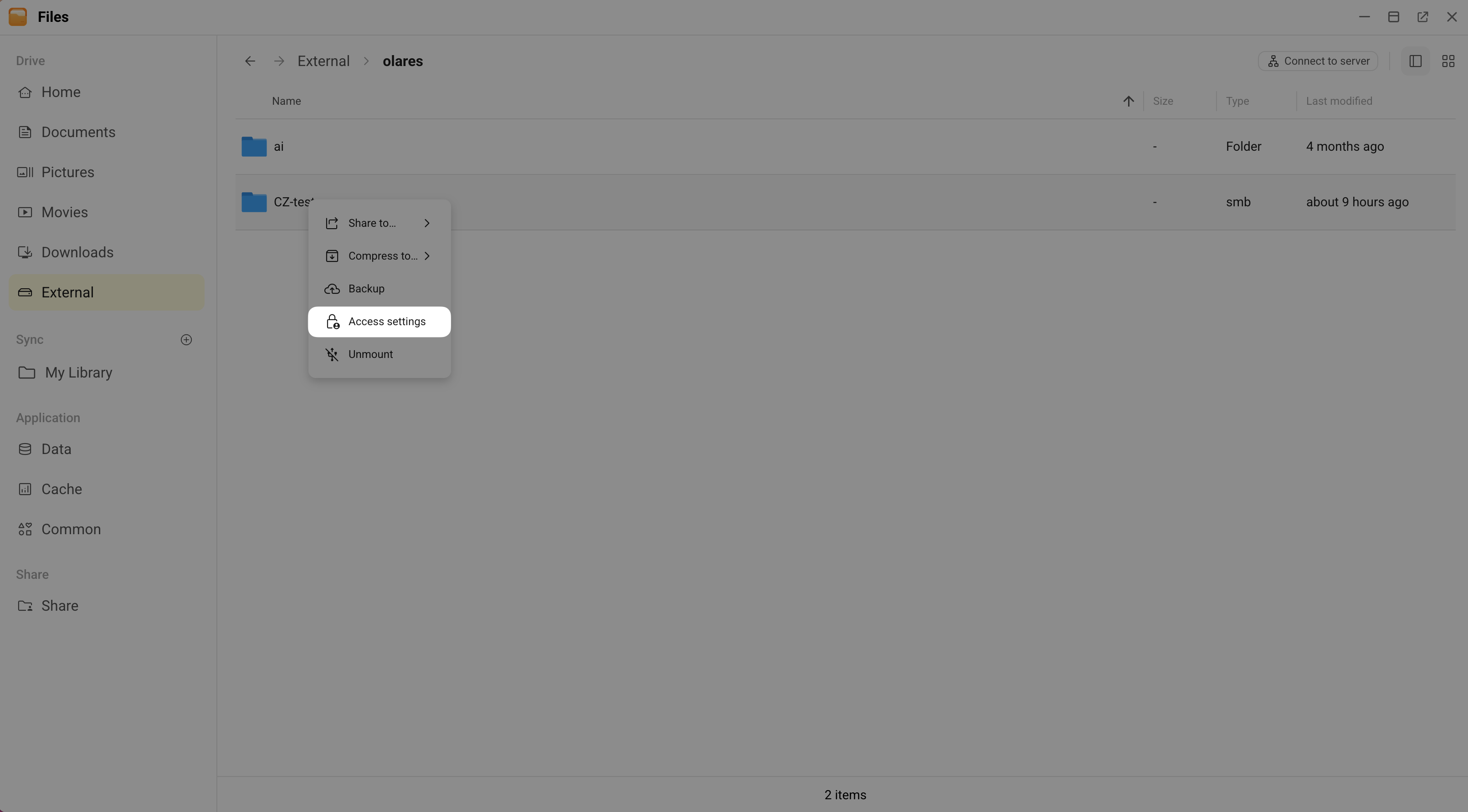
Right-click the top-level folder or mounted directory, and select Access settings.
Find the person whose access you want to change and choose a permission. Only the Super admin can change an admin's folder permissions.
No access Cannot see the folder or access its contents through Files. Available Available Can view Browse, preview, and download files. Available Available Can edit View files and create, upload, modify, rename, or delete content inside the folder. Available Available Admin Edit content and manage the folder, including access settings. For External mounts, this also allows SMB sharing and unmounting. Not available Available
Only the Super admin can assign it.Click Confirm.
Ask the person to refresh Files and check that the selected permission applies.
Change or revoke access
- Right-click the same folder and select Access settings.
- Change the user's permission. To revoke access for this user, select No access.
- Click Confirm.
- Ask the user to refresh Files and check that the new permission applies.
Revoking access does not delete the folder or its contents. It does not remove copies the user has already downloaded.
FAQs
How do folder access settings, Internal share, and SMB share differ, and when should I use each?
Choose based on where the folder is and how people will access it:
- Access settings: Give users access to an External mount or a Common top-level folder. Users open the original folder directly under External or Common in Files.
- Internal share: Share a Home or Sync folder with other Olares users. Recipients access the folder through a separate entry under Share in Files. External and Common do not support Internal share.
- SMB share: Let computers access a Home or External folder over the local network, using Windows File Explorer or macOS Finder. When authentication is required, use dedicated SMB accounts, which are separate from Olares accounts.
Why can’t a member access or edit a folder?
Members cannot change these settings themselves. If a member reports a problem, sign in as the Super admin or an admin and check the following:
| Problem | What to check |
|---|---|
| A folder is missing, or the member sees “No folders you can access.” | Check the member's permission on the top-level folder or mount. |
| The member can read but cannot upload or edit. | Check whether the permission is Can view. For NAS storage, also check that the NAS share allows writing. |
| Access settings is missing or unavailable. | Make sure you selected a Common top-level folder or an External mount, and that your account can manage that folder. |
| Access stopped after an upgrade or a storage change. | Check that the expected storage is mounted. Check the member’s access settings and grant access again if needed. |
Learn more
- Share files: Make folders available through Internal share, SMB share, or public links.
- Mount an SMB share: Connect an existing SMB share from a NAS or server to Olares.