Stream your games with Steam Headless
Want to enjoy gaming powered by Olares? You're all set. With the Steam Headless app, Olares easily transforms into a powerful game streaming server. You can now play your favorite games on any compatible device via Moonlight.
This guide walks you through installing Steam Headless on Olares, configuring the Steam client, pairing the streaming service, and connecting with the Moonlight client to play.
Learning objectives
By the end of this tutorial, you will learn how to:
- Install and set up Steam Headless on your Olares device.
- Configure the Sunshine streaming service.
- Pair your device via Moonlight and stream games locally or remotely.
Prerequisites
Before you begin, make sure:
- Olares running on a machine equipped with an NVIDIA GPU.
- Moonlight installed on your streaming device. Visit the Moonlight website to download and install the appropriate version.
- A valid Steam account to access your games.
- LarePass VPN enabled on your client devices (desktop or mobile) if you plan to stream outside your home network.
TIP
For local streaming, LarePass VPN is not required.
Install and configure Steam Headless
Install the app from the Olares Market and then complete the initial setup within the Steam client itself.
Install Steam Headless
Follow these steps to install and configure Steam Headless:
Open the Market, and search for "Steam".
Click Get, then Install.
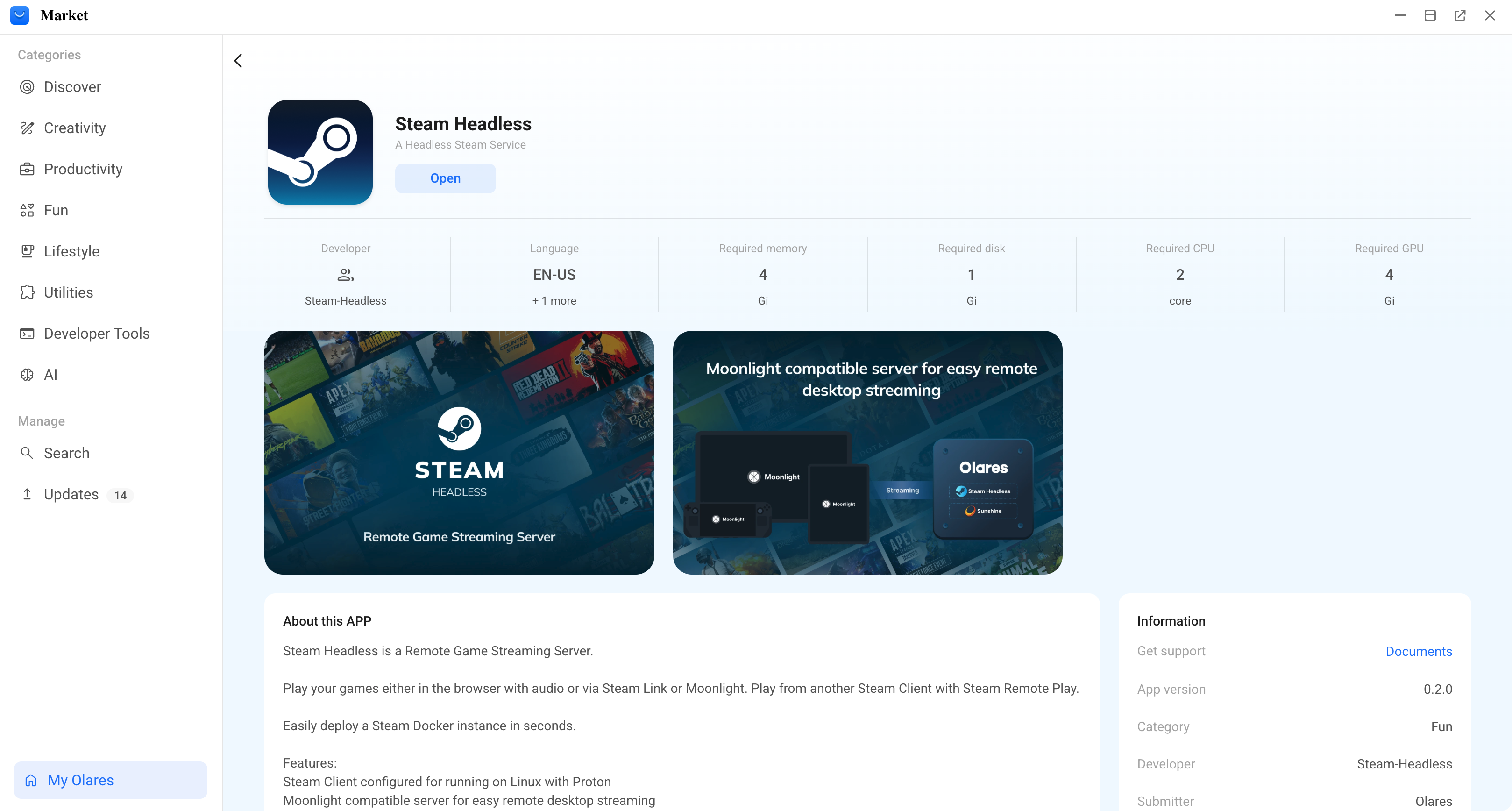
A prompt will appear asking you to configure environment variables. This creates your login credentials for the Sunshine Web UI:
SUNSHINE_USER: Set the username for Sunshine access.SUNSHINE_PASS: Set a secure password.Remember your login credentials
These are your initial login credentials for Sunshine. You must use them to log in to Sunshine the first time.
Wait for the installation to complete.
Complete the initial Steam setup
Once the headless app is running, you need to initialize the Steam client inside it.
Open Steam Headless and click Connect.
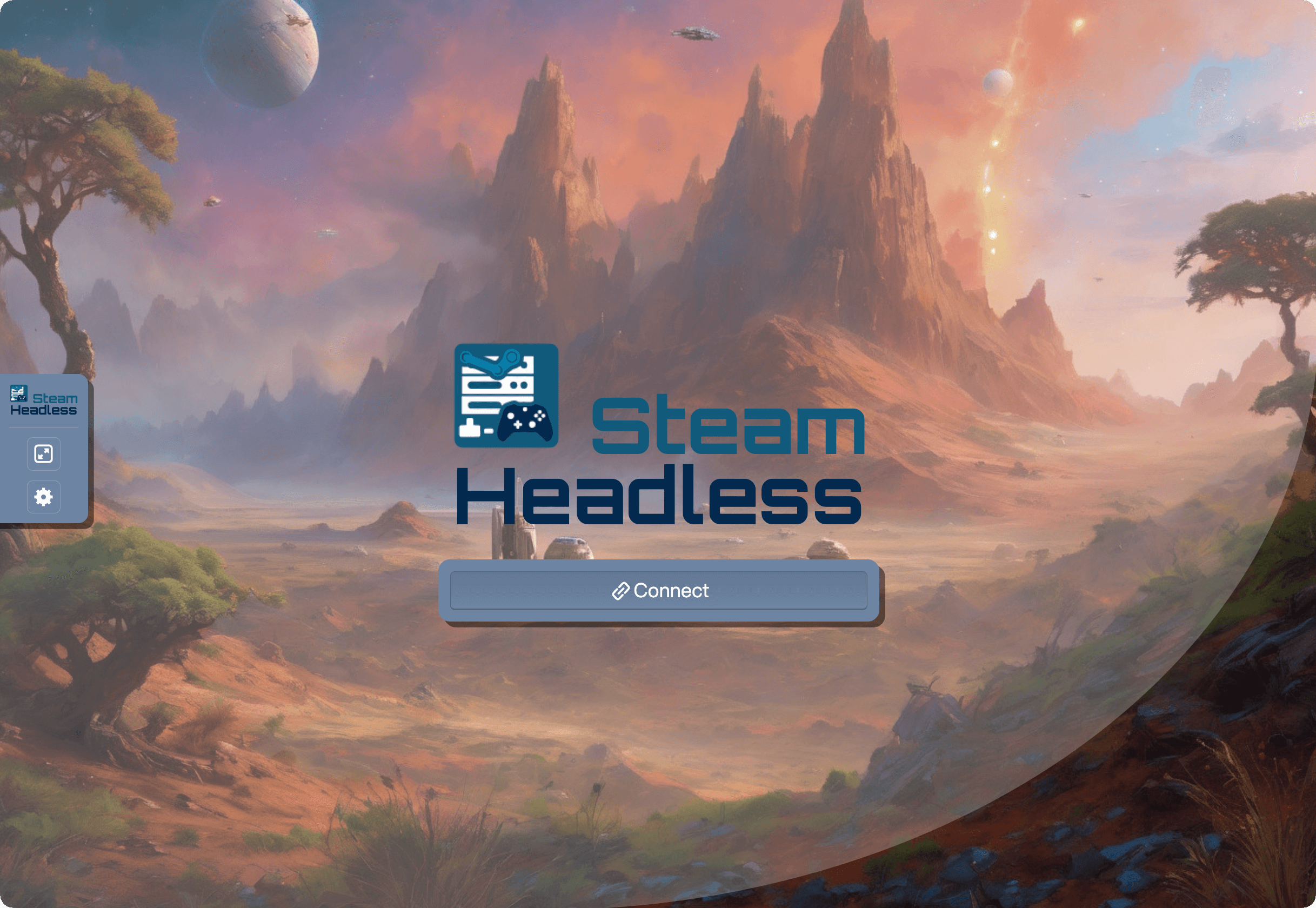
The Steam client will automatically begin downloading and installing.
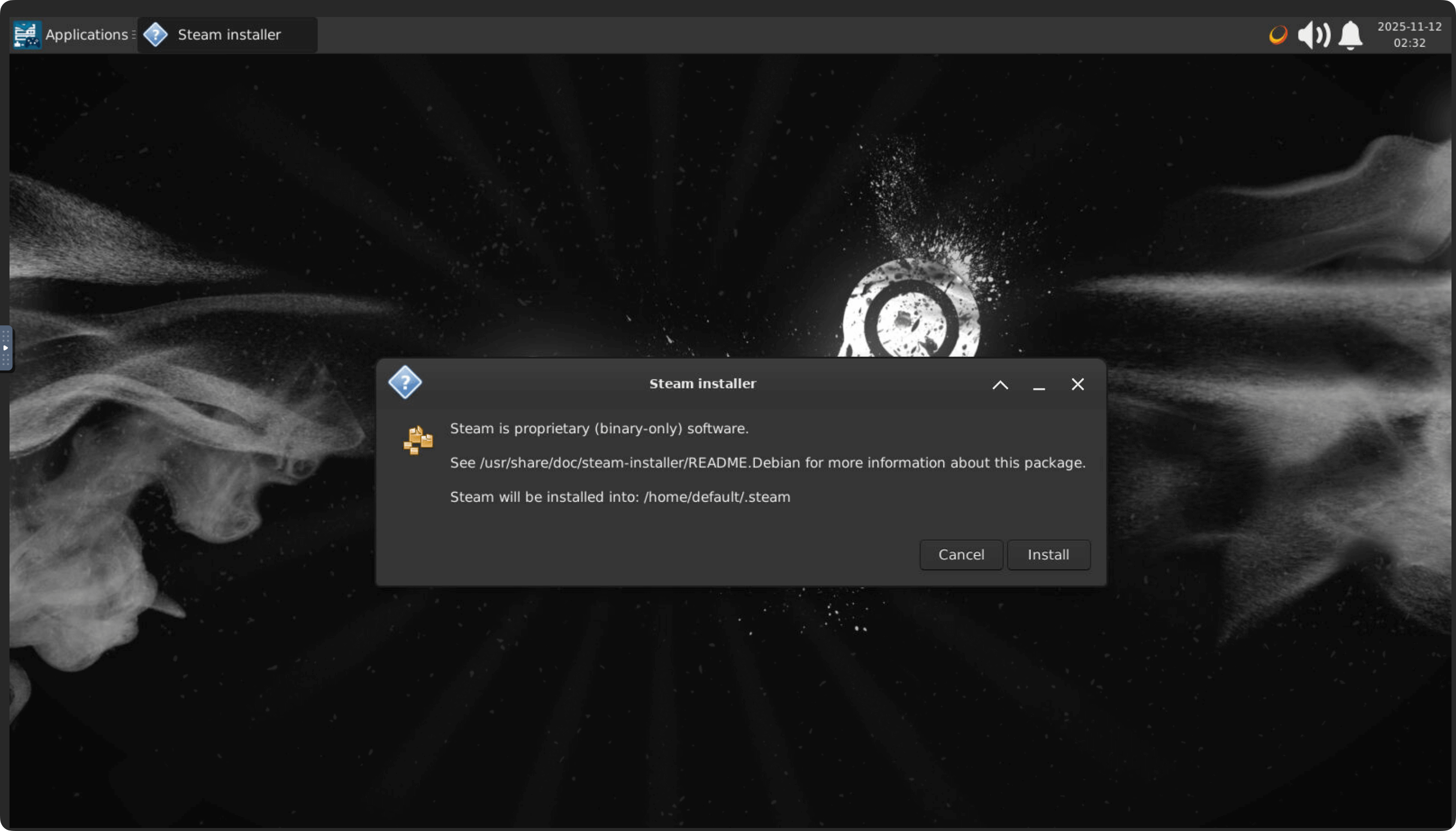
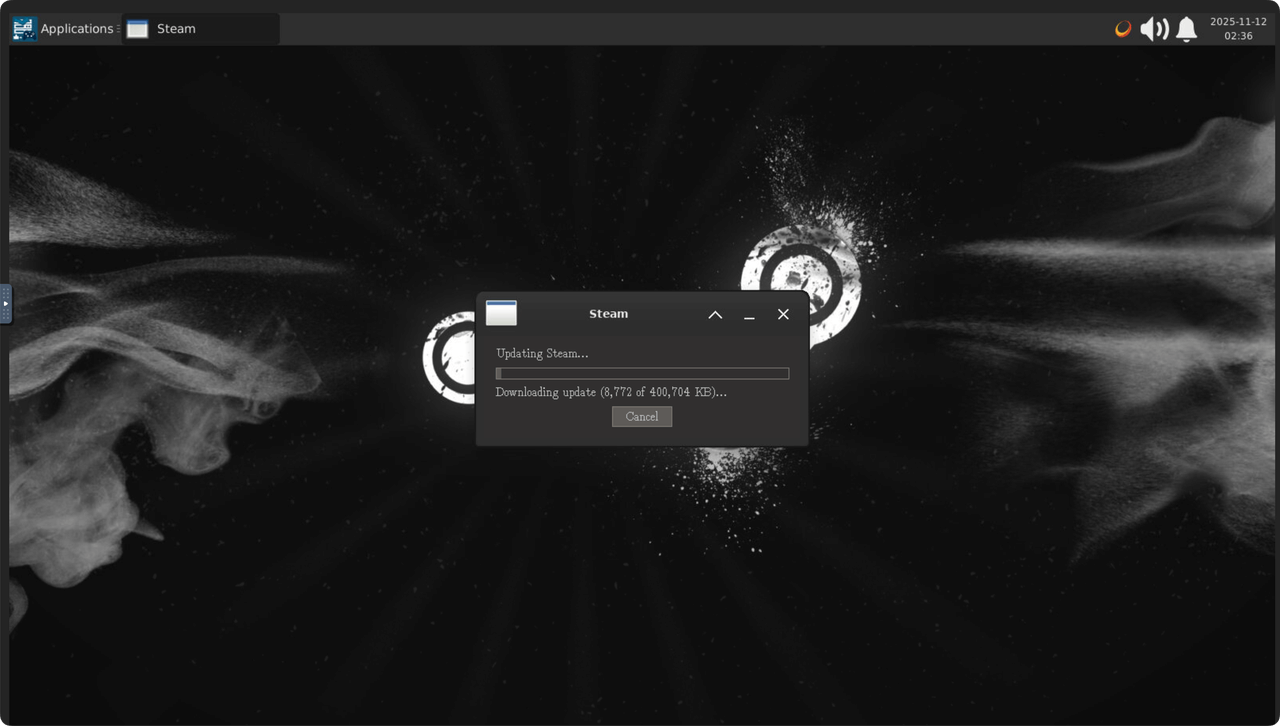
When installation completes, the Steam login screen appears. Sign in with your Steam account.
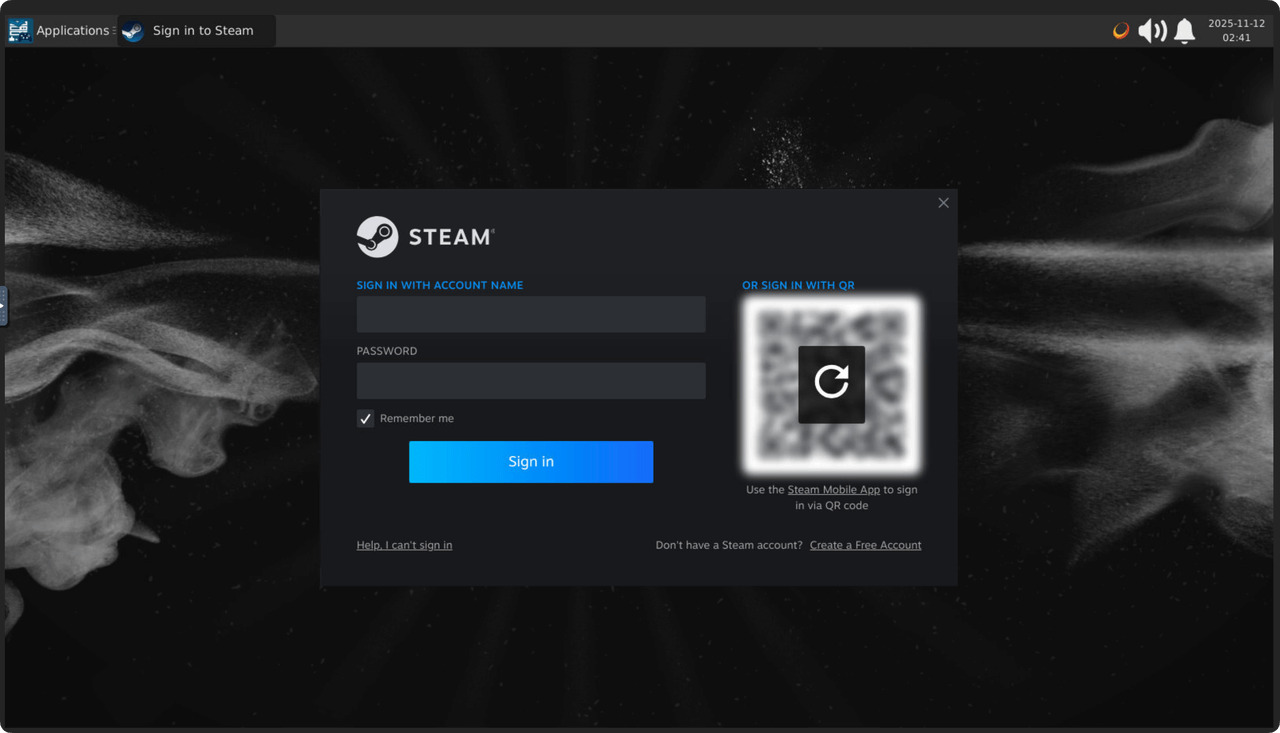
Retry installation upon failures
If Steam installation or update fails due to network issues, go to the top-left menu in the Steam Headless console and navigate to Applications > Internet > Steam to restart the installation.
Once Steam is ready, you can connect it to Moonlight through Sunshine.
Pair Sunshine with Moonlight
Steam Headless uses Sunshine to stream video. You must pair it with the Moonlight app on your playing device.
Access the Sunshine console
First, open the Sunshine Web UI to prepare for pairing. The address depends on your network setup.
Sunshine requires HTTPS
Always add https:// when opening the Sunshine Web UI. Do not use http://, even when connecting through a local IP or .local domain.
Open the Sunshine Web UI using one of these methods:
Overlay gateway (recommended for local networks)
Overlay gateway requirements
Use this method only when Olares runs on a native Linux host connected through wired Ethernet. If your setup does not meet these requirements, use the
.localmethod below.If you cannot turn on the system-level service, ask the Super admin to enable it. For details, see Manage overlay gateway for applications.
Overlay gateway gives Steam Headless a local IP, allowing video, audio, and control streams to travel directly over the LAN instead of through
.localresolution, internal proxies, and cluster network forwarding.a. Open Settings > Network > Overlay gateway.
b. Ensure the system-level service is on, then enable overlay gateway for Steam Headless.
c. Wait for Steam Headless to return to Running. The local addresses assigned to the app appears below it.
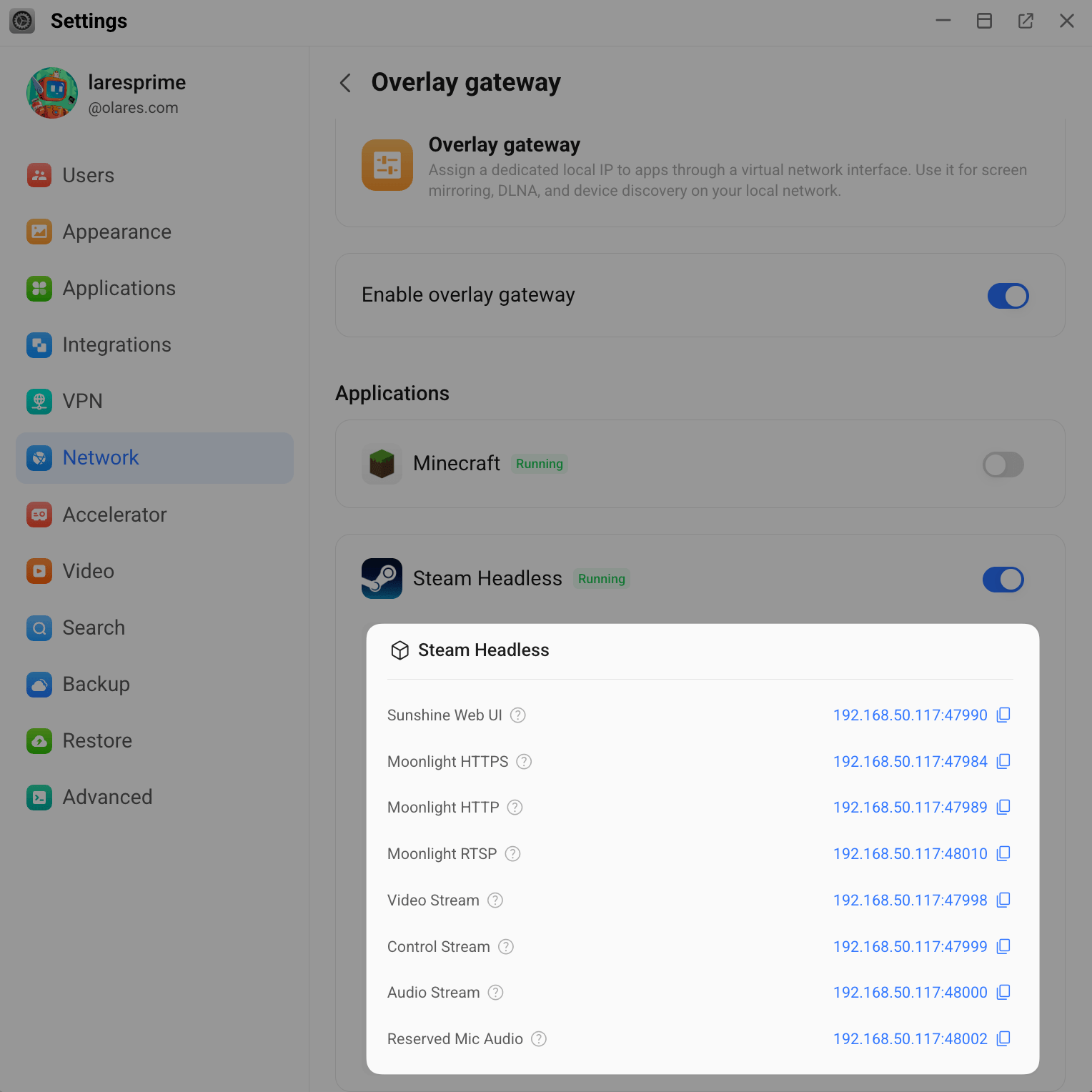
d. Copy the Sunshine Web UI address, add
https://, and open it in your browser. For example:plainhttps://192.168.50.117:47990Same network (
.localdomain)Copy the URL of your current Steam Headless browser tab, change the hostname to its
.localform, append port47990, and open it in a browser. Either local hostname format works:plainhttps://139ebc4f0.<your Olares ID>.olares.local:47990 https://139ebc4f0-<your Olares ID>-olares.local:47990On Windows, import Olares hosts with the LarePass desktop app or use the single-level hostname with hyphens. For details, see Access Olares services locally.
Different network (LarePass VPN): Enable LarePass VPN, then copy your Steam Headless
.comURL, append port47990, and open it in a browser. For example:plainhttps://139ebc4f0.<your Olares ID>.olares.com:47990
Once the page loads, sign in using the
SUNSHINE_USERandSUNSHINE_PASScredentials you created earlier.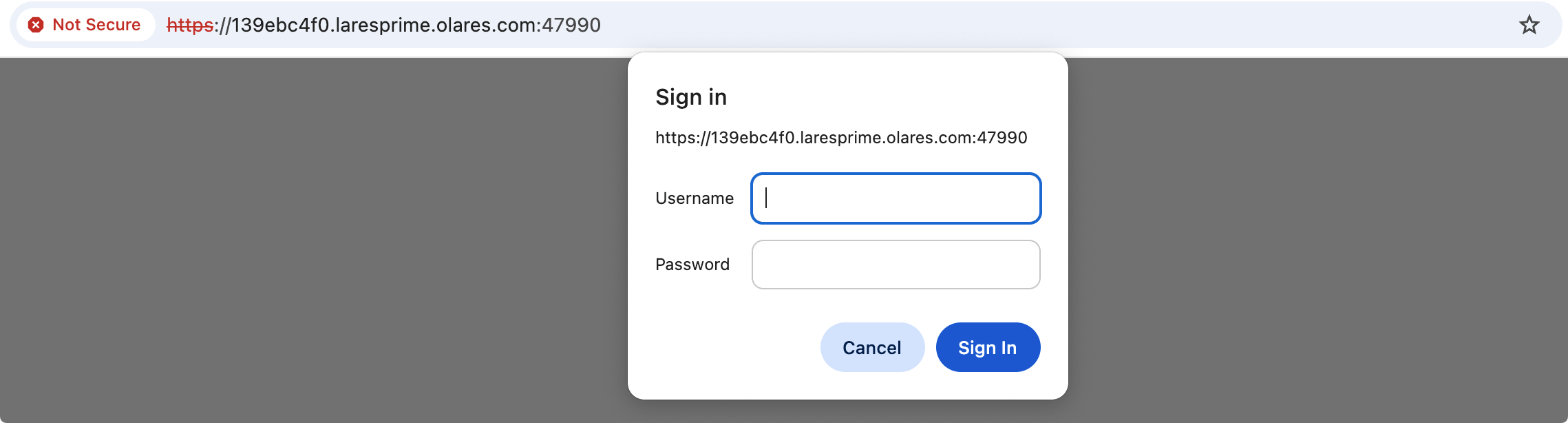
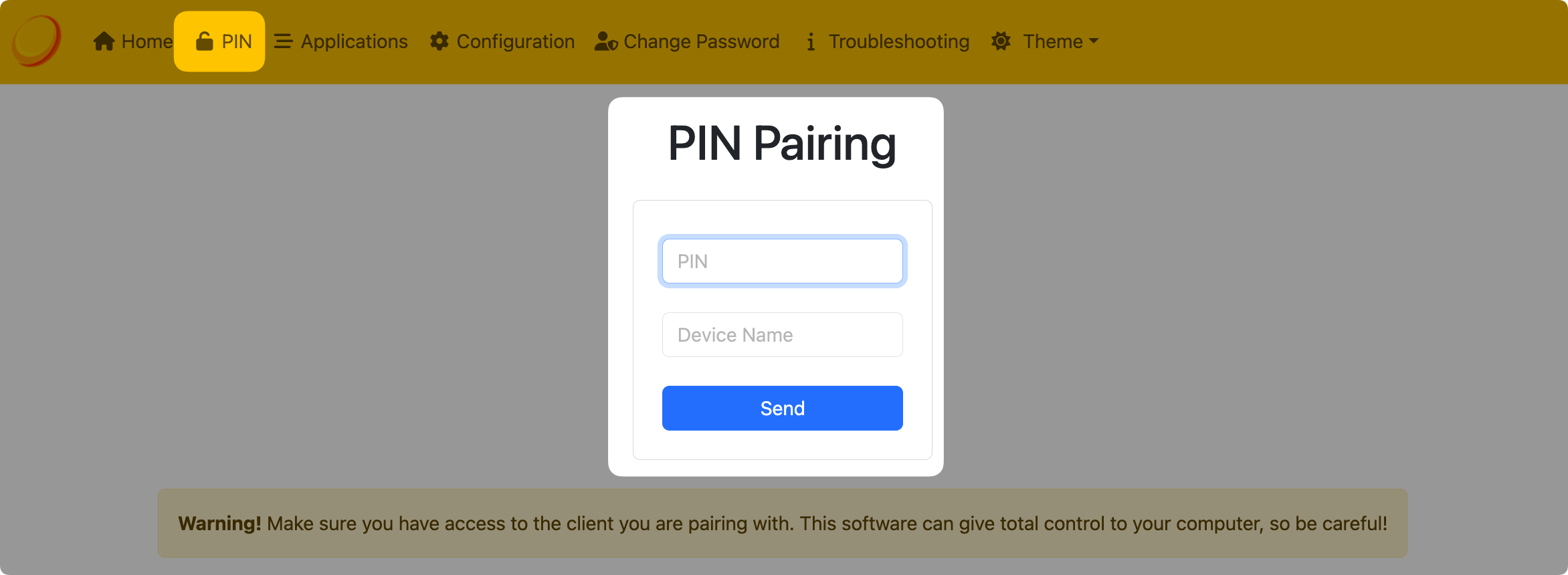
Click the PIN tab. The page will now wait for a pairing PIN.
Add the host in Moonlight
Next, add Olares as a host in Moonlight. The steps below use the macOS client as an example.
On the same local network, Moonlight might detect Steam Headless automatically. If it does not appear, or if you are connecting remotely, add it manually:
Open Moonlight on your streaming device.
Click Add Host, which looks like a computer with a plus icon.
Enter the host address for your network setup. Do not add
http://orhttps://:Overlay gateway: Enter the address shown under Moonlight HTTP in the screenshot above, including its port. Do not add a protocol. For example:
plain192.168.50.117:47989Same network (
.localdomain): Enter your.localhostname without a port. For example:plain139ebc4f0.<your Olares ID>.olares.localDifferent network (LarePass VPN): Enter your
.comhostname without a port. For example:plain139ebc4f0.<your Olares ID>.olares.com
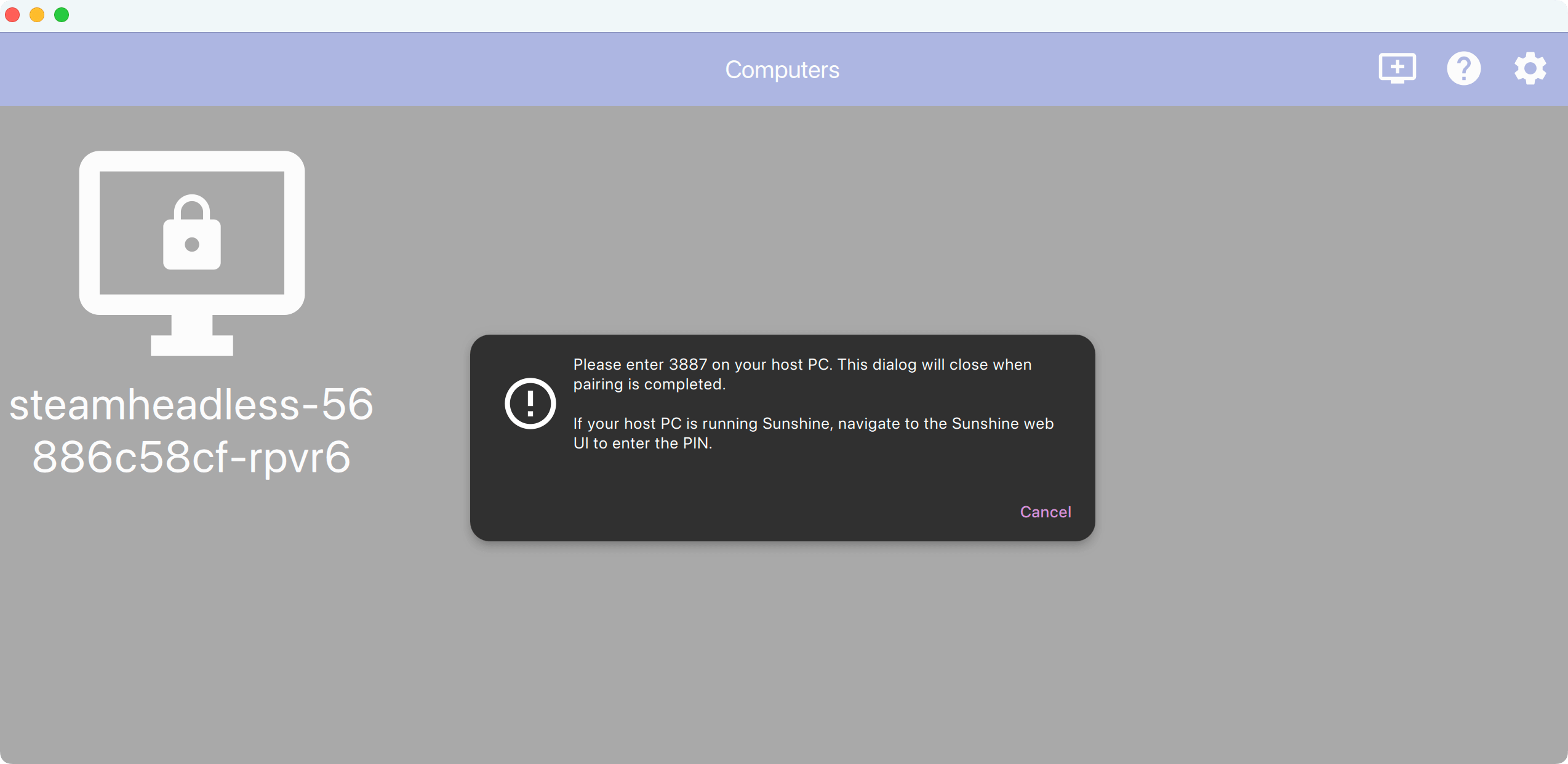
Click OK. A new locked host icon appears.
Click the locked icon. Moonlight will display a 4-digit pairing PIN.
Complete pairing
Return to the Sunshine PIN page in your browser.
Enter the PIN displayed in Moonlight and give your device a name.
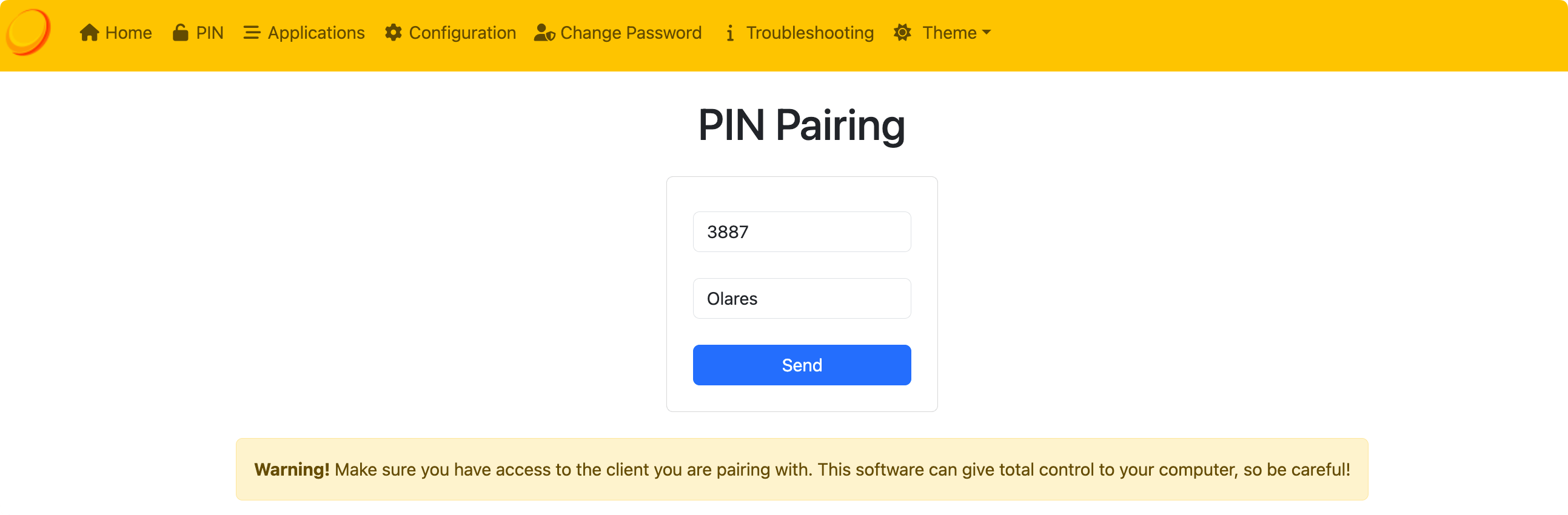
Click Send.
Upon success, you will see a confirmation message, and the lock icon in Moonlight will disappear.
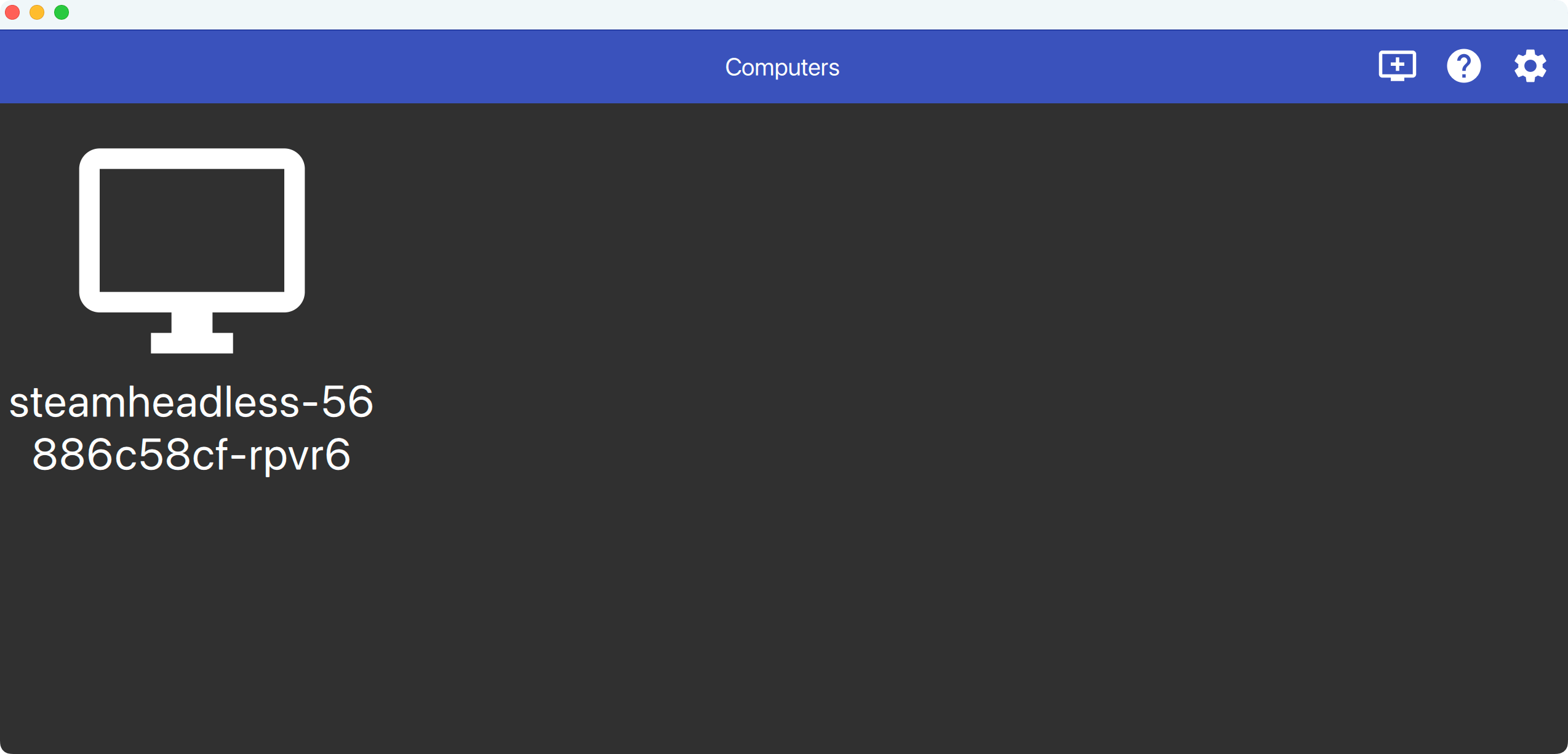
Once paired, you're ready to start streaming.
Stream your games
Optimizing remote play
For the best experience when streaming remotely:
- Connect your client device to 5GHz Wi-Fi or Ethernet.
- Ensure LarePass VPN is active.
You can stream your games through Moonlight either locally or remotely, depending on your network setup.
The following steps demonstrate local streaming.
- Open Moonlight on your client device.
- Select your unlocked host and click the Steam icon.
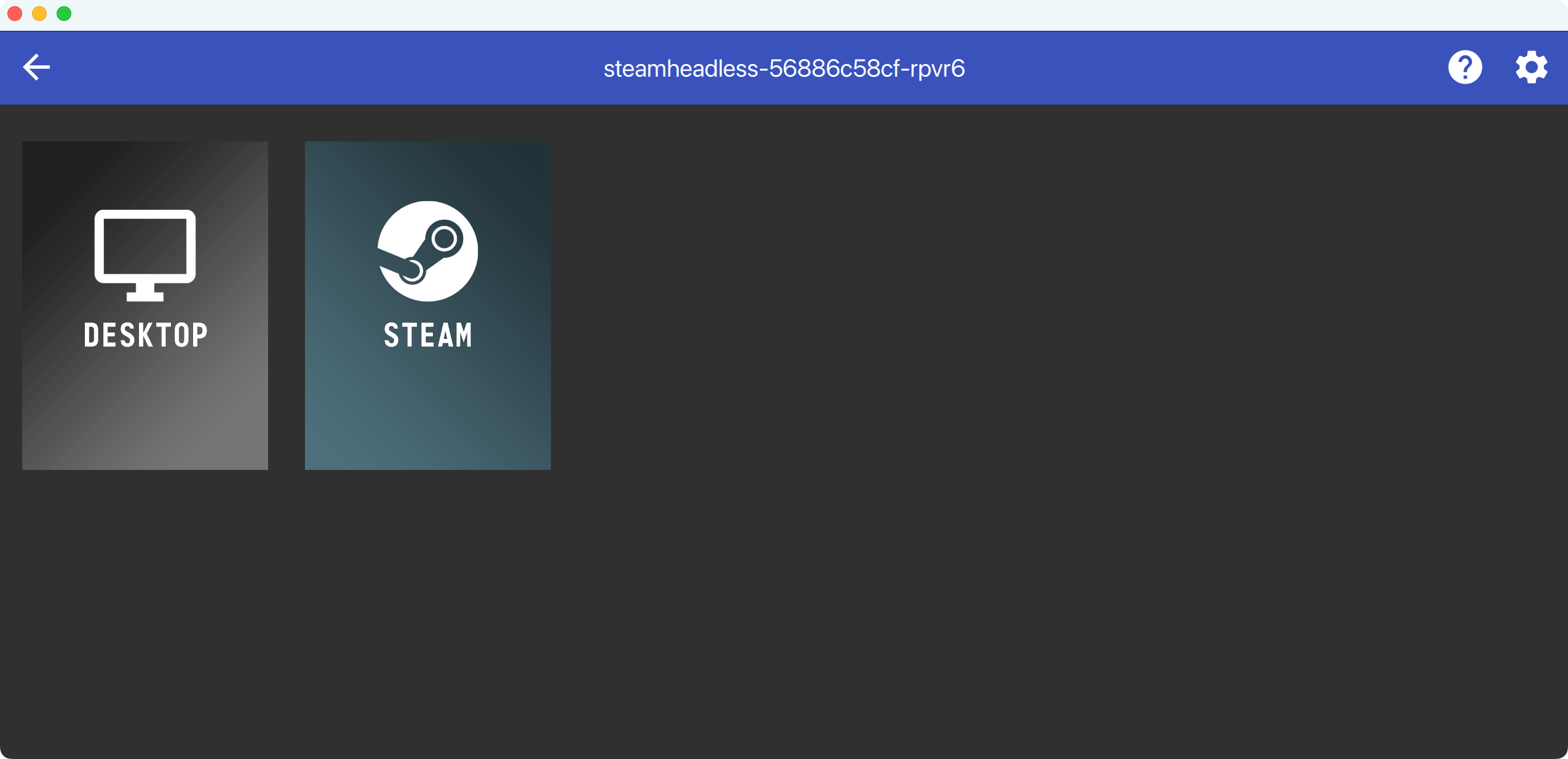
- Steam Big Picture Mode will launch. Select a game from your library and start playing.
FAQs
Why is Steam streaming slow or delayed?
Streaming lag can be caused by network conditions, GPU allocation, power settings, Proton compatibility, or CPU and memory limits.
Follow Troubleshoot slow or delayed Steam streaming to identify and resolve the cause.
Why can't I access the Sunshine Web UI using the .local address?
Olares supports .local addresses with the HTTP protocol for most services. The Sunshine Web UI is different because it requires HTTPS to secure local communication. If you use http:// with your .local URL, the Sunshine page will not load.
To fix this, use https:// instead of http:// in your browser's address bar (for example, https://139ebc4f0.<your Olares ID>.olares.local:47990).
Why isn't the game displaying in full screen?
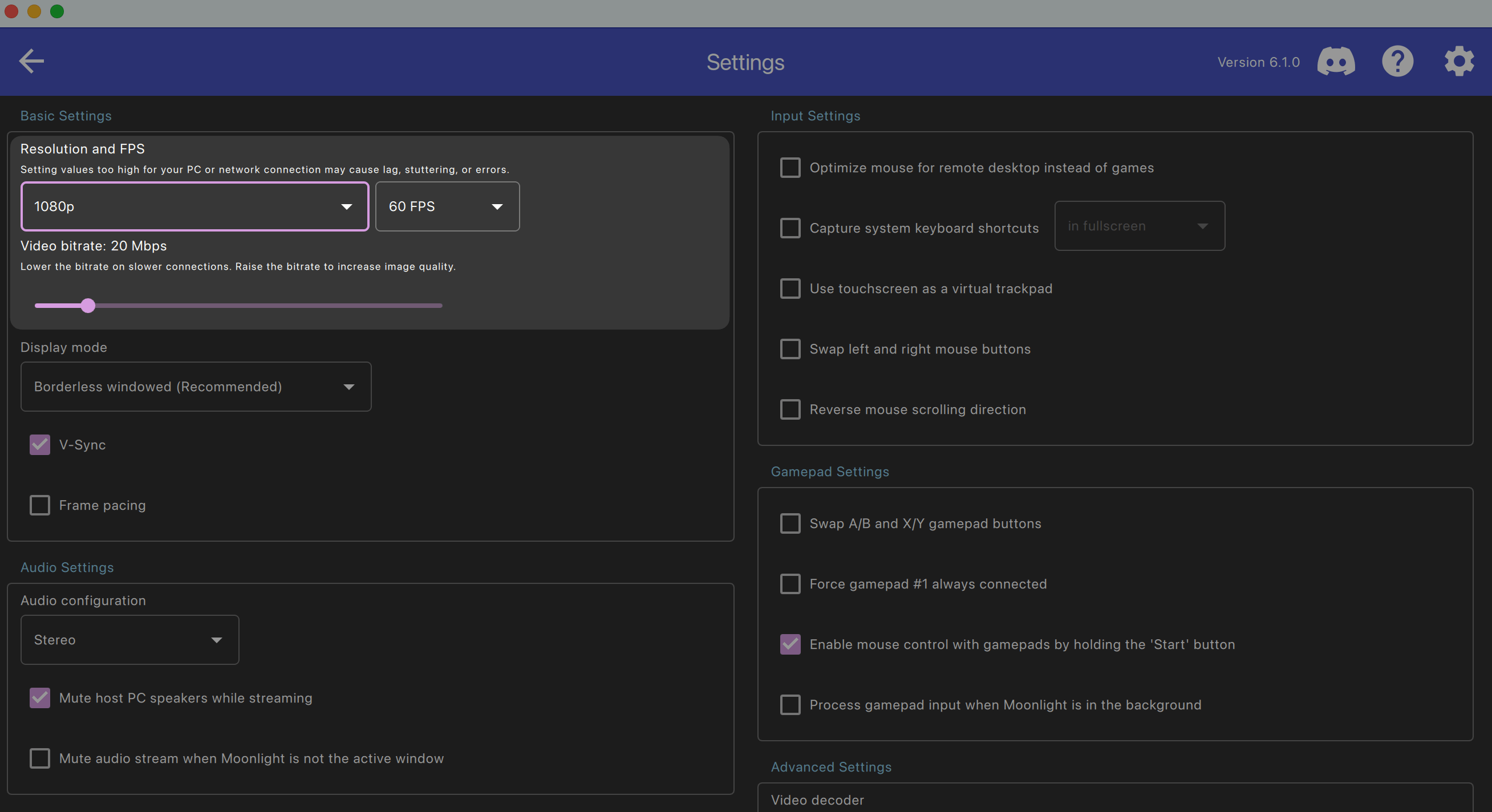
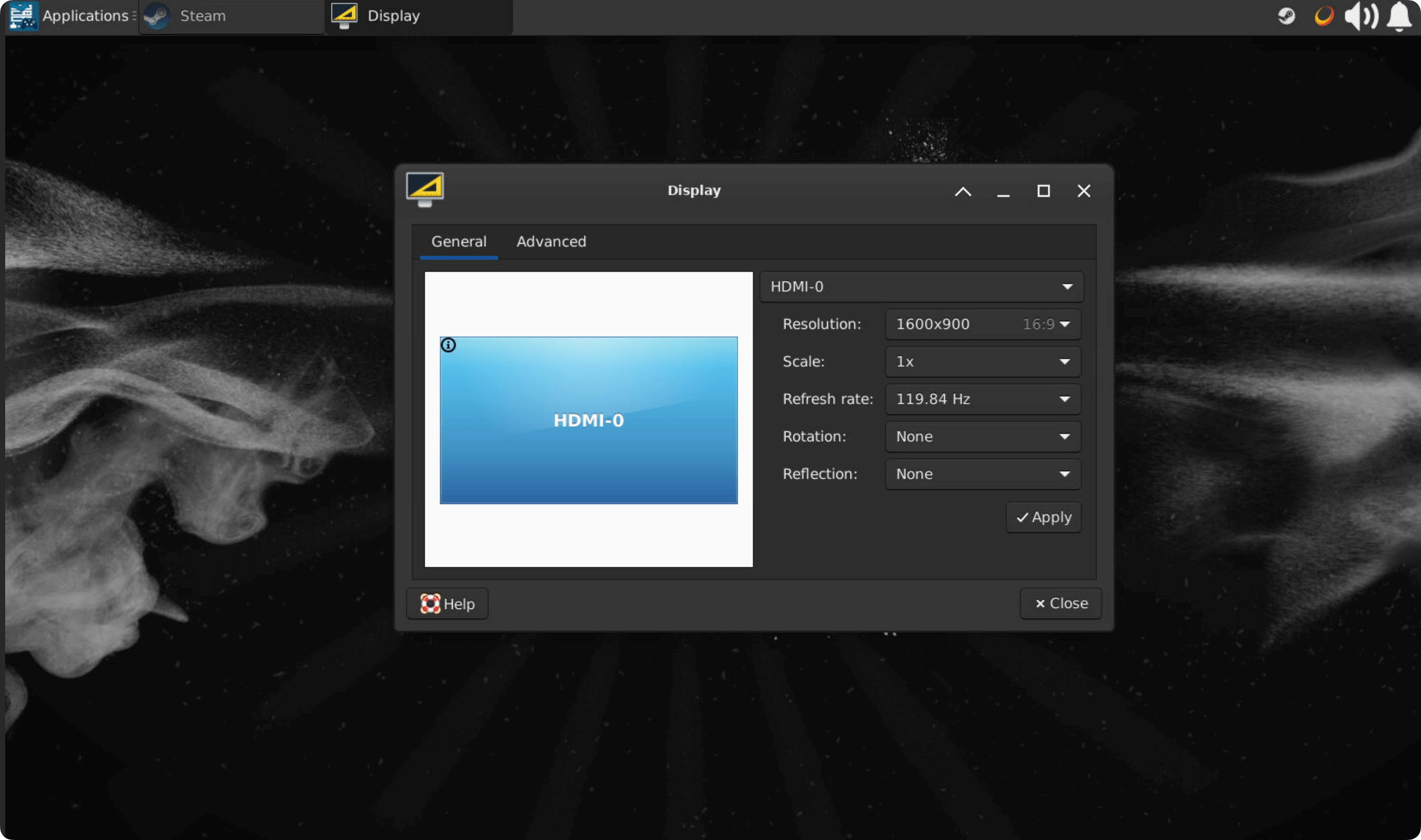
This may be caused by resolution settings. Try adjusting the resolution:
- In Moonlight: Go to Settings > Basic Settings > Resolution and FPS.
- On the Steam console page: Go to Applications > Settings > Display.
How do I exit full-screen streaming?
Use the following shortcuts:
- Windows:
Ctrl + Alt + Shift + Q - Mac:
Control (^) + Option (⌥) + Shift + Q - Mobile:
Start + Select + L1 + R1
After finishing, exit Steam Big Picture mode to release system resources on Olares. 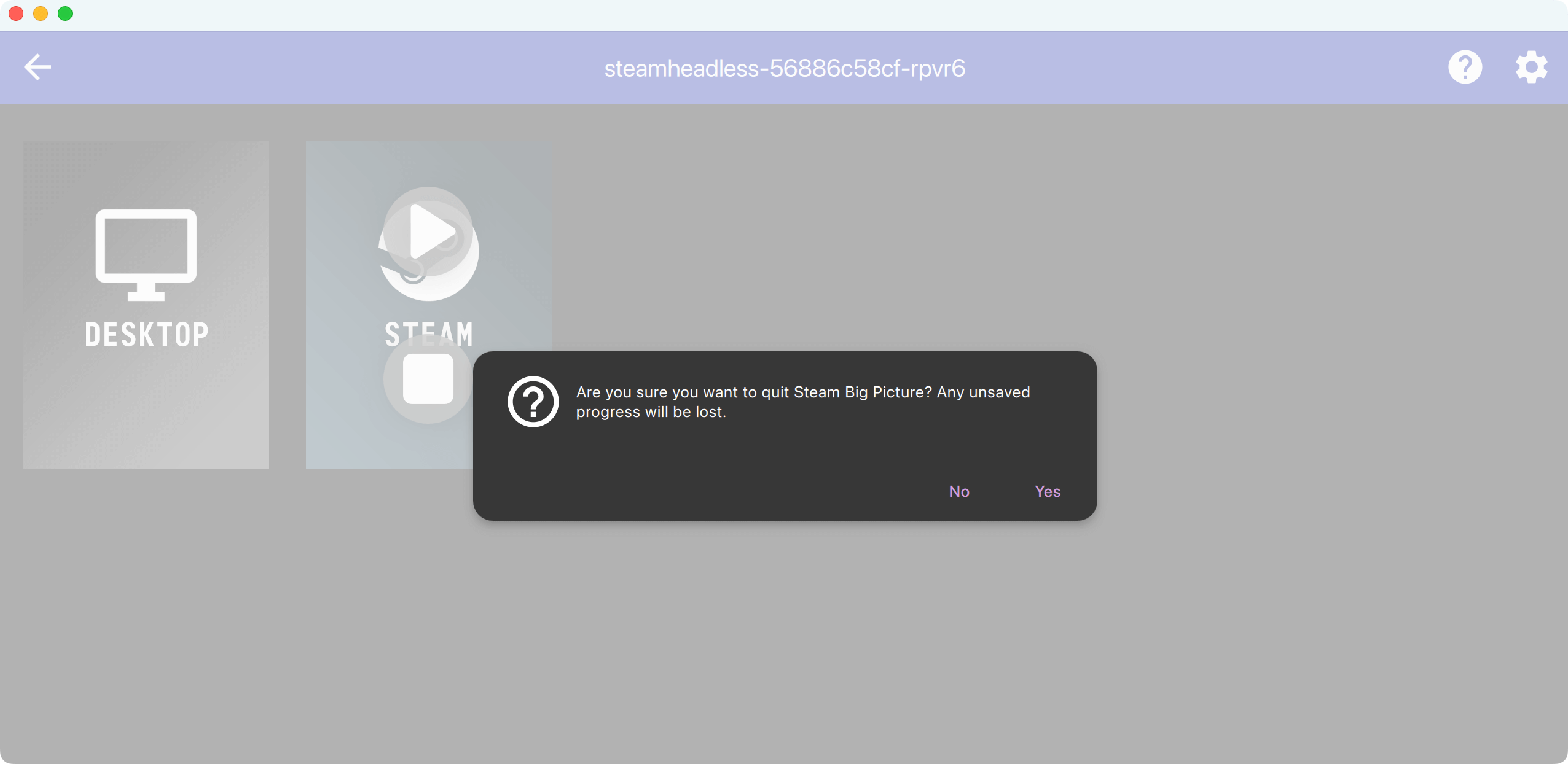
Where are my downloaded games stored?
You can check the downloaded games in the Files app. By default, games are saved in:
/Cache/olares/steam-headless/c0/.steam/steam/steamapps/commonWe recommend not changing this default directory.
Why do I get an error when re-pairing the host in Moonlight?
If you delete your Olares host in Moonlight and try to pair again, you may encounter the following errors:
- The PIN from the PC didn't match. Please try again.
- Request timed out (Error 4)
- Connection closed (Error 2)
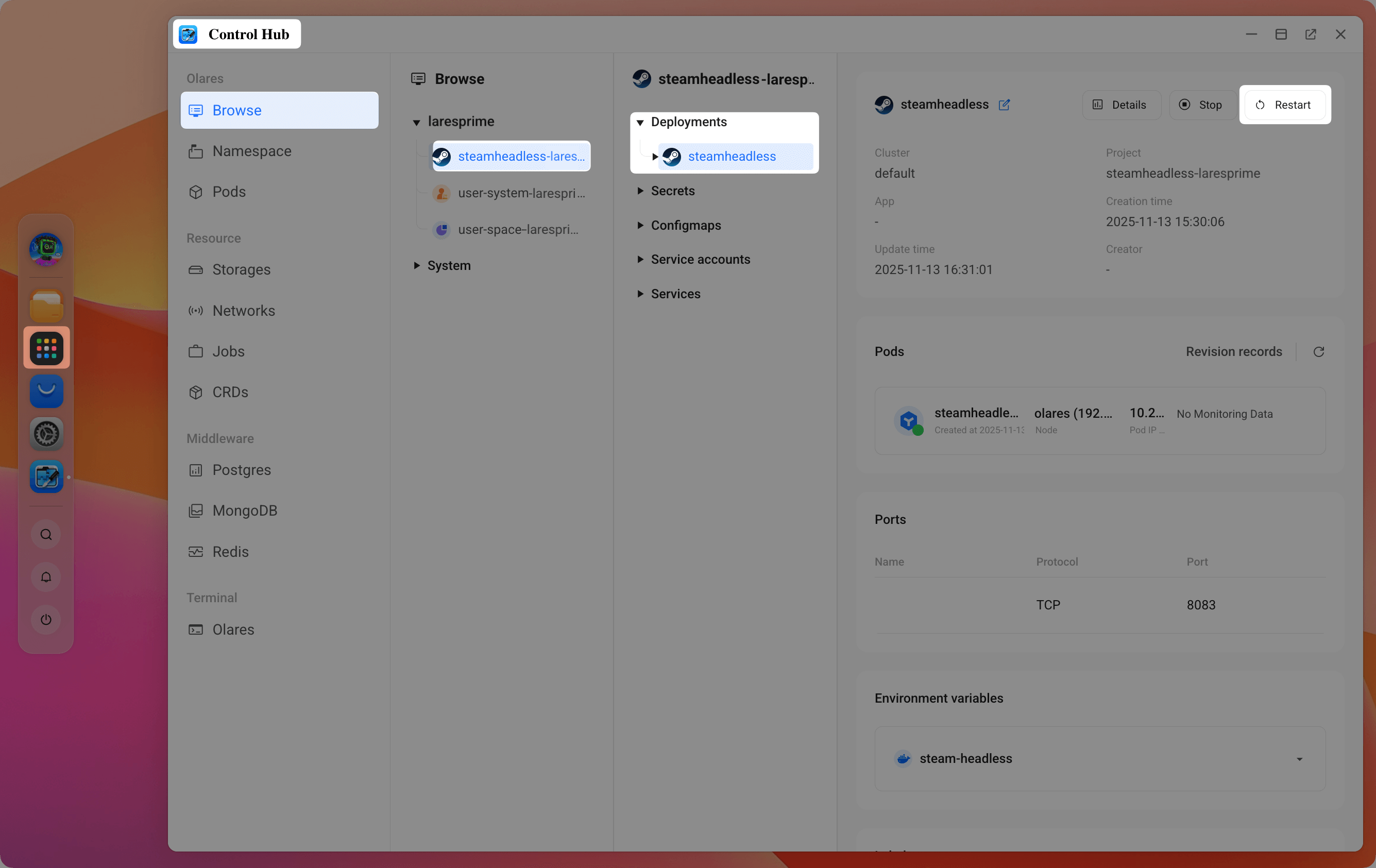
This usually happens when the Sunshine service is not responding. To fix it, simply restart Steam Headless in Olares and try pairing again:
Open Control Hub from Launchpad.
Navigate to Browser > steamheadless > Deployments > steamheadless > Restart.
In the confirmation prompt, enter
steamheadlessand click Confirm.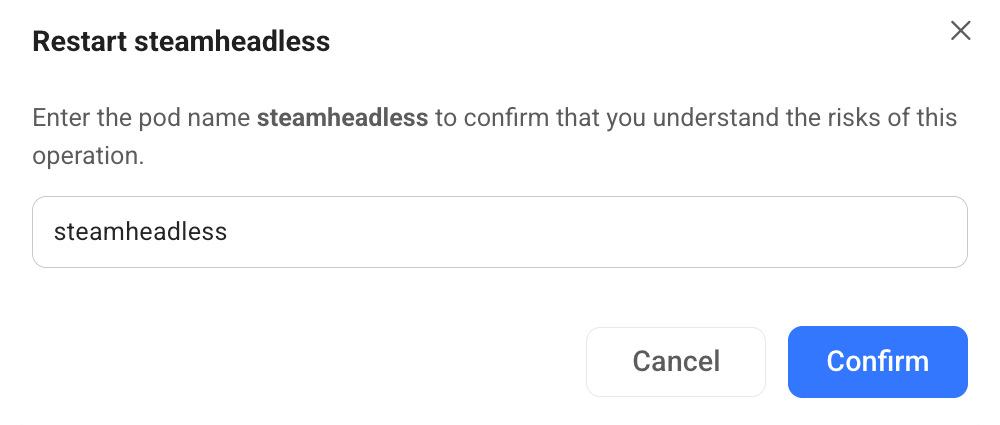
Once restarted, pair with Sunshine again in Moonlight.
How do I change my Sunshine username or password?
You can change your Sunshine credentials directly from the Sunshine web console.
Open Sunshine in your browser using your local address, for example:
https://139ebc4f0.<your Olares ID>.olares.local:47990.Log in with your current username and password.
Go to the Change Password tab.
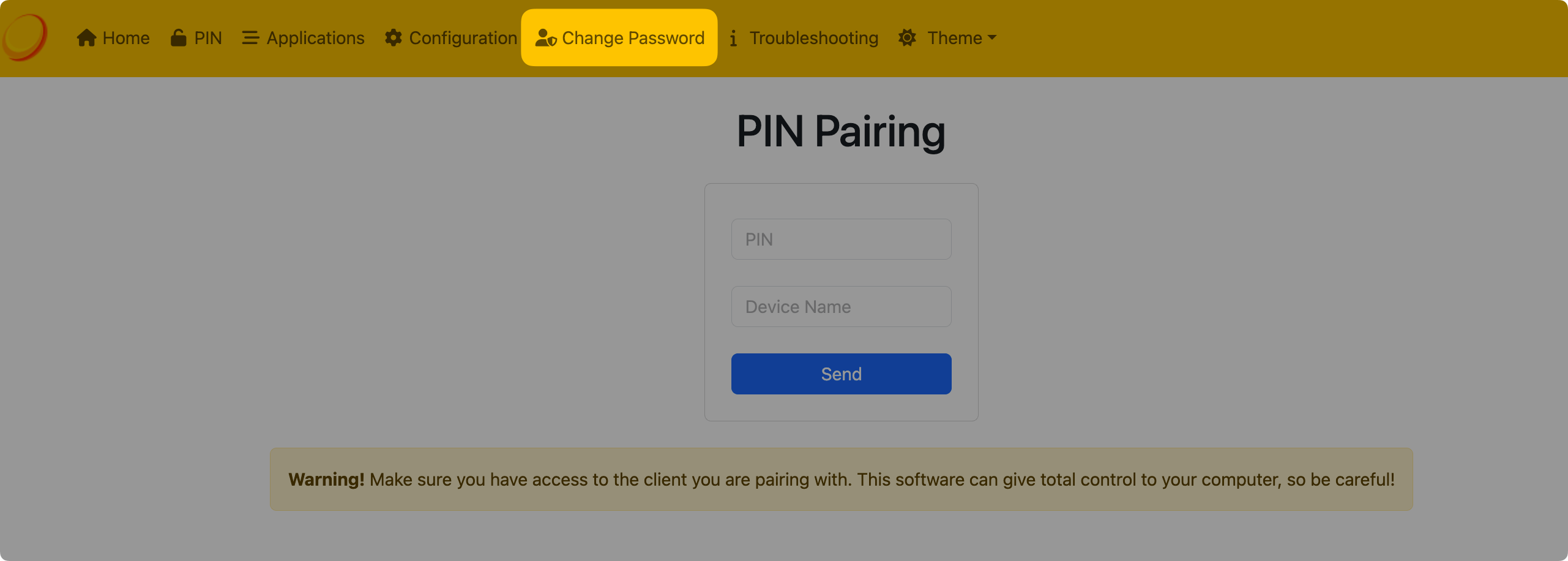
Enter a new password (and username if desired), then click Save.