Research a topic with cited sources using Local Deep Research
Local Deep Research is an open-source AI research assistant that combines web search with a language model. Give it a question, and it develops follow-up questions, gathers sources, and turns its findings into a report with citations.
On Olares, it uses Router for model access and SearXNG for web search. This guide researches how heat pumps work using Quick Summary with one search iteration, so you can see the complete workflow before starting a longer investigation.
Learning objectives
In this guide, you will learn how to:
- Prepare the model and search connections.
- Create a user account and run a research question.
- Check citations and export a report.
Prerequisites
Before you begin, you need:
An Olares device running Olares 1.12.7 or later, with sufficient memory and disk space.
Access to Router for local model connections.
SearXNG installed from Market and running.
The following model:
Model type Model How to get it Chat Qwen3.8-27B (llama.cpp) Install from Market
Optional: Use a different model
Install another chat model from Market, or create a model instance with Engine Base apps. Then select it as the default chat model on Router's Default models page. Clients configured with default-chat use the new default without changing their model settings.
To keep a client on one specific model, use the full model name from Router's How to call this model window instead.
Check model availability
Local Deep Research calls the chat model through Router's default-chat route.
- Open Router from Launchpad and go to Default models.
- Confirm Qwen3.8-27B (llama.cpp) is selected as the default chat model and shows Callable.
Prepare the SearXNG connection
Local Deep Research searches the web through SearXNG. You need the SearXNG URL to install Local Deep Research.
Open Olares Settings, go to Applications > SearXNG > Entrances > SearXNG, and then copy the Endpoint URL.
Install Local Deep Research
- Open Market and search for "Local Deep Research".
- Click Get, then click Install.
- When prompted, enter the SearXNG URL you copied and click Confirm.
- Wait for the installation to complete.
Create a user account
- Open Local Deep Research from the Launchpad.
- On the login page, click Register here.
- Enter a username and password, then confirm the password.
- Read the notice about encrypted data, select the acknowledgment checkbox, and click Create Encrypted Account. You log in automatically.
Keep your password safe
Your password protects the encrypted account database. There is no password recovery for that database. Store the password securely before adding research or documents you need to keep.
Run your first research question
On the New Research page, enter the following message in Research Query:
textHow do heat pumps work? Give a short explanation with source citations.Select Quick Summary.
Research modes
Quick Summary returns an initial answer and works as a short setup check. Detailed Report runs a longer investigation organized into sections. Chat Mode is an experimental conversational workflow for follow-up questions. Start with Quick Summary and confirm that the selected model and search engine work before increasing the scope.
Locate the Advanced Options section, and configure the following settings:
Setting Value OpenAI-Compatible Endpoint default-chatSearXNG 11Source-Based INFO
You cannot edit the model or endpoint fields here, because they are set by the application's environment variables. To change them, go to Settings > Applications > Local Deep Research > Manage environment variables.
Click Start Research. You can track the progress of the research while the model generates questions, searches for sources, and prepares the report.
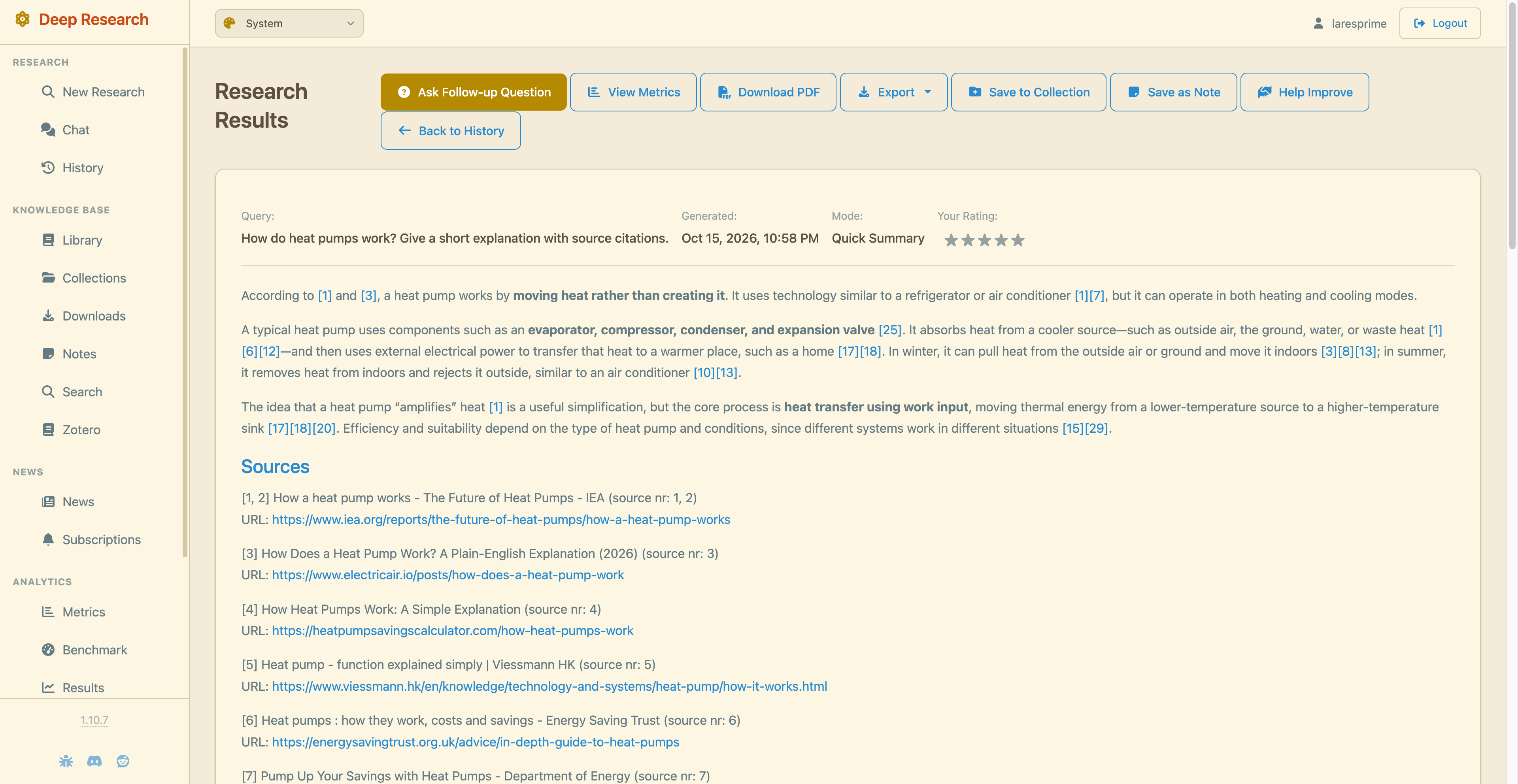
When processing finishes, click View Results.
Review and export the report
Read the report and confirm that it answers your question.
Open a citation and check that the source page supports the report's claim.
To save a copy, click Export and choose a format such as Markdown.
To save a document for reading or sharing, click Download PDF.
(Optional) Use a specific model
By default, Local Deep Research calls the model through Router's default-chat route. To use a specific Router model instead:
- Go to the LLM page in Router, find the model, ensure it shows Callable, and then click the View connection example icon.
- In How to call this model, copy the complete identifier, including its provider prefix. For example,
Olares/unsloth/Qwen3.6-27B-MTP-GGUF:UD-Q4_K_XL. - Open Olares Settings > Applications > Local Deep Research > Manage environment variables, and set
LDR_LLM_MODELto the copied identifier. - Click Apply. The application restarts.
- Open Local Deep Research and sign in again.
FAQs
Why do I see a 401, invalid API key, or other model authentication error?
Check the provider credentials in Router. Leaving the application's key empty is correct for the default Olares Router connection. Select another working Router model when needed.
Why is the model not found?
Copy the complete callable identifier from Router. Do not assume a raw local model name or another instance's identifier is valid.
Why does the search return no sources?
Check SEARXNG_URL and try the question in SearXNG itself. Inspect search-engine errors and retry after a delay if an upstream engine is rate-limited.
Why does the report contain an error even when progress shows completion?
Read the report and research log. Resolve the model or search error and run the question again. A completed progress indicator is not proof of a successful answer.
Why are the model fields locked in the research form?
Edit the application environment variables in Olares Settings, then wait for the settings to apply.
Why am I asked to log in after a restart?
Sign in with your user account. A new login prompt does not by itself mean saved research was deleted.
Learn more
- Use Olares Router as your AI gateway: Understand model identifiers, access, and provider configuration.
- Run local LLMs on Olares: Set up a local model for Router.