Enable web search in Open WebUI
Add web search capabilities to Open WebUI to allow your local AI models to retrieve up-to-date information from the internet. This integration requires a connected embedding model to generate embeddings and SearXNG to fetch web results.
If you want Open WebUI to read full web page content instead of using search result summaries only, configure a web loader such as Firecrawl.
Learning objectives
In this guide, you will learn how to:
- Retrieve the required endpoint URLs for your embedding model and SearXNG.
- Configure the document embedding and web search settings in Open WebUI.
- Perform a web-assisted search during a chat session.
Prerequisites
Before you begin, ensure you have the following in place:
- Open WebUI installed and configured with at least one connected local model.
- SearXNG installed.
- Administrator privileges for the Open WebUI instance.
- The following model:
Model type Model How to get it Embedding EmbeddingGemma Install from Market
Retrieve service details
To link Open WebUI with your background services, you need to locate the connection endpoints for both your embedding model and SearXNG.
Get embedding model details
- Open Router from Launchpad and go to Tools. Find the installed embedding model and wait until it shows Callable.
- On its model row, click View connection example.
- In How to call this model, select Apps in Olares and copy the Base URL, including
/v1. - Copy the full Model name from this window, including the
Olares/prefix, and use it in the client's embedding settings. Apps in Olares do not need a Router API key. Useolaresonly if the client requires a value.
Use the embedding model's name, not default-chat. Keep the same embedding model when querying an existing knowledge base. Changing it can require reindexing your documents.
Get SearXNG endpoint
Open Olares Settings, and then go to Applications > SearXNG.
Under Entrances, click SearXNG, and then copy the endpoint URL. For example,
https://84a93c3c.laresprime.olares.com.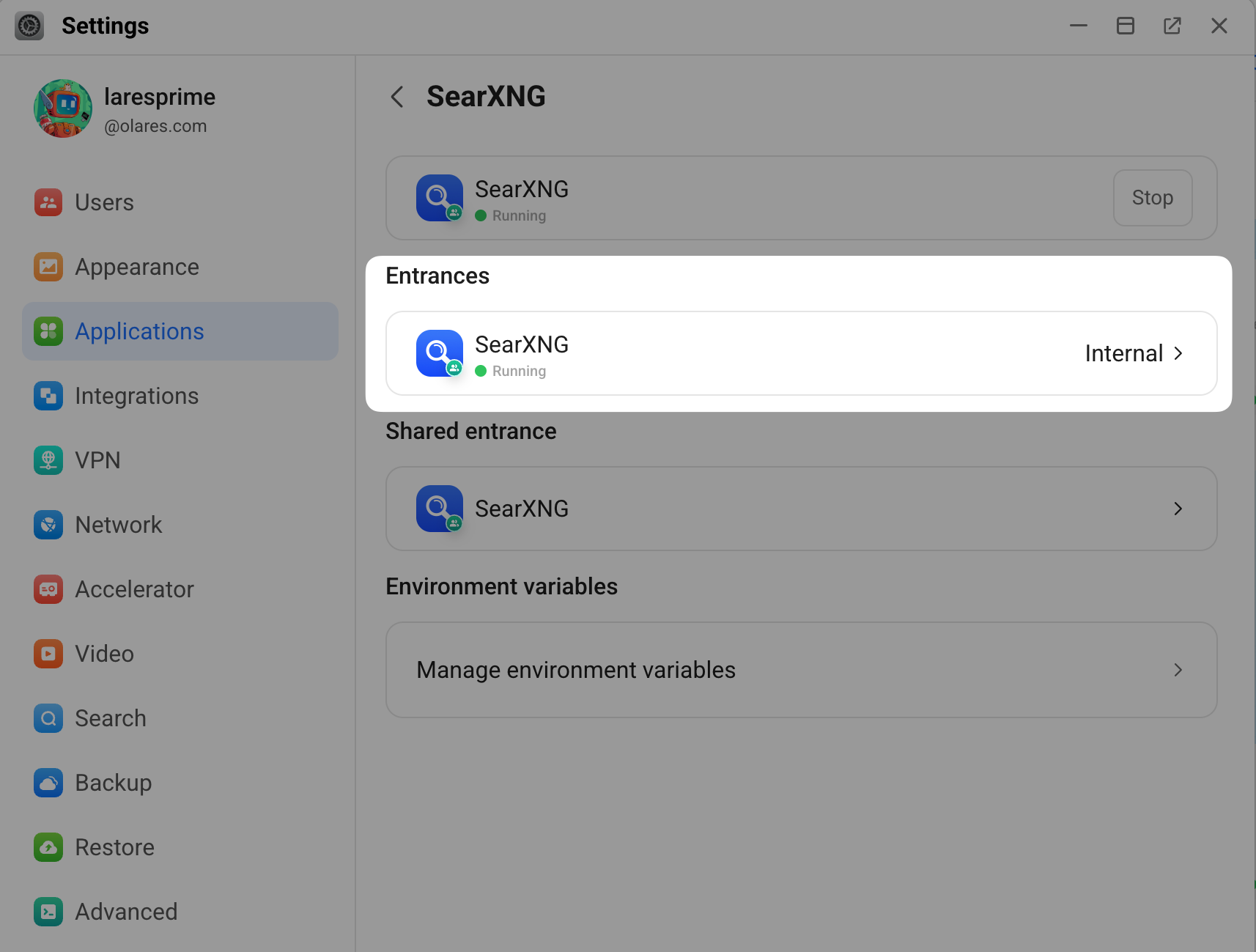
Configure Open WebUI
Apply the details you retrieved to the Open WebUI configuration panel.
Set up document embeddings
Configure the embedding model so Open WebUI can convert text into vector representations for retrieval.
In Open WebUI, select your profile icon, and then go to Admin Panel > Settings.
On the left sidebar, locate the Tools section, and then select Documents.
Under the Embedding section, specify the following settings:
- Embedding Model Engine: Select OpenAI.
- API Base URL: Enter the embedding model Base URL you copied from Router.
- Embedding Model: Enter the embedding Model name you copied from Router.
Scroll down to the bottom of the page, and then click Reindex in the lower-right corner to apply the changes.
Select Save.
Enable web search
Turn on web search and point it to your SearXNG endpoint.
Go to Admin Panel > Settings.
On the left sidebar, locate the Tools section, and then select Web Search.
Specify the following settings:
Web Search: Enable this setting.
Web Search Engine: Select SearXNG.
Searxng Query URL: Enter your SearXNG endpoint URL and append
/search?q=<query>to the end.For example,
https://84a93c3c.laresprime.olares.com/search?q=<query>.Bypass Web Loader: Enable this setting if you only need search result summaries. Leave it disabled if you want Open WebUI to fetch full page content through a web loader.
Full-text retrieval
For full-page retrieval, install Firecrawl and configure it as the web loader. See Use Firecrawl as a web page loader.
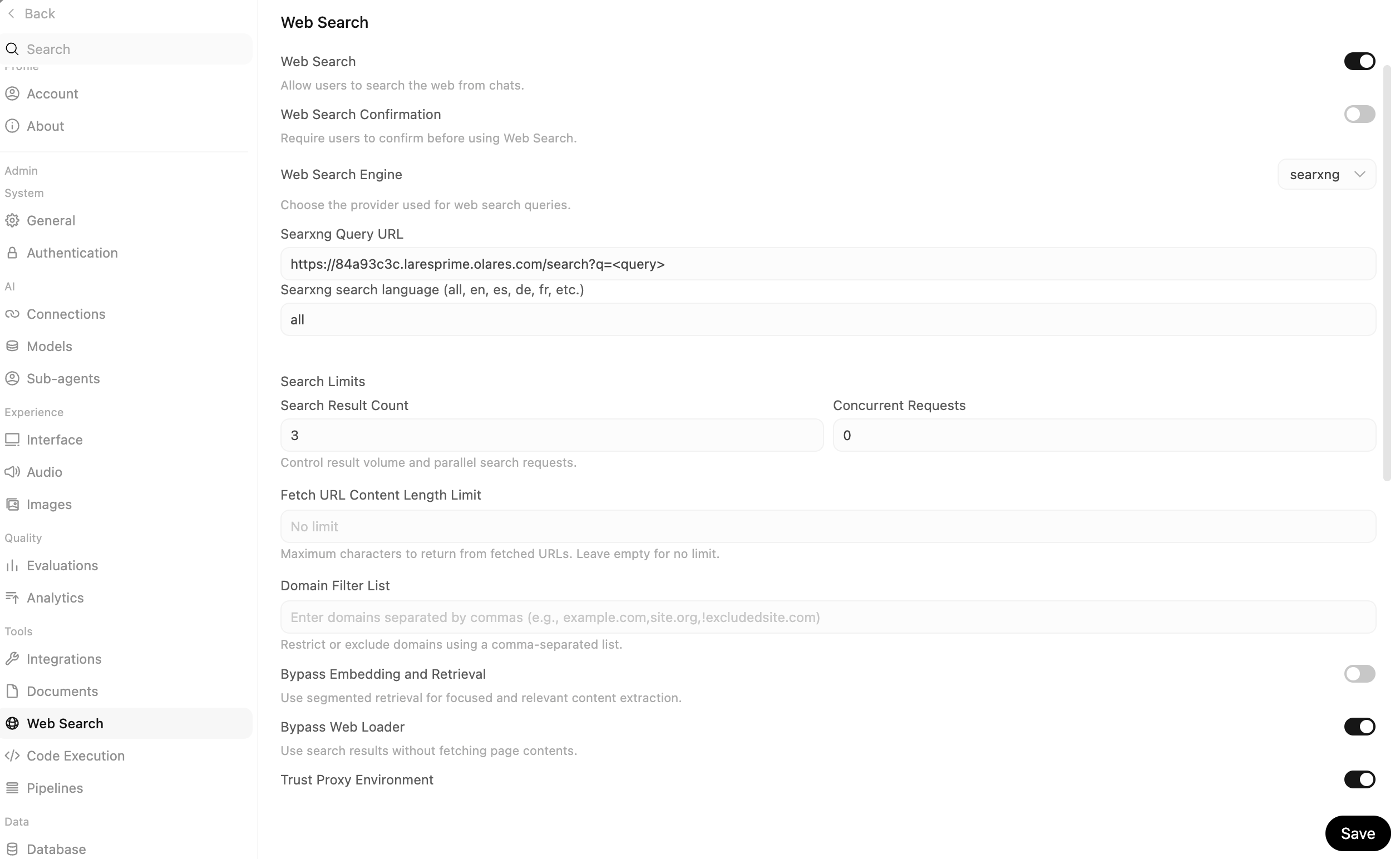
Leave the other fields at their default values.
Select Save.
Verify the configuration
Test the feature to ensure the AI successfully retrieves up-to-date information from the web.
Start a new chat.
Select the model.
Click the Integrations icon under the chat input field, and then enable Web Search.
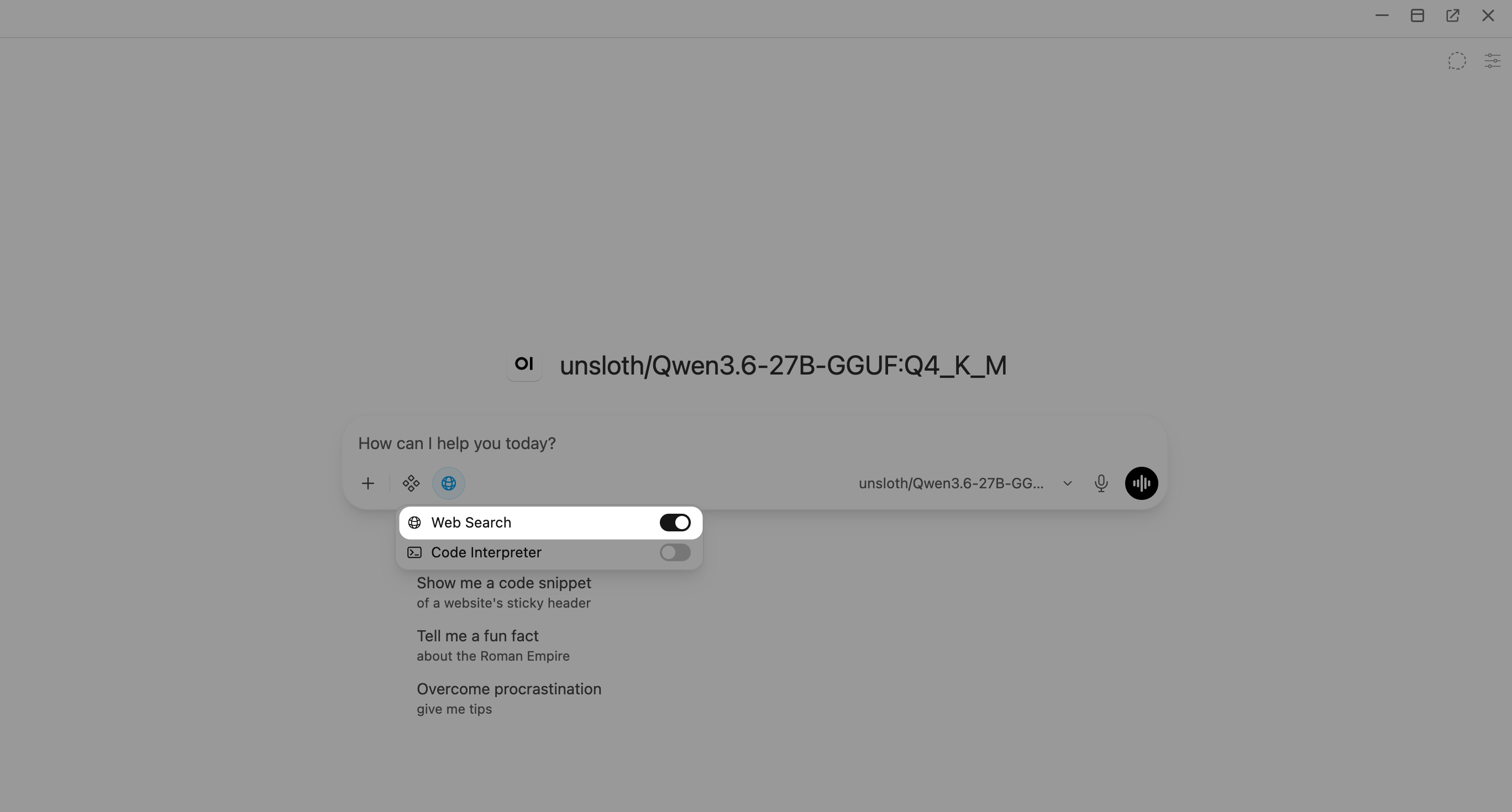
Enter a prompt that requires recent information. For example:
plainWhat’s the latest news about Olares OneSubmit the prompt. The AI generates a response that includes the retrieved search results and their source links.
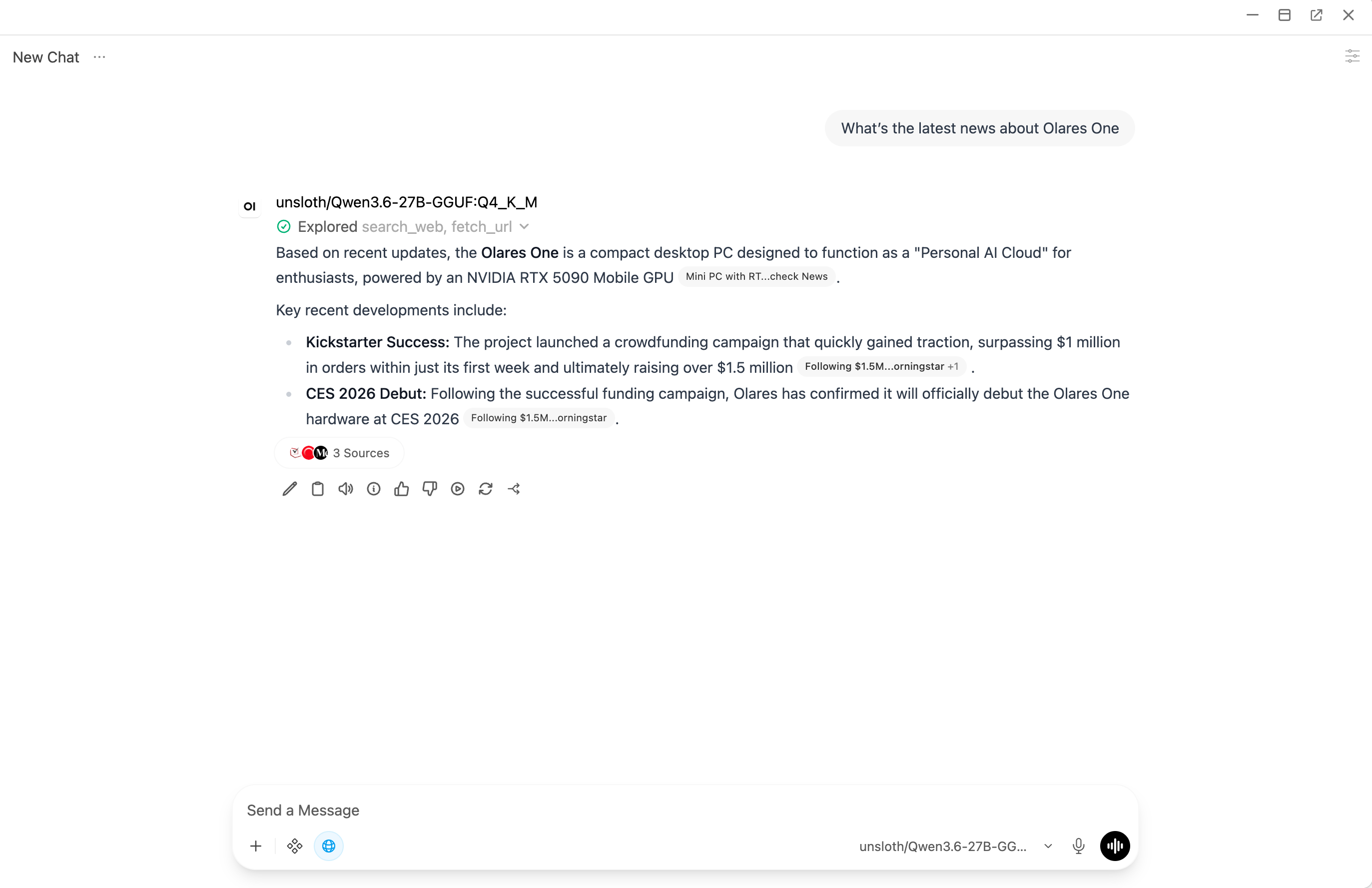
Learn more
- Open WebUI common issues: Resolve common issues with Open WebUI.