Manage Olares and run research tasks with Lares
Lares is the official AI assistant for Olares, introduced in v1.12.7. With Router and a connected model, you state a goal in plain language, and Lares plans and carries out the task on your device.
As a fully autonomous agent, Lares handles both quick, everyday tasks and complex automations. Instead of just executing single instructions, it breaks down high-level goals, dynamically chains tools, and carries out end-to-end plans directly on your device. From the first request to the final result, everything happens in the conversation.
Learning objectives
By the end of this page, you will learn how to:
- Understand how Lares connects to Router and works under your assigned permissions.
- Start with a simple question in Lares.
- Configure web research tools to run complex research tasks.
Prerequisites
- System: Olares OS v1.12.7 or later
- Apps: Lares, Router and Qwen3.8-27B (llama.cpp) installed from Market
Understand how Lares works
To carry out tasks on your device securely, Lares operates based on two core mechanisms: built-in model routing and strict access control.
- Integration with Router: Lares automatically accesses the AI models and tools configured in Router. Everything you connect in Router works in Lares right away, with no extra setup.
- Permission-aware execution: Lares executes tasks on your behalf using Olares CLI Agent Skills, but you control the scope. You can assign specific permission levels, such as Read Only, Write, or Full Access, to define exactly what it is allowed to perform on your system.
Get started
Open Lares, select the model, and confirm the permission level for it to work under.
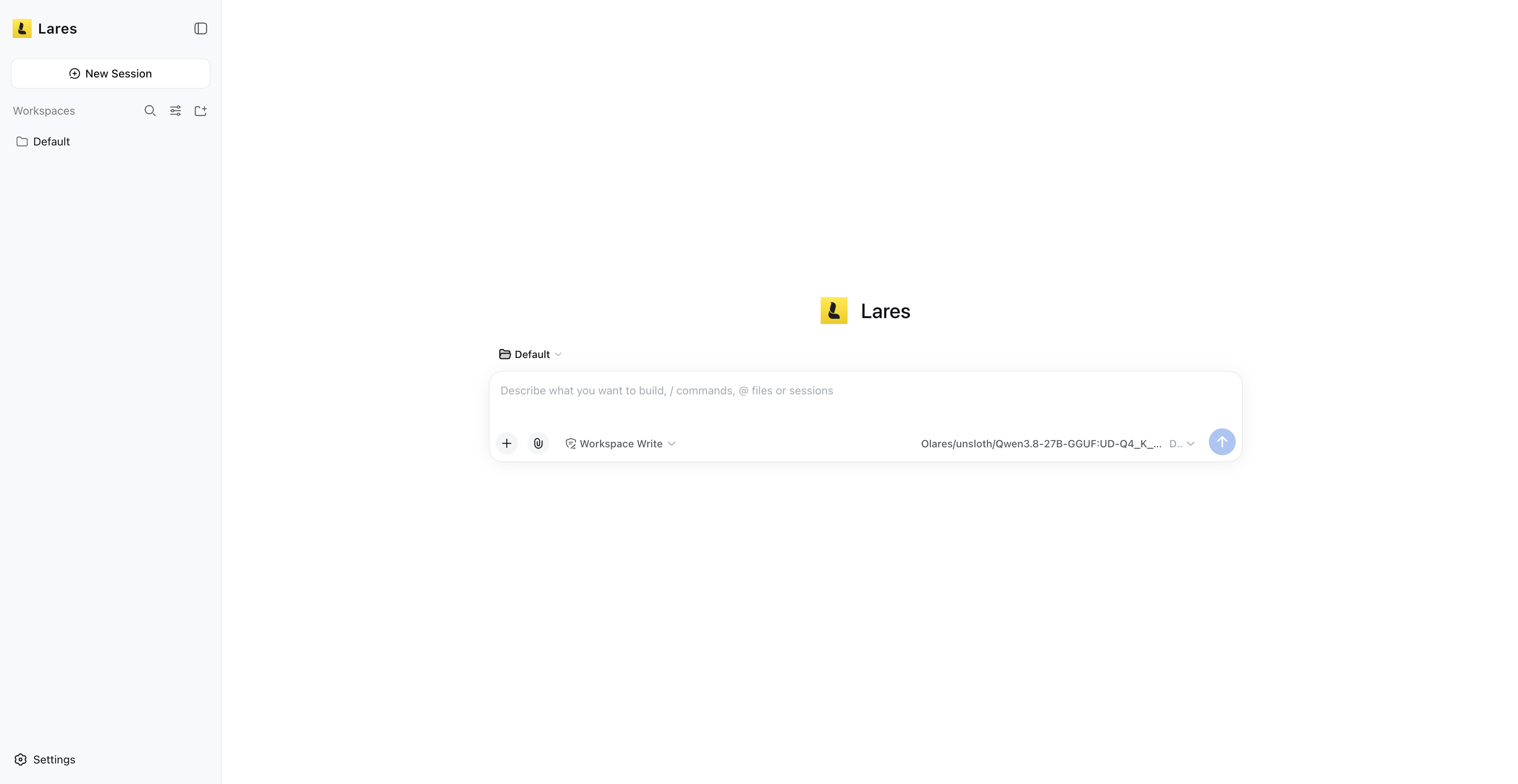
Start with a simple question:
textCheck this device's configurationImportant: Run one task at a time
When running Qwen3.8-27B (llama.cpp) on Olares One, we recommend running only one request at a time to ensure the best experience with the 102K context window and model precision.
Run a deep research task
By default, Lares works with what is already on your Olares. To expand its capabilities and research a topic using public web content, you can configure a Web Research tool in Router, then select and use it in Lares.
1. Choose a web research tool
Web research uses two capabilities, and Router shows them as tags on each Web Research tool:
| Tag | Tools | Capability |
|---|---|---|
search | Finds relevant pages and returns titles, snippets, and source links. | |
scrape | Reads a provided URL and turns its content into material Lares can analyze, summarize, or save. |
2. Get the connection details
Connection requirements depend on the tool you choose:
- SearXNG and Firecrawl: These run as apps on your Olares. Install the app from Market, and get its entrance URL from Olares Settings > [App-Name] > Entrances > Endpoint.
- Serper, Tavily, and Jina Reader: Obtain an API key from its provider.
3. Configure the web research tool in Router
The following steps use SearXNG as an example.
Open Router and go to Tools > Manage providers.
Select SearXNG, and then specify the following settings:
- Provider name:
localsearxng - SearXNG instance URL: The entrance URL obtained in Step 2
- Provider name:
Click Add. The tool appears in the Available list.
Click add to enable it.
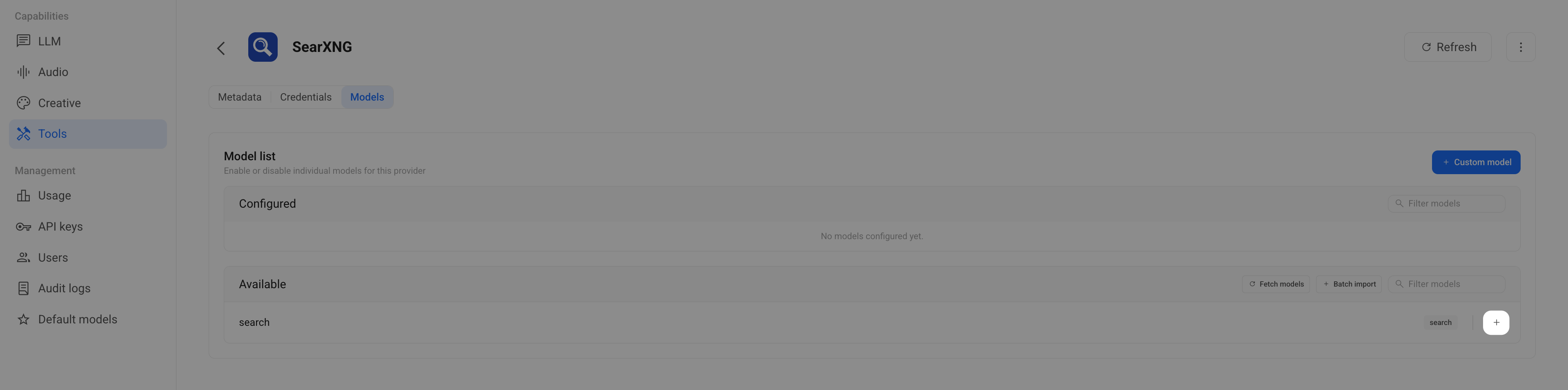
The tool appears in the Configured list.
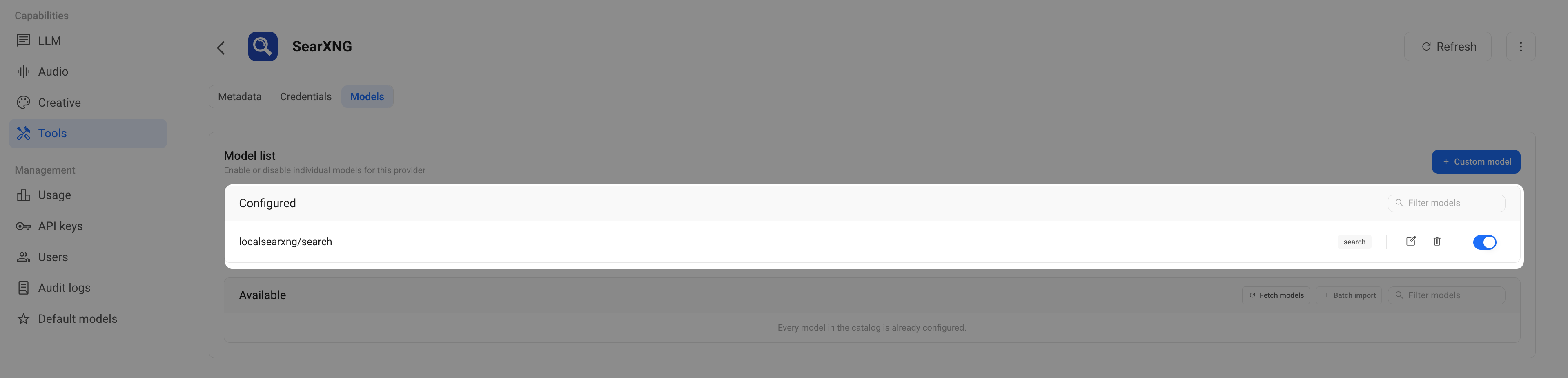
4. Select the search tool in Lares
This step is required only for a tool with the search capability.
INFO
While all Web Research tools are configured in Router, tools with the search tag need one more step in Lares under Settings > Web Search. A scrape only tool does not require this step and is called automatically when you ask Lares to read a specific URL.
- Open Lares and go to Settings > Web Search.
- Click Refresh, then select the configured search tool from the Default search service list.
5. Research a topic
Start with a simple request to confirm the search tool is working correctly. For example:
Use web search to find 3 relevant public sources about preserving personal
voice when using AI writing tools. For each source, return the title, URL,
and one-sentence summary.
Lares should return source links and summaries from the selected search service.
Once you verify that the search works, you can ask Lares to complete complex research tasks that combine source discovery, page reading, and synthesis.