Self-host a private AI search engine with Vane
Vane (previously Perplexica) is an open-source AI-powered answering engine. It combines web search with local or cloud LLMs to deliver cited, conversational answers while keeping your queries private.
This guide uses Qwen3.8-27B (llama.cpp) through Olares Router for answers and SearXNG for web search. Vane connects directly to SearXNG to retrieve sources.
Learning objectives
In this guide, you will learn how to:
- Connect Vane to SearXNG in Vane's settings or through an application environment variable in Olares Settings.
- Select a Router chat model and a built-in embedding model in Vane.
- Ask a question and review the cited sources.
Prerequisites
Before you begin, you need:
An Olares device running Olares 1.12.7 or later, with sufficient disk space and memory.
Access to Router for local model connections.
SearXNG installed from Market and running.
The following models:
Model type Model How to get it Chat Qwen3.8-27B (llama.cpp) Install from Market Embedding all-MiniLM-L6-v2 Built into Vane
Optional: Use a different model
Install another chat model from Market, or create a model instance with Engine Base apps. Then select it as the default chat model on Router's Default models page. Clients configured with default-chat use the new default without changing their model settings.
To keep a client on one specific model, use the full model name from Router's How to call this model window instead.
Install Vane
Open Market and search for "Vane".
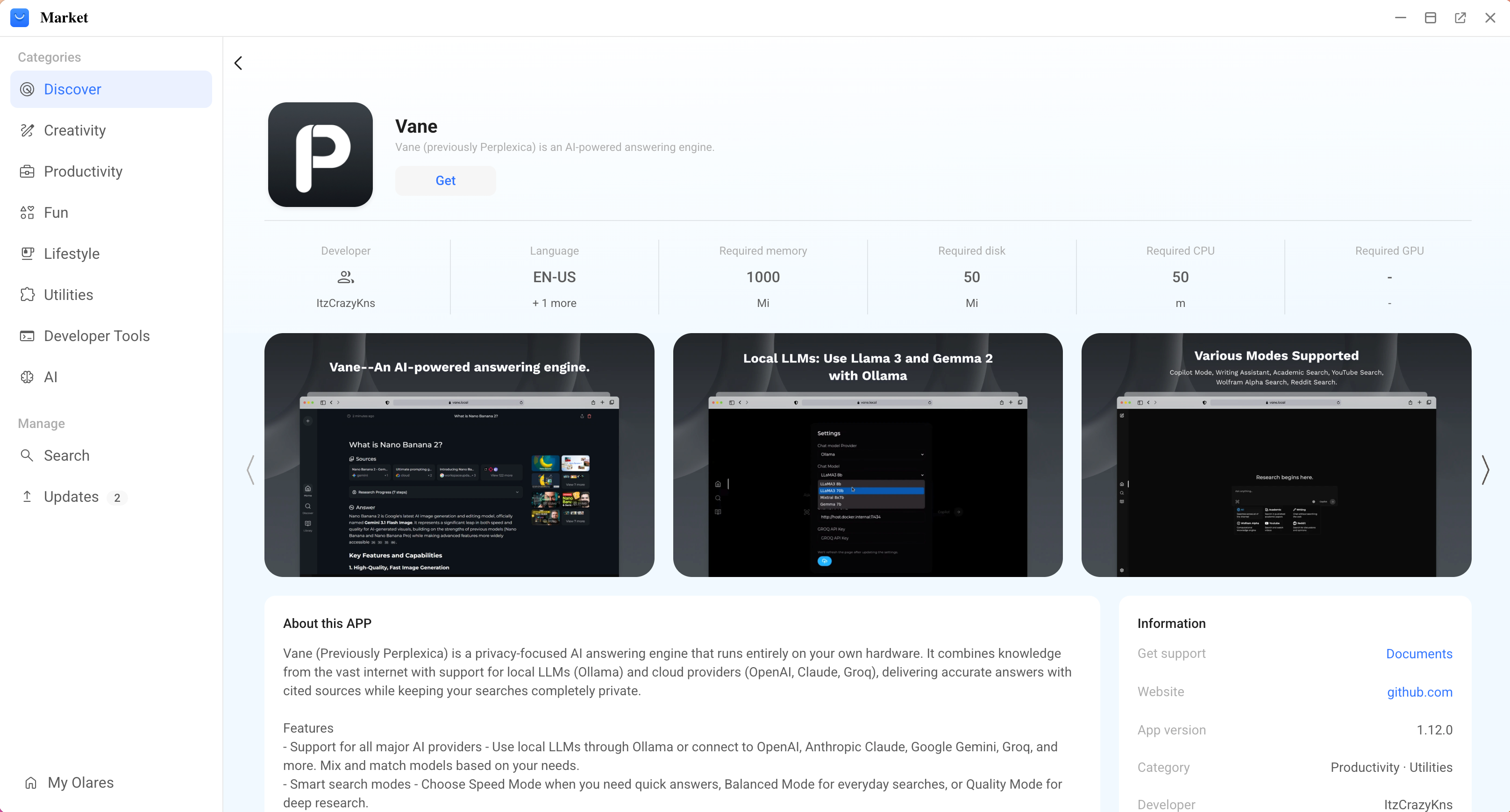
Click Get, then Install, and wait for installation to complete.
Configure models
In Vane, connect to Olares Router for chat and select a built-in embedding model.
Get the Router connection
Open Router from Launchpad. On Default models, set Qwen3.8-27B (llama.cpp) as the default chat model.
Go to LLM, find Qwen3.8-27B (llama.cpp), and click View connection example on its row.
In How to call this model, select Apps in Olares and copy the Base URL, including
/v1.For the model name, use
default-chat.Selecting a model in your app
default-chatis a routing name and does not appear in model lists loaded from Router. If the app you are connecting to Router loads a model list, adddefault-chatmanually. If the app only supports selecting a listed model, select the full model name shown in Router's How to call this model window.For the API key, leave the field empty. If the app you are connecting to Router requires a value, enter
olares.
Before continuing, confirm that the chat model shows Callable on Router's LLM page.
Select models in Vane
Open Vane from Launchpad. Use the setup wizard on first launch, or open the bottom-left Settings > Models for an existing setup.
Click Add Connection, select OpenAI, and enter the following values:
Field Value Connection Name Olares RouterAPI Key olaresBase URL The Router URL you copied, including /v1Click Add Connection. Under this connection's CHAT MODELS, click Add.
Set Model name to
Router chatand Model key todefault-chat, then click Add Model.In the setup wizard, click Next to open Select models. In Settings > Models, use the Select models section on the same page.
Under Select Chat Model, choose Olares Router - Router chat. Under Select Embedding Model, choose the built-in Transformers - all-MiniLM-L6-v2 model.
In the setup wizard, click Finish.
If the newly added model does not appear in Select Chat Model, refresh the page and reopen Settings > Models to select it.
To change models or connections later, open Vane's Settings > Models.
Connect SearXNG
Get the SearXNG address, then choose one of the two configuration methods below. Use Vane's settings for an existing setup. The environment variable can initialize the address before first launch.
- Open Olares Settings and go to Applications > SearXNG > Entrances > SearXNG.
- Copy the Endpoint URL. Use this URL as the instance address without adding
/searchor query parameters.
Option 1: Configure in Vane
- Open Vane and go to the bottom-left Settings > Search.
- Paste the endpoint URL into SearXNG URL.
- Click outside the field to save it.
Option 2: Configure through an environment variable
- Open Olares Settings and go to Applications > Vane > Manage environment variables.
- Click the edit icon beside
SEARXNG_API_URL, paste the endpoint URL, and click Confirm. - Click Apply. Vane restarts automatically. Wait for it to return to the running state before opening it.
- Open Vane's Settings > Search and check that SearXNG URL shows the address you entered.
Existing search settings take precedence
Vane uses SEARXNG_API_URL only when its saved search address is empty. If an address is already saved, use Option 1 to change it. You do not need to configure both methods.
Can I use Router's default-search?
Vane's current search integration connects directly to a SearXNG instance. Enter the SearXNG endpoint in SearXNG URL, not default-search or the Router Base URL. Configuring a search tool in Router does not connect it to Vane. For an app that uses Router's search tools, see Run a deep research task with Lares.
Start asking questions
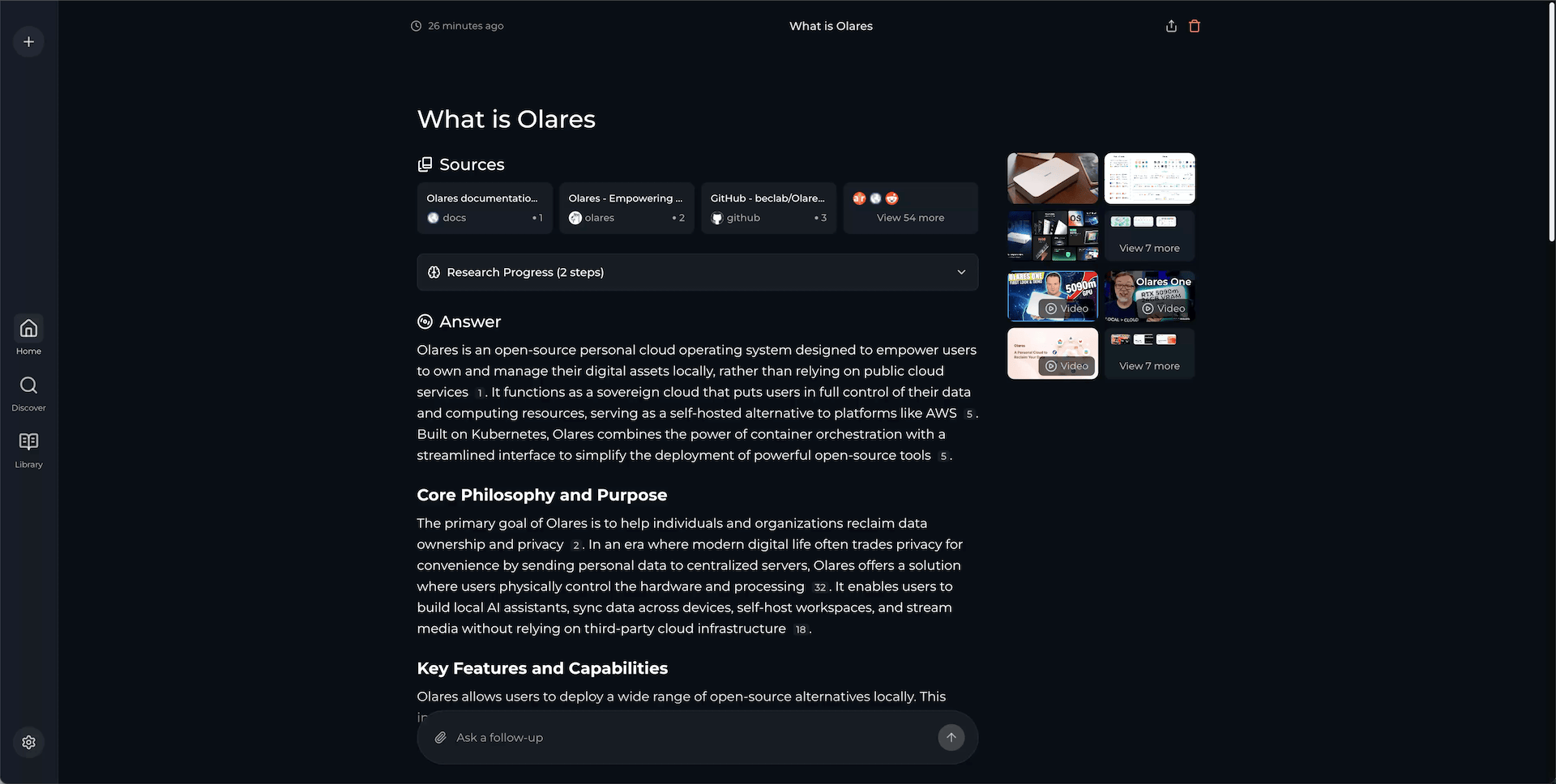
On Vane's home page, open the source selector beside the message box and enable Web.
Enter a question, for example:
textWhat is Olares? Find its official website and documentation, and explain what it does with links to your sources.Submit the question and wait for the answer. Vane lists the retrieved pages under Sources and adds citation links to the answer.
Open a citation and compare the answer with the source page. Use the follow-up box to ask about a detail you want to explore.
Learn more
- Olares Router: Manage the models used by Vane.
- Manage application environment variables: Edit and apply app configuration in Olares Settings.
- Vane on GitHub: Upstream project README, architecture notes, and community Discord.