Build a self-hosted spreadsheet database with NocoDB
NocoDB is an open-source no-code database platform that turns any database into a smart spreadsheet interface, similar to Airtable. It provides a rich web UI for managing your data visually, along with a full REST API. Running NocoDB on Olares gives you a self-hosted, privacy-first alternative to cloud-based spreadsheet tools.
Learning objectives
In this guide, you will learn how to:
- Install NocoDB and create your admin account.
- Create tables and import data from external sources.
- Configure SMTP for outgoing email.
- Invite team members and manage permissions.
- Continue to an n8n workflow that writes data to NocoDB.
Install NocoDB
Open Market and search for "NocoDB".
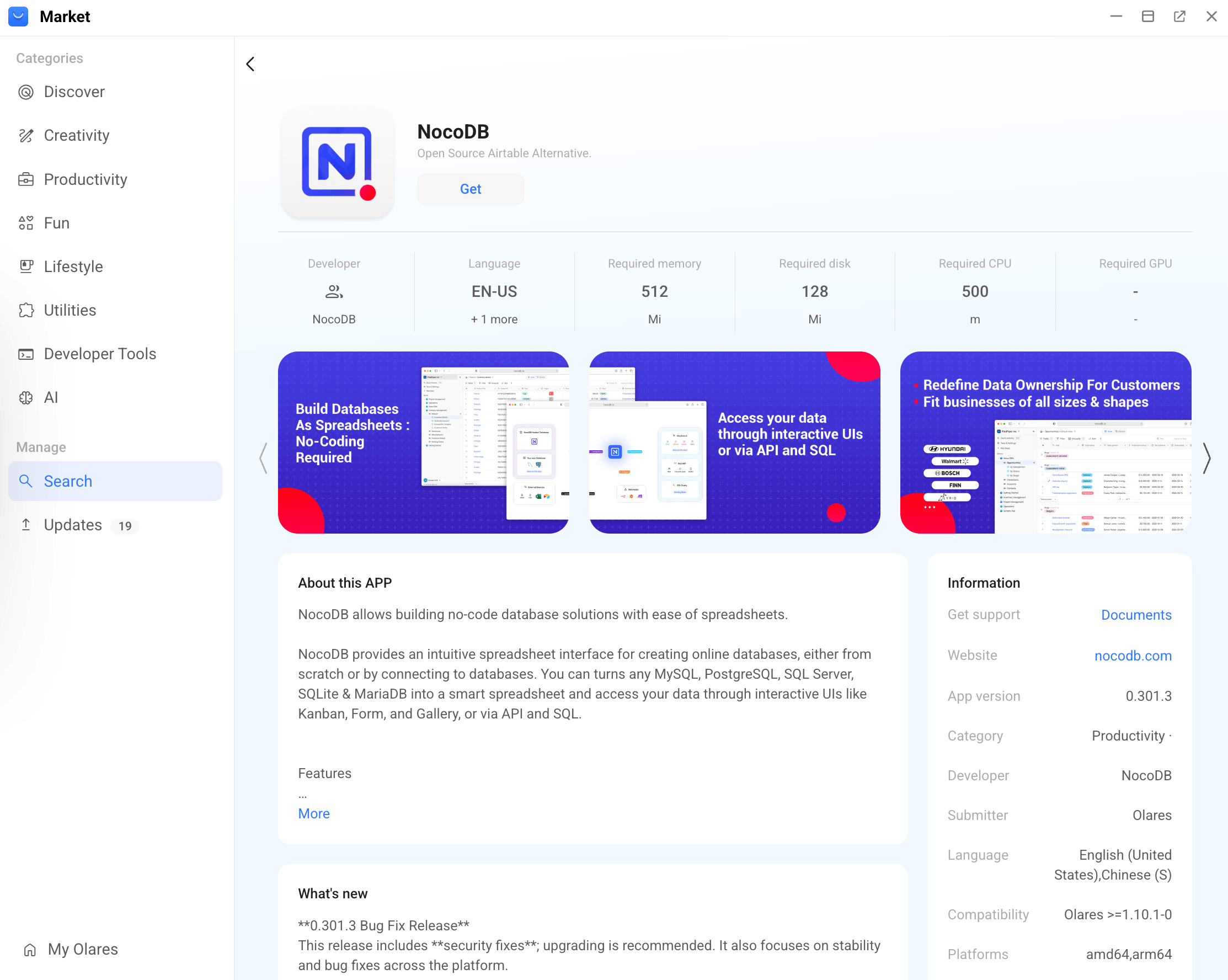
Click Get, then Install, and wait for installation to complete.
Set up NocoDB
Open NocoDB from Launchpad.
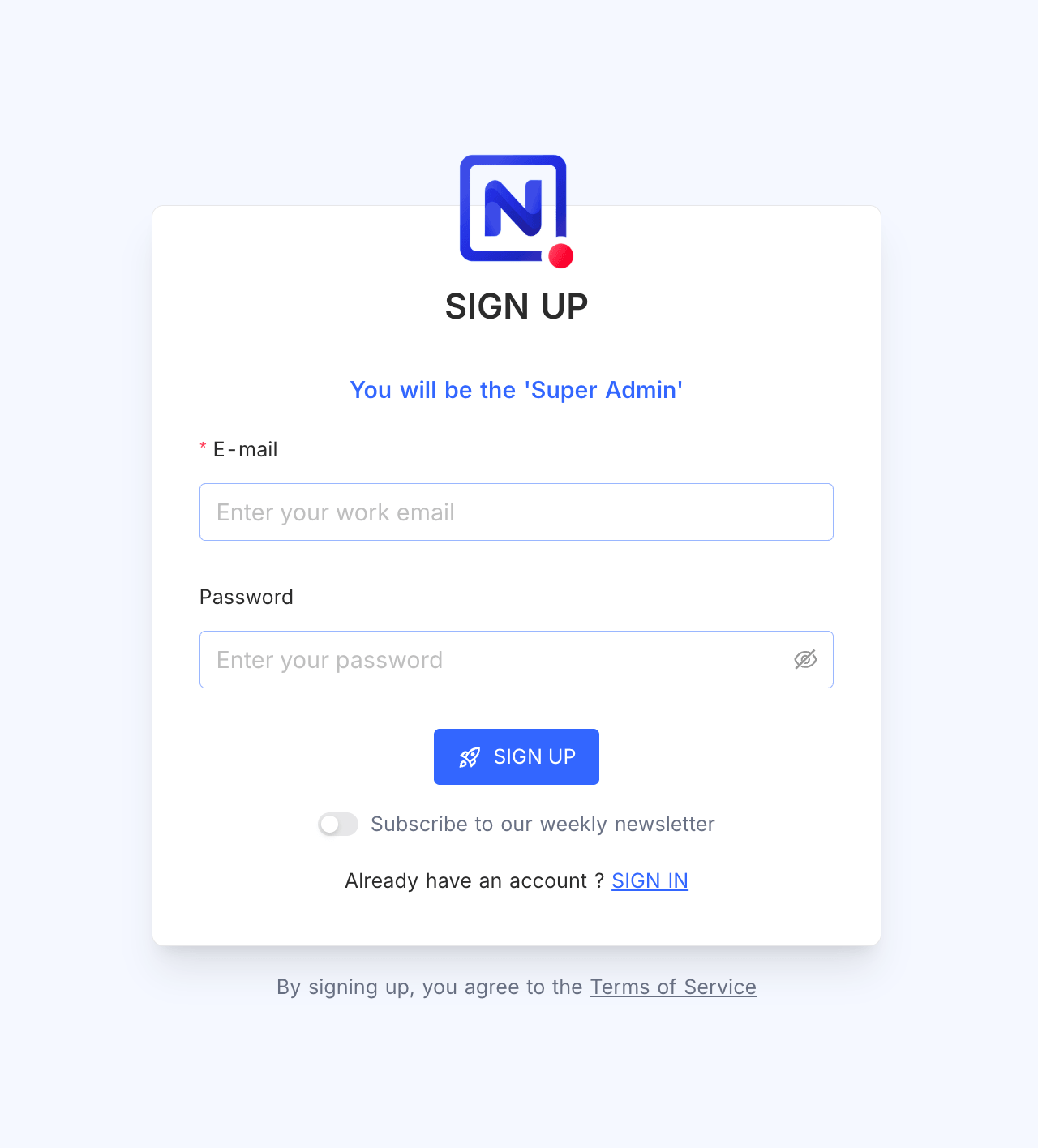
Enter your email and password, then click Sign Up.
The first registered user automatically becomes the Super Admin and can manage team member permissions.
Create tables and import data
You can either create tables manually or import existing data.
Open the default Getting Started base, or select another base from the workspace menu.
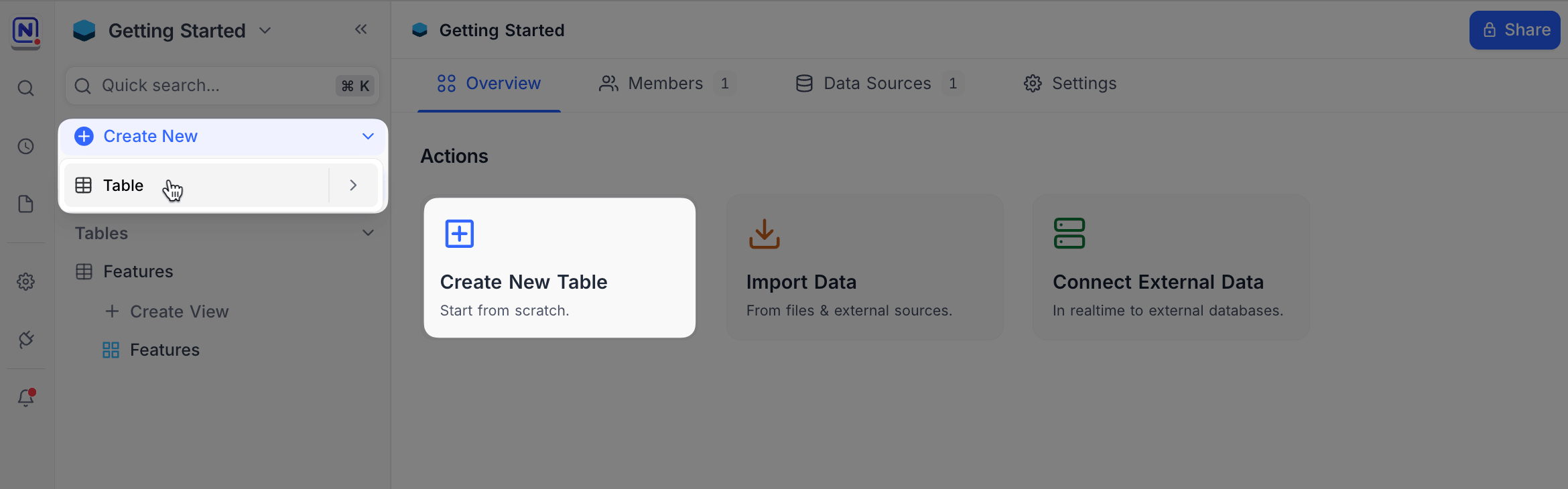
To create a new table, use either method:
- On the Overview page, click Create New Table.
- In the left sidebar, click Create New > Table.
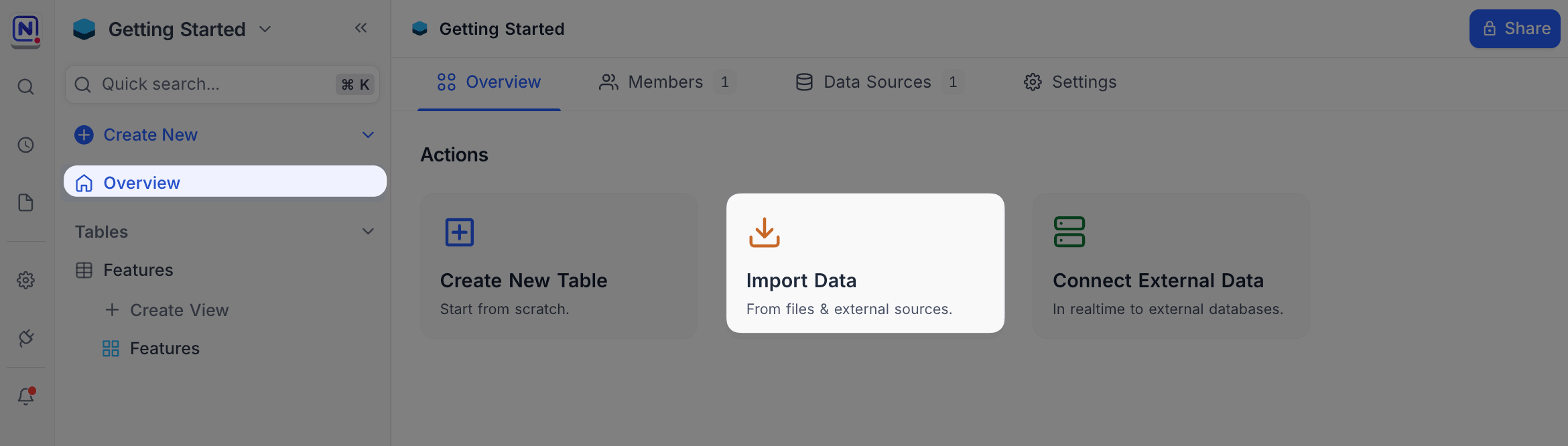
To import data, go to Overview, click Import Data, and select from the supported formats:
- Airtable
- CSV
- Excel
- JSON
Configure email
Setting up SMTP enables NocoDB to send email from your configured sender address.
Click the profile icon in the bottom-left corner and go to Account Settings.
On the Configure E-mail panel, click Configure.
Select SMTP and fill in the SMTP settings provided by your email service provider.
Field Value From address Your sender email address, such as name@example.com.From domain The domain after @, such asexample.com.SMTP server The SMTP server address from your email provider, such as
smtp.example.com.SMTP port The SMTP port from your email provider. 587for TLS,465for SSL,
or25for insecure connections.Username Your SMTP username. This is usually your full email address. Password Your SMTP password, app password, or authorization code. Adjust the security switches if your email provider requires it.
Click Test to check the connection, then click Save to apply the SMTP settings.
Invite team members
Click the profile icon in the bottom-left corner and go to Account Settings.
In the left sidebar, expand Users and select User Management.
Click Invite User in the top-right corner.
Enter the team member's email address, set the appropriate access level, and click Invite.
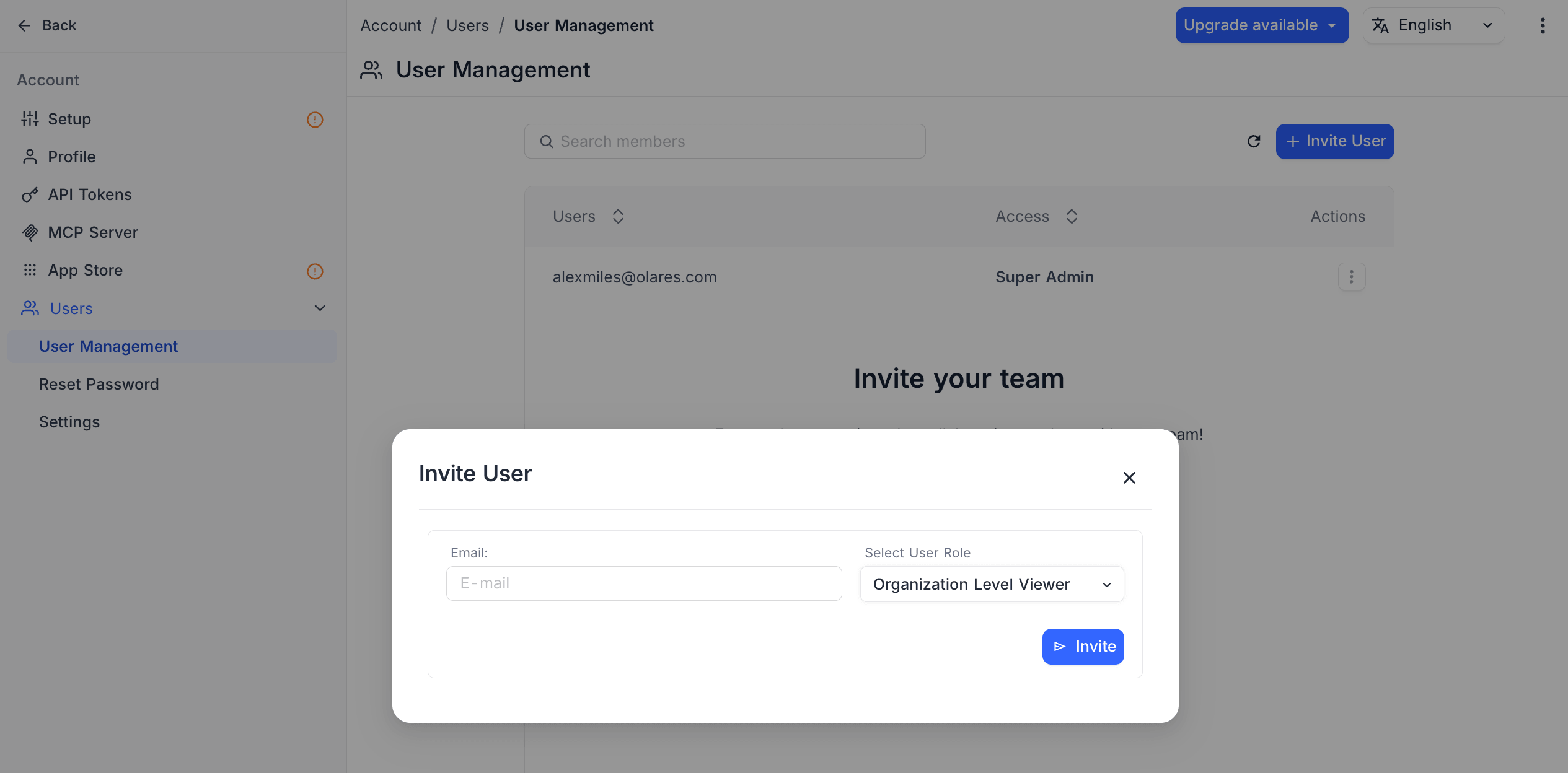
If NocoDB shows Copy Invite URL, copy the URL and send it to the invited member.
Invited members can use the invitation email or invite URL to sign up.
Automate NocoDB with n8n
NocoDB works well as the data store for n8n automations. After creating a base and table, follow Save workflow results to NocoDB to:
- Copy the current NocoDB endpoint from Olares Settings.
- Create a NocoDB API token.
- Add NocoDB credentials and a NocoDB node to an n8n workflow.
- Test that the workflow creates a row in your table.
Learn more
- Automate workflows with n8n: Build workflows, save results to NocoDB, receive webhooks, and reuse workflow JSON.
- NocoDB documentation: Official documentation for NocoDB features and API reference.