Edit documents with OnlyOffice
OnlyOffice on Olares provides browser-based editors for documents, spreadsheets, presentations, and other supported file types. You can use the included web client to upload, edit, and download files.
What the Olares app includes
The OnlyOffice app includes ONLYOFFICE Document Server and the official Node.js test client, onlyofficeclient. It does not include ONLYOFFICE Workspace or DocSpace.
The test client does not provide user accounts or a production-ready document management portal. The identities in the Username menu are predefined test identities, not accounts. There is no setting to disable the test client and create OnlyOffice users.
Understand the app
ONLYOFFICE Document Server provides the document editors and editing backend. A platform such as ONLYOFFICE Workspace, DocSpace, or a compatible document management system normally provides file storage, user accounts, and permissions.
The test client included with the Olares app provides a simple interface for trying the editors. You can use it to:
- Upload files from your computer.
- Create and edit documents in a browser.
- Download edited files.
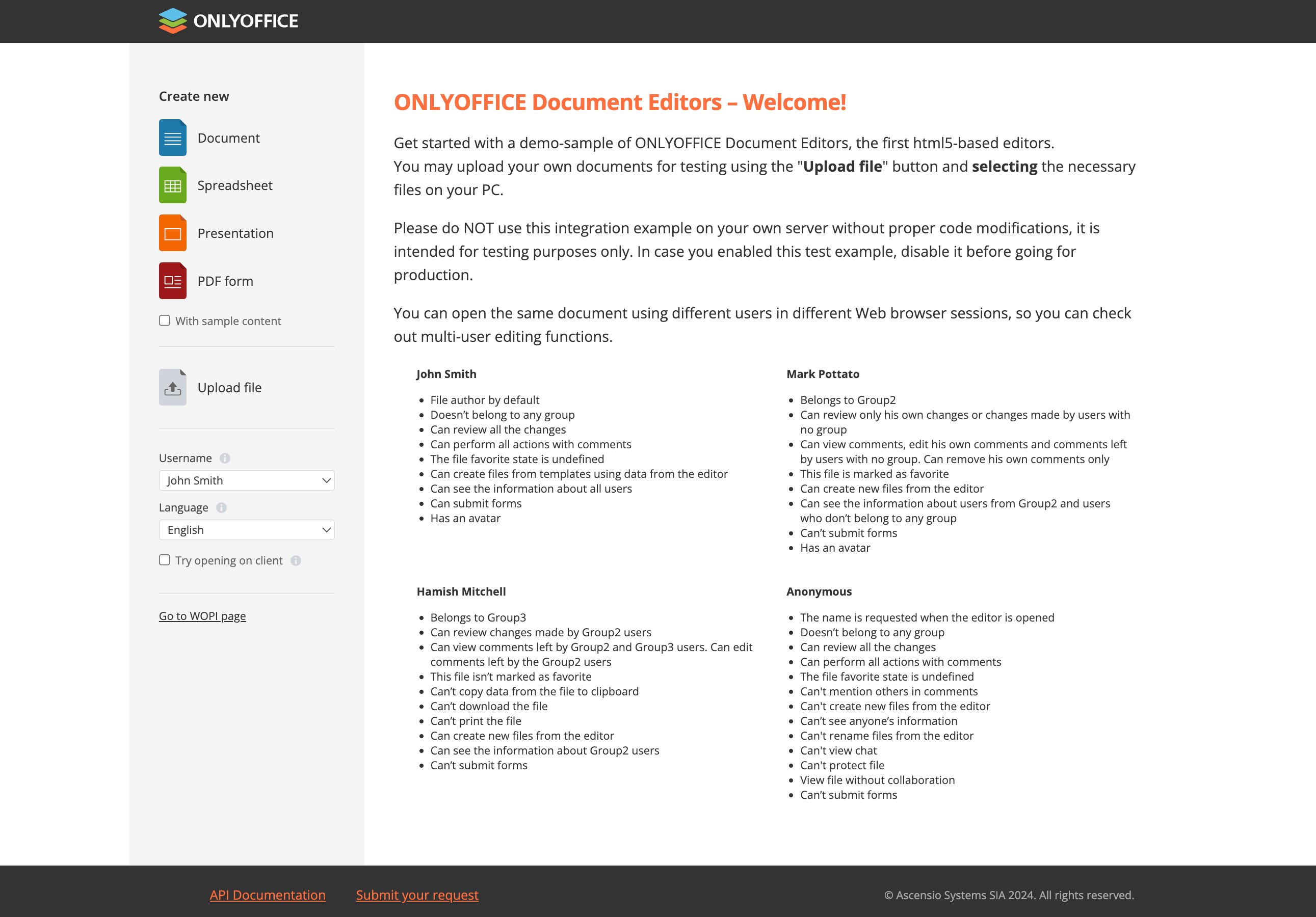
To try multi-user editing, select different predefined identities from Username and open the same document in separate browser sessions. This only simulates collaboration for testing.
It does not provide:
- User authentication, accounts, or permission management.
- A production-ready shared document library or collaboration portal.
Install OnlyOffice
Open Market and search for "OnlyOffice".
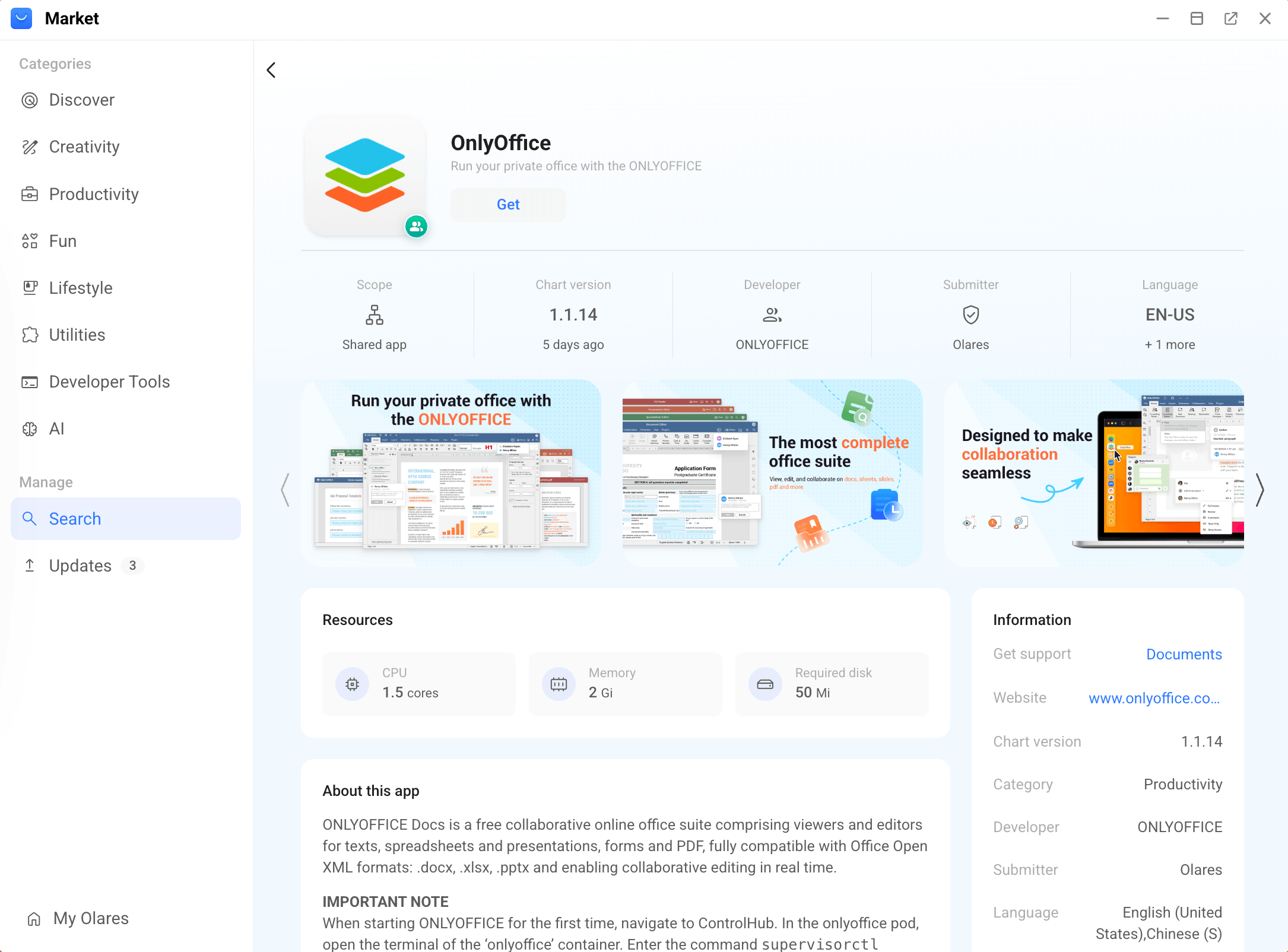
Click Get, then Install, and wait for installation to complete.
Use OnlyOffice
Open OnlyOffice from Launchpad. The main page provides controls for creating and uploading office documents.
Create files
On the main page, under Create new, select the file type you want to create:
- Document: Create a
.docxtext document. - Spreadsheet: Create a
.xlsxspreadsheet. - Presentation: Create a
.pptxslide deck. - PDF form: Create a
.pdffile.
- Document: Create a
Start editing in the OnlyOffice editor. Your file is saved in the document list, where you can reopen it later for viewing or editing.
Export files
After editing a file, go to File > Download As to download a copy in the desired format.
| File type | Download formats |
|---|---|
| Document | DOCX, PDF, ODT, DOTX, PDF/A, OTT, RTF, TXT, FB2, EPUB,HTML, JPG, PNG |
| Spreadsheet | XLSX, ODS, CSV, PDF, XLTX, OTS, XLSB, PDF/A, JPG, PNG |
| Presentation | PPTX, PPSX, PDF, ODP, POTX, PDF/A, OTP, JPG, PNG |
DOCX, PDF, ODT, DOTX, OTT, RTF, TXT, FB2, EPUB, HTML,JPG, PNG |
Upload files
On the main page, click Upload file.
Select the file from your computer.
OnlyOffice supports common office formats including
.docx,.xlsx,.pptx,.pdf,.odt,.ods, and.odp.In the File upload dialog, wait for the file to load, convert, and finish loading editor scripts. Then choose how to open it:
- Click Edit to open the file for editing.
- Click View to open it in view-only mode.
- Click Embedded View to open the embedded viewer.
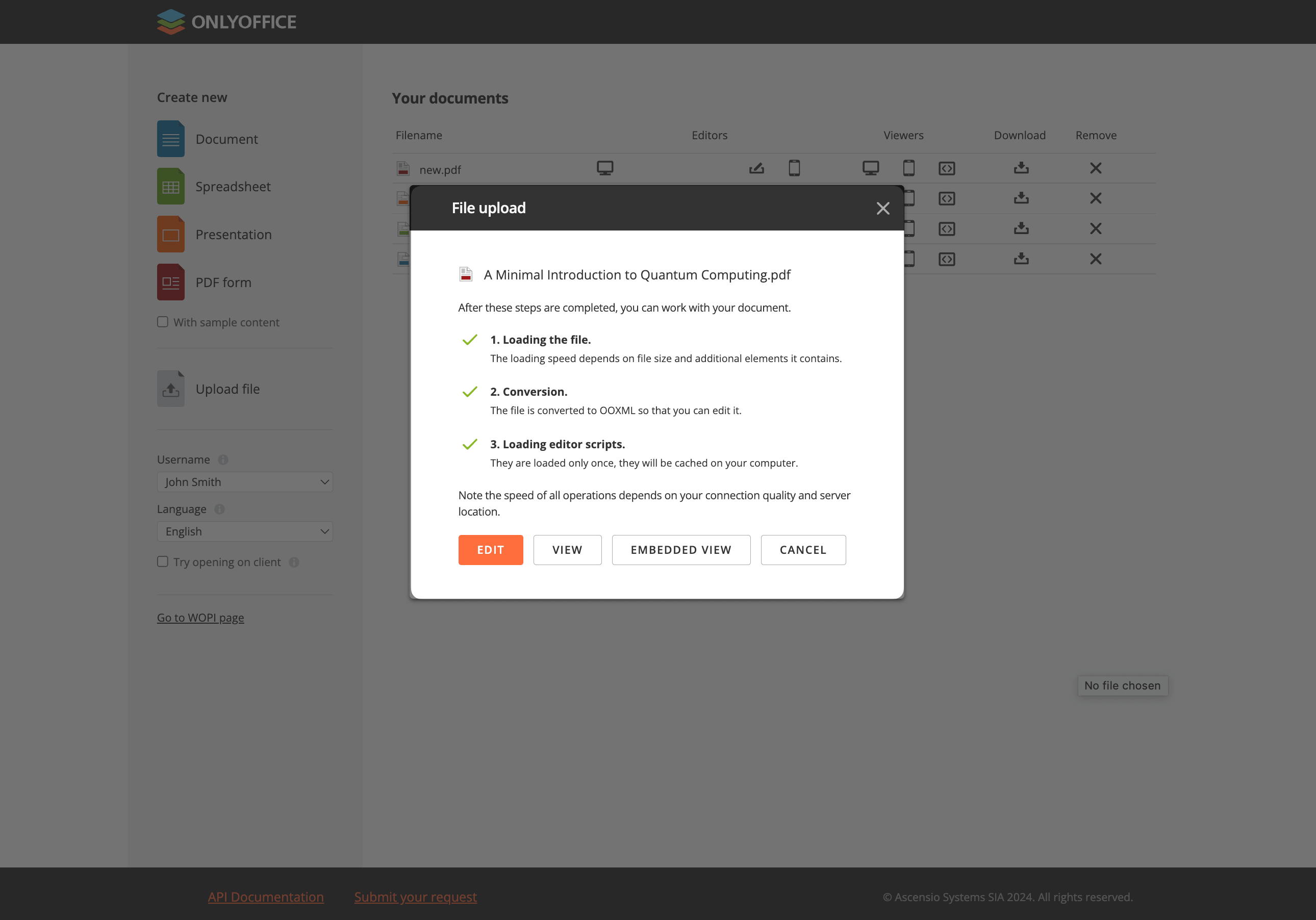
After the upload is complete, the file appears in the document list and can be opened again later.
INFO
ONLYOFFICE uses Office Open XML formats for editing. When you upload or open another format for editing, OnlyOffice might convert it first. Some formatting can change during conversion, especially for formats that do not support the same document features.
WARNING
ONLYOFFICE provides the included test client as an integration example. It does not protect stored files with user authentication and should not be used as a production document management system without appropriate changes.
FAQs
Can I sign in from an ONLYOFFICE mobile or desktop app?
No. The Olares app does not provide accounts for ONLYOFFICE mobile or desktop apps. These clients cannot connect directly to the included Document Server.
Can I switch off the demo and create users?
No. The included web interface is a test client for Document Server, not a configurable Workspace or DocSpace portal. Use it for simple browser-based editing, or connect Document Server to a compatible platform that provides accounts and document management.
Learn more
- Migrate OnlyOffice to the new architecture: Move existing documents after upgrading to Olares 1.12.6.
- ONLYOFFICE Docs API integration samples: Review the purpose and security limitations of the test client.
- ONLYOFFICE documentation: Read the official help for ONLYOFFICE editors.