Migrate SearXNG to the new architecture
SearXNG is a shared application on Olares for privacy-focused web search. Olares 1.12.6 updates the shared app architecture, so you cannot update SearXNG in place. This guide shows how to migrate your preference settings to the new SearXNG app after upgrading to Olares 1.12.6.
Before you begin
SearXNG does not store user data on the server. All preferences are saved in your browser's cookies, such as language, theme, enabled search engines, and plugins. This means you only need to back up your preferences hash before uninstalling the previously installed app.
Preferences hash
The preferences hash is an encoded string that contains all your SearXNG settings. Copy the hash and paste it into the new app to restore your preference settings.
Migrate your preference settings
Back up your preferences hash.
a. Open the previously installed SearXNG app.
b. Go to Preferences > Cookies.
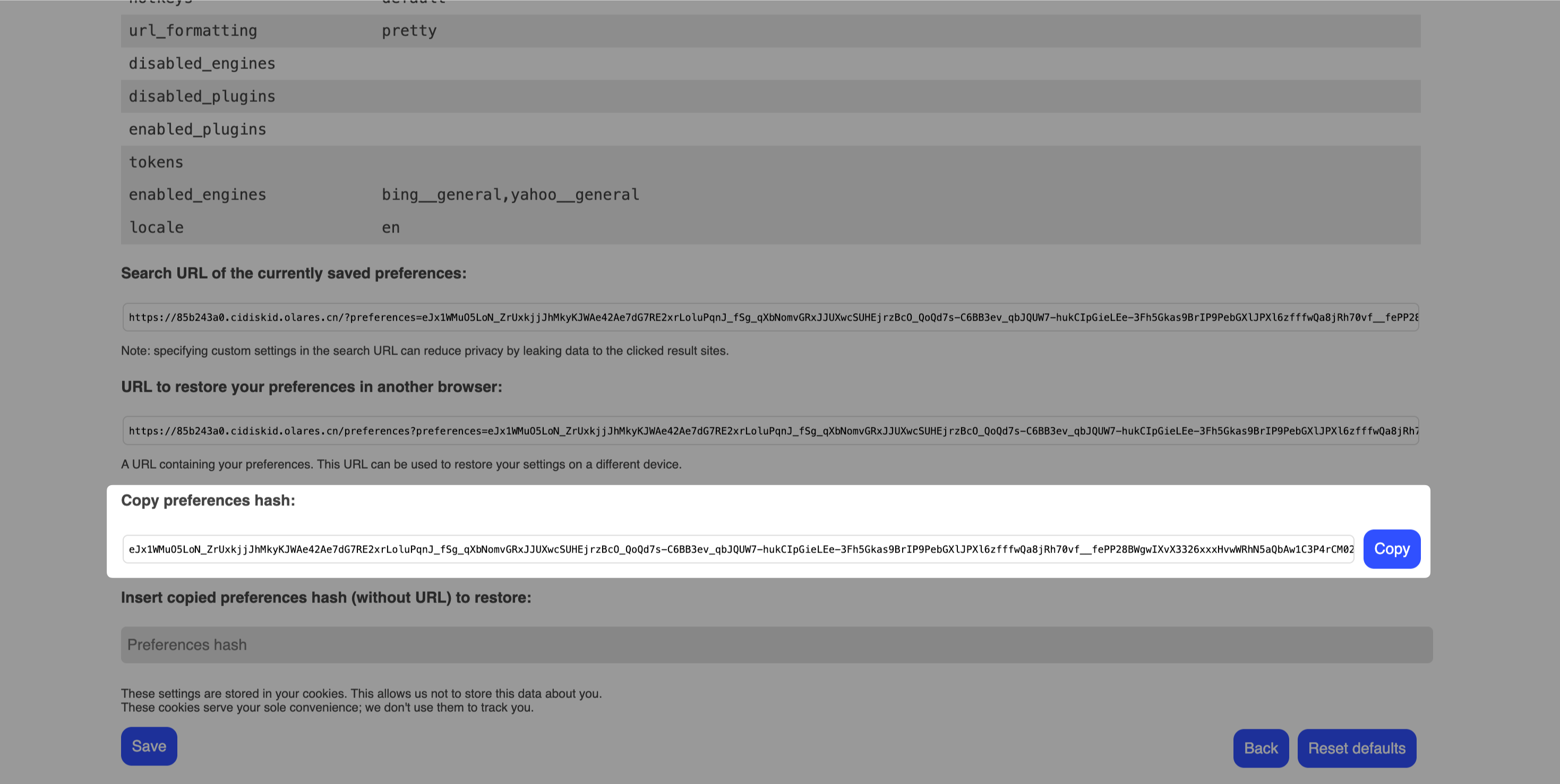
c. Scroll down to the Copy preferences hash section, copy the hash code, and save it.
Uninstall the previously installed SearXNG app. When prompted, do not select Also remove all local data.
Install the new SearXNG app.
a. Open Market and search for "SearXNG".
b. Click the app card to open the app details page.
c. Check the Information panel. The Compatibility field shows
Olares >=1.12.6-0for the new version.d. Click Get, then Install, and wait for the installation to finish.
Restore your preferences.
a. Open the new SearXNG app.
b. Go to Preferences > Cookies.
c. Scroll down to the Insert copied preferences hash (without URL) to restore section.
d. Paste the hash code you saved earlier, and then click Save.
Your SearXNG preference settings are now migrated to the new app.
Clean up legacy data
After you confirm the migration is successful and the new app works as expected, you can manually delete the legacy app data folder to free up disk space. Open Files, go to Application > Data > searxngv2, and delete the folder.
Learn more
- Shared applications: Understand the new shared app architecture.