Build a local knowledge base with AnythingLLM
AnythingLLM is an open-source, all-in-one AI application that lets you chat with documents using Retrieval-Augmented Generation (RAG). It supports multiple LLM providers and vector databases, all running locally on your Olares device.
Learning objectives
In this guide, you will learn how to:
- Install AnythingLLM on Olares.
- Configure the chat model and embedding provider in AnythingLLM.
- Create a workspace and upload documents to build a knowledge base.
- Query your knowledge base using natural language.
Prerequisites
Before you begin, you need:
An Olares device running Olares 1.12.7 or later, with sufficient disk space and memory.
Access to Router for local model connections.
Admin privileges to install apps from Market.
The following models:
Model type Model How to get it Chat Qwen3.8-27B (llama.cpp) Install from Market Embedding all-MiniLM-L6-v2 The built-in embedder from AnythingLLM
Optional: Use a different model
Install another chat model from Market, or create a model instance with Engine Base apps. Then select it as the default chat model on Router's Default models page. Clients configured with default-chat use the new default without changing their model settings.
To keep a client on one specific model, use the full model name from Router's How to call this model window instead.
Install AnythingLLM
Open Market and search for "AnythingLLM".
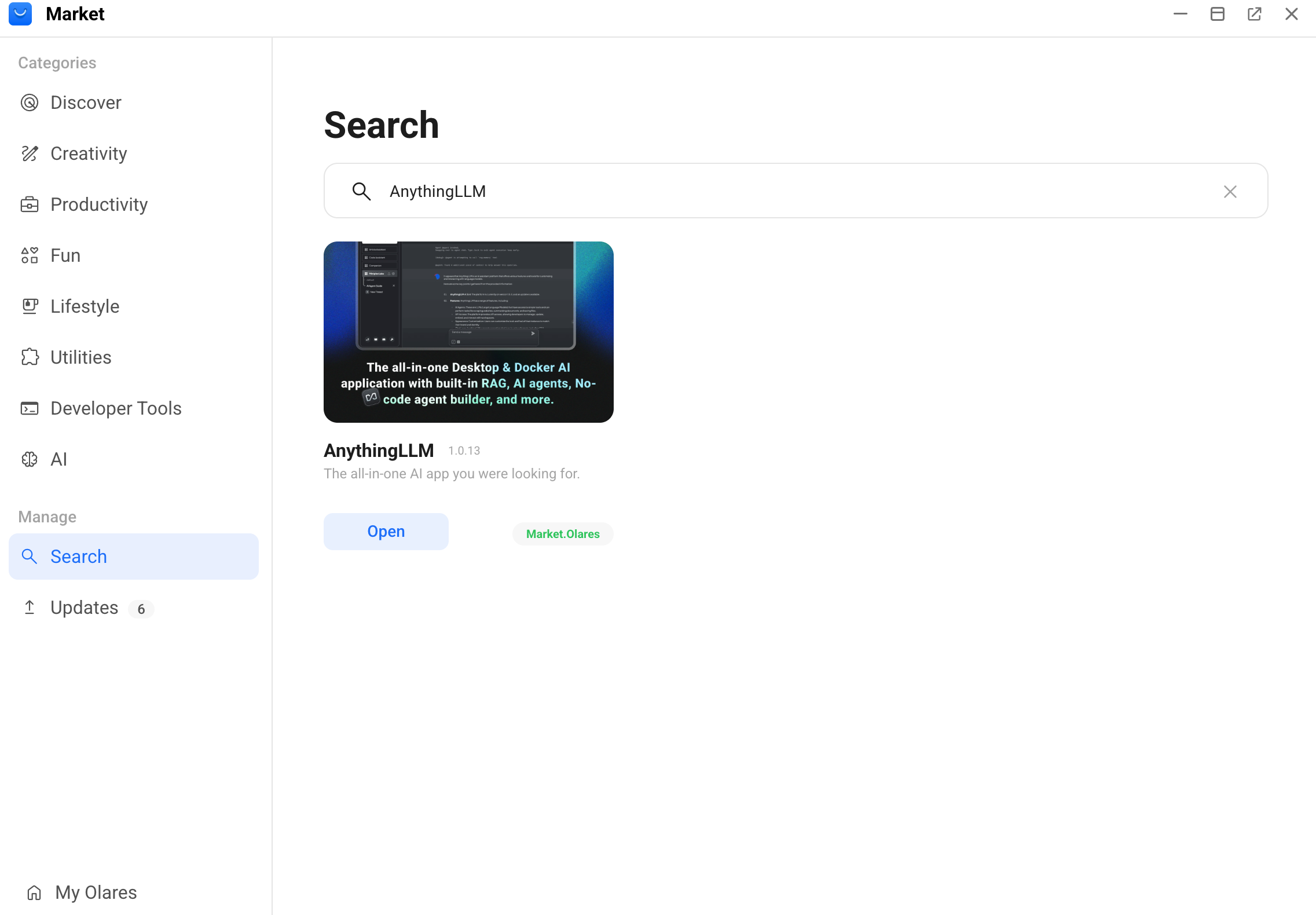
Click Get, then Install, and wait for installation to complete.
Get model connection details
How model connections work
On Olares 1.12.7 and later, AI clients connect through Olares Router. Router provides the Base URL and routes default-chat to the model selected on its Default models page.
This guide uses Qwen3.8-27B (llama.cpp) as the default chat model. For connection formats and API key requirements, see Connect AI apps.
For Qwen3.8-27B (llama.cpp):
Open Router from Launchpad. On Default models, set Qwen3.8-27B (llama.cpp) as the default chat model.
Go to LLM, find Qwen3.8-27B (llama.cpp), and click View connection example on its row.
In How to call this model, select Apps in Olares and copy the Base URL, including
/v1.For the model name, use
default-chat.Selecting a model in your app
default-chatis a routing name and does not appear in model lists loaded from Router. If the app you are connecting to Router loads a model list, adddefault-chatmanually. If the app only supports selecting a listed model, select the full model name shown in Router's How to call this model window.For the API key, leave the field empty. If the app you are connecting to Router requires a value, enter
olares.
Configure AnythingLLM
Configure the chat model and embedding provider. These settings become the system defaults for all workspaces.
Set up the chat model
Open AnythingLLM from Launchpad.
On the home page, click the Open settings icon in the bottom-left.
In the left sidebar, select AI Providers > LLM, and then select Generic OpenAI as the LLM provider.
In Base URL, paste the Base URL from Router.
In Selected Model, enter
default-chatmanually.Click Save changes. The "LLM preferences saved successfully" message is displayed.
Set up the embedding model
In the left sidebar, select Embedder, and then select AnythingLLM Embedder as the embedding provider.
In Model Preference, select all-MiniLM-L6-v2 as the embedding model.
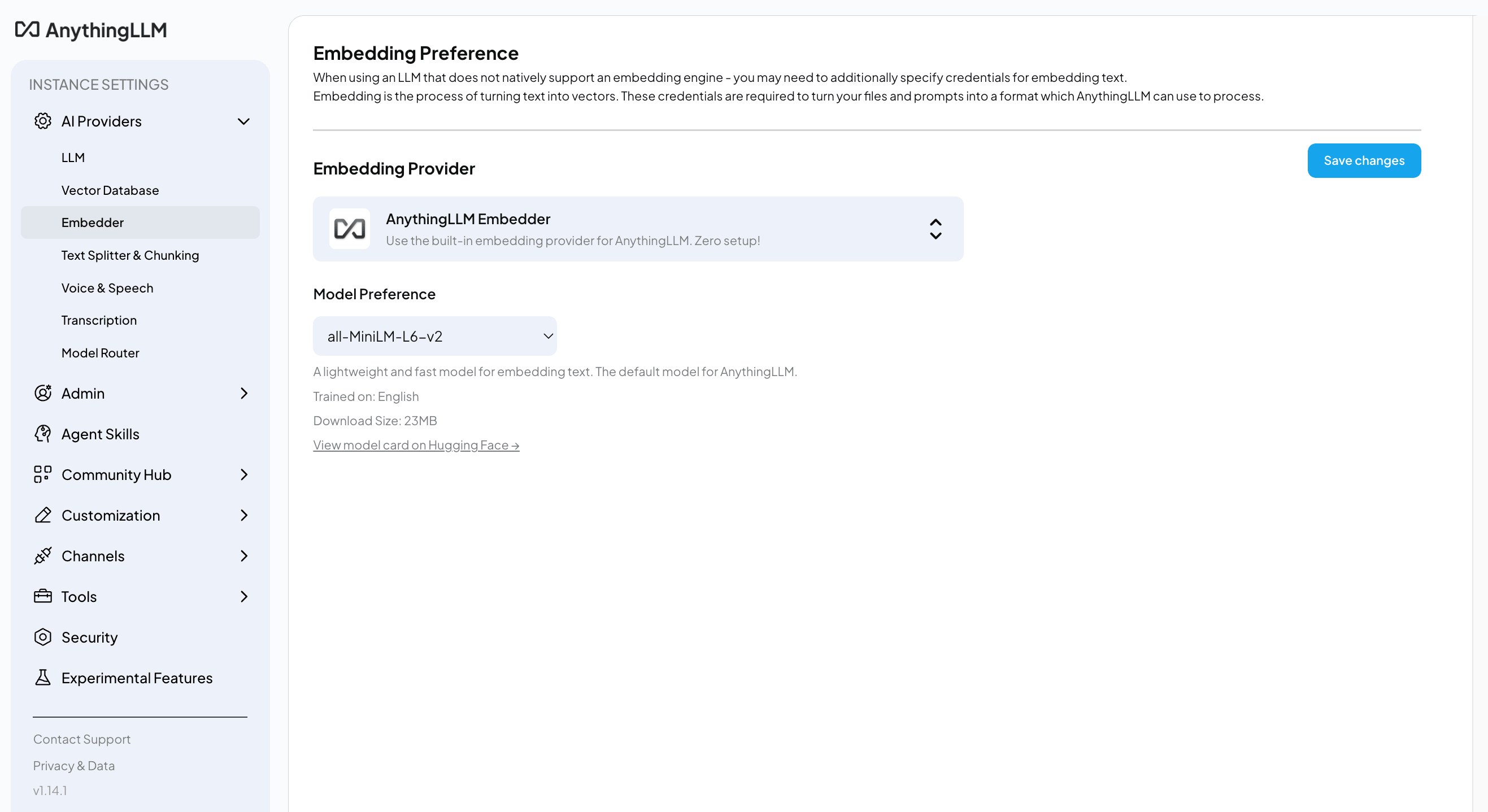
Click Save changes. The "Embedding preferences saved successfully" message is displayed.
Create a workspace
Click AnythingLLM in the upper-left corner to return to the home page.
Click add_2 next to the search bar.
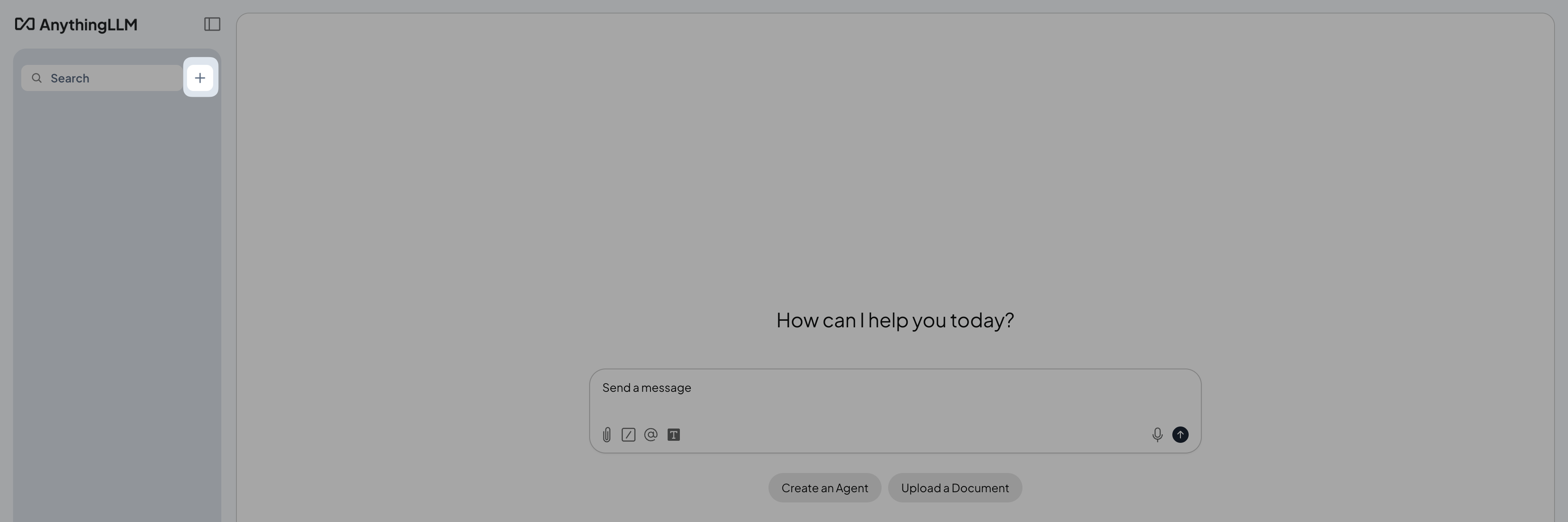
In the New Workspace window, name your workspace such as
My test, and then click Save.
Upload documents
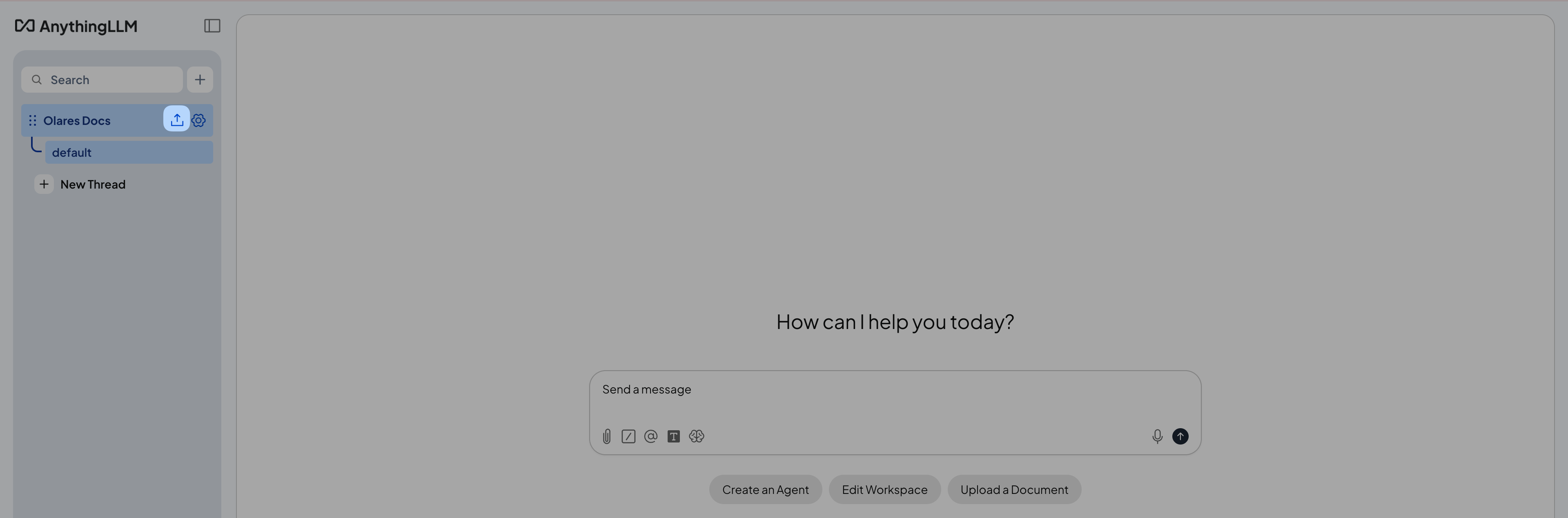
Click upload next to the workspace name to open the document manager.
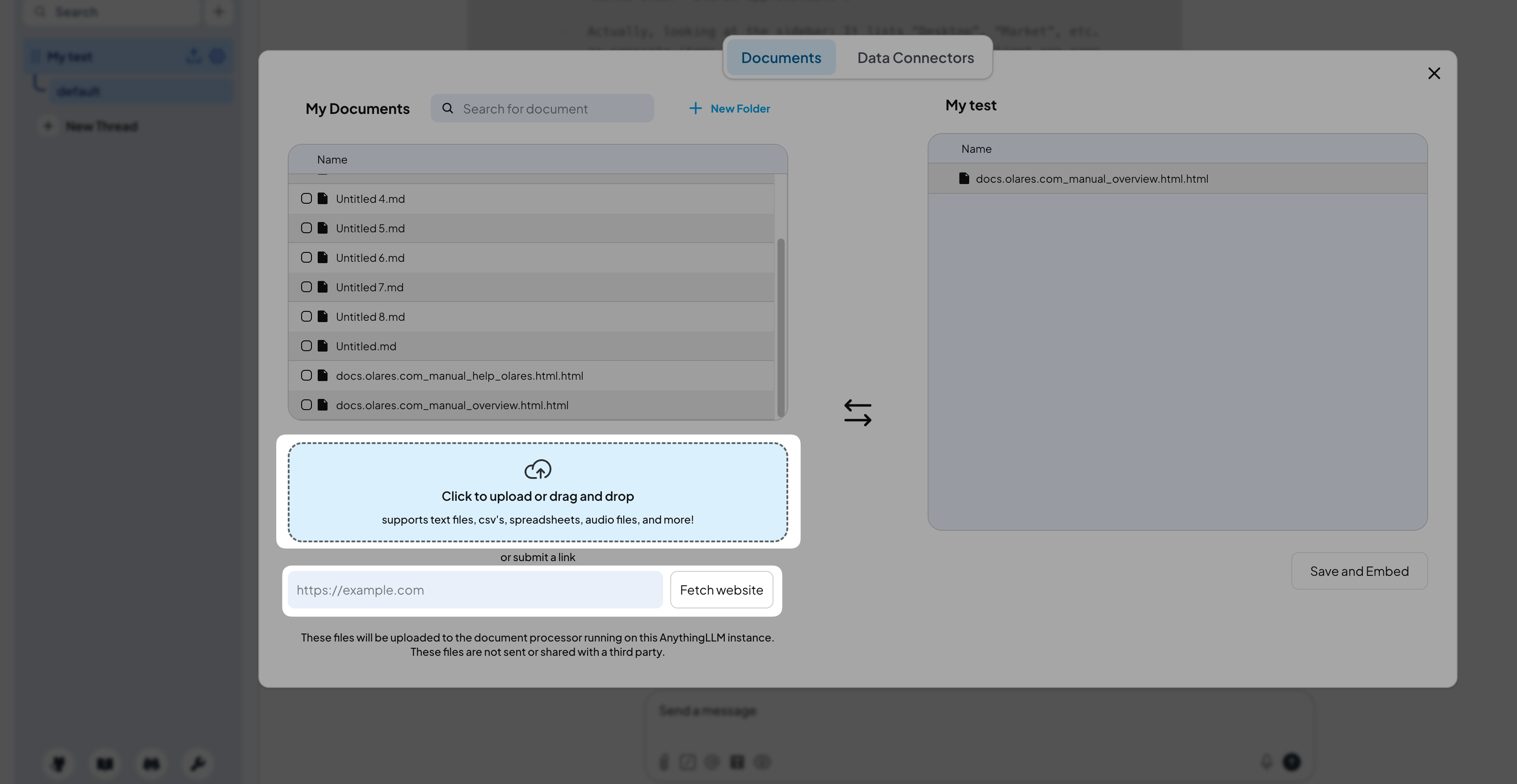
Upload your documents by uploading files or by submitting links. The uploaded documents and webpages are displayed in the My Documents panel.
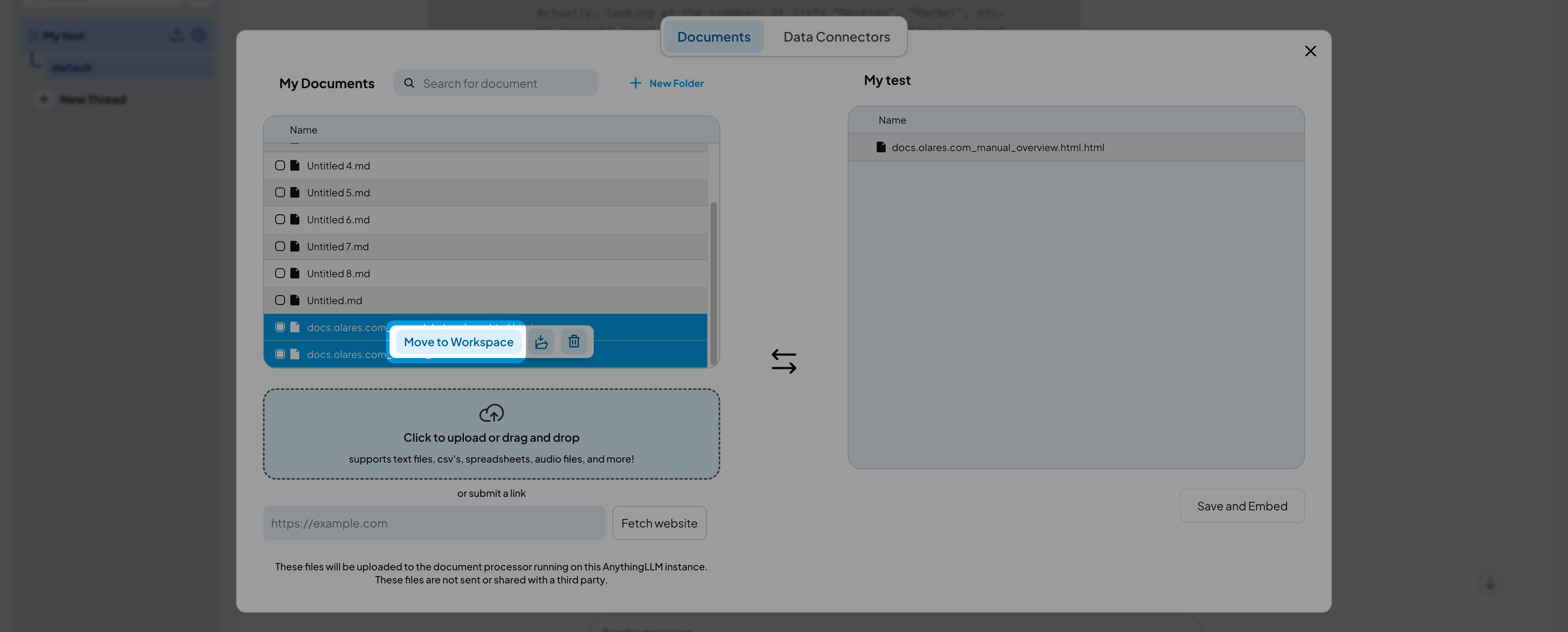
In the My Documents panel, select the uploaded documents, and then click Move to Workspace to add them to the newly created workspace.
Click Save and Embed to start embedding.
This might take a few minutes depending on the number of documents. When the embedding finishes, the "Workspace updated successfully" message is displayed.
Query your knowledge base
Ask questions about your documents.
Return to the workspace chat view.
Send your question through the chat. For example:
textOlares supports backup or notAnythingLLM retrieves relevant sections from your documents and generates an answer based on the content.