Set up a self-directed AI agent with Hermes
Hermes Agent is a self-directed AI assistant that connects to your local models to execute system tasks, generate code, and manage workflows. It retains memory across sessions and creates reusable skills based on your interactions.
In Olares, you can use the built-in skills that allow your agent to manage your device's files and applications. You can also interact with your agent remotely via messaging platforms like Discord, or integrate it with other applications like Open WebUI.
Learning objectives
In this guide, you will learn how to:
- Install Hermes Agent on Olares.
- Configure Hermes Agent to connect to a local model.
- Interact with your agent directly via the terminal.
- Integrate with Discord for remote chat.
- Use Olares skills to manage files and applications via the agent.
- Enable the Gateway API to connect Hermes Agent with other applications like Open WebUI.
Prerequisites
Before you begin, you need:
An Olares device running Olares 1.12.7 or later, with sufficient disk space and memory.
Access to Router for local model connections.
Discord account: Required to create the bot application.
Discord server: A server where you have permissions to add bots.
The following model:
Model type Model How to get it Chat Qwen3.8-27B (llama.cpp) Install from Market TIP
Hermes Agent requires a model with a context window of at least 64K tokens.
Optional: Use a different model
Install another chat model from Market, or create a model instance with Engine Base apps. Then select it as the default chat model on Router's Default models page. Clients configured with default-chat use the new default without changing their model settings.
To keep a client on one specific model, use the full model name from Router's How to call this model window instead.
Install Hermes Agent
Open Market and search for "Hermes".
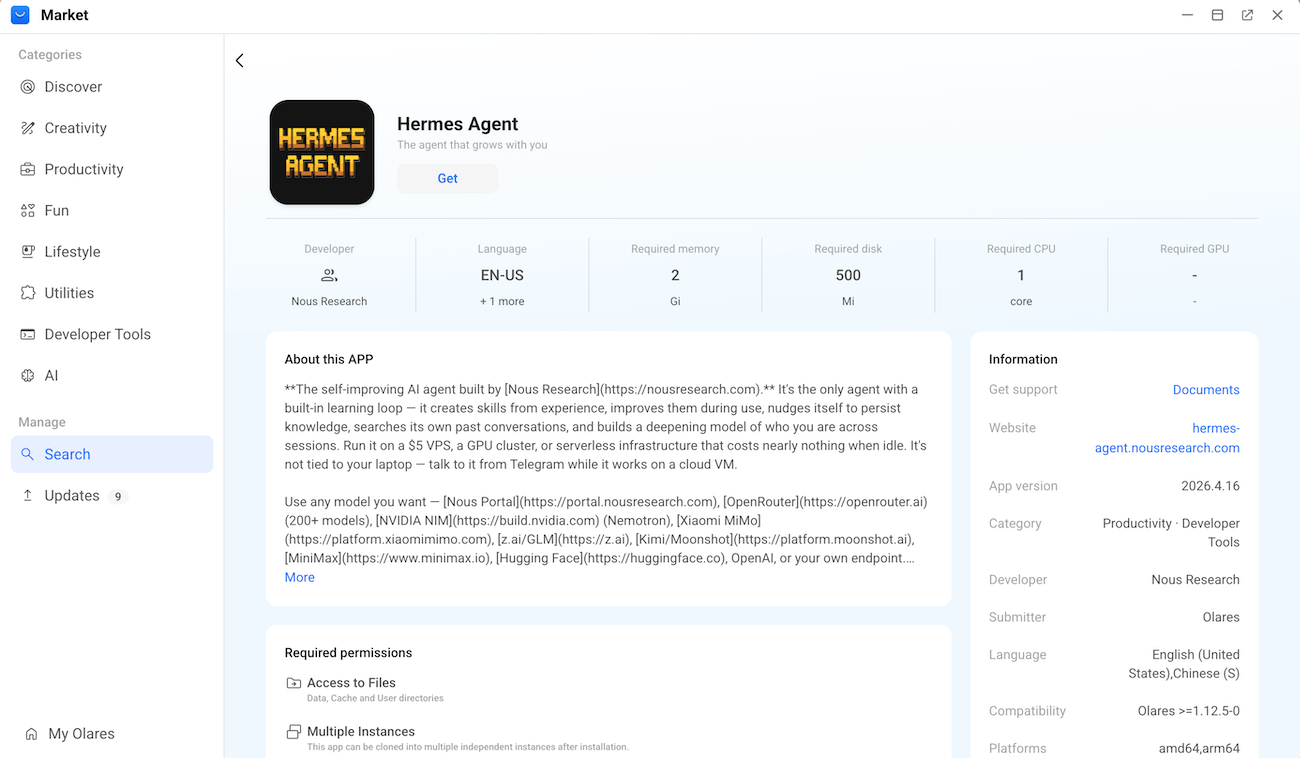
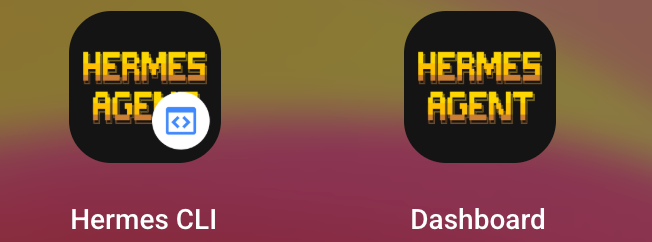
Click Get, and then click Install. When the installation finishes, two shortcuts appear in the Launchpad:
- Hermes CLI: The command line interface
- Dashboard: The graphical dashboard
Run multiple Hermes agents
Olares supports app cloning. If you want to run multiple independent AI agents for different tasks, you can clone the Hermes Agent app. For more information, see Clone applications.
Configure Hermes Agent
Run a quick setup to connect Hermes Agent to your local model.
Step 1: Get model connection details
How model connections work
On Olares 1.12.7 and later, AI clients connect through Olares Router. Router provides the Base URL and routes default-chat to the model selected on its Default models page.
This guide uses Qwen3.8-27B (llama.cpp) as the default chat model. For connection formats and API key requirements, see Connect AI apps.
Open Router from Launchpad. On Default models, set Qwen3.8-27B (llama.cpp) as the default chat model.
Go to LLM, find Qwen3.8-27B (llama.cpp), and click View connection example on its row.
In How to call this model, select Apps in Olares and copy the Base URL, including
/v1.For the model name, use
default-chat.Selecting a model in your app
default-chatis a routing name and does not appear in model lists loaded from Router. If the app you are connecting to Router loads a model list, adddefault-chatmanually. If the app only supports selecting a listed model, select the full model name shown in Router's How to call this model window.For the API key, leave the field empty. If the app you are connecting to Router requires a value, enter
olares.In Router, open LLM and click the information icon on the Qwen3.8-27B (llama.cpp) row to open Model card. Under Engine args, read the number after
-c. For example,-c 104448means you should enter104448in the next step. See Check the configured context size for screenshots.
Step 2: Run the setup wizard
Open the Hermes CLI app from the Launchpad.
Enter the following command to start the configuration wizard:
bashhermes setupThe wizard guides you through a series of steps. Use the arrow keys to navigate and press Enter to confirm.
The model-selection prompts below are alternative branches. Follow the row that matches the number of models detected, then continue to Context length in tokens.
Settings Option How would you like to set up Hermes Select Full setup — configure every provider, tool & option yourself (bring your own keys). Select provider Select Custom endpoint (enter URL manually). API base URL Enter the Base URL you copied from Router.
For example,https://router.<your-olares-domain>/v1.API key Enter olares.
The input remains hidden for security.Select API compatibility mode Enter 1to select Auto-detect.Use this model? [Y/n] — only when one model is detected Enter n. At the following Model name prompt, enterdefault-chat. This confirmation accepts yes/no, not a model name.Select model [1-N] or type name — only when multiple models are detected Type default-chatinstead of selecting a numbered model.Model name — when no model is detected Enter default-chat.Context length in tokens Enter the exact context size from Router's Model card > Engine args, such as 104448for-c 104448. Hermes requires at least65536tokens. The value must not exceed the engine configuration.Display name Enter a name to identify this model, such as router-chat.Select terminal backend Select Local - run directly on this machine. Select platforms to configure Press Enter to skip for now. Tools for CLI Press Enter to skip for now. Choose a provider Select Skip - keep defaults / configure later. Select Search Provider Select Skip - keep defaults / configure later. Keep the Hermes CLI window open for the next step.
Interact with Hermes Agent
Option 1: Terminal chat
The Terminal User Interface (TUI) runs directly in the Hermes CLI with no extra setup. It is ideal for quick tests.
When the setup wizard completes, it shows
Ready to gowith the available commands:hermes: Start chatting.hermes gateway: Start the messaging gateway.hermes doctor: Check for issues.
Type
hermesand press Enter to launch the TUI.TIP
If you exited the wizard, manually start the chat by entering
hermesin the Hermes CLI.Send a message, such as
what can you do, to verify that the agent responds correctly.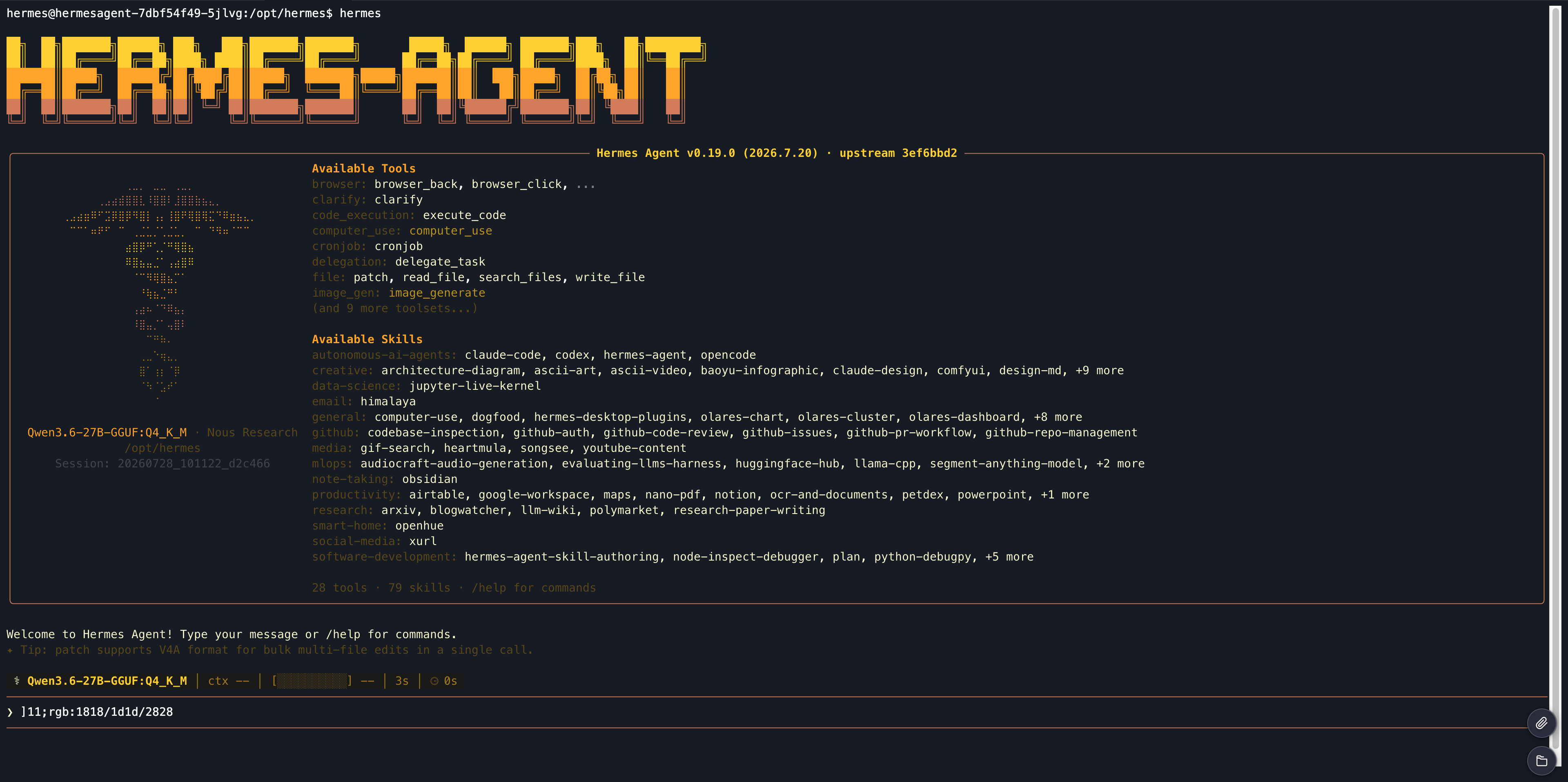
To close the TUI and return to the standard CLI, type
/exit, and then press Enter.
Option 2: Remote chat via Discord
To chat with your agent remotely, connect it to a Discord bot.
Step 1: Create a Discord bot
Log in to the Discord Developer Portal with your Discord account.
Select Applications from the left sidebar, and then click New Application.
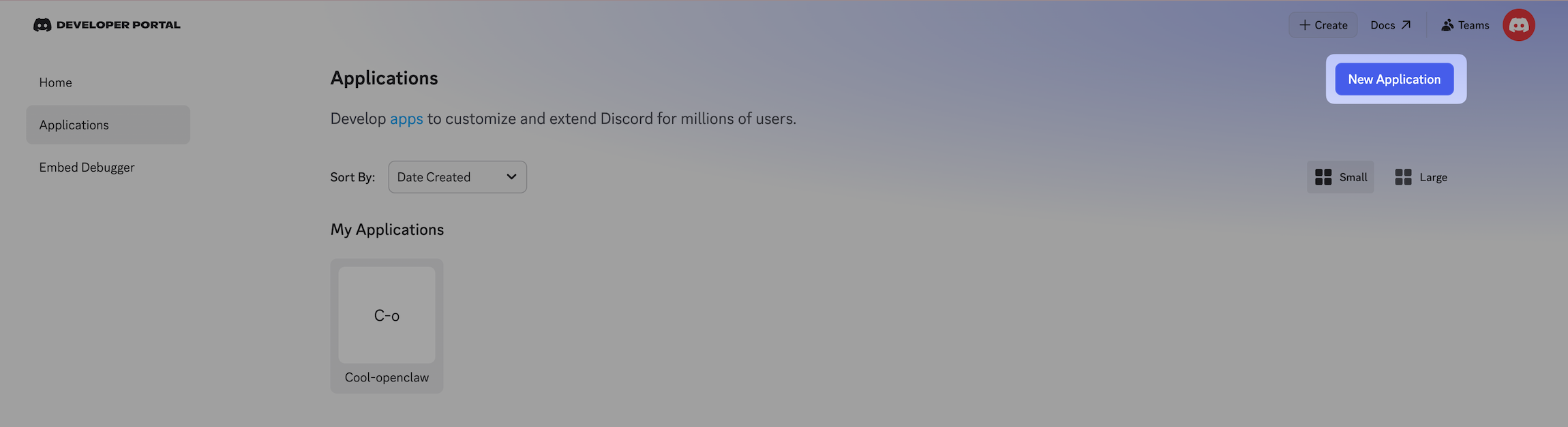
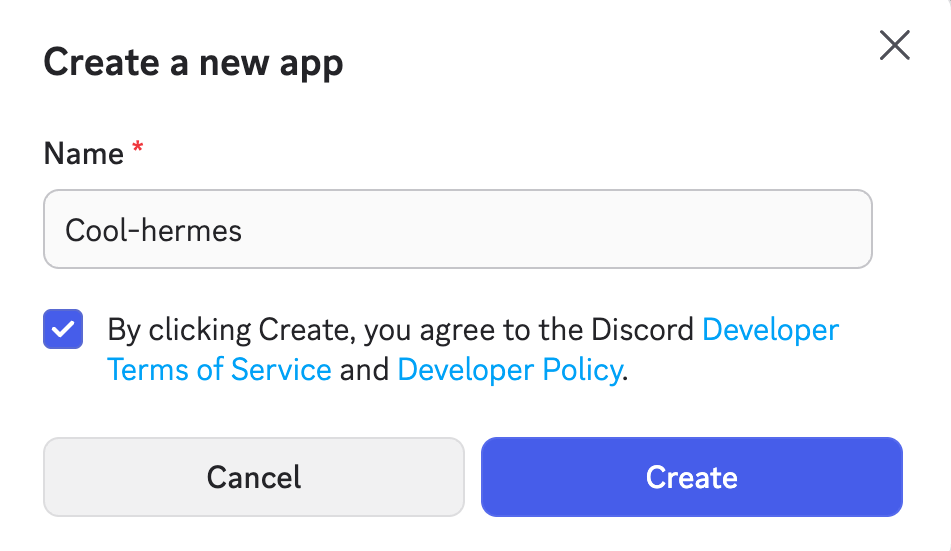
Enter a name for the new app, agree to the terms, and then click Create.
From the left sidebar, select Bot.
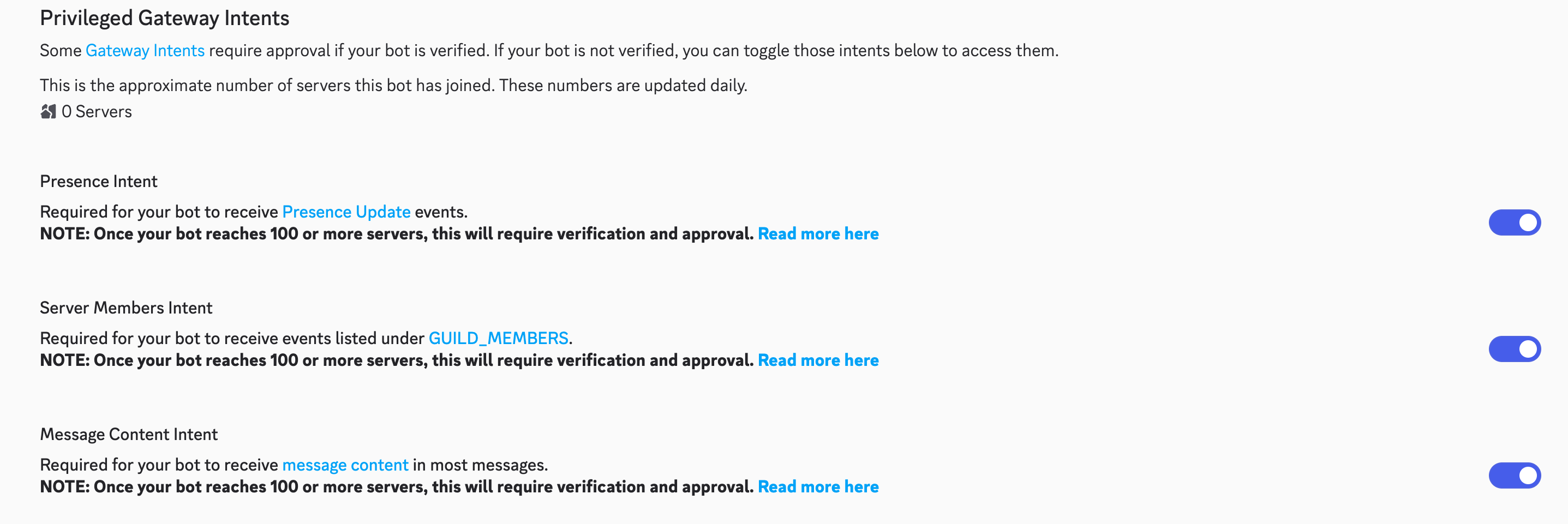
Scroll down to the Privileged Gateway Intents section and enable the following settings:
- Presence Intent
- Server Members Intent
- Message Content Intent
Click Save Changes.
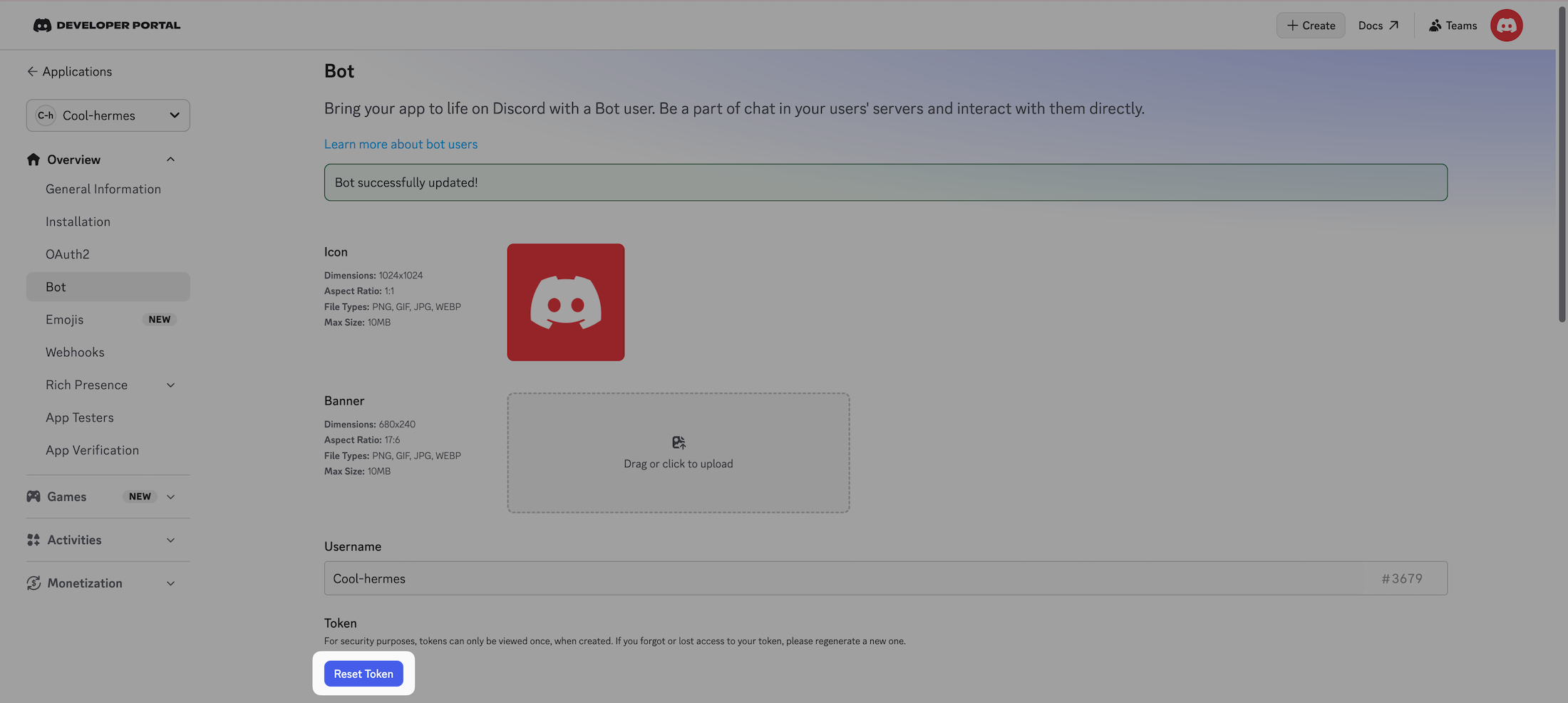
Scroll up to the Token section, click Reset Token, and then copy the generated token for your Discord bot. You need the token for messaging platform configuration later in the Hermes CLI.
Step 2: Invite the bot to your server
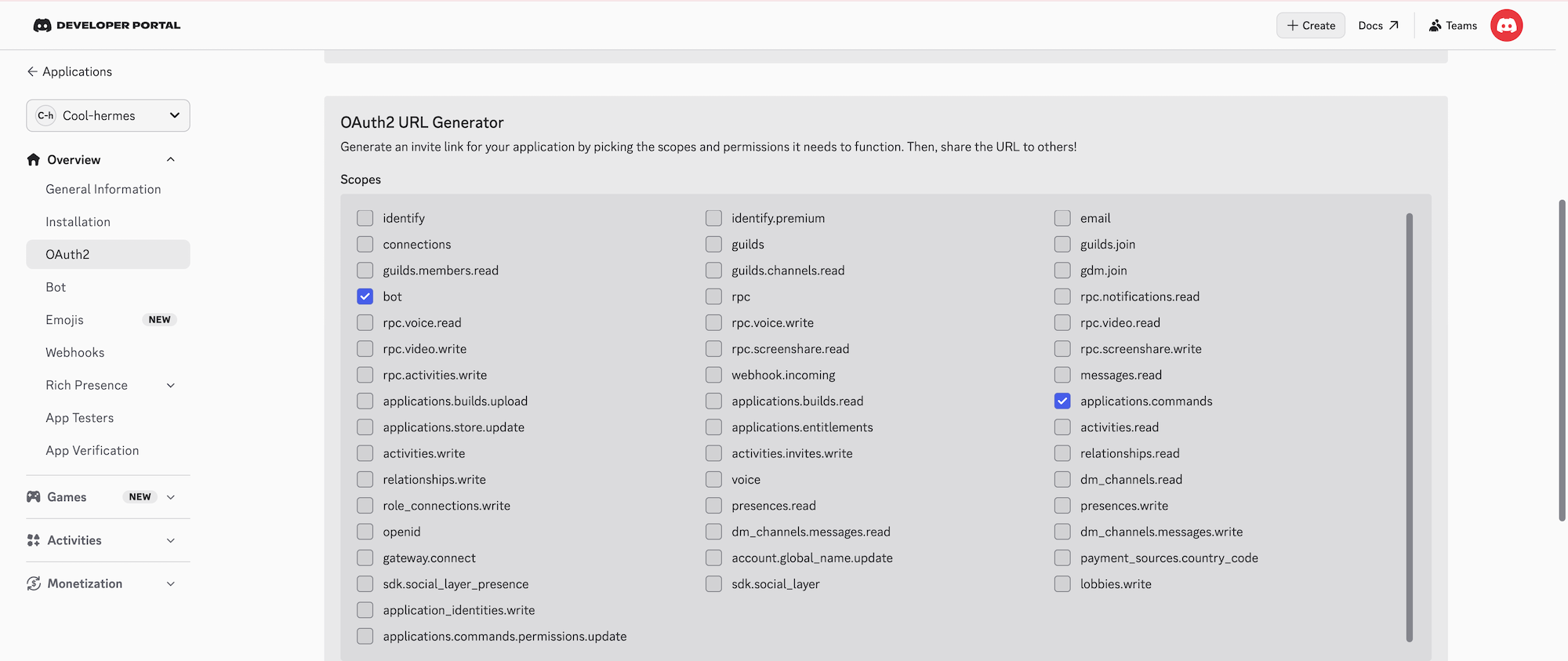
From the left sidebar, select OAuth2, and then find the OAuth2 URL Generator section:
a. In Scopes, select Bot and applications.commands.
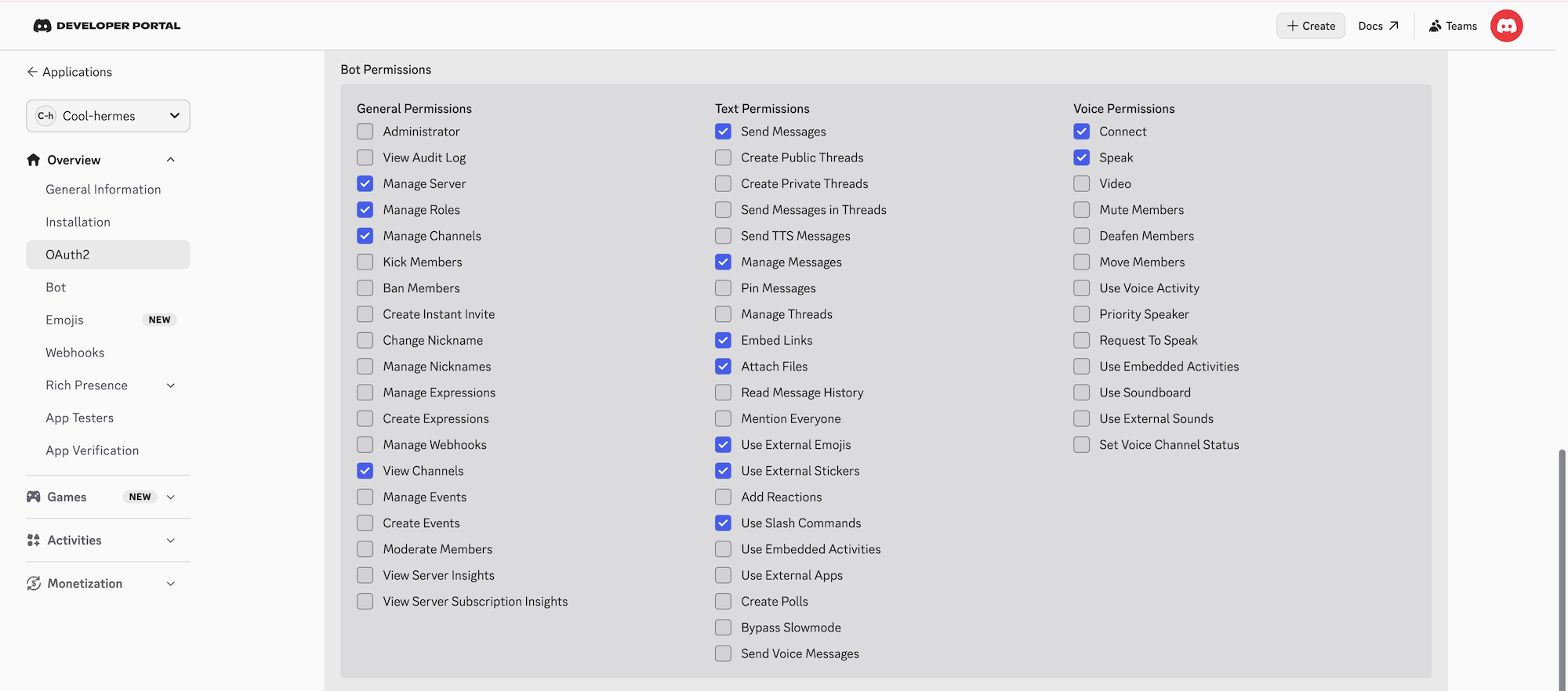
b. Scroll down to Bot Permissions, set the permissions as shown in the following image. You can modify the settings later.
Copy the Generated URL at the bottom.
Paste the URL into a new browser tab, select your Discord server from Add to server, click Continue, and then click Authorize.
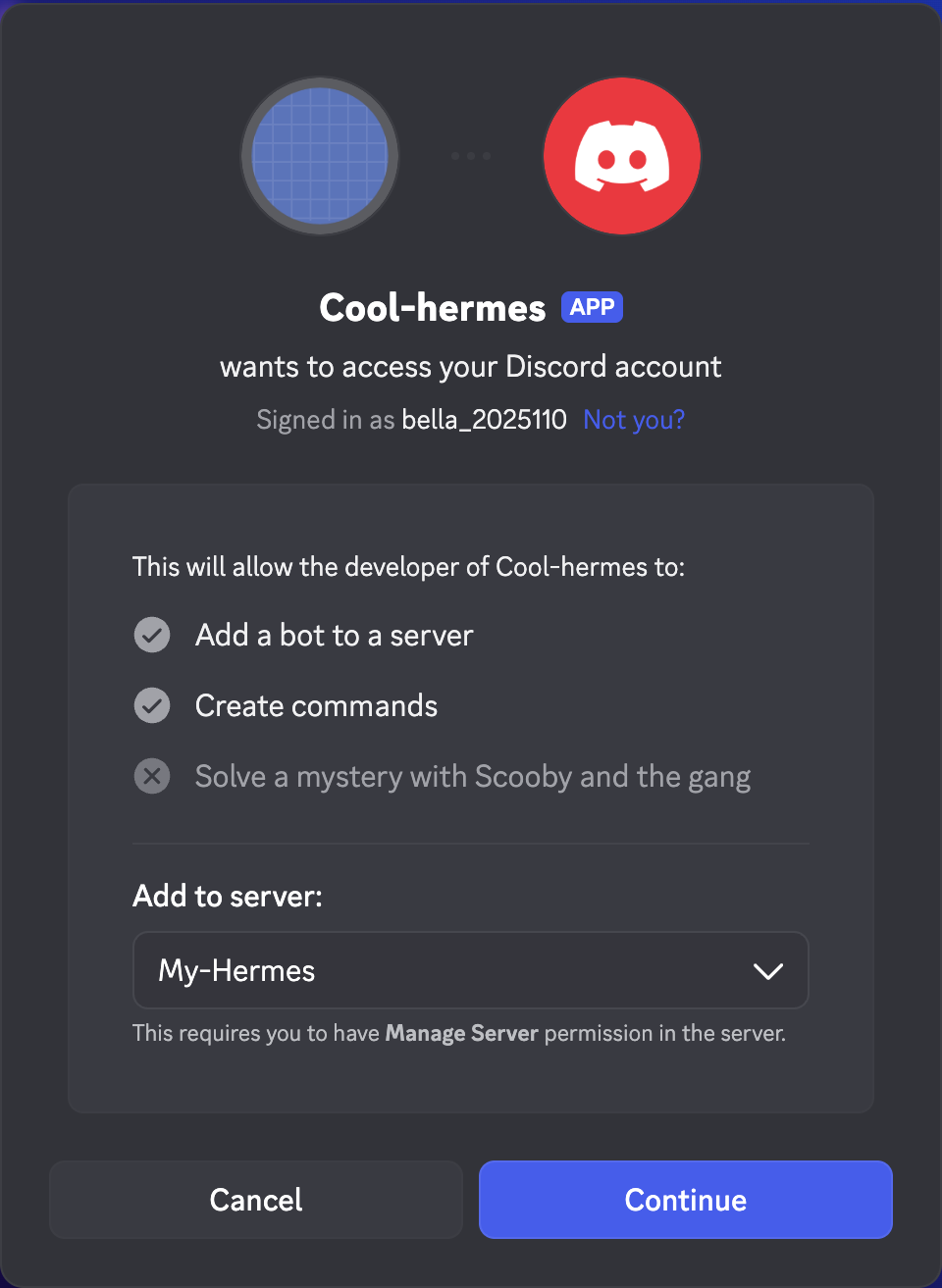
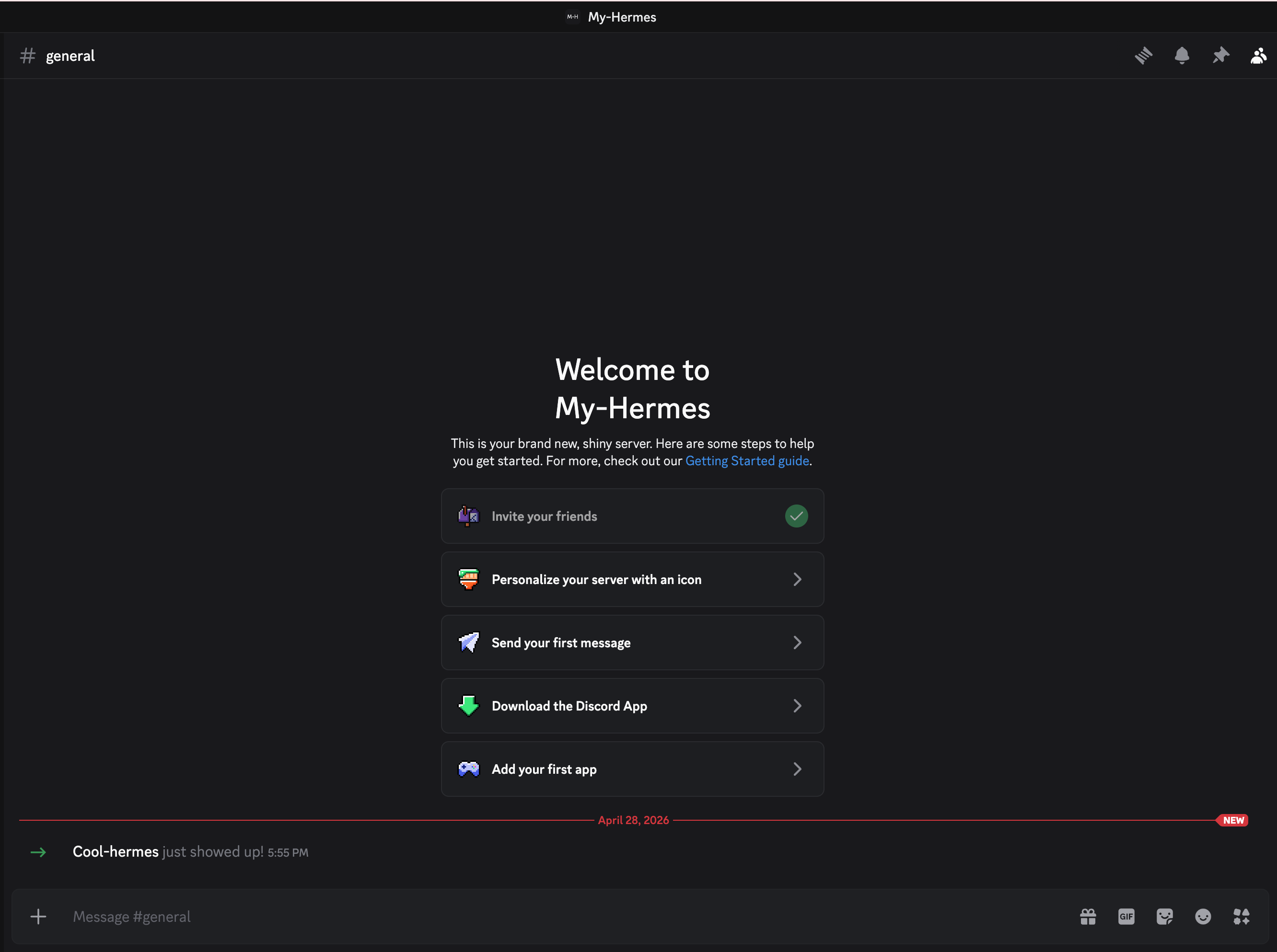
The bot is authorized and added to your server.
Step 3: Configure the messaging platform
Connect Hermes Agent to your Discord bot by configuring and running the Hermes gateway.
Open the Hermes CLI, and then enter the following command to start the configuration wizard:
bashhermes gateway setupSelect Discord as your messaging platform.
Follow the prompts to configure the bot integration:
- Discord bot token: Enter the bot token generated from your Discord Developer Portal. The input remains hidden.
- Allowed user IDs or usernames: Enter your Discord user ID to restrict access to yourself.
- (Optional) Home channel ID: Enter the ID of the Discord channel where the bot operates.
Select Done.
When prompted to Restart the gateway to pick up changes, enter
y.Check your bot status in Discord. A green status icon confirms the bot is online, which means the gateway restarted successfully and the configuration is correct.
Step 4: Authorize your account
For security, the bot does not talk to unauthorized users. You must pair your Discord account with the bot.
Send a Direct Message to your new bot. The bot will reply with an error message containing a pairing code.
Open the Hermes CLI and enter the following command:
bashhermes pairing approve discord {Your-Pairing-Code}Once approved, you can start chatting with your agent in Discord. If you are talking to it in a channel, mention it first.
Manage Olares with your Hermes Agent
Use the pre-installed Olares CLI skills directly in Hermes Agent to manage files and applications on your Olares device. For example, ask it to list files, read logs, or install apps from Olares Market.
Open the Hermes CLI from the Launchpad.
Run the following commands one by one to confirm that both
olares-cliand its skills are properly installed and enabled:basholares-cli -v hermes skills listBefore using the skills, run the following command to log in to your Olares account. Replace {your-olares-id} with your Olares ID (e.g. olaresdemo@olares.com):
basholares-cli profile login --olares-id {your-olares-id}Follow the prompt to enter your Olares login password. For security, the password is hidden.
You can now enter the TUI, and ask the agent to interact with your Olares environment. For example, ask it to install an app from Olares Market.
Manage LAN computers over SSH
You can also ask Hermes to run commands and scripts on LAN computers over SSH. For key setup, disk-space checks on one or more computers, and connection troubleshooting, see Manage LAN computers with Hermes Agent over SSH.
Integrate Hermes Agent with other applications
Hermes Agent provides an OpenAI-compatible API, allowing you to integrate it with other applications like Open WebUI or Hermes Workspace.
Step 1: Enable the Gateway API
Open Olares Settings, and then go to Applications > Hermes Agent > Manage environment variables.
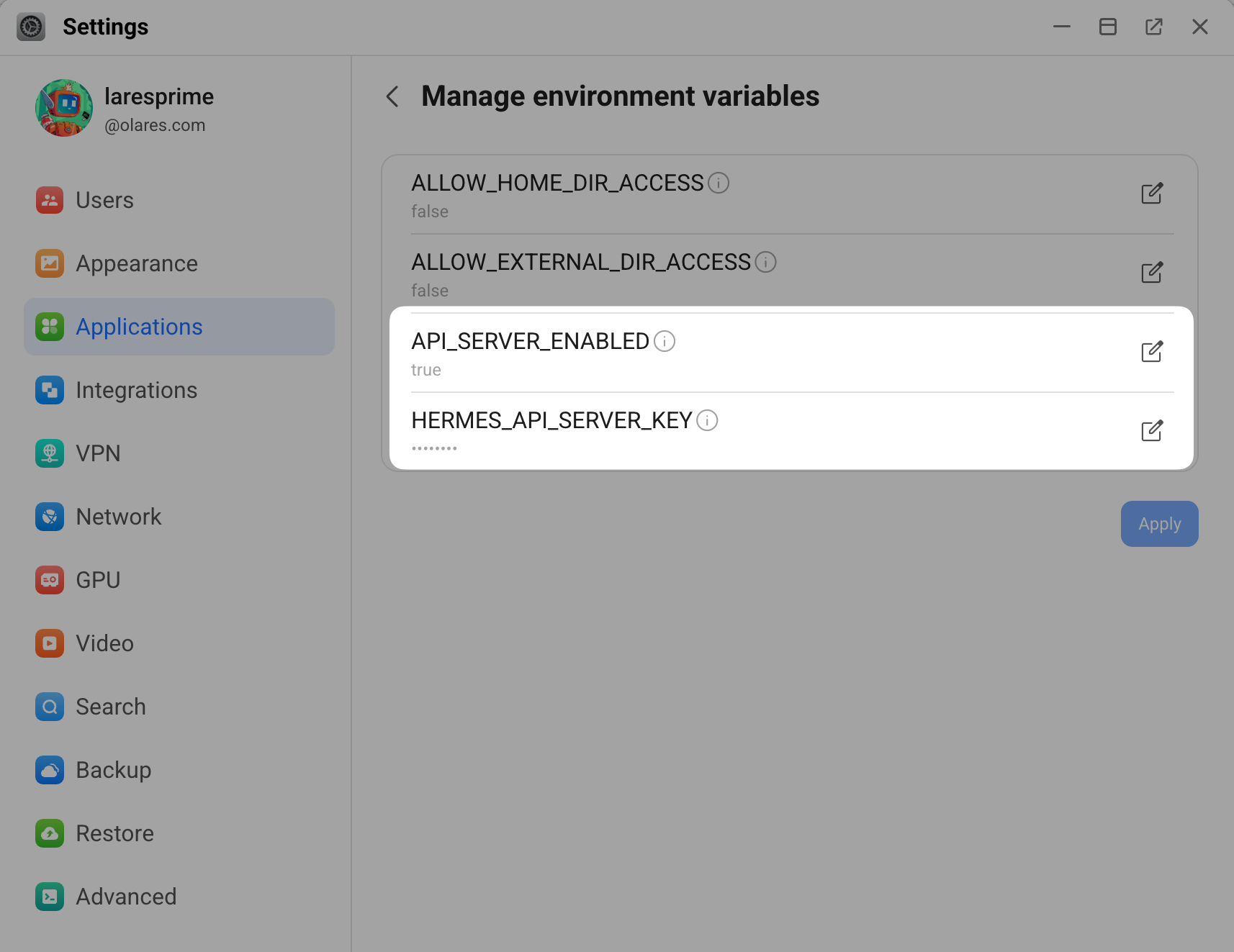
Find API_SERVER_ENABLED, click edit_square, and then set its value to
true.Click Confirm.
Find HERMES_API_SERVER_KEY, click edit_square, and then enter the value. Ensure the key meets the following requirements:
- It must be at least 16 characters long.
- It can only contain letters, numbers, and common symbols.
- It cannot be a predictable placeholder value, such as "your_API_key".
Click Confirm, and then click Apply.
Step 2: Get the Gateway API URL
- Go to Applications > Hermes Agent > Hermes Gateway API.
- Copy the endpoint URL. For example:
https://baf3d7172.olaresdemo.olares.com
Step 3: Verify the API is running
Open your browser and go to your gateway URL appended with /health:
https://{your-gateway-url}/healthIf the API is enabled successfully, the page displays a response confirming the service is active. For example, {"status": "ok", "platform": "hermes-agent"}.
Step 4: Connect your application
The following steps demonstrate how to connect with Open WebUI.
In Open WebUI, click your profile icon and select Admin Panel.
Go to Settings > Connections.
On the right of Manage OpenAI API Connections, click add to add a new connection.
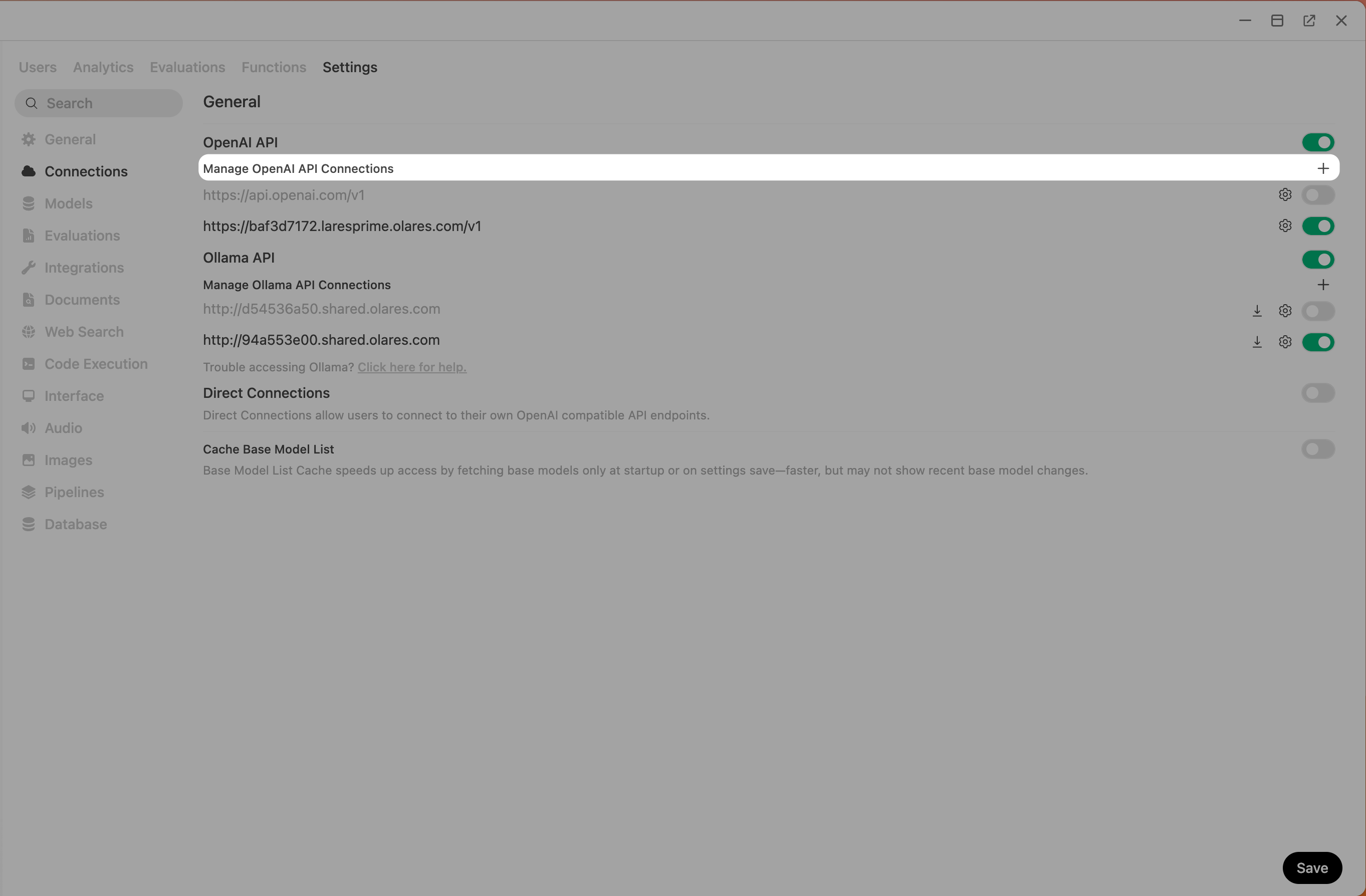
Configure the settings as follows:
- API Base URL: Enter your Hermes Gateway API URL and append
/v1. For example,https://baf3d7172.olaresdemo.olares.com/v1. - Auth: Select Bearer, and then enter the
HERMES_API_SERVER_KEYyou set previously.
- API Base URL: Enter your Hermes Gateway API URL and append
Click refresh to check the connection, and then click Save.
Go to the New chat page and verify that hermes-agent appears in the model drop-down list. You can start chatting with it now.
Advanced configuration
To manually adjust parameters, edit the configuration files directly, and then restart the Hermes CLI to apply the changes.
- Open the Files app from the Launchpad.
- Go to Data > hermesagent > home, and locate the configuration files, such as
config.yamland.env.
The file structure and configuration options match the official defaults. For detailed parameter descriptions, see the Hermes configuration guide.
FAQs
How to manually restart the Hermes gateway?
You can restart the gateway manually using one of the following methods:
Use the Hermes CLI
This is the fastest method. Open the Hermes CLI from the Launchpad, and then run the following command:
bashrestart-gatewayUse the Hermes Dashboard
This is the most intuitive method. Open the Hermes Dashboard from the Launchpad, and then select Restart Gateway in the left sidebar.
Use Control Hub
Open Control Hub, and then go to Browse > {username} > hermesagent-{username} > Deployments > hermesagent, and then click Restart in the upper-right corner. This method completely restarts the entire service, which takes slightly longer.
Why does the gateway fail to start after configuring the API?
Your gateway will fail to start if the configured API key does not meet Hermes security requirements. When this happens:
- The Gateway API displays an
upstream connect error. - The system logs show the message
[Api_Server] Refusing to start: API_SERVER_KEY is set to a placeholder value.
To resolve this issue, reset your HERMES_API_SERVER_KEY:
Open Olares Settings, and then go to Applications > Hermes Agent > Manage environment variables.
Set a new key for
HERMES_API_SERVER_KEYthat meets the following requirements:- It must be at least 16 characters long.
- It can only contain letters, numbers, and common symbols.
- It cannot be a predictable placeholder value, such as "your_API_key".
Click Save, and then click Apply.
Learn more
Note on sudo commands
The Hermes container runs as an unprivileged user. Do not use instructions that require local sudo inside the container. Commands executed over SSH use the remote account's permissions. See Manage LAN computers over SSH.
- CLI Interface: Explore advanced terminal commands.
- Messaging Platforms: Connect Slack, Telegram, and other platforms.
- Skills System: Install and manage skills.
- Tools & Toolsets: Configure the tools available to your agent.
- Tips & Best Practices: Improve your agent's setup and workflows.
- Create a server in Discord: Set up a server for your bot.
- Find Discord IDs: Find the user, server, and channel IDs used in bot configuration.
- OpenClaw: Set up another AI assistant on Olares.