Run Codex CLI on Olares
Codex CLI is OpenAI's open-source coding agent for the terminal. It can inspect a repository, edit files, run commands and tests, and help you understand unfamiliar code through natural-language requests.
On Olares, Codex CLI runs inside a browser-based terminal with a preconfigured development environment. You can connect it to ChatGPT, use an OpenAI API key, or route it to a local OpenAI-compatible model.
Learning objectives
In this guide, you will learn how to:
- Install Codex CLI from Market.
- Connect Codex to ChatGPT, an OpenAI API key, or a local model.
- Run coding tasks and review the results.
- Switch model connections and clear stored credentials.
- Authenticate Olares CLI for Olares management tasks.
Prerequisites
Before you begin, you need:
- An Olares device running Olares 1.12.7 or later, with sufficient disk space and memory.
- Access to Router for local model connections.
Depending on how you connect, prepare one of the following:
- ChatGPT: A ChatGPT account with Codex access.
- OpenAI Platform: An OpenAI API key.
- Local model: Qwen3.8-27B (llama.cpp) installed from Market.
Optional: Use a different model
Install another chat model from Market, or create a model instance with Engine Base apps. Then select it as the default chat model on Router's Default models page. Clients configured with default-chat use the new default without changing their model settings.
To keep a client on one specific model, use the full model name from Router's How to call this model window instead.
Install Codex CLI
- Open Market and search for "Codex CLI".
- Click Get, then Install, and wait for installation to complete.
Connect to a model
Choose one connection method. ChatGPT device code authentication is the simplest option in the browser-based Olares terminal.
Connect with ChatGPT
Codex's standard browser login returns credentials to a callback service on localhost:1455. In the Olares container, your computer's browser cannot reach that callback directly. Use device code authentication instead.
Open Codex CLI from Launchpad.
Run:
bashcodex login --device-authOpen the URL shown in the terminal, sign in to ChatGPT, and enter the one-time code.
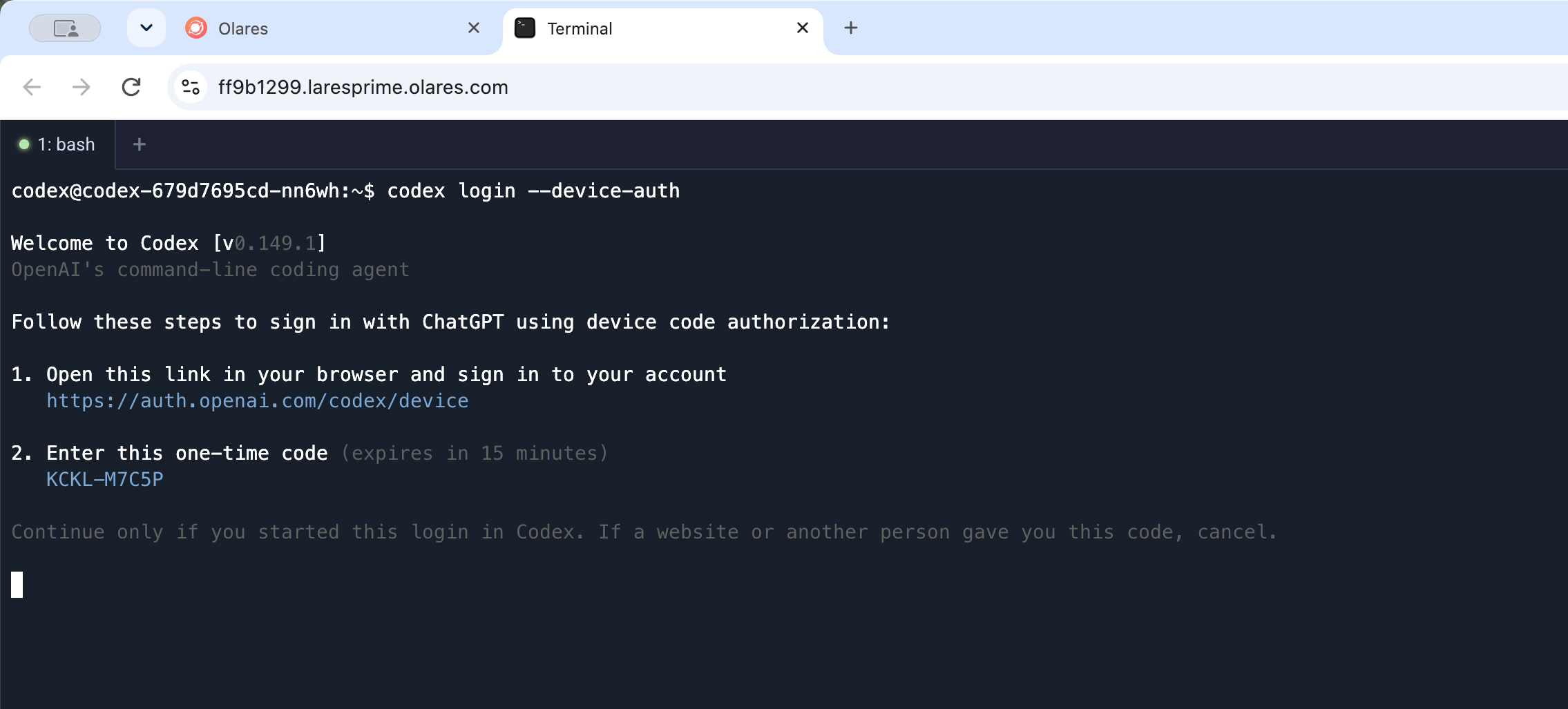
If device code login is unavailable, enable it in your ChatGPT security settings or ask your workspace administrator to allow it.
Return to the terminal and check the active authentication method:
bashcodex login status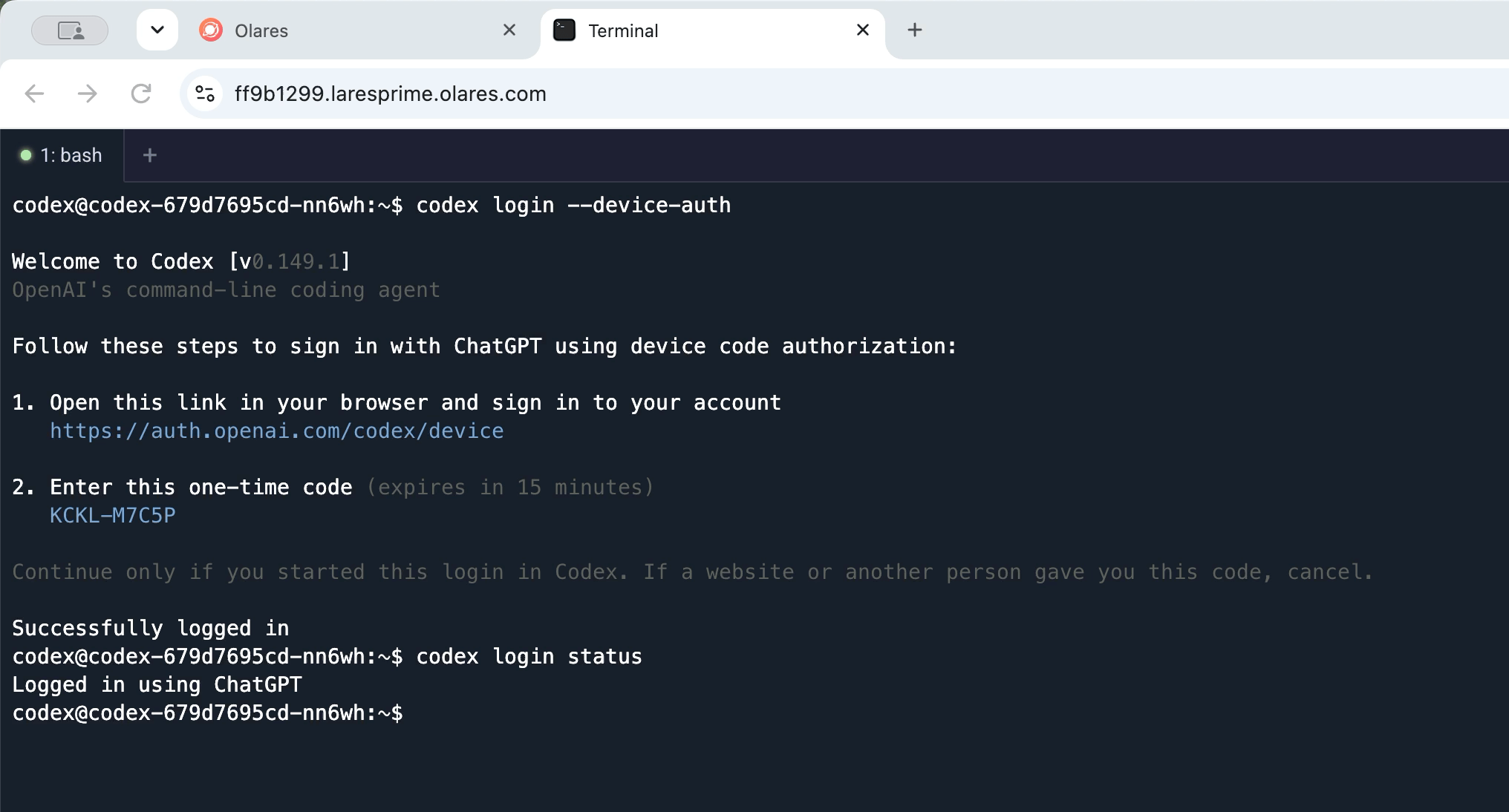
Fallback: Complete the browser callback inside the container
Use this method only when device code authentication is unavailable.
In the first Codex CLI terminal, run
codex loginand keep the process running.Complete the browser sign-in. When the browser opens a URL beginning with
http://localhost:1455/auth/callback, copy the complete URL from the address bar.Open Codex CLI in a second browser tab. Replace
localhostwith127.0.0.1, keep the query string unchanged, and run the URL withcurl:bashcurl -i "http://127.0.0.1:1455/auth/callback?code=<code>&scope=<scope>&state=<state>"Confirm that the response is
302 Foundand itsLocationheader contains/success.Return to the first terminal and run
codex login status.
The authorization code and callback URL are short-lived credentials. Do not share them or include them in screenshots.
Connect with an OpenAI API key
Use this method to bill Codex usage through your OpenAI Platform account.
- Navigate to Settings > Applications > Codex CLI > Manage environment variables.
- Set OPENAI_API_KEY to your OpenAI API key.
- Click Apply and wait for Codex CLI to restart.
- Open Codex CLI from Launchpad and run
codex.
Connect with a local model
This example connects Codex CLI to Qwen3.8-27B (llama.cpp) through its OpenAI-compatible API.
Get the model connection details
Open Router from Launchpad. On Default models, set Qwen3.8-27B (llama.cpp) as the default chat model.
Go to LLM, find Qwen3.8-27B (llama.cpp), and click View connection example on its row.
In How to call this model, select Apps in Olares and copy the Base URL, including
/v1.For the model name, use
default-chat.Selecting a model in your app
default-chatis a routing name and does not appear in model lists loaded from Router. If the app you are connecting to Router loads a model list, adddefault-chatmanually. If the app only supports selecting a listed model, select the full model name shown in Router's How to call this model window.For the API key, leave the field empty. If the app you are connecting to Router requires a value, enter
olares.
Configure Codex CLI
Navigate to Settings > Applications > Codex CLI > Manage environment variables.
Configure the following variables:
- OPENAI_BASE_URL: Paste the Base URL copied from Router exactly as shown, including the trailing
/v1. - OPENAI_API_KEY: Enter a non-empty placeholder value, such as
olares. Router identifies requests from this Olares app through the platform. - CODEX_MODEL: Enter
default-chat.
- OPENAI_BASE_URL: Paste the Base URL copied from Router exactly as shown, including the trailing
Click Apply and wait for Codex CLI to restart.
Open Codex CLI from Launchpad and run:
bashcodex
Use Codex CLI
All project work happens in the /opt/data directory. Files stored there persist across app restarts.
Check the installed CLI version:
bashcodex --versionStart an interactive session:
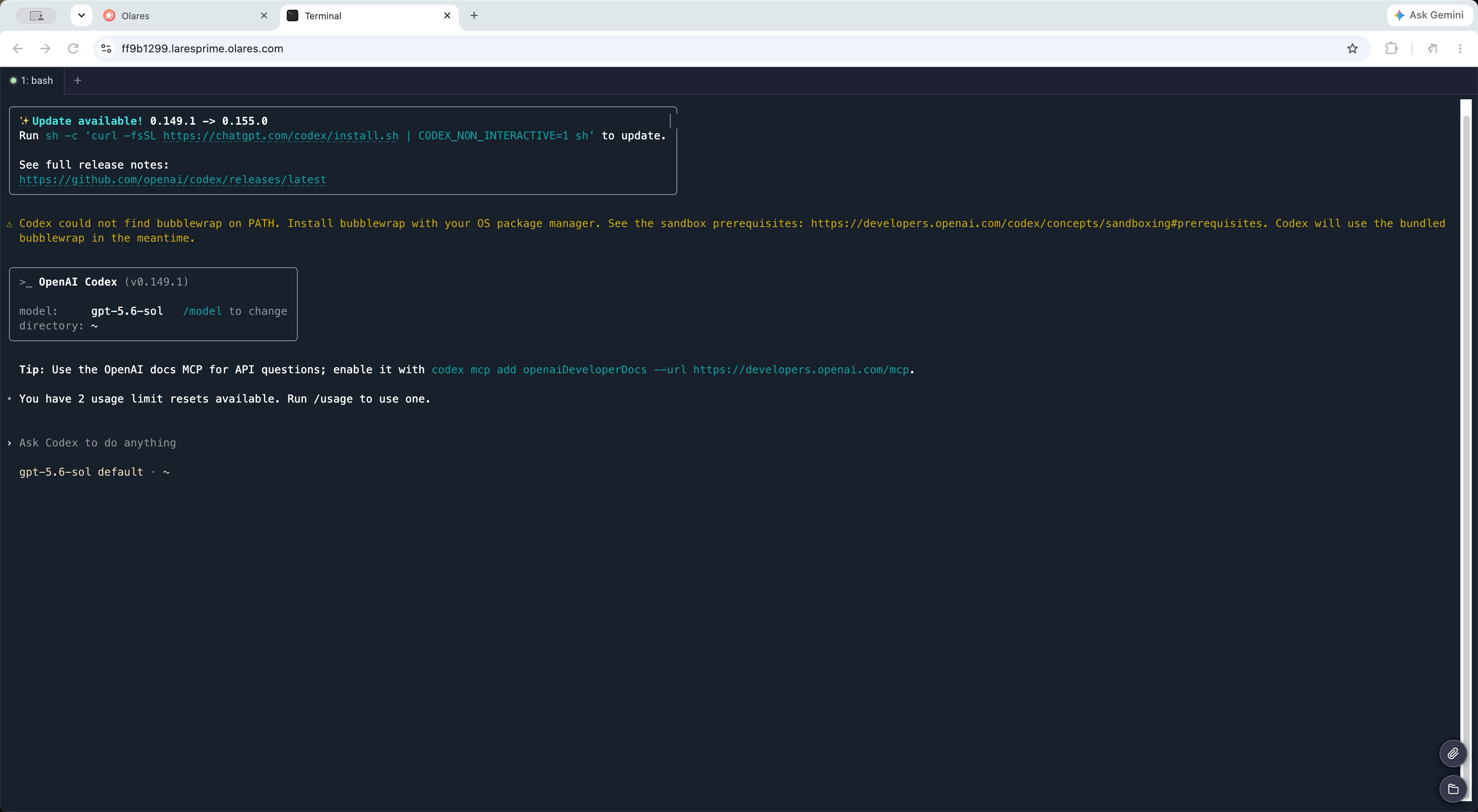
bashcodexDescribe a focused task. For example:
textRead the current directory and summarize the project structure.Or ask Codex to create a small file:
textCreate a minimal README draft for this repository.Review the proposed commands and file changes before approving them.
Inspect the result and ask a follow-up question or request another change.
Manage Olares with Olares CLI
The Codex app on Olares already includes Olares CLI and Agent Skills. Codex authentication only grants access to the selected model service. To ask Codex to install Olares apps, inspect cluster status, or perform other Olares management tasks, authenticate Olares CLI separately:
olares-cli profile login --olares-id <your-olares-id>Complete two-factor authentication when prompted. For more details, see Log in to Olares.
Switch connections or sign out
Switch from ChatGPT to an OpenAI API key
Set OPENAI_API_KEY in Settings > Applications > Codex CLI > Manage environment variables, click Apply, and wait for the app to restart.
Switch from an OpenAI API key to ChatGPT
Clear OPENAI_API_KEY, click Apply, and wait for the app to restart. Then run codex login --device-auth.
Switch from a local model to OpenAI
Clear OPENAI_BASE_URL and CODEX_MODEL. Keep a real OPENAI_API_KEY for API key authentication, or clear it and use ChatGPT authentication. Click Apply and wait for the app to restart.
Sign out
Run:
bashcodex logout codex login statusContinue when the status shows that Codex is signed out.
Signing out clears stored Codex credentials, but it does not remove OPENAI_API_KEY from the app environment or sign out Olares CLI.
FAQs
Why does browser login stop at localhost:1455?
The callback service runs inside the Codex CLI container, so your computer's browser cannot reach it through its own localhost. Use codex login --device-auth. If device code authentication is unavailable, use the callback fallback described in Connect with ChatGPT.
Why does Codex still use the local model after I sign in to ChatGPT?
OPENAI_BASE_URL and CODEX_MODEL still route Codex to the local service. Clear both variables in the app settings, click Apply, and wait for the app to restart.
Why does the local model return 404?
Copy the Base URL from Apps in Olares in Router's How to call this model window, including /v1. Check that the default chat model shows Callable on LLM.
Why does Codex report model not found?
Use default-chat and check its target on Router's Default models page. To pin a specific model, copy its full name from Router instead.
How do I remove a remaining login file?
First run codex logout. If codex login status still reports a stored login, remove the app's credential file and check again:
rm -f /opt/data/.codex/auth.json
codex login status
This command only removes Codex credentials stored in the app data. It does not clear OPENAI_API_KEY or affect Olares CLI authentication.
What if Codex reports missing agentic execution capabilities?
Update the Codex binary in the app data directory:
curl -fsSL https://chatgpt.com/codex/install.sh | CODEX_INSTALL_DIR=/opt/data/.local/bin shRestart the Codex CLI session and try again.
Learn more
- Codex CLI documentation: Learn about Codex CLI workflows and commands.
- Codex authentication: Review ChatGPT, API key, and headless login options.
- Host local large language models with Engine Base apps: Deploy local models with Engine Base apps and connect them through Router.