Save and organize bookmarks with Karakeep
Karakeep (formerly Hoarder) is a self-hosted bookmark and content management app that stores links, notes, images, and PDFs in one place. It automatically fetches page metadata, indexes content for full-text search, supports shared lists, and can auto-tag entries with a local AI model.
Running Karakeep on Olares keeps your saved content and AI processing entirely on your device.
Learning objectives
In this guide, you will learn how to:
- Install Karakeep on Olares.
- Save a bookmark from the web interface.
- Sign in to Karakeep from your phone.
- Enable AI auto-tagging with a local model.
- Enable video downloads for bookmarked links.
- Configure SMTP for email invitations.
Prerequisites
Before you begin, you need:
An Olares device running Olares 1.12.7 or later, with sufficient disk space and memory.
Access to Router for local model connections.
The following model for AI auto-tagging:
Model type Model How to get it Chat Qwen3.8-27B (llama.cpp) Install from Market
Optional: Use a different model
Install another chat model from Market, or create a model instance with Engine Base apps. Then select it as the default chat model on Router's Default models page. Clients configured with default-chat use the new default without changing their model settings.
To keep a client on one specific model, use the full model name from Router's How to call this model window instead.
Install Karakeep
Open Market and search for "Karakeep".
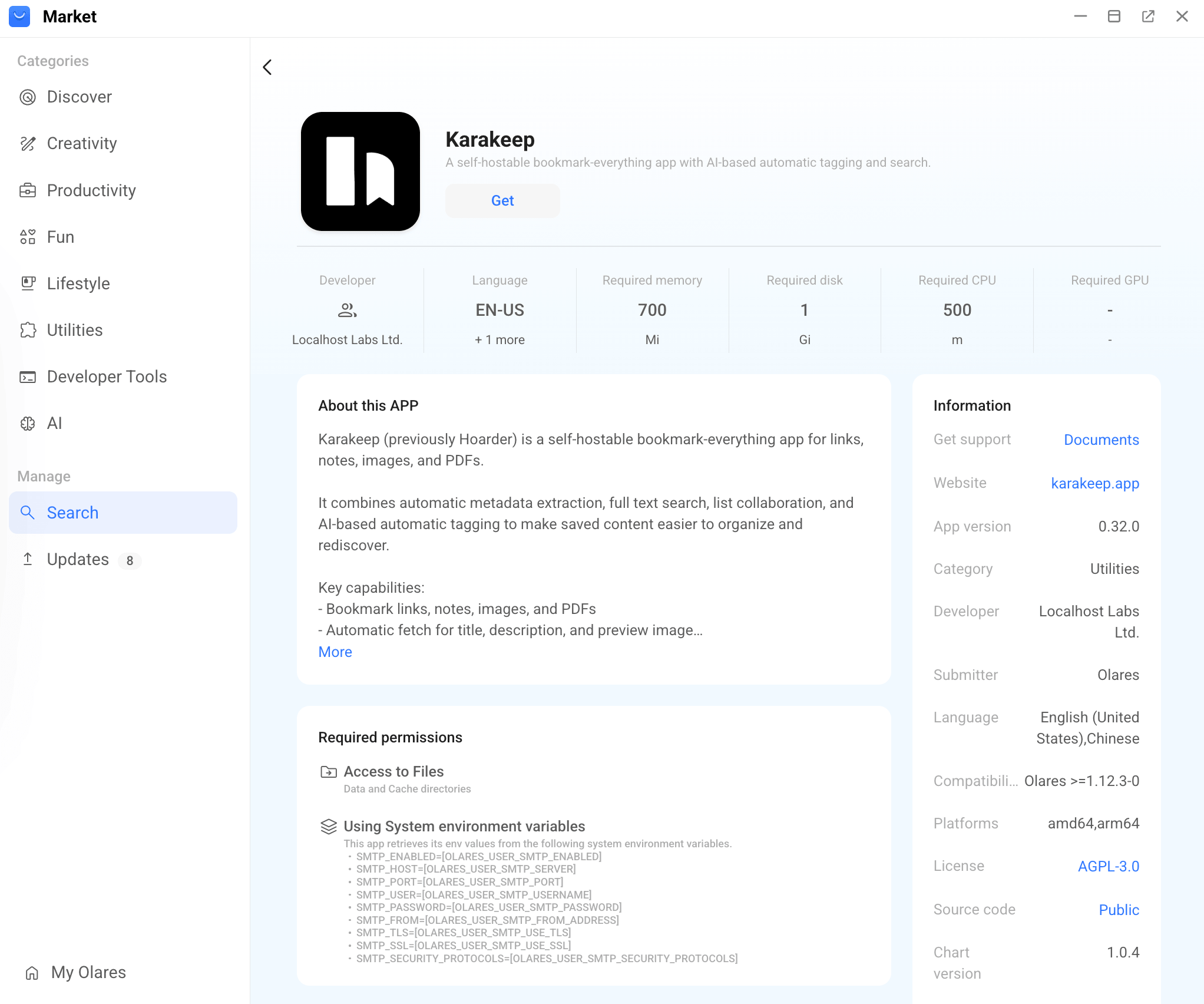
Click Get, then Install, and wait for installation to complete.
After installation, open Karakeep from the Launchpad and create the first account. The first user to register becomes the Karakeep administrator.
Save your first bookmark
Karakeep automatically fetches the page title, content, and metadata when you paste a URL.
Open Karakeep from the Launchpad.
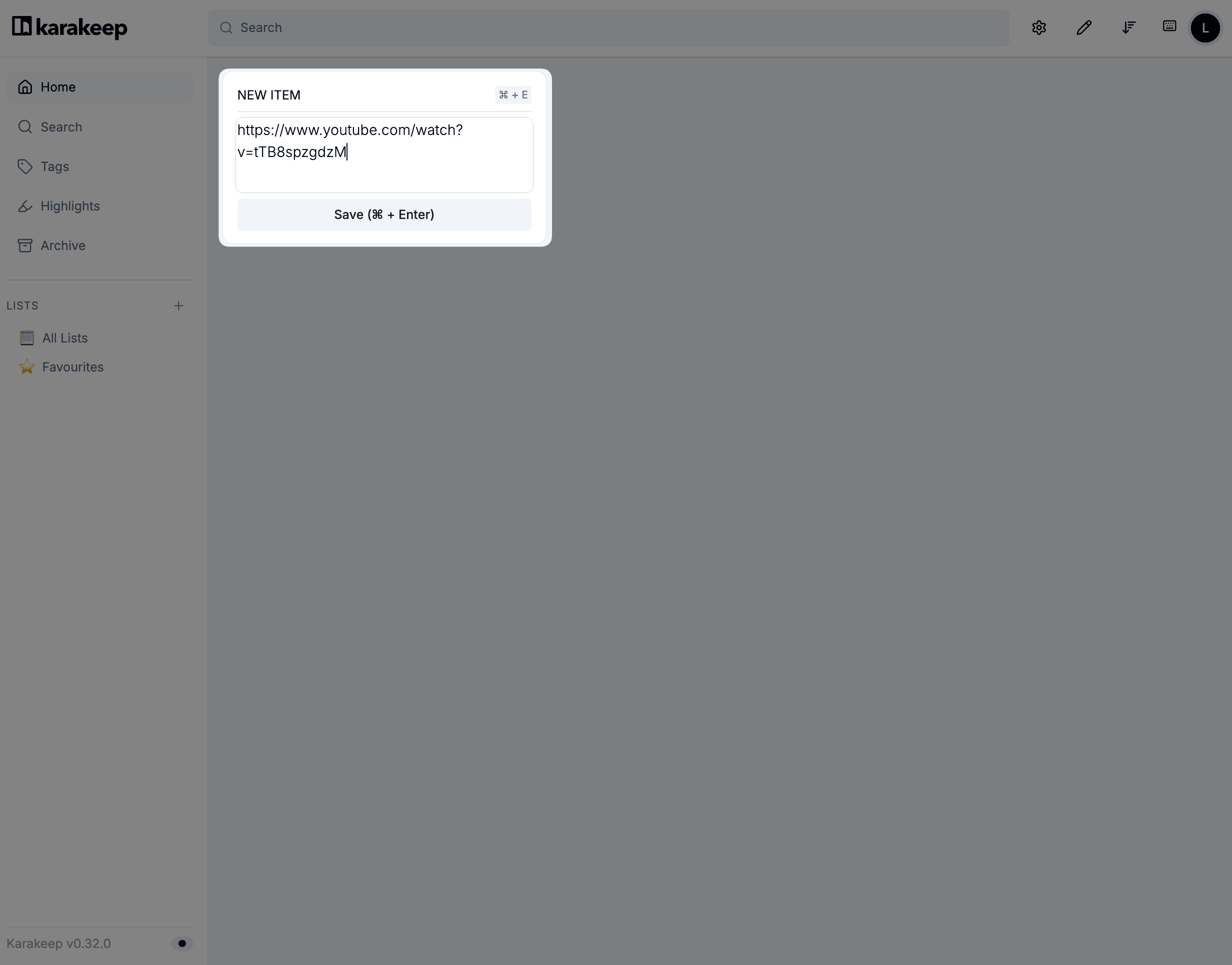
Paste any URL into the input box at the top of the dashboard, and then click Save. Karakeep saves the link and starts fetching the page in the background.
For the full feature set, including notes, lists, and collaboration, see the Karakeep documentation.
Access Karakeep from mobile devices
The Karakeep mobile app lets you save images and links from your phone directly into your Olares-hosted instance. To connect, you need a reachable endpoint and an API key.
Install the Karakeep mobile app
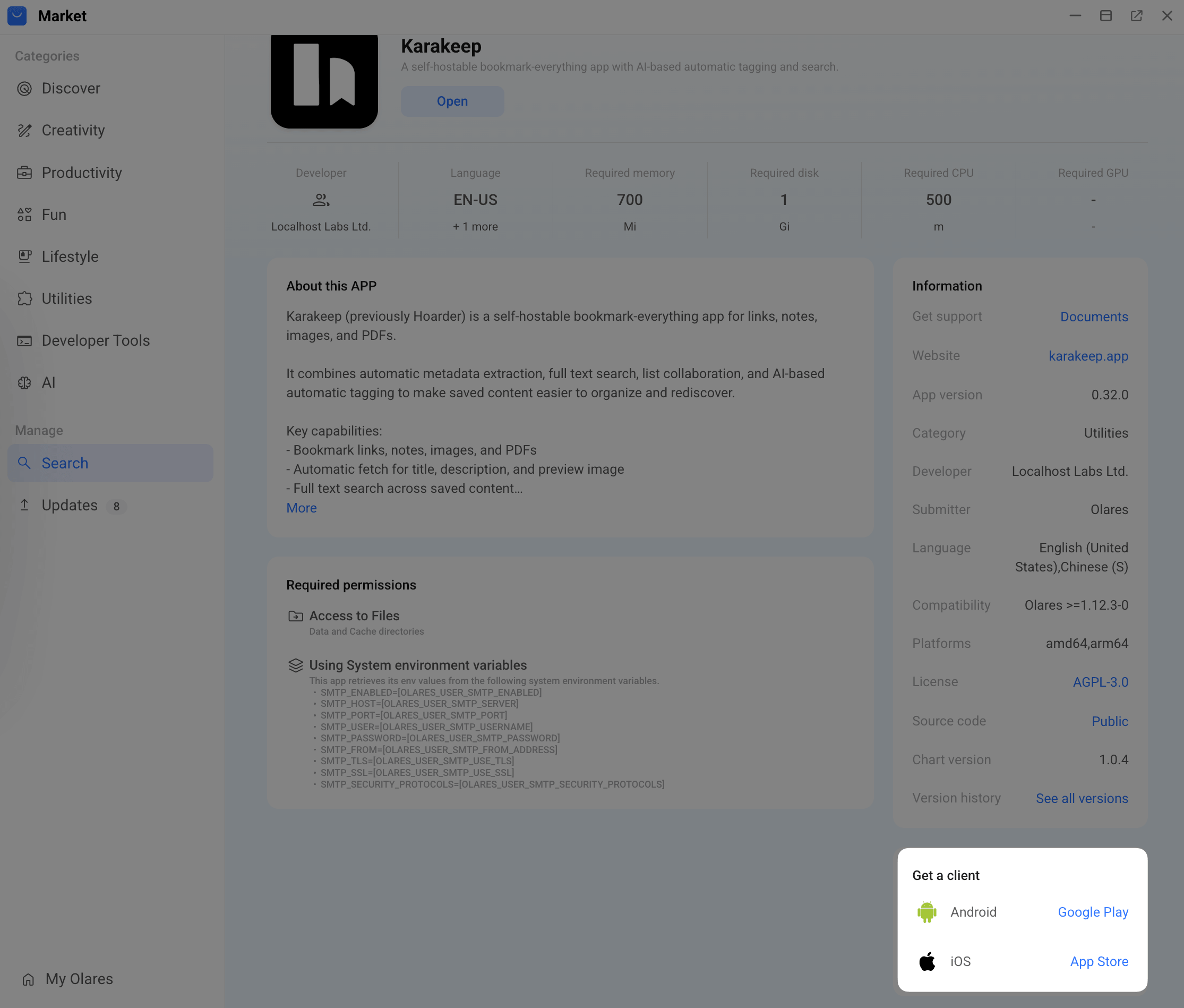
Install the Karakeep app from the App Store (iOS) or Google Play (Android). You can find direct download links on the Karakeep page in Market.
Allow mobile app access
By default, Karakeep is private to your Olares account. To let the mobile app sign in, change the authentication level.
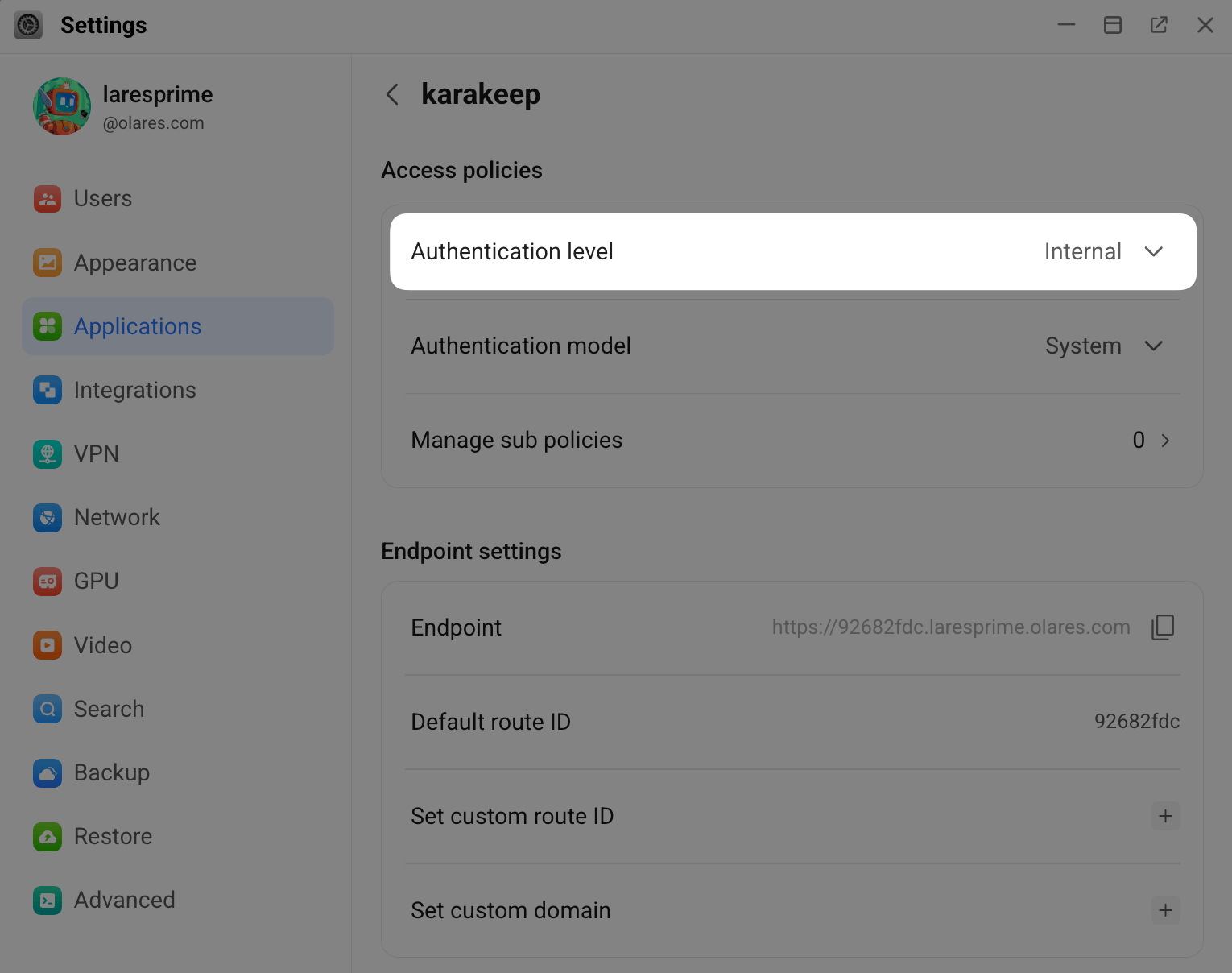
Open Settings, and then go to Applications > Karakeep > Entrances > Karakeep.
Set Authentication level to one of the following, and then click Submit:
- Internal: Requires LarePass VPN. Recommended for personal use.
- Public: Accessible without LarePass VPN, but exposes Karakeep to the internet and uses FRP traffic.
Public access
Use a strong account password and keep your API key secure.
Get your Karakeep endpoint URL
How app endpoints work
When a client connects to another Olares app, it uses that app's endpoint as the network address. If the app exposes multiple endpoints, choose the one that matches the feature or protocol the client needs.
On the same Entrances page, copy the Endpoint URL shown for Karakeep.
Use this Endpoint as the Server Address in the Karakeep mobile app.
Generate an API key
Return to Karakeep in your browser.
Click your profile icon, and then select User Settings.
Go to the API Keys tab, and then click New API Key.
Enter a name for the key (for example,
mobile), and then click Create. Copy the generated key. You only see it once.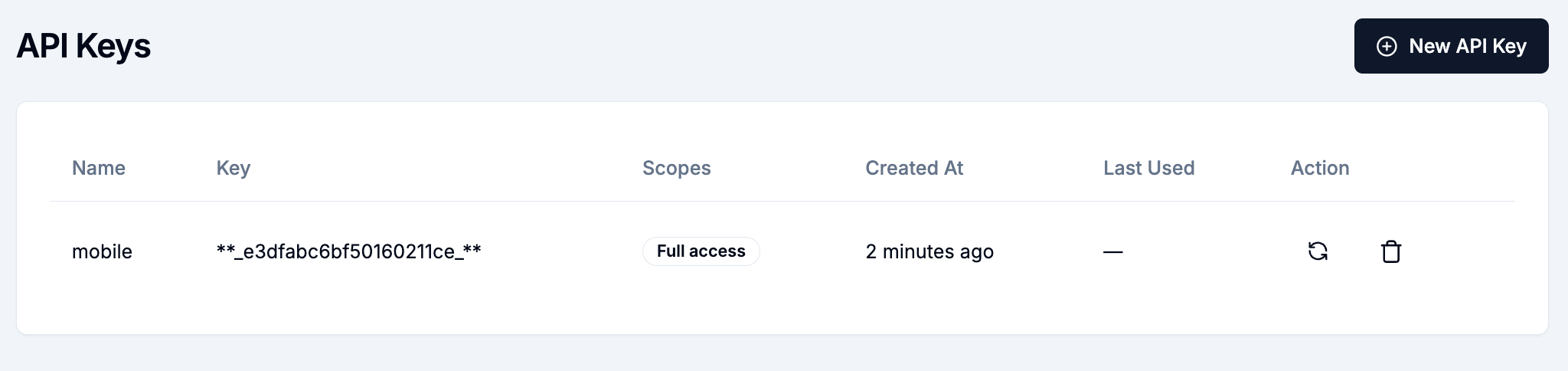
Sign in from the mobile app
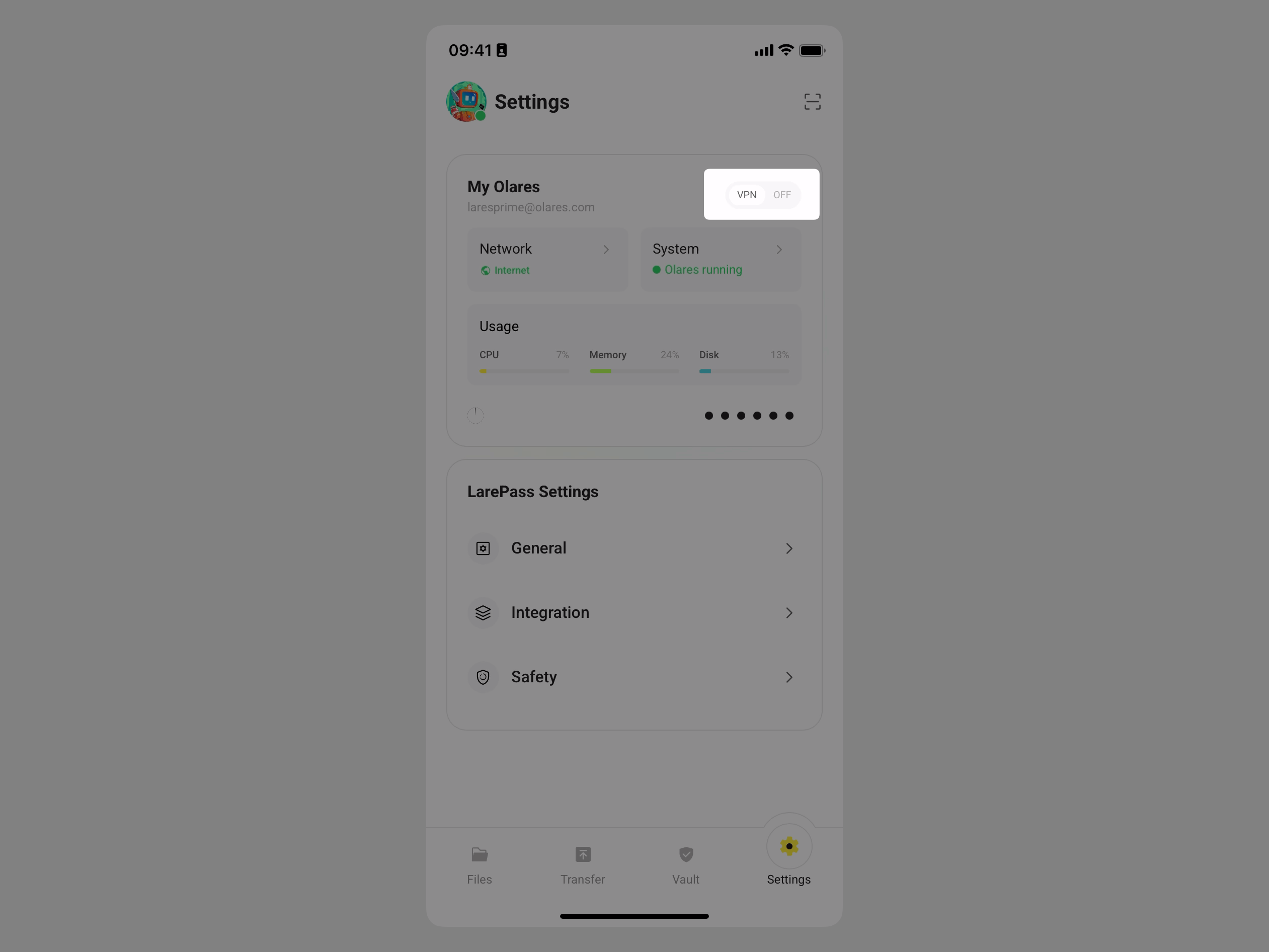
If you selected Internal in the authentication step, open LarePass on your phone and turn on the VPN.
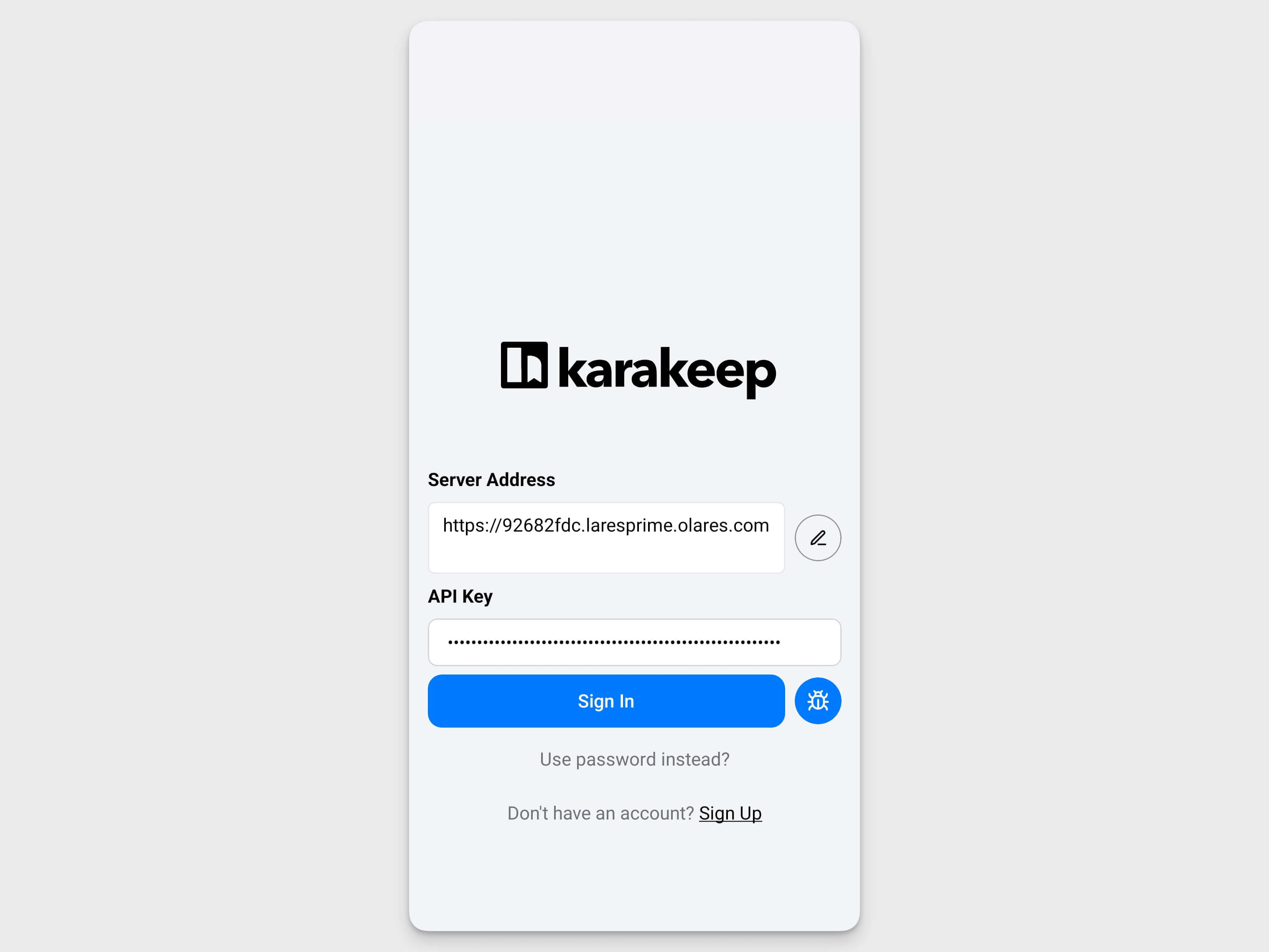
Open the Karakeep app, and then select Use API key instead.
Enter your details:
- Server Address: Paste the Karakeep Endpoint you copied earlier.
- API Key: Paste the API key you generated.
Tap Sign in. You can now save images and links from your phone.
Karakeep also supports browser extensions and other clients. For the full list, see karakeep.app/apps.
Auto-tag bookmarks with a local model
Karakeep can use a local model hosted on Olares to generate tags for your saved content. This example uses Router’s OpenAI-compatible API.
This guide uses the pre-built Qwen3.8-27B (llama.cpp) model app from Market.
Get the model connection details
Open Router from Launchpad. On Default models, set Qwen3.8-27B (llama.cpp) as the default chat model.
Go to LLM, find Qwen3.8-27B (llama.cpp), and click View connection example on its row.
In How to call this model, select Apps in Olares and copy the Base URL, including
/v1.For the model name, use
default-chat.Selecting a model in your app
default-chatis a routing name and does not appear in model lists loaded from Router. If the app you are connecting to Router loads a model list, adddefault-chatmanually. If the app only supports selecting a listed model, select the full model name shown in Router's How to call this model window.For the API key, leave the field empty. If the app you are connecting to Router requires a value, enter
olares.
Connect Karakeep to the local model
Open Settings > Applications > Karakeep > Manage environment variables and configure:
- OPENAI_API_KEY: Enter
olares. Karakeep requires a non-empty value to enable this provider. Router identifies the Olares app through the platform. - OLLAMA_BASE_URL: Clear this field to stop using the old Ollama connection.
- INFERENCE_TEXT_MODEL: Enter
default-chat. - INFERENCE_IMAGE_MODEL: Leave empty for text-only tagging. For image tagging, enter the full Router name of a vision-capable model.
- OPENAI_API_KEY: Enter
Click Apply and wait for Karakeep to restart.
The current Market app does not expose
OPENAI_BASE_URLin Settings. Open Control Hub, find the Karakeep project, and edit the karakeep deployment YAML under Deployments.In the
envlist of the container namedkarakeep, add the following entry. Replace the example value with the Router Base URL, including/v1:yaml- name: OPENAI_BASE_URL value: "<router-base-url>"Save the change and wait for the deployment to run again. Recheck this custom variable after changing app settings or upgrading the app.
Generate tags for existing bookmarks
Open Karakeep, click your profile icon, and then select User Settings.
Go to AI Settings. The default prompts work for most cases.
Click your profile icon, select Admin Settings, and then go to Background Jobs.
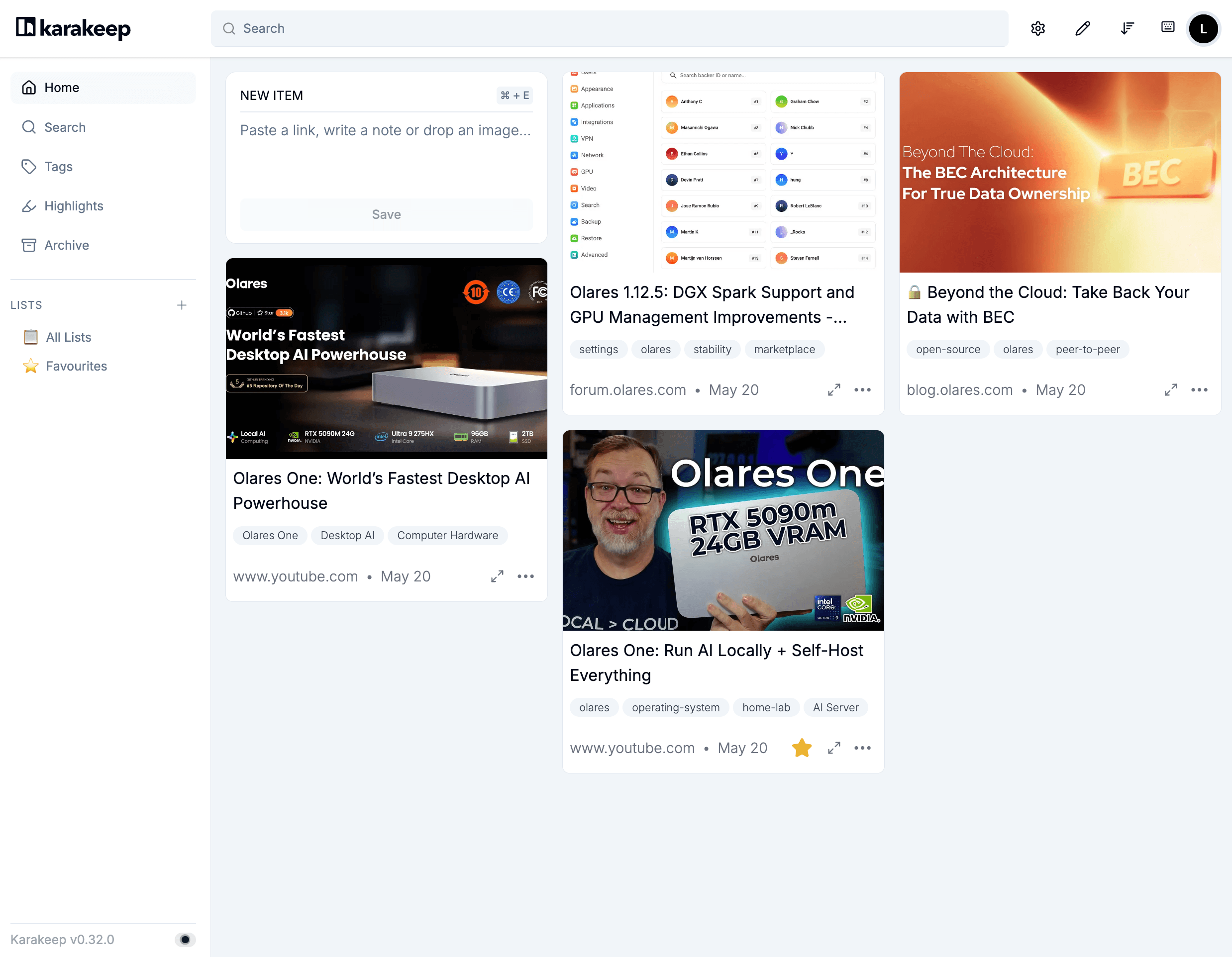
In Inference Jobs, click Regenerate AI Tags for All Bookmarks. The queue size increases.
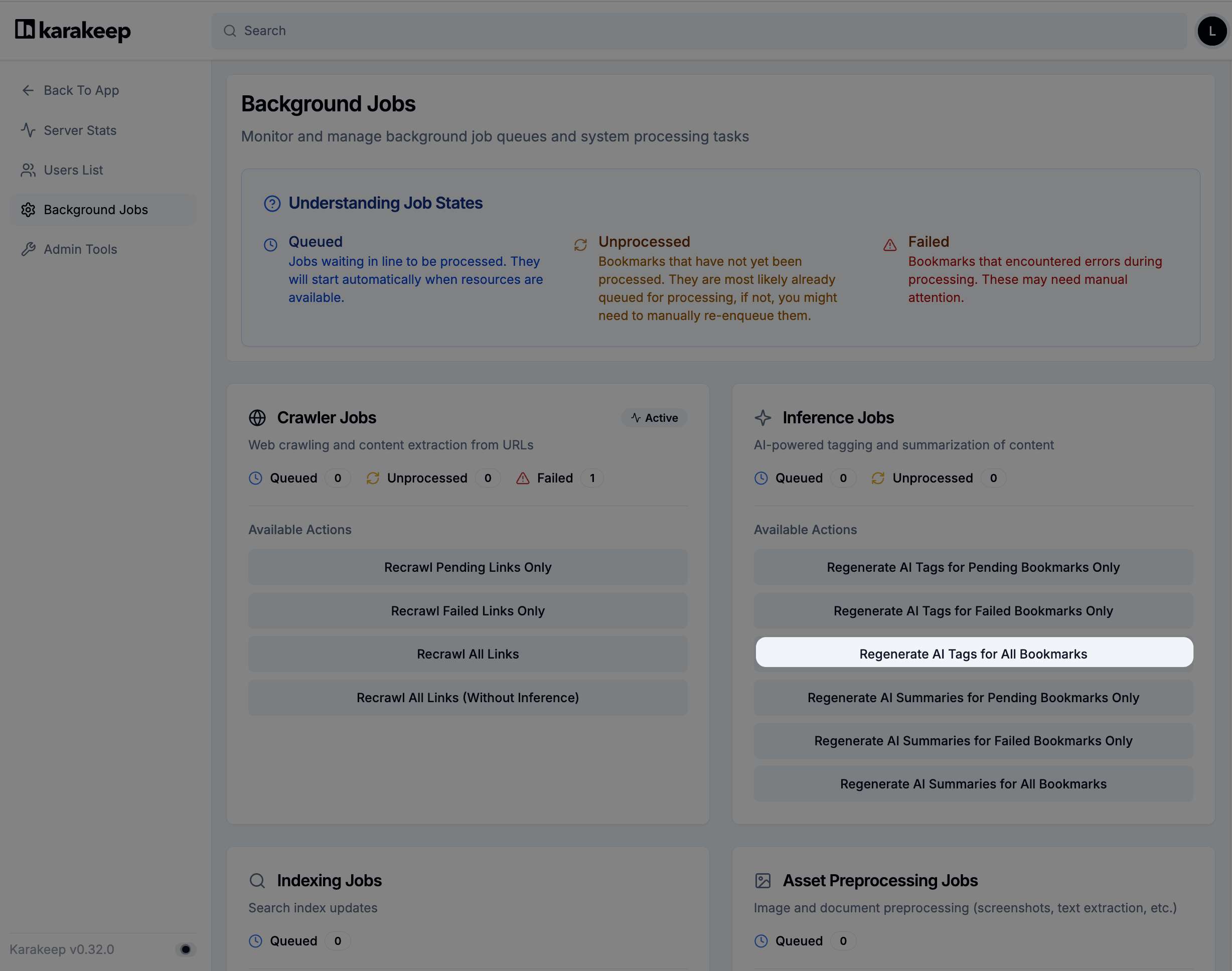
After the queue empties, refresh the dashboard. Tags appear on your bookmarks.
Enable video downloads
Karakeep can use yt-dlp to automatically download videos from saved links to Olares. After a video is downloaded, you can watch it offline in Karakeep or download the video file to your local computer from the bookmark attachments.
Open Settings, and then go to Applications > Karakeep > Manage environment variables.
Click edit_square next to
CRAWLER_VIDEO_DOWNLOAD, set the value totrue, and then click Confirm.Click Apply, and wait for Karakeep to restart.
After Karakeep restarts, add a video link as you would any other bookmark.
Karakeep downloads the video to Olares in the background. This may take some time depending on the video size and network conditions.
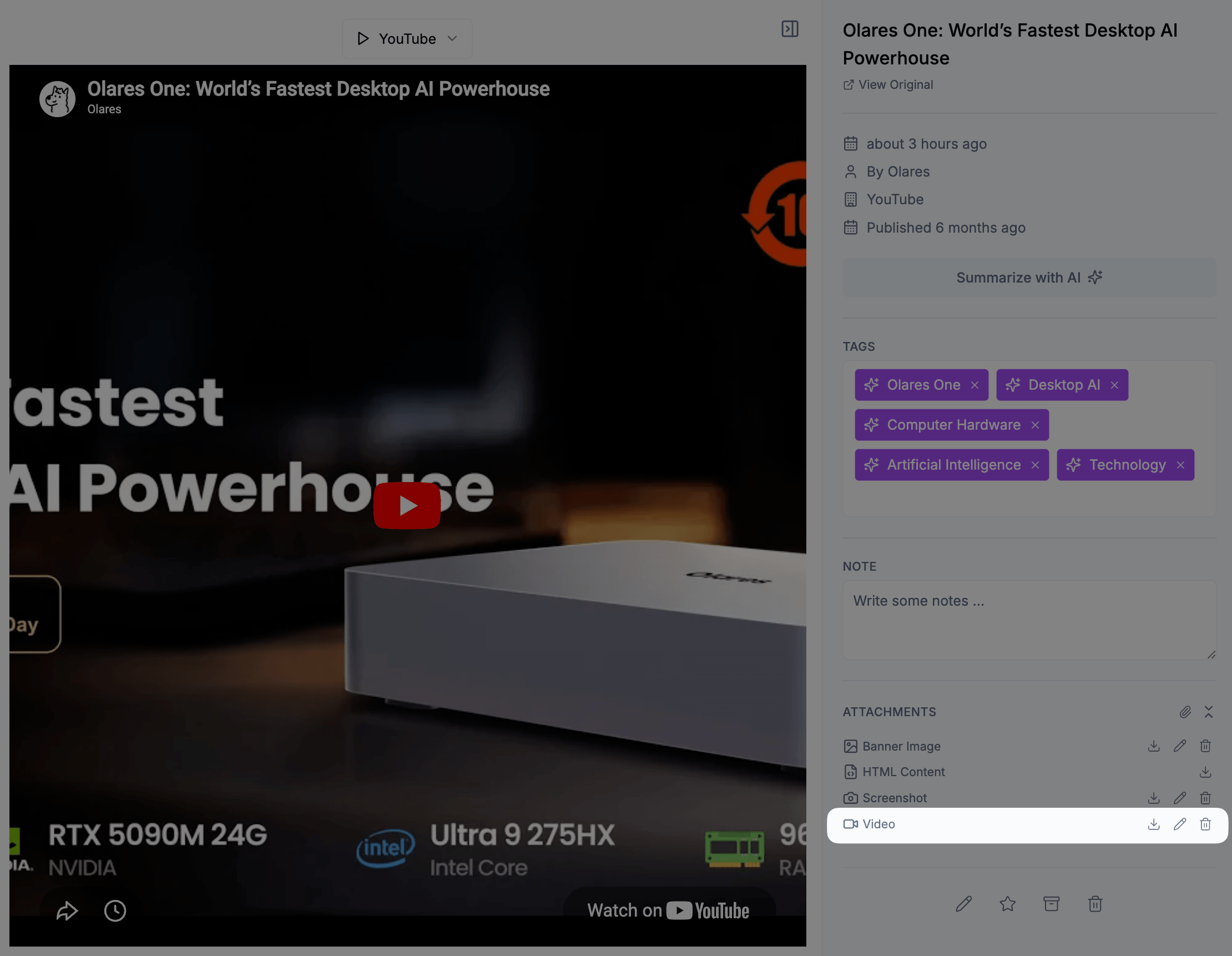
On the bookmark card, click pan_zoom to open the bookmark details.
After the video is downloaded to Olares, Video appears in the content type drop-down at the top of the detail page.
Optional: To download the video file to your local computer, find Video under Attachments in the right sidebar, and then click download next to it.
Download failures
Video downloads can fail due to network issues or anti-bot protections on the source site. If a download fails, see Why does my video download fail for troubleshooting.
Configure SMTP for email invitations
To invite users by email, configure the system SMTP settings in Olares. Karakeep uses the system SMTP settings by default.
Open Settings, and then go to Advanced > System environment variables.
Set the following system SMTP variables according to the SMTP settings provided by your mail provider:
OLARES_USER_SMTP_ENABLED: Set totrue.OLARES_USER_SMTP_SERVER: SMTP server host, such assmtp.gmail.com.OLARES_USER_SMTP_PORT: SMTP port, such as587for TLS.OLARES_USER_SMTP_USERNAME: SMTP username. For Gmail, use your full Gmail address.OLARES_USER_SMTP_PASSWORD: SMTP password or app password.OLARES_USER_SMTP_FROM_ADDRESS: Sender email address.
For most mail providers, these variables are enough. If your provider requires specific SSL/TLS settings, also configure the related SMTP security variables as instructed by the provider.
Click Apply. Karakeep restarts for the new SMTP settings to take effect.
After Karakeep restarts, you can send email invitations from the admin user management page.
FAQs
Why does my video download fail?
Cause
Video sites apply anti-bot measures such as CAPTCHAs, IP blocking, and headless browser detection. These measures can block yt-dlp, the tool Karakeep uses for video downloads. Network instability can also cause partial downloads.
Solution
Open Control Hub, click Browse, select your Karakeep project, expand Deployments, and select the running pod.
In the right panel, scroll down to the Containers section, locate the
karakeepcontainer, then click article next to it.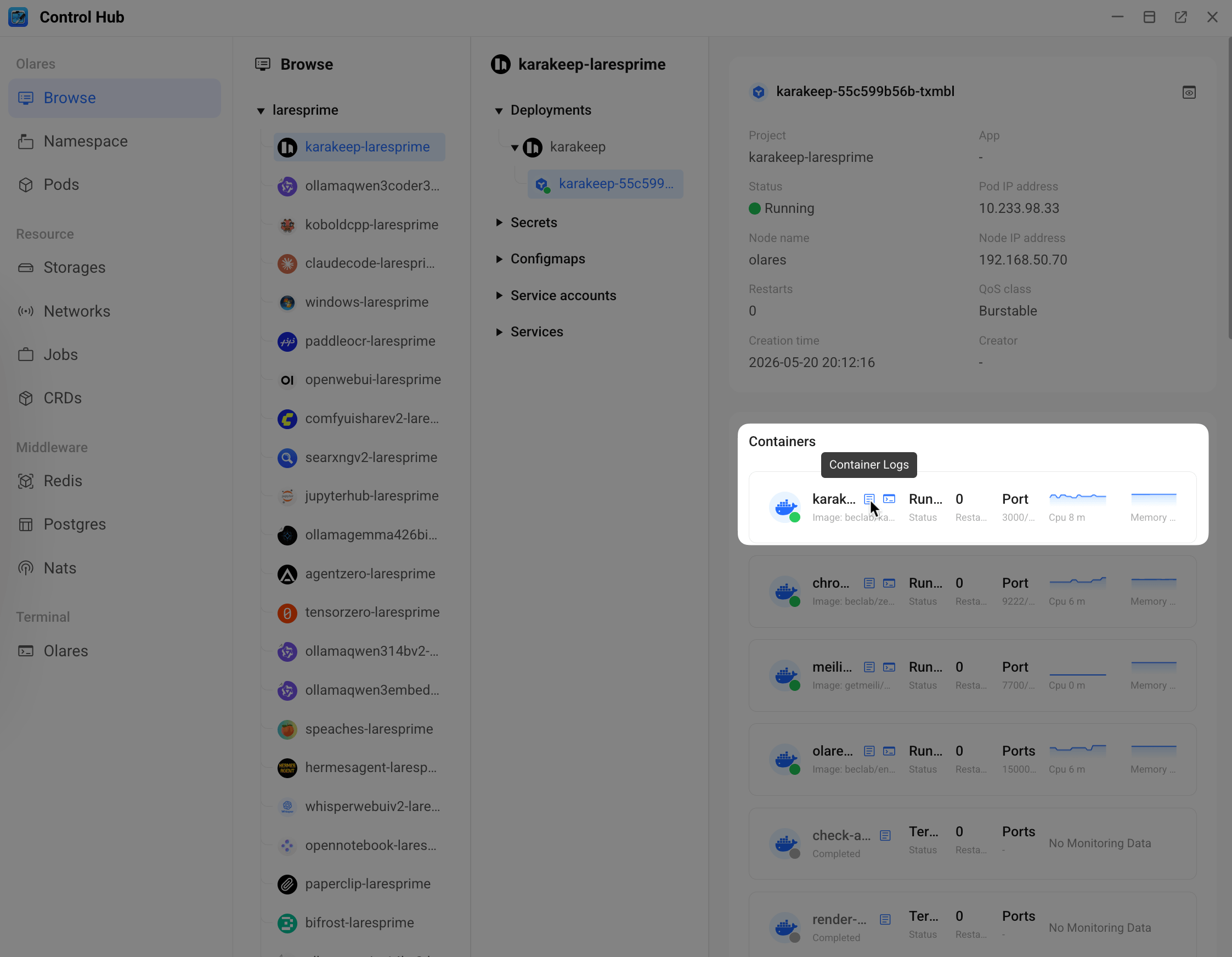
Search for
[VideoCrawler]to find the specific error.For example, if you see an error like the following, the source site has blocked the download request:
textERROR: [youtube] mZp8yCueuKU: Sign in to confirm you're not a botIf your network uses a dynamic IP address, wait for the IP address to change and try again.
Some failures are caused by restrictions on the source website. In these cases, Karakeep may not be able to download the video until the restriction is lifted or yt-dlp supports the updated site behavior.
Learn more
- Karakeep documentation: Official feature reference, API documentation, and third-party client integrations.
- Use Olares Router: Manage chat and vision model connections.
- Set up Open WebUI for local AI chat: Reference workflow for shared model endpoints on Olares.