Set up Bifrost as an AI model gateway
Bifrost is an AI gateway that sits between your client applications and multiple model providers, such as OpenAI, Anthropic, and local engines. It exposes a single OpenAI-compatible endpoint and routes each request to the right backend based on the model name.
Use Bifrost to achieve high request throughput, built-in MCP gateway access, semantic response caching, and automatic provider fallbacks.
Learning objectives
In this guide, you will learn how to:
- Install Bifrost on Olares.
- Add model providers in Bifrost.
- Obtain the Bifrost endpoint URL.
- Route models from Bifrost to OpenCode and Open WebUI.
- Verify model connections using Bifrost's observability logs.
Prerequisites
Before you begin, you need the following model:
| Model type | Model | How to get it |
|---|---|---|
| Chat | Qwen3.6-27B (llama.cpp) | Install from Market |
Optional: Use a different model
You can use a different model size or provider instead of the one listed above:
- Install a different model app from Market.
- Create a model instance from Engine Base apps to bring your own model.
If your AI agent app has the Olares CLI and Agent Skills installed, ask it to deploy the model and skip the manual setup. For example:
Deploy qwen3.5:9b on my Olares using the Ollama Engine Base.Install Bifrost
Open Market and search for "Bifrost".
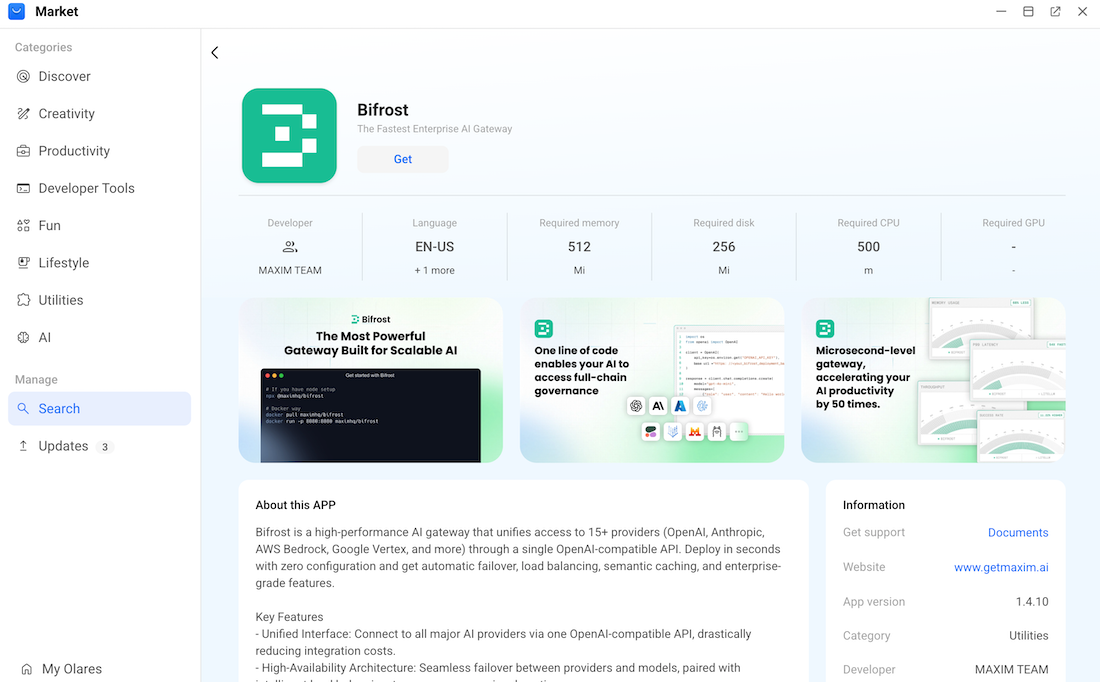
Click Get, and then click Install. Wait for the installation to finish.
Add model providers in Bifrost
In Bifrost, a model provider represents the engine hosting your AI models. You configure a provider by supplying the endpoint URL of the application running the model.
Get model connection details
Open the model app from Launchpad. Its Model Console opens automatically.
Wait until Model shows READY and Engine shows RUNNING.
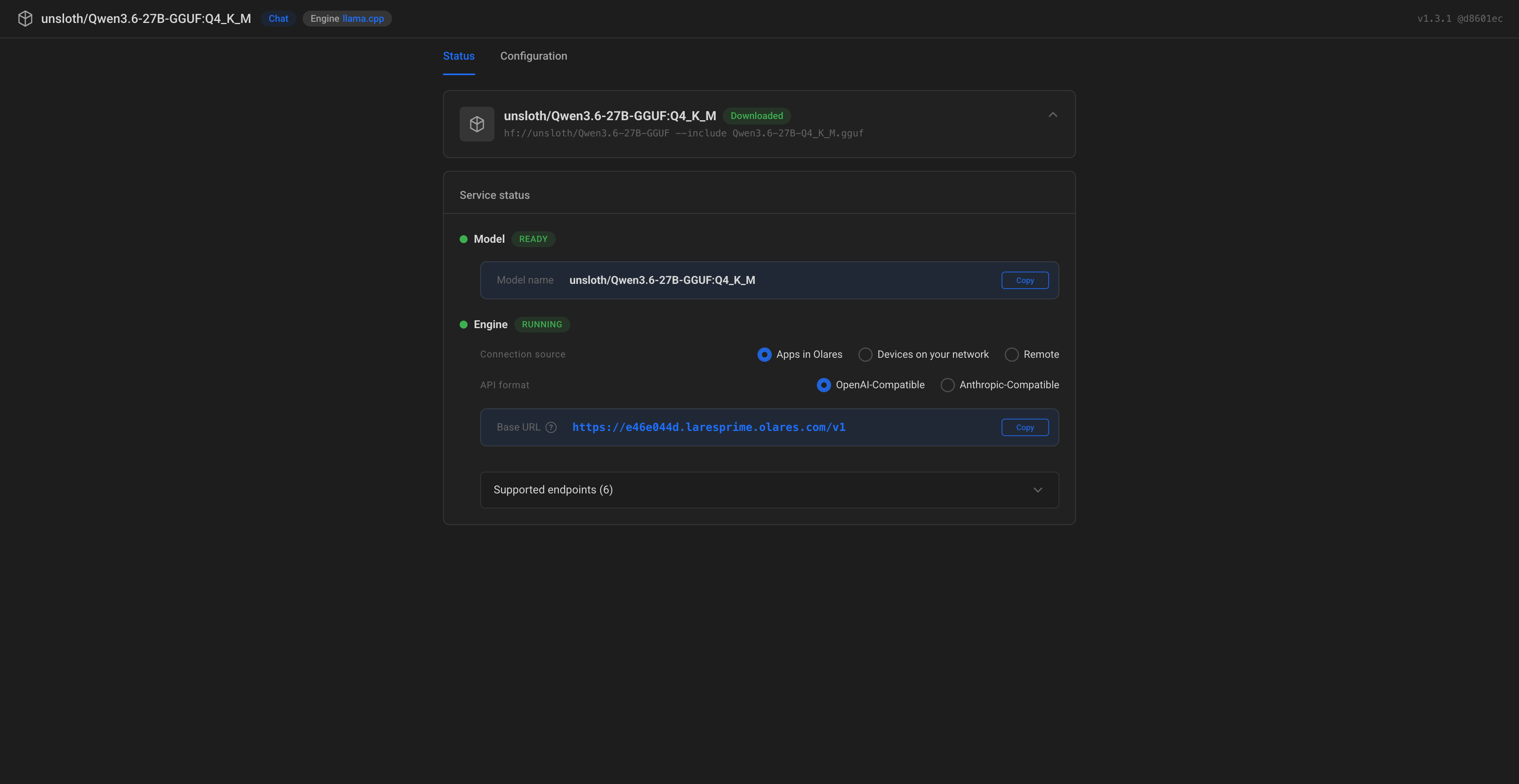
Under Model, copy the Model name exactly as shown.
Under Engine:
a. Connection source: Select Apps in Olares.
b. API format: Select OpenAI-Compatible.
c. Copy the provided Base URL exactly as shown.
Configure the model provider in Bifrost
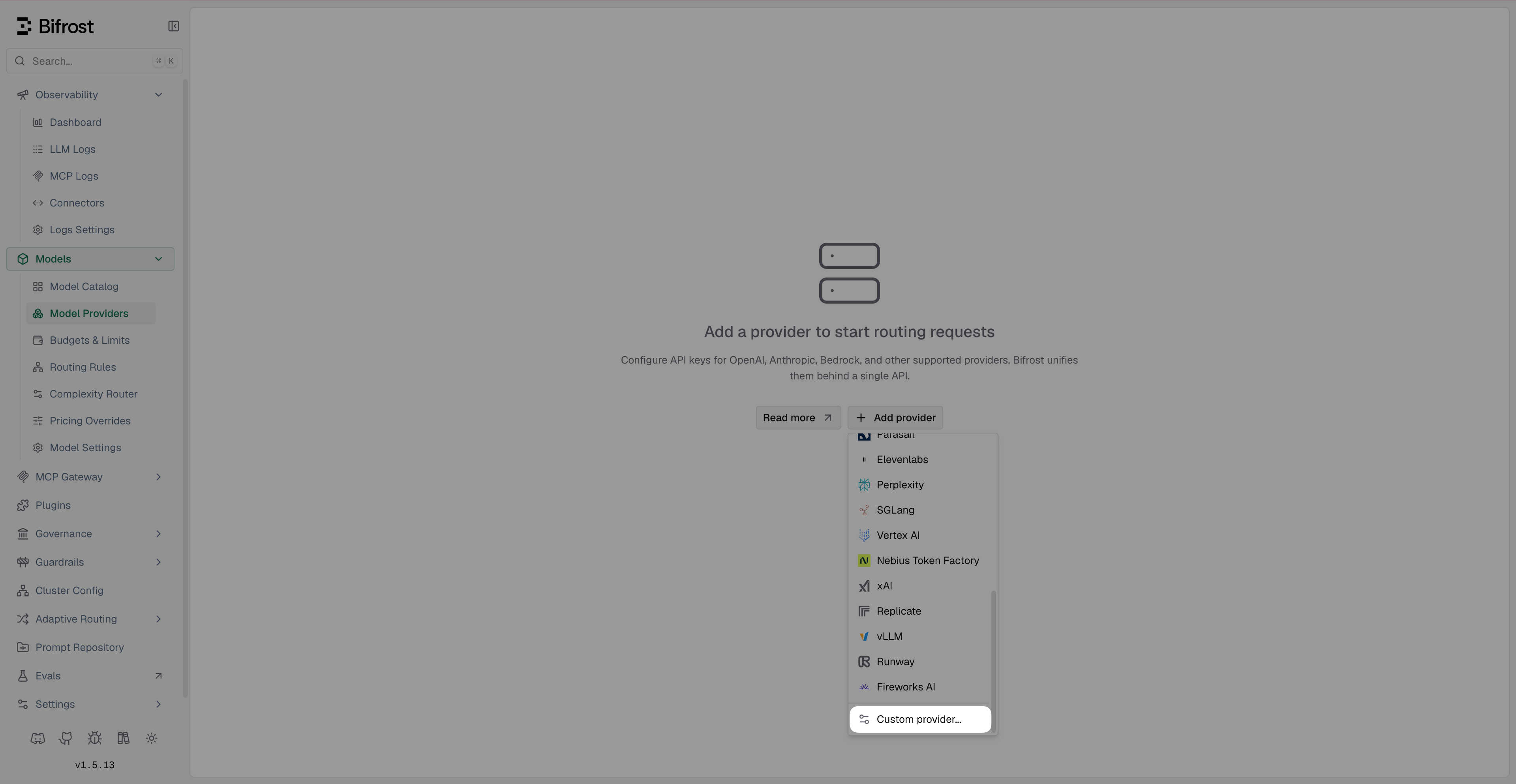
Open Bifrost from the Launchpad, go to Models > Model Providers > Add provider, and then select Custom provider.
In the Add Custom Provider panel, configure the following settings:
- Name: such as local-qwen36
- Base Format: Select OpenAI.
- Base URL: Enter the Base URL you copied from the Model Console, excluding
/v1. For example,https://e46e044d.laresprime.olares.com. - Allow Private Network: Enable it to connect to models hosted on private or internal networks.
- Is Keyless: Enable it since the provider does not require an API key.
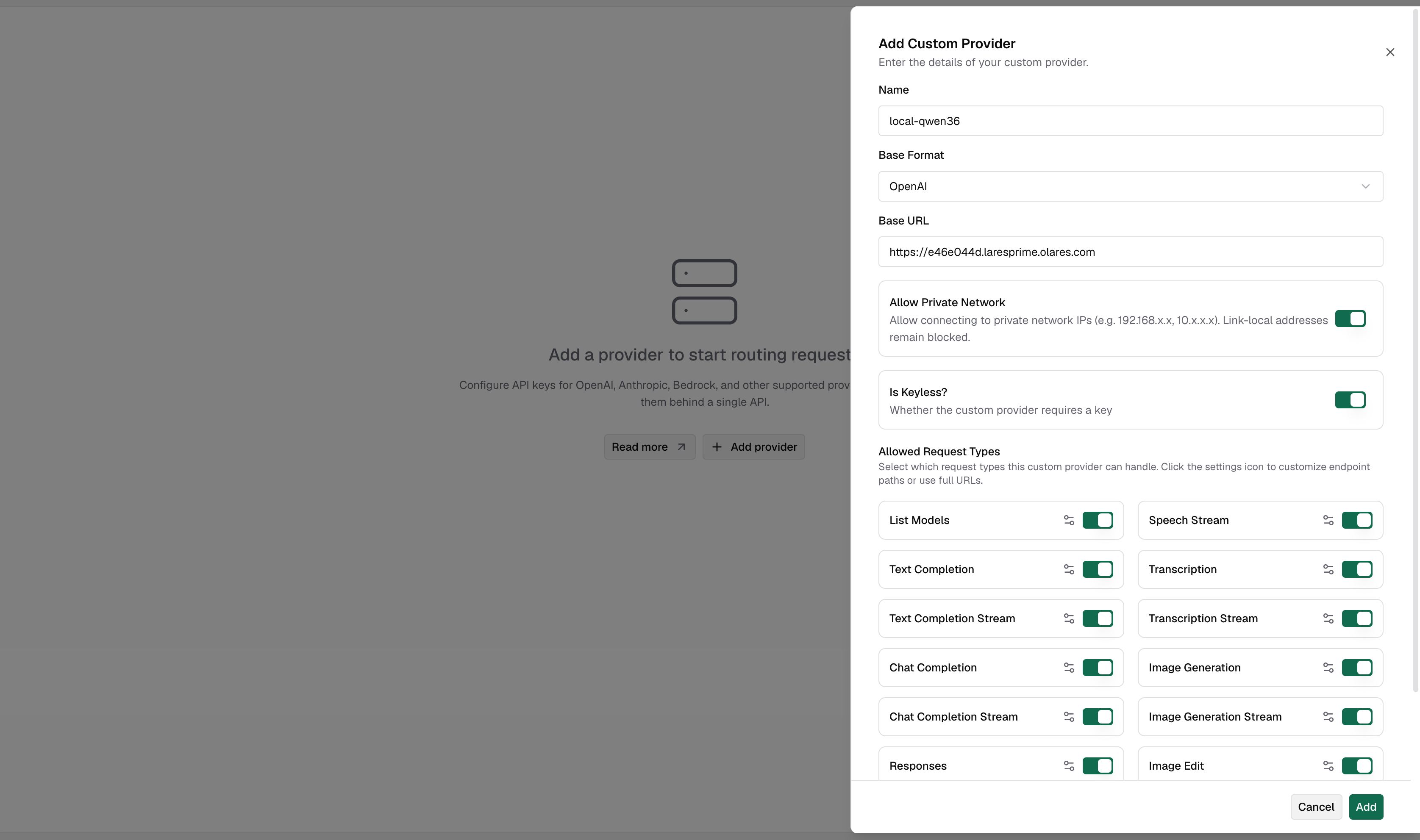
Click Add.
Get the Bifrost endpoint
Client applications connect to Bifrost through the Bifrost endpoint URL, not the model provider URLs you configured earlier.
Open Olares Settings, go to Applications > Bifrost > Entrances > Bifrost, and then copy the endpoint URL. For example:
plainhttps://44039dc0.laresprime.olares.com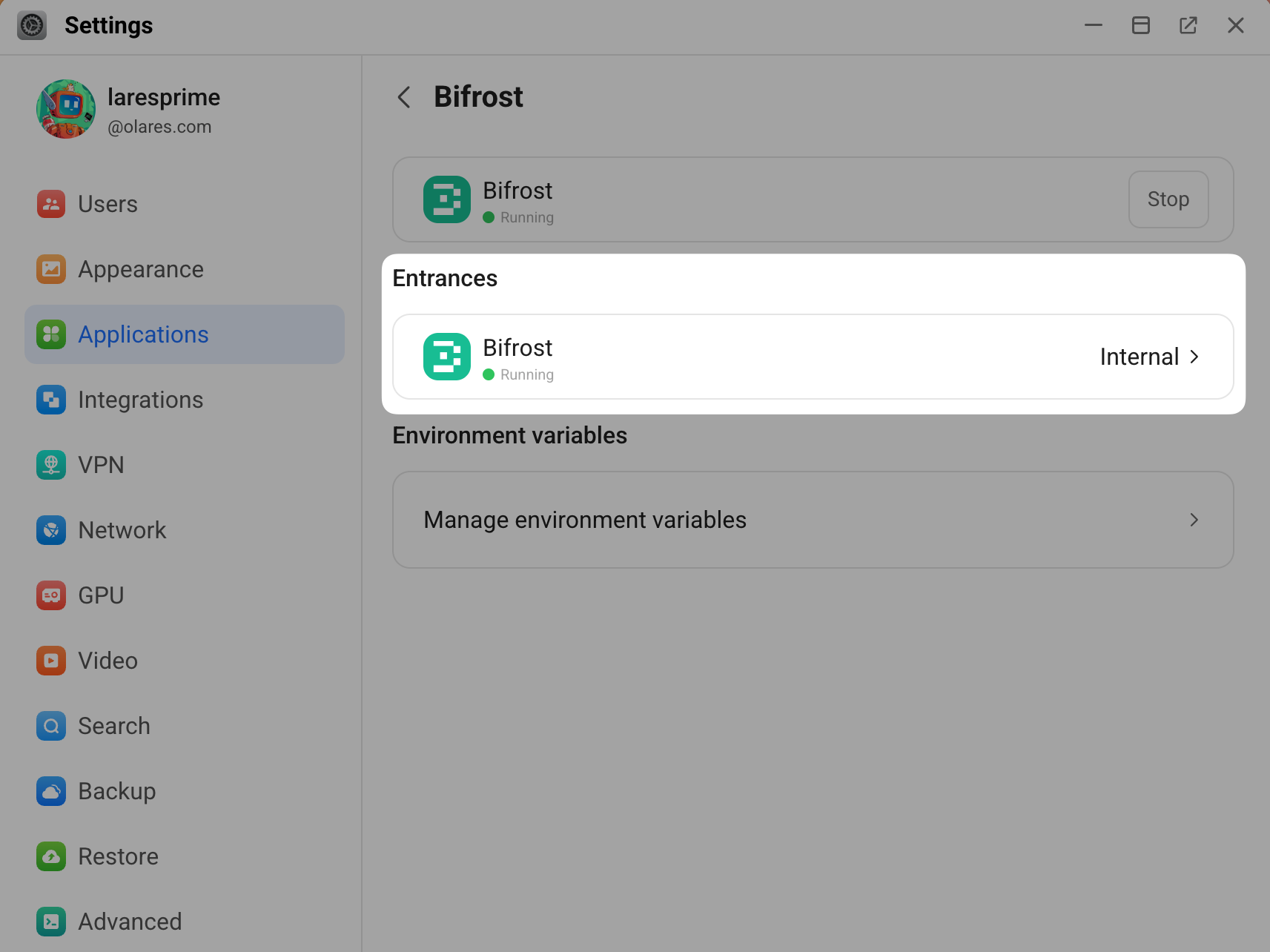
When you configure a client, always append
/v1to this Bifrost endpoint URL. For example:plainhttps://44039dc0.laresprime.olares.com/v1WARNING
The
/v1suffix is required for OpenAI-compatible clients. Without it, requests fail.
Route models to OpenCode
In OpenCode, register Bifrost as a custom provider and add your example model under it.
Step 1: Connect OpenCode to Bifrost
Open OpenCode, go to Settings > Providers > Custom provider, and then click Connect on the right.
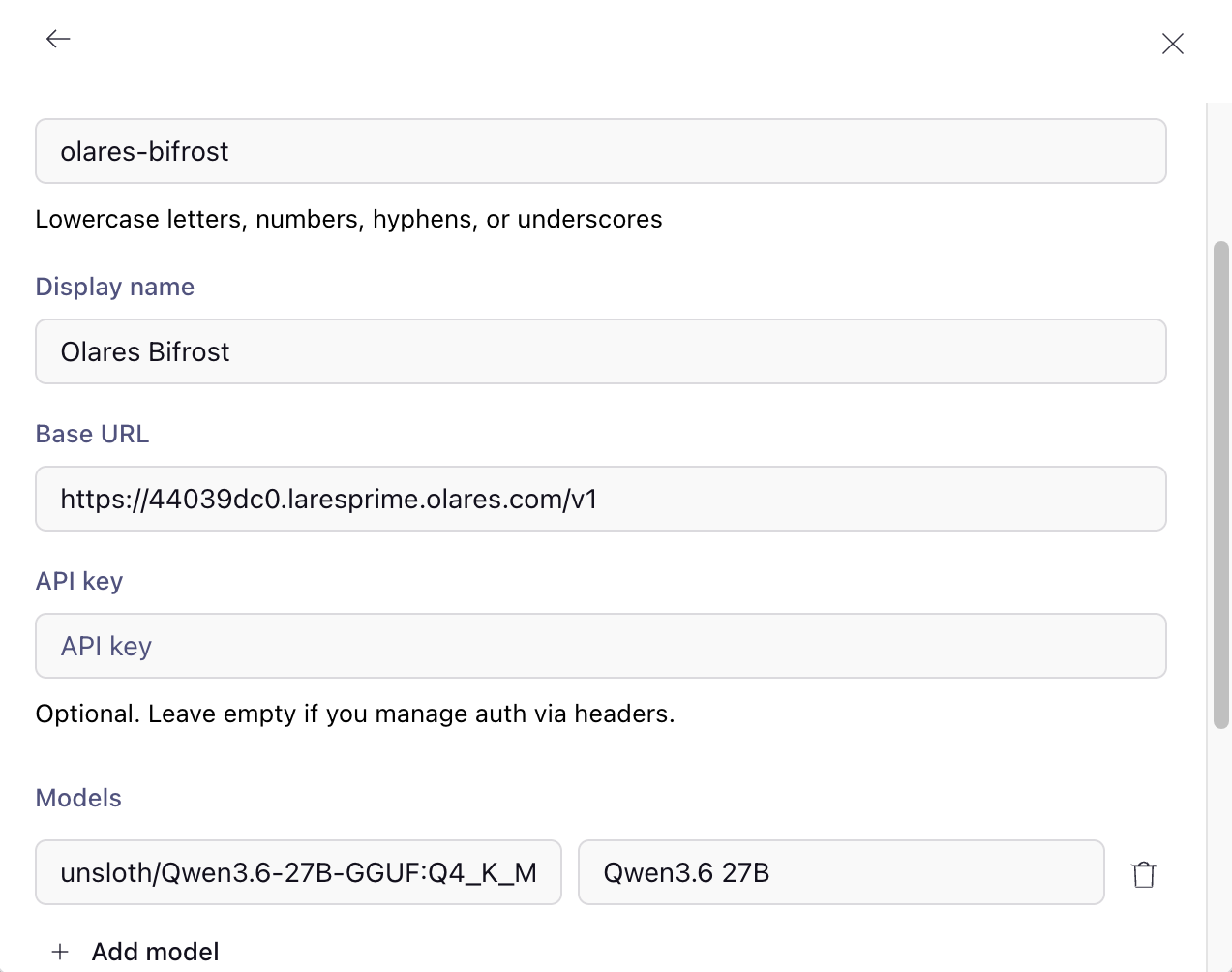
Enter the following details:
- Provider ID: A unique identifier for the provider. For example,
olares-bifrost. - Display name: The name shown in the providers or models list for selection. For example,
Olares Bifrost. - Base URL: The Bifrost endpoint URL with
/v1appended. For example,https://44039dc0.laresprime.olares.com/v1. - model-id: Enter the Model name you copied from the Model Console. For example,
unsloth/Qwen3.6-27B-GGUF:Q4_K_M. - Display Name: Specify a friendly label to identify the model, such as
Qwen3.6 27B. - To add multiple models, click Add model.
- Provider ID: A unique identifier for the provider. For example,
Click Submit. A message is displayed to notify that the provider is connected.
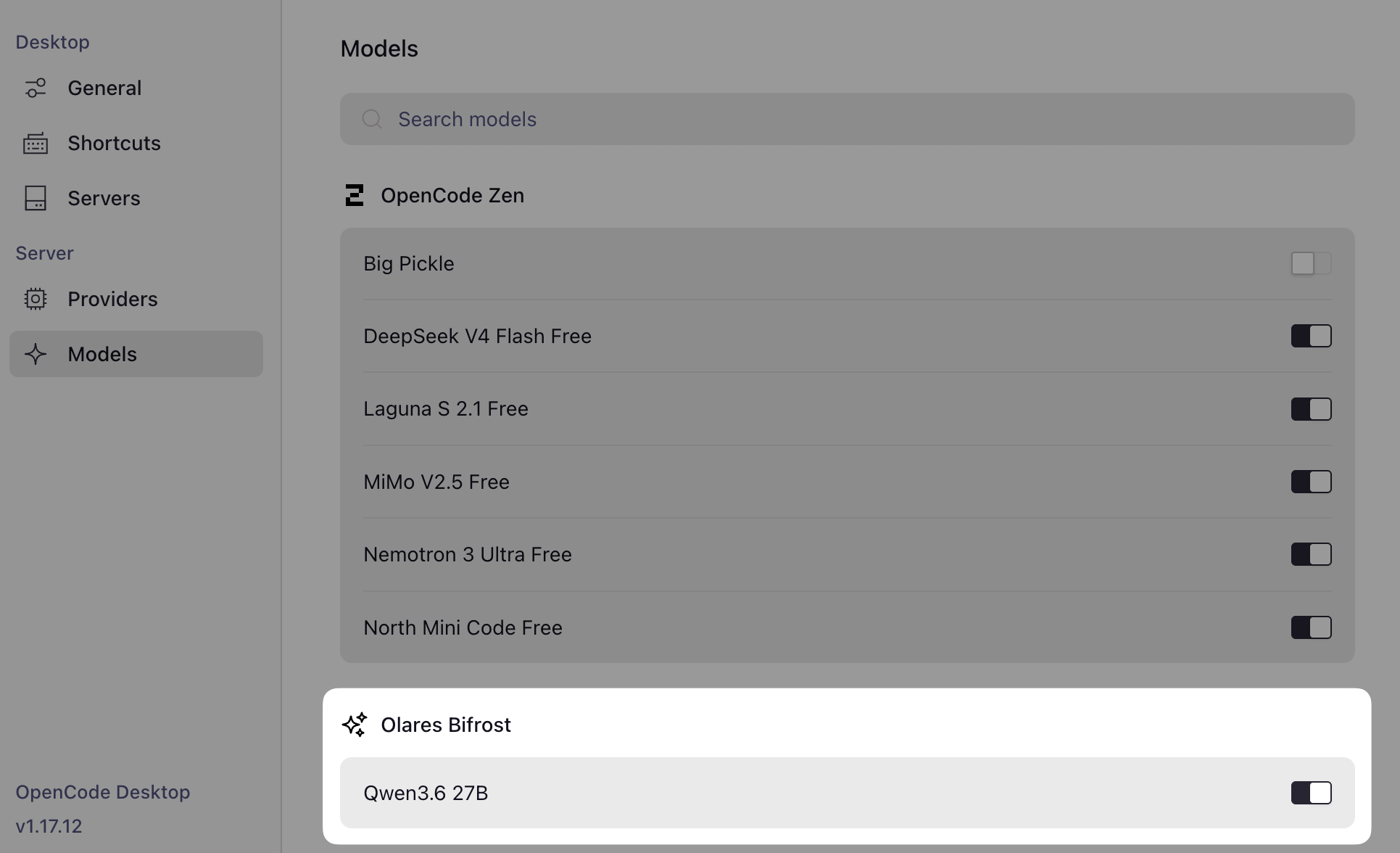
Go to Settings > Models > Olares Bifrost, and then verify the model you added is enabled.
Step 2: Chat and verify
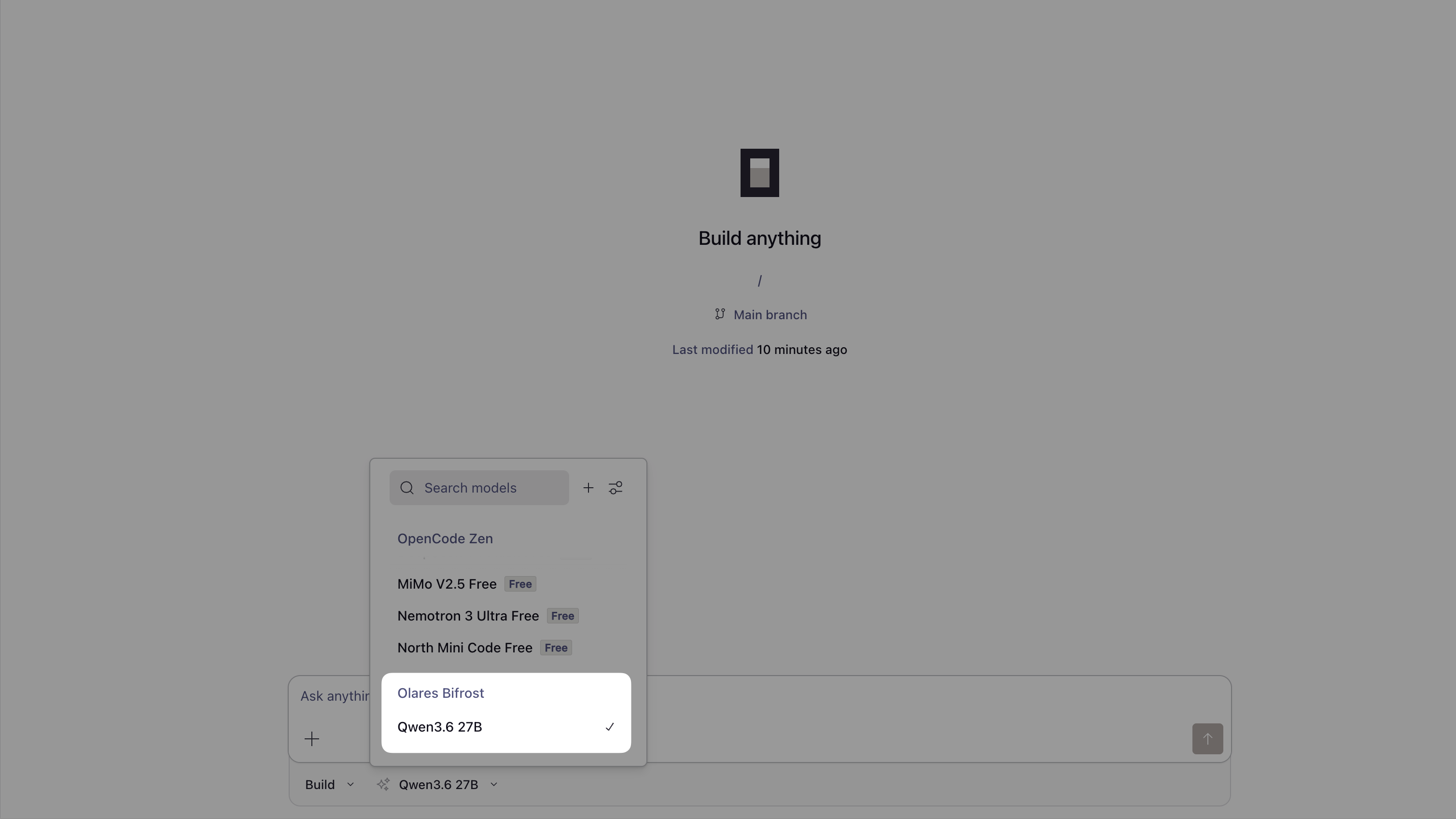
Start a new session in OpenCode, and select the Bifrost-managed model to begin a chat.
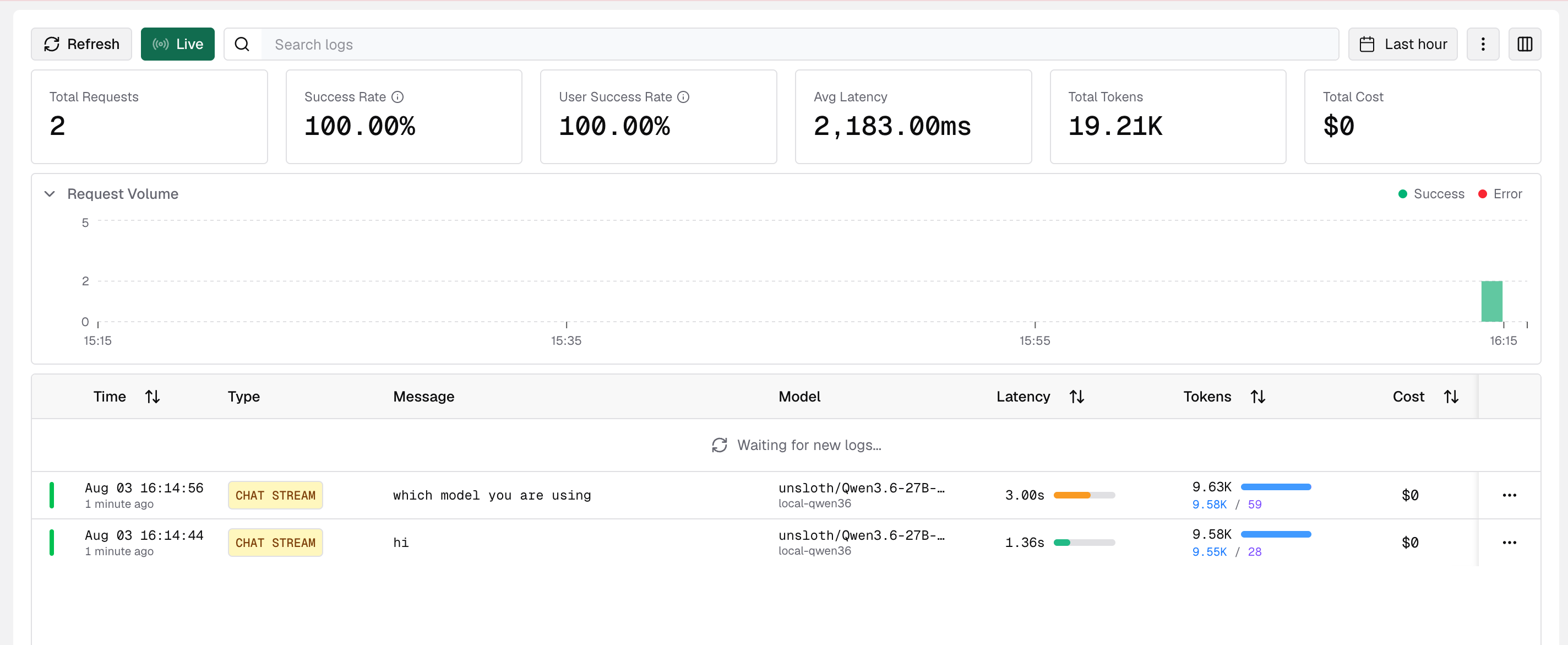
Open Bifrost, and then go to Observability > LLM Logs.
Each request you send appears as a log entry, which confirms that Bifrost routes the traffic successfully.
Route models to Open WebUI
In Open WebUI, add Bifrost as a direct external connection and add the example model under it.
Step 1: Connect Open WebUI to Bifrost
In Open WebUI, click your user avatar, and then select Admin Panel.
Click the Settings tab, locate the AI section, and then select Connections.
To the right of Manage OpenAI Connections, click add to add a new connection.
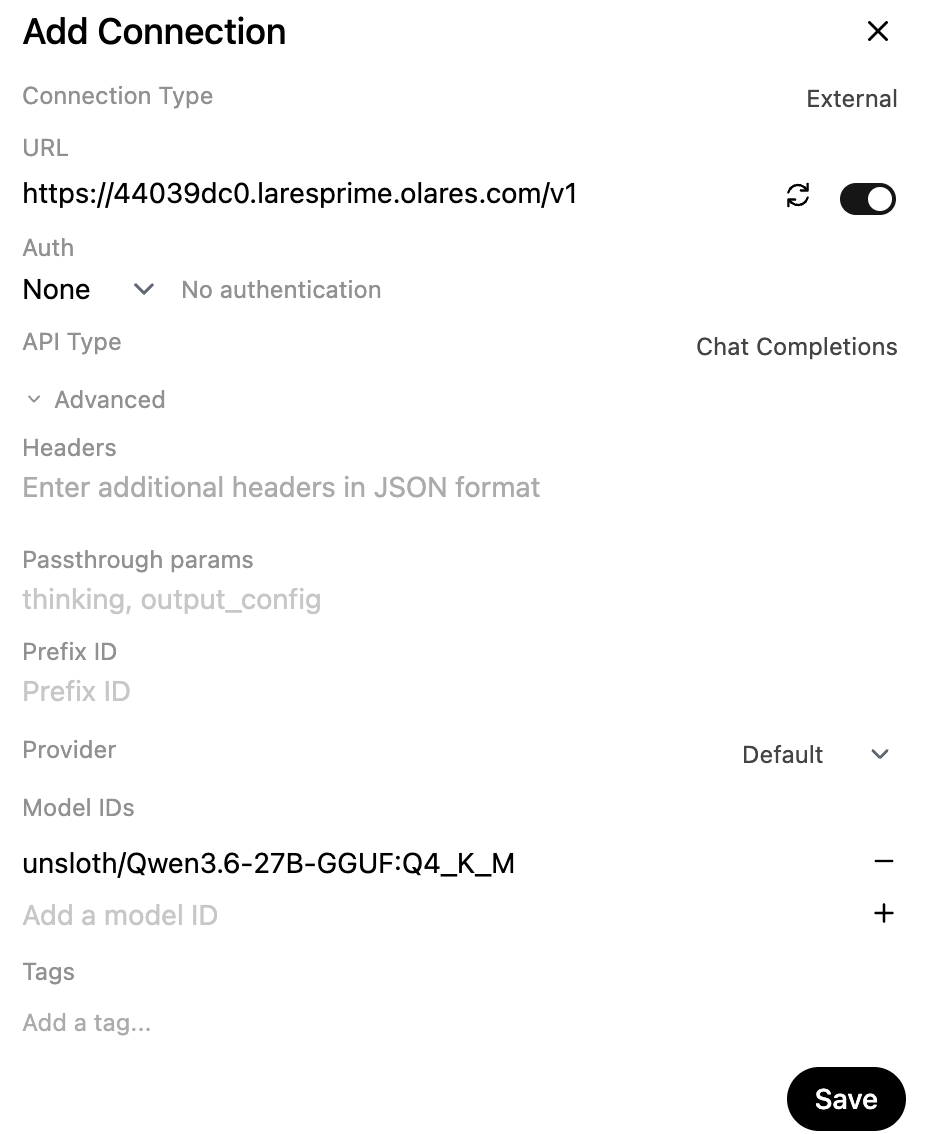
In the Add Connection window, specify the following settings:
- URL: Paste the Bifrost endpoint URL with
/v1appended. - Auth: Select None.
- Add a Model ID: Expand Advanced, enter the Model name copied from the Model Console, and then click add.
- URL: Paste the Bifrost endpoint URL with
Click refresh to verify the connection, and then click Save.
Ensure Direct Connection is enabled.
Click Save.
Step 2: Chat and verify
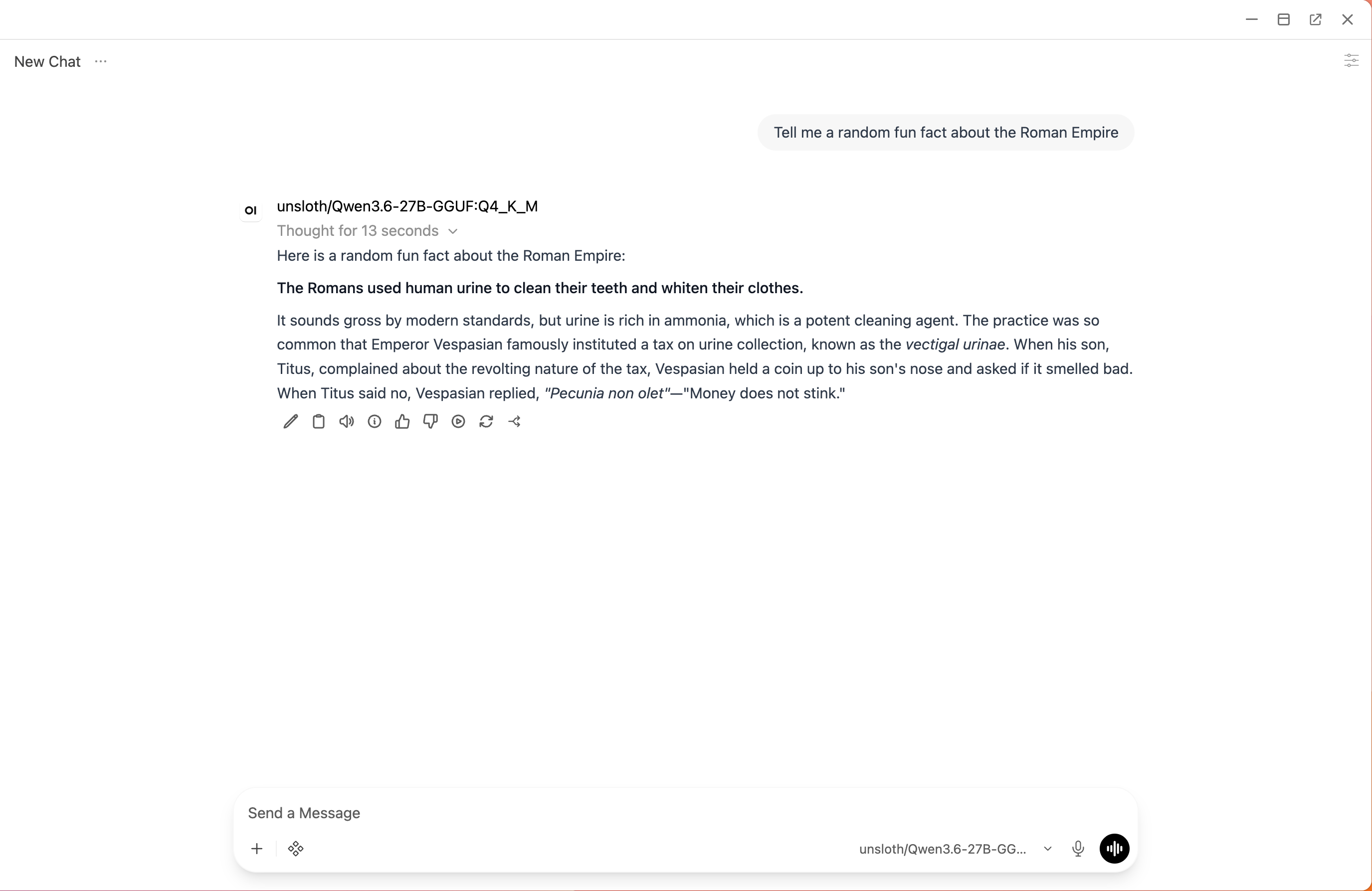
In Open WebUI, go to the New Chat page.
Select the configured model, and then start a conversation.
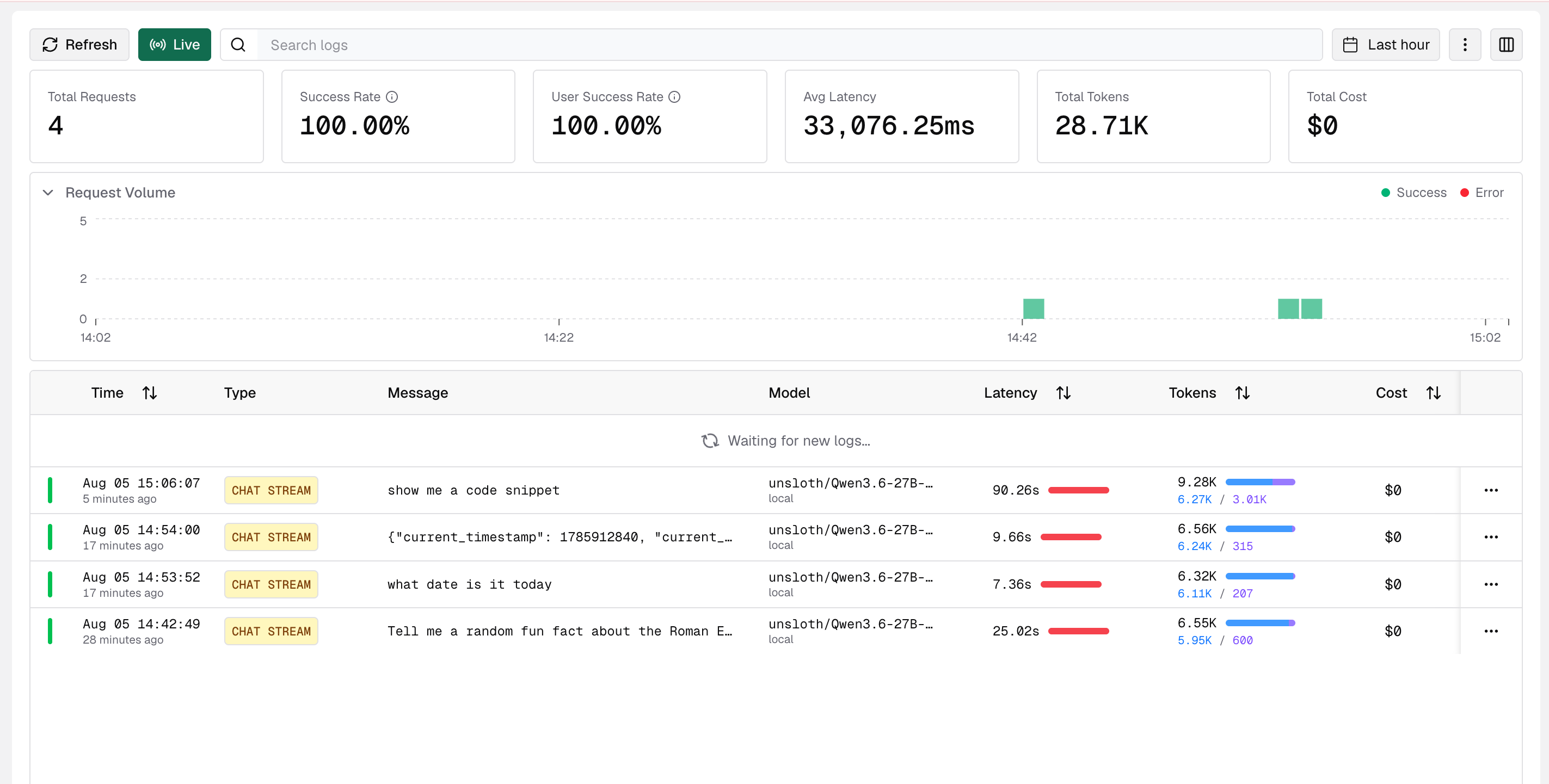
Open Bifrost, and then go to Observability > LLM Logs.
Each request you send appears as a log entry, which confirms that Bifrost routes the traffic successfully.
FAQs
Use Bifrost or LiteLLM?
Olares offers multiple AI gateways. Use Bifrost if you require high request throughput, built-in MCP gateway access, semantic caching, or advanced rate limiting. For a simpler setup without these advanced features, consider using LiteLLM.
Why does OpenCode return an error when connecting to Bifrost?
Ensure you appended /v1 to the Bifrost endpoint URL in your client configuration. Without the /v1 suffix, requests from OpenAI-compatible clients fail.
Why do I get errors when calling a model through Bifrost in OpenCode?
Certain models have their own native output formats such as custom tags or reasoning blocks, or lack support for features the client expects, such as tool calling. When Bifrost routes these requests, the models might return responses that OpenAI-compatible clients like OpenCode fail to parse, resulting in failures.
If you encounter this issue:
- Review the model documentation for special output formats or capability limitations.
- Verify the model supports the specific features your client requests.
- Switch to a model that fully complies with the OpenAI API standard.
Learn more
- Set up OpenCode as your AI coding agent: Full OpenCode setup and project workflow.
- Chat with local LLMs using Open WebUI: Configure Open WebUI against your Olares-hosted models.
- Use LiteLLM as a unified AI model gateway: Compare with Bifrost to choose the right gateway for your stack.
- Bifrost official documentation: Full reference for providers, MCP, caching, and governance features.