Run Linux servers with QEMU Server
QEMU Server runs Linux virtual machines on Olares. Use it to run command-line tools, set up a development environment, or host services. You can manage your server through SSH or a browser console.
This guide uses Ubuntu as the first server, then shows how to add a separate Debian server with Clone. Each instance has its own system disk and resource settings.
Prerequisites
- An amd64 or ARM64 Olares device with hardware virtualization enabled.
- Enough available CPU, memory, and storage for your Linux server. Allow an extra 1 GiB of memory for QEMU in addition to the memory assigned to Linux.
Install and configure QEMU Server
Install the app
Open Market and search for "QEMU Server".
Click Get, then Install. When prompted, configure the following fields. This example uses Ubuntu 24.04 LTS.
Field What to enter DISTRIBUTION Select Ubuntu 24.04 LTS. For other options, see Which Linux distributions can I use? CPU_CORES Assign 1–8 virtual CPU cores. For example, 2.MEMORY_GB Assign 1–32 GiB of memory to Linux. For example, 2.DISK_SIZE_GB Set 16–512 GiB of disk capacity. For example, 40.INITIAL_PASSWORD Set a Linux account password of 8–128 characters. Choose values that fit your device's available resources.
Click Confirm and wait for the app installation to finish.
Initialize Linux
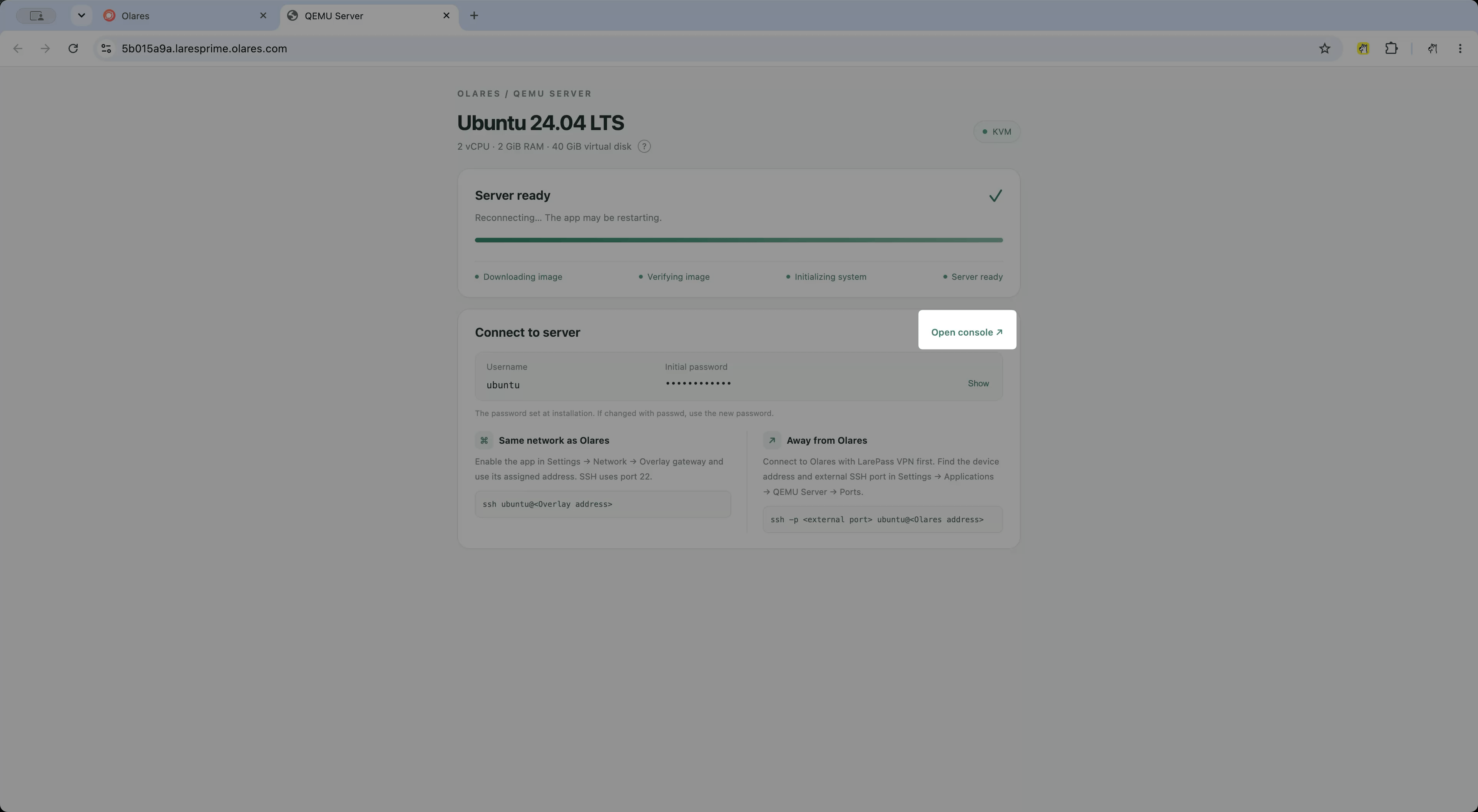
Open QEMU Server from Launchpad to view the system image download and initialization progress.
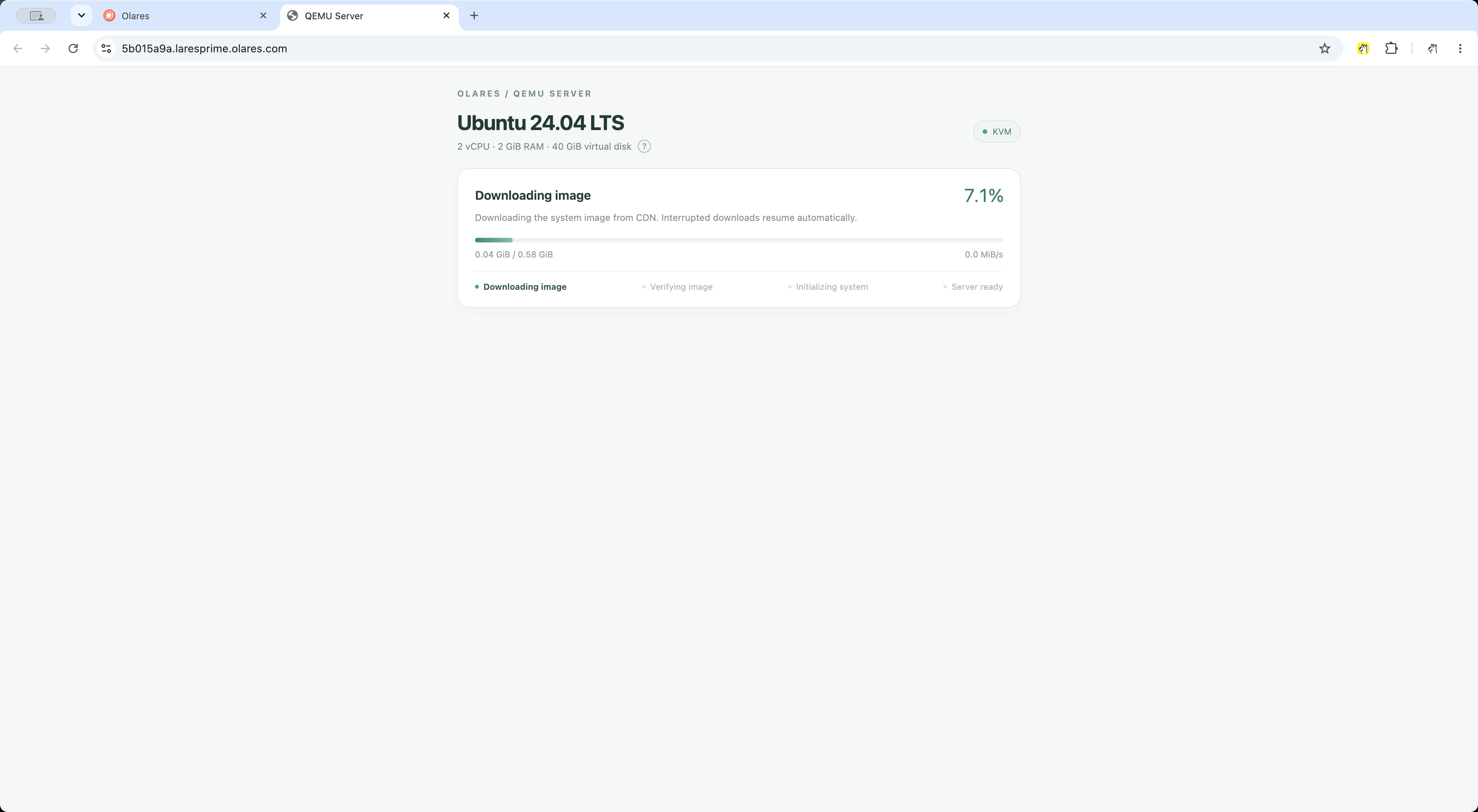
Download time depends on the image size and your network. If the download fails, open Settings > Applications > QEMU Server, click Stop, then Resume to retry using the data already downloaded.
Wait for the download and initialization to finish. When the page shows that the server is ready, you can connect through SSH or the browser console.
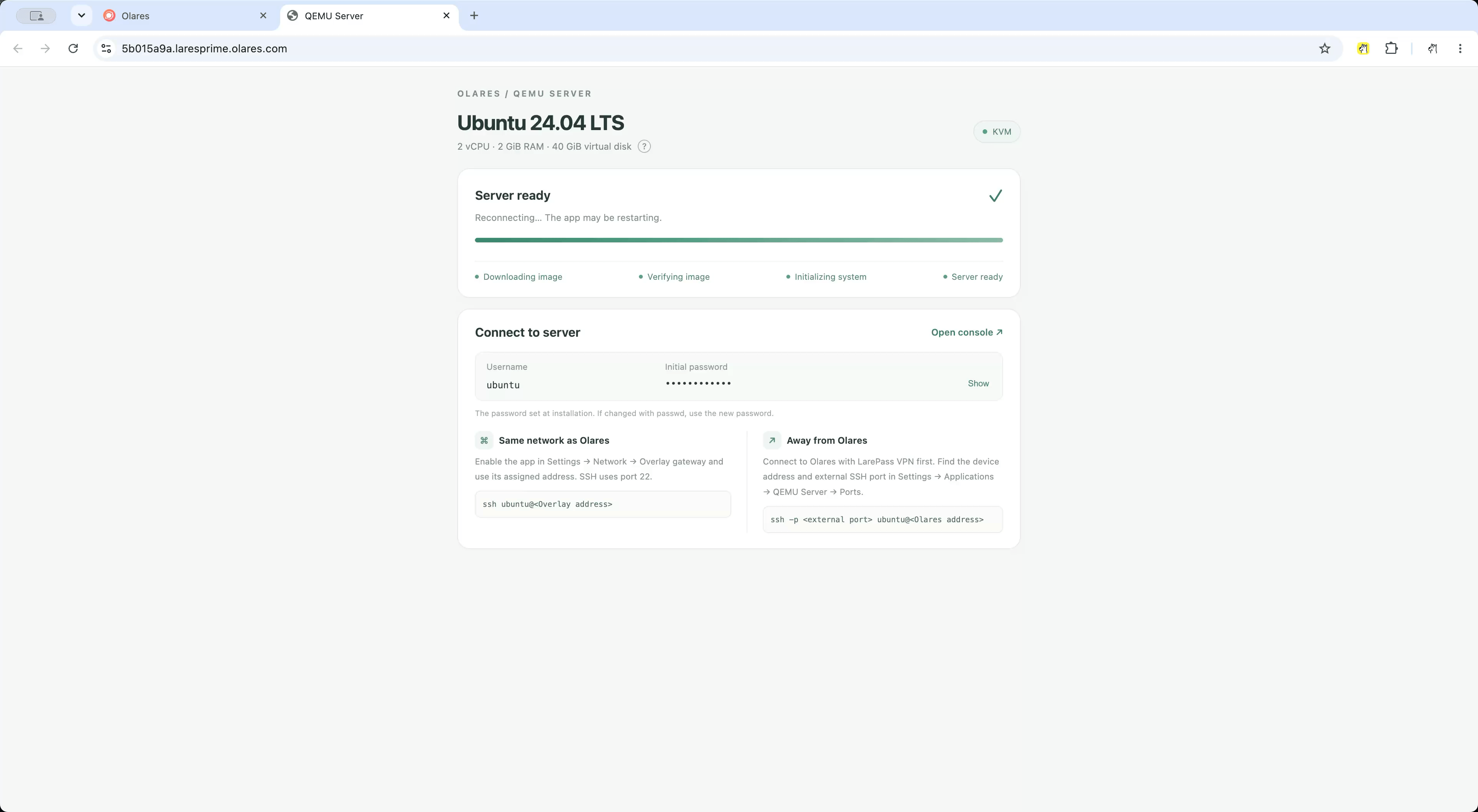
Get your username and password
For Ubuntu, use the username ubuntu and the password you set during installation. The username depends on your selected distribution:
| Distribution | Username |
|---|---|
| Ubuntu | ubuntu |
| Debian | debian |
| Rocky Linux | rocky |
| Fedora | fedora |
Use these credentials for SSH, the browser console, and file transfers. Each account can run administrative commands with sudo.
Connect with SSH
Use Overlay gateway when your computer is on the same LAN as Olares, or LarePass VPN when connecting from another network. The examples below use the Ubuntu account. For another distribution, replace ubuntu with its username.
Connect on the same LAN with Overlay gateway
Overlay gateway gives your server a dedicated local IP for SSH on port 22. This method requires Olares to be installed directly on Linux and connected by Ethernet. Your computer can use Wi-Fi on the same LAN.
Open Settings > Network > Overlay gateway. If the system-level service is off, ask the Super admin to enable Enable overlay gateway.
Under Applications, enable the QEMU Server instance and click Confirm. The instance restarts. Wait for Linux initialization to finish again.
Copy the local IP shown for this instance. Use the current address, as it can change after a restart or network change.
Open Terminal or PowerShell and connect. Replace
192.168.1.51with the IP you copied:bashssh ubuntu@192.168.1.51Enter your Linux password when prompted.
For an SSH client such as Xshell, choose SSH, enter the instance's local IP as the host, and use port 22 with the same username and password.
Connect remotely with LarePass VPN
LarePass VPN lets you connect from another network using your Olares domain and the instance's exported SSH port.
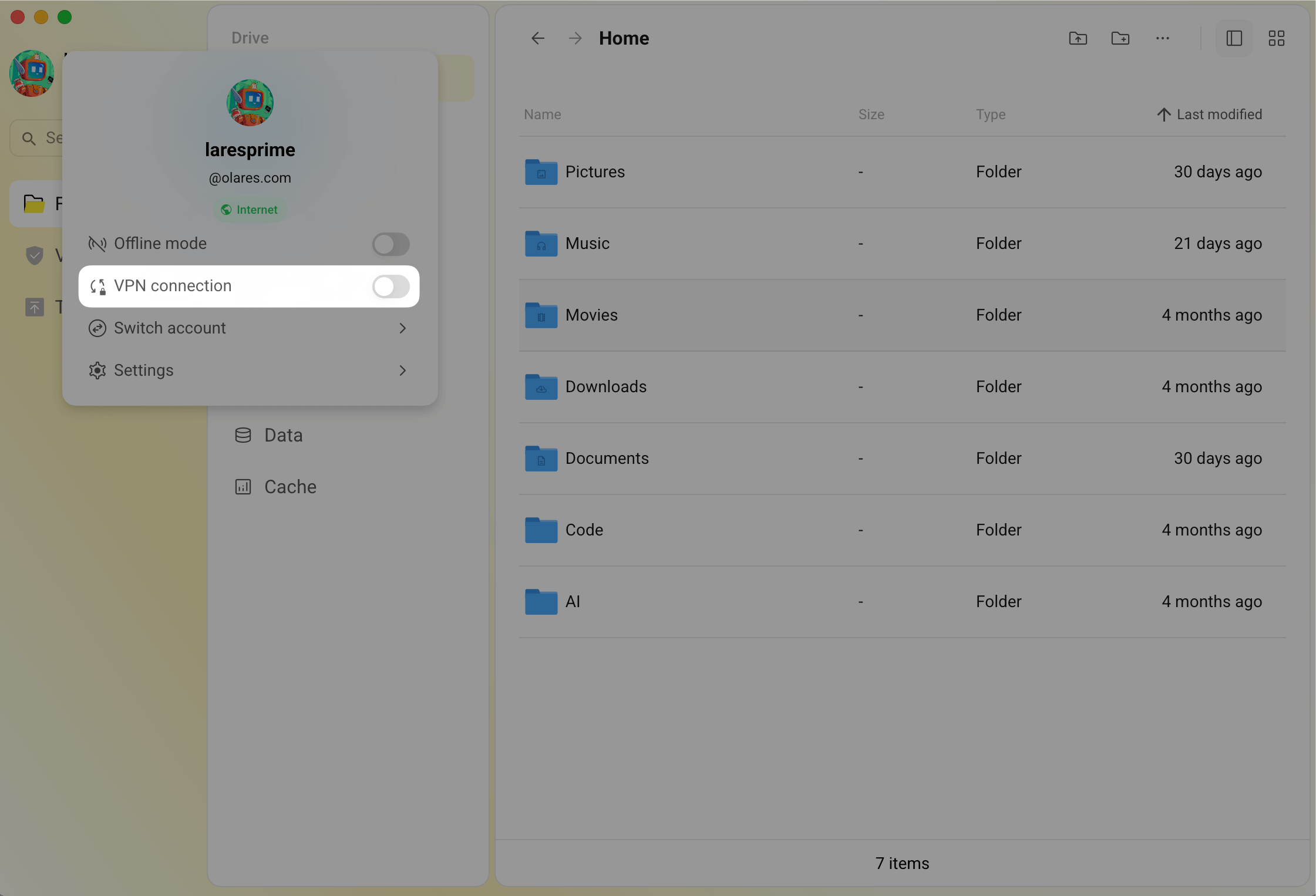
Open LarePass on your computer and sign in with your Olares ID. Click your avatar in the top-left corner and enable VPN connection.
Open Settings > Applications, select your QEMU Server instance, and open Export ports. Note the Exported port for SSH, such as
48113in this example.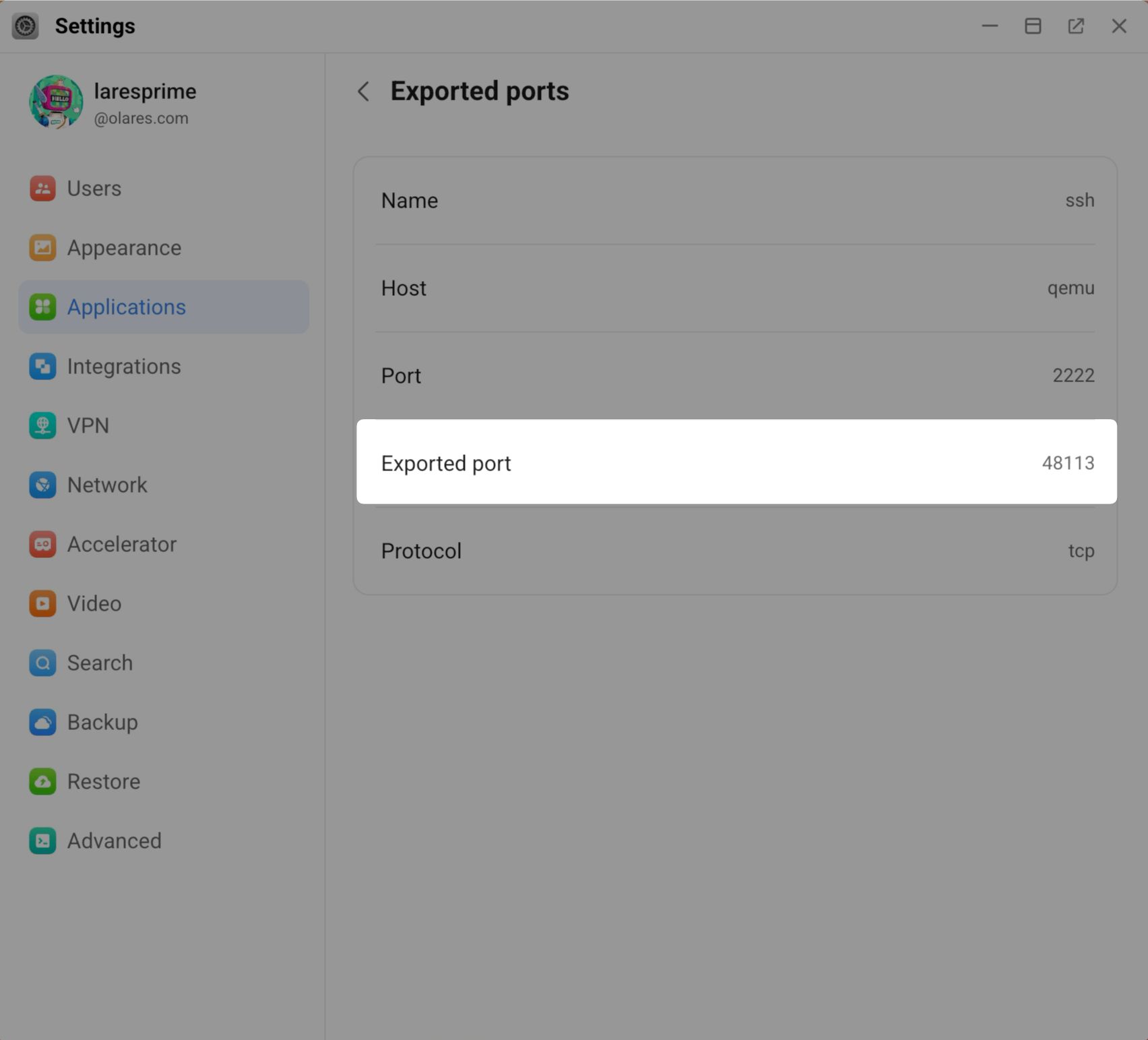
Use the domain for your Olares ID as the host. For example, for
laresprime@olares.com, uselaresprime.olares.com.Open Terminal or PowerShell and connect with
-pfollowed by the exported port. For example, if your domain islaresprime.olares.comand the exported port is48113:bashssh -p 48113 ubuntu@laresprime.olares.comEnter your Linux password when prompted.
For an SSH client such as Xshell, enter your Olares domain as the host and the exported SSH port in the port field. Use the same Linux username and password.
Use the browser console
Use the browser console for quick tasks or to view startup messages when SSH is unavailable.
Open QEMU Server from Launchpad, then click Open console.
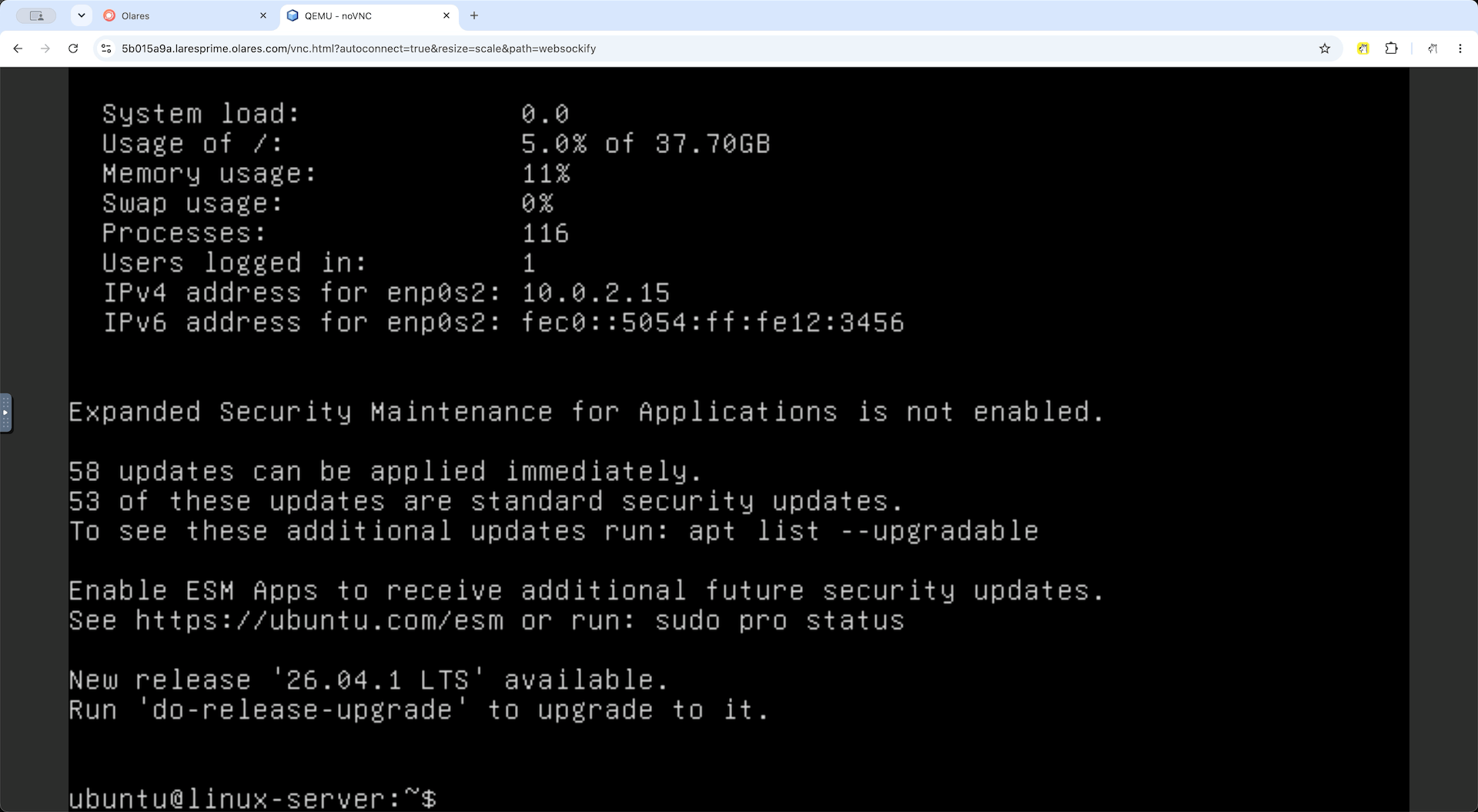
At the login prompt, enter
ubuntuand the password you set during installation. For another distribution, use its username from Get your username and password.
You can now run Linux commands in the browser.
Transfer files between your computer and Linux
Use an SFTP client to upload files to the server or download them to your computer. The following steps use FileZilla Client.
Install FileZilla Client on your computer. Use the same network connection as for SSH. For remote access, keep LarePass VPN enabled.
Open FileZilla, go to File > Site Manager, click New site, and name it
Ubuntu on Olares.Enter the connection details:
Field Value Protocol Select SFTP. Host For LAN access, enter the instance's Overlay IP. For VPN access, enter your Olares domain, such as laresprime.olares.com.Port For LAN access, enter 22. For VPN access, enter the instance's SSH exported port from Settings > Applications > QEMU Server > Export ports.Logon Type Select Ask for password. User Enter ubuntu, or the username for your distribution.Click Connect and enter your Linux password when prompted. The left pane shows files on your computer, and the right pane shows files on the server.
To upload a file, open its folder in the left pane. In the right pane, open
/home/ubuntu, then drag the file from left to right. For another distribution, use its user's home directory, such as/home/debian.To download a file, select a destination folder in the left pane, then drag the file from the right pane to the left. Wait for the transfer to finish and find the file in the destination folder.
Files uploaded to /home/ubuntu are available at the same path in your SSH or browser console session. Folders in Olares Files are not automatically mounted inside the VM.
Create another server with Clone
Clone creates a fresh Linux installation with its own disk, settings, and password. It does not copy files or installed software from your existing server. Use it to try another distribution or keep development and services in separate environments.
To add a Debian server alongside Ubuntu:
- Open Market and select My Olares.
- Find QEMU Server, open the drop-down menu beside Open, and select Clone.
- Enter a New app title, such as
Debian Services, and a Desktop shortcut name, then click Confirm. - In Configure Environment Variables, select Debian 13 for DISTRIBUTION. Set the new server's CPU, memory, disk capacity, and password, then click Confirm.
- Open the new instance from Launchpad and wait for initialization to finish.
- Follow Connect with SSH to connect as
debianusing the new password. For LAN access, enable Overlay gateway for this instance and use its local IP. For VPN access, use its own exported SSH port.
Your Ubuntu server keeps its existing files and settings. Make sure your device has enough available resources to run both servers.
Choose a distribution for each instance
Changing DISTRIBUTION does not replace Linux on an existing system disk. Create a new instance to use another distribution or release.
Adjust CPU, memory, and disk capacity
You can change resource settings as your workload grows. Save your work and back up important data first, as applying changes restarts the server and disconnects SSH sessions.
Open Settings > Applications and select the instance.
Under Environment variables, click Manage environment variables.
Edit CPU_CORES, MEMORY_GB, or DISK_SIZE_GB within the ranges listed in Install the app.
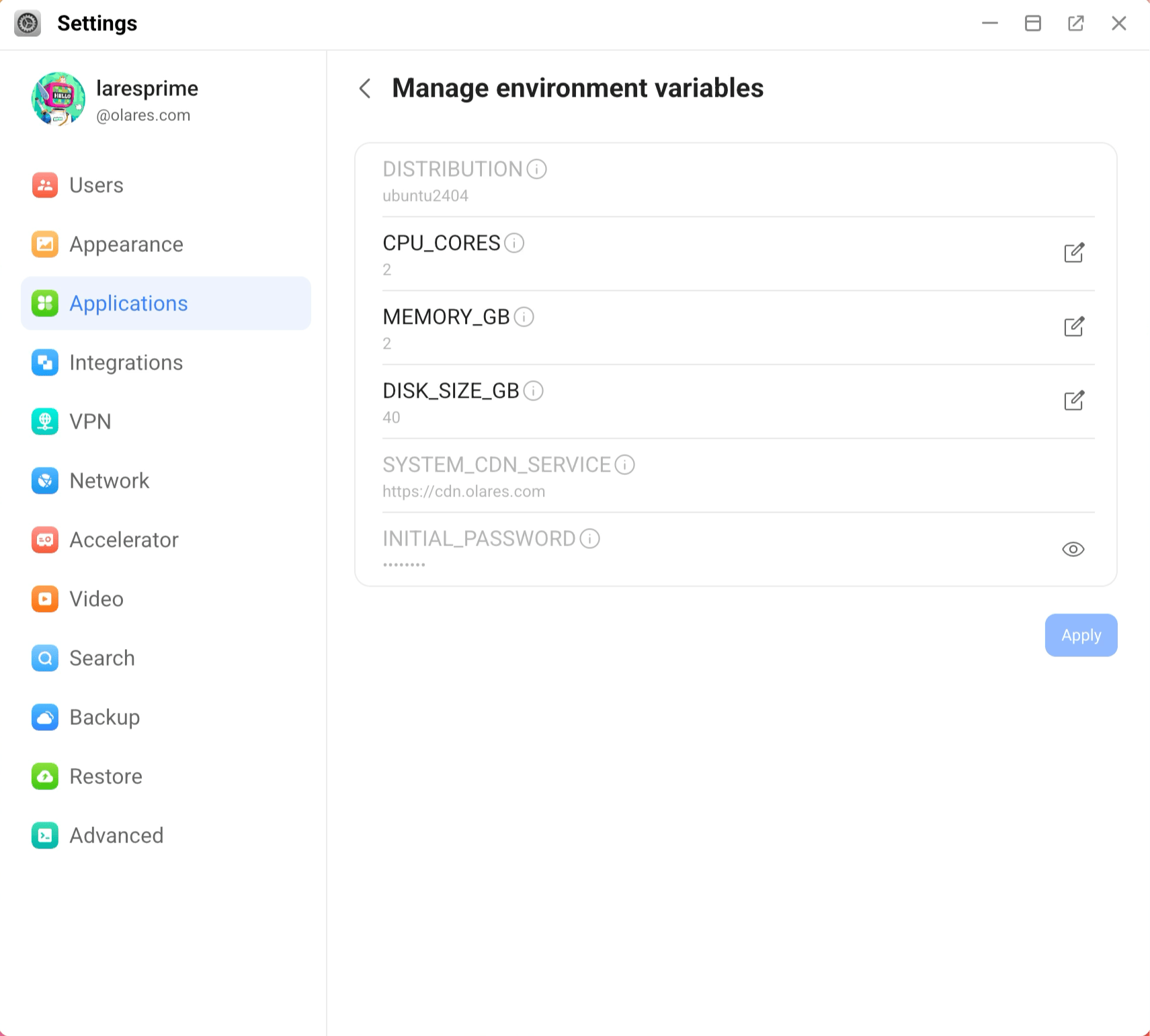
Confirm your changes and click Apply.
Open the instance from Launchpad, wait for Linux to be ready, then reconnect.
Increasing DISK_SIZE_GB expands the virtual disk and supported root filesystems during restart. To view the space available in Linux, run:
df -h /Disk capacity cannot be reduced
A smaller DISK_SIZE_GB value leaves the existing disk unchanged. To use a smaller disk, back up your files and move them to a new instance with the desired capacity.
Keep your data
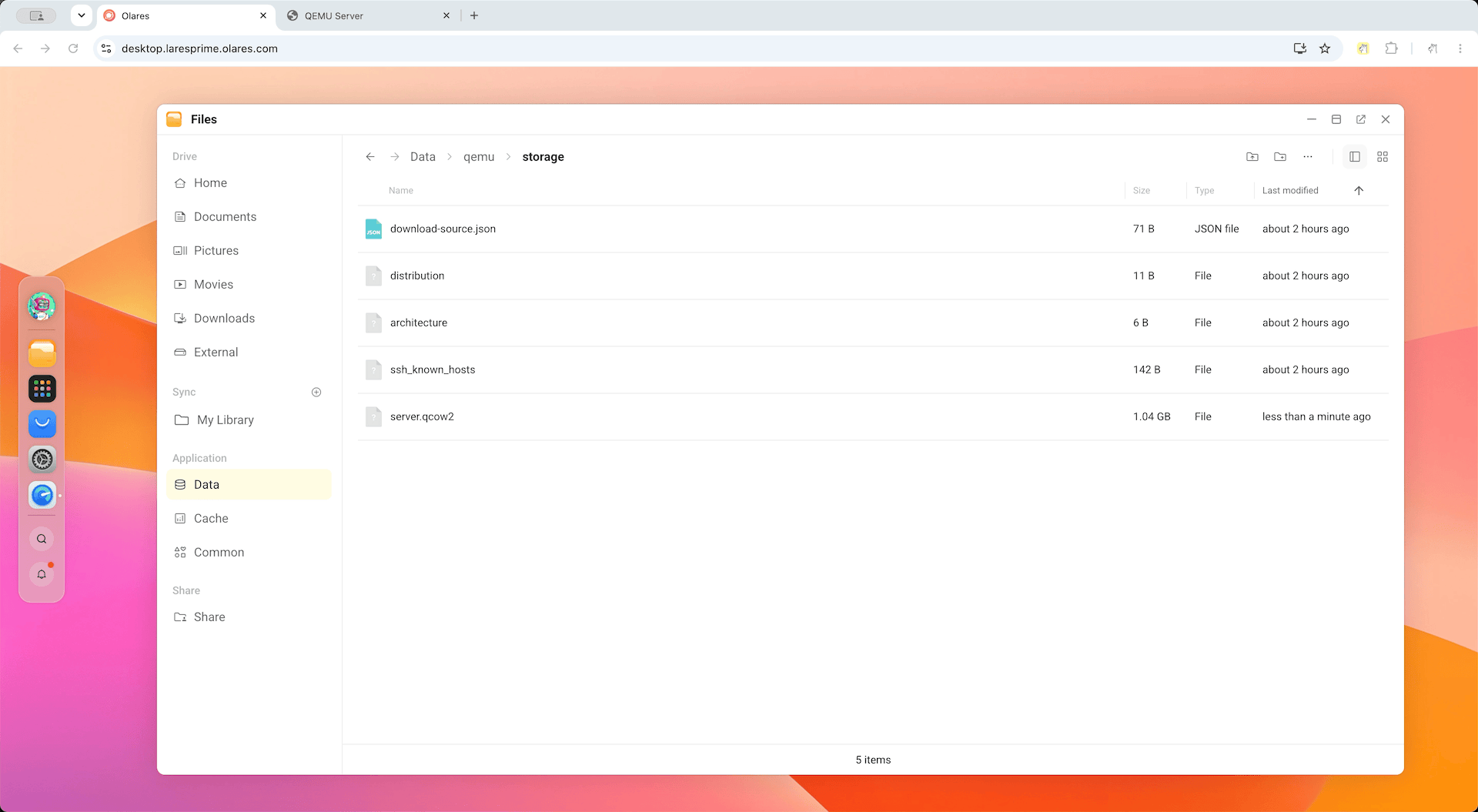
The VM’s system disk is stored as server.qcow2 in Olares Files under Application > Data > qemu > storage. Installed software, files, and service data saved on this disk are preserved across app restarts and resource changes. Each clone has its own system disk.
Back up before removing an instance
Keep a separate backup of important files. Uninstalling an instance and deleting its application data removes its system disk.
FAQs
Which Linux distributions can I use?
Select a distribution in DISTRIBUTION during installation:
| Distribution | Available releases |
|---|---|
| Ubuntu | 24.04 LTS, 26.04 LTS |
| Debian | 12, 13 |
| Rocky Linux | 9, 10 |
| Fedora | 43, 44 |
To try another distribution after installation, create another server with Clone.
What if QEMU Server reports that KVM is unavailable?
QEMU Server needs hardware virtualization on the host running Olares. On a self-hosted x86 computer, check that Intel VT-x or AMD-V/SVM is enabled in BIOS/UEFI. If Olares itself runs in a virtual machine, the host must also provide nested virtualization. See Ubuntu's guides to checking KVM support and nested virtualization.
Why can't I connect to my server?
| Problem | What to do |
|---|---|
| Cannot resolve hostname | Check the host address. Enter it without http:// or https://, and use -p to specify a port in the SSH command. |
| Connection times out on the LAN | Check the instance's current Overlay IP and gateway status. Olares needs wired Ethernet, and your computer's network must allow access to that IP. Guest Wi-Fi isolation can block access. |
| Connection times out over VPN | Check that LarePass VPN is enabled. Use your Olares domain and the exported SSH port for the instance you want to reach. |
| Password is rejected | Use the username for your distribution and its current Linux password. If you changed the password inside Linux, use the new one. |
| The app is running but SSH is unavailable | Open the app page and wait for Linux initialization to finish. Use the browser console to view startup messages. |
Learn more
- Clone applications: Run multiple application instances.
- Manage Overlay gateway: Configure local access for your apps.
- Manage application environment variables: Change instance settings.
- Run a Windows VM on your Olares device: Use Windows applications through a browser or Remote Desktop.
- Run a macOS VM on your Olares device: Set up macOS and connect through a browser or VNC client.