Research the web with Lares
Lares can use search and page-reading providers configured in Router to work with public web content. Search providers find relevant pages, while scrape providers read a specific page for analysis or summarization.
This guide connects SearXNG as a search provider, checks the connection with a small source-finding task, and then uses the results in a larger research request.
Learning objectives
In this guide, you will learn how to:
- Choose between search and scrape providers.
- Configure a web research provider in Router.
- Select a search service in Lares and inspect its sources.
Prerequisites
- Lares prepared with a tool-capable chat model.
- One web research provider. This guide uses SearXNG installed from Market.
Choose a web research provider
Router labels providers by the capability they supply.
| Capability | Providers | What Lares can do |
|---|---|---|
search | SearXNG, Serper, Tavily | Find pages and return titles, snippets, and links. |
scrape | Firecrawl, Tavily, Jina Reader | Read a provided URL for analysis, summarization, or saving. |
SearXNG and Firecrawl run as apps on Olares. Install the app from Market, then copy its endpoint from Olares Settings > Applications > [App name] > Entrances. Serper, Tavily, and Jina Reader require credentials from their providers.
Connect SearXNG in Router
Open Olares Settings > Applications > SearXNG > Entrances.
Select the SearXNG entrance and copy its Endpoint URL.
Open Router and go to Tools > Manage providers.
Select SearXNG and enter:
- Provider name:
localsearxng - SearXNG instance URL: The endpoint copied in step 2
- Provider name:
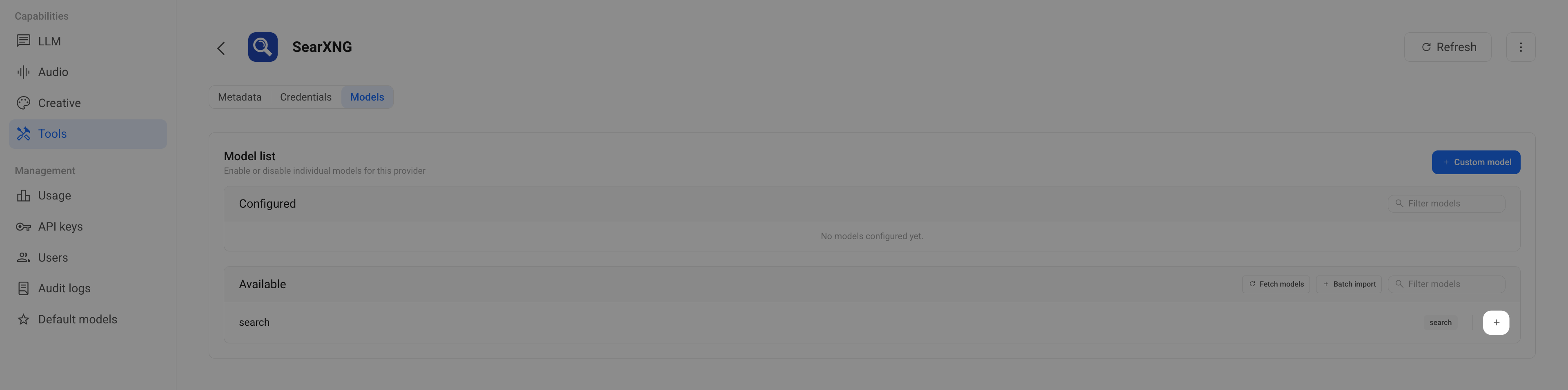
Click Add. The provider appears under Available.
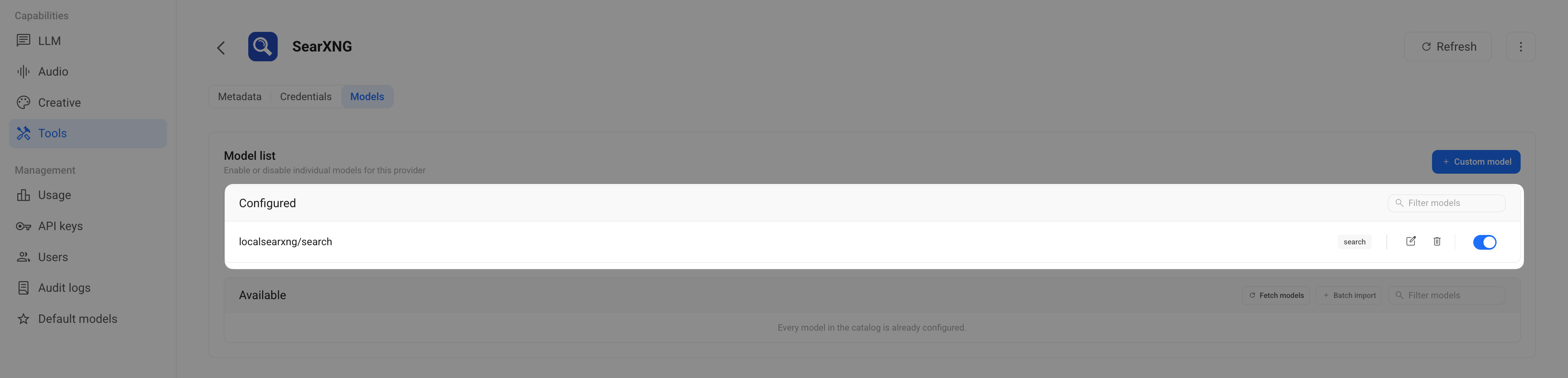
Click add to enable it.
The provider appears under Configured.
Select the search service in Lares
A provider with the search capability must be selected in Lares. A scrape-only provider is called when you ask Lares to read a specific URL and does not appear as the default search service.
- Open Lares and go to Settings > Web Search.
- Click Refresh.
- Select
localsearxngfrom Default search service.
Check the connection
Start with a small request so you can inspect each returned link:
Use web search to find three relevant public sources about preserving a
personal voice when using AI writing tools. For each source, return the
title, URL, and a one-sentence summary.
Open the links and check that the pages match the summaries. If no links appear, confirm that SearXNG works directly, then refresh the provider list in Lares.
Run a larger research task
Once the source check succeeds, ask Lares to search, read, and synthesize material. State the question, source requirements, and desired output. For example:
Research practical methods for preserving an author's voice when using AI
editing tools. Use at least five public sources, including two first-party
sources from writing or publishing organizations. Compare the methods,
identify tradeoffs, and produce a concise report with inline source links.
Review the cited pages before relying on the report. A successful search connection confirms that Lares can retrieve results, but it does not establish that every generated claim is supported by its source.
Learn more
- Get started with Lares: Prepare the model and run a first read-only task.
- Set up SearXNG: Install and use the search service directly.
- Use Firecrawl: Prepare a page-reading service for website content.