Build a reading library with Linkwarden
Linkwarden is a bookmark manager that organizes links into collections and preserves web pages for later reading. On Olares, your library and archived content stay on your device.
This example saves the Olares guides for Jellyfin, Navidrome, and Immich in one collection to make the three home media apps easier to compare.
Prerequisites
- Olares 1.12.7 or later.
Install Linkwarden
- Open Market and search for "Linkwarden".
- Click Get, then Install, and wait for installation to complete.
Open Linkwarden
- Open Linkwarden from Launchpad.
- Sign up if you are new to Linkwarden, or sign in with your existing account.
Your Olares login protects the application entrance. Your Linkwarden account is separate and gives you access to the bookmark library.
Create a collection and save links
Create a collection for the three guides, then save each page as a link with the same tag.
In the sidebar, click Collections, then click + next to Collections you own.
Enter a name in Name and click Create Collection. This guide uses
Home media appsas an example.Click New Link and enter
https://docs.olares.com/use-cases/jellyfinin Link.Select
Home media appsin Collection, then click More Options.Enter
Jellyfin on Olaresin Name. In Tags, enterhome-mediaand select the tag from the menu. If it does not exist, select Create "home-media". Click Create Link.Repeat steps 3–5 for two more links. Use the same collection and tag for both:
- For Navidrome, enter
https://docs.olares.com/use-cases/navidromeand name the linkNavidrome on Olares. - For Immich, enter
https://docs.olares.com/use-cases/immichand name the linkImmich on Olares.
- For Navidrome, enter
INFO
Collections are private by default. Share this collection only if you want others to read its links.
Read a preserved page
Open the saved Jellyfin guide in Linkwarden's readable format to view its preserved text.
Open
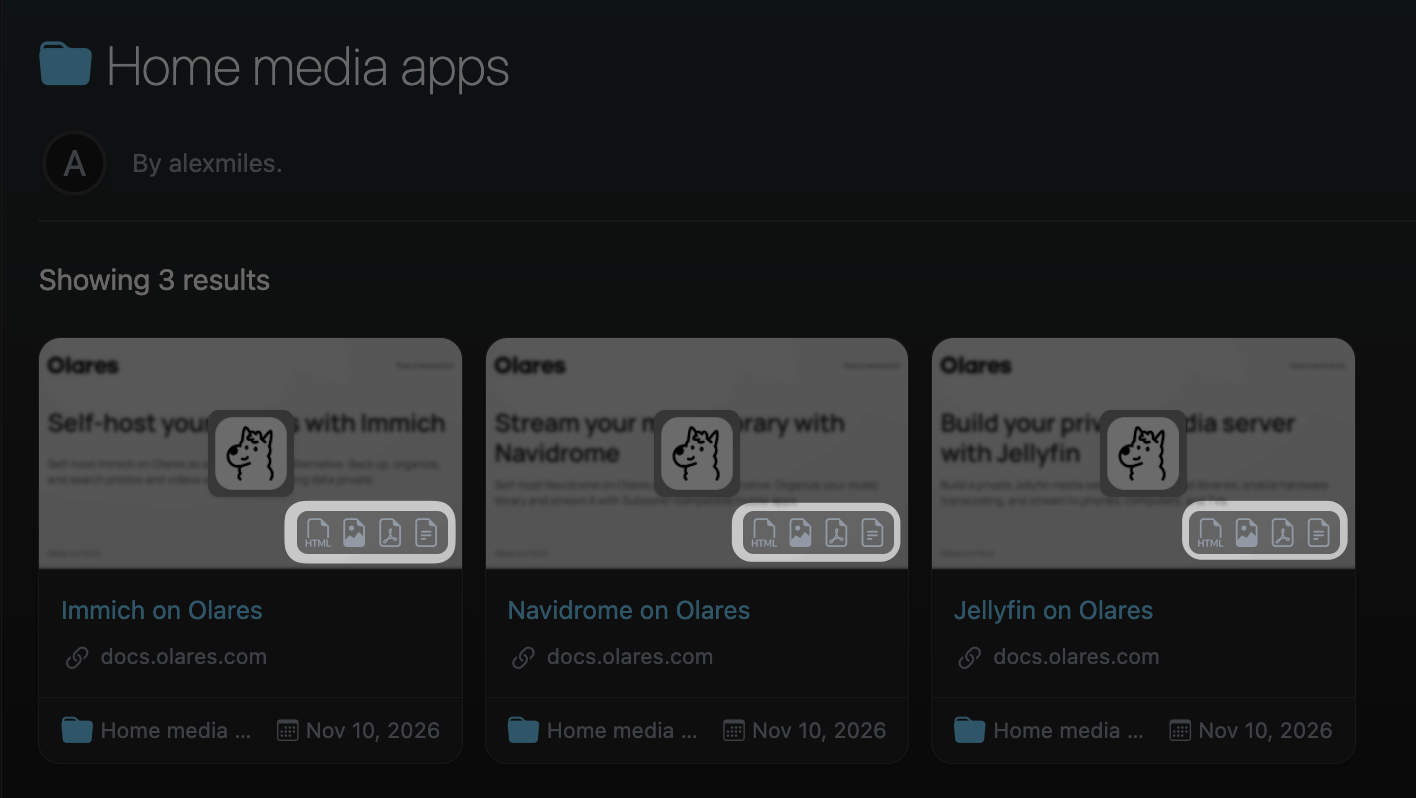
Home media appsfrom the sidebar and find theJellyfin on Olarescard.The four icons on the card open the preserved page as Webpage, Screenshot, PDF, or Readable, from left to right. Click Readable to open a reading layout.
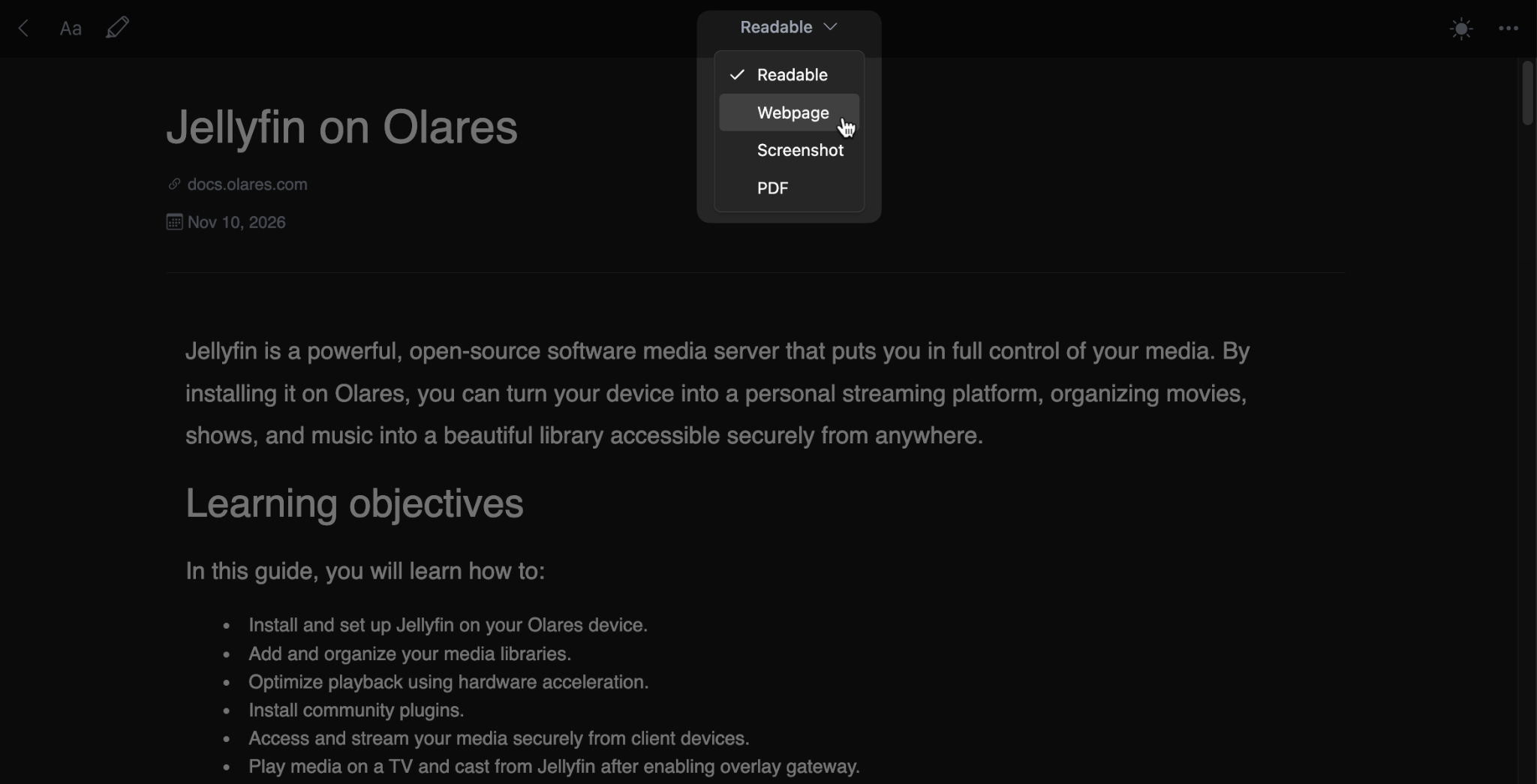
Once the preserved page is open, click the Readable menu at the top to switch to Webpage, Screenshot, or PDF.
About preserved copies
Linkwarden captures pages in the background. If the format icons do not appear, reload the collection after a short wait. Sites that require a login or block automated access might not produce a complete copy.
Find a saved link
To find a saved link later, search your library. In this example, search for the Jellyfin page.
Click Search for Links in the sidebar.
Enter
Jellyfinand press Enter.Find
Jellyfin on Olaresin the results.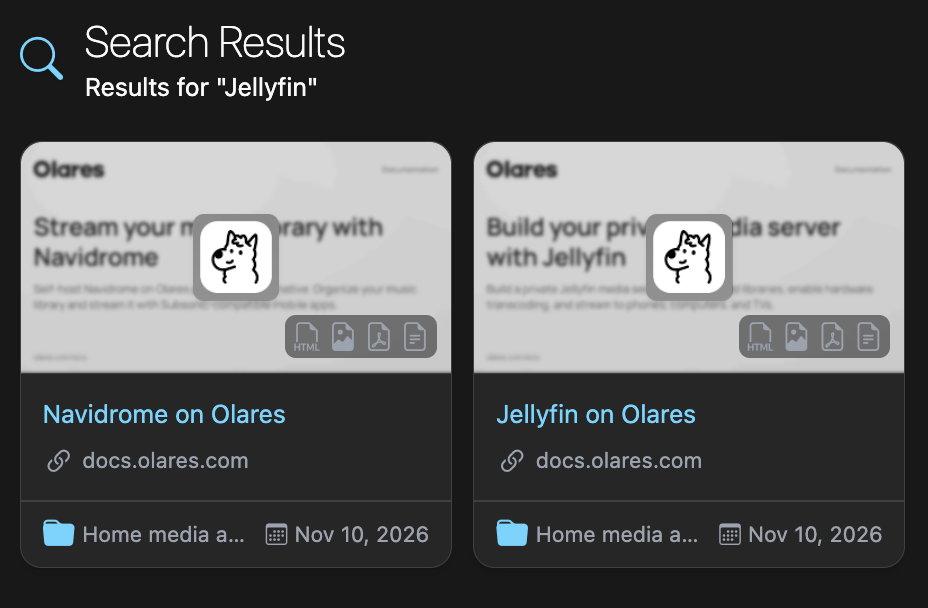
Optional: Use your library with an assistant
This example uses Lares and a community MCP adapter to search your Linkwarden library and read preserved pages. Other assistants that support local stdio MCP servers can use the same adapter with their own configuration steps.
Prerequisites
- Have a model available in Lares through Router. See Use Lares.
- Have Node.js 22 or later and npm available in the environment where Lares runs the local MCP command.
Get an API token and service address
The MCP adapter needs the service address to reach Linkwarden's API and an access token to authenticate your requests.
API token
- In Linkwarden, open the account menu in the lower left and select Settings > Access Tokens.
- Click New Access Token, name it, choose when it expires, and store it privately. The token grants access as your Linkwarden account.
Service address
In Olares Settings, open Applications > Linkwarden.
Under Entrances, select Linkwarden Agent API.
Under Endpoint settings, copy the Endpoint URL for
LINKWARDEN_URL.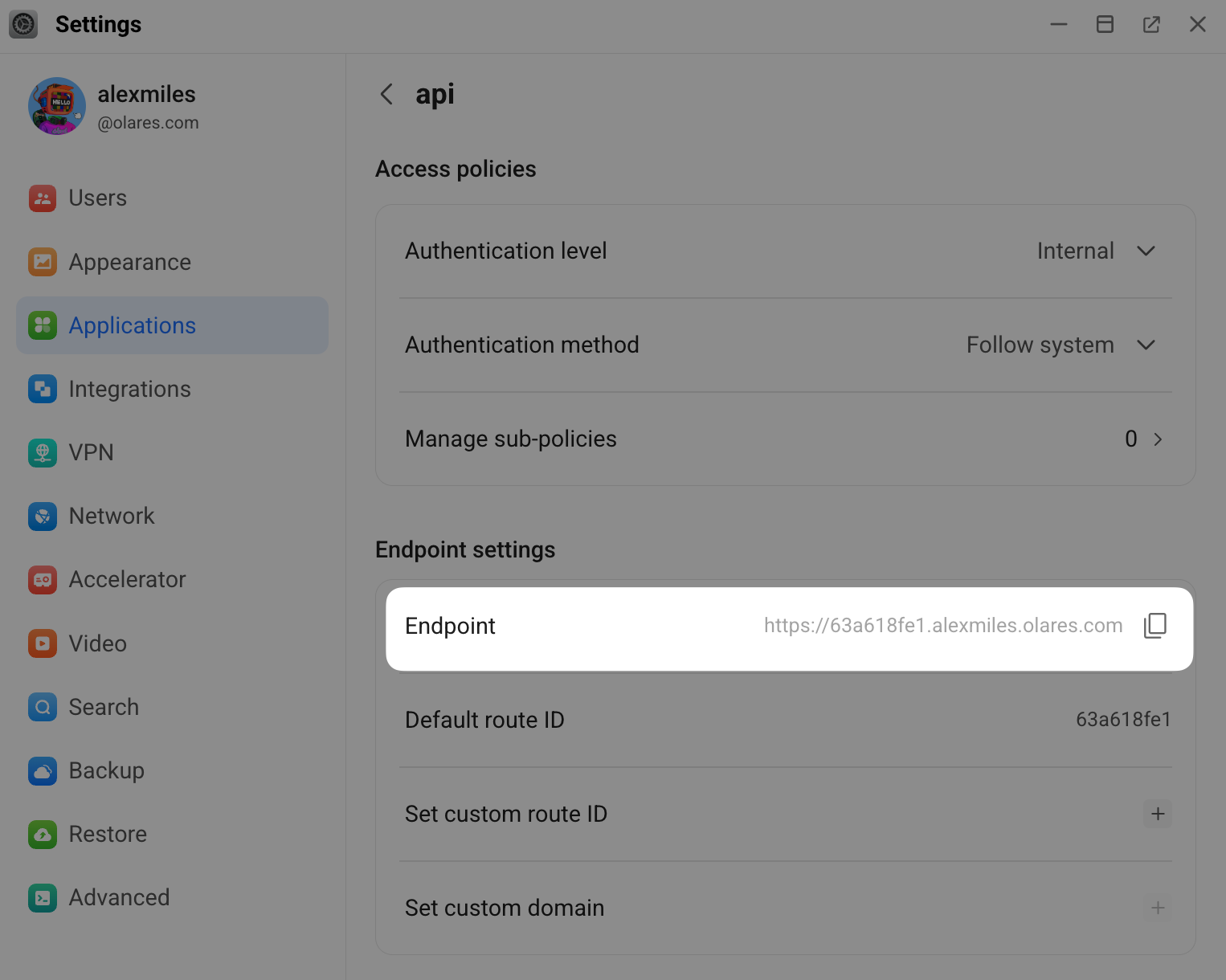
Configure the MCP connection
In Lares, open Settings > MCP and click Add server.
Enter
linkwardenin Server name and select Local command (stdio) for Transport.Enter
npxin Command. In Arguments, enter this JSON array:json["-y", "linkwarden-mcp@0.4.0"]In Environment variables, enter this JSON object. Set
LINKWARDEN_URLto the Endpoint URL you copied from Olares Settings. SetLINKWARDEN_TOKENto the access token you created in Linkwarden:json{ "LINKWARDEN_URL": "https://api.example.olares.com", "LINKWARDEN_TOKEN": "<your-token>", "LINKWARDEN_READ_ONLY": "true", "LINKWARDEN_ALLOW_TOOLS": "search_links,get_link_content,list_collections" }Keep the token in the MCP configuration and do not paste it into a chat. Read-only mode limits the adapter's tools, not the underlying token's permissions.
Click Save. In Settings > MCP, wait for
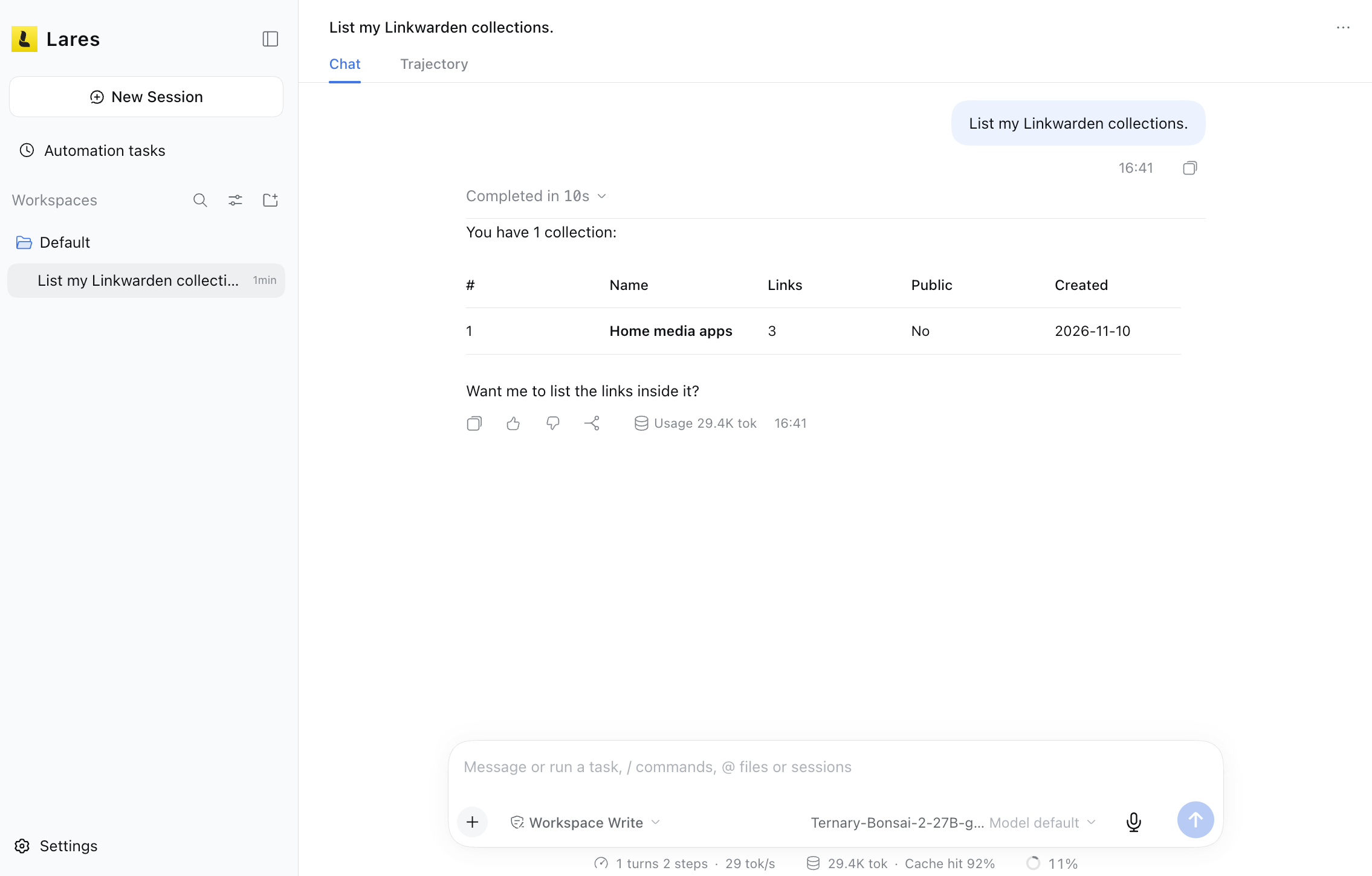
linkwardento show as connected.Start a new Lares session and ask: “List my Linkwarden collections.” Confirm that Lares returns your Linkwarden collection.
Compare your saved sources
After the connection works, ask Lares:
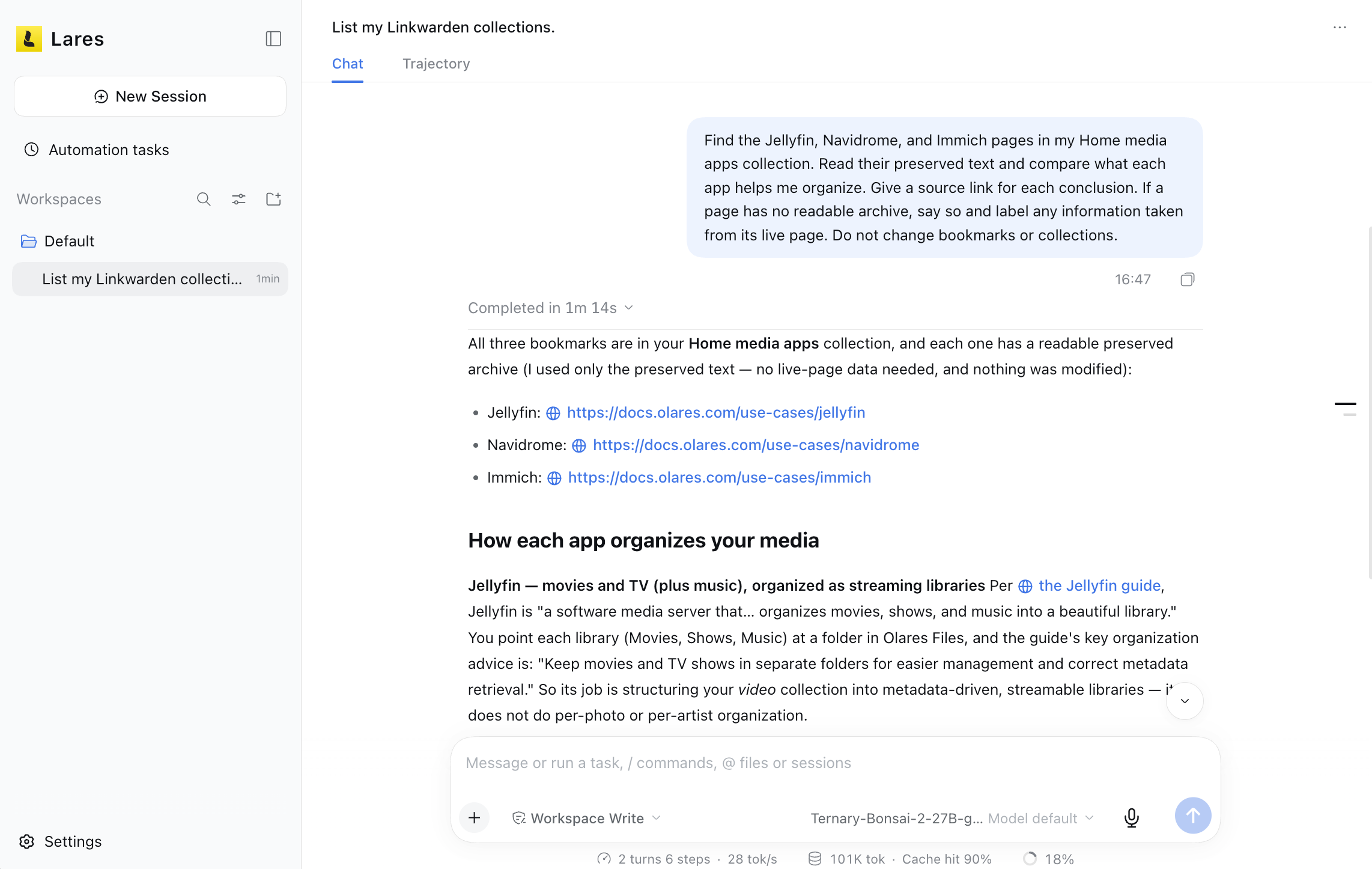
Find the Jellyfin, Navidrome, and Immich pages in my Home media apps collection. Read their preserved text and compare what each app helps me organize. Give a source link for each conclusion. If a page has no readable archive, say so and label any information taken from its live page. Do not change bookmarks or collections.
Check that Lares found all three links, identifies whether it used preserved text or live pages, and provides source links for its conclusions.
Connect the browser extension
Connect the browser extension to save pages to the same Linkwarden library while browsing.
In Olares Settings, open Applications > Linkwarden. Under Entrances, select Linkwarden and copy its Endpoint URL.
Install and open the Linkwarden browser extension. On the Initial Setup screen, click Configure. Fill in the fields below, then click Save.
Field Value URL The Endpoint URL copied in step 1 Method Username and Password Username or Email Your username or email for the Linkwarden account created on Olares Password The password for that Linkwarden account
Learn more
- Linkwarden documentation: Learn about Linkwarden collections, preservation, and integrations.