Create a song with Music Studio
Music Studio is an AI music creation app powered by ACE-Step XL-SFT. You can turn lyrics and a style description into a vocal track, or create instrumental music. Finished tracks stay in your Olares music library for playback and download.
This example creates a 30-second song called Morning Light. Replace the sample lyrics and style with material for your own video or music project.
Prerequisites
- Olares 1.12.7 or later with Router installed and running.
- An amd64 (x86-64) device with an NVIDIA GPU and 24 GiB of GPU memory.
- At least 40 GiB of available disk space.
Install Music Studio
Open Market and search for "Music Studio".
Click Get, then Install, and wait for installation to complete.
First launch
When you first open Music Studio, it downloads about 30 GB of model files. Keep the app online until setup finishes and the creation page opens.
Create music
Start with your own lyrics, develop a song idea with AI, or create instrumental music.
One song at a time
Music Studio generates one song at a time. You can click Cancel while a task is running. Generation time depends on song duration, quality settings, and model loading.
Create a song with your own lyrics
Open Create and enter the following lyrics in Lyrics:
text[Verse] Morning light across the bay Let the shadows drift away [Chorus] Take a breath and start again Every road can find a friendIn Music style, enter:
textHopeful acoustic pop, warm piano, gentle guitar and light drums, clear English vocals, clean studio production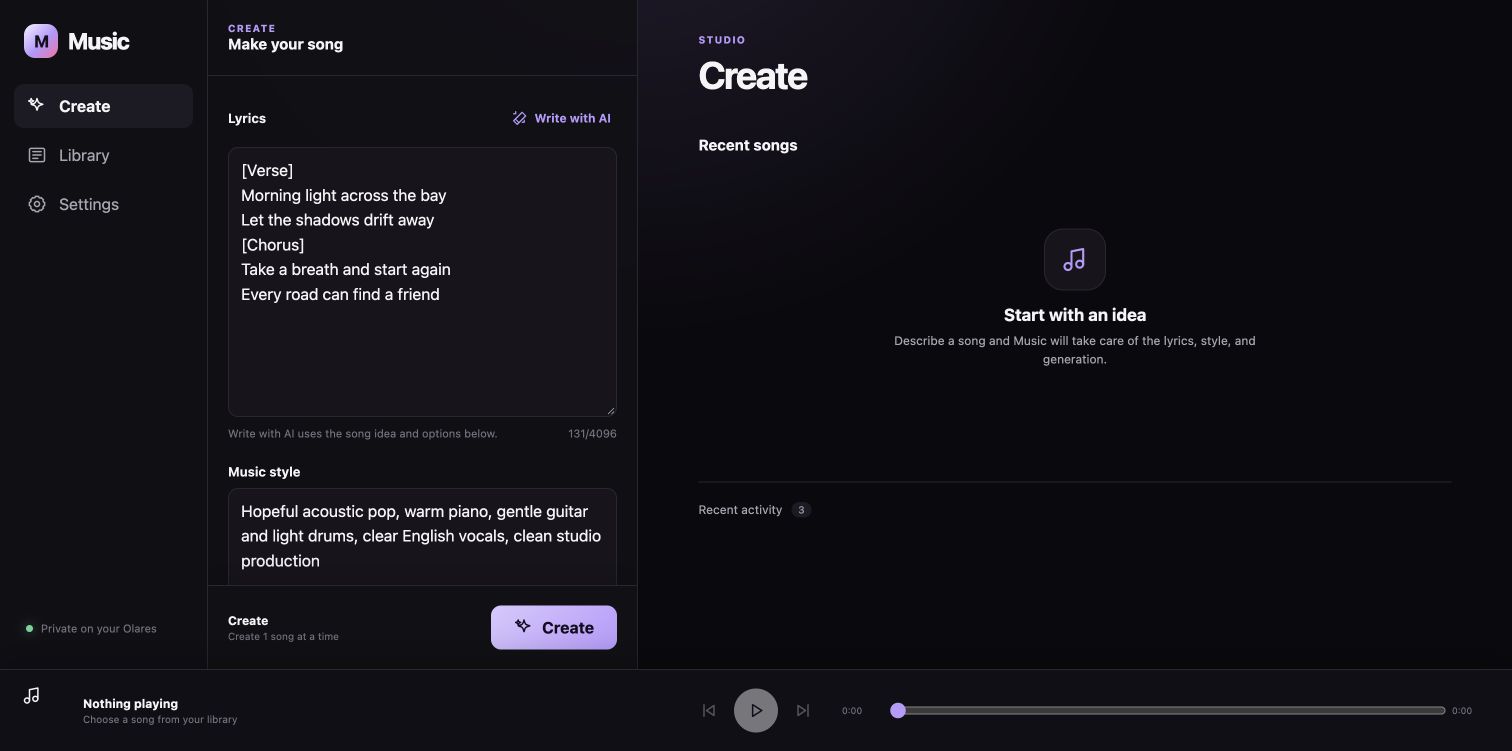
Set Title to
Morning Lightand Language to English.Under Song duration, choose Fixed and set Duration to 30 seconds. Leave Instrumental unchecked for this vocal example.
Click Create. Music Studio first refines the lyrics, then displays the song under In progress while it generates audio. Wait for the finished track to appear under Recent songs.
Create a song from an idea
To start a new song from an idea, open Create and enter a short description in Song idea. For example:
textA hopeful morning song with piano and a simple memorable chorusLeave Instrumental unchecked, choose the language and duration, then click Write with AI.
Review the resulting Lyrics, Music style, and Title, along with any writing suggestions shown below the form. Shorten lyrics that are too long or repetitive for your chosen duration, and edit any musical directions that do not match your intent.
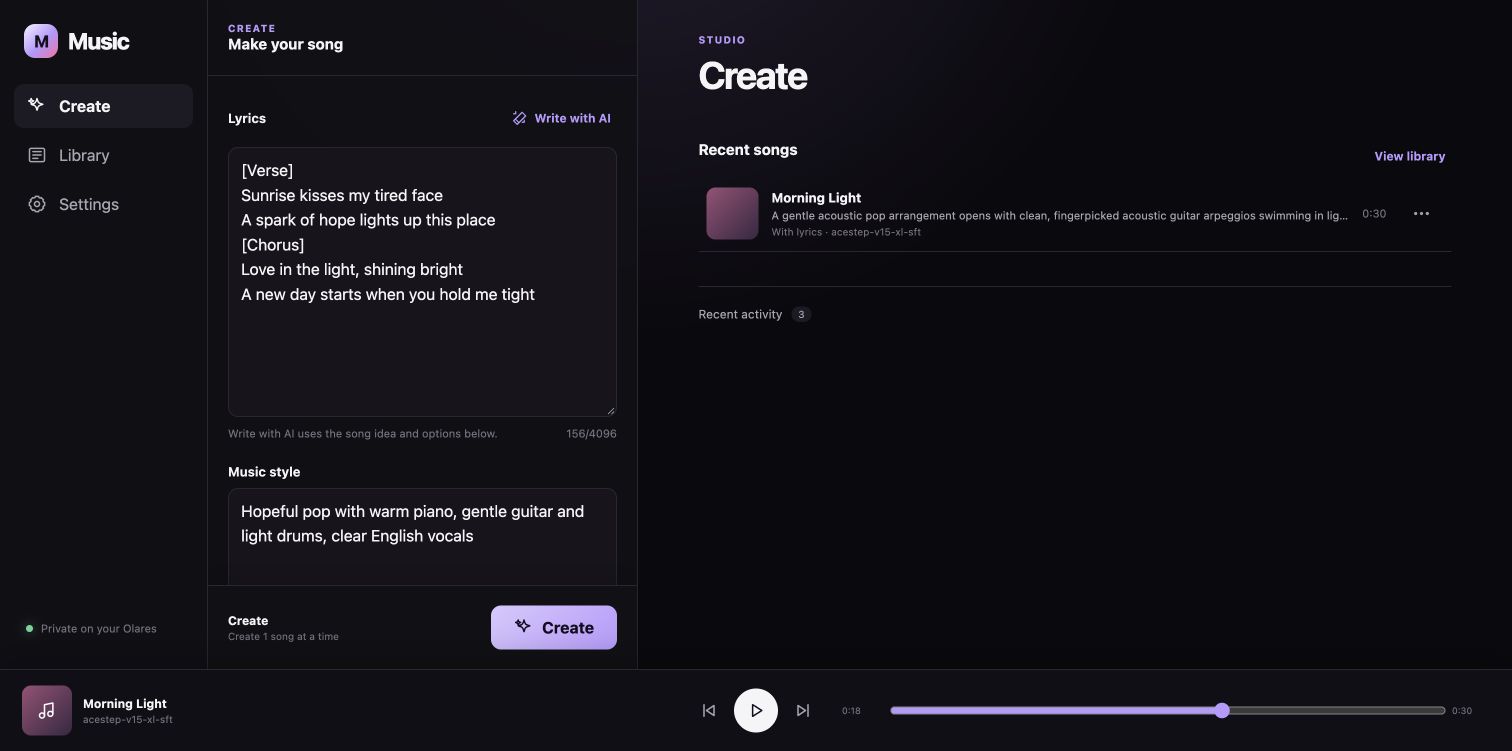
Click Create and wait for the finished track under Recent songs.
If the app rejects repetitive lyrics, revise the idea and try again. You can also enter your own lyrics and continue.
Create instrumental music
To create background music without vocals, open Create and select Instrumental. This disables the Lyrics field.
In Music style, enter a description of the instruments, mood, and arrangement. For example:
textGentle piano and acoustic guitar, warm hopeful mood, light drums, clean instrumental arrangementUnder Song duration, choose Fixed and set Duration to 30 seconds.
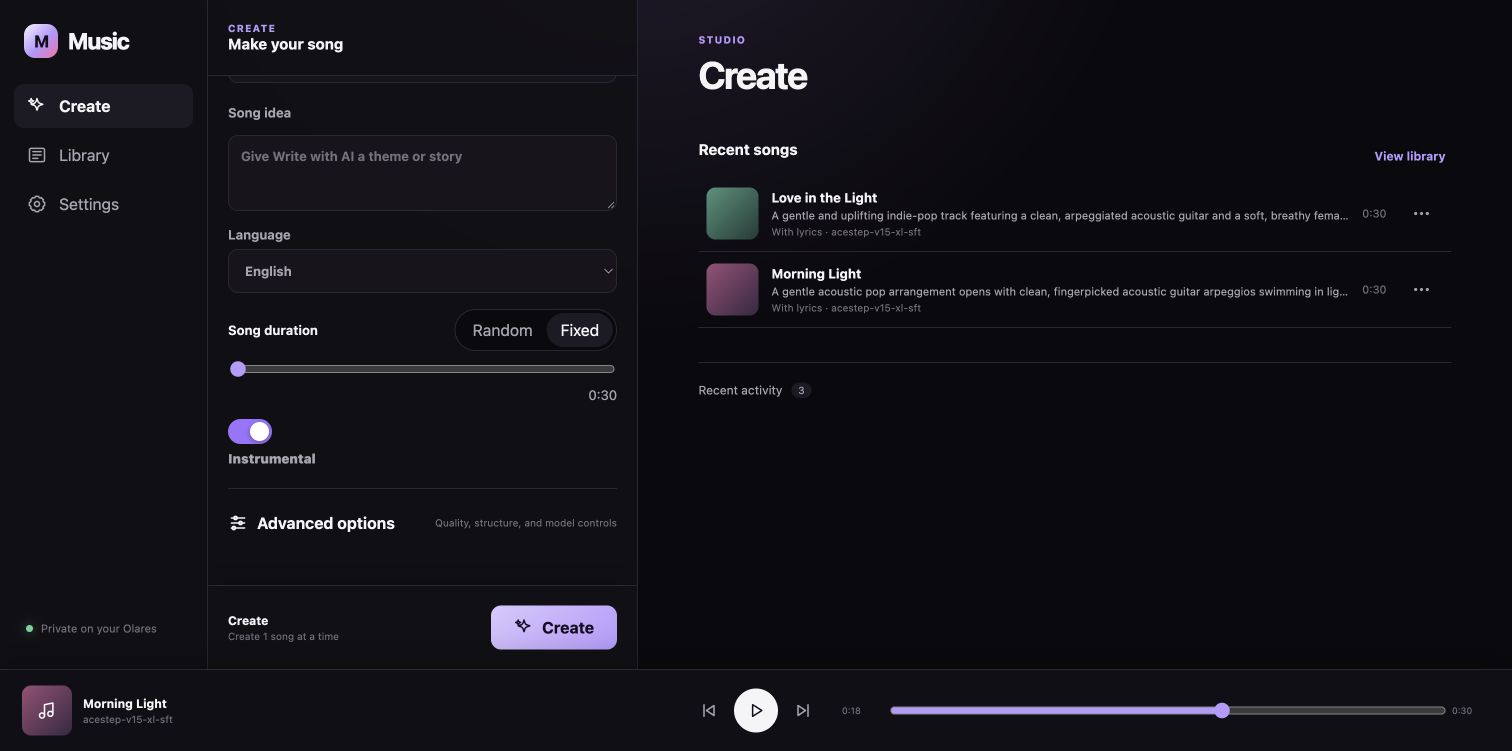
Click Create and wait for the finished track under Recent songs.
Play and manage your song
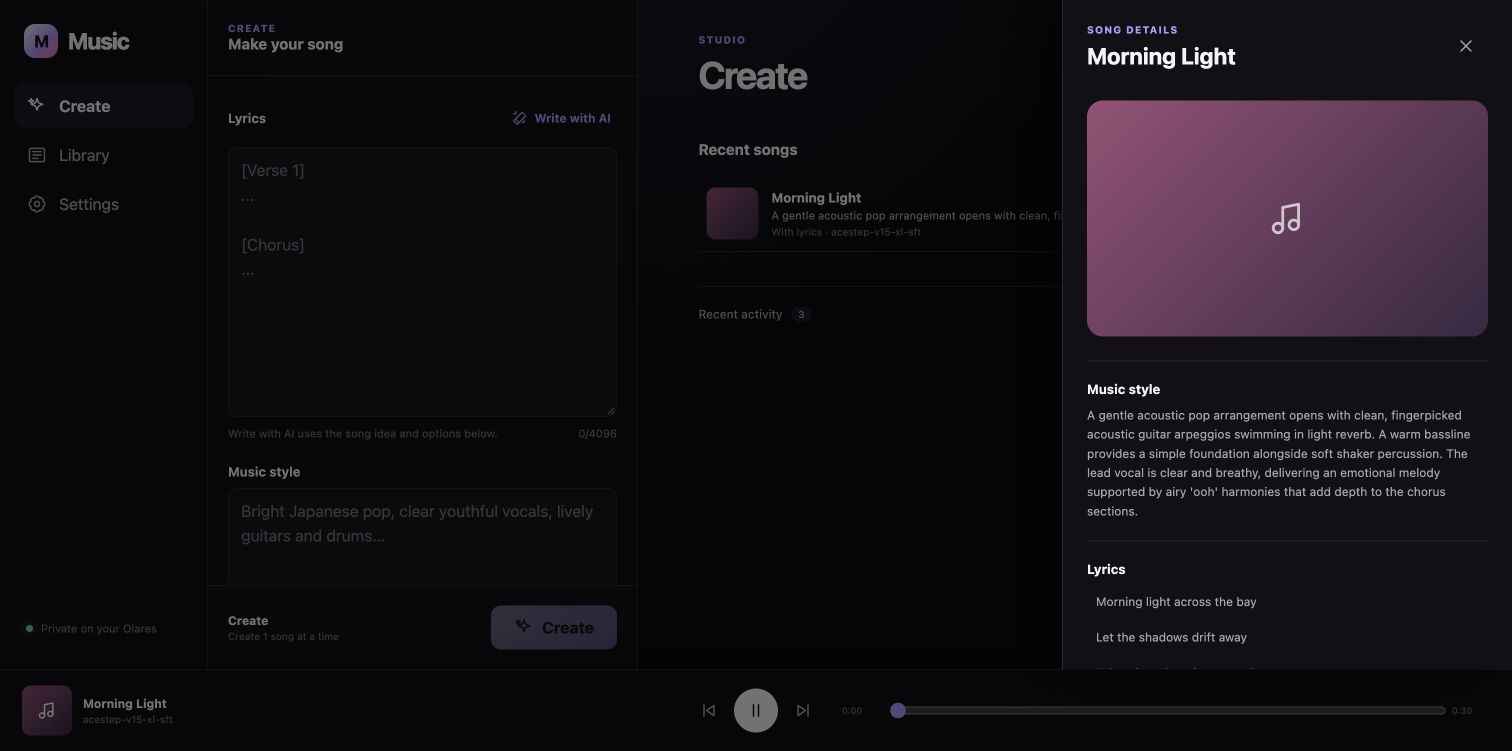
When your track appears under Recent songs, click the play button on its artwork. Playback starts and the song details open. Use the bottom player to pause or adjust the playback position.
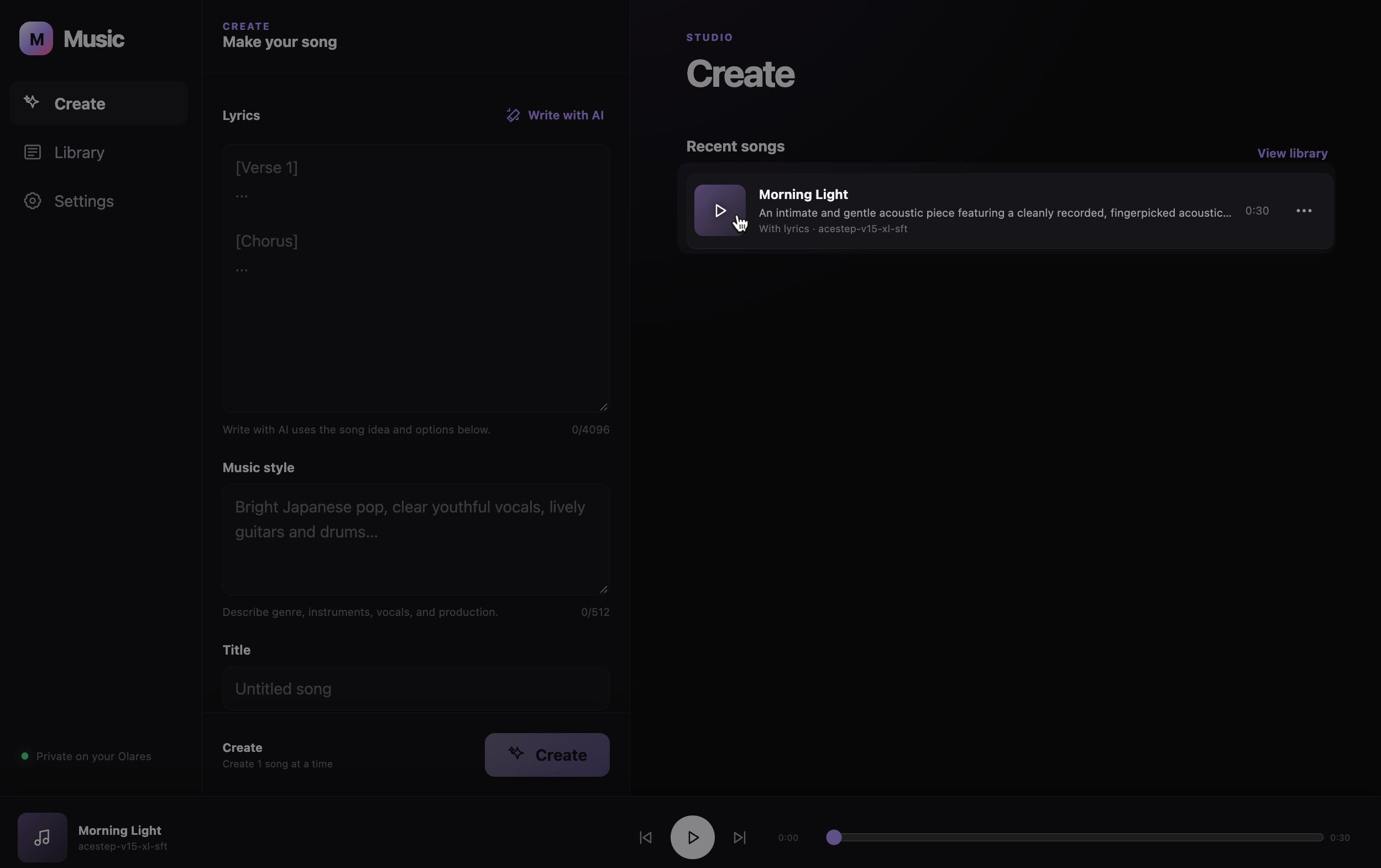
In the song details, review the lyrics and music style. Vocal tracks can show synchronized lyrics when lyric timing is available.
Section repaint
Repaint section is unavailable in this version. To change part of a song, revise the lyrics or music style and create another song.
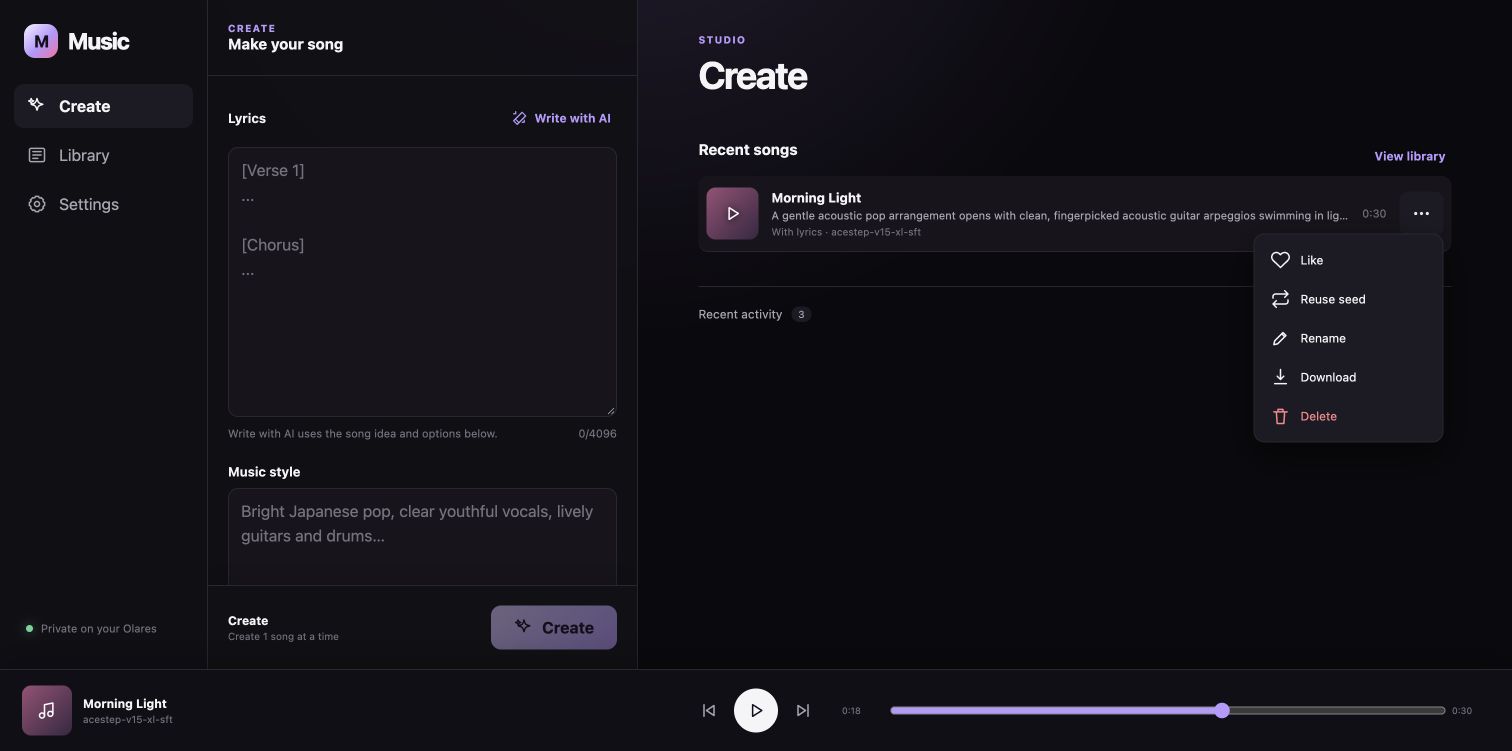
Close the details and click more_horiz beside the track in Recent songs. Then choose an action:
- Download: Save the generated audio as a WAV file.
- Like: Add the track to the Liked filter in Library.
- Reuse seed: Load the track's lyrics or instrumental setting and saved music style into the creation form. Review the title, language, and duration, then edit the lyrics or style before clicking Create. Reusing a seed does not guarantee identical output after other settings change.
- Rename: Change the track's title.
- Delete: Remove a track you no longer need. Download it first if you want to keep the audio.
Fine-tune your music
Before creating a song, expand Advanced options to adjust the sound and musical direction. Leave the fields at their defaults for your first song. Use these guidelines when you want more control:
| Control | Guidance |
|---|---|
| Quality profile |
|
| Production profile |
|
| Style handling |
|
| BPM | Set the tempo. Lower values generally feel slower, while higher values feel faster. |
| Key | Specify a musical key, such as C major or A minor. |
| Time signature |
|
| Vocal type | Enter a short voice description, such as warm female lead. Leave it blank to let the model decide. |
| Section structure | Describe the order, such as short intro, verse, chorus, outro. Keep it simple for short songs. |
These settings guide generation rather than guaranteeing an exact musical result. Change a small number at a time so you can compare the variations.
Find songs in Library
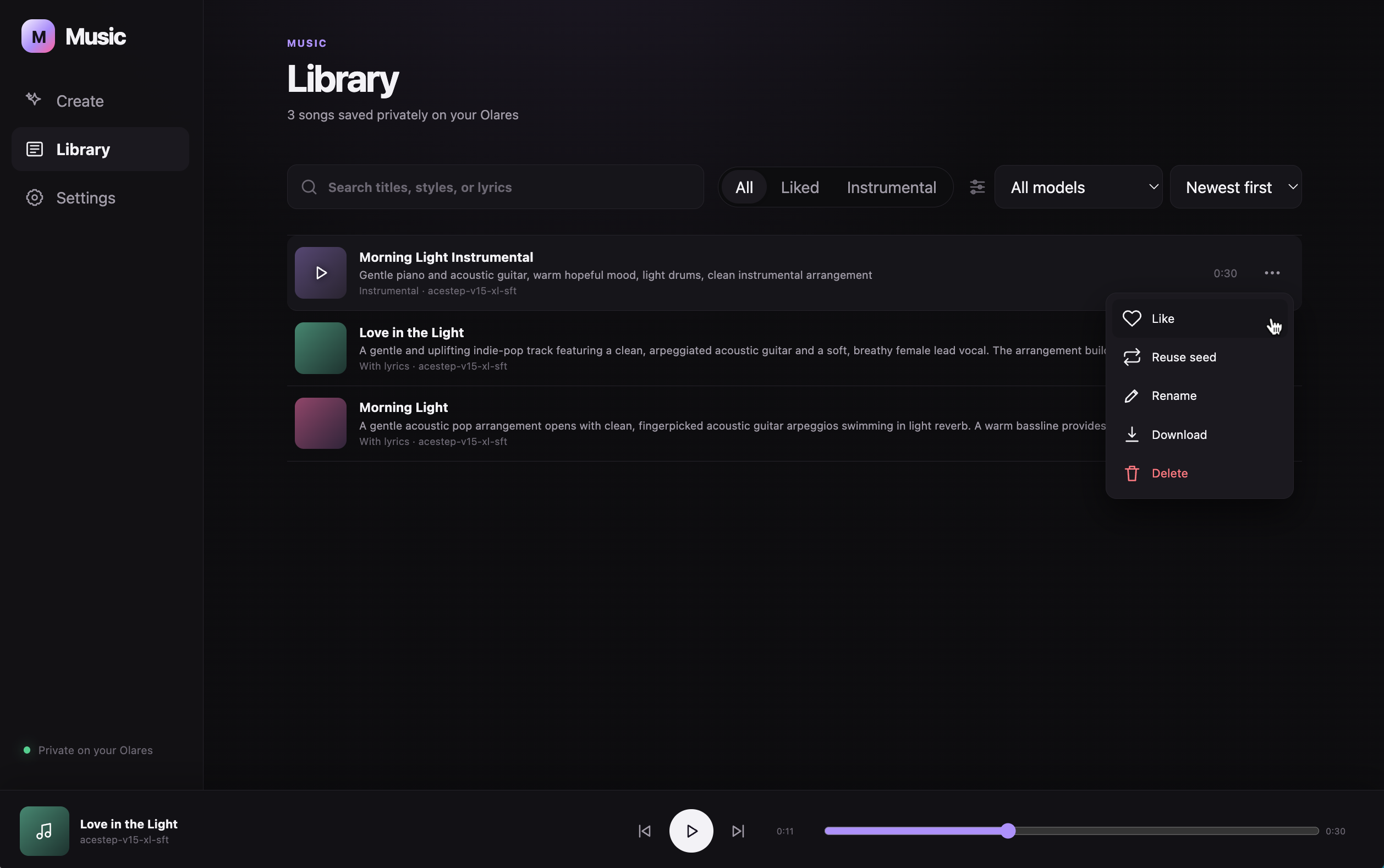
Open Library to find your saved tracks:
- Search: Enter a title, music style, or lyric in the search field.
- Filter: Select Liked or Instrumental, or choose a model from the model filter.
- Sort: Choose Newest first or Oldest first.
The same more_horiz menu is available beside tracks in Library.
FAQs
Why does the app show no available music model?
After starting or resuming the app, allow the model service to finish loading. If the creation page still shows no available model, refresh it and check that Router is running. Avoid starting multiple creation tasks while a model task is active.
Why are synchronized lyrics missing?
Lyric highlighting depends on timing returned for that vocal track. You can still read the lyrics and play or download the audio when timing is unavailable. Instrumental tracks do not have sung lyrics.
Learn more
- Olares Router: Manage AI model availability and routing on Olares.