Access Olares services securely
Typically, you access Olares services through a browser using a URL like https://desktop.<username>.olares.com. This way, you can reach your services from any device at any time. You can access Olares securely from your home network or from elsewhere.
- Using LarePass VPN: Use this whether you are on your home network or away.
- Using the .local domain: Use this only when your client device and Olares are on the same LAN.
Using LarePass VPN
It is recommended to enable the LarePass VPN to ensure your connection is always secure and efficient. The client automatically detects your network environment and selects the best connection method:
- At home: It establishes a direct Intranet connection to allow faster file transfers on your local network.
- From remote: It switches to a secure encrypted tunnel so you remain connected safely when accessing remotely.
Always enable VPN for remote access
Keep LarePass VPN enabled. It automatically prioritizes the fastest available route to ensure you always get the best speed possible without manual switching.
iOS and macOS setup
On iOS or macOS, you may be prompted to add a VPN Configuration to your system settings the first time you enable the feature. Allow this to complete the setup.
Enable the LarePass VPN directly on the device you are currently using to access Olares.
Once enabled, check the status indicator in LarePass to verify the connection type:
| Status | Description |
|---|---|
| Intranet | Direct connection via your local LAN IP. Fastest speeds. |
| P2P | Direct encrypted tunnel between devices. High speed. |
| DERP | Routed via a secure relay server. Used as a fallback. |
Using the .local domain
Use the .local domain when your device and Olares are on the same LAN.
URL format
When your device is on the same local network as Olares, you can connect directly over the LAN. You can either keep using your standard olares.com URLs or use .local URLs.
A multi-level .local hostname mirrors the standard Olares URL and works with both system and community apps.
TIP
Use https:// with the standard URL and http:// with the .local URL.
Standard URL
https://<entrance_id>.<username>.olares.com.local URL
http://<entrance_id>.<username>.olares.localmacOS
No setup is needed. Use the local URL in your browser (for example, http://desktop.<username>.olares.local).
Windows
On Windows, use LarePass Desktop to add the required entries to the hosts file so multi-level .local hostnames resolve to the Olares LAN IP.
- Make sure the computer and Olares are on the same LAN.
- Turn off VPN connection in LarePass Desktop.
- Start the update from either location:
- Click Map hosts in the lower-left corner.
- Click your avatar, go to Settings > Host mappings, and click Enable.
- In Update host mappings, review and edit the entries as needed. Do not edit lines beginning with
#. LarePass uses these markers to manage the entries. When you finish, click Update. - Enter the administrator password for your computer and confirm the change.
FAQs
LarePass VPN
Why doesn't LarePass VPN work on my Mac anymore?
macOS may block the VPN tunnel if the network extension or VPN configuration was not fully set up, or if the extension has become stuck or corrupted.
To resolve this issue, follow LarePass VPN not working to reset the extension and restore the VPN.
Why can't I enable LarePass VPN on Windows?
Third-party antivirus or security software may mistakenly flag LarePass as suspicious, preventing the VPN service from starting.
To resolve this issue, see LarePass VPN not working.
Why does the VPN connection turn off after showing Connecting?
If you turn on the VPN connection, but the status stays on Connecting for a while and then turns off automatically, the system time on your LarePass client device may be incorrect.
To resolve this issue, see LarePass VPN not working.
.local browser issues
Why doesn't the .local domain work in Chrome on macOS?
Chrome may block local URLs if macOS has not granted it local network access.
- Open the Apple menu and go to System Settings.
- Go to Privacy & Security > Local Network.
- Find Google Chrome and Google Chrome Helper and turn their toggles on.
- Restart Chrome and try the
.localURL again.

Why does the app show "connection not secure" or fail to load in Chrome?
Chrome sometimes forces HTTPS for .local hostnames, which is not supported.
Enter http:// explicitly at the start of the URL, for example, http://desktop.<username>.olares.local.
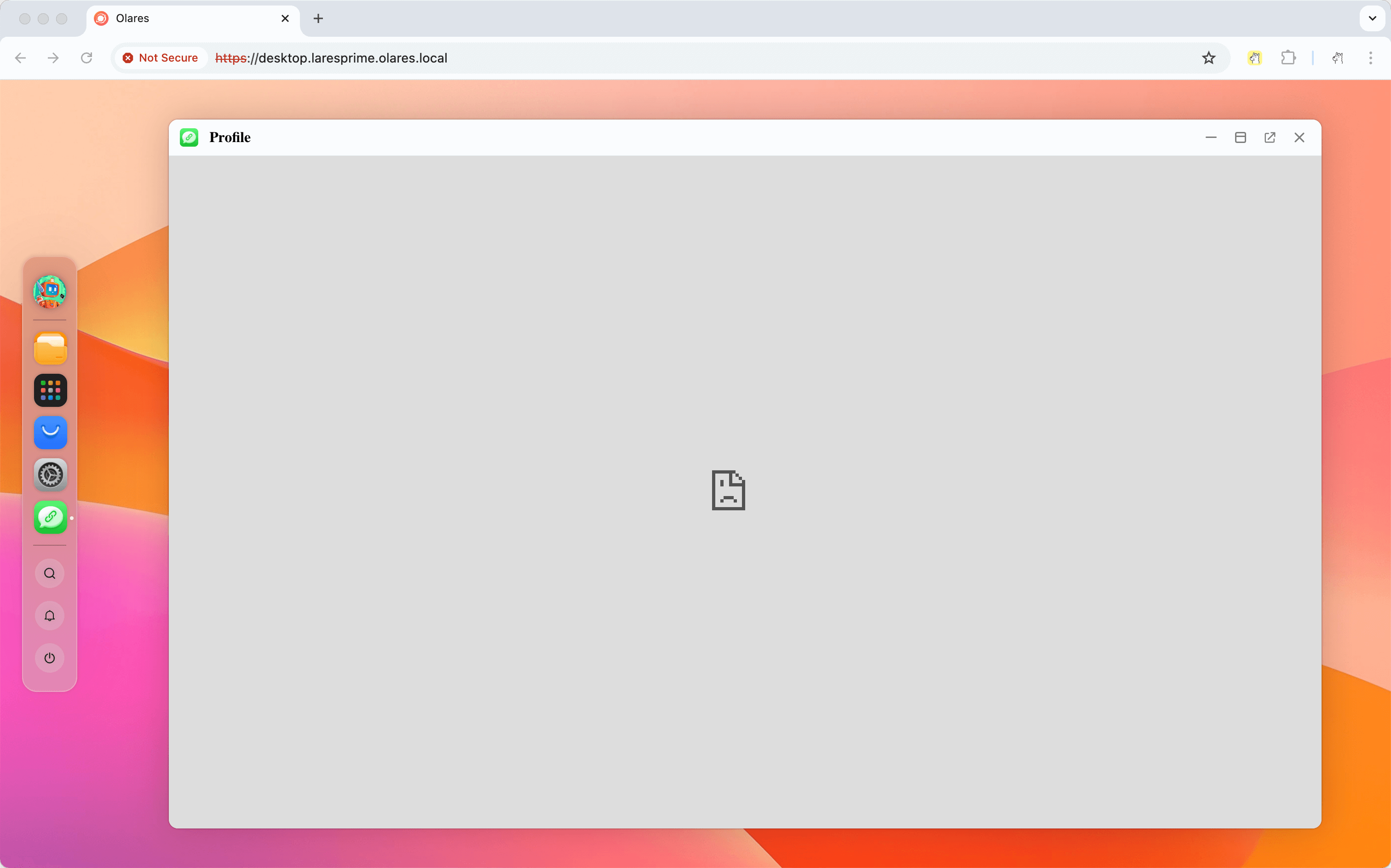
Why does the iframe flicker when I open a .local URL in Safari?
Safari applies stricter handling to .local and other non-HTTPS content in iframes, which can make an iframe flicker or reload.
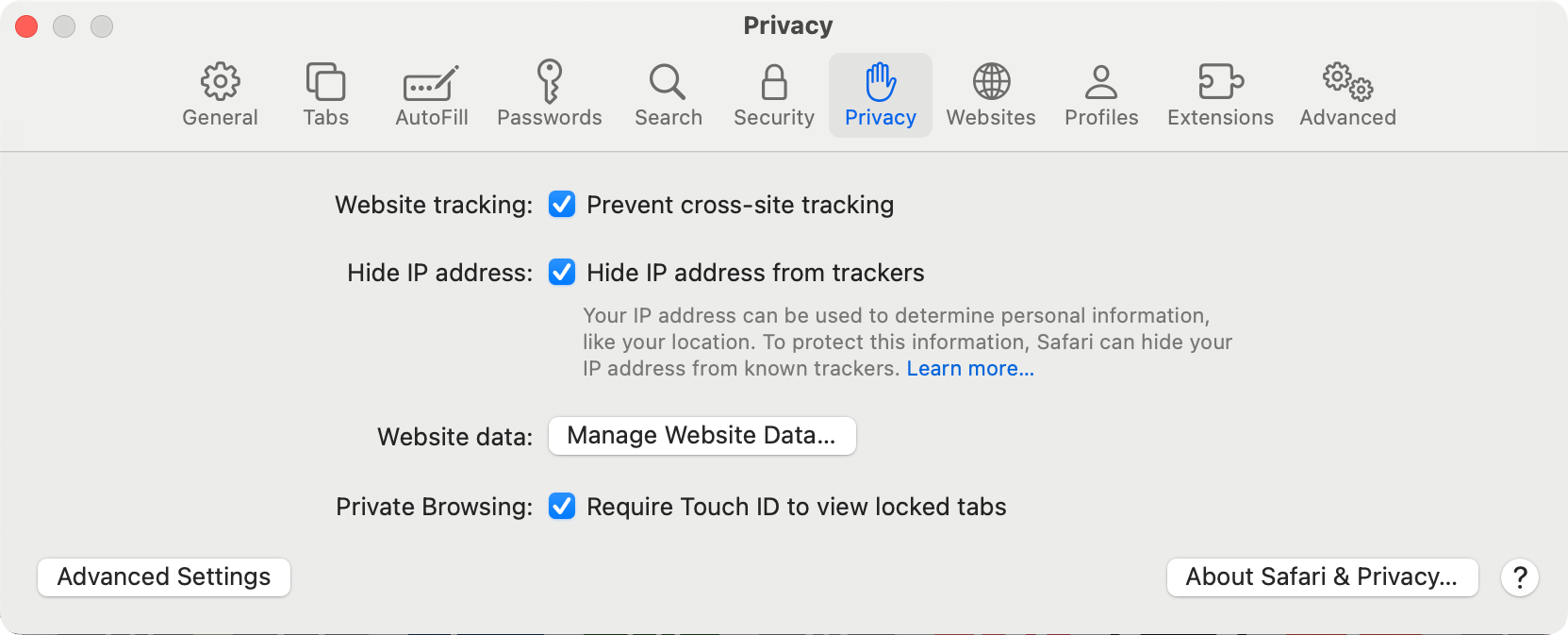
Open Safari and go to Settings.
Open the Privacy tab.
Enable Prevent cross-site tracking and Hide IP address from trackers.
Reload the
.localpage.
Learn more
- Access Olares locally: Explore detailed instructions for all available local network connection methods.
- Network: Learn about the different entry points in Olares.