Run a larger MoE model with Colibri on Olares
Colibri lets you chat with supported GGUF models on your Olares device. It can read parts of a large mixture-of-experts (MoE) model from disk as needed, so the whole model does not have to fit in memory.
You can choose how much system RAM and GPU memory to give Colibri, or use the CPU for inference. Less memory can make replies slower, especially with long inputs. This guide uses Qwen3.6-35B-A3B as an example. You can follow the same steps with another supported GGUF model. See the performance results for the effect of different memory settings.
Learning objectives
In this tutorial, you will learn how to:
- Add a GGUF model file and start a local chat.
- Export a conversation before refreshing the page.
- Adjust memory limits and the inference profile for another model.
Prerequisites
- An Intel or AMD 64-bit computer running Olares 1.12.7 or later, with an Intel Core 4th-generation or newer processor, an AMD Ryzen processor, or an equivalent processor.
- An NVIDIA GPU on the Olares device.
- Enough disk space for your model file. The Qwen3.6-35B-A3B
UD-IQ4_XSfile used below is about 16.5 GiB.
Add a model file
Colibri scans Common/huggingface for GGUF files. If your model is already under this folder, go to install Colibri.
To add the example model:
- Download Qwen3.6-35B-A3B-UD-IQ4_XS.gguf to your computer.
- Open Files from Launchpad and go to Common > huggingface.
- Drag the GGUF file into the Files window, or click the upload icon in the top-right corner. See Upload files.
Save the model directly to Olares
In the LarePass desktop client, go to Transfer > Fetch and select Save to Olares. Paste the address below, choose Common/huggingface as the destination, and start the download. See Save resources to Olares.
https://huggingface.co/unsloth/Qwen3.6-35B-A3B-GGUF/resolve/main/Qwen3.6-35B-A3B-UD-IQ4_XS.ggufInstall Colibri and set memory limits
If your device can spare 32Gi of RAM and 8Gi of GPU memory, start with these values. You can adjust the RAM limit later when trying another model.
Open Market and search for "Colibri". Click Get, then Install.
In Configure environment variables for Colibri, enter:
Setting Start with What it controls MEMORY_LIMIT32GiThe system RAM available to Colibri GPU_MEMORY_LIMIT8GiThe GPU memory allocated to Colibri Choose an allocation for your device
Check available RAM in Dashboard and the GPU allocation in Settings > GPU. If your device has less memory available, enter amounts it can spare and try a smaller model first. GPU acceleration requires a GeForce RTX 50-series GPU and a driver that supports CUDA 13.0. Set GPU memory to
0to use the CPU.Leave the other settings at their defaults.
Click Confirm and wait for installation to finish.
Load and chat with a local model
Open Colibri from Launchpad. The Local models page opens when no model is loaded.
Click Rescan to find GGUF files in
Common/huggingface.Select Qwen3.6-35B-A3B and click Load selected model > Confirm.
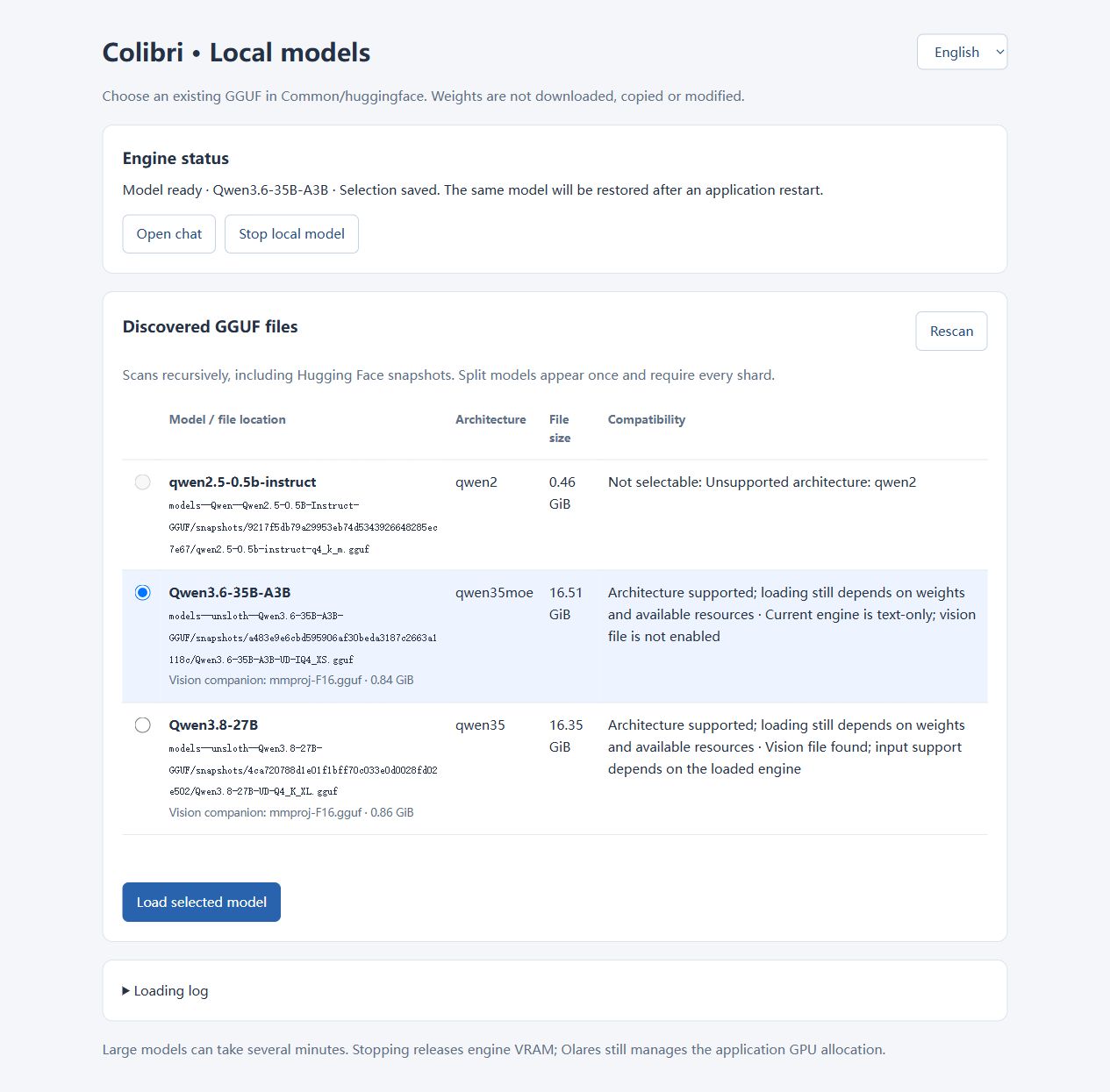
When the status changes to Model ready, click Open chat. You can expand Loading log to check progress while the model loads.
On the chat page, enter your question in the message box at the bottom and send it.
Colibri does not retain chat history or generation settings after a page refresh. To keep a conversation, wait for the reply to finish, click Export conversation in the top-right corner, and choose Markdown (.md) or JSON (.json) before closing or refreshing the page.
Manage local models
Switch models
- Finish the current reply and export the conversation if you want to keep it.
- Click the local model icon on the left of the chat page to open model management.
- Select another model and click Load selected model > Confirm.
- When the model is ready, click Open chat to start a new conversation.
Stop the local model
- Open model management from the local model icon on the chat page.
- Click Stop local model and confirm. This releases the RAM and GPU memory used by the inference process.
You can load a model again from the same page.
Adjust resources for your model
To tune Colibri for another model, first try a short prompt with the current settings. If Colibri reports insufficient RAM or responds too slowly, raise the RAM limit if your device has room. More GPU memory can also improve speed. If the device cannot spare more memory, try a smaller model or quantization.
Change the RAM limit
- Export any conversation you want to keep. Changing this setting restarts Colibri.
- Open Settings > Applications > Colibri > Manage environment variables.
- Click the edit icon beside
MEMORY_LIMIT, enter an amount your device can spare, then click Confirm > Apply. - Return to Colibri and wait for the model to be ready.
Change the GPU memory allocation
Changing GPU_MEMORY_LIMIT requires reinstalling Colibri.
- Export any conversation you want to keep.
- Uninstall Colibri in Market. Leave Also remove all local data unselected, then click Confirm. See Uninstall applications.
- Reinstall Colibri and enter the new
GPU_MEMORY_LIMITvalue. Your model files inCommon/huggingfaceremain available.
Choose an inference profile
Colibri starts in standard. If you want to try a supported MoE model with less memory available, you can switch to low-memory-moe. It uses the same RAM and GPU memory limits, but may respond more slowly, especially to long inputs.
- Export any conversation you want to keep. Switching profiles restarts Colibri.
- Open Settings > Applications > Colibri > Manage environment variables.
- Click the edit icon beside
INFERENCE_PROFILE, set it tolow-memory-moe, then click Confirm > Apply. - Return to Colibri and wait for Model ready before starting a new chat.
To switch back, set INFERENCE_PROFILE to standard and apply the change.
Performance results
These measurements show how memory settings affected the example model on Olares One with an RTX 5090 Laptop GPU. Each request used about 1K input tokens and 128 output tokens with a 16K context. The figures are from the second request at each setting.
GPU memory allocations
With the system RAM limit fixed at 48Gi:
| GPU memory allocation | Time to first token | Generation speed |
|---|---|---|
| 0, CPU only | 8.57 s | 20.53 token/s |
| 4Gi | 5.89 s | 30.57 token/s |
| 8Gi | 1.87 s | 39.81 token/s |
| 12Gi | 0.98 s | 46.71 token/s |
| 16Gi | 0.73 s | 68.80 token/s |
| 20Gi | 0.25 s | 171.13 token/s |
For this model, 20Gi of GPU memory produced a large speed increase.
System RAM limits
With the GPU memory allocation fixed at 8Gi:
| RAM limit | Time to first token | Generation speed |
|---|---|---|
| 48Gi | 1.88 s | 42.92 token/s |
| 32Gi | 2.01 s | 35.30 token/s |
| 24Gi | 30.98 s | 22.80 token/s |
| 16Gi | 33.82 s | 20.45 token/s |
| 12Gi | 58.05 s | 16.32 token/s |
| 8Gi | 68.61 s | 11.18 token/s |
For this model, raising the RAM limit from 24Gi to 32Gi made the first response much faster. Use the tables to see what may change, then test the model you want to run on your own device.
Optional: Switch to Olares Router
If you have set a default chat model in Router, you can use it from Colibri. See Use Olares Router as your AI gateway to set one up.
- In Colibri, open Settings > Connection.
- Change Connection service to Olares Router.
- On the Model tab, select
default-chat. - Start a new chat. To return to your local model, select Colibri local engine (default) under Connection service, choose the loaded model on the Model tab, and start another new chat.
Switching the chat connection does not stop a loaded local model. To free its memory, stop the local model.
Learn more
- Save resources to Olares: Download a model file directly to Olares with LarePass Fetch.
- Use Olares Router as your AI gateway: Manage model services and default chat models.
- Latest Colibri documentation: Read the project's current documentation.