WARNING
本文档由 AI 自动翻译,仅供参考。涉及关键操作或信息时,请以英文原文为准。
在 FlowStudio 中生成图片和视频
使用 FlowStudio 中现成的工作流生成图片、编辑图片和生成视频。
教程概览
本教程以一张海岸汽车海报为例,串联四个场景:文生图、图片编辑、使用两张图片生成视频,以及使用参考素材生成视频。
| 场景 | 工作流 | 生成内容 |
|---|---|---|
| 文生图 | Qwen-Image 2.1 NVFP4 · Text to Image | 一张以红色复古汽车为主体的海岸海报。 |
| 图片编辑 | Qwen-Image 2.1 NVFP4 · Image Edit | 将海报中的汽车漆面改为蓝色。 |
| 使用两张图片生成视频 | FastVideo FastH3: Image to Video | 以蓝车和红车海报分别作为起始与结束图片的视频。 |
| 使用参考素材生成视频 | MiniMax H3 NVFP4 · Reference to Audio-Video | 参考原始图片和已生成的视频,制作红车从相框驶到桌面上的视频。 |
前提条件
- Olares OS 1.12.7 或更高版本。
避免同时运行 FlowStudio 生成任务和 Qwen3.8-27B 对话
在 Lares 中使用 Qwen3.8-27B (llama.cpp) 时,请等待直接在 FlowStudio 中启动的图片或视频生成任务完成,再发送消息。同时运行两者可能导致显存冲突,使模型无法响应。
安装 FlowStudio
如果此前已安装 FlowStudio,请先更新至最新版本。
打开 Market,搜索“FlowStudio”。
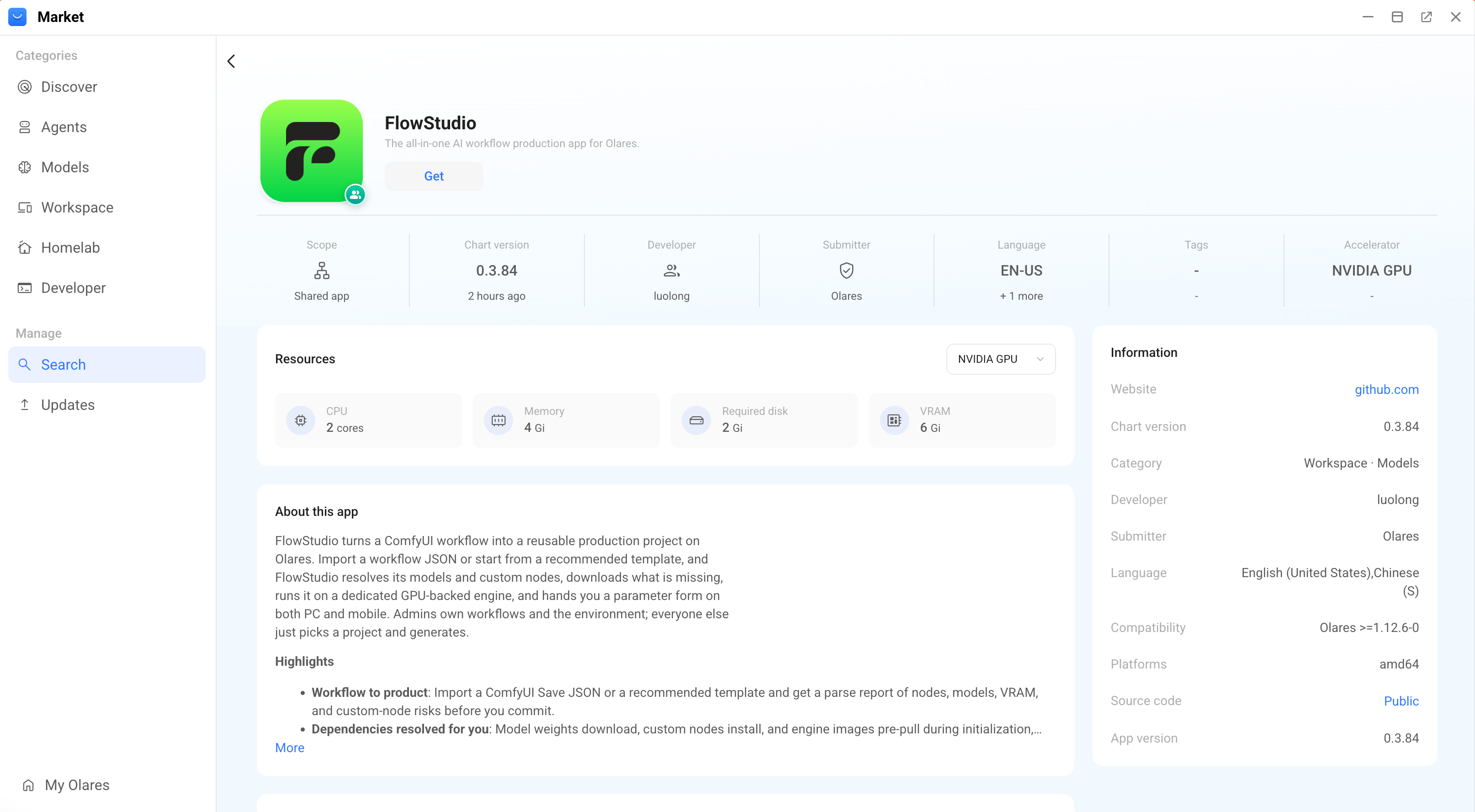
点击 Get,然后点击 Install,等待安装完成。
上传要求
每个上传文件的大小不能超过 64 MB。
| 支持的格式 | |
|---|---|
| 图片 | PNG、JPG、WEBP、GIF 和 BMP。HEIC 和 AVIF 图片会在上传时自动转换为 WebP。 |
| 视频 | MP4、WEBM、MOV、M4V、AVI 和 MKV。 |
| 音频 | MP3、WAV、FLAC、OGG、M4A 和 AAC。 |
根据文字生成图片
使用 Qwen-Image 2.1 NVFP4 · Text to Image 根据文字提示词生成图片,支持文字渲染、写实纹理、精细细节和透明背景。
准备场景
打开 FlowStudio,进入 Workflow Plaza,选择 Image。
搜索
Qwen-Image 2.1,然后选择 Qwen-Image 2.1 NVFP4 · Text to Image。查看 Pre-run checks。显示 Checks passed 后,点击 Create scene。
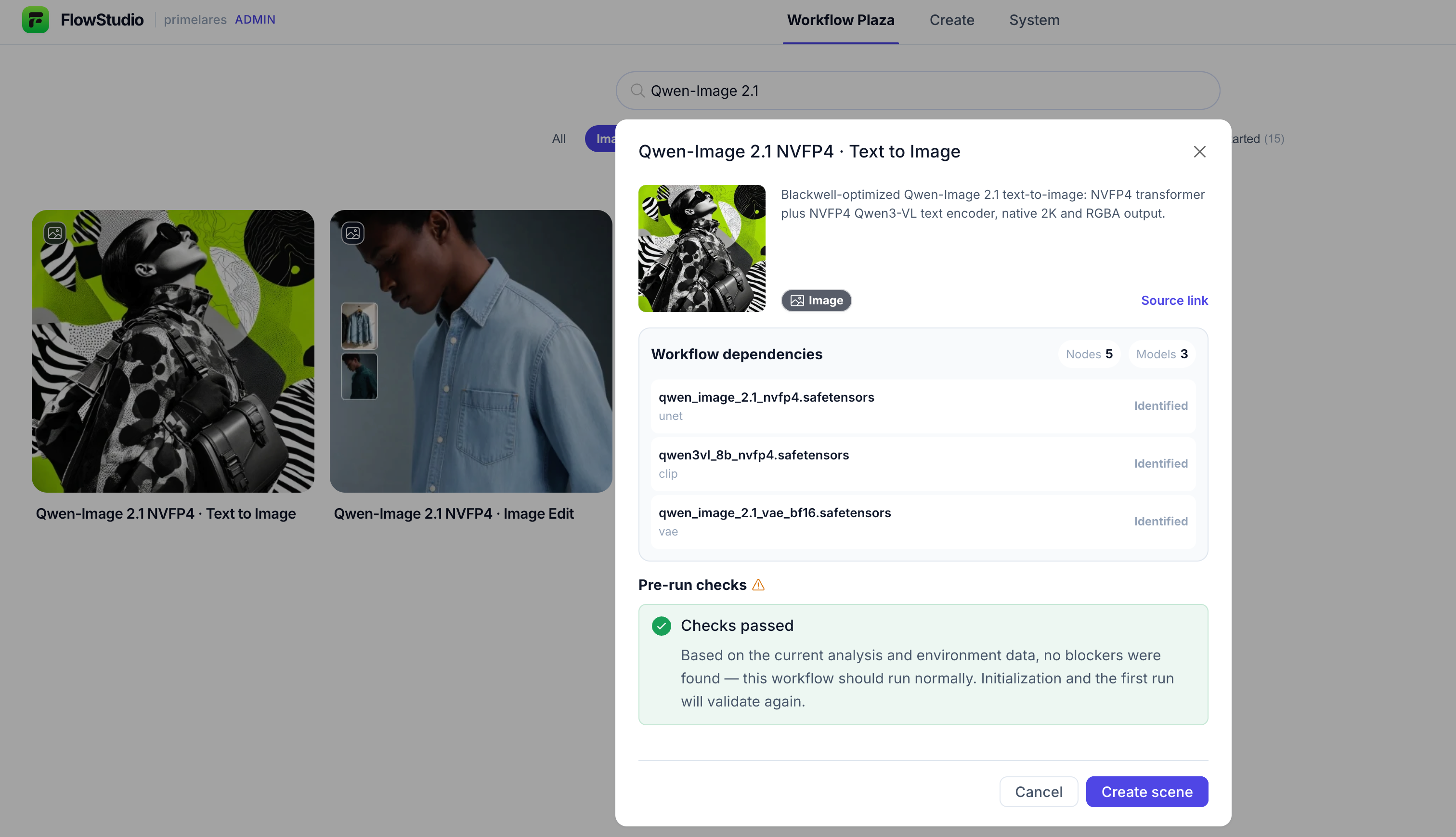
GPU 显存不足
如果检查提示 GPU 显存不足,请停止其他占用大量 GPU 资源的应用,或取消为其分配 GPU 资源,然后重新检查。
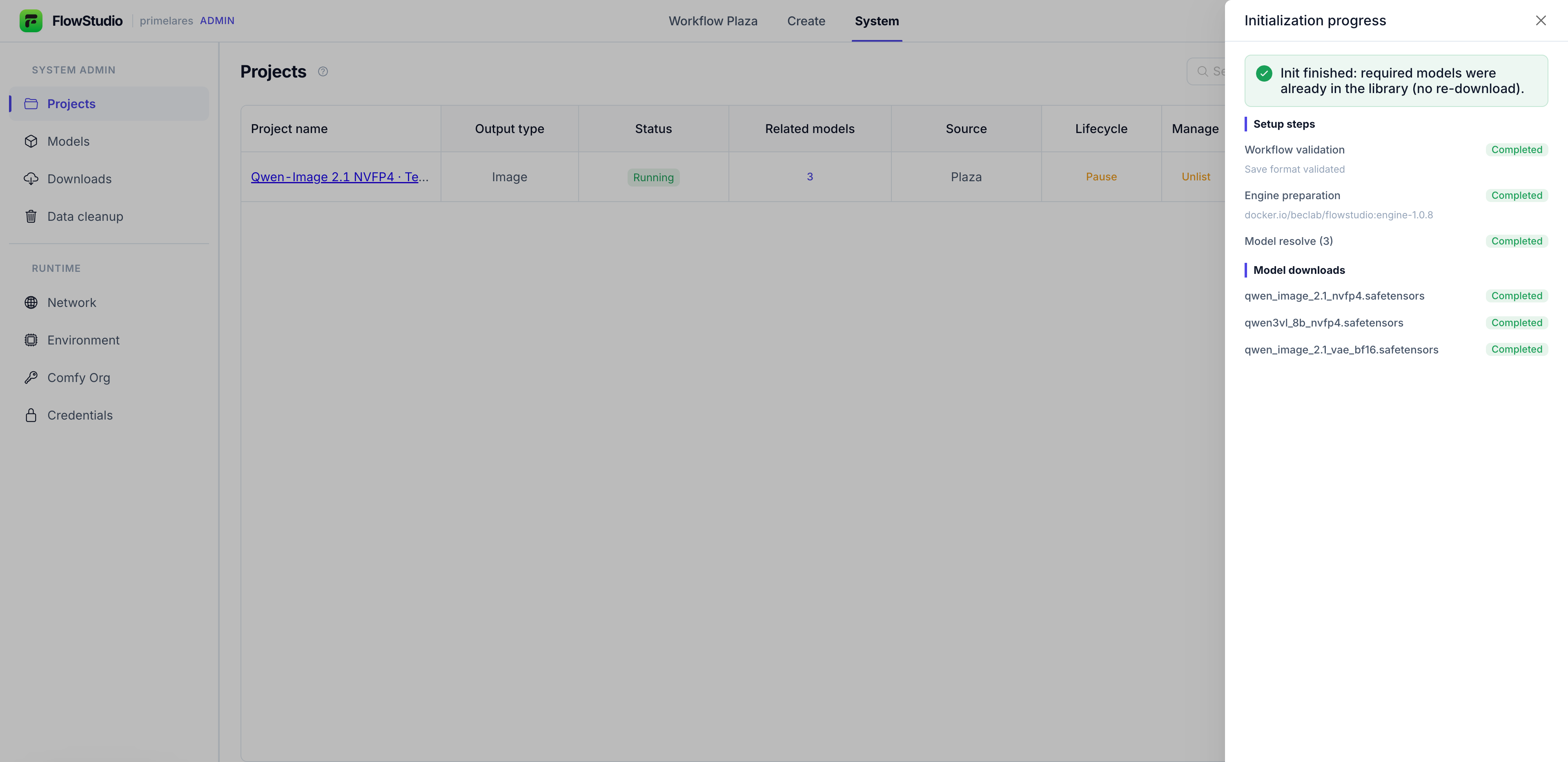
右侧会打开 Initialization progress 面板。等待显示 Init finished。
配置并生成图片
打开 Create > Scenes,然后选择 Qwen-Image 2.1 NVFP4 · Text to Image。
输入提示词。以下示例生成一张红色复古汽车海岸海报,标题为“TIMELESS DRIVE”:
textCreate a cinematic automotive travel poster. A cherry-red vintage two-door coupe is parked at a scenic coastal overlook, shown in full from a low front three-quarter angle, with its front pointing left. Position the car across the lower center of the frame. Show finely detailed chrome trim, realistic tire tread, silver alloy wheels, subtle leather upholstery visible through the windows, and reflections of the sky and coastline in the glossy paint. In the middle distance, a winding road follows rugged cliffs past a small seaside village with colorful facades. A weathered stone wall borders the overlook. In the foreground, textured pavement and a few tufts of coastal grass add detail. Beyond the cliffs, turquoise water reveals submerged rocks, with white surf along the shore. Late-afternoon sunlight creates warm highlights on the car, cool shadows, and atmospheric depth in the distant coastline. Keep the car sharply defined and the background slightly softer, but recognizable. Place the exact headline "TIMELESS DRIVE" in elegant, clearly legible ivory uppercase letters in the upper-left sky area. Keep the headline modest in size and clear of the car and village. Photorealistic automotive photography with refined travel-poster typography. No people, brand logos, or additional text.生成透明背景的图片
要生成透明背景的图片,请在提示词中明确要求生成带有 alpha 通道和透明背景的 RGBA 图片。例如:
textThis is an RGBA image with transparency. The image has an alpha channel and a transparent background. A small red vintage toy car, shown in full from a front three-quarter angle, with glossy paint, silver wheels, and chrome trim. Center the car with space around it.点击 Parameters,配置图片参数:
参数 设置 Aspect ratio 本例选择 16:9。 Megapixels 从列表中选择输出分辨率。 Batch 本例选择 1。 点击 Generate,等待任务完成。
打开生成的图片,查看细节。
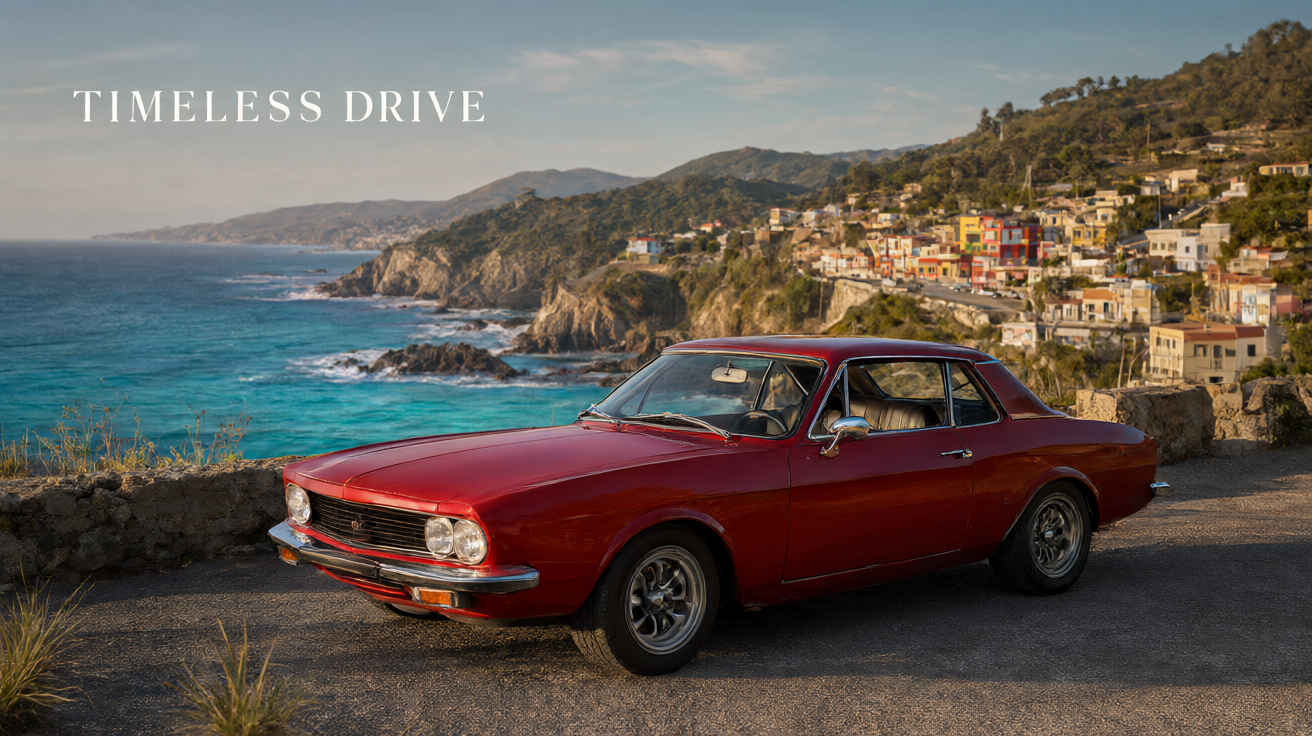
将鼠标悬停在生成的图片上,点击下载图标。下一部分会用到这张红车图片。
编辑图片
使用 Qwen-Image 2.1 NVFP4 · Image Edit 通过文字指令修改图片,同时保留主体特征和视觉细节。
准备场景
打开 FlowStudio,进入 Workflow Plaza,选择 Image。
搜索
Qwen-Image 2.1,然后选择 Qwen-Image 2.1 NVFP4 · Image Edit。查看 Pre-run checks。显示 Checks passed 后,点击 Create scene。
右侧会打开 Initialization progress 面板。等待显示 Init finished。
Text to Image 和 Image Edit 使用相同的三个模型文件。模型库中已安装的模型会直接复用,不会重复下载。
配置并编辑图片
本例使用上一部分生成的红车海报,让模型只修改汽车的漆面颜色。
打开 Create > Scenes,然后选择 Qwen-Image 2.1 NVFP4 · Image Edit。
点击 Parameters,配置图片参数:
参数 设置 Editable image 点击 Choose reference,然后选择 Upload 上传要编辑的图片。本例使用上一部分生成的红车图片。 Aspect ratio 无需调整。无论此项如何设置,输出都会沿用输入图片的宽高比。 Megapixels 从列表中选择输出分辨率。 Batch 本例选择 1。 输入提示词。以下示例将汽车漆面从红色改为蓝色:
textChange only the car's red paint to a rich metallic blue. Preserve the car's body shape, chrome trim, wheels, windows, and interior. Keep the coastal village, sea, mountains, road, camera angle, and composition unchanged. Preserve the exact text "TIMELESS DRIVE" in its original position and style. Maintain the warm late-afternoon lighting, with natural highlights and reflections on the new blue paint.点击 Generate。任务完成后,打开编辑后的图片,检查所要求的修改是否已生效。
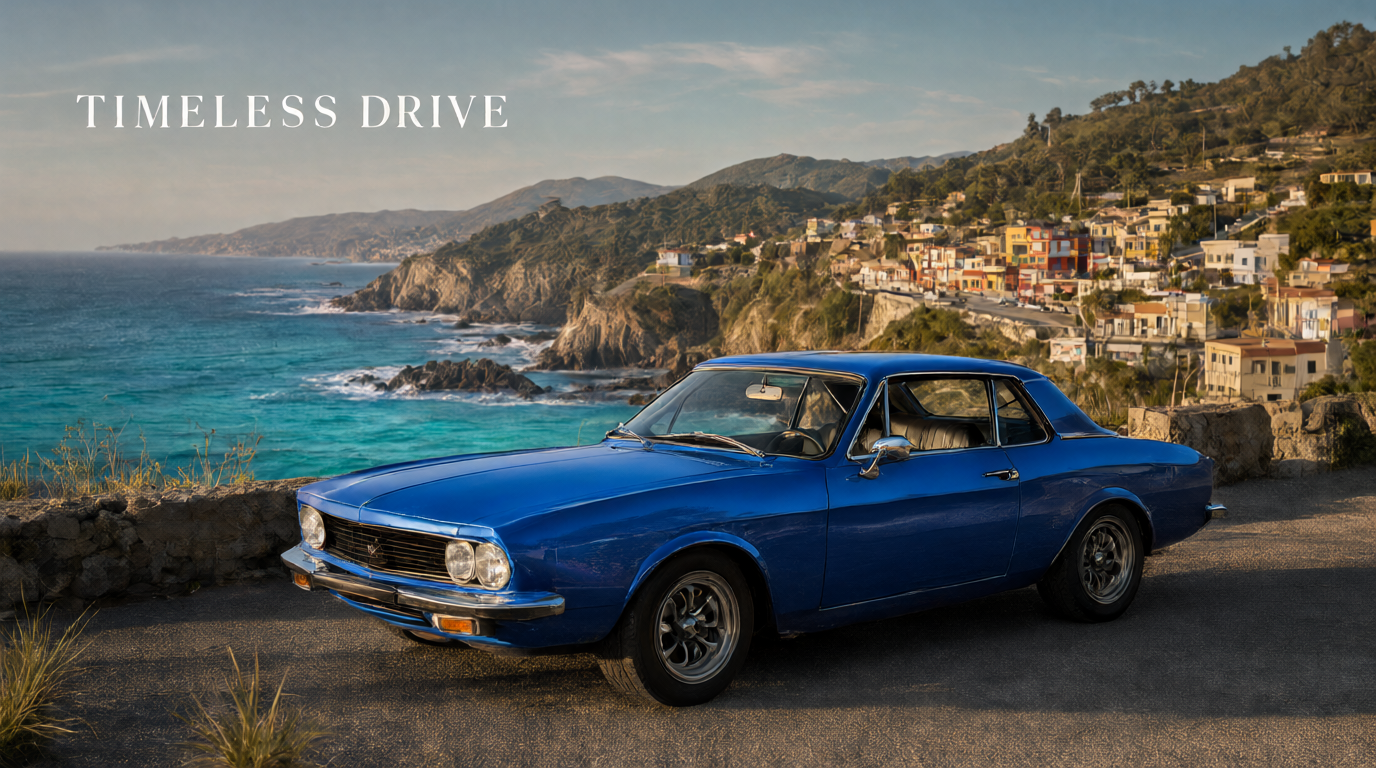
将鼠标悬停在编辑后的图片上,点击下载图标。下一部分会用到这张蓝车图片。
使用两张图片生成视频
使用 FastVideo FastH3: Image to Video,通过一张起始图片和一张可选的结束图片生成带声音的视频。
准备场景
- 打开 FlowStudio,进入 Workflow Plaza,选择 Video。
- 搜索
FastVideo FastH3,然后选择 FastVideo FastH3: Image to Video。 - 查看 Pre-run checks。显示 Checks passed 后,点击 Create scene。
- 右侧会打开 Initialization progress 面板。等待显示 Init finished。
配置并生成视频
本例使用蓝车图片作为起始图片,红车图片作为结束图片。提示词要求汽车向前行驶,同时漆面从蓝色变为红色。
打开 Create > Scenes,然后选择 FastVideo FastH3: Image to Video。
点击 Parameters,配置视频参数:
参数 设置 First frame 点击 Choose image 上传必需的起始图片。输出会沿用这张图片的宽高比。本例使用蓝车图片。 Last frame 可选上传结束图片。请使用与起始图片相同的宽高比,避免拉伸或裁切。本例使用红车图片。 Megapixels 本例选择 480p。可选分辨率为 360p、480p、540p 和 720p,默认为 480p。 Duration 本例设为 5 秒。支持 2–15 秒,默认为 5 秒。 输入提示词。如需指定声音,可以在提示词中描述对白、音效或音乐。
以下示例要求汽车向前行驶,同时漆面从蓝色变为红色:
textCreate a continuous tracking shot, starting with the blue car in the first frame and ending with the red car in the last frame. The car drives slowly forward along the coastal road, toward the left side of the scene. Its wheels rotate naturally. The camera tracks alongside it at the same speed, keeping the car at a consistent size and position in the frame while the road and coastal scenery move gently behind it. As the car moves, its paint gradually changes from metallic blue to the red shown in the last frame. Complete the color transition by the end of the clip. Preserve the car's body shape and details. Maintain warm late-afternoon lighting and realistic reflections. Keep the "TIMELESS DRIVE" headline fixed and legible as a screen overlay. Smooth motion, no cuts, no sudden acceleration, and no body deformation.点击 Generate,等待任务完成。
以下视频为生成结果示例:
下载生成的视频,作为下一部分的参考素材。
使用参考素材生成视频
使用 MiniMax H3 NVFP4 · Reference to Audio-Video,通过参考图片、视频或音频生成带声音的视频。
准备场景和参考素材
- 打开 FlowStudio,进入 Workflow Plaza,选择 Video。
- 搜索
MiniMax H3,然后选择 MiniMax H3 NVFP4 · Reference to Audio-Video。 - 查看 Pre-run checks。显示 Checks passed 后,点击 Create scene。
- 右侧会打开 Initialization progress 面板。等待显示 Init finished。
配置参考素材
本例使用红车图片和此前生成的视频,制作一段汽车从相框驶到桌面上的广告短片。
打开 Create > Scenes,然后选择 MiniMax H3 NVFP4 · Reference to Audio-Video。
点击 Parameters,配置视频参数:
参数 设置 Reference image group 最多添加 3 张图片。图片会缩放至输出分辨率。本例点击添加按钮,选择原始红车图片。 Reference videos 可选添加一个 2–15 秒的视频,且必须包含画面。超出输出时长的部分会被截去,原声会自动用作音频参考。本例选择上一部分生成的视频。 Reference audio 可选添加一段 2–15 秒的音频。音频不会被截断;越长的音频占用越多 GPU 显存,处理也越慢。本例留空。 Aspect ratio 16:9 (Widescreen),与海报的横向构图一致。 Megapixels 选择 480p,这是参考素材生成视频的默认及推荐分辨率。 Frame rate 保持 24 fps。修改此值会改变播放速度和实际视频时长,而不会增加帧数。 Duration 本例设为 5 秒。支持 2–15 秒,默认为 5 秒。考虑 GPU 显存占用,请遵循以下建议: - 使用参考视频时,输出时长保持在 5 秒以内,避免耗尽 GPU 显存。
- 仅使用图片和音频参考、不使用参考视频时,可选择最长 15 秒。
Quick Generation 保持开启以快速预览。关闭后可获得更高质量,但生成速度较慢。
输入提示词并生成视频
输入提示词。以下示例要求红车从相框中驶出,变成一辆迷你汽车:
textCreate a playful 5-second miniature car commercial. Use the uploaded image as the artwork inside a framed picture and as the reference for the red vintage car. Use the uploaded video only for the car's driving motion and rotating wheels. A framed picture of the red car on a coastal road stands upright on a wooden desk. The camera faces the frame at a slight angle. The car comes to life inside the picture. It drives toward the viewer and physically crosses the frame's lower edge: first the front bumper, then the front wheels, followed by the body and rear wheels. As it emerges, it becomes a solid miniature car on the desk. The camera gently pulls back to keep the entire car and frame visible. The car rolls forward and stops on the desk, fully outside the frame. The coastal landscape stays inside the picture, with no car remaining in it. Keep the car red throughout. The frame stays upright and stationary. One continuous shot with warm afternoon lighting. No cuts, no duplicate cars, and no added text. Add a tiny engine rev, a soft tap as the wheels touch the wooden desk, and a playful musical finish. No dialogue.点击 Generate,等待任务完成。
播放视频查看效果。
以下视频为生成结果示例:
了解更多
- Qwen-Image 2.1:阅读官方模型介绍。
- FlowStudio 概览:比较直接创作和通过 Lares 调用两种方式。
- 通过 Lares 使用 FlowStudio:准备通过对话创作所需的应用和场景。