Build your knowledge hub with Wise
Managing information across different sources and devices can be a challenge. You might find yourself using multiple tools to bookmark articles, track RSS feeds, or manage documents, only to end up with fragmented workflows.
Wise helps you collect and organize content from the web and your devices in one library on Olares.
This tutorial guides you on how to leverage Wise and LarePass to collect, organize, and access content across platforms.
Objectives
By the end of this tutorial, you will learn how to:
- Use LarePass Chrome browser extension or mobile client to collect content directly from the web while you browse.
- Organize your existing files, such as PDFs and EPUBs, by uploading them into Wise.
- Stay up-to-date with your favorite blogs, podcasts, or video playlists by subscribing to RSS feeds.
- Quickly locate and retrieve any piece of content from your curated information hub.
Before you begin
Before you begin, make sure that:
- Your Olares device is activated and actively running.
- Your Olares ID is secured with mnemonic phrases.
- The LarePass app is installed on your phone.
Install the LarePass browser extension
The LarePass browser extension is the core tool for content discovery and collection.
Support for Chrome only
The LarePass extension is currently only available for Chrome.
Quick access
After installation, pin the LarePass extension in Chrome extension menu for quick and easy access.
Once connected to your Olares, LarePass can send content you choose to save to your Wise library.
Collect web content
You can collect online content, including web articles, videos, podcasts, using the LarePass browser extension, or the mobile client.
Collect via the LarePass extension
Uploading cookies for better experience
Some websites restrict access for anonymous users. In such cases, you can upload your cookies to Olares for better experience.
- Log into the website, open the LarePass extension.
- Go to Collect > Cookie, and click Upload. You can hover over cookies to view details. If you don't want to upload a specific cookie item, click X to unselect it.
To collect web content using the LarePass extension:
Open the content page, for example, a CNN article.
Open the LarePass extension. The extension will automatically detect the collectable content on the page.
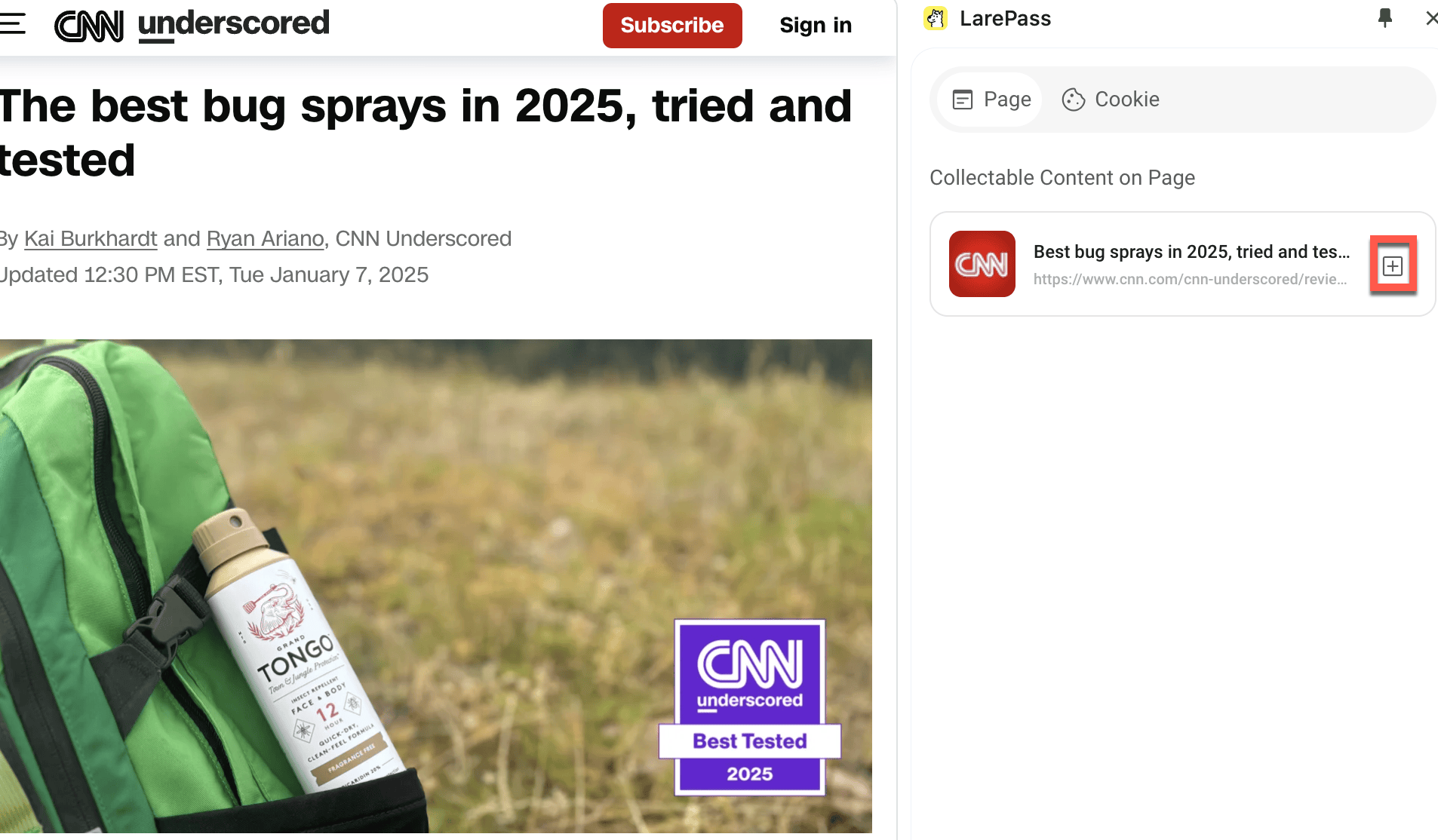
In Collect > Page, click add_box next to the title to add the page to the Wise library.
Once collected, you can find the content in Library > Articles in Wise. Available media depends on the source and the download options you use.
Collect via the LarePass mobile client
You can share web links to the LarePass mobile client for content collection.
INFO
The exact steps may vary depending on your operating system and browser. The following uses Safari as an example.
Tap ios_shareShare in the browser, then either:
- Select the LarePass icon in the sharing options, or
- Tap LarePass in Other Actions
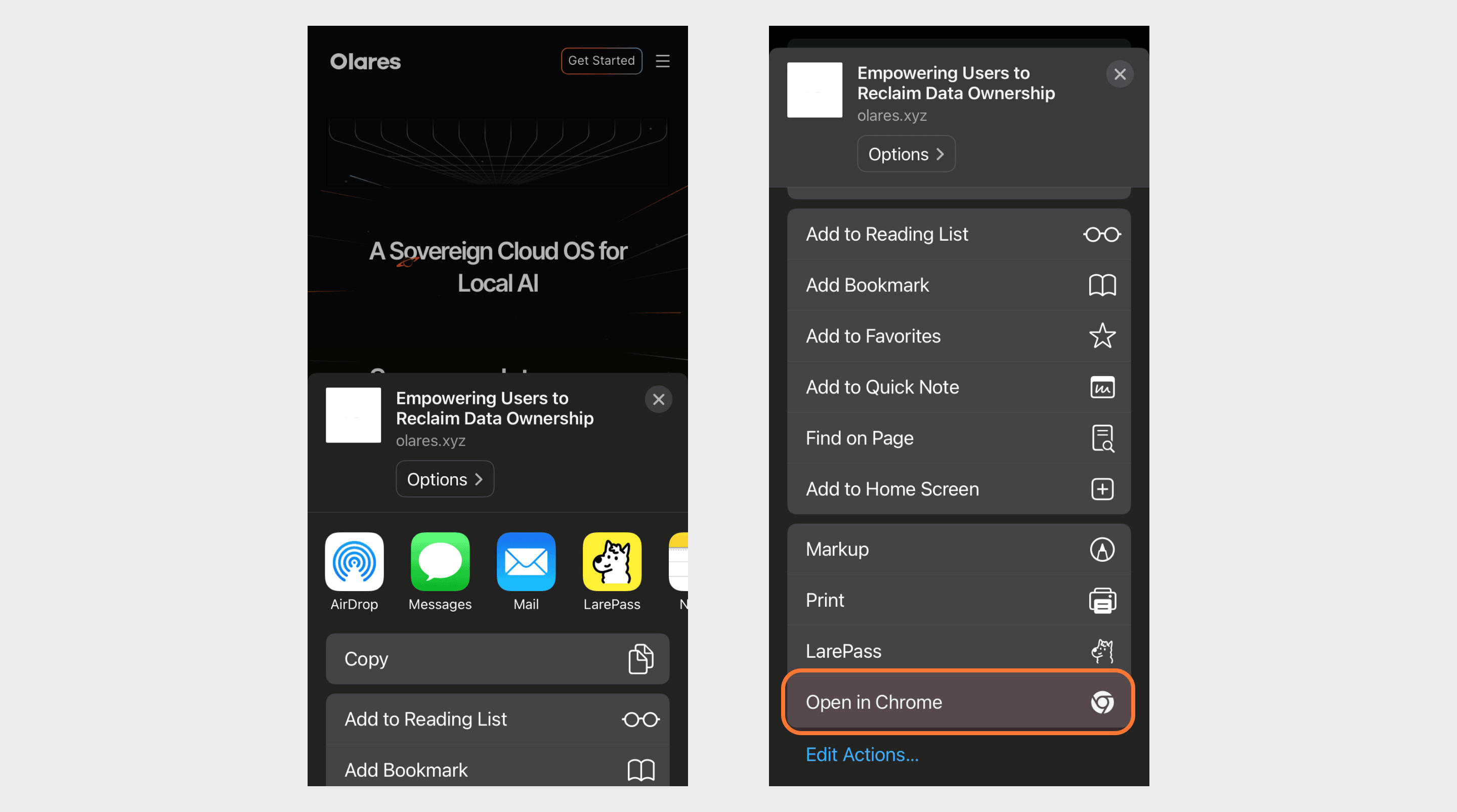
You will be redirected to the LarePass app. LarePass will automatically detect the collectable content on the shared page and prompt whether to add it to Wise.
Tap Confirm to add it to the Wise library.
Copy URL to share
Alternatively, you can copy the URL directly and open LarePass. LarePass will automatically detect the URL in the clipboard and the collectable content as well.
Once added, you can find the content in Library > Articles in Wise.
Upload PDF/E-book content to Wise
You can upload local PDF or EPUB e-books to Wise for centralized knowledge management. This allows you to keep your reading materials, notes, and related content in one place, making it easier to organize, search, and reference them whenever needed.
- Open Wise, click add_circle in the menu bar, and select Upload.
- Navigate to the directory that contains the file you wish to upload, select the file, and click Confirm.
View your PDFs under Library > PDFs and EPUBs under Library > Books.
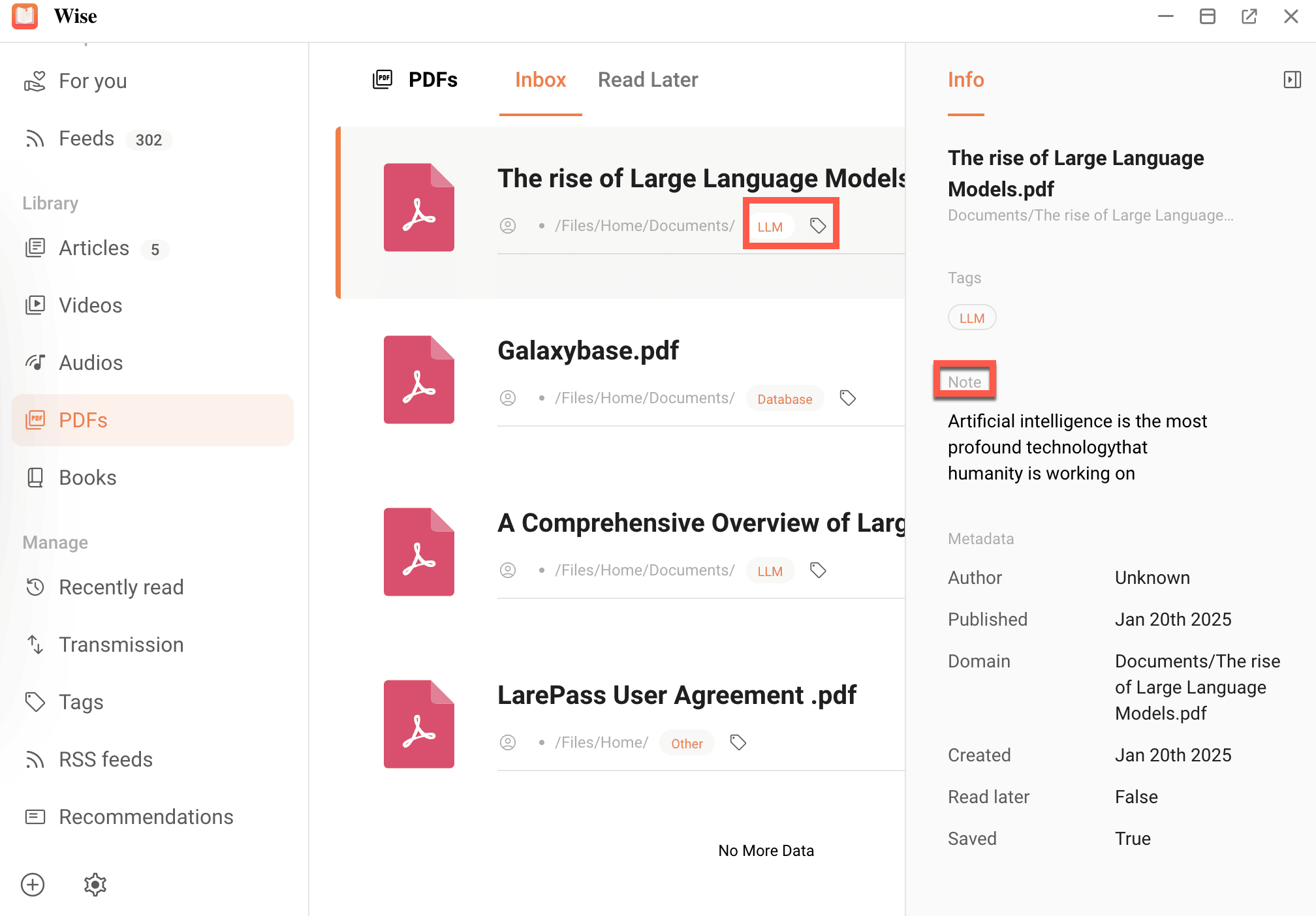
TIP
You can organize content with tags and record your thoughts in notes. For details, see Get started with Wise.
Subscribe to RSS feeds
You can subscribe to podcasts, blogs, and other supported feeds in Wise. New entries appear in your feed list. To download multimedia attachments automatically, enable that option in Wise's RSS settings or for an individual feed.
Subscribe via the LarePass extension
To subscribe an RSS feed using the LarePass extension:
Open the RSS page you want to subscribe to, for example, the "Paranormal Mysteries" podcast:
https://www.spreaker.com/podcast/paranormal-mysteries--2321086.Open the LarePass extension. It will automatically detect the RSS source on the page and show the RSS tab.
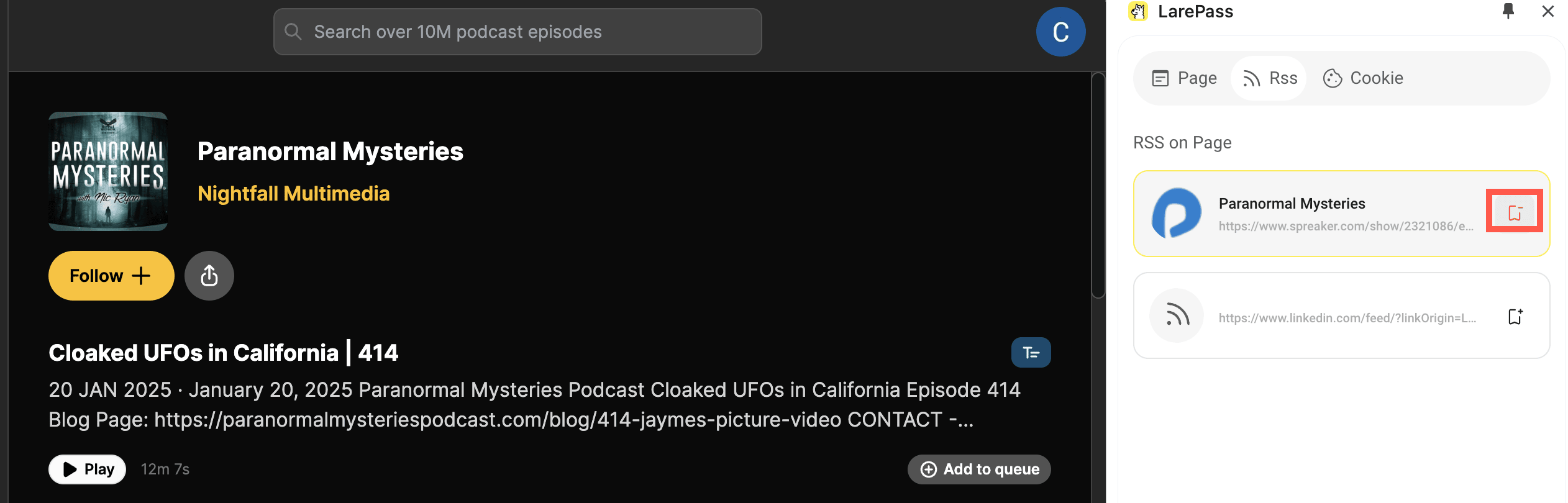
In the RSS tab, find the correct subscription source and click bookmark_add to subscribe.
Manually add an RSS source
To manually add an RSS source to Wise:
Copy the RSS subscription link, such as https://hnrss.org/frontpage, an RSS feed for HackerNews frontliners.
In Wise, click add_circle in the menu bar, and select RSS feed.
Paste the URL. Wise will automatically detect the available RSS source.
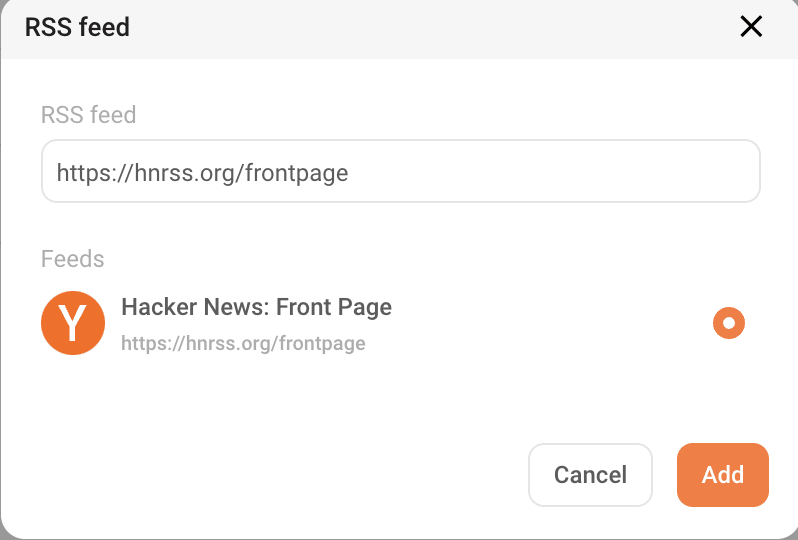
Click Add to subscribe.
Follow a video playlist
If a video platform exposes a feed for a playlist, you can subscribe to it through LarePass and read its entries in Wise. Here's a YouTube example:
Log into your YouTube account.
In LarePass extension, go to Collect > Cookie, and click Upload to upload the cookies to Olares. Olares needs the cookies of the site to access your subscription and download videos.
Enable Auto-Sync
Cookie data may expire. It is recommended that you enable the Auto-Sync feature in the Cookies page to ensure your cookies are updated automatically each time you visit the site.
Under the video you want to watch, click more_horiz, select Save, and then click Create New Playlist. For example,
Save to Wise.Enter your playlist. The LarePass extension will automatically detect the available RSS feeds and show the RSS tab.
In the RSS tab, select the RSS feed with a link starting with
https://www.youtube.com/feeds/...and click bookmark_add to subscribe.
New entries from the playlist can appear in Wise. To download supported media, check the feed's auto-download setting and the status in Download list.
Follow a specific channel
You can use LarePass to find a channel's feed and subscribe to it in Wise. Media availability depends on the feed and the download service.
Access your RSS content
To access your RSS content in Wise:
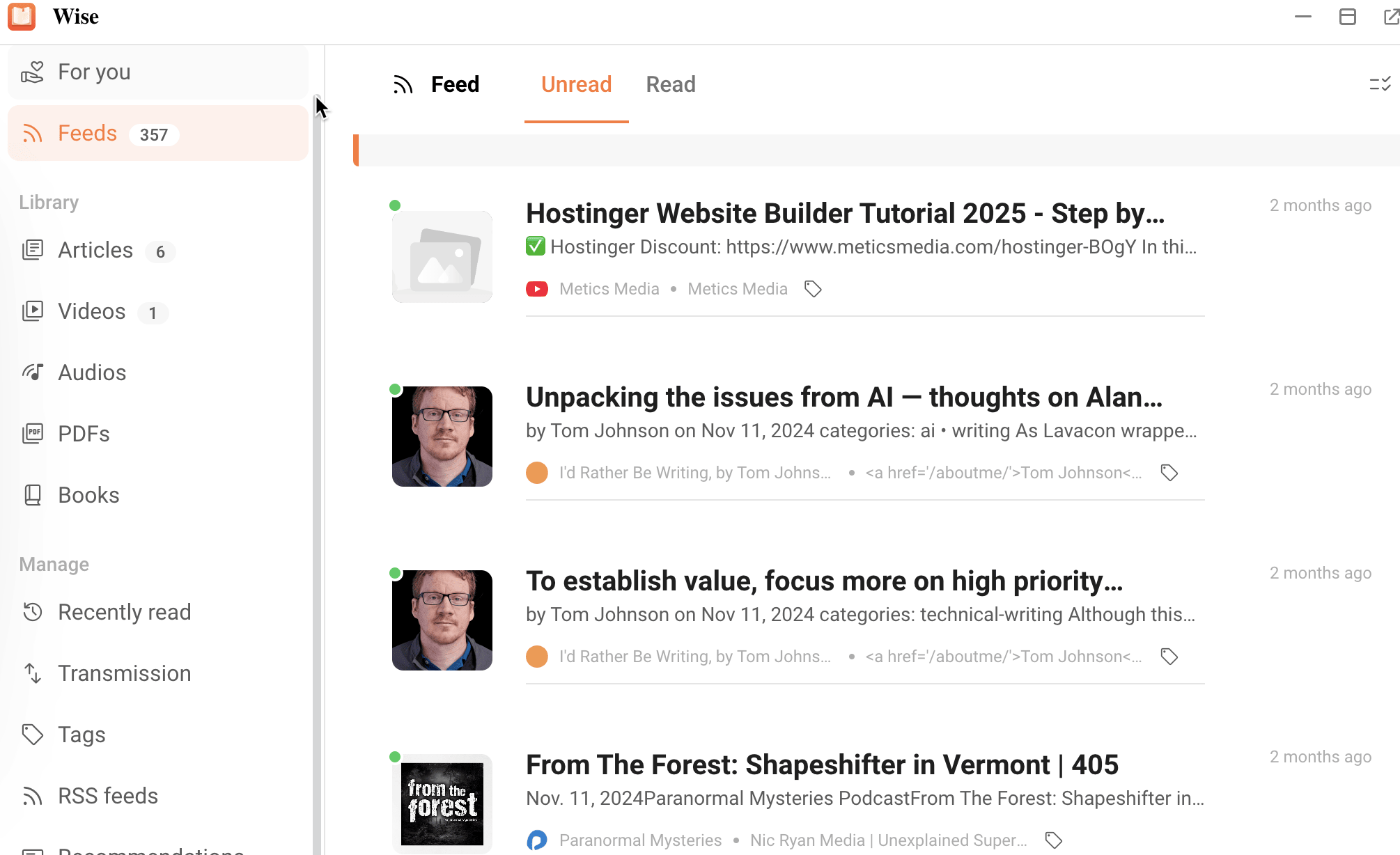
- From the left-hand menu bar, navigate to Subscriptions > Feeds.
- Select an unread RSS item and enter it to watch the video, listen to the podcast, or simply read the article.
Search through collected content
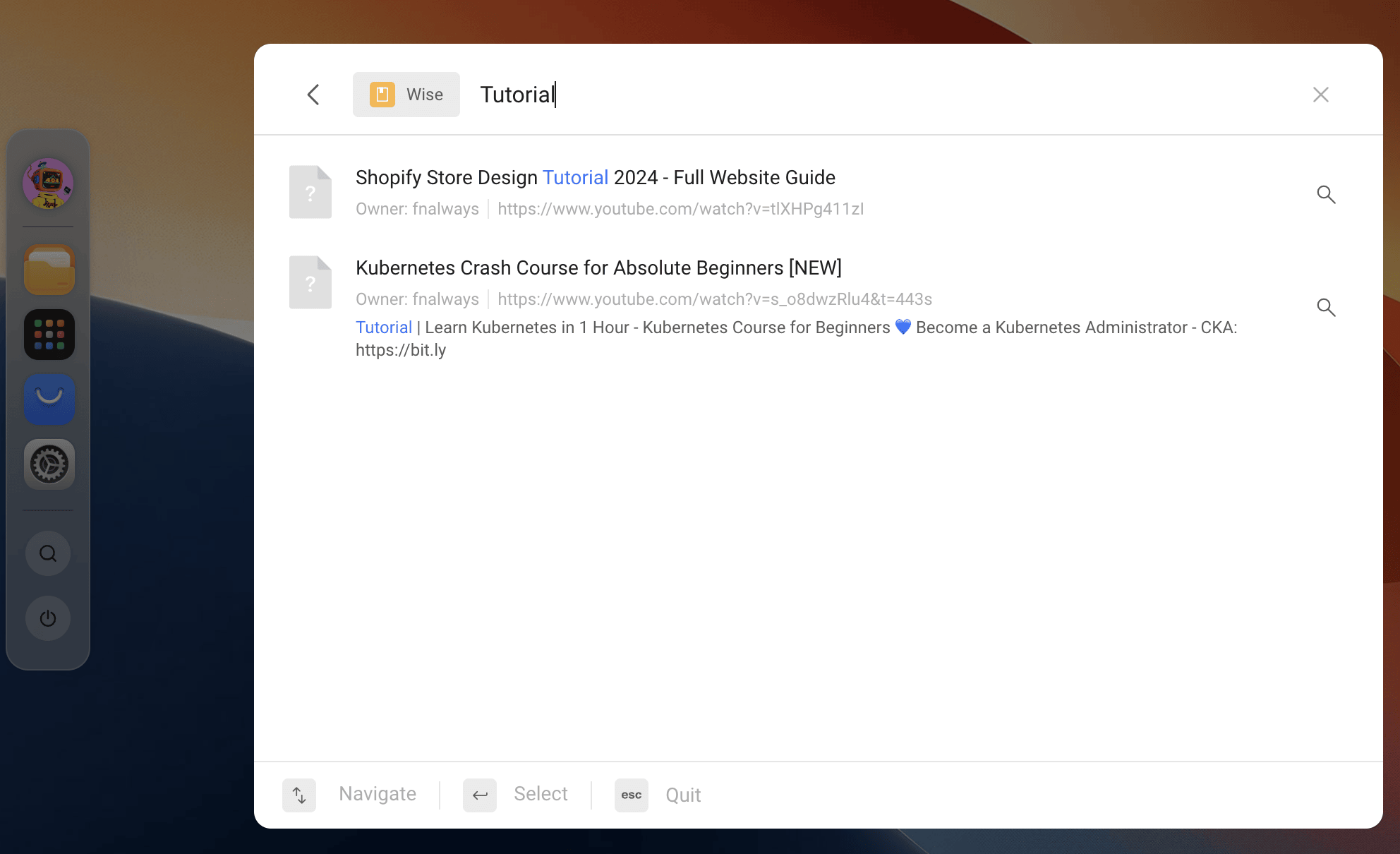
Once you've collected your content in Wise, you can search for particular content themes or entries using aggregated search in Olares.
Supported search formats
Currently, only document-type content (PDF, web articles, and ePUB) is searchable. Other formats will be supported in the future.
- Click searchin the Dock to open the search window.
- Specifies the search scope to Wise, and enter the keywords to search.