Configure VPN access to Olares
The LarePass VPN provides secure remote access to your Olares device, even when you're on a different network or at a remote location. Olares' Settings app lets you enforce VPN connections, enable SSH access over VPN, and manage ACL ports for services that need VPN access.
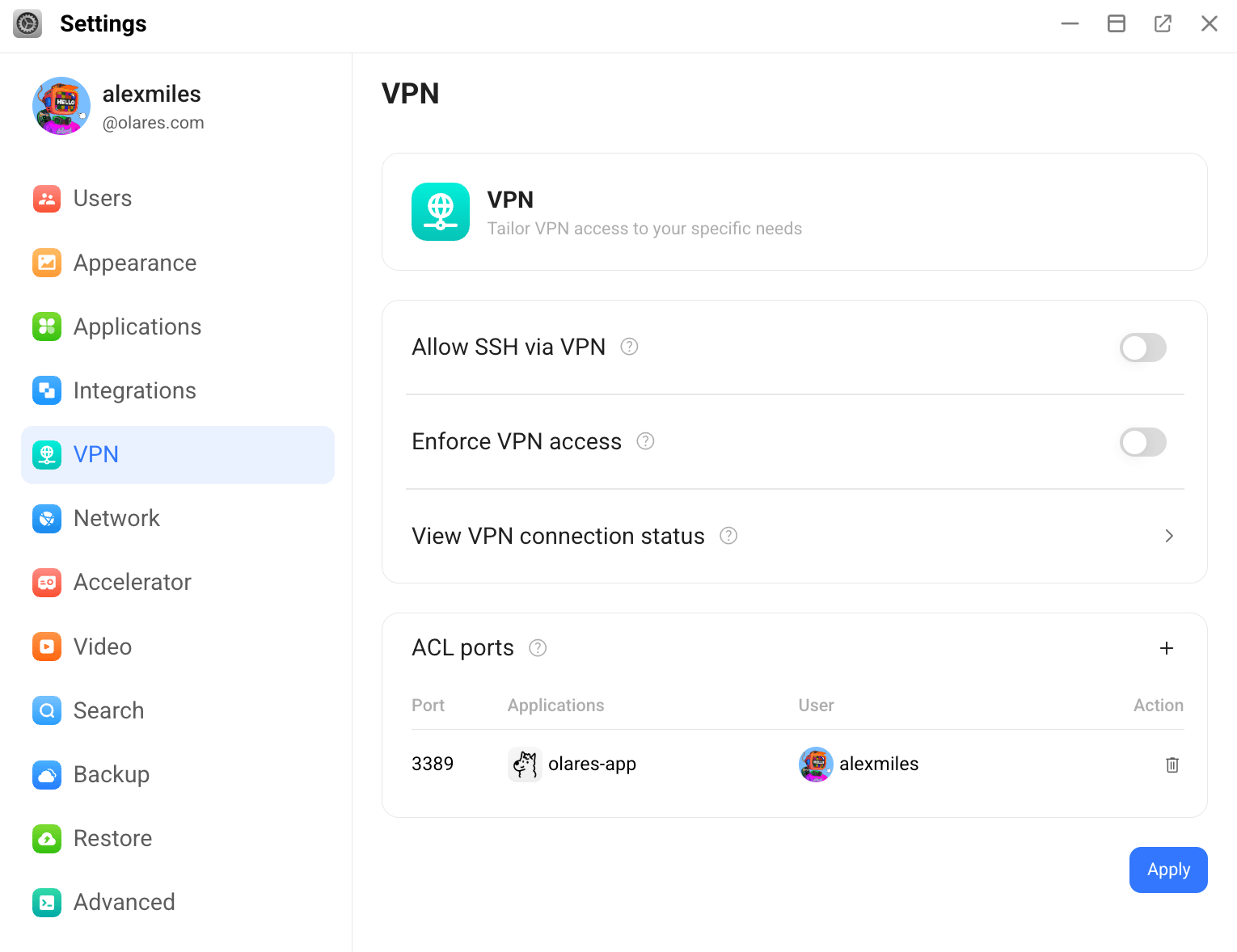
Allow SSH connections via VPN
This enables SSH access to your Olares device through the LarePass VPN, even when you are in a different network or working remotely.
- Open the Settings app, and select System > VPN.
- Toggle on Allow SSH Access via VPN. Port 22 (SSH) is automatically added to the configuration.
Enforce access using VPN
To ensure that all traffic to your private Olares applications is encrypted and routed securely, you can enforce VPN access. This ensures that connections to your Olares always go through the LarePass VPN, regardless of the network or device used. Enabling this mode will block accesses to Olares via reverse proxy.
To enable the enforced VPN mode:
- Enable VPN connections on at least two devices using LarePass (typically a computer and a mobile phone) with LarePass installed. For detailed instructions, see Enable VPN on LarePass.
- In Olares, navigate to Settings > VPN.
- Toggle on Enforce VPN access.
When successful, you'll see a confirmation message at the bottom of the screen.
Configure ACL ports
ACL ports let you allow VPN traffic to specific destination ports based on the services you want to access. Add only the ports required by the service.
For example, to access a Windows server via Remote Desktop:
- In ACL ports, click add to open the Add port dialog.
- Enter
3389, the default RDP port, and click Add. - Click Apply to apply changes.
Now you can use Windows Remote Desktop to access the Windows server in the same LAN as Olares.